

Linux Mint 22.3 “Zena” is one of the most polished desktop Linux distributions available. Built on Ubuntu 24.04 LTS, it ships with the Cinnamon 6.6 desktop environment, kernel 6.14, and a set of defaults that make sense out of the box. If you’re coming from Windows or upgrading from an older Mint release, the installation takes about 15 minutes and the learning curve is gentle.
This guide walks through every screen of the installer with real screenshots captured on a Proxmox VM using UEFI boot. Mint’s installer is straightforward, but a few decisions (disk partitioning, codecs, user account) are worth understanding before you click through them. If you’re weighing your options, the Ubuntu vs Linux Mint comparison covers the key differences between the two.
Tested March 2026 | Linux Mint 22.3 “Zena” Cinnamon Edition, kernel 6.14, UEFI boot
What You Need
Gather these before starting:
- A USB drive (4 GB or larger) flashed with the Linux Mint 22.3 ISO using balenaEtcher, Ventoy, or
dd - At least 2 GB of RAM (4 GB recommended for a smooth Cinnamon experience)
- 20 GB of free disk space (50 GB or more is practical for daily use)
- A UEFI-capable system (legacy BIOS works too, but UEFI is the modern default)
- Internet connection (optional, but recommended so the installer can fetch multimedia codecs)
Download the ISO from the official Linux Mint website. Pick the Cinnamon edition unless you have specific reasons to choose MATE or Xfce.
Boot from the Installation Media
Plug in the USB drive and boot the machine from it. Most systems require pressing F12, F2, or Del during startup to reach the boot menu. Once the USB loads, you’ll see the GRUB menu with several boot options.
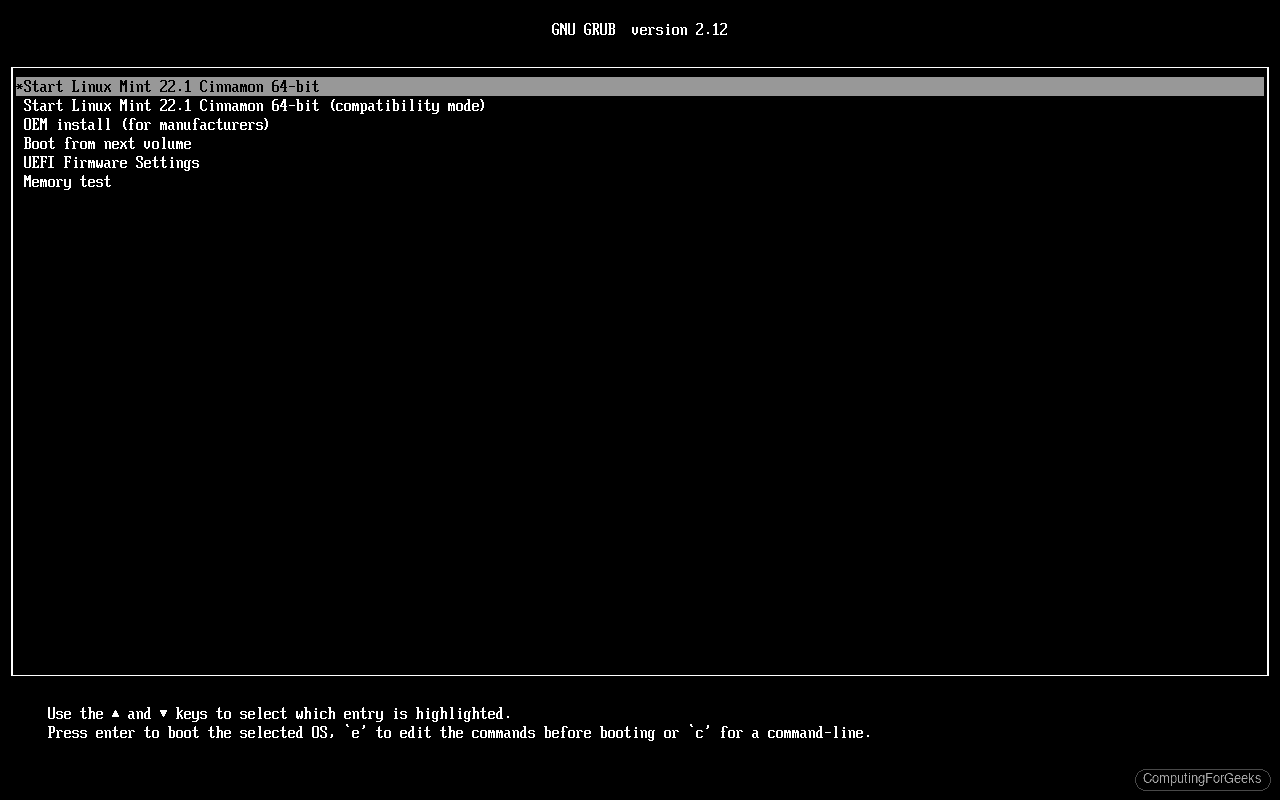
Select Start Linux Mint 22.3 Cinnamon 64-bit and press Enter. The system boots into a fully functional live desktop where you can test hardware compatibility before committing to an installation.
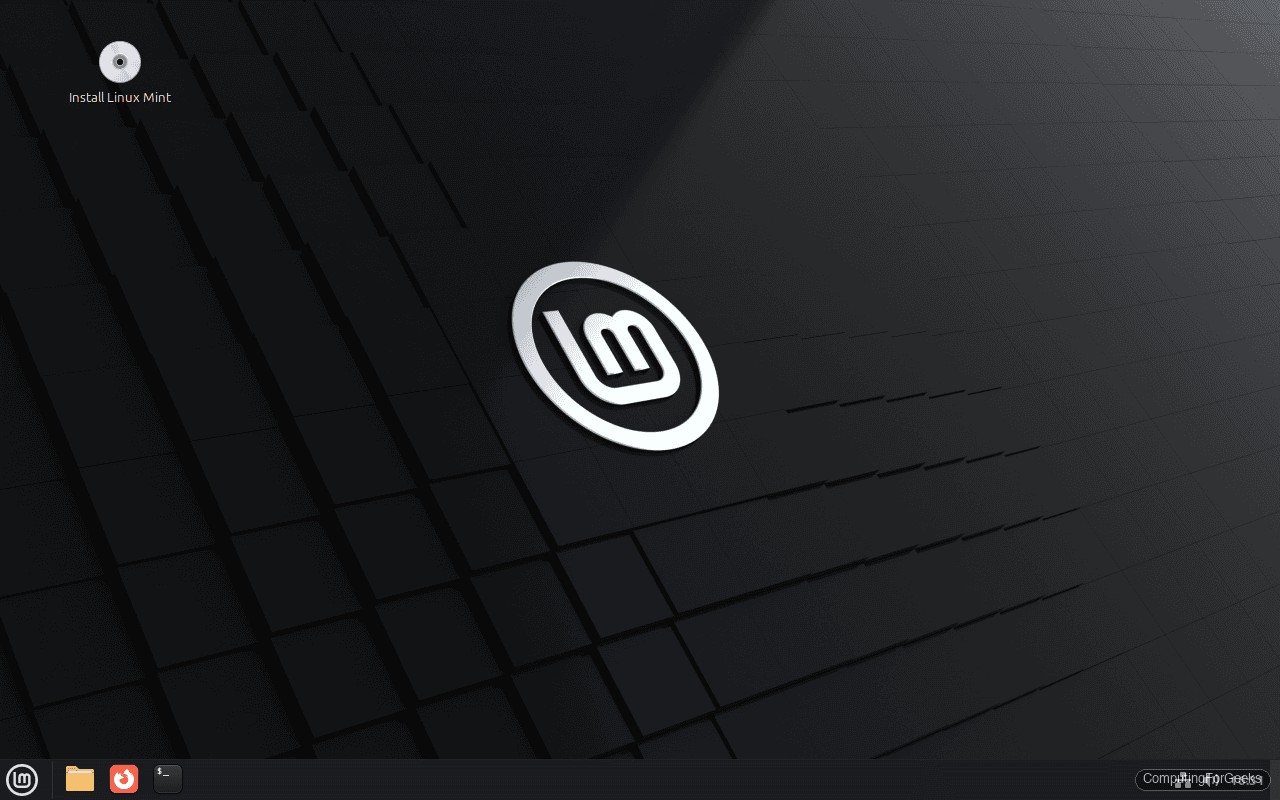
The live desktop includes a network manager, file browser, and terminal. Take a moment to confirm your Wi-Fi works and your display resolution looks correct. When ready, double-click the Install Linux Mint icon on the desktop.
Select the Language
The installer opens with a language selection screen. This sets both the installation language and the system locale after installation. Pick your preferred language and click Continue.
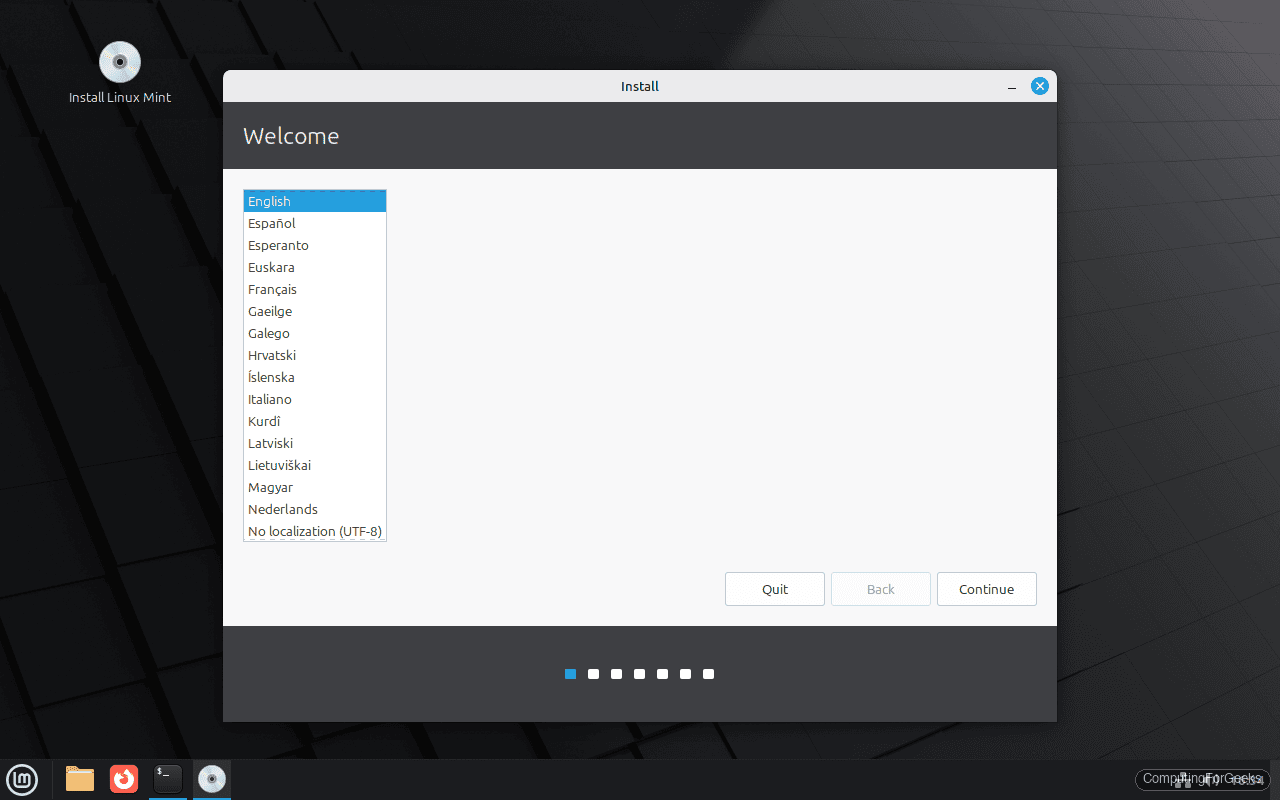
You can change the system language later from System Settings if needed, but getting it right here saves time.
Choose the Keyboard Layout
The installer auto-detects the keyboard layout based on your language choice. Verify it matches your physical keyboard. Use the text field at the bottom to type a few characters and confirm special keys work correctly.
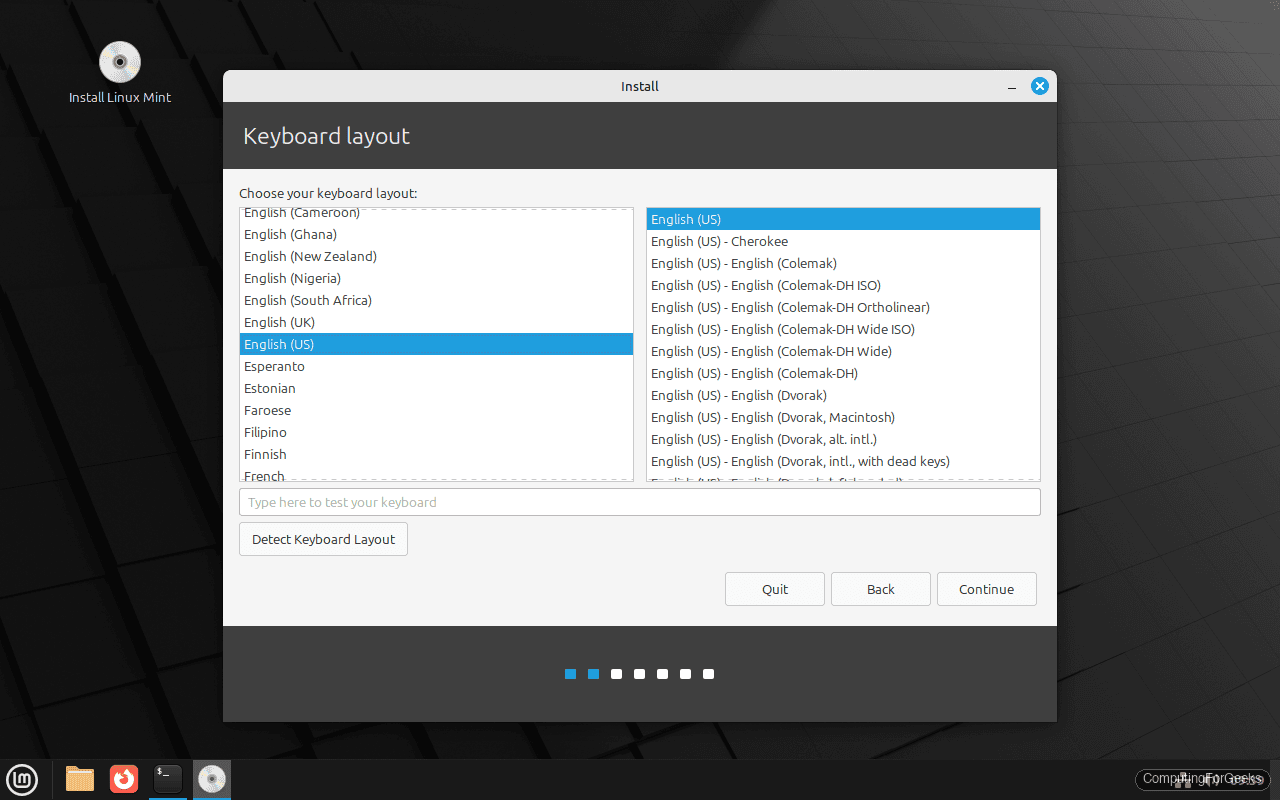
Click Continue once the layout is correct.
Install Multimedia Codecs
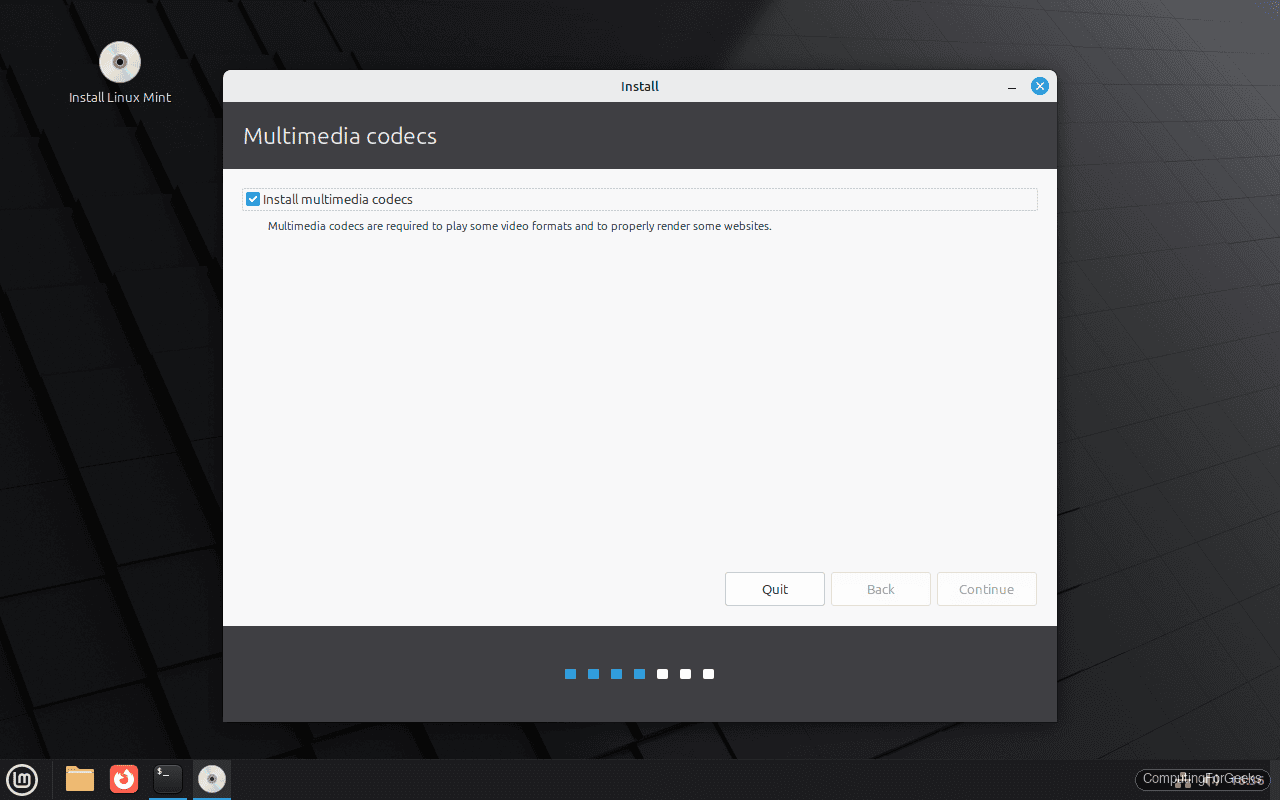
Mint offers to install restricted multimedia codecs (MP3, MPEG-4, H.264, and others) during the installation. These are not included by default because of licensing restrictions in some countries.
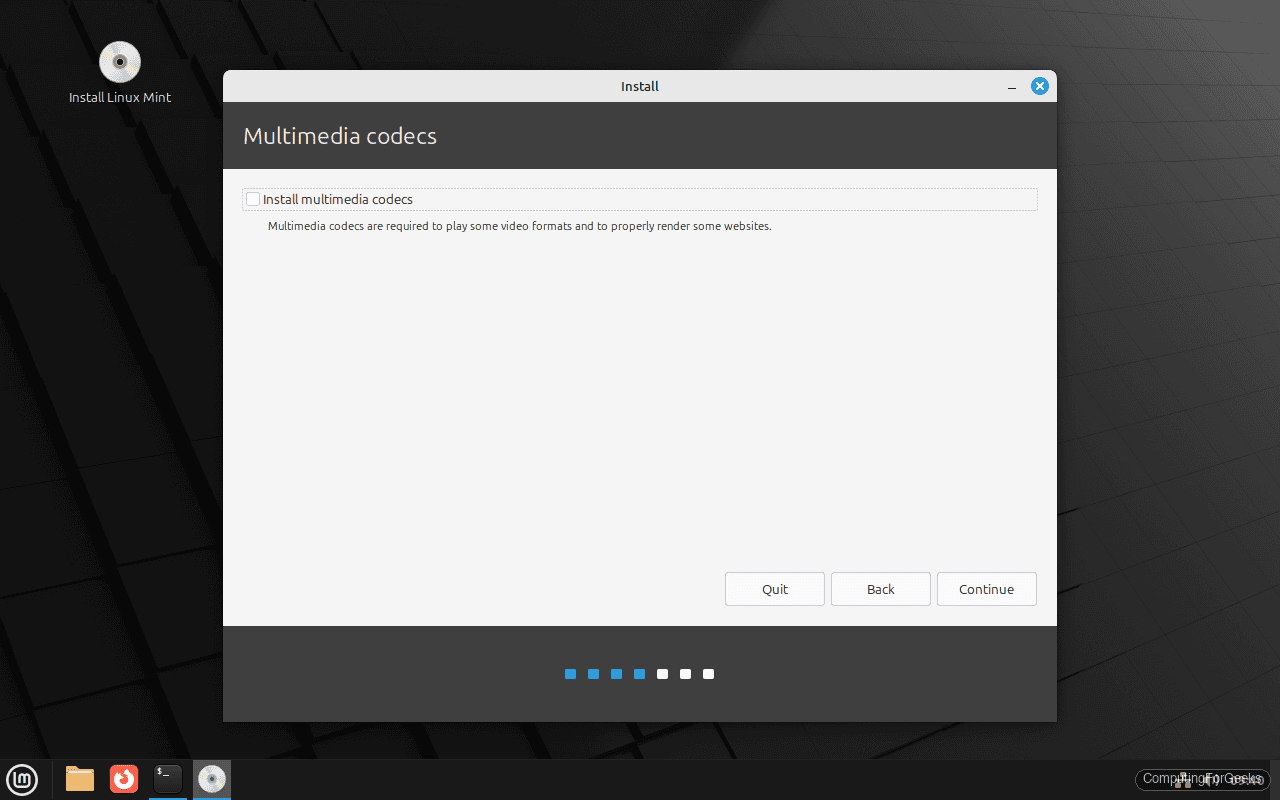
Check the box to install them. Without codecs, you won’t be able to play most video and audio files out of the box. This requires an internet connection during installation.
Choose the Installation Type
This is the most important decision in the entire installation. The installer presents several options for handling disk partitioning.
The options you’ll see:
- Erase disk and install Linux Mint – Wipes the entire disk and creates partitions automatically. Best for dedicated Linux machines or VMs. This is what we’re using here
- Something else – Manual partitioning. Use this if you need a custom layout (separate /home, specific filesystem types) or want to dual-boot alongside Windows
For a clean install on a dedicated disk, Erase disk and install Linux Mint is the simplest path. If you have data on the disk you need to keep, back it up first because this option destroys everything on the selected drive. Click Install Now.
Confirm Disk Changes
A confirmation dialog shows the partition table the installer will create. On a UEFI system, you’ll see an EFI System Partition (ESP) and a root partition formatted as ext4.
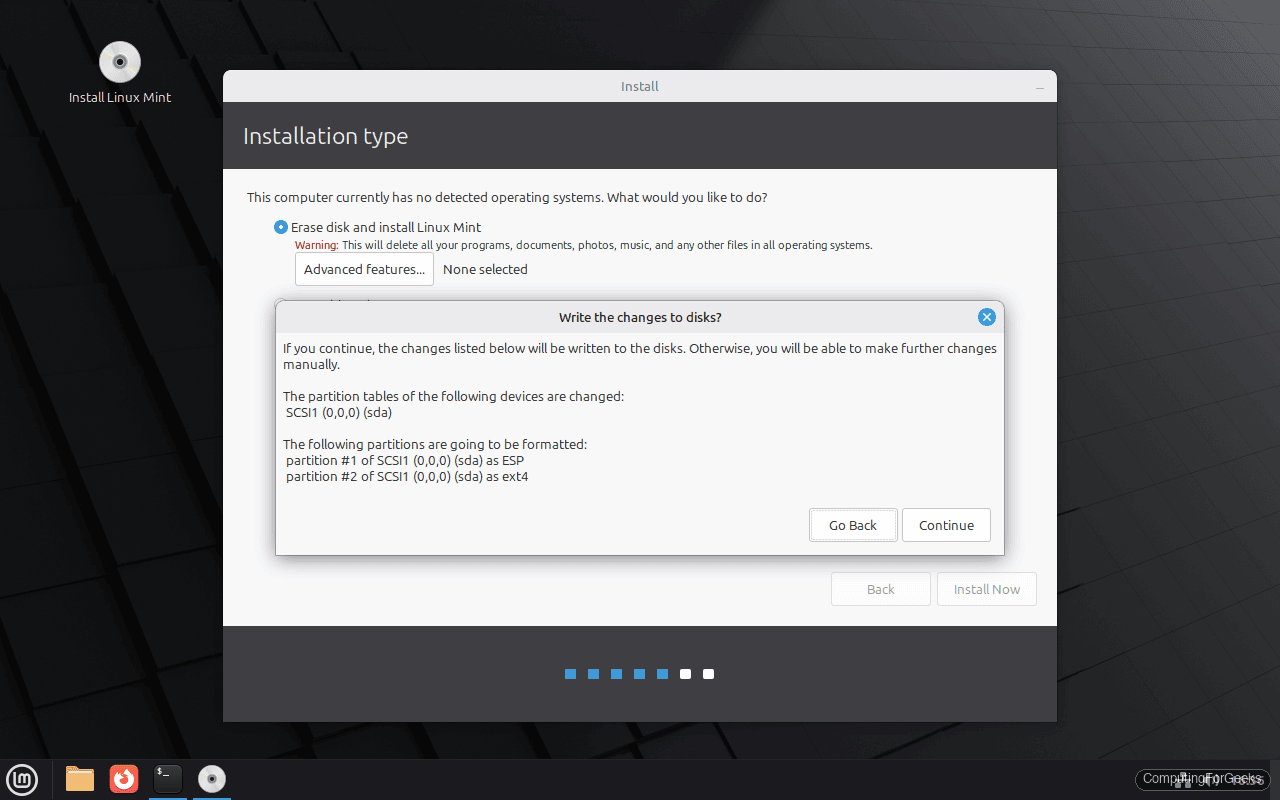
Review the listed changes carefully. Once you click Continue, the partition table is written and existing data on that disk is gone. This is your last chance to go back.
Select Your Timezone
Click your location on the world map, or type your city name in the text field. The installer uses this to set the system clock and regional date/time formats.
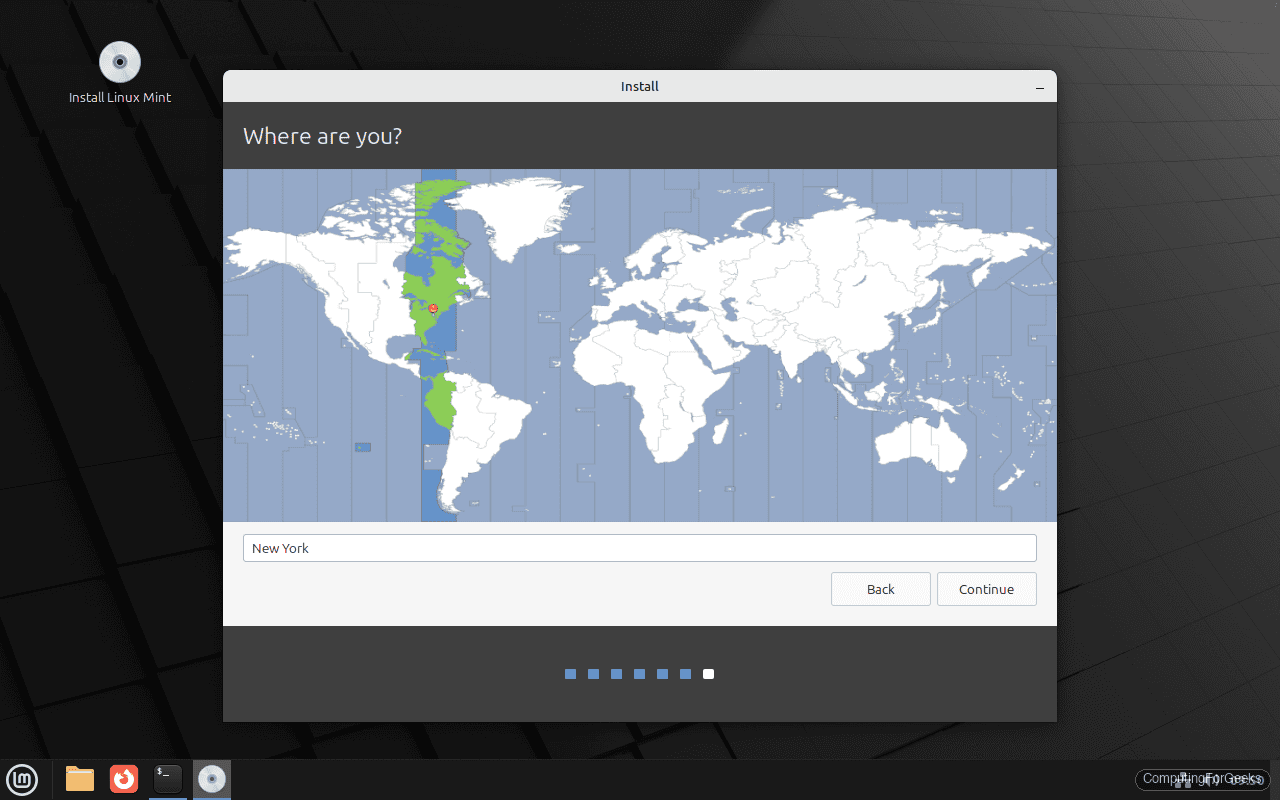
Click Continue after verifying the timezone is correct.
Create Your User Account
Fill in your name, a computer hostname, your login username, and a password. The hostname identifies the machine on your local network, so pick something descriptive (e.g., “mint-desktop” or “joes-laptop”).
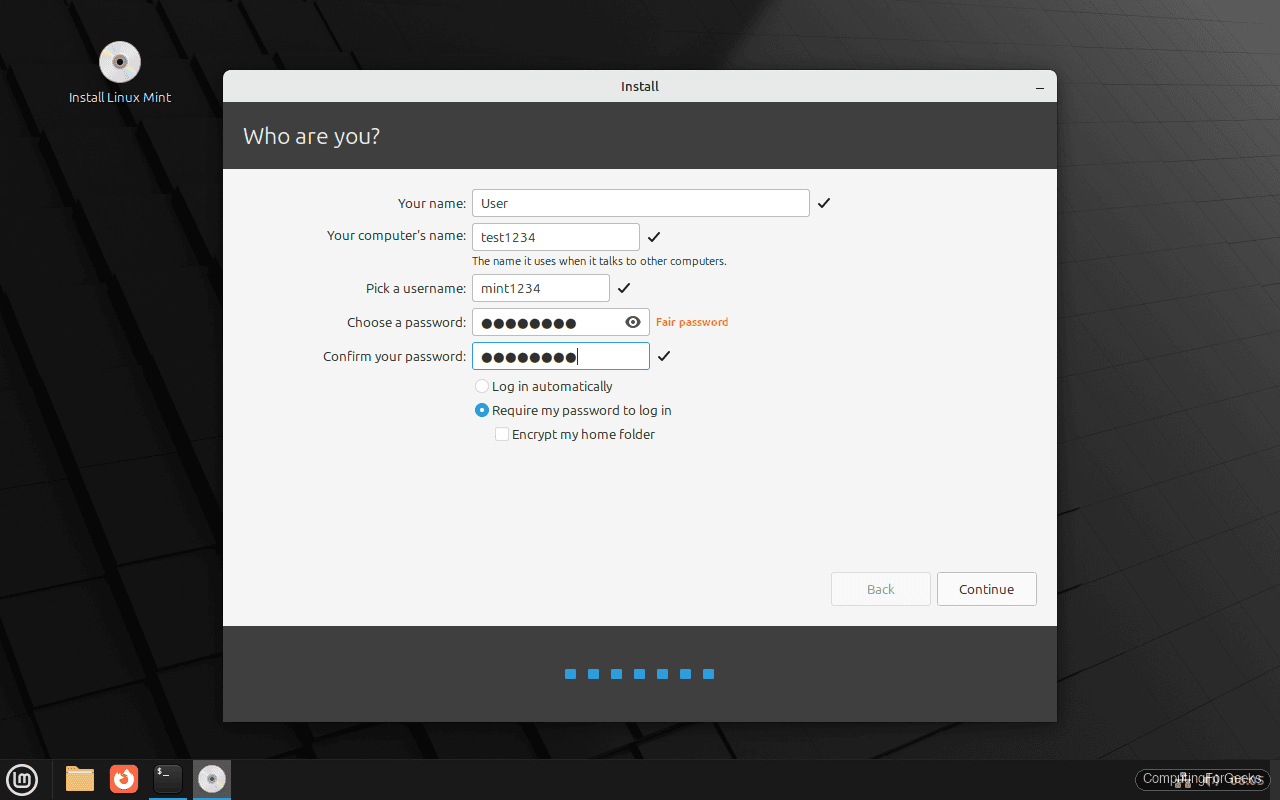
The “Log in automatically” option skips the login screen at boot. Convenient for home desktops, but leave it unchecked if the machine is shared or portable. Choose a strong password, especially on laptops.
Wait for the Installation
The installer copies files to disk, installs the bootloader, and configures the system. A slideshow highlights features of Linux Mint while you wait. On modern hardware with an SSD, this typically finishes in under 10 minutes.
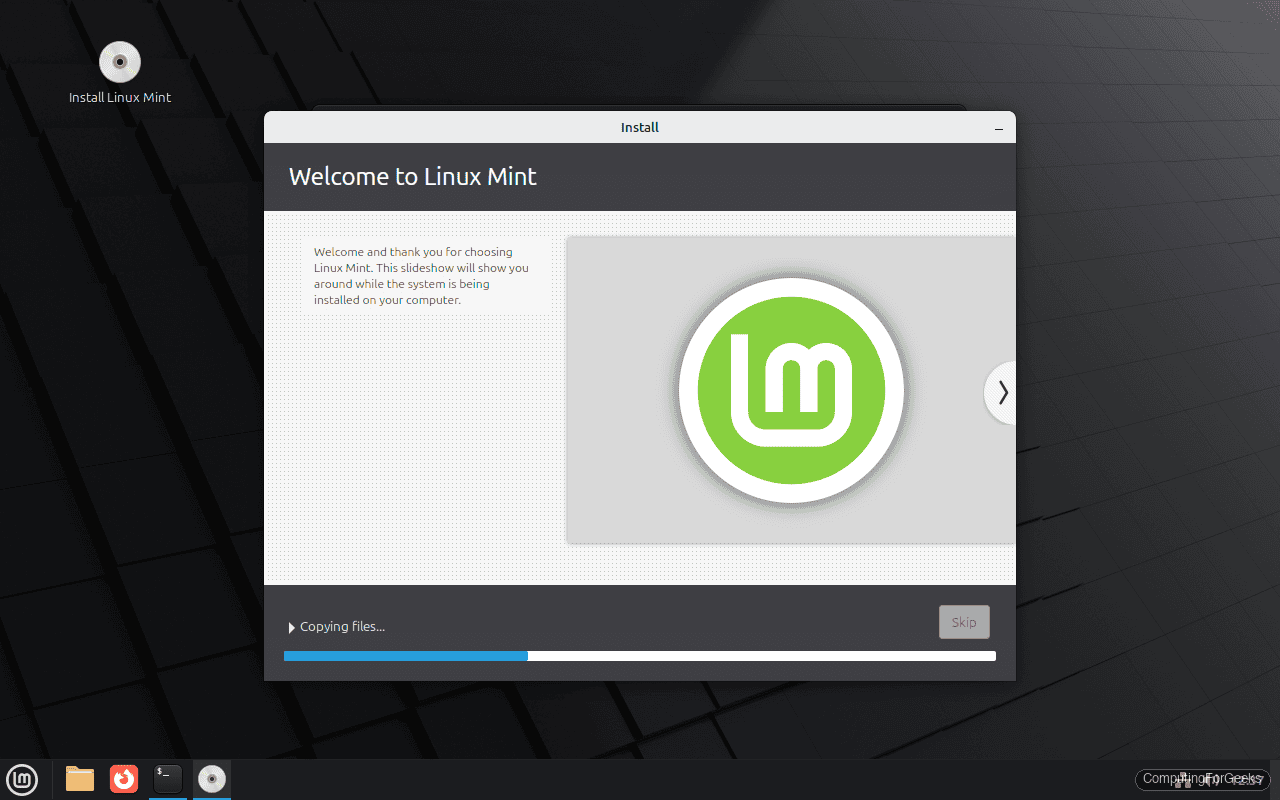
Don’t interrupt the process or remove the USB drive during installation.
Installation Complete
When the installation finishes, a dialog gives you two choices: Continue Testing to stay in the live session, or Restart Now to boot into your new system.
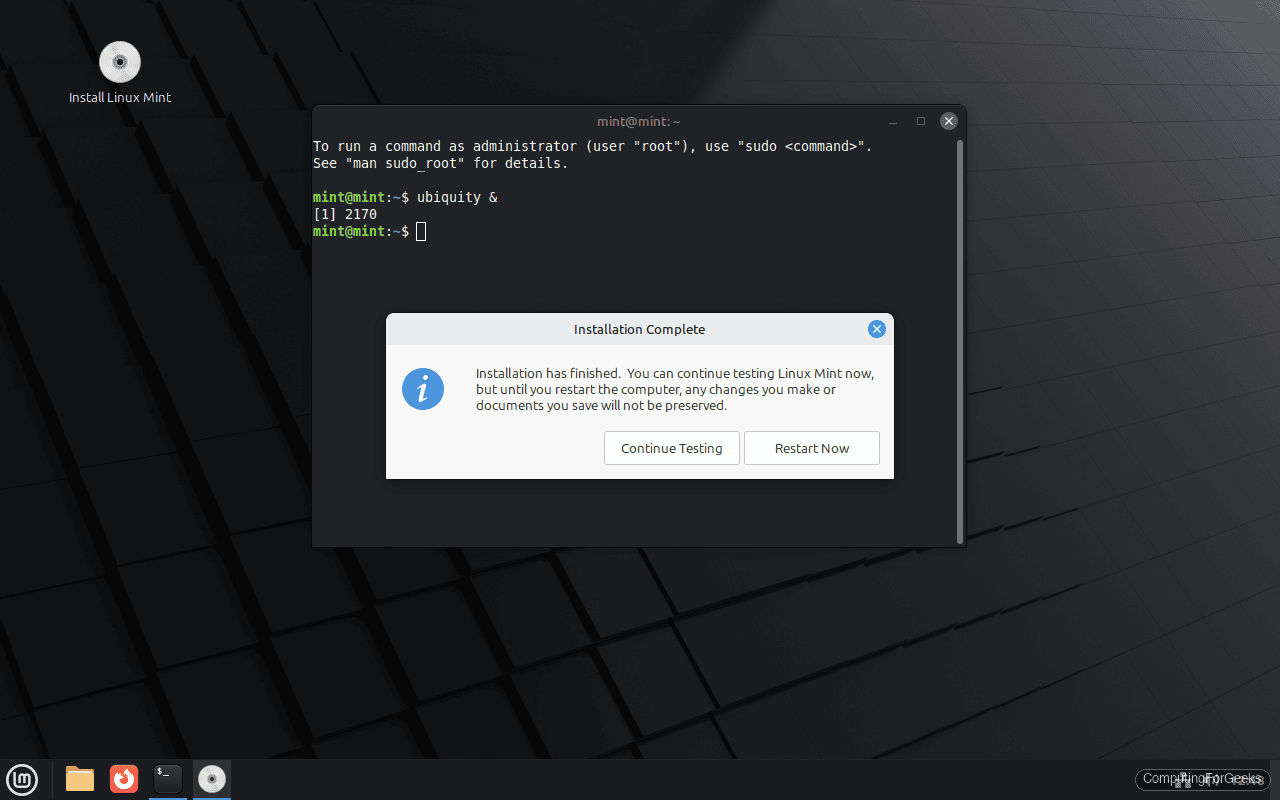
Click Restart Now. When prompted, remove the USB drive and press Enter. The system reboots into the freshly installed Linux Mint.
First Boot and Login
After the reboot, you’ll land on the Linux Mint login screen. Enter the password you set during installation.
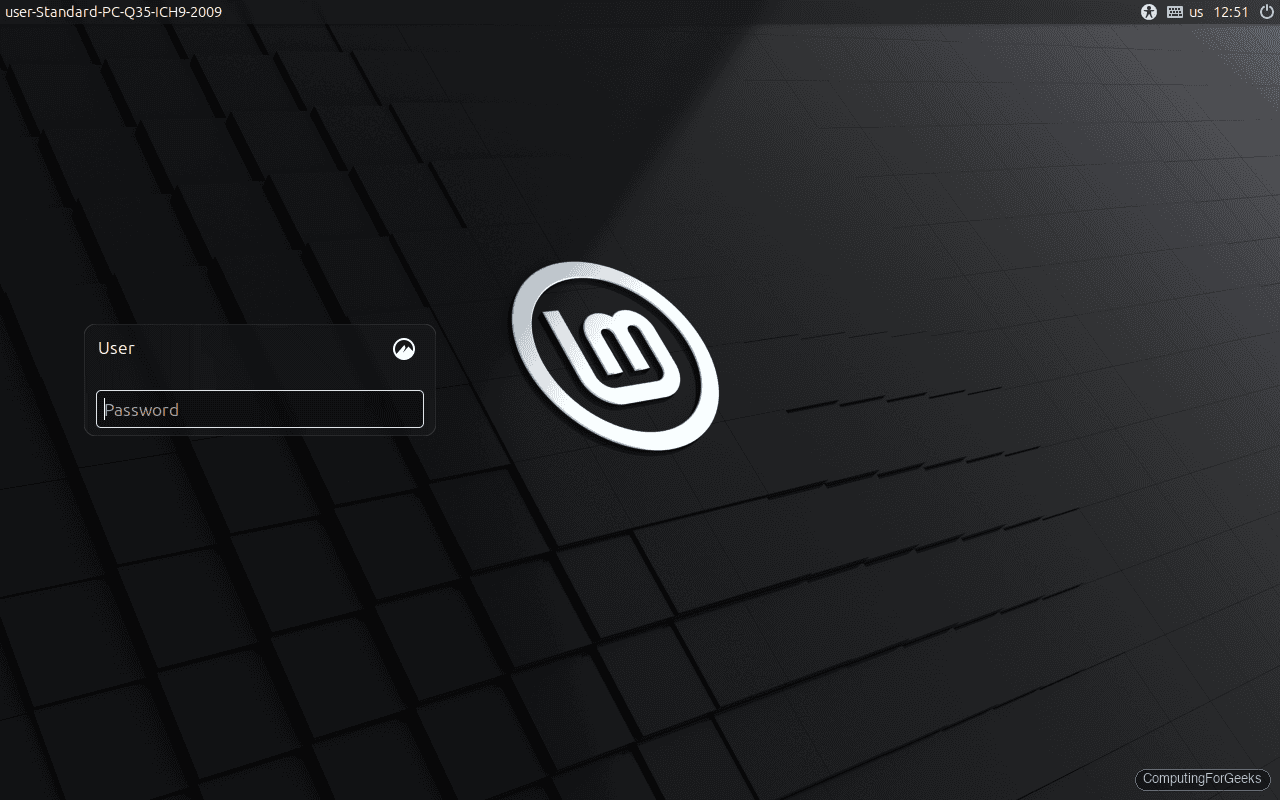
Once logged in, the Welcome screen appears with shortcuts to common first tasks: system snapshots, driver installation, system updates, and a link to the community forums.
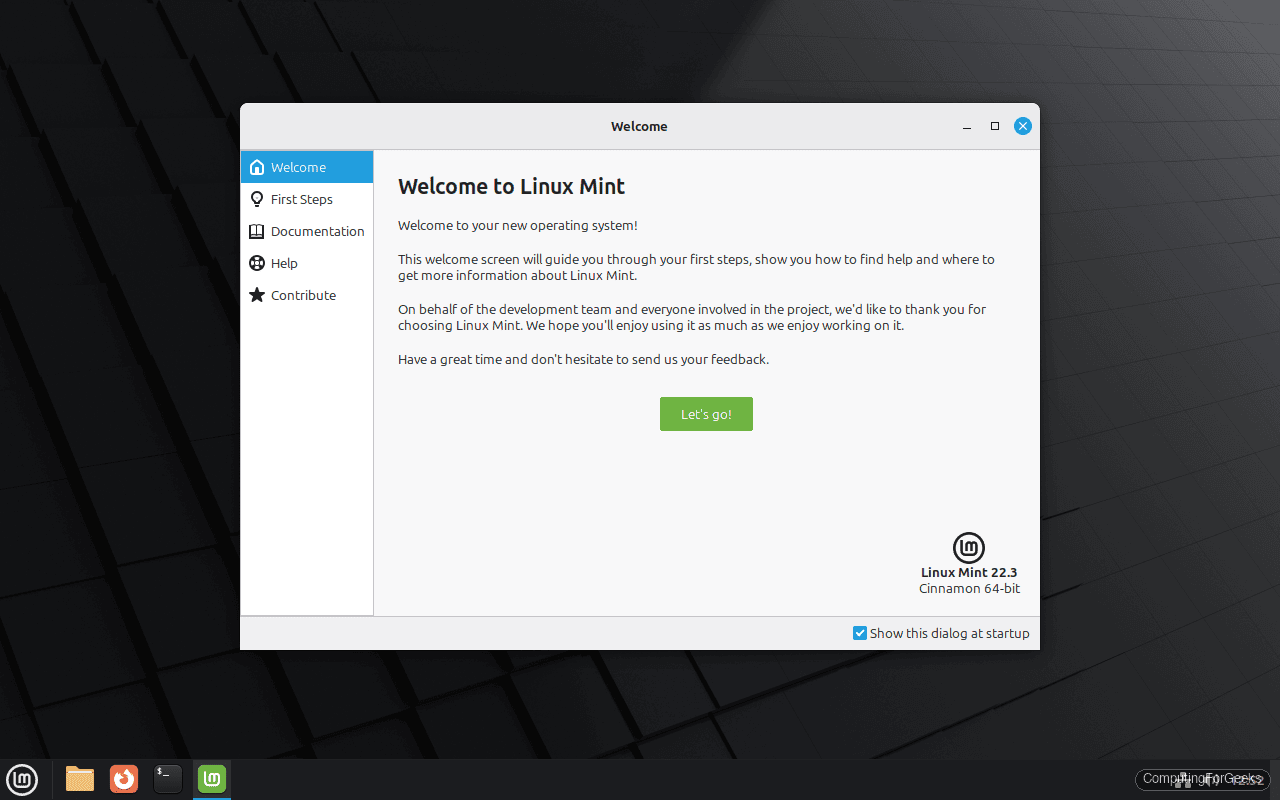
Keep this window open for now. The First Steps section links to several things we’ll cover next.
Post-Install: Things to Do After Installing Linux Mint 22.3
A fresh install is functional, but a few configuration steps will make it production-ready for daily use.
Update the System
Security patches and bug fixes accumulate between the ISO release date and the day you install. The Update Manager guides you through the process, starting with a welcome screen that explains how updates work in Mint.
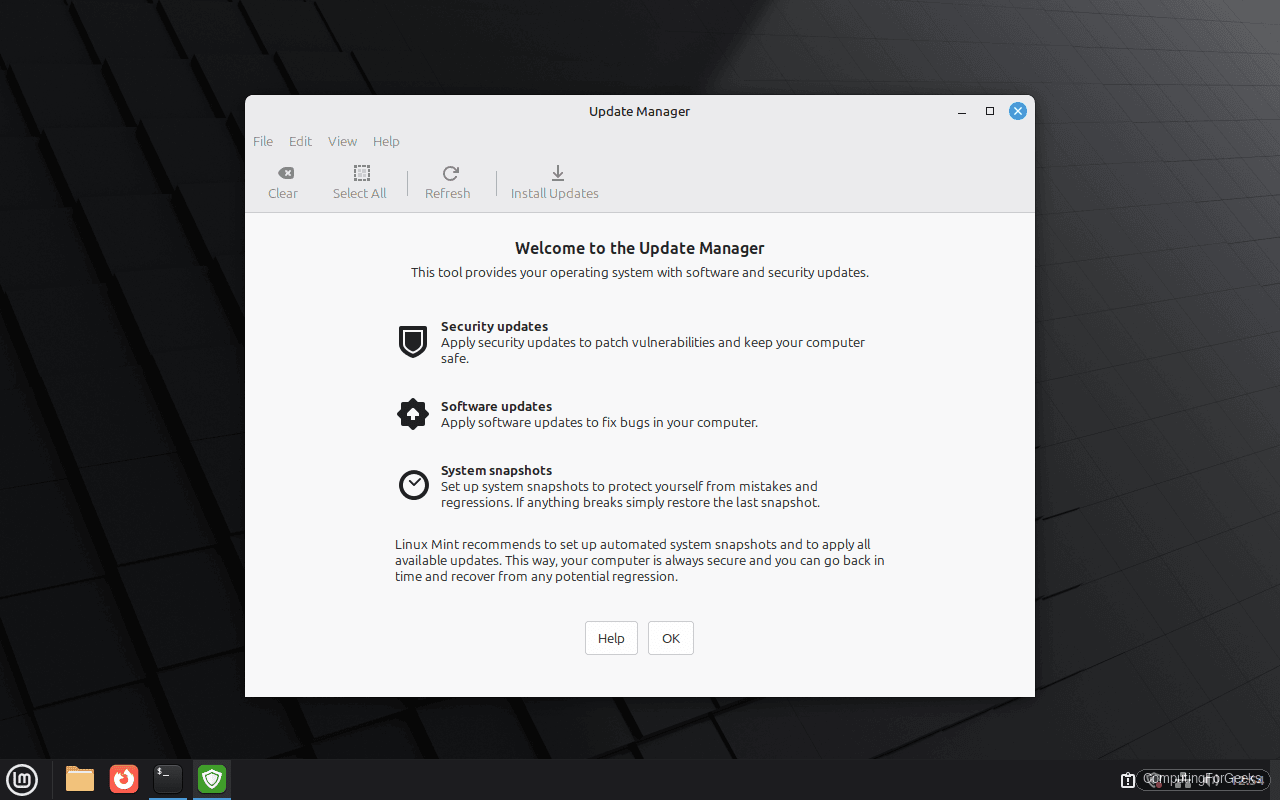
You can also run updates from the terminal, which is faster if you prefer the command line:
sudo apt update
sudo apt upgrade -y
On a fresh install, expect anywhere from 100 to 300 packages to update depending on how old the ISO is. Reboot after a kernel update to load the new kernel.
Enable the Firewall
Linux Mint ships with ufw (Uncomplicated Firewall) pre-installed, but it is not enabled by default. On a laptop that connects to public Wi-Fi, turning it on is a no-brainer.
sudo ufw enableConfirm it’s active:
sudo ufw statusThe output should show Status: active with no rules defined. The default policy blocks all incoming connections and allows outgoing, which is a sensible baseline for desktops. If you later need to allow SSH or a web server, add rules with sudo ufw allow ssh or sudo ufw allow 80/tcp.
Set Up System Snapshots
Timeshift is pre-installed in Linux Mint and accessible from the Welcome screen under First Steps. It creates filesystem snapshots that let you roll back to a previous state if a system update or configuration change breaks something.
Open Timeshift, select RSYNC as the snapshot type (works on all setups), choose a snapshot location, and create your first snapshot. Schedule automatic daily or weekly snapshots so you always have a recovery point. This is the single most useful safety net on a desktop Linux system.
Install Additional Software
The Cinnamon desktop includes a full application menu in the bottom-left corner. From here you can launch the Software Manager, file browser, terminal, and all installed applications.
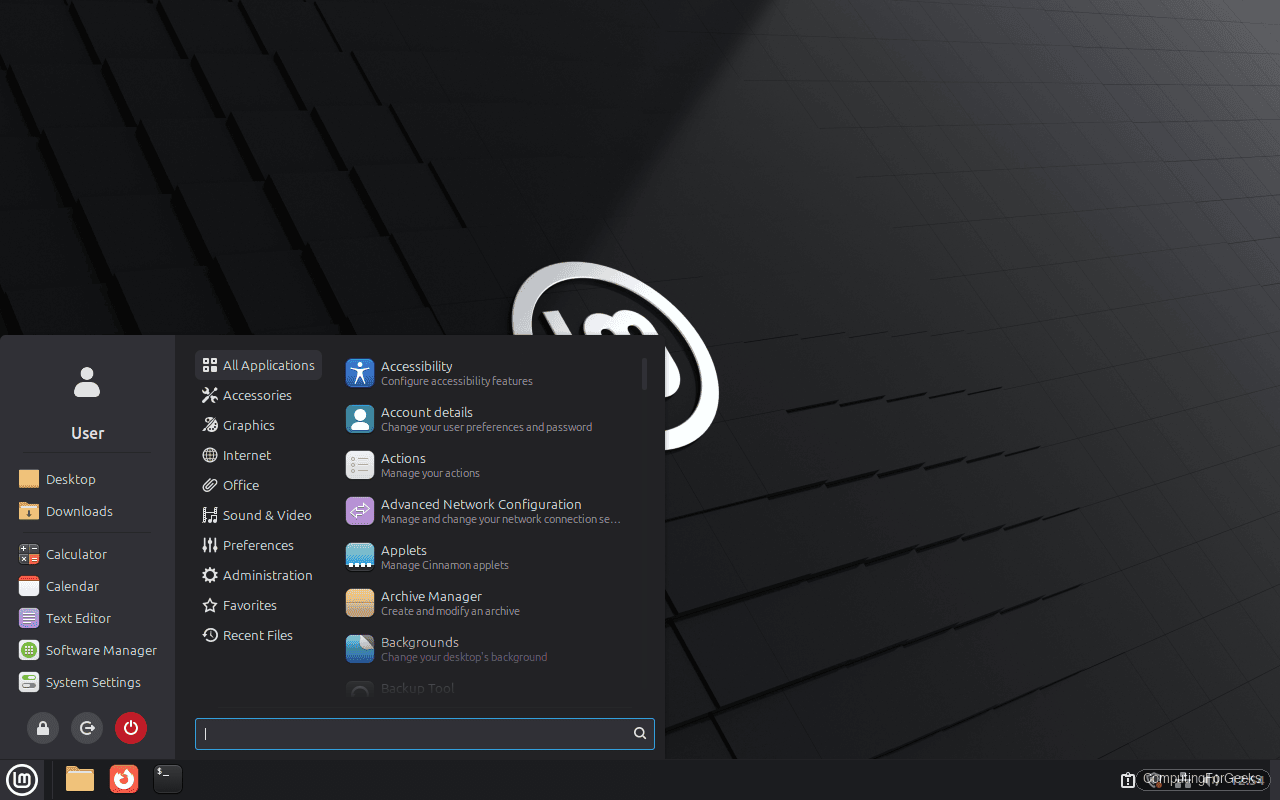
The Software Manager is a graphical app store with ratings and reviews. For CLI installs, apt handles everything in the Ubuntu/Mint repositories. Install a few common desktop applications:
sudo apt install -y vlc gimp libreofficeFlatpak comes pre-configured in Mint with the Flathub repository enabled, giving you access to thousands of additional applications that may not be in the default repositories. You can also install Chromium on Linux Mint if you prefer it over Firefox.
Install Proprietary Drivers
If your system has an NVIDIA or AMD GPU, open Driver Manager from the application menu. It scans your hardware and offers the recommended proprietary drivers. Select the recommended driver version, click Apply Changes, and reboot. This is especially important for NVIDIA cards, where the open-source nouveau driver lacks proper 3D acceleration and power management.
Going Further
With Mint installed and configured, here are some next steps worth exploring:
- Customize the Cinnamon desktop: right-click the panel and desktop to access themes, applets, and desklets. The Linux Mint User Guide covers customization in detail
- Set up Samba file sharing on Linux Mint if you need to share files with Windows machines on your network
- Install a backup solution for your personal files (Timeshift protects system files, but tools like Deja Dup handle user data backups to external drives or cloud storage)
- Try the Cinnamon desktop on Debian if you want the same interface on a server-oriented distribution
- Configure printing: Mint auto-detects most USB printers, but network printers may need manual setup through System Settings > Printers
Frequently Asked Questions
Can I dual-boot Linux Mint with Windows?
Yes. At the “Installation Type” step, select Something else instead of “Erase disk.” This opens a manual partition editor where you can create a Linux partition alongside your existing Windows installation. Shrink the Windows NTFS partition first (either from Windows Disk Management or from the installer) to make room. The installer will add Linux Mint to the GRUB bootloader, giving you a menu at startup to choose which OS to boot. Back up your Windows data before resizing partitions.
What is the difference between Cinnamon, MATE, and Xfce editions?
Cinnamon is the flagship desktop environment, built by the Linux Mint team. It offers a modern, full-featured interface with animations, a powerful settings panel, and HiDPI support. MATE is a continuation of the classic GNOME 2 desktop, lighter on resources while still providing a traditional desktop experience. Xfce is the lightest option, best suited for older hardware or machines with limited RAM. All three editions receive the same underlying system updates and security patches. The only difference is the desktop environment and its default applications.
How long is Linux Mint 22.3 supported?
Linux Mint 22.3 is based on Ubuntu 24.04 LTS, which receives security updates until April 2029. That gives you roughly three years of full support from the time of this writing. Mint point releases (22.2, 22.3) will follow as incremental upgrades within the same LTS cycle, so you won’t need a full reinstall to stay current.
