

Mirantis Lens Desktop has become the go-to GUI for managing Kubernetes clusters across Linux, macOS, and Windows. It connects to any cluster through standard kubeconfig files and gives you real-time visibility into workloads, logs, metrics, and Helm releases from a single window. The 2026 releases added Lens Prism (an AI copilot for Kubernetes operations) and an MCP Server that lets external AI tools interact with your clusters.
This guide walks through installing Lens Desktop on all major platforms, connecting clusters, navigating the UI, managing Helm charts, and using the built-in terminal and monitoring features. If you need a broader comparison of Kubernetes UI tools, we cover several alternatives there as well.
Lens Desktop Pricing and Editions
Lens Desktop now follows a freemium model. The free Personal tier covers most individual use cases, while paid tiers add AI features, cloud integrations, and enterprise controls.
| Tier | Price | Key Features |
|---|---|---|
| Personal (Free) | $0 | Multi-cluster management, real-time logs, smart terminal, Helm charts, port forwarding |
| Plus | $30/mo per user | Lens Prism AI copilot, AWS EKS auto-discovery, Azure AKS integration, Security Center |
| Pro (Teams) | $25/mo per user | Team management, centralized cluster discovery, secure remote access |
| Enterprise | $50/mo per user | SSO (SAML/OIDC), SCIM provisioning, air-gapped mode, VDI support |
New accounts get a 30-day trial of all premium features with no payment method required.
Prerequisites
- A workstation running Linux (Ubuntu 22.04+, Debian 12+, Fedora 41+, RHEL 9+), macOS 13+, or Windows 10 22H2+
- At least one running Kubernetes cluster (any distribution: k3s, kubeadm, EKS, GKE, AKS, MicroK8s)
- A valid kubeconfig file with cluster access credentials
- Network connectivity from your workstation to the Kubernetes API server (port 6443/TCP)
- Minimum hardware: 2 GHz CPU, 1 GB RAM, 1 GB disk space
If you do not have a Kubernetes cluster yet, you can set one up quickly using K3s on Ubuntu or kubeadm for a production-grade deployment.
Install Lens Desktop on Linux
Lens provides native package repositories for both Debian and RPM-based distributions, plus Snap and AppImage options for broader compatibility.
Install via APT Repository (Ubuntu / Debian)
Add the official Lens GPG key and repository, then install the package:
curl -fsSL https://downloads.k8slens.dev/keys/gpg | gpg --dearmor | sudo tee /usr/share/keyrings/lens-archive-keyring.gpg > /dev/null
echo "deb [arch=amd64 signed-by=/usr/share/keyrings/lens-archive-keyring.gpg] https://downloads.k8slens.dev/apt/debian stable main" | sudo tee /etc/apt/sources.list.d/lens.list
sudo apt update
sudo apt install -y lens
After installation, launch Lens from the applications menu or run it from the terminal:
lens-desktopInstall via DNF/YUM Repository (Fedora / RHEL / Rocky / AlmaLinux)
Configure the Lens RPM repository and install:
sudo tee /etc/yum.repos.d/lens.repo > /dev/null <<REPO
[lens]
name=Lens Desktop
baseurl=https://downloads.k8slens.dev/rpm/packages
enabled=1
gpgcheck=1
gpgkey=https://downloads.k8slens.dev/keys/gpg
REPO
sudo dnf install -y lens
Launch Lens the same way:
lens-desktopInstall via Snap (Any Linux)
Snap works across most Linux distributions. Make sure snapd is installed and running, then install Lens:
sudo snap install kontena-lens --classicInstall via AppImage (Any Linux)
AppImage requires no installation. Download the file, make it executable, and run it directly:
curl -fSL -o Lens-Desktop.AppImage "https://api.k8slens.dev/binaries/latest/Lens-latest.x86_64.AppImage"
chmod +x Lens-Desktop.AppImage
./Lens-Desktop.AppImage
For a permanent setup, move it to a standard location:
sudo mv Lens-Desktop.AppImage /usr/local/bin/lens-desktopInstall Lens Desktop on macOS
On macOS (Ventura 13 or later), install Lens with Homebrew or the .dmg installer from lenshq.io.
Install with Homebrew
Homebrew handles both Intel and Apple Silicon builds automatically:
brew install --cask lensLaunch Lens from Spotlight or the Applications folder after installation.
Install from .dmg
Download the .dmg file from k8slens.dev, open it, and drag Lens to Applications.
Install Lens Desktop on Windows
Windows 10 22H2 or later is required. Download the installer from the Lens download page and run the setup wizard, or use a package manager.
Using Windows Package Manager:
winget install Mirantis.LensUsing Chocolatey:
choco install lensFor silent enterprise deployments, the installer supports /S, /allusers, and /D="C:\path" flags.
Add Kubernetes Clusters to Lens
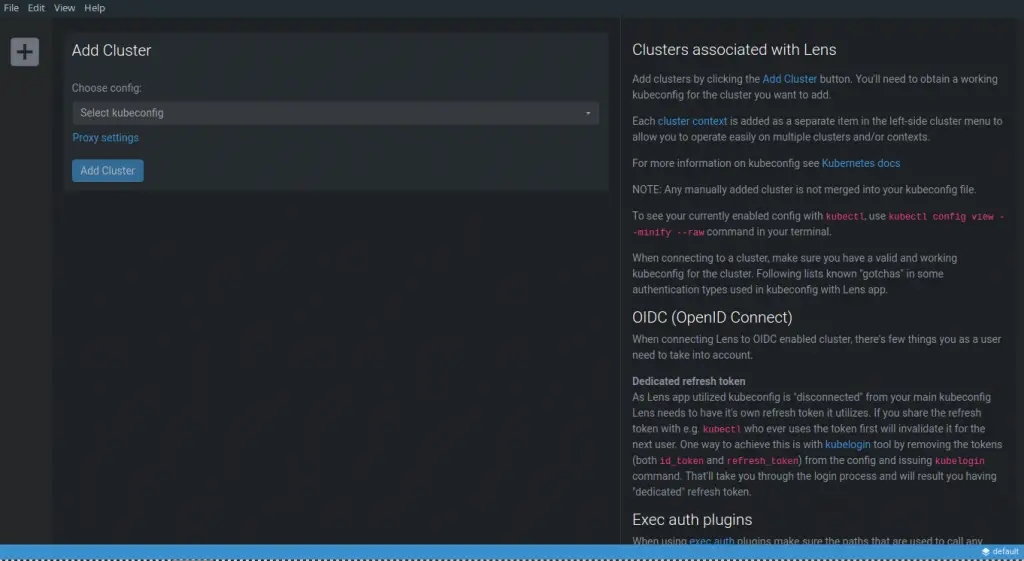
Lens connects to clusters through standard kubeconfig files. On Linux and macOS it reads ~/.kube/config by default. On Windows, the default path is %USERPROFILE%\.kube\config.
Auto-detected Clusters
On first launch, Lens scans your default kubeconfig and lists all available contexts in the catalog sidebar. Click any cluster to connect.
Adding a Cluster from a Custom Kubeconfig
If your kubeconfig is stored elsewhere, add it through File > Add Cluster (or press Ctrl+Shift+A on Linux/Windows, Cmd+Shift+A on macOS). You can browse for a file or paste the YAML content directly.
A typical kubeconfig looks like this:
apiVersion: v1
kind: Config
clusters:
- cluster:
    certificate-authority-data: BASE64_ENCODED_CA
    server: https://192.168.1.100:6443
  name: my-cluster
contexts:
- context:
    cluster: my-cluster
    user: admin
  name: my-cluster-context
current-context: my-cluster-context
users:
- name: admin
  user:
    client-certificate-data: BASE64_ENCODED_CERT
    client-key-data: BASE64_ENCODED_KEY
Make sure the server field points to an IP or hostname reachable from your workstation. Port 6443/TCP must be open between your machine and the API server.
Copying Kubeconfig from a Remote Cluster
For clusters provisioned with kubeadm, the kubeconfig is at /etc/kubernetes/admin.conf. For K3s clusters, it is at /etc/rancher/k3s/k3s.yaml. Copy it to your local machine:
scp [email protected]:/etc/kubernetes/admin.conf ~/.kube/configFor K3s specifically:
scp [email protected]:/etc/rancher/k3s/k3s.yaml ~/.kube/configAfter copying, edit the file and replace 127.0.0.1 or localhost in the server field with the actual IP address of your cluster node.
Navigate the Lens Desktop UI
Once connected to a cluster, the sidebar organizes every Kubernetes resource type into logical sections. Getting comfortable with this layout is the fastest way to become productive with Lens.
Cluster Overview Dashboard
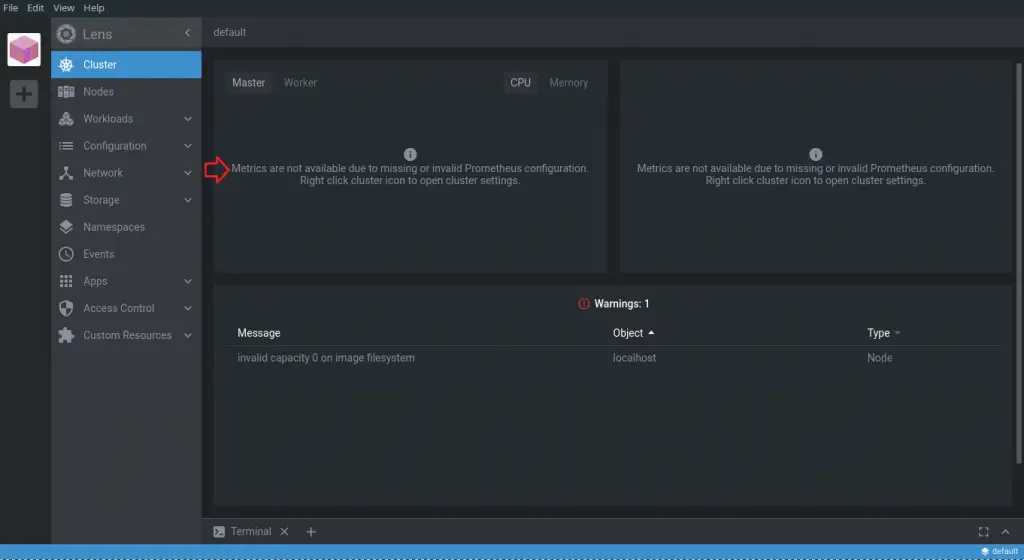
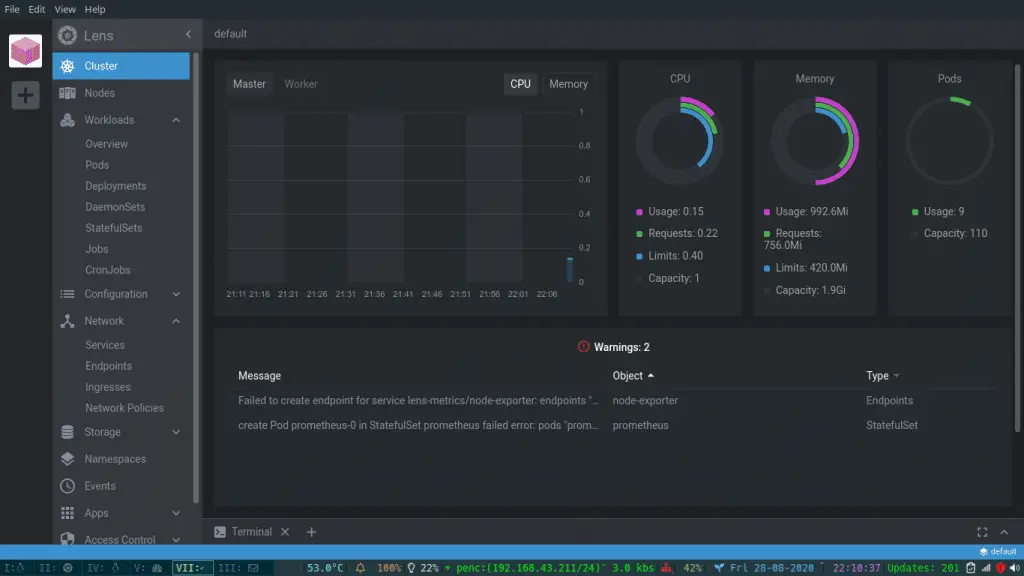
The main dashboard shows cluster health at a glance: node status, CPU and memory utilization graphs, pod distribution, and warning events.
Nodes View
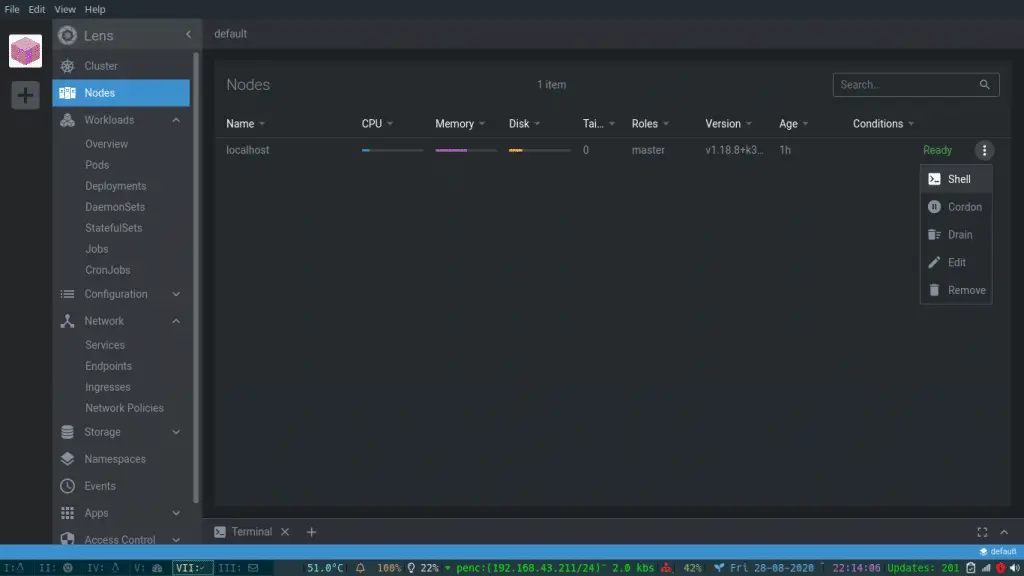
Click Nodes in the sidebar to see all cluster nodes with their status, roles, Kubernetes version, OS image, kernel version, and resource allocation. Click any node to view detailed metrics, conditions, labels, annotations, and the pods running on it.
Workloads Section
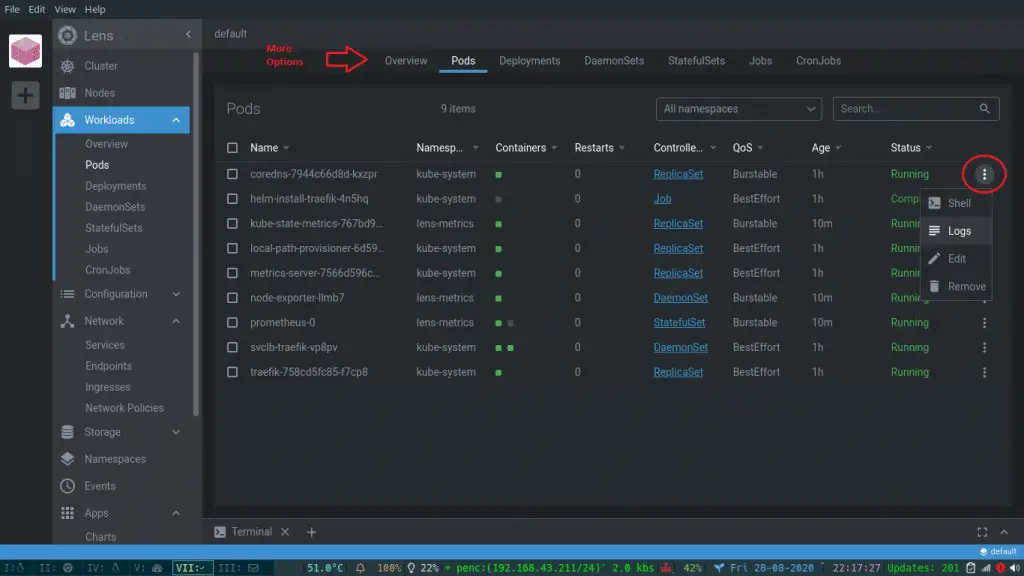
The Workloads section contains sub-menus for Pods, Deployments, StatefulSets, DaemonSets, ReplicaSets, Jobs, and CronJobs. Each view lists resources with their status, namespace, age, and key details.
From the Pods view, click the three-dot menu on any pod to access logs, open a shell, edit the YAML, or delete the pod. The log viewer supports real-time streaming, text search, and downloading logs to a file.
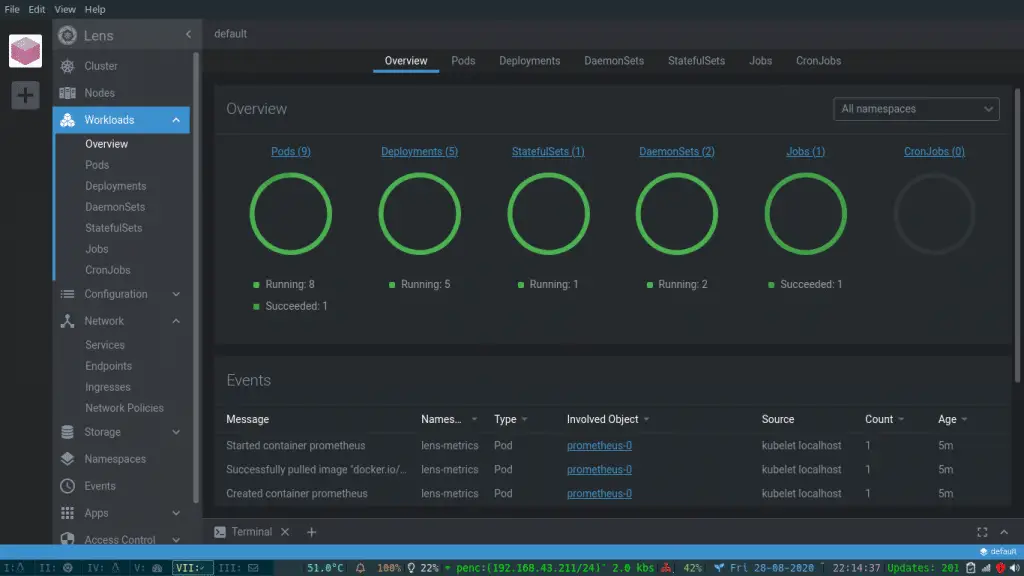
To scale a Deployment, click on it and adjust the replica count directly. Changes apply immediately to the cluster.
Network Resources
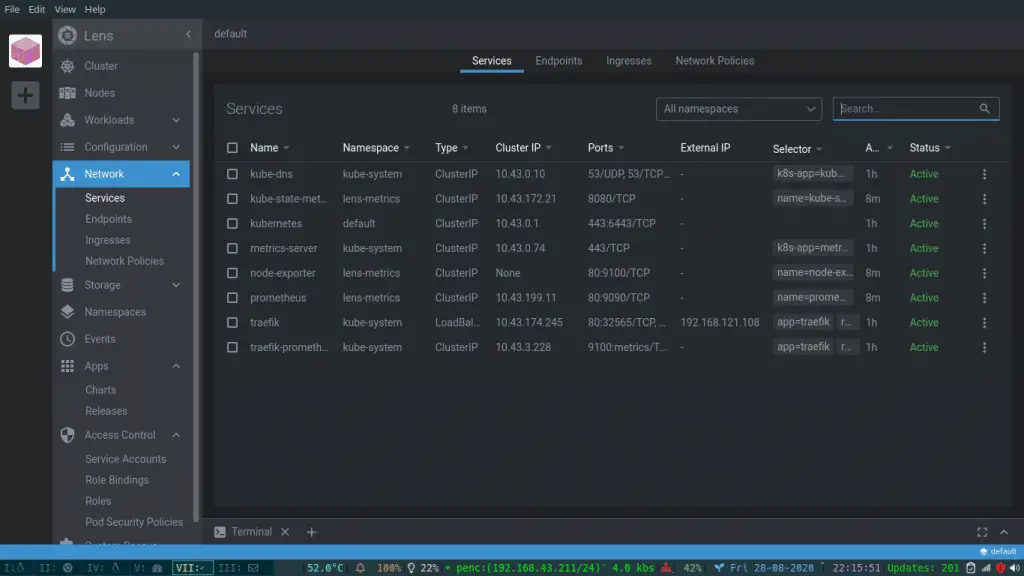
The Network section displays Services, Endpoints, Ingresses, and Network Policies. Click any Service to see its type (ClusterIP, NodePort, LoadBalancer), selector labels, ports, and connected pods.
Storage Resources
Under Storage, you will find Persistent Volumes (PV), Persistent Volume Claims (PVC), and Storage Classes. This view helps you track which volumes are bound, available, or released. Click a PVC to see its capacity, access modes, and the pod consuming it.
RBAC and Access Control
The Access Control section lists ServiceAccounts, Roles, ClusterRoles, RoleBindings, and ClusterRoleBindings. This is useful for auditing who has access to what in the cluster. Click any Role to inspect its rules, including which API groups, resources, and verbs are permitted.
Use the Built-in Terminal
Lens includes a context-aware terminal that automatically configures kubectl for the selected cluster. Open it by clicking the terminal icon at the bottom of the window or pressing Ctrl+` (backtick) on Linux/Windows or Cmd+` on macOS.
The terminal is a full shell environment where you can run any kubectl command:
kubectl get pods --all-namespacesYou should see output listing all pods across namespaces:
NAMESPACE     NAME                                     READY   STATUS    RESTARTS   AGE
kube-system   coredns-7b98449c4-xj5kq                 1/1     Running   0          2d
kube-system   metrics-server-668d979685-w7dnf          1/1     Running   0          2d
default       nginx-deployment-6b474476c4-7xqmf        1/1     Running   0          1d
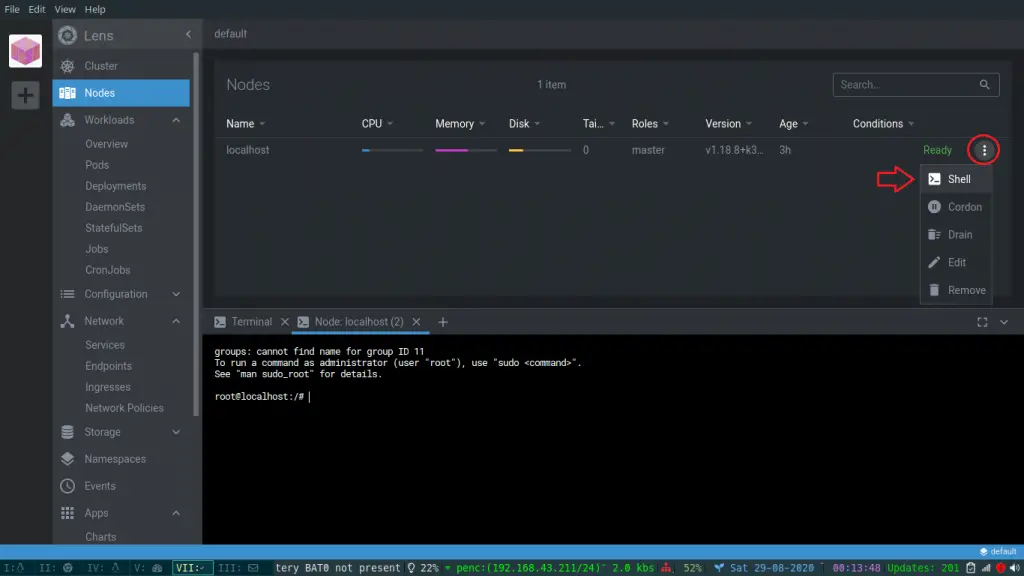
You can also open a shell directly into a pod from the Pods view. Click the three-dot menu on any pod and select Shell to open an interactive terminal session inside the container.
For those who work heavily on the command line, the kubectl cheat sheet covers useful commands that also apply within the Lens terminal.
Manage Helm Charts in Lens
Lens has built-in Helm chart management. You can browse, install, upgrade, and delete Helm releases without leaving the application.
Browse and Install Charts
Navigate to Helm > Charts in the sidebar. Lens shows charts from all configured Helm repositories. Use the search bar to find a chart, then click it to see the description, available versions, and default values.
To install a chart:
- Click the chart name to open its details
- Select the version you want to deploy
- Choose the target namespace
- Edit the values YAML as needed
- Click Install
Manage Installed Releases
Under Helm > Releases, you see all deployed Helm releases across namespaces. Click any release to view its revision history, current values, and the resources it created. From here you can upgrade to a newer chart version, roll back to a previous revision, or delete the release entirely.
For more on Helm usage, see our guide on installing and using Helm 3 on Kubernetes.
Add Custom Helm Repositories
To add a custom Helm repository, open the built-in terminal and run:
helm repo add bitnami https://charts.bitnami.com/bitnami
helm repo update
The new repository charts will appear in the Lens Charts browser after a refresh.
Enable Resource Monitoring
Lens can display CPU, memory, network, and filesystem metrics for nodes and pods. It supports two Prometheus configurations: the built-in Lens metrics stack, or an existing Prometheus deployment in your cluster.
Install Built-in Metrics
If you see “Metrics are not available” on the cluster dashboard, right-click the cluster icon in the sidebar and select Settings. Under the Metrics section, select Lens as the Prometheus installation method and click Apply. Lens deploys a lightweight Prometheus instance into the lens-metrics namespace.
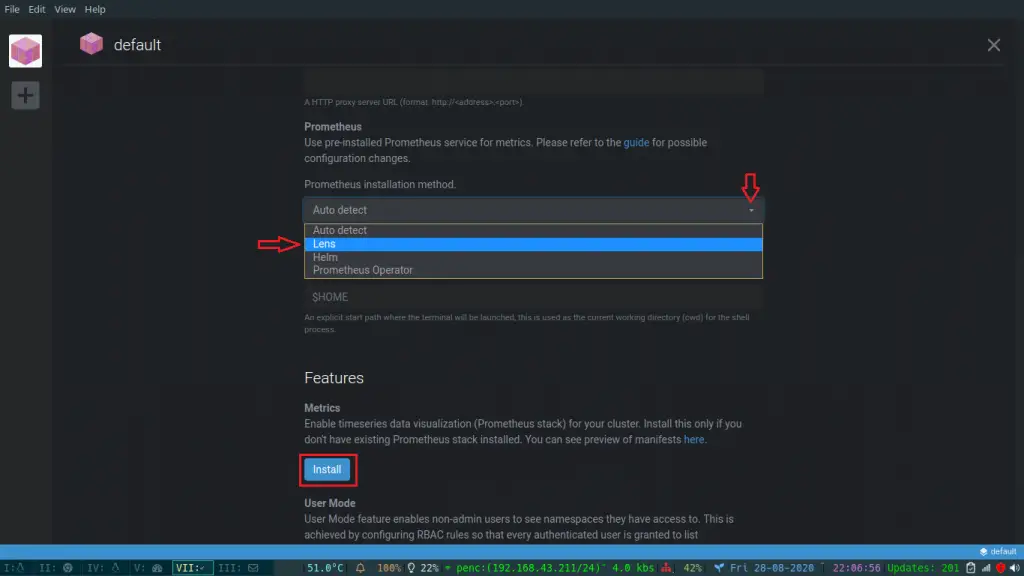
After a few seconds, the dashboard populates with real-time graphs for node and pod resource consumption.
Use an Existing Prometheus Instance
If your cluster already runs Prometheus, select Custom Prometheus in the metrics settings and provide the service address. The format is typically:
prometheus-operated.monitoring.svc.cluster.local:9090Adjust the namespace and service name to match your actual Prometheus deployment. For setting up Prometheus from scratch, check our guide on installing Prometheus and Grafana on Kubernetes with Helm.
Multi-Cluster Management
Lens excels at managing multiple Kubernetes clusters simultaneously. Each cluster appears in the left sidebar catalog. Switch between clusters with a single click instead of manually changing kubectl contexts or juggling terminal windows.
Organizing Clusters with Hotbar
The Hotbar at the bottom of the sidebar lets you pin frequently accessed clusters for quick switching. Drag a cluster from the catalog to the Hotbar, and it stays accessible regardless of which view you are in.
Merging Multiple Kubeconfig Files
If you manage clusters from different sources (EKS, GKE, on-prem kubeadm, K3s), set the KUBECONFIG environment variable to include all paths:
export KUBECONFIG=~/.kube/config:~/.kube/eks-config:~/.kube/gke-configLens reads all contexts from the merged configuration. For managing multiple clusters with kubectl directly, see our guide on managing multiple Kubernetes clusters with kubectx.
Lens Prism AI Copilot
Lens Prism is the built-in AI assistant available on paid tiers. It understands your cluster context and can help diagnose issues, explain resource configurations, and suggest fixes for common problems.
Key capabilities of Lens Prism include:
- Cluster-aware troubleshooting – ask Prism why a pod is failing and it analyzes events, logs, and resource limits in context
- Terminal skills – Prism can run shell commands in Agent mode, including creating and applying manifests, managing branches, and generating reports from cluster data
- MCP Server – the March 2026 release added Model Context Protocol support, allowing external AI tools (Claude, GitHub Copilot, OpenAI Codex) to interact with all clusters managed in Lens
- Cloud integrations – AWS EKS auto-discovery and Azure AKS one-click connection are built into Prism on paid tiers
To enable Prism, go to Lens > Preferences > Prism and sign in with your Lens account. Free accounts get a 30-day trial.
Lens Desktop vs Freelens: Which One to Use?
The original open-source project (OpenLens) was retired in January 2024 with no further updates. The community forked it into Freelens, which is now the actively maintained open-source alternative under the MIT license. Most OpenLens extensions remain compatible with Freelens.
| Feature | Lens Desktop (Mirantis) | Freelens (Community Fork) |
|---|---|---|
| License | Proprietary (free tier available) | MIT open-source |
| Account Required | Yes (free or paid) | No |
| Prometheus Integration | Built-in one-click setup | Manual configuration |
| AI Copilot (Prism) | Yes (paid tiers) | No |
| Cloud Integrations | AWS EKS, Azure AKS (paid) | No |
| Auto-updates | Yes | Community packages |
| Telemetry | Yes (can be disabled) | No |
| Support | Commercial support available | Community only |
Lens Desktop is the better choice for teams that want a maintained product with built-in AI features and cloud integrations. Freelens suits users who prefer a fully open-source tool with no account requirements. You can find Freelens at github.com/freelensapp/freelens.
Keyboard Shortcuts and Productivity Tips
These shortcuts speed up navigation significantly once you build the muscle memory:
| Action | Linux/Windows | macOS |
|---|---|---|
| Open command palette | Ctrl+Shift+P | Cmd+Shift+P |
| Toggle terminal | Ctrl+` | Cmd+` |
| Add cluster | Ctrl+Shift+A | Cmd+Shift+A |
| Switch cluster | Ctrl+Shift+S | Cmd+Shift+S |
| Search resources | Ctrl+K | Cmd+K |
| Zoom in/out | Ctrl++ / Ctrl+- | Cmd++ / Cmd+- |
| Reset zoom | Ctrl+0 | Cmd+0 |
A few tips that save real time in daily use:
- Command palette (
Ctrl+Shift+P) is the fastest way to jump to any resource type, cluster, or setting without clicking through menus - Pin clusters to the Hotbar for one-click switching between your most-used environments
- Right-click any resource for quick actions like edit, delete, or view logs
- Namespace filtering at the top of the cluster view lets you focus on specific namespaces without the noise of kube-system pods
- Star important resources in the catalog for fast access across sessions
Troubleshooting Common Issues
Lens Cannot Connect to Cluster
Verify your kubeconfig is valid by running kubectl outside of Lens:
kubectl cluster-infoThe output should show the control plane URL:
Kubernetes control plane is running at https://192.168.1.100:6443If kubectl works but Lens does not, check that no proxy or VPN settings are interfering. Lens respects the HTTPS_PROXY and NO_PROXY environment variables. Also make sure your firewall allows outbound connections to api.k8slens.dev and downloads.k8slens.dev for license validation.
Metrics Not Showing
If the built-in Lens metrics stack fails to deploy, verify that your cluster has enough resources (at least 256MB free memory). Check that the lens-metrics namespace was created:
kubectl get pods -n lens-metricsYou should see the Prometheus pod running:
NAME                          READY   STATUS    RESTARTS   AGE
prometheus-0                  1/1     Running   0          5m
If the Prometheus pod is stuck in Pending, check for resource constraints or missing storage classes.
Lens on Linux Shows Blank Screen
If Lens starts but shows a blank window, try disabling GPU acceleration:
lens-desktop --disable-gpuThis is common on systems with older GPU drivers or when running inside a virtual machine.
Snap Installation Fails with “kontena-lens not found”
Make sure you are using the correct snap package name. The package is kontena-lens, not lens:
sudo snap install kontena-lens --classicIf snap itself is not available, use the APT or DNF repository method instead, which is the recommended approach for Linux installations.
Wrapping Up
Lens Desktop provides a single interface for managing Kubernetes clusters across Linux, macOS, and Windows. With built-in monitoring, Helm chart management, RBAC inspection, and a context-aware terminal, it consolidates tools that would otherwise require switching between kubectl, web dashboards, and monitoring UIs.
For production environments, combine Lens with proper RBAC policies to limit what each team member can see and modify. The free Personal tier covers most day-to-day needs, but teams managing AWS EKS or Azure AKS clusters will benefit from the paid tier’s auto-discovery and centralized access features.
