

A LAMP stack (Linux, Apache, MariaDB, PHP) remains the most deployed web application platform on the internet. WordPress, Laravel, Drupal, Magento, and thousands of custom PHP apps run on it. Debian 13 ships current versions of all three components natively, making the setup straightforward without third-party repositories.
This guide installs Apache 2.4, MariaDB 11.8, and PHP 8.4 on Debian 13. We go beyond the basic install: the article covers database hardening, PHP-FPM with Apache (the modern approach over mod_php), mod_rewrite for clean URLs, SSL with Let’s Encrypt, firewall rules, and a working test application that validates the full stack end to end.
Current as of March 2026. Verified on Debian 13.4 (Trixie) with Apache 2.4.66, MariaDB 11.8.6, PHP 8.4.16
Prerequisites
- Debian 13 (Trixie) or Debian 12 (Bookworm) server with sudo access
- A domain pointing to the server (for SSL). We use
lamp.computingforgeeks.comas an example. - Ports 80 (HTTP), 443 (HTTPS), and 22 (SSH) open
Start with a fully updated system:
sudo apt update && sudo apt -y upgradeInstall Apache Web Server
Apache is the “A” in LAMP. Install it with the utilities package:
sudo apt install -y apache2 apache2-utilsVerify the version:
apache2 -vDebian 13 ships Apache 2.4.66:
Server version: Apache/2.4.66 (Debian)
Server built:   2026-03-01T13:26:45
Apache starts automatically after installation. Confirm it is running:
sudo systemctl status apache2The service should show active (running):
● apache2.service - The Apache HTTP Server
     Loaded: loaded (/usr/lib/systemd/system/apache2.service; enabled; preset: enabled)
     Active: active (running) since Thu 2026-03-26 09:49:44 UTC; 22s ago
       Docs: https://httpd.apache.org/docs/2.4/
   Main PID: 1563 (apache2)
      Tasks: 55 (limit: 4655)
     Memory: 5.5M (peak: 6M)
Enable mod_rewrite (required by WordPress, Laravel, and most PHP frameworks for clean URLs) and mod_ssl for HTTPS:
sudo a2enmod rewrite ssl
sudo systemctl restart apache2
Install MariaDB Database Server
MariaDB is the default MySQL-compatible database on Debian. For a dedicated MariaDB installation guide with replication and tuning, see our separate article.
sudo apt install -y mariadb-server mariadb-clientCheck the installed version:
mariadb --versionDebian 13 ships MariaDB 11.8.6:
mariadb from 11.8.6-MariaDB, client 15.2 for debian-linux-gnu (x86_64) using EditLine wrapperConfirm the service is running:
sudo systemctl status mariadbYou should see active (running) and “Taking your SQL requests now…” in the status line:
● mariadb.service - MariaDB 11.8.6 database server
     Loaded: loaded (/usr/lib/systemd/system/mariadb.service; enabled; preset: enabled)
     Active: active (running) since Thu 2026-03-26 09:50:15 UTC; 1min 8s ago
       Docs: man:mariadbd(8)
             https://mariadb.com/kb/en/library/systemd/
   Main PID: 2701 (mariadbd)
     Status: "Taking your SQL requests now..."
Secure the Database
Set a root password, remove anonymous users, disable remote root login, and drop the test database:
sudo mariadb-secure-installationAnswer Y to all prompts. When asked for the current root password, press Enter (it is blank on a fresh install). Then set a strong password when prompted.
Test the login:
sudo mariadb -e "SELECT VERSION();"This should return 11.8.6-MariaDB-0+deb13u1.
Install PHP 8.4 with Extensions
Debian 13 ships PHP 8.4 in its default repositories. Install the core package along with the most commonly needed extensions:
sudo apt install -y php libapache2-mod-php php-cli php-fpm php-mysql php-zip php-gd php-mbstring php-curl php-xml php-pear php-bcmath php-intl php-opcacheVerify the PHP version:
php -vPHP 8.4.16 with OPcache:
PHP 8.4.16 (cli) (built: Dec 18 2025 21:19:25) (NTS)
Copyright (c) The PHP Group
Built by Debian
Zend Engine v4.4.16, Copyright (c) Zend Technologies
    with Zend OPcache v8.4.16, Copyright (c), by Zend Technologies
Restart Apache to load the PHP module:
sudo systemctl restart apache2Enable PHP-FPM (Recommended)
The default libapache2-mod-php embeds PHP inside Apache processes. PHP-FPM runs as a separate service, which scales better under load and lets you restart PHP without restarting Apache. Enable it:
sudo a2enmod proxy_fcgi setenvif
sudo a2enconf php8.4-fpm
sudo a2dismod php8.4
sudo systemctl enable --now php8.4-fpm
sudo systemctl restart apache2
Verify PHP-FPM is running:
sudo systemctl status php8.4-fpmThe output confirms idle workers ready to handle requests:
● php8.4-fpm.service - The PHP 8.4 FastCGI Process Manager
     Loaded: loaded (/usr/lib/systemd/system/php8.4-fpm.service; enabled; preset: enabled)
     Active: active (running) since Thu 2026-03-26 09:51:07 UTC
     Status: "Processes active: 0, idle: 2, Requests: 0, slow: 0, Traffic: 0.00req/sec"
Create a Test Database and Application
A phpinfo page only proves PHP runs. To validate the full stack (Apache → PHP → MariaDB), create a small application that connects to the database, writes data, and reads it back.
Create a test database and user:
sudo mariadb -e "
CREATE DATABASE lamptest;
CREATE USER 'lampuser'@'localhost' IDENTIFIED BY 'YourStr0ngP@ss!';
GRANT ALL PRIVILEGES ON lamptest.* TO 'lampuser'@'localhost';
FLUSH PRIVILEGES;"
Create a PHP test file that exercises the full stack. Open the default web root:
sudo vi /var/www/html/index.phpAdd the following PHP application:
<?php
$host = 'localhost';
$db   = 'lamptest';
$user = 'lampuser';
$pass = 'YourStr0ngP@ss!';

try {
    $pdo = new PDO("mysql:host=$host;dbname=$db", $user, $pass);
    $pdo->setAttribute(PDO::ATTR_ERRMODE, PDO::ERRMODE_EXCEPTION);

    $pdo->exec("CREATE TABLE IF NOT EXISTS visits (
        id INT AUTO_INCREMENT PRIMARY KEY,
        ip VARCHAR(45),
        visited_at TIMESTAMP DEFAULT CURRENT_TIMESTAMP
    )");

    $ip = $_SERVER['REMOTE_ADDR'] ?? '127.0.0.1';
    $pdo->prepare("INSERT INTO visits (ip) VALUES (?)")->execute([$ip]);

    $count = $pdo->query("SELECT COUNT(*) FROM visits")->fetchColumn();
    $version = $pdo->query("SELECT VERSION()")->fetchColumn();

    echo "<h1>LAMP Stack on Debian 13</h1>";
    echo "<p>PHP Version: " . phpversion() . "</p>";
    echo "<p>MariaDB Version: $version</p>";
    echo "<p>Apache Version: " . apache_get_version() . "</p>";
    echo "<p>Total visits: $count</p>";
    echo "<p>Server time: " . date('Y-m-d H:i:s T') . "</p>";
} catch (PDOException $e) {
    echo "Connection failed: " . $e->getMessage();
}
Open your server’s IP or domain in a browser. The page should display all three component versions and a visit counter that increments on each refresh:
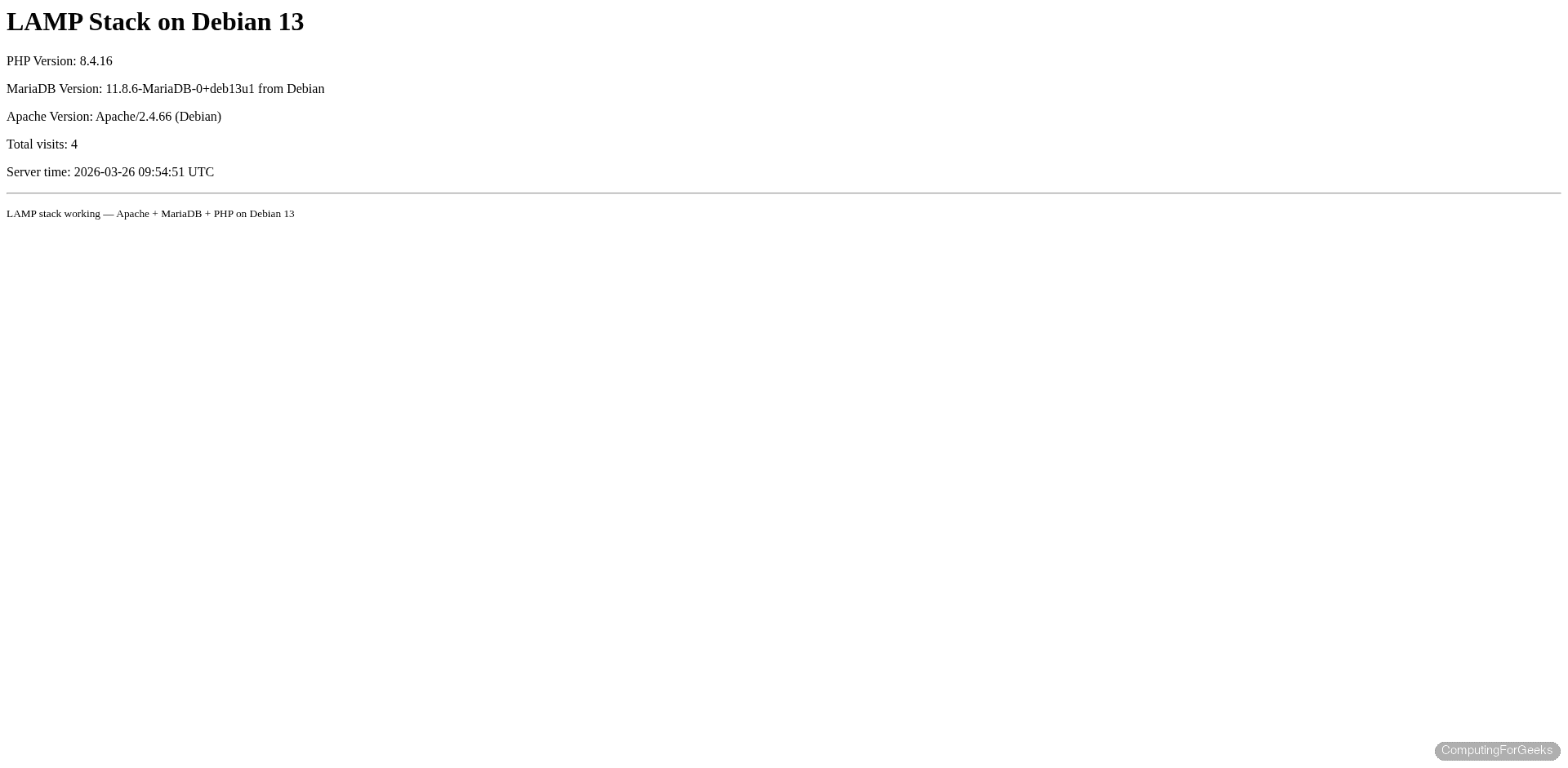
This confirms the complete data path: Apache receives the HTTP request, passes it to PHP (via FPM), PHP connects to MariaDB with PDO, creates a table, inserts a row, reads it back, and returns the rendered HTML.
You can also verify the full PHP configuration by creating a phpinfo page:
echo "<?php phpinfo(); ?>" | sudo tee /var/www/html/phpinfo.phpOpen http://your-server/phpinfo.php in your browser:
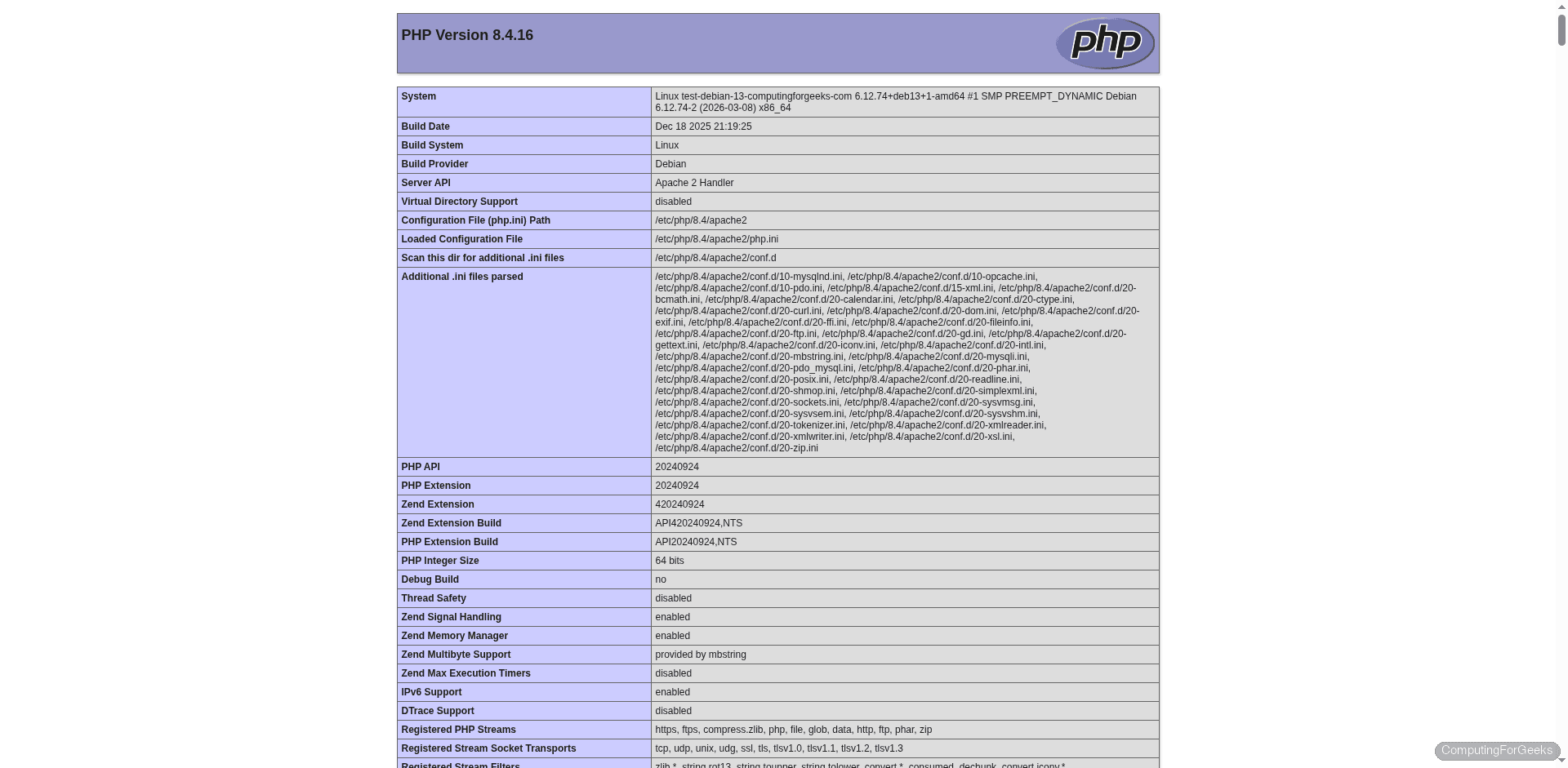
Remove the phpinfo page after testing. It exposes detailed server configuration that attackers can use:
sudo rm /var/www/html/phpinfo.phpSet Up SSL with Let’s Encrypt
Every production LAMP server needs HTTPS. Install certbot and get a certificate:
sudo apt install -y certbot python3-certbot-apacheRequest a certificate. Certbot automatically configures Apache:
sudo certbot --apache -d yourdomain.com --non-interactive --agree-tos -m [email protected]Certbot creates an SSL virtual host, installs the certificate, and sets up automatic HTTP to HTTPS redirection. Verify auto-renewal works:
sudo certbot renew --dry-runConfigure the Firewall
If your server uses ufw (or if you want to add it for defense in depth):
sudo apt install -y ufw
sudo ufw allow 22/tcp
sudo ufw allow 80/tcp
sudo ufw allow 443/tcp
sudo ufw enable
MariaDB (port 3306) is intentionally left closed to external access. It should only accept connections from localhost.
Tune php.ini for Production
PHP defaults are tuned for development. For production web applications, adjust these settings in the FPM php.ini:
sudo vi /etc/php/8.4/fpm/php.iniKey values to change:
memory_limit = 256M
upload_max_filesize = 64M
post_max_size = 64M
max_execution_time = 300
max_input_vars = 3000
date.timezone = UTC
expose_php = Off
Setting expose_php = Off removes the X-Powered-By: PHP/8.4.16 header from responses, which is a minor security measure.
Apply the changes:
sudo systemctl restart php8.4-fpmComponent Version Summary
| Component | Debian 13 Version | Debian 12 Version | Config Path |
|---|---|---|---|
| Apache | 2.4.66 | 2.4.62 | /etc/apache2/ |
| MariaDB | 11.8.6 | 10.11.6 | /etc/mysql/ |
| PHP | 8.4.16 | 8.2.28 | /etc/php/8.4/ |
| PHP-FPM socket | /run/php/php8.4-fpm.sock | /etc/php/8.4/fpm/pool.d/www.conf | |
What to Deploy Next
- Deploy WordPress on your LAMP stack (the guide uses Nginx, but the WordPress install steps apply to Apache too)
- Install PHP 8.1 on Debian alongside PHP 8.4 if you have legacy applications
- Add phpMyAdmin for web-based database management (useful during development, remove in production)
- Set up virtual hosts to run multiple websites on the same LAMP server
- Enable HTTP/2 in Apache with
sudo a2enmod http2for improved page load speed
