

With the rising need to create an efficient computing environment, virtualization has seen wide adoption across data centers for corporates, and home lab environments for enthusiasts. KVM (Kernel-based Virtual Machine) is one of the open source virtualization technologies natively integrated into Linux operating system. KVM enables you to run multiple isolated virtual environments on a single host, this is often referred to as virtual machines (VMs) or guest operating systems. Each Virtual Machine or Guest OS will have its own private virtualized hardware, including CPU, RAM, network card, disk, and other PCIs in the system
[ebook product=”1″ theme=”dark”]
At the heart of KVM are the following modules.
- kvm.ko: This is a kernel module loaded to provide hardware-assisted virtualization on the physical host.
- kvm-intel.ko or kvm-amd.ko: These are kernel modules specific to the Processor (Intel or AMD) and work alongside kvm.ko. The function of the module is to provide processor-specific functionality that is used in hardware-assisted virtualization.
When you install KVM on your Linux system, the system will automatically detect the processor type available in the server (This can be Intel or AMD). It then loads the appropriate kernel module for it (kvm-intel.ko or kvm-amd.ko), this is done along with kvm.ko which acts as the core foundation for KVM Virtualization.
Follow the next steps to install KVM on Ubuntu 24.04 (Noble Numbat) and configuring it for daily use.
1 – Installing KVM Hypervisor tools
In this article we provide a step-by-step guidance on how KVM hypervisor can be configured on Ubuntu Linux machine. We begin with the installation, service management, then creation of a Virtual Machines.
Before we can proceed further, we must ensure the system is up-to-date.
sudo apt update && sudo apt upgrade -ySometimes an upgrade requires system reboot, we can perform this if required.
[ -e /var/run/reboot-required ] && sudo rebootTo run KVM in your hardware, a CPU that supports hardware virtualization is required. Install the package that provides required utility for verifying our CPU has support for virtualization.
sudo apt install cpu-checkerRun the kvm-ok command to check if your CPU support hardware virtualization.
$ sudo kvm-ok
INFO: /dev/kvm exists
KVM acceleration can be used
If it’s not supported, the output will contain a message “KVM acceleration can NOT be used“.
$ sudo kvm-ok
INFO: Your CPU does not support KVM extensions
KVM acceleration can NOT be used
After confirming your system has Intel VT or AMD-V CPU extensions, you can proceed to install KVM and all the necessary addons.
sudo apt -y install libvirt-daemon-system bridge-utils qemu-kvm libvirt-daemon Extra tools that can be installed to enhance functionalities.
sudo apt install virtinst libosinfo-bin virt-top libguestfs-tools Validation of KVM installation and functioning can be checked using the virsh version command.
$ virsh version
Compiled against library: libvirt 10.0.0
Using library: libvirt 10.0.0
Using API: QEMU 10.0.0
Running hypervisor: QEMU 8.2.1
2 – Installing GUI Tools for KVM
If you are not a command line savvy, there are some GUI tools that can help with the management of virtual machines running on KVM.
- Virtual Machine Manager: This is the most popular GUI application for the management of VMs KVM. But this can only be run on a Desktop edition of Ubuntu. If you are on a server without a Desktop environment, then try Cockpit instead.
- Cockpit: This is a web-based GUI (graphical user interface) used for the management of Linux servers. It has a plugin for handling VMs management as well.
Installing Virtual Machine Manager (For Desktop Users only)
If you have Desktop Environment on your Ubuntu system such as Gnome, Cinnamon or KDE, you can as well install Virtual Machine Manager GUI tool.
sudo apt -y install qemu-system virt-manager Installing Cockpit (For Server & Desktop users)
Cockpit package is available in the official Ubuntu APT repositories. Use the following command to install it on Ubuntu 24.04 Linux system.
sudo apt install cockpitEssential plugins available for Cockpit are:
- cockpit-machines: Provides a user interface for managing virtual machines
- cockpit-podman: Provides a user interface for managing Podman containers
- cockpit-storaged: Provide an interface for storage management
- cockpit-bridge: Server side bridge management
- cockpit-packagekit: For apps and updates management
We can make install the podman and machines components of Cockpit and take advantage of the functionalities that it provide.
sudo apt install cockpit-{machines,podman}Enable Cockpit to start automatically on system boot and activate the service in realtime.
sudo systemctl enable --now cockpit.socketCheck to show status if running.
$ systemctl status cockpit.socket
● cockpit.socket - Cockpit Web Service Socket
     Loaded: loaded (/usr/lib/systemd/system/cockpit.socket; enabled; preset: enabled)
     Active: active (listening) since Mon 2024-04-15 09:03:13 UTC; 3min 4s ago
   Triggers: ● cockpit.service
       Docs: man:cockpit-ws(8)
     Listen: [::]:9090 (Stream)
      Tasks: 0 (limit: 4614)
     Memory: 8.0K (peak: 1.7M)
        CPU: 11ms
     CGroup: /system.slice/cockpit.socket

Apr 15 09:03:13 ubuntu2204-server systemd[1]: Starting cockpit.socket - Cockpit Web Service Socket...
Apr 15 09:03:13 ubuntu2204-server systemd[1]: Listening on cockpit.socket - Cockpit Web Service Socket.
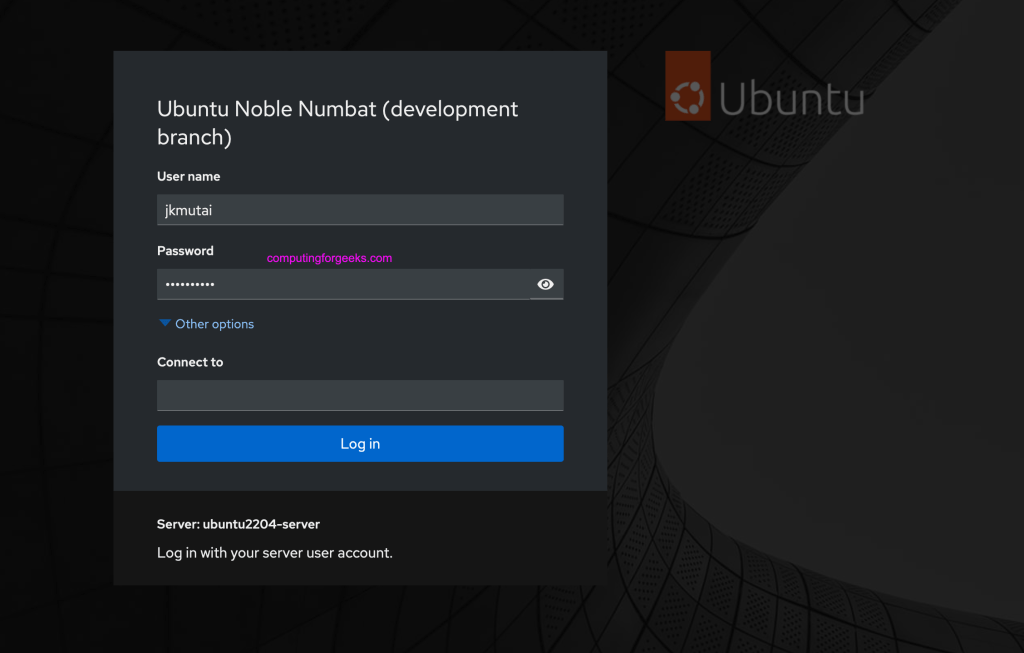
Access cockpit on Server IP and port 9090
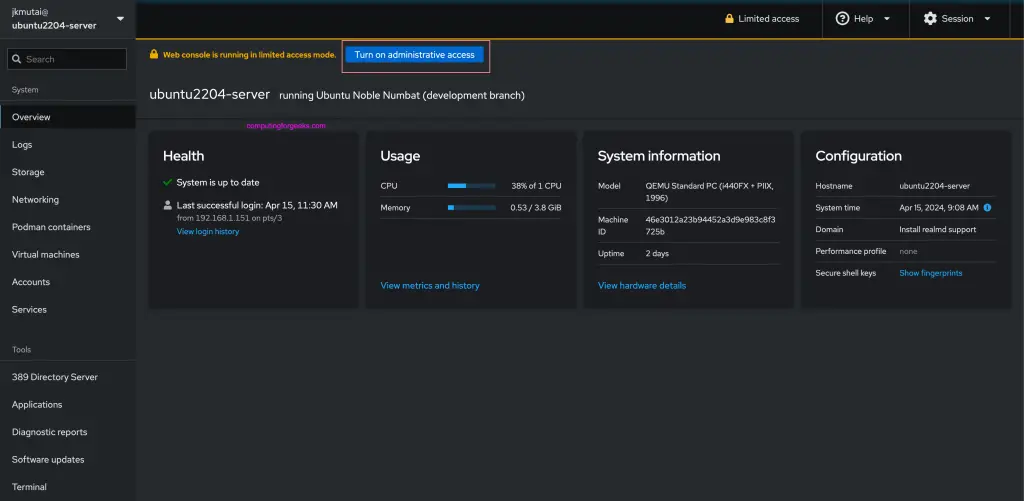
When you log in activate administrator mode to have full control over the host. By default it will be in limited mode.
3 – Creating Virtual Machines on KVM
Let’s consider the three available options.
1) Create a VM from Cockpit
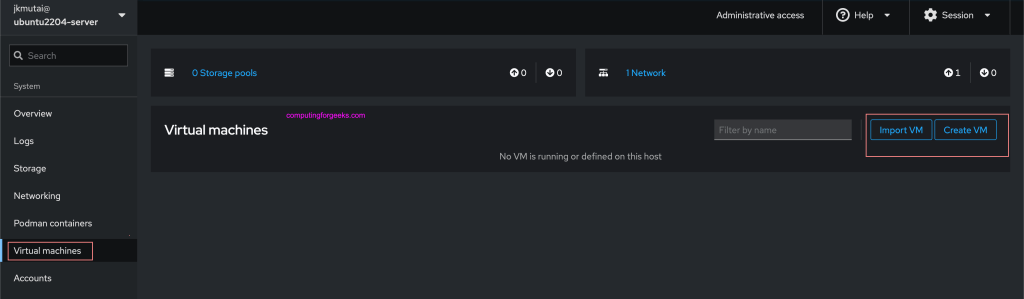
Login to Cockpit web dashboard and Click on “Virtual Machines” in the left navigation to start VMS creation using Cockpit, then use “Import VM” or “Create VM”.
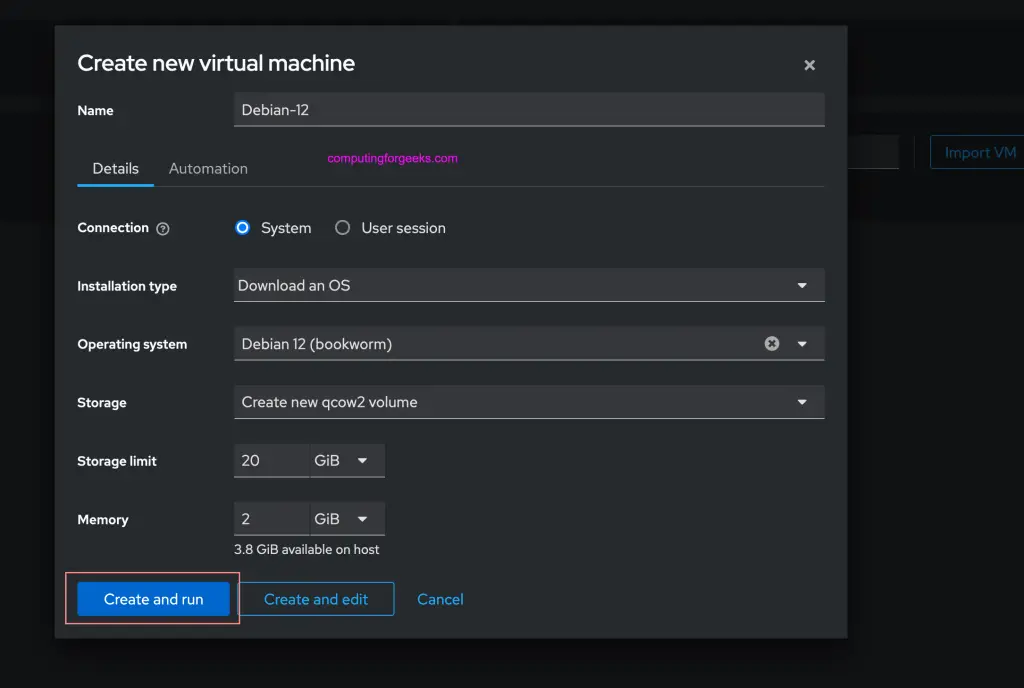
You can install from an existing image, install from ISO, create from cloud templates, or perform automated network installation. Here is a screenshot for installation from online cloud image.
2) Create a VM from CLI
KVM installation that we did provides virt-install command line tool that can be used to install the OS from CLI.
sudo mv ubuntu-22.04-live-server-amd64.iso /var/lib/libvirt/images/List available networks. We have a guide on our website about Bridge Creation for KVM, you can check it for more clarity.
$ virsh net-list
 Name      State    Autostart   Persistent
--------------------------------------------
 default   active   yes         yes
Here is the example for the installation of
sudo virt-install \
--name ubuntu-jammy \
--vcpus 2 \
--ram 2048 \
--os-variant ubuntu22.04 \
--disk path=/var/lib/libvirt/images/ubuntu2204.qcow2,size=30 \
--location /var/lib/libvirt/images/ubuntu-22.04-live-server-amd64.iso,kernel=casper/vmlinuz,initrd=casper/initrd \
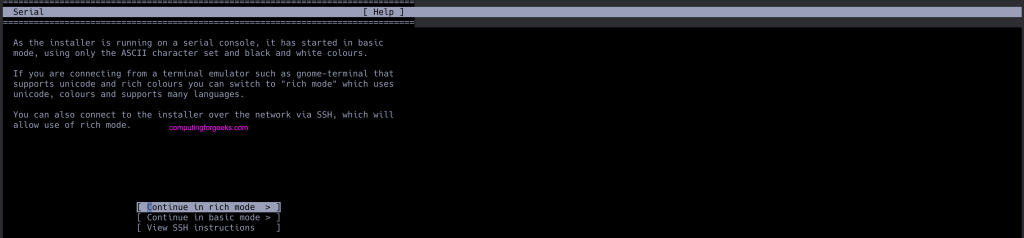
--console pty,target_type=serial \
--graphics none \
--extra-args 'console=ttyS0,115200n8'
Modify the contents to suit your OS installation. For Desktop based OS installation use Virtual Machine Manager or Cockpit as this is only suited for server based OS.
3) Create a VM from Virtual Machine Manager
Launch KVM virtual machine manager from CLI
sudo virt-managerIt can also be started from Desktop interface.

From the GUI you can begin creation and management of Virtual Machines on KVM powered by Ubuntu 24.04 Linux system.
By following the steps provided in this guide, you will have a functional KVM server setup on your Ubuntu 24.04. As demonstrated, there exist several ways that can be used to create and manage virtual machines. Virtual Machine Manager provides a convenient GUI, Cockpit gives you a user-friendly web-based interface, whereas CLI based tools (virt-install & virsh) target experienced Linux system administrators.

This is some wonderful work. I have created this solution and automated it in Ansible, I am testing it now, but it is looking good.