

KeeWeb is an open source cross-platform network manager. It comes with features such as cloud sync, plugin support and keyboard shortcuts. It is compatible with KeePass password manager. Keeweb can be used in two different ways: Use KeeWeb online and avoid installing the desktop application or use it offline having downloaded KeeWeb application to your desktop.
In this guide, we are going to look at the installation of KeeWeb password manager on Linux Mint 22. If you prefer to use KeeWeb online, simply use the url https://app.keeweb.info/. You should see a page as below where you can simply add the records you need.
Install KeeWeb on Linux Mint 22 | 21 with Docker
Before starting, it is always recommended to update your system packages to the latest versions. You can update them with the following command:
sudo apt update -y
sudo apt upgrade -y
Then install other required dependencies as follows:
sudo apt install apt-transport-https git ca-certificates curl software-properties-common gnupg2 unzip -yInstall Docker CE
Docker also needs to be installed on your Linux Mint. First, set up Docker’s apt repository by adding Docker’s official GPG key:
sudo apt-get update
sudo apt-get install ca-certificates curl
sudo install -m 0755 -d /etc/apt/keyrings
sudo curl -fsSL https://download.docker.com/linux/ubuntu/gpg -o /etc/apt/keyrings/docker.asc
sudo chmod a+r /etc/apt/keyrings/docker.asc
Then add the repository to Apt sources:
echo \
  "deb [arch=$(dpkg --print-architecture) signed-by=/etc/apt/keyrings/docker.asc] https://download.docker.com/linux/ubuntu \
  $(. /etc/os-release && echo "${UBUNTU_CODENAME:-$VERSION_CODENAME}") stable" | \
  sudo tee /etc/apt/sources.list.d/docker.list > /dev/null
sudo apt-get update
Install the Docker packages:
sudo apt-get install docker-ce docker-ce-cli containerd.io docker-buildx-plugin docker-compose-pluginYou can add your user to Docker group so that you don’t have to write sudo when running Docker commands:
sudo usermod -aG docker ${USER}
newgrp docker
Install KeeWeb on Linux Mint with Docker
At this point, Docker CE is installed and running on your system. You need to download the KeeWeb docker image and run it as a container. Use the command below:
docker run --name keeweb -d -p 80:80 -p 443:443 antelle/keeweb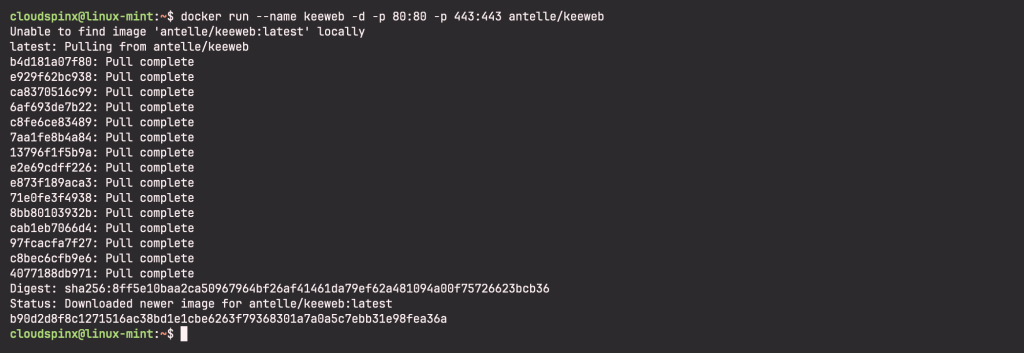
Verify that the container is running with the following command:
docker ps
Access KeeWeb Dashboard
With KeeWeb now running as a docker container, open your browser and point it to your server URL: http://SERVER_IP:
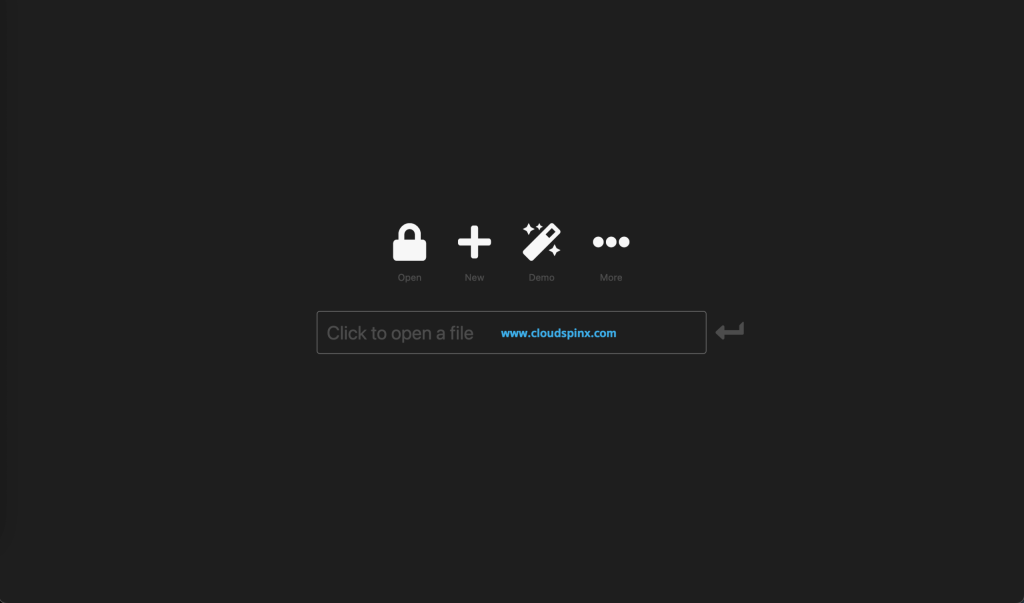
Click on the ‘+‘ icon to proceed, you’ll be redirected to another page as shown below:
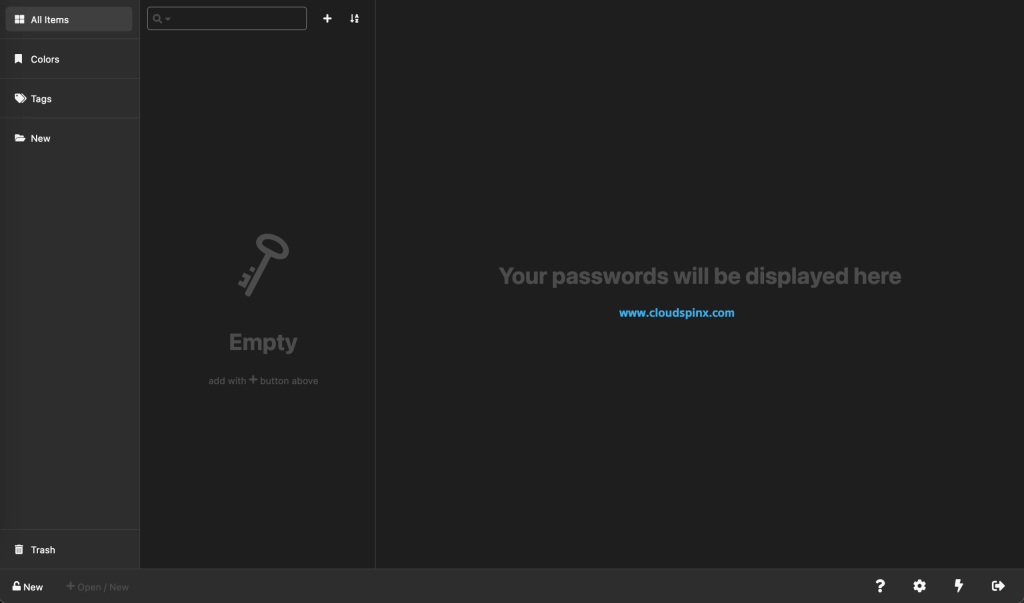
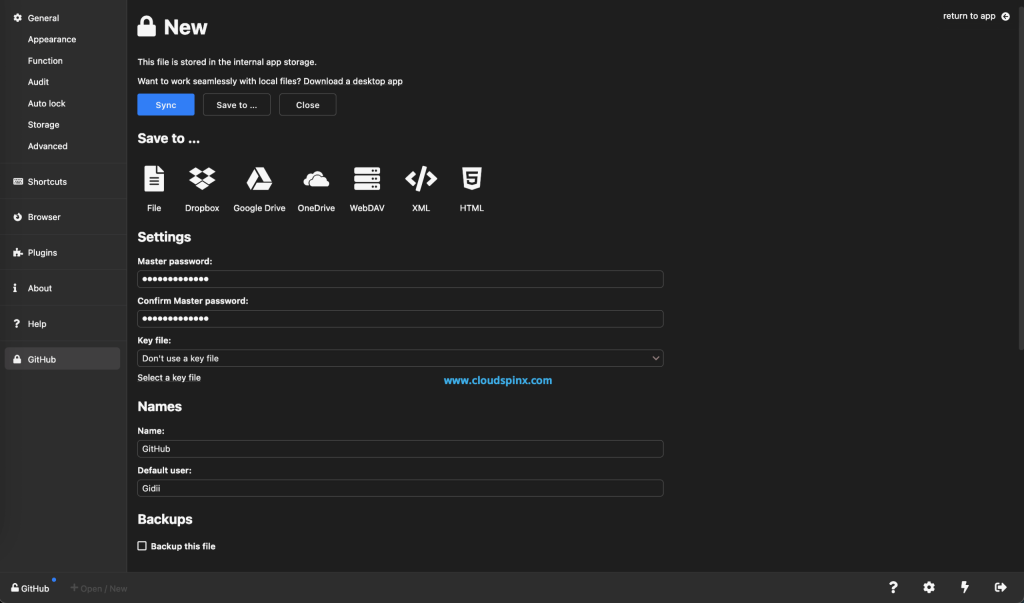
Now click on the padlock icon labeled ‘New‘, to add new passwords. Provide master password, name, backup if you need and other settings you may require:
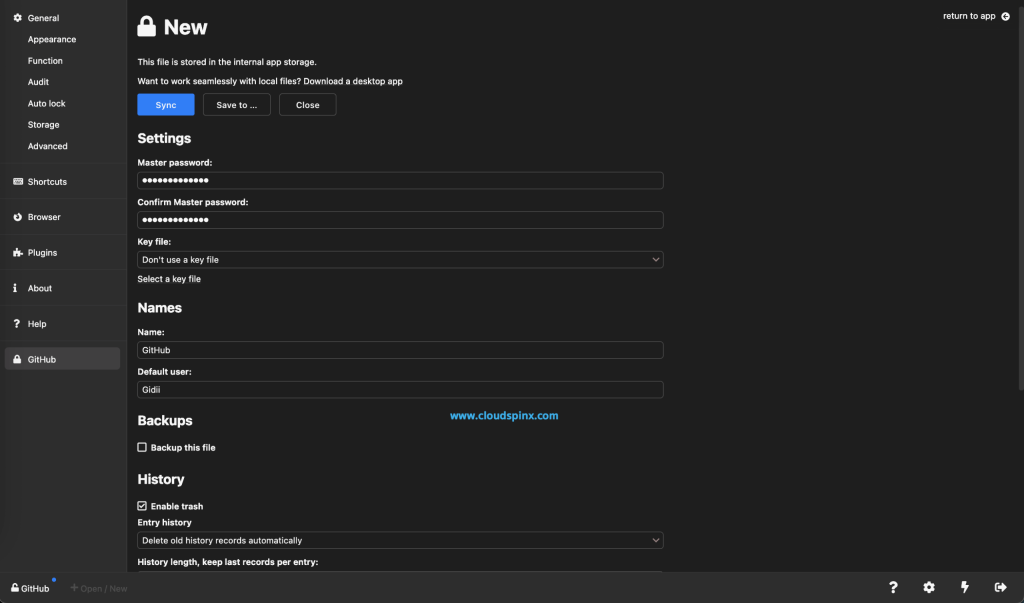
Once done, click on ‘Save To’. Here, you have a couple of options that you can pick, choose one that you prefer and proceed.
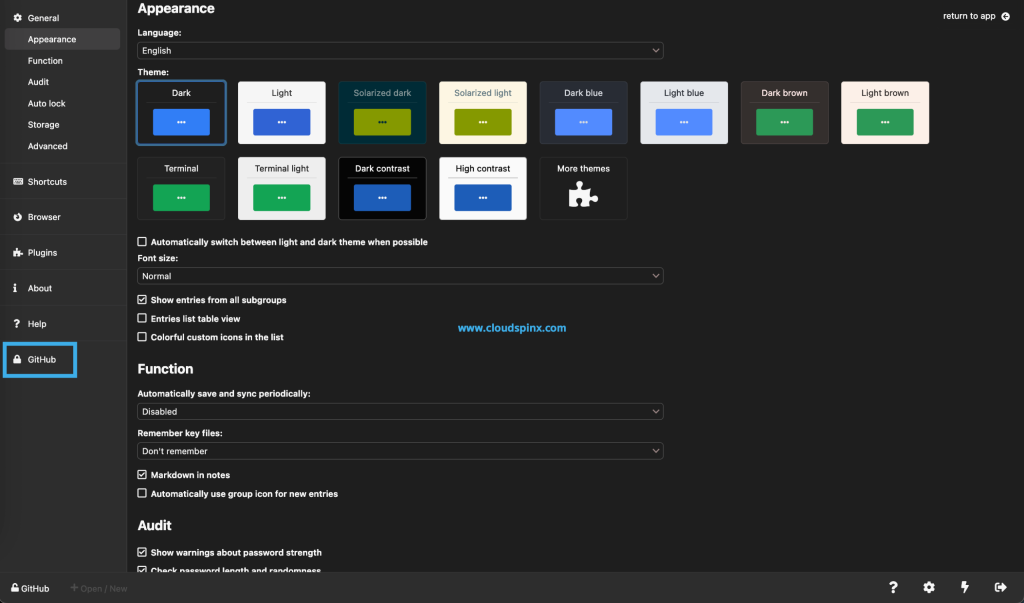
Once added, your new password file should appear on the left side of KeeWeb application.
Add Entries on KeeWeb
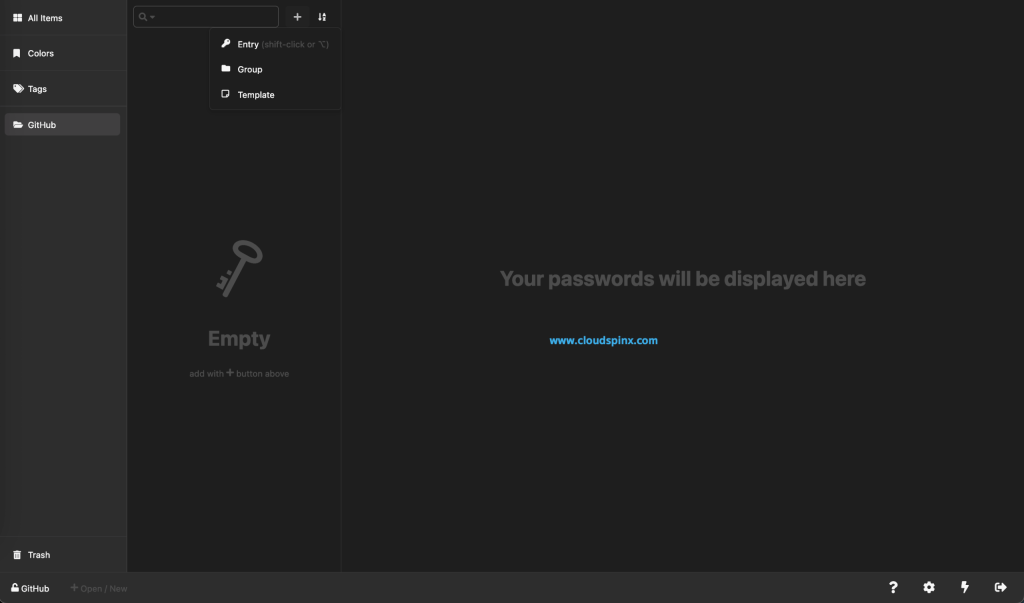
You can group your entries or add individually. To create a group or add entries, click on the + then select entry. You can also choose to add a group or a template.
Customize KeeWeb
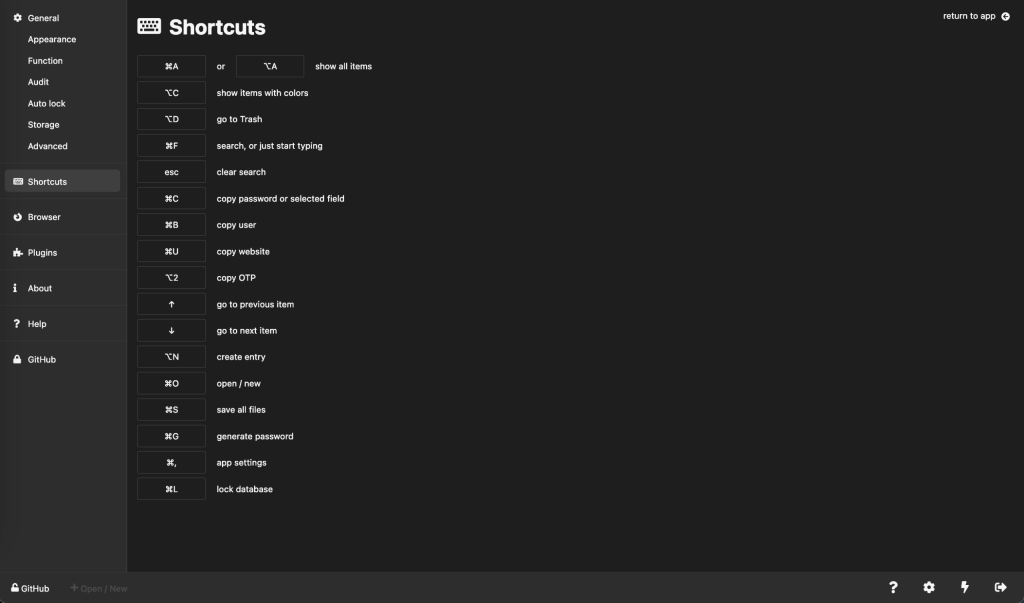
KeeWeb has a bunch of options when it comes to customization. It supports shortcuts and keyboard completion, plugins and interaction with usb. Some shortcuts are as shown:
Install KeeWeb Plugin
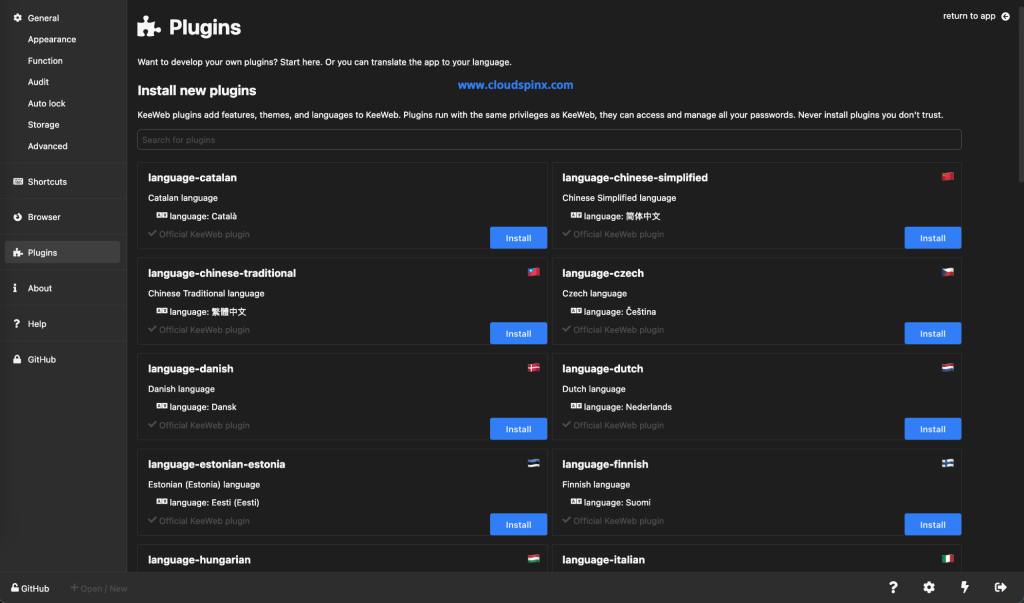
To install a KeeWeb plugin, go to Plugins→Load Plugin Gallery
That’s it. I hope this has been helpful and enjoy using KeeWeb password manager on Linux Mint 22. Check more interesting guides below:
