

Welcome to this amazing guide on how to install KDE Plasma Desktop Environment on Debian 12 (Buookworm). By the end of this guide, you will have installed and switched successfully to the amazing KDE plasma Desktop Environment. But before we dive into the installation, let us chew over it and get to know what this Desktop Environment is all about.
KDE is an international dedicated community whose work is mainly based on creating a free and user-friendly computer experience by offering advanced graphical desktop and a wide variety of applications for entertainment, learning, communication e.t.c.
Plasma being one of the projects by KDE is a powerful and open-source graphical Desktop Environment for X Windows systems. This Desktop environment is preferred due to its ease of use, ultra-modern functionality, and its design with superiority of the Unix OS
KDE plasma has the following amazing features:
- Dolphin Touch Support
- Settings Update
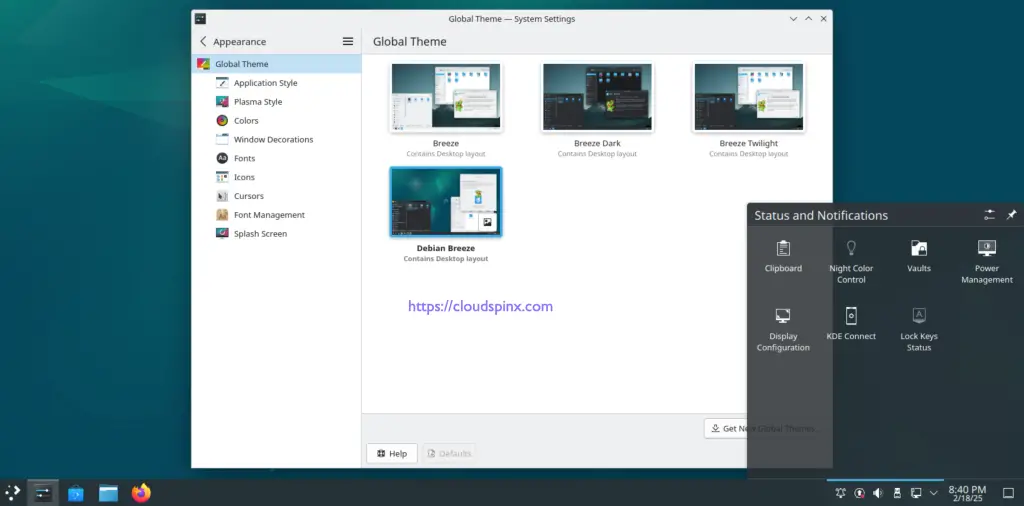
- Grid-like system tray
- Digital Clock Applet with Date
- Ability to manage apps preventing sleep and screen lock
- Disk Failure Notification in Advance
- Okular document viewer
- Power Saving Updates
Having known the above information about KDE Plasma Desktop Environment, we are now safe to dive into the nub of this guide. I will cover two methods, to get KDE Plasma Desktop Environment installed on your Debian 12 system.
Option 1: Install KDE Plasma Desktop Environment using Tasksel
In Debian 12, there is this amazing command-line tool known as Tasksel. This tool makes it easy to install Desktop environments on your Debian system.
First, ensure it is installed on your system, otherwise use:
sudo apt install -y taskselWith Tasksel installed, now launch it on your terminal using the command:
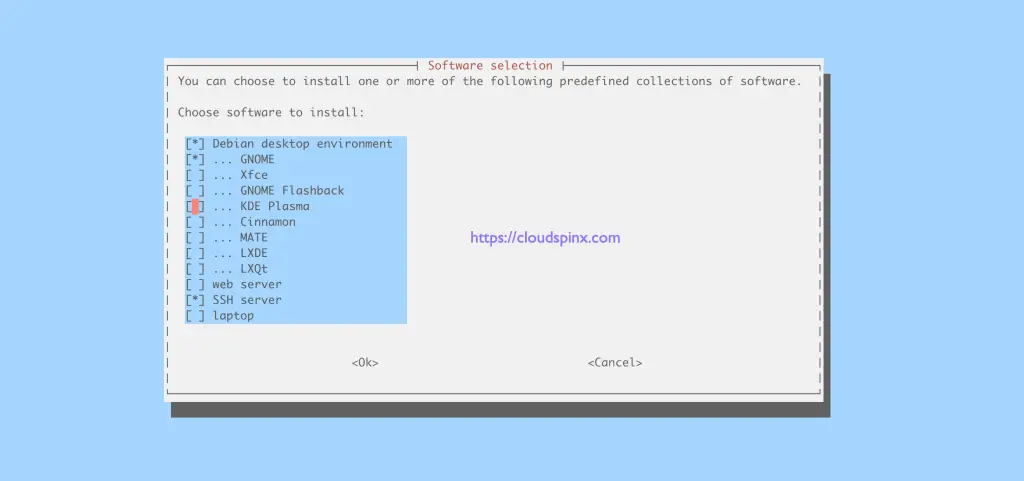
sudo taskselYou should see this Window from which you select your preferred Desktop Environment. Now navigate using the arrow keys and select KDE plasma using the space bar as shown.
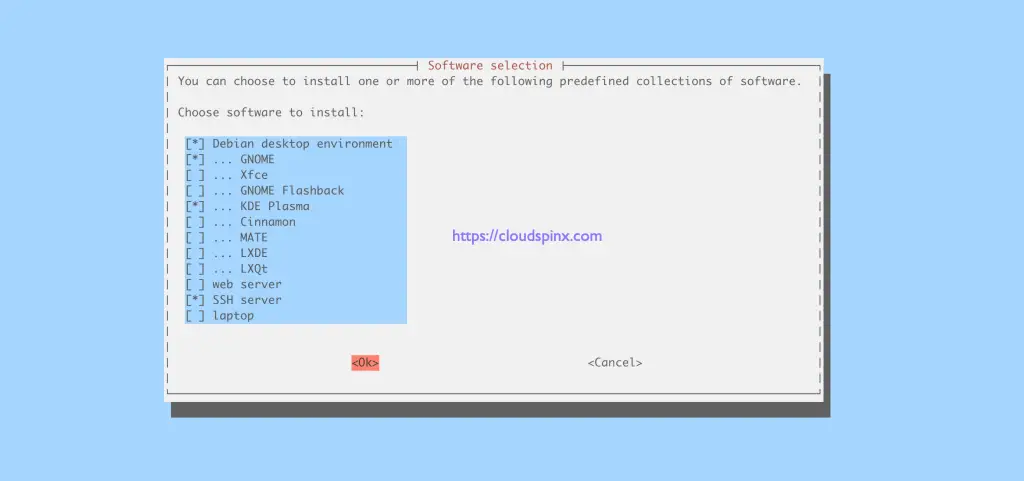
Navigate using the TAB key and select “OK” to initiate the installation.
This installation takes quite a while depending on your internet speeds. Once it is complete, reboot your system.
sudo rebootOption 2: Install KDE Plasma Desktop Environment using APT
KDE Plasma Desktop environment can also be downloaded on your Debian 12 using the APT command below.
sudo apt -y install task-kde-desktopThis task takes a while since there are innumerable packages being downloaded and installed. Once complete, reboot your system.
sudo rebootSwitching to KDE Plasma Desktop Environment
Now that we have rebooted, our Debian 12 system, we are required to switch to the new KDE Plasma Desktop installed. Select KDE plasma Desktop Environment from the list displayed.
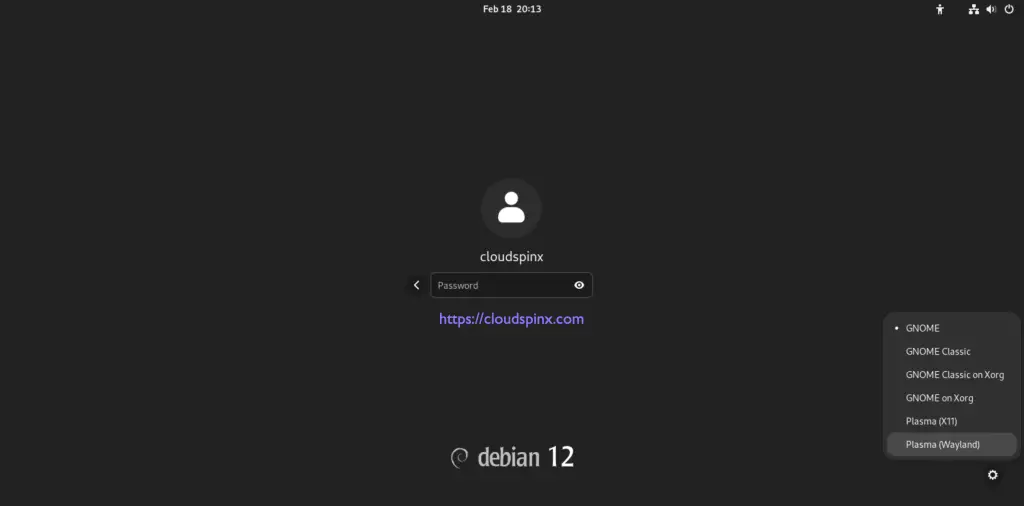
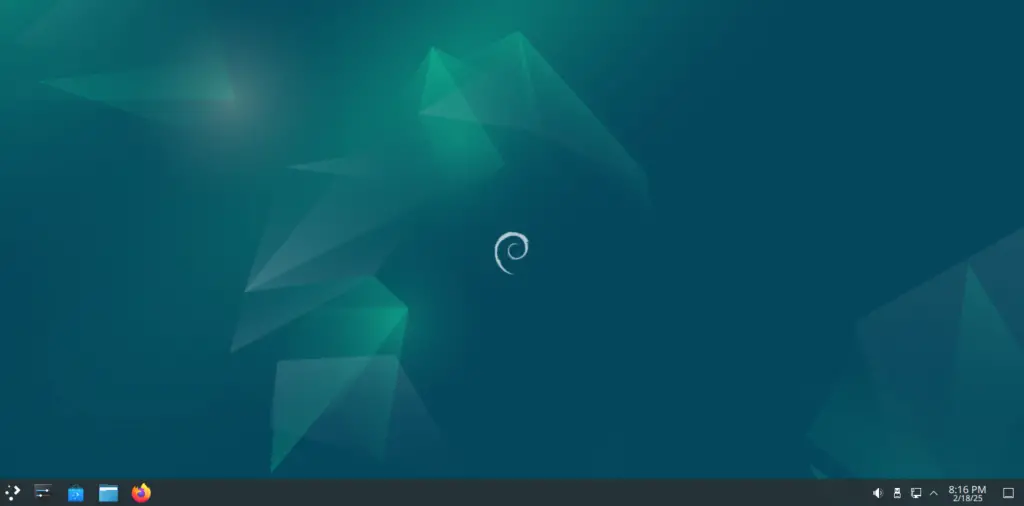
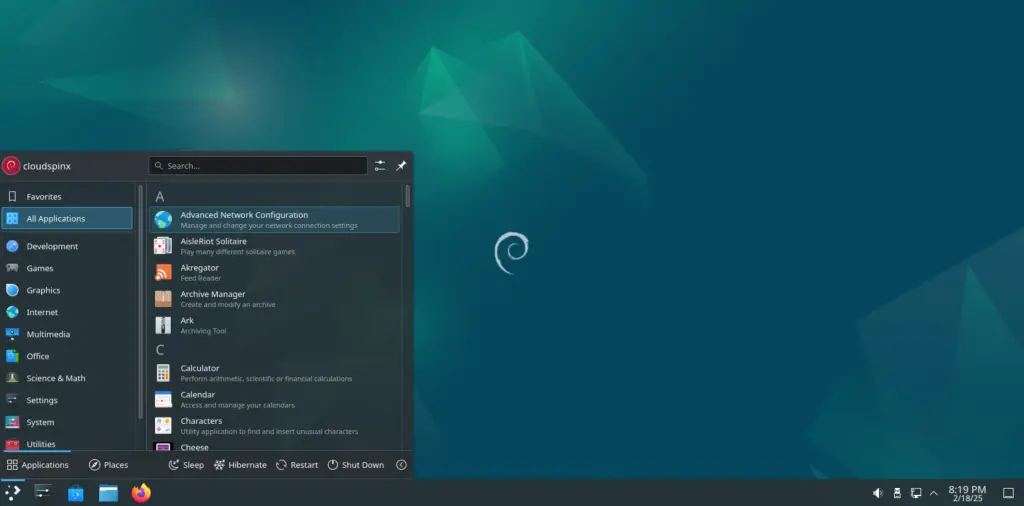
Now proceed to login. KDE Plasma Desktop Environment will be initialized and launched as shown:
Launch the application menu.
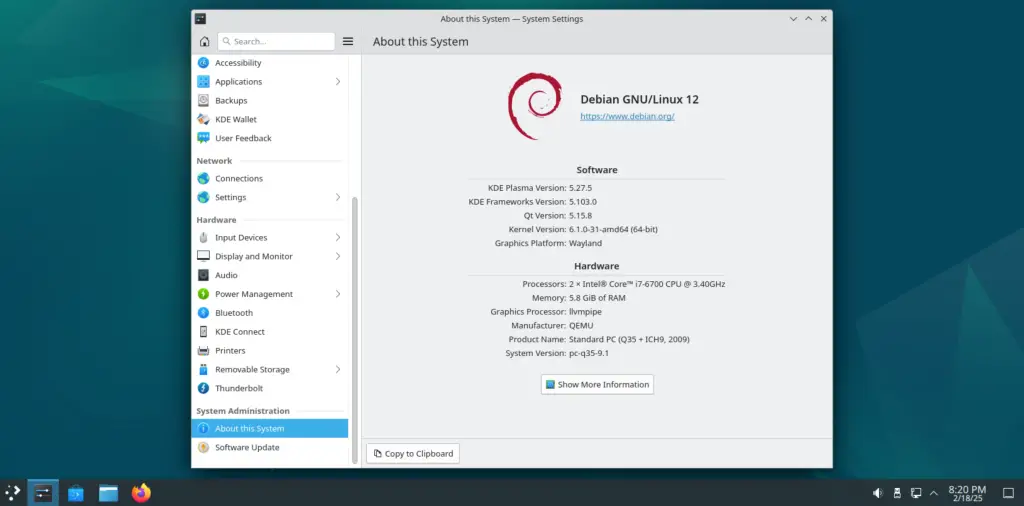
Verify your installation by checking the system info as shown.
Add themes and Plugins to KDE Plasma Desktop Environment
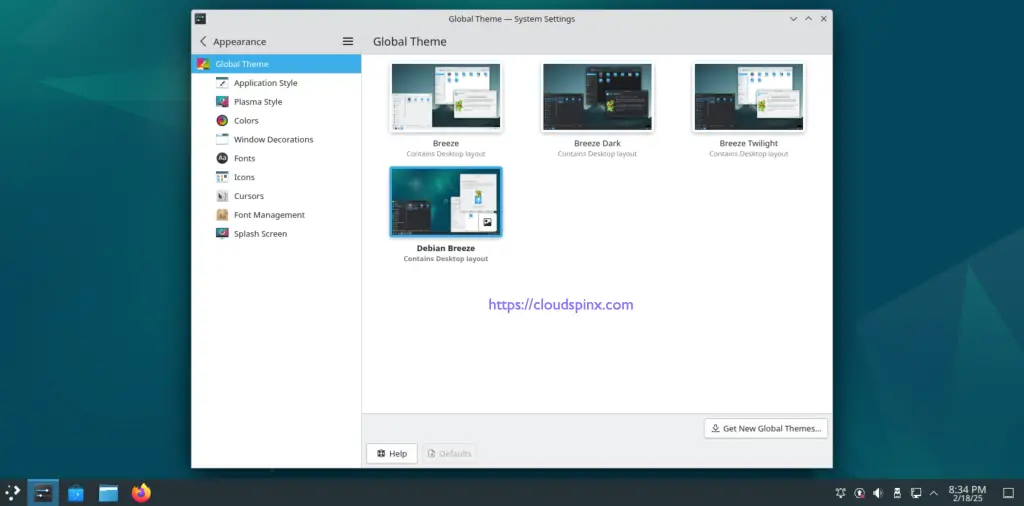
Now you are set to customize the Environment as per your needs. From the App Menu, go to System Settings. Under system settings, there are a variety of tasks you can perform to customize your Environment.
Set the Global theme. This is the universal theme in your environment. You can switch to the dark theme or install many other themes.
Plasma style
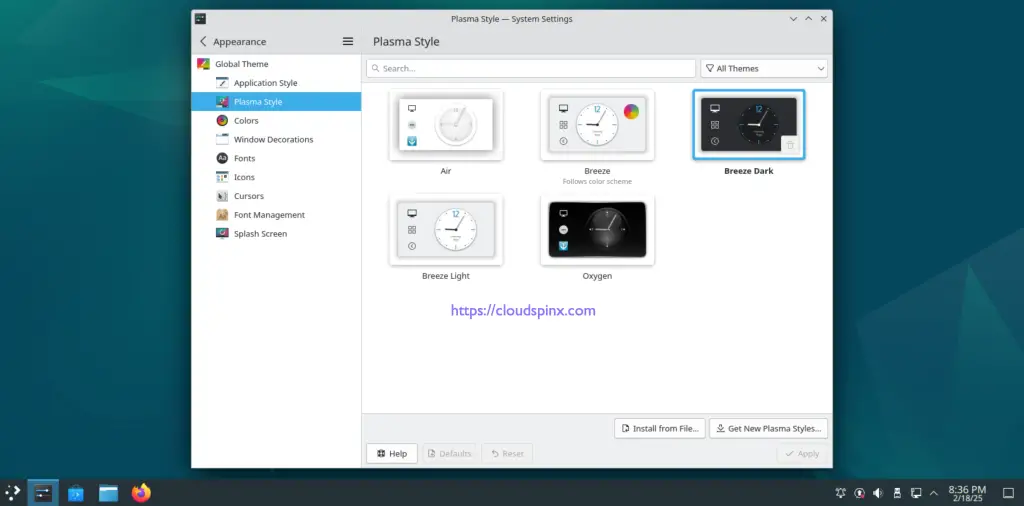
Applications style, colors, fonts, icons, cursors e.t.c. Furthermore, you can get new styles, themes e.t.c online.
One of the amazing features of KDE Plasma is the grid-like system tray.
Conclusion.
That is it! You have successfully installed KDE Plasma Desktop Environment on Debian 12 (Bookworm). Now enjoy the amazing feature of the KDE Plasma Desktop Environment.
See more:
