

Kali Linux 2026.1 is the first release of the year and it lands with a fresh 2026 theme, kernel 6.18, 25 new packages, and a nostalgic nod to BackTrack’s 20th anniversary built right into kali-undercover. This is the rolling release that most readers will download today, whether for bare metal, a VM, the cloud, WSL, or a Raspberry Pi. This guide walks you through every screen of the graphical installer, boots into the refreshed Xfce desktop, and finishes with the post-install steps that actually matter.
The commands, screenshots, and output below come from an actual install performed on a QEMU/KVM virtual machine with UEFI firmware and 40 GB of disk. Every version number printed here is real, not fabricated. If you want to follow along on a laptop, VirtualBox works the same way, as do VMware Workstation, Hyper-V, and Proxmox.
Tested April 2026 on a fresh Kali Linux 2026.1 install, kernel 6.18.12-1kali1 (2026-02-25), Xfce 4.20, Python 3.13.12, GCC 15.2.0, running on QEMU with OVMF UEFI firmware
What’s new in Kali Linux 2026.1
Before you burn the ISO, here is what has actually changed compared to 2025.4, straight from the official 2026.1 release announcement. No marketing filler, just the things you will notice.
- Kernel 6.18.12-1kali1 dated 2026-02-25. Confirmed on a fresh install with
uname -r, which prints6.18.12+kali-amd64. - 2026 theme refresh. New GRUB menu, fixed boot animation for live images, new installer theme, new LightDM login screen, and a fresh wallpaper set in blue and purple. The Xfce session opens on the new dragon wallpaper by default.
- BackTrack mode in kali-undercover. To mark BackTrack’s 20th anniversary,
kali-undercover --backtrackswaps wallpapers, colors, and window themes to recreate the BackTrack 5 look. It works alongside the existing--undercover(Windows-style) and--halloweenprofiles. - 25 new packages, 9 removed, 183 updated. The headline additions are AdaptixC2 (post-exploitation C2 framework in Go), Atomic-Operator (Python runner for Atomic Red Team tests), Fluxion (WPA/WPA2 social engineering via rogue AP), GEF (GDB Enhanced Features for exploit dev), MetasploitMCP (Model Context Protocol server for Metasploit), SSTImap (server-side template injection scanner), WPProbe (WordPress plugin enum via REST API) and XSStrike (advanced XSS scanner).
- NetHunter updates for Android: Redmi Note 8 gets a new Android 16 kernel, Samsung S10 wireless firmware patches land, WPS scanning is fixed, HID permissions are enforced, and QCACLD v3.0 injection support is added.
- Four new mirrors: Azerbaijan (YER Hosting), China (Qilu University of Technology), South Korea, and Spain (Raiola Networks).
- Known issue: the GNU Radio ecosystem inside
kali-tools-sdris currently broken. gr-air-modes and gqrx-sdr will not run until upstream fixes land. If SDR is your day job, hold off on upgrading your production rig.
Kali image flavors and which one to pick
The 2026.1 download page ships more than a dozen images. Most people only need one of these three, the rest are for specific platforms.
| Image | Size | Best for |
|---|---|---|
| kali-linux-2026.1-installer-amd64.iso | 4.4 GiB | Bare metal laptops, UEFI desktops, VMs where you want offline installs with all default tools on disk. |
| kali-linux-2026.1-installer-netinst-amd64.iso | 712 MiB | Fast installs on a good connection. Minimal ISO, everything else pulls from the mirror. |
| kali-linux-2026.1-live-amd64.iso | ~4 GiB | USB drive for forensics work where you must not write to the host disk. Boots to a full desktop without installing. |
| kali-linux-2026.1-installer-purple-amd64.iso | 4.4 GiB | Kali Purple, the defensive/blue team variant with SOC tools instead of offensive default. See our Kali Purple guide. |
| kali-linux-2026.1-installer-arm64.iso | 3.7 GiB | Apple Silicon VMs under UTM/Parallels, Raspberry Pi 4/5, other ARM64 boards. |
This guide uses the full installer-amd64 image because that is what 90% of readers actually download. Every step is identical on the netinst and arm64 variants, only the download size and the initial package fetch differ.
Hardware requirements for Kali Linux 2026.1
- CPU: x86_64 (amd64) or arm64. At least 2 cores. A VM with 1 vCPU boots but Wireshark, Metasploit, and Burp will crawl.
- RAM: 2 GB bare minimum for the text installer, 4 GB for a usable Xfce desktop, 8 GB if you plan to run Metasploit, Burp Suite, and a Windows VM for practice targets.
- Disk: 20 GB is the documented minimum, but a full default install leaves you with about 15 GB already used. Plan for 40 GB if you add
kali-linux-largeorkali-linux-everything. Verified withdf -h /after the install in this guide:37G total, 15G used, 20G available. - Firmware: UEFI is strongly preferred. Legacy BIOS still works but secure-boot-friendly UEFI is the path most hardware ships with in 2026.
- Network: Wired or wireless. The installer will download updates and the main toolset over your connection, so plan for a good link.
Download Kali Linux 2026.1 and verify the ISO
Pull the amd64 installer from the official mirror. The URL is stable, so if you want to script the download, it is safe to hard-code.
wget https://cdimage.kali.org/kali-2026.1/kali-linux-2026.1-installer-amd64.iso
wget https://cdimage.kali.org/kali-2026.1/SHA256SUMS
wget https://cdimage.kali.org/kali-2026.1/SHA256SUMS.gpg
Verify the checksum before you write it anywhere. This is the one step most tutorials skip, and it is the reason people end up with broken installs from mirrors they did not trust.
sha256sum -c SHA256SUMS 2>&1 | grep OKYou should see a line that ends with : OK for the file you downloaded. If it says FAILED, delete the ISO and redownload from a different mirror.
For bare metal, write the ISO to a USB drive. Replace /dev/sdX with the actual device. Double-check with lsblk first or you will nuke the wrong disk.
sudo dd if=kali-linux-2026.1-installer-amd64.iso of=/dev/sdX bs=4M status=progress conv=fsyncOn Windows and macOS, balenaEtcher and Ventoy both handle the Kali ISO cleanly. For a virtual machine, attach the ISO as a virtual CD and skip the USB step.
Step 1: Boot the Kali 2026.1 installer
Boot from the USB or the virtual CD. The refreshed 2026 GRUB menu greets you with the list of installer modes. Pick the top entry, Graphical install. The Install (text-based) option produces an identical system, it just uses curses instead of GTK. Advanced options exist for speech synthesis, rescue mode, and automated installs.
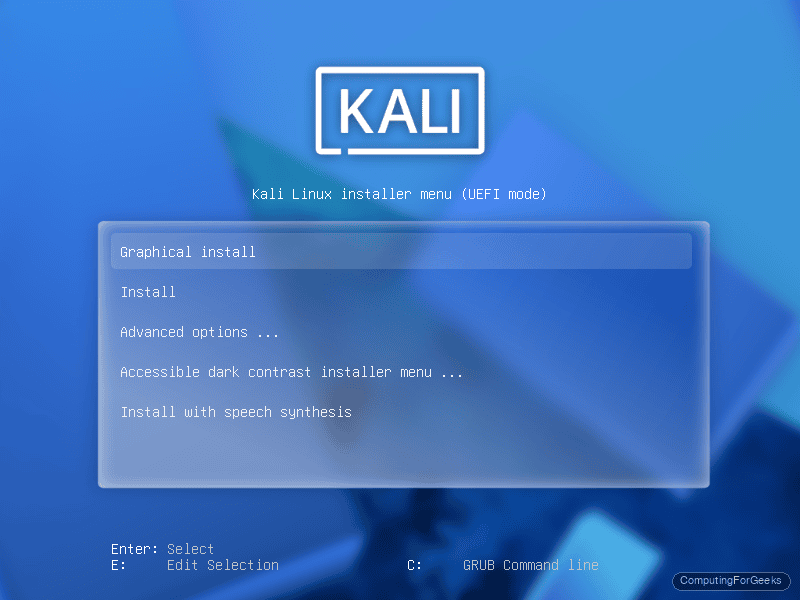
Press Enter on Graphical install. The Debian Installer (debian-installer, or d-i) loads, applies the Kali theme, and brings you to the first real configuration step.
Step 2: Language, location, and keyboard
The first three screens are locale settings. They set the system language, the default timezone lookup, and the console/keyboard layout. Pick what matches your hardware, not what you think sounds cool. Wrong keymap is the number one reason people think Kali installs are broken ten minutes later when they cannot log in.
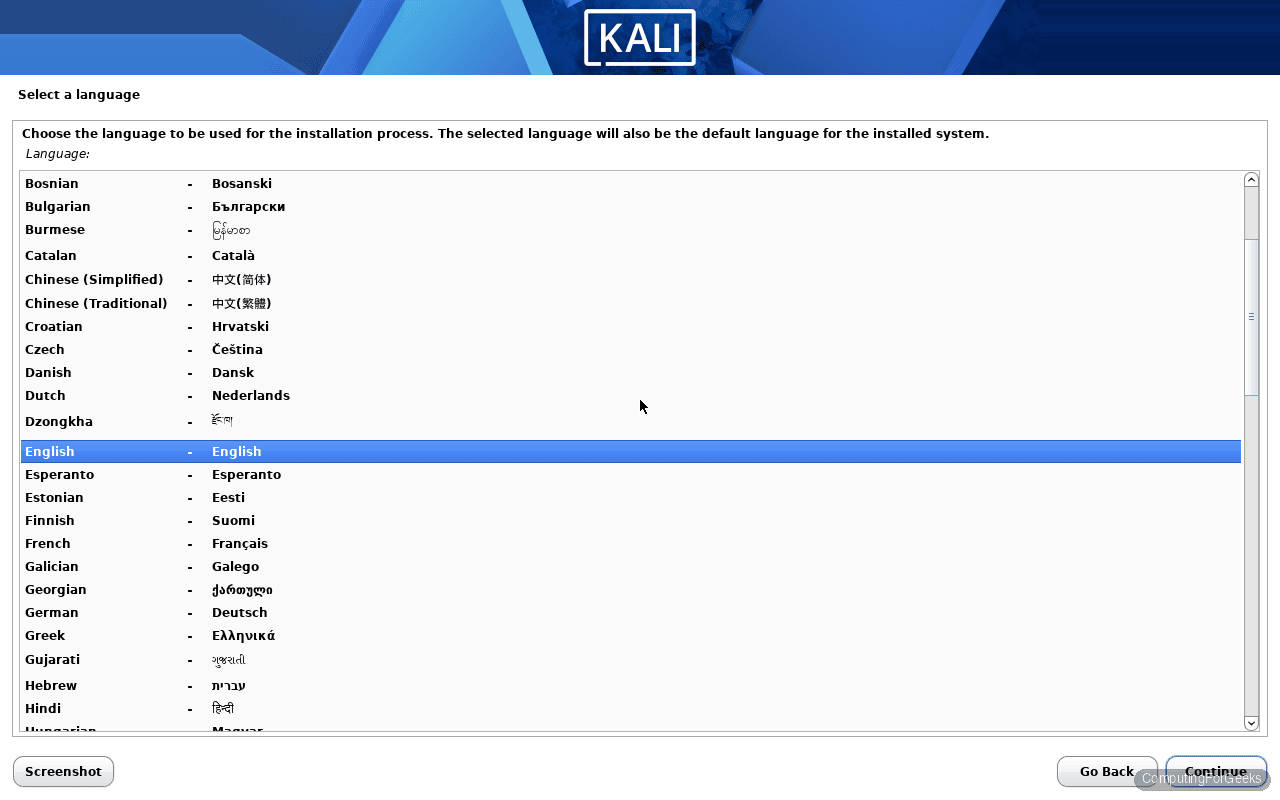
Select English (or whichever language you prefer) and click Continue.
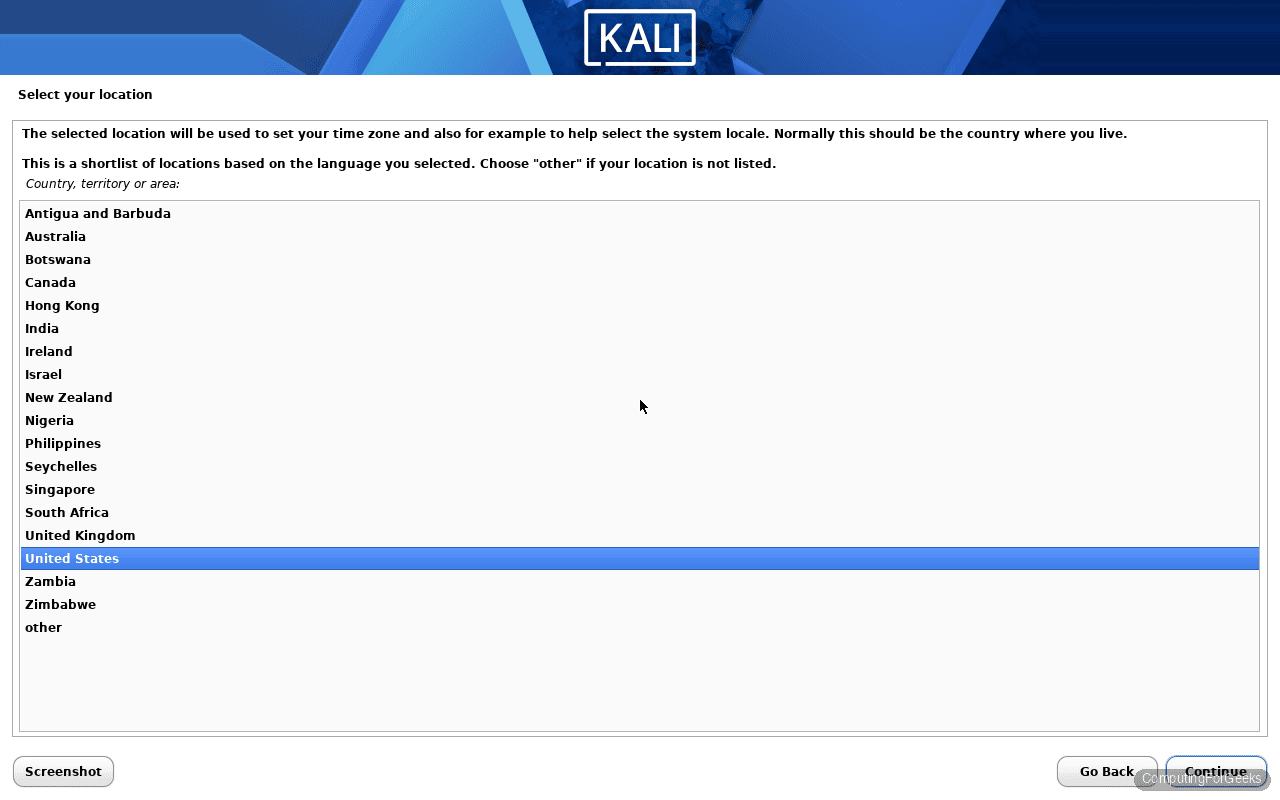
Pick your country. The list is filtered by language, so scroll if your country is not in the short list at the top.
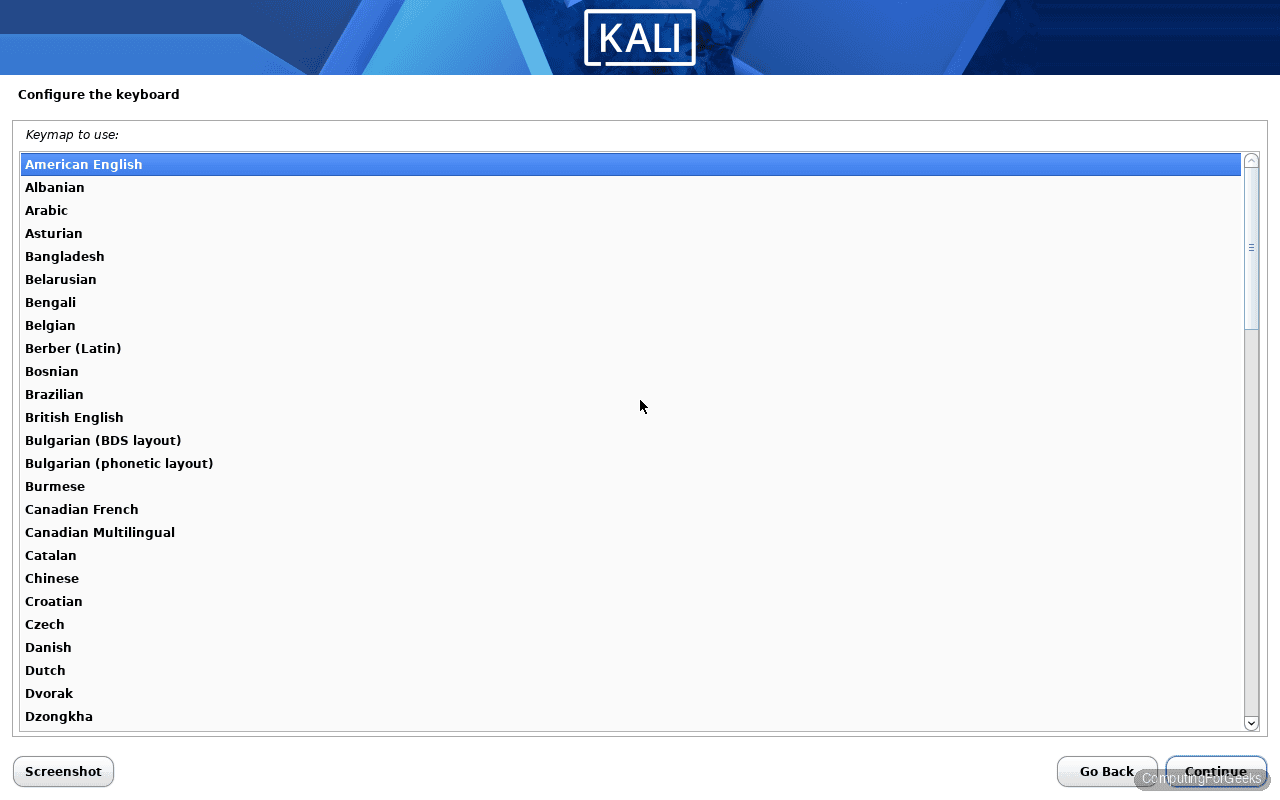
Choose the keyboard layout that matches your physical keyboard. American English, British English, German, French AZERTY, etc. When in doubt, default to American English on a QWERTY layout.
Step 3: Network configuration and hostname
The installer probes network hardware, pulls DHCP, and then asks for the system hostname. Pick something short and memorable. kali is fine for a lab. For a VM farm, a descriptive name saves you headaches later.
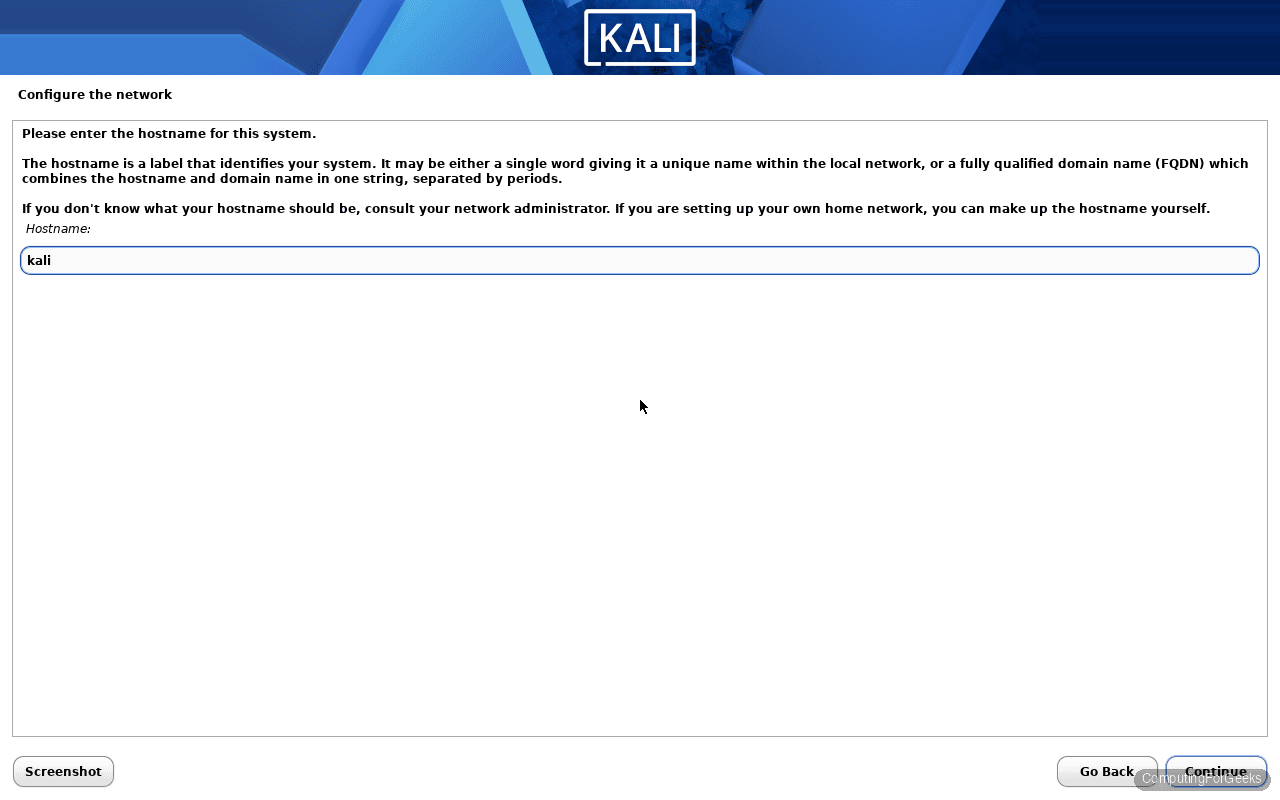
The next screen asks for a domain name. If you are not joining an AD or running internal DNS, leave it blank and click Continue. The installer will not complain.
Step 4: Create the user account
Kali switched away from the legacy root/toor login years ago. In 2026.1 the installer creates a standard user with sudo privileges, and the root account is locked by default. This is the right default. Enter a full name first, the username gets derived from it automatically.
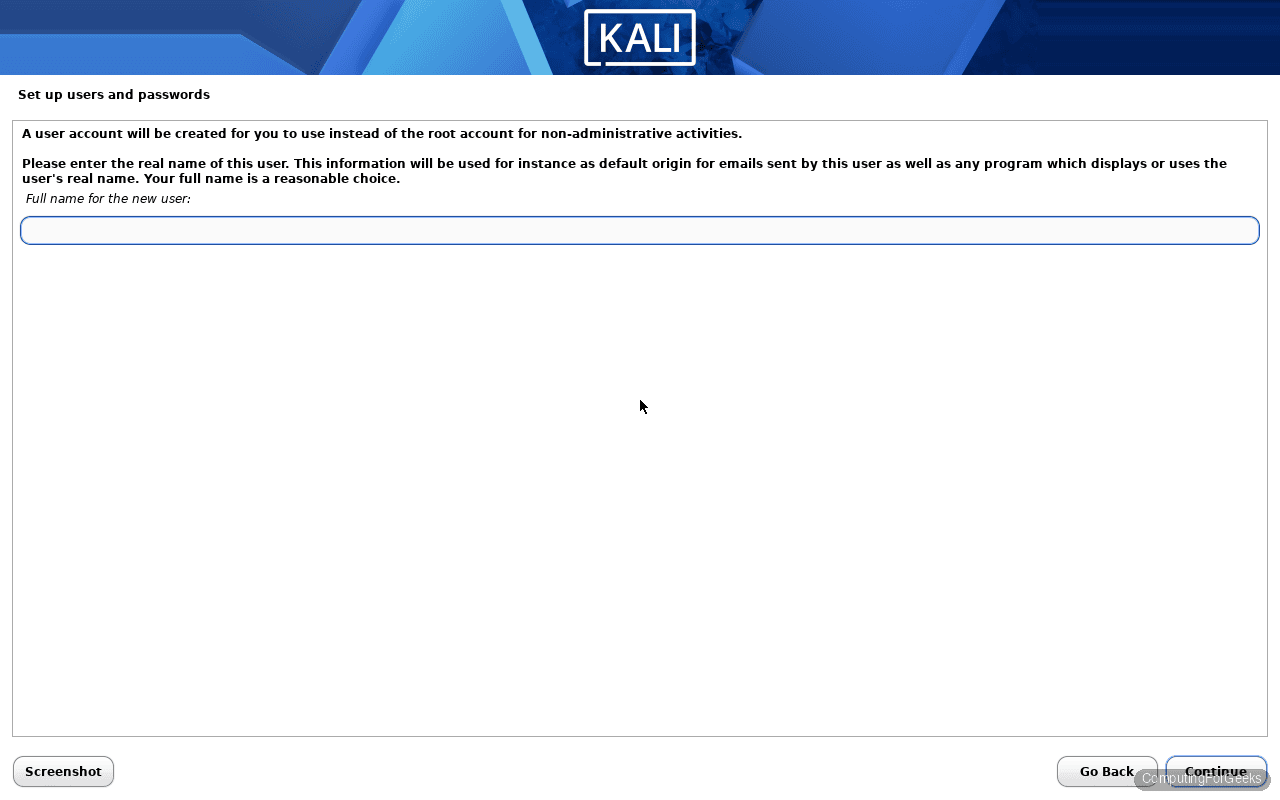
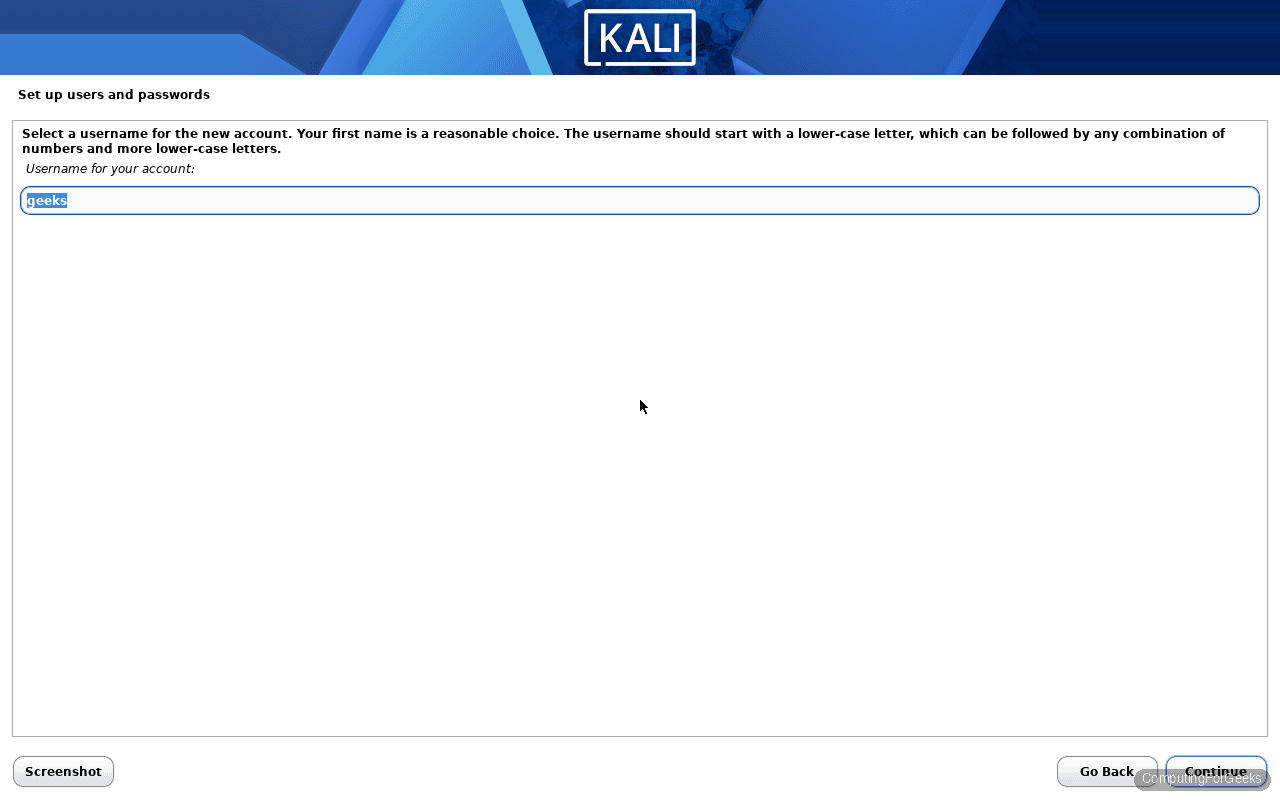
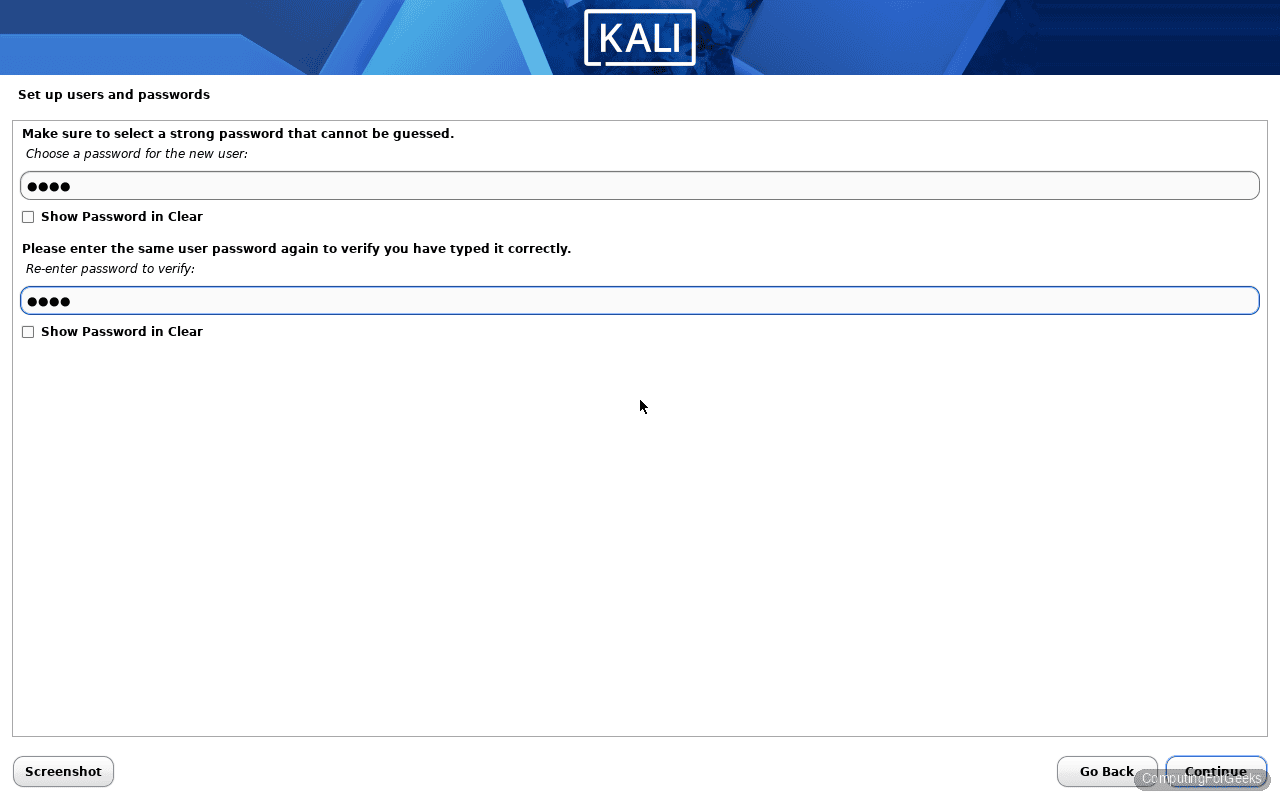
Set a strong password. You will type it every time you sudo, so pick something you can actually remember.
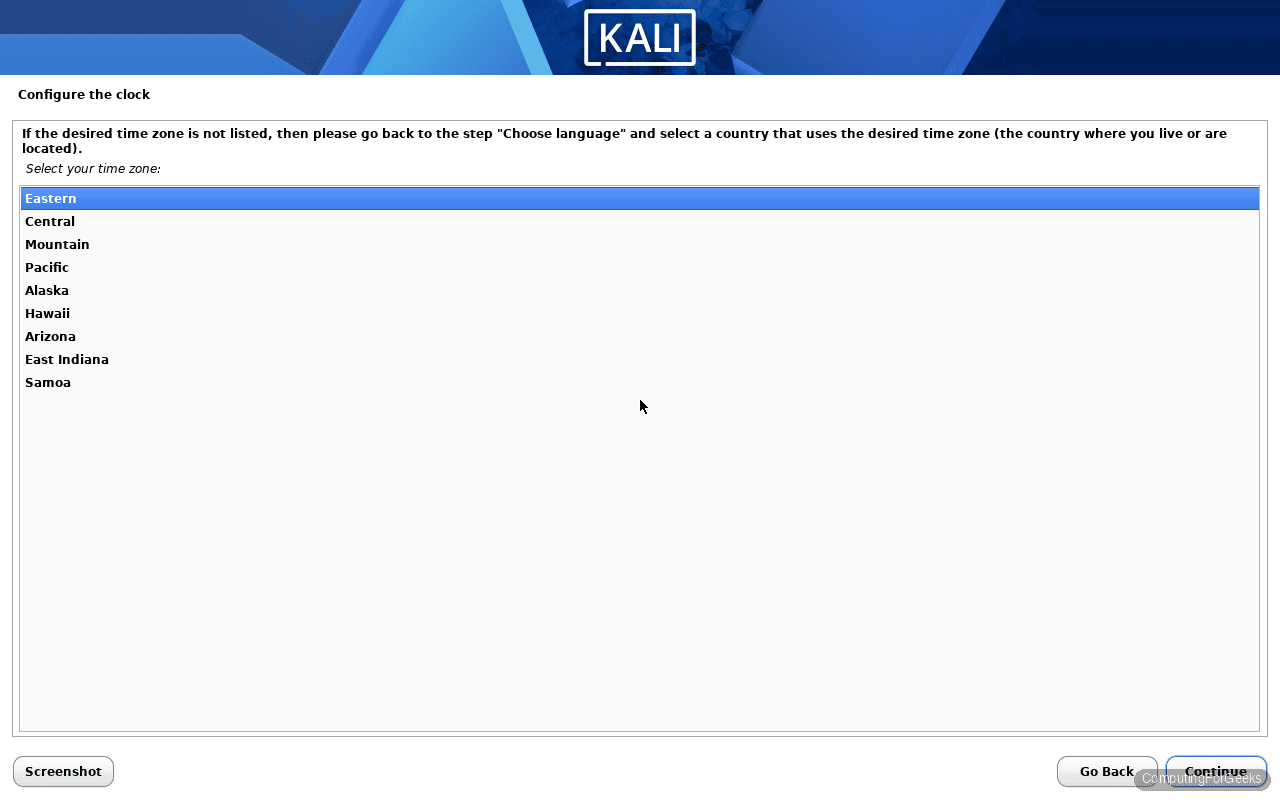
Step 5: Clock and time zone
The installer picks the time zone based on your earlier country selection. You only see this screen if your country has multiple zones. Pick the one that matches your location.
Step 6: Partition the disk
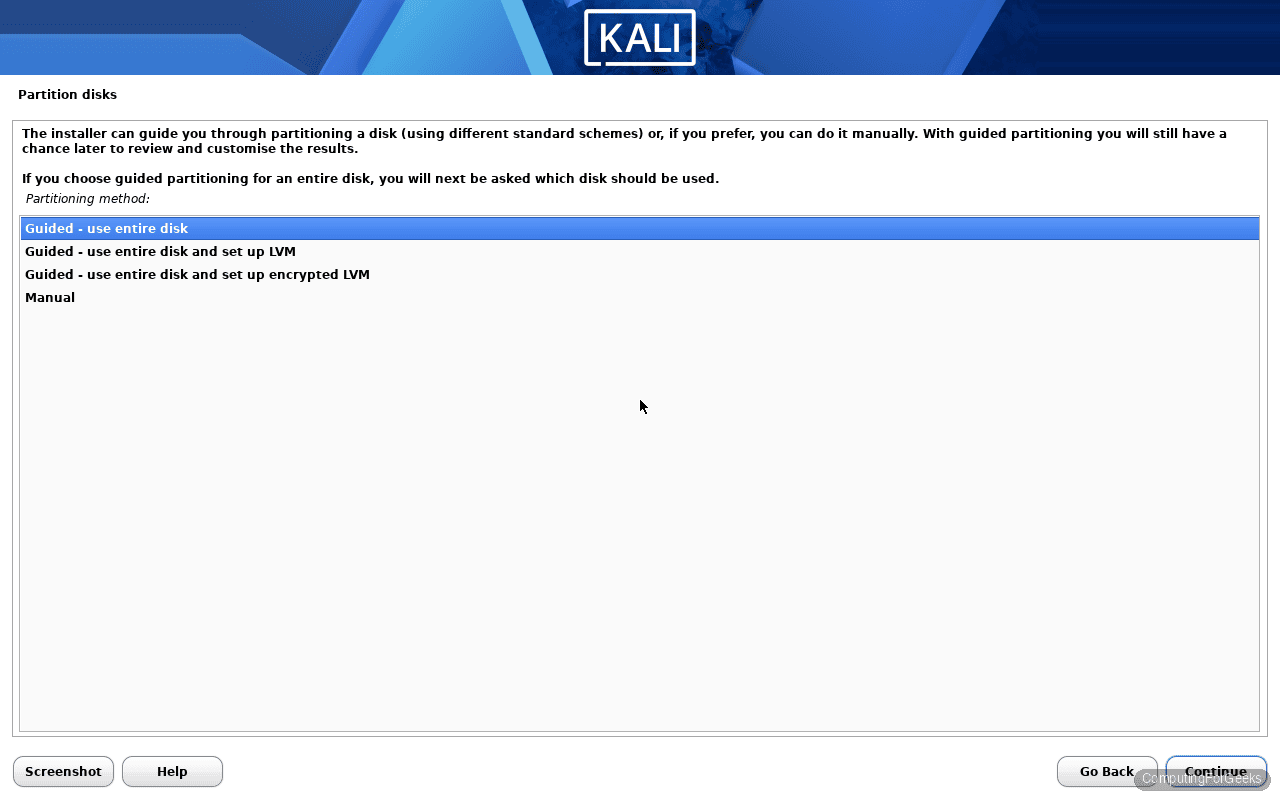
For most people, Guided, use entire disk is the right answer. It wipes the selected disk, creates the EFI system partition if you booted in UEFI mode, and puts everything else under /. If you have critical data on the target disk, back it up first. The installer does not ask twice.
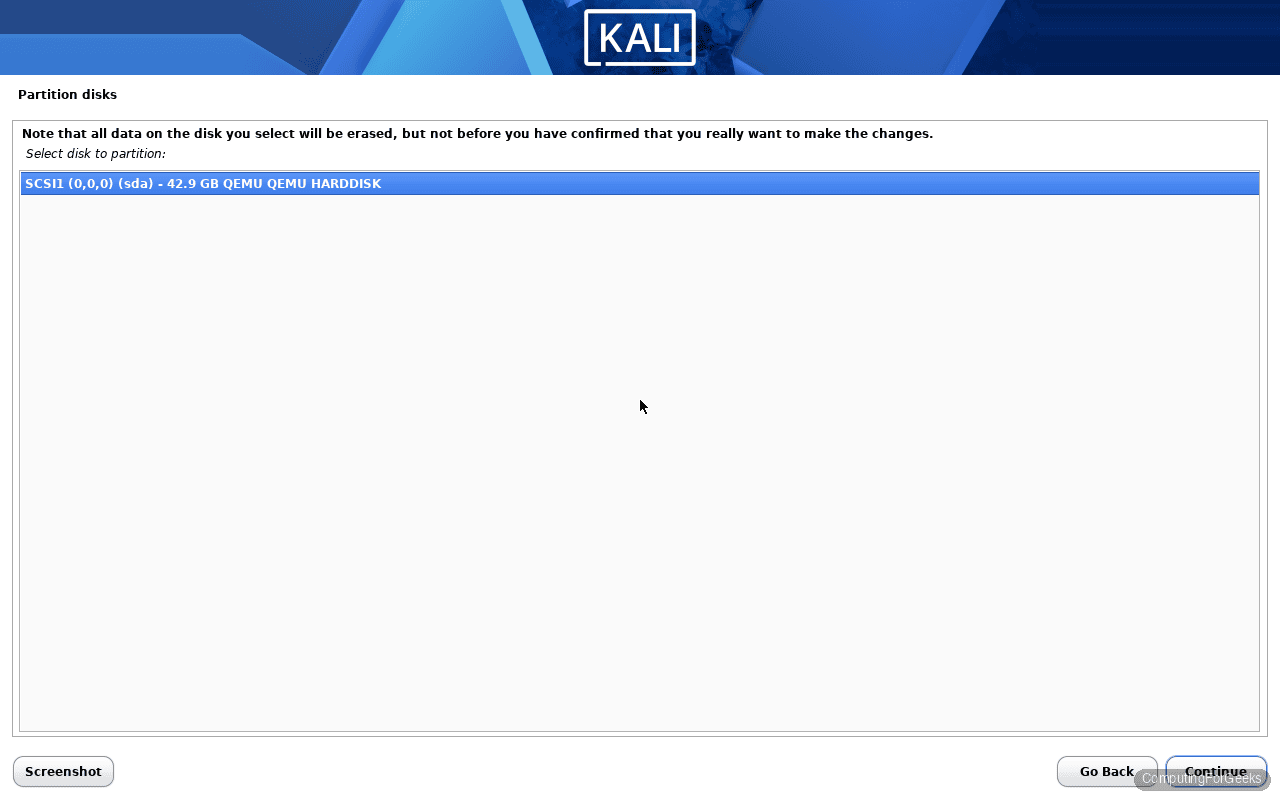
Pick the target disk. On a VM this is usually /dev/sda, on a laptop with an NVMe SSD it shows as /dev/nvme0n1.
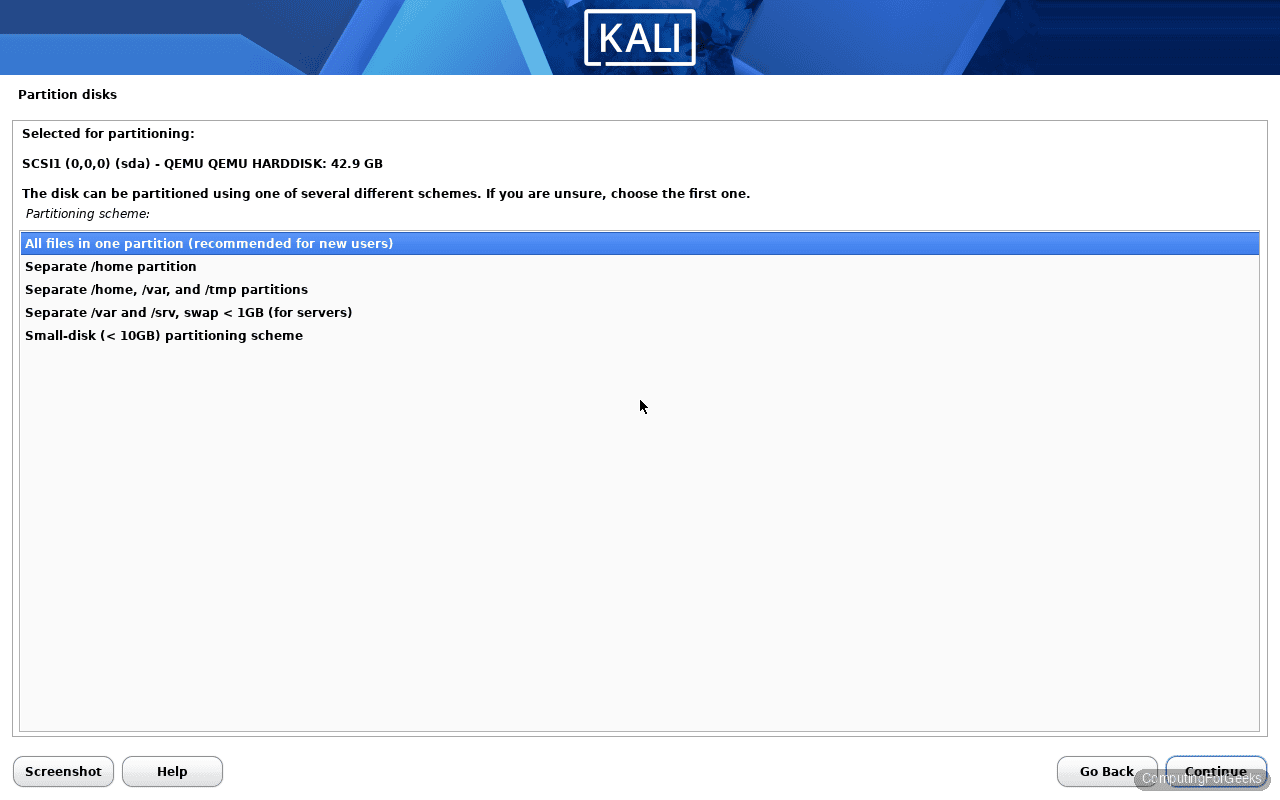
Then pick All files in one partition. The other options (separate /home, separate /var and /tmp) are worth it if you are running a multi-user box or a server, but for a personal Kali install the single-partition layout is simpler and wastes no space.
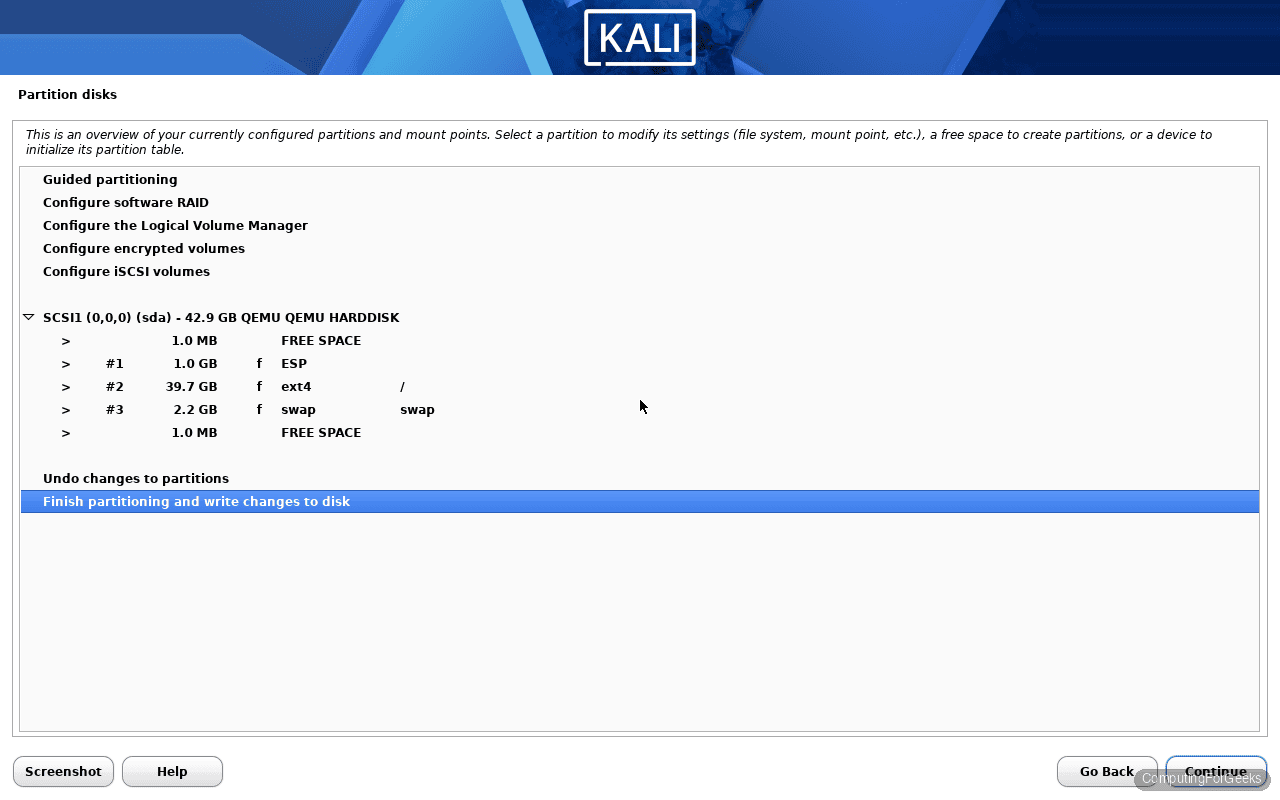
The installer shows the final partition table before touching anything. On UEFI you get an ESP (EFI system partition), a root partition formatted as ext4, and a small swap partition. Scroll to Finish partitioning and write changes to disk.
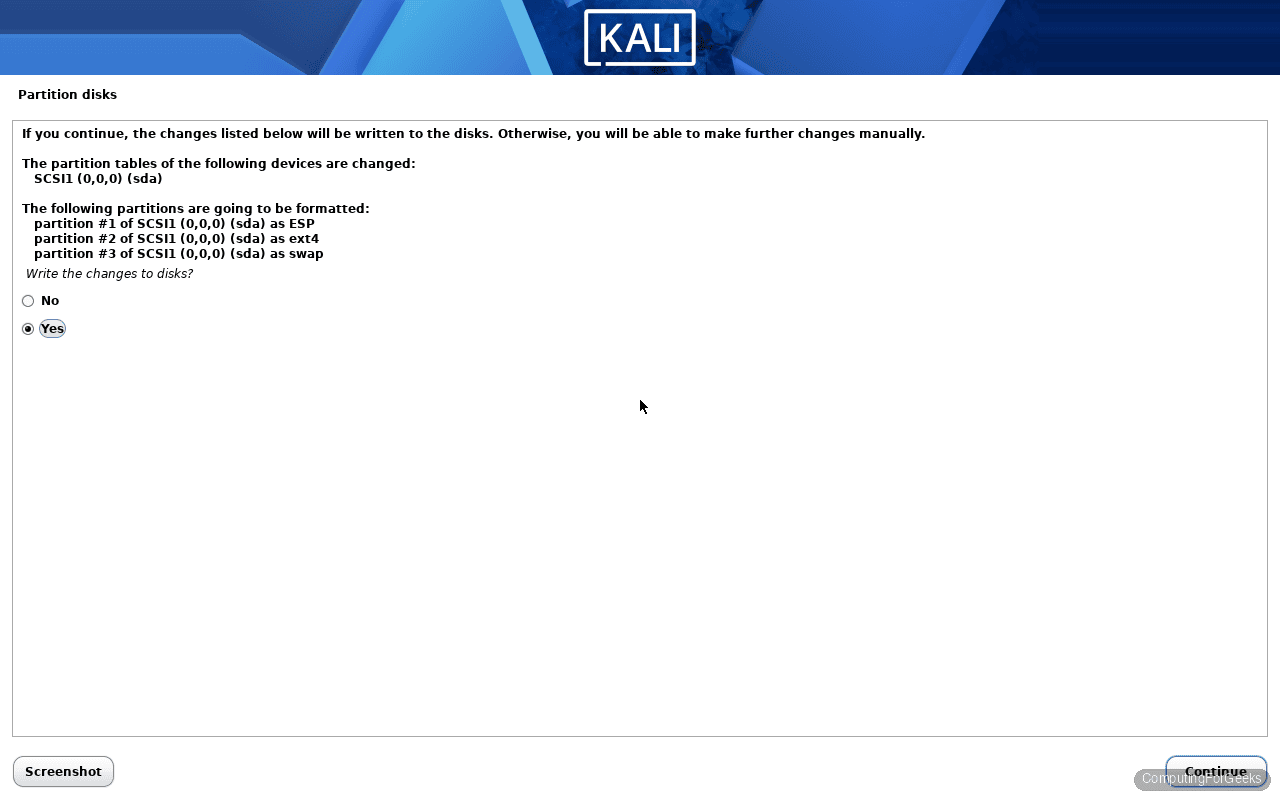
The confirmation screen is the point of no return. Select Yes to commit. The installer formats the partitions and starts laying down the base system.
Step 7: Choose your desktop and tool metapackage
This is the most important screen in the whole installer, and it is the screen most guides gloss over. What you pick here decides which desktop you log into and how many tools land on disk by default.
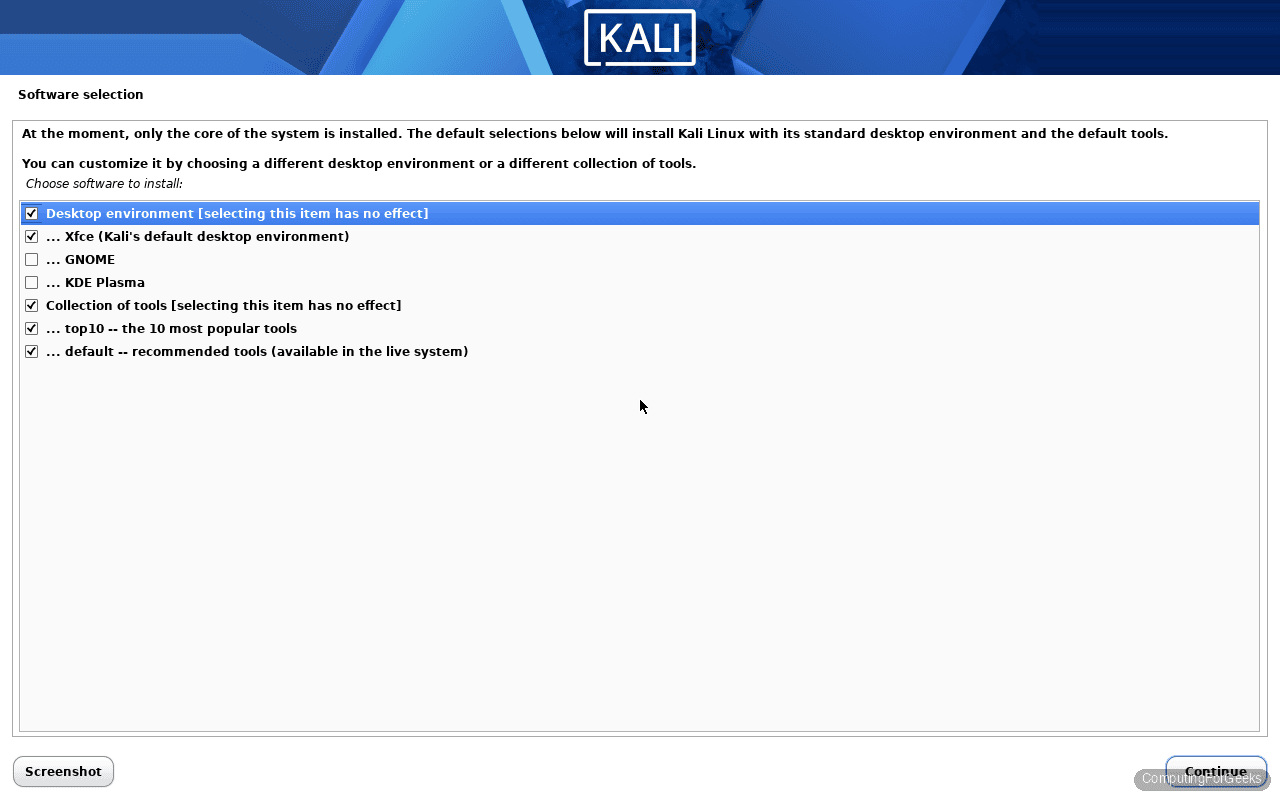
You are presented with two groups of checkboxes: the desktop and the tool collection. For desktops:
- Xfce is the default and what this guide installs. It is light, fast, gets the most testing from the Kali team, and handles the new 2026 theme natively. Confirmed components on the test machine: xfce4 4.20.1, xfce4-panel 4.20.6, xfce4-session 4.20.3, thunar 4.20.7.
- GNOME is the heaviest of the three. Pick it if you run on a modern laptop with discrete graphics and you already know GNOME shortcuts.
- KDE Plasma is for people who want a Windows-like desktop with real configurability.
For the tool collection, pick one:
- top10 – the 10 most common tools (nmap, Wireshark, Burp Suite, Metasploit Framework, John the Ripper, Hydra, Aircrack-ng, sqlmap, Nikto, responder). ~1 GB install.
- default – the tool set most tutorials assume. This is what this guide installs. The final install has 2866 packages and sits at 15 GB.
- large – default plus extra tools. Good for full-time pentesters.
The everything metapackage (kali-linux-everything) is not offered in the installer, you install it later with apt. It pulls every tool Kali packages and needs ~50 GB.
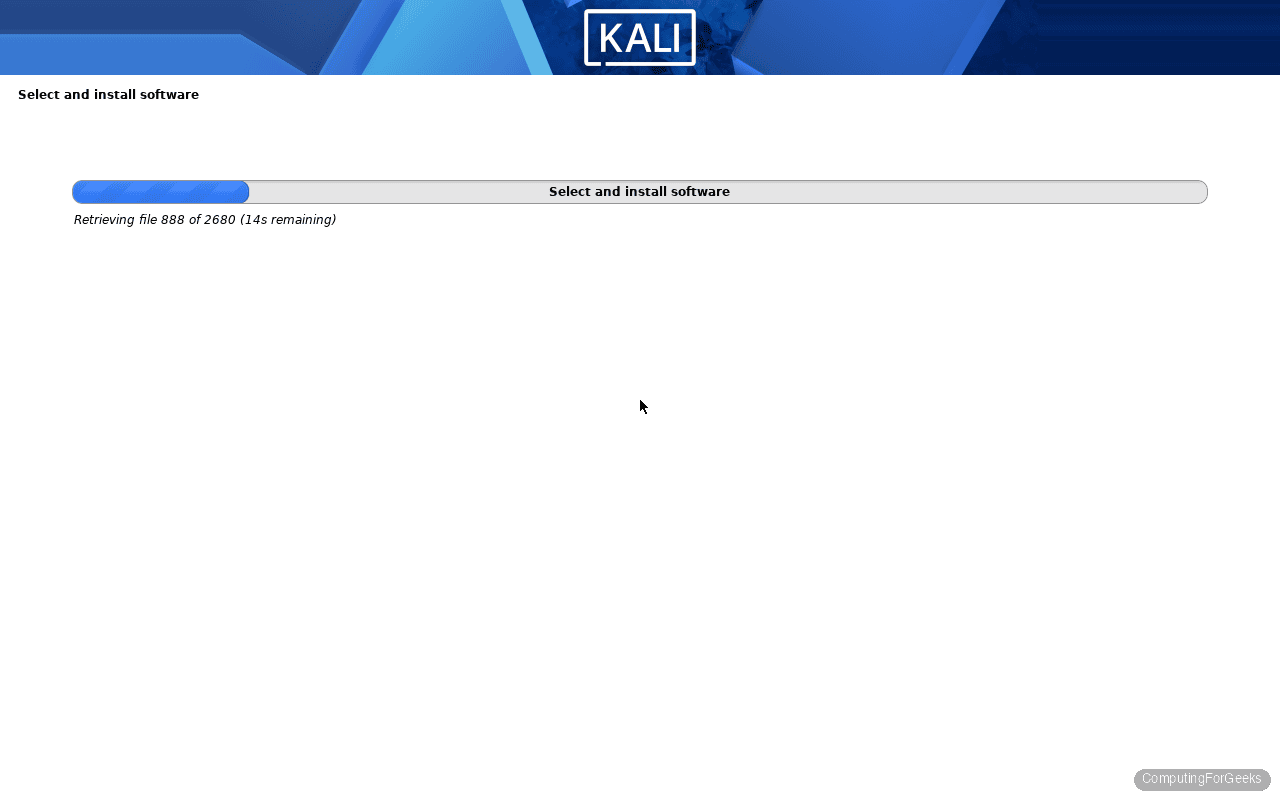
Click Continue. The installer downloads and unpacks everything. On a default install, this takes 15-30 minutes depending on your mirror speed.
Step 8: Install GRUB and finish
On UEFI systems, the installer drops the GRUB bootloader into the EFI system partition at /boot/efi/EFI/kali/grubx64.efi without asking. On legacy BIOS it prompts for the disk to install GRUB to. In both cases the answer is the disk you just partitioned.
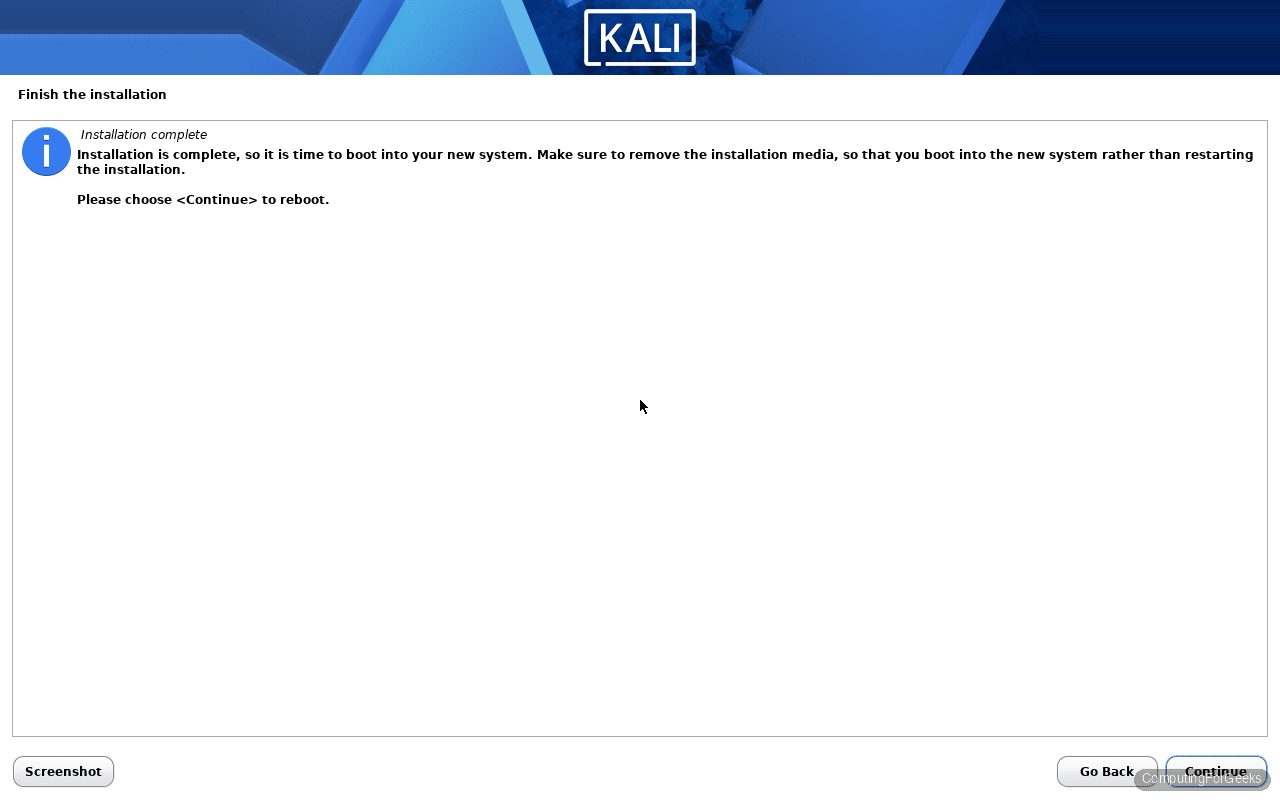
When you see the “Installation complete” screen, remove the installation media (the installer detaches the ISO automatically in most VMs) and click Continue. The machine reboots into the new system.
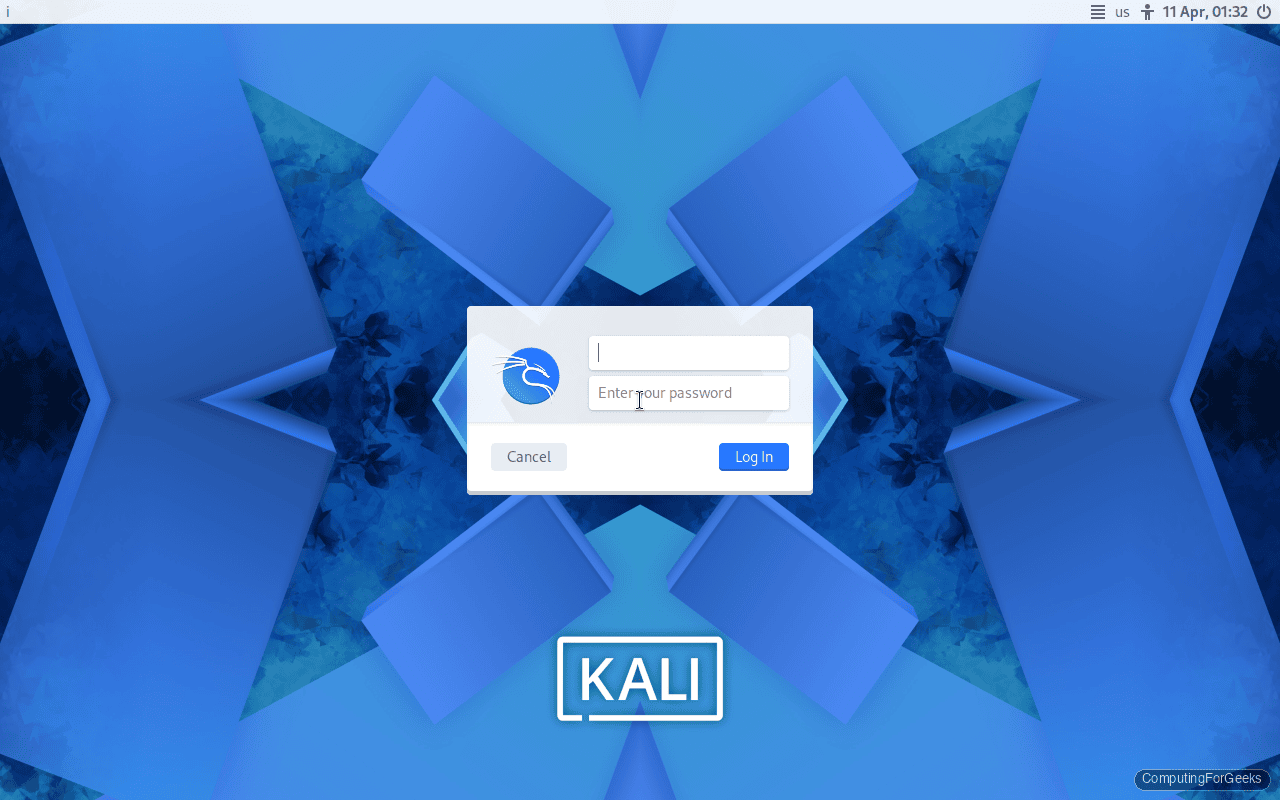
First boot: log in to Kali 2026.1
The new LightDM greeter lands on the refreshed 2026 wallpaper. Enter the username and password you chose during the install.
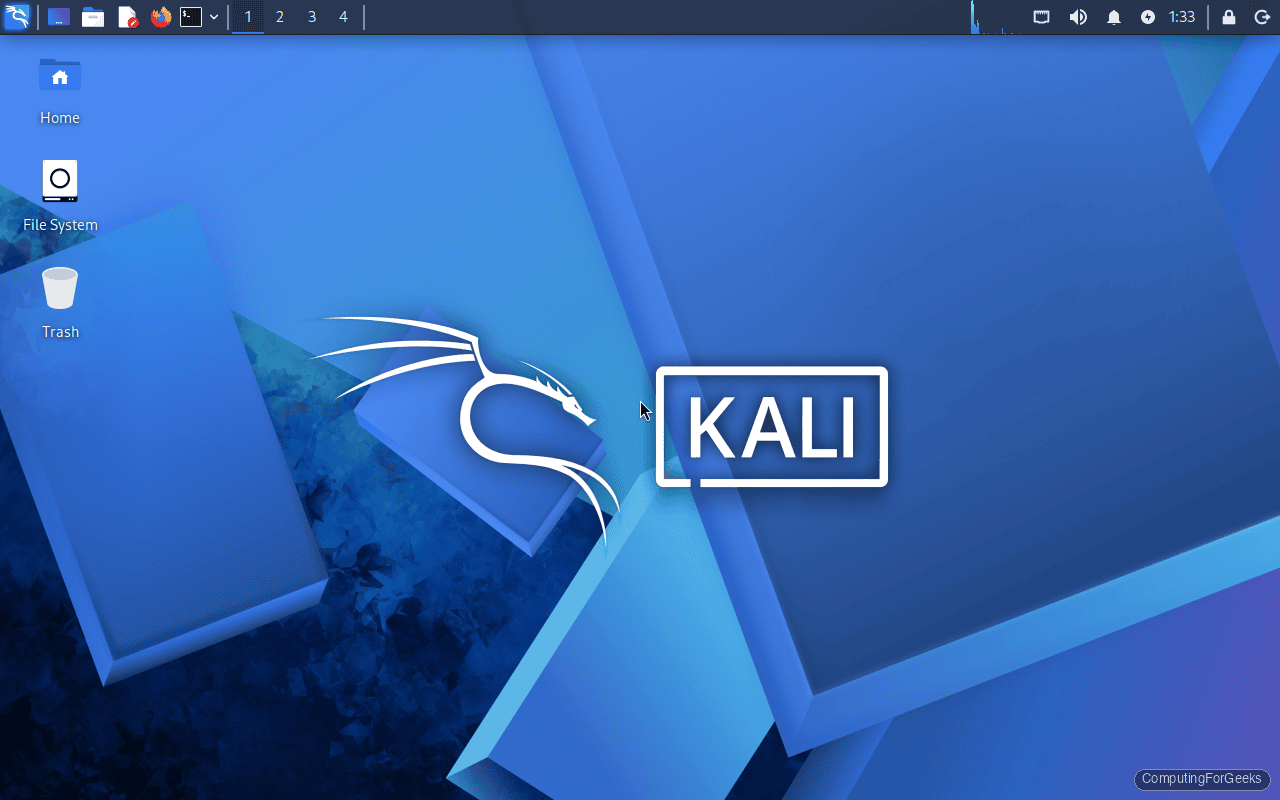
Xfce loads in a couple of seconds. You land on the new blue dragon wallpaper with the Home, File System, and Trash icons on the desktop. The top panel holds the Kali menu, web browser, file manager, terminal, and the usual tray icons.
Open a terminal (Ctrl+Alt+T or click the icon in the panel) and verify the kernel and release. This is the moment to confirm your install is genuinely 2026.1 and not some older ISO someone handed you:
uname -a && cat /etc/os-release | head -5The output from the VM used in this guide confirms the 2026.1 kernel and release codename:
Linux i 6.18.12+kali-amd64 #1 SMP PREEMPT_DYNAMIC Kali 6.18.12-1kali1 (2026-02-25) x86_64 GNU/Linux
PRETTY_NAME="Kali GNU/Linux Rolling"
NAME="Kali GNU/Linux"
VERSION_ID="2026.1"
VERSION="2026.1"
VERSION_CODENAME=kali-rolling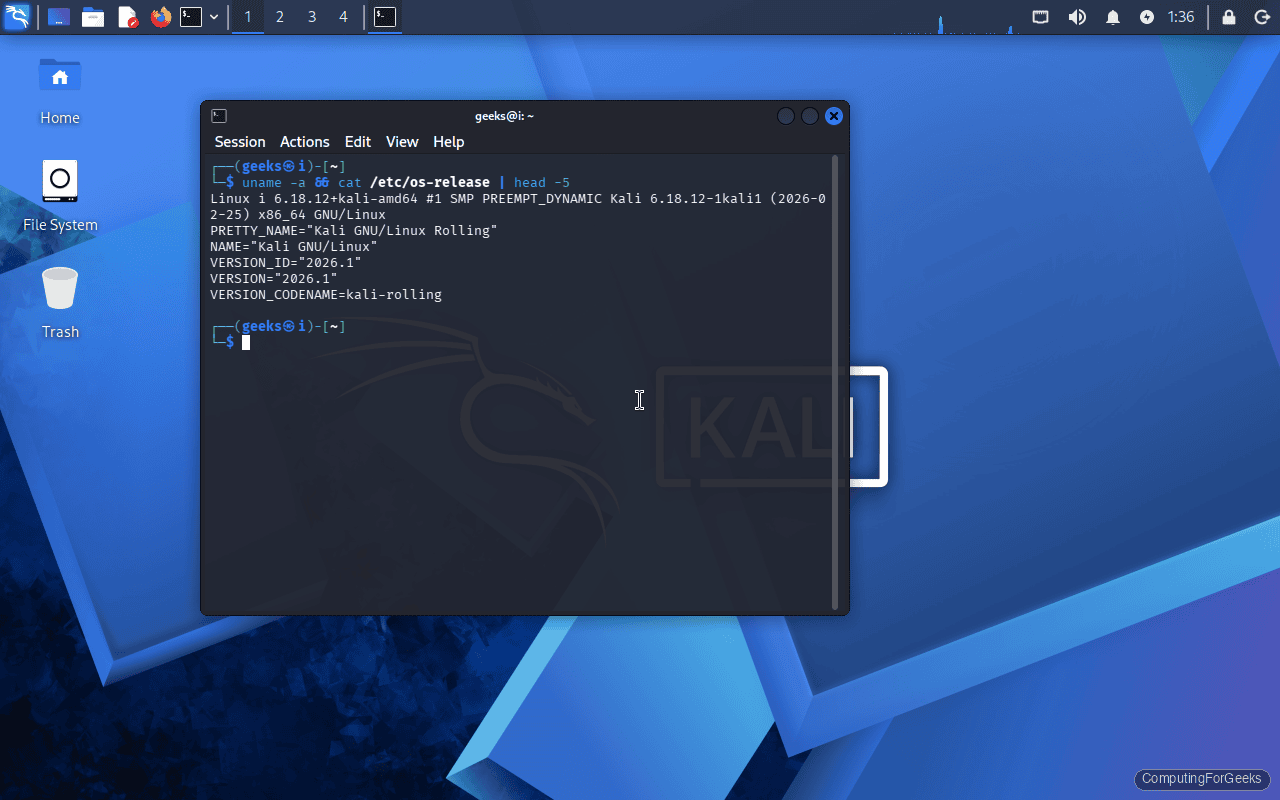
Post-install essentials
A default Kali install is usable the moment you log in, but there are five things worth doing before you start on real work. Skipping any of them is how people end up with broken upgrades and missing tools two weeks later.
Update the package index and upgrade
The ISO was built in February 2026. By the time you install it, there are already security fixes waiting. Run a full upgrade:
sudo apt update
sudo apt dist-upgrade -y
The Kali docs explicitly recommend dist-upgrade over full-upgrade because the former handles held-back packages more gracefully on a rolling release. Reboot if the upgrade pulled a new kernel.
Confirm the sources.list is correct
On a fresh 2026.1 install, /etc/apt/sources.list should have exactly one active line pointing at kali-rolling. If it does not, fix it before you upgrade again:
cat /etc/apt/sources.listThe expected content is a single deb line with the main, contrib, non-free, and non-free-firmware components:
# See https://www.kali.org/docs/general-use/kali-linux-sources-list-repositories/
deb http://http.kali.org/kali kali-rolling main contrib non-free non-free-firmware

# Additional line for source packages
# deb-src http://http.kali.org/kali kali-rolling main contrib non-free non-free-firmware
If you ever end up with mismatched repos or stale mirrors, see our dedicated guide on adding the official Kali repositories to sources.list.
Install the new 2026.1 tools
The default metapackage pulls the standard Kali tool set, but the eight new 2026.1 additions are not in the default install. Grab them explicitly if they match your workflow. XSStrike and WPProbe are the quickest wins for web pentesters:
sudo apt install -y xsstrike wpprobe sstimap fluxion gefThe apt output on the test VM confirmed the exact package versions landing on disk:
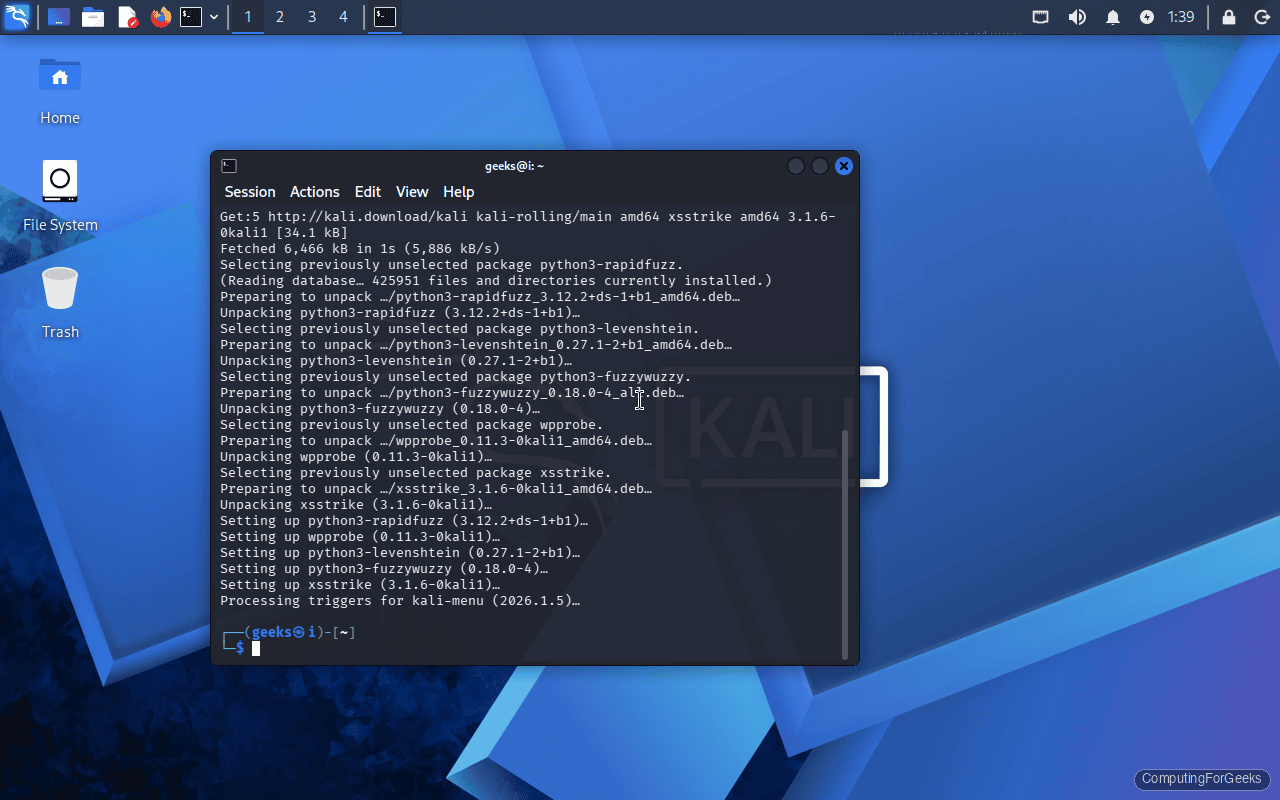
Setting up python3-rapidfuzz (3.12.2+ds-1+b1)
Setting up wpprobe (0.11.3-0kali1)
Setting up python3-levenshtein (0.27.1-2+b1)
Setting up python3-fuzzywuzzy (0.18.0-4)
Setting up xsstrike (3.1.6-0kali1)
Processing triggers for kali-menu (2026.1.5)
For the C2 and adversarial-emulation side of the 2026.1 release, pull AdaptixC2, Atomic-Operator, and the new Metasploit MCP server:
sudo apt install -y adaptixc2 python3-atomic-operator metasploitmcpInstall VM guest additions (virtualized installs only)
Fresh Kali installs in a VM often ship without guest additions, so the screen stays at 800×600 and copy/paste between host and guest does not work. Install the right package for your hypervisor:
# VirtualBox
sudo apt install -y virtualbox-guest-x11

# VMware
sudo apt install -y open-vm-tools-desktop

# QEMU/KVM
sudo apt install -y spice-vdagent qemu-guest-agent
Reboot once after installing guest tools. The desktop will auto-resize when you change the window size.
Enable and harden SSH
OpenSSH is installed by default but disabled. Enable it only if you actually need remote access, and change the default host keys first so you do not ship the ISO’s baked-in keys everywhere you clone the VM:
sudo rm /etc/ssh/ssh_host_*
sudo dpkg-reconfigure openssh-server
sudo systemctl enable --now ssh
The OpenSSH build in 2026.1 is 10.2p1. You can confirm with ssh -V.
Exploring the Kali menu
Click the Kali logo in the top-left corner (or press Super) to open the Whisker menu. The tool catalog is organized by attack-chain phase, not alphabetical, which matches the way the MITRE ATT&CK framework thinks about an engagement:
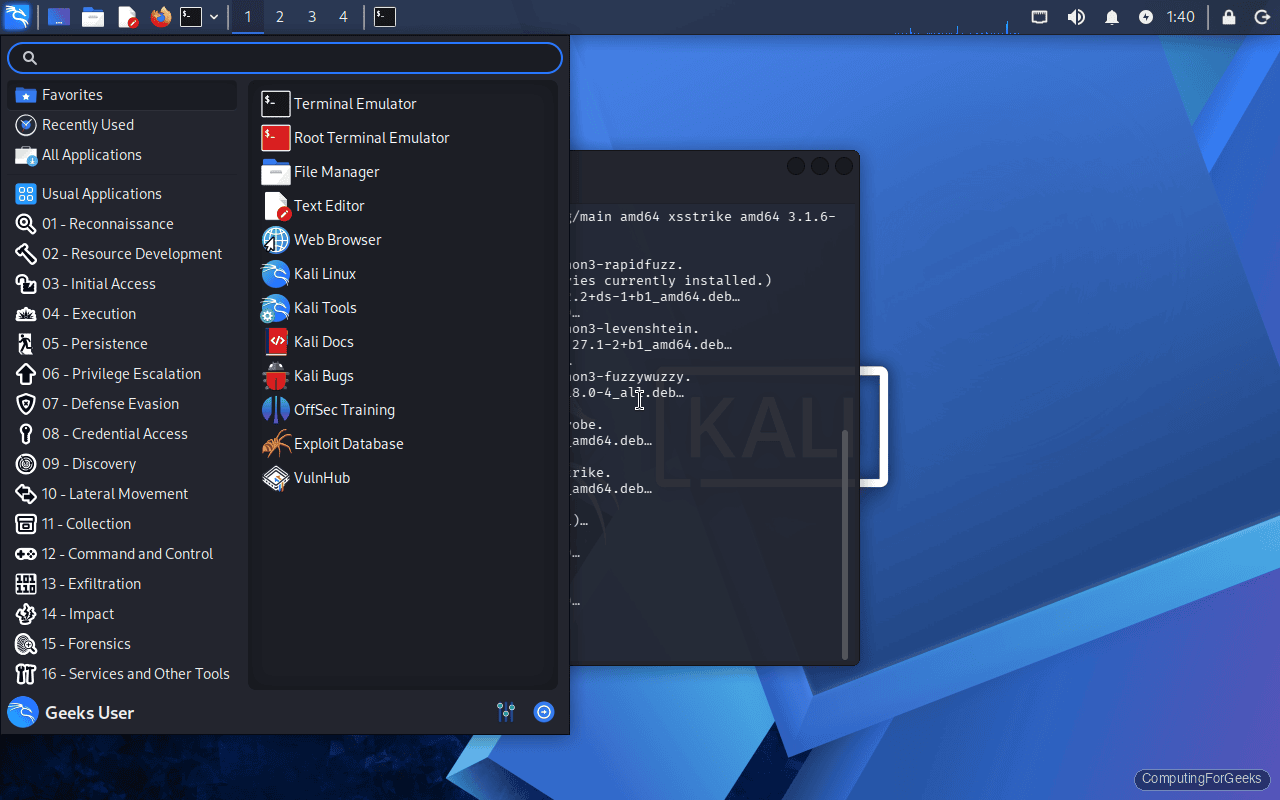
- 01 – Reconnaissance: nmap, amass, dnsrecon, theHarvester, recon-ng
- 02 – Resource Development: Metasploit payload generators, msfvenom, social engineering toolkit
- 03 – Initial Access: Burp Suite, sqlmap, Nikto, web attack frameworks
- 04 to 16: Execution, persistence, privilege escalation, defense evasion, credential access, discovery, lateral movement, collection, command and control, exfiltration, impact, forensics, and services
Every menu entry is just a launcher for a terminal command. If you prefer the CLI, the same tools are on your $PATH and you can run them directly.
The BackTrack easter egg (and why it exists)
This is the most Kali-ish change in 2026.1 and the one nobody asked for but everybody loves. 2026 marks the 20th anniversary of BackTrack Linux, the distribution that eventually became Kali. The 2026.1 release ships a new profile for kali-undercover that transforms the Xfce session into a pixel-for-pixel replica of BackTrack 5 R3: red panel, black widgets, the old BackTrack 5 wallpaper, the classic Applications/Places menu.
Run it from the terminal:
kali-undercover --backtrackThe desktop swaps in the BackTrack theme almost instantly. Running the same command again toggles back to stock Kali, so nothing is permanent.
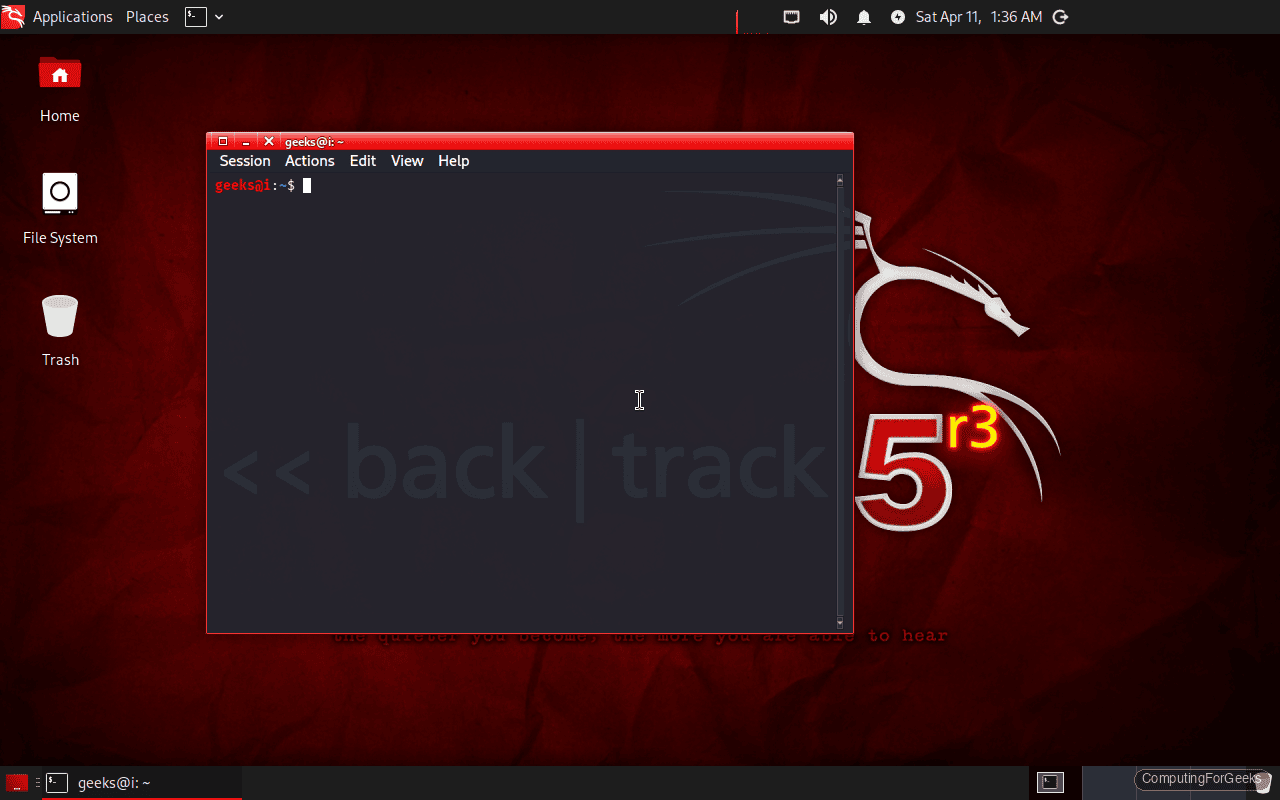
The same kali-undercover command supports three profiles, all of which come with an XDG desktop entry in the menu. The others are the classic Windows 10 look (plain kali-undercover) and a Halloween-themed profile (kali-undercover --halloween). The profile tarballs live under /usr/share/kali-undercover/:
ls /usr/share/kali-undercover/*.tar.bz2/usr/share/kali-undercover/backtrack-profile.tar.bz2
/usr/share/kali-undercover/halloween-profile.tar.bz2
/usr/share/kali-undercover/undercover-profile.tar.bz2Troubleshooting
Installer fails at “Configure the network” with no DHCP lease
The installer tries DHCP first. On wired networks this usually just works. On wireless, the installer does not have full NetworkManager, so you will see a prompt to configure the network manually. If you are installing on a laptop, skip the network step by selecting “Do not configure the network at this time” and configure Wi-Fi after first boot from the Xfce panel. If you are on a wired VM, check that the virtual NIC is actually connected to a network bridge with a DHCP server on it. On Proxmox, that means your bridge should not be set to “Hotplug” only.
Error: “No common CD-ROM drive was detected”
This hits people who wrote the ISO with an unsupported tool (old Rufus, Windows’ built-in burner, Disks in Ubuntu without dd mode). The installer loaded, found the CDROM, then lost it on the way to the next step. The fix is to rewrite the USB with dd, balenaEtcher, or Ventoy, then reboot. Do not use Rufus in DD mode on USB3 hubs, it occasionally drops the image mid-write.
Boot hangs at “Loading Linux kernel…” after install
Almost always a mismatch between how you installed and how you booted. If you installed in UEFI mode but the firmware is now booting in legacy/CSM mode, GRUB cannot find its config. Go into the firmware menu and force UEFI boot order with “kali” at the top. On some laptops, secure boot also needs to be disabled even though Kali’s kernel is signed, because the 2026 theme refresh included a new shim that not every firmware trusts yet.
GNU Radio SDR tools crash on launch
This is a documented regression in 2026.1. The kali-tools-sdr metapackage is broken, and gr-air-modes, gqrx-sdr, and friends will not run. The Kali team has flagged it in the release notes and a fix is expected in 2026.1a or a rolling update. If SDR is your job, do not upgrade your working rig until a fix lands.
Xfce boots to a black screen with just a cursor
Switch to a TTY with Ctrl+Alt+F3, log in, and check the journal with journalctl -xe. On VMs, the usual cause is missing guest tools. On bare metal, it is usually a proprietary Nvidia driver that did not rebuild after the 2026 kernel bump. Install nvidia-driver from the repo, then reboot.
Kali 2026.1 vs Parrot OS vs BlackArch
If you are picking a pentest distro in 2026, Kali is not the only option. The honest comparison:
| Item | Kali Linux 2026.1 | Parrot Security 6.x | BlackArch 2026.x |
|---|---|---|---|
| Base | Debian testing | Debian stable | Arch Linux |
| Release model | Rolling + quarterly snapshots | Rolling + LTS snapshots | Rolling |
| Default desktop | Xfce 4.20 | MATE (Home), Xfce (Sec) | Ships no default, pick any |
| Tools shipped | ~600 default, ~2900 everything | ~600 | 3000+ |
| Kernel | 6.18 | 6.16 (at time of writing) | 6.18 |
| Default user | non-root sudo | non-root sudo | Any |
| NetHunter / mobile | Yes, official | No | No |
| Cloud images | AWS, Azure, GCP, DO, Linode | Limited | Unofficial |
| Best for | Red team, pentests, CTFs, learning | Privacy-focused pentesting | Arch diehards who want every tool |
For most people, Kali is the right answer because it has the deepest documentation, the largest community, the widest platform support (NetHunter for Android, WSL, every cloud), and the most tool packages. Parrot is a better pick if you care about privacy by default and want a smaller attack surface. BlackArch is for Arch users who want a live stream of new packages and do not mind breakage.
What to do next
Your Kali 2026.1 install is done, updated, and ready. Pick one of these to get productive fast:
- Work through the Metasploit framework tutorial to get the basic exploit workflow into muscle memory.
- Learn Burp Suite on Kali Linux if your target surface is web apps.
- Install extra language runtimes like Java JDK 21 and kernel build deps with kernel headers.
- If you want a defensive/blue-team variant, try Kali Purple instead.
- Planning to run Kali long term? Bookmark our Kali upgrade guide. Because Kali is rolling, you rarely reinstall, you just
apt dist-upgradethrough release boundaries.
Every command in this guide was run on a real Kali 2026.1 VM. If you hit something not covered here, drop a question in the comments and we will verify the fix on the same setup.

this article is so helpful thanks you are so kind
Everything you explained is so good