

Kali Purple is an installer variant of Kali Linux built specifically for Blue Team and Purple Team operations. Where standard Kali focuses almost entirely on offensive security (pentesting, exploitation, red team tooling), Kali Purple ships with over 100 defensive tools organized around the NIST Cybersecurity Framework: Identify, Protect, Detect, Respond, and Recover. The purple-themed desktop is more than cosmetic. It signals that this workstation is configured for defensive work.
This guide walks through installing Kali Purple from the ISO, then setting up two of the most important tools it includes: GVM (Greenbone Vulnerability Management) for vulnerability scanning and the Elastic Stack for SIEM and log analysis. Both are central to building a functional SOC workstation. If you need the standard offensive Kali install instead, see our Kali Linux installation guide.
Updated April 2026 for Kali Linux 2026.1 with Purple variant. Elastic Stack 8.x, GVM 23.x
What Kali Purple Includes
Kali Purple is not a separate distro. It is a metapackage selection within the standard Kali installer that pulls in a curated set of defensive security tools. Here is what sets it apart from a default Kali installation:
- GVM/OpenVAS – Full vulnerability scanner with NVT feeds, web dashboard, and scheduled scanning. Covers the Identify domain of NIST CSF.
- Suricata – High-performance network IDS/IPS engine capable of real-time traffic inspection, protocol analysis, and rule-based threat detection.
- Zeek – Network analysis framework that generates detailed connection logs, DNS queries, HTTP transactions, and SSL certificate data from live traffic or pcap files.
- Arkime – Large-scale packet capture and search system. Indexes full packet data and provides a web interface for hunting through network sessions.
- TheHive – Incident response platform for tracking cases, sharing observables across a team, and integrating with threat intelligence feeds like MISP.
- Elastic Stack – Elasticsearch, Kibana, and Elastic Agent for centralized log collection, SIEM dashboards, and threat detection rules.
The desktop environment uses a purple theme and icon set, which makes it immediately obvious you are on a defensive workstation. All tools are accessible through Kali’s Applications menu, grouped by NIST CSF domain.
Install Kali Linux Purple
Download the ISO
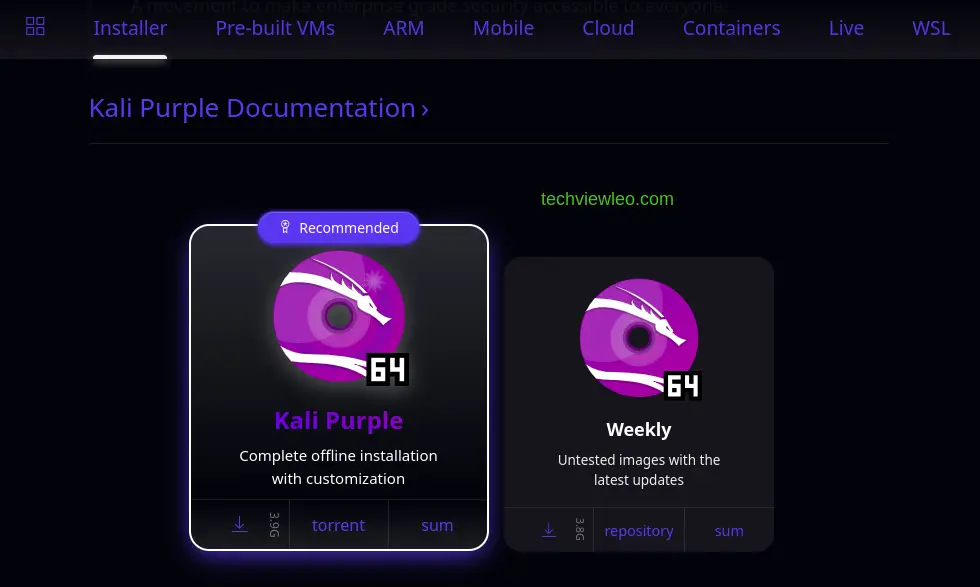
Head to kali.org/get-kali and scroll down to the Installer Images section. Select the Purple installer image (not the standard installer). Save it somewhere easy to find.
Create Bootable USB
Write the ISO to a USB drive using balenaEtcher, which works on Linux, Windows, and macOS. Select the downloaded ISO, choose your USB drive, and click Flash.

Boot and Start Installation
Insert the USB into your target machine and boot from it. You may need to press F2 or F10 during startup to access the boot menu if the system does not detect the USB automatically.
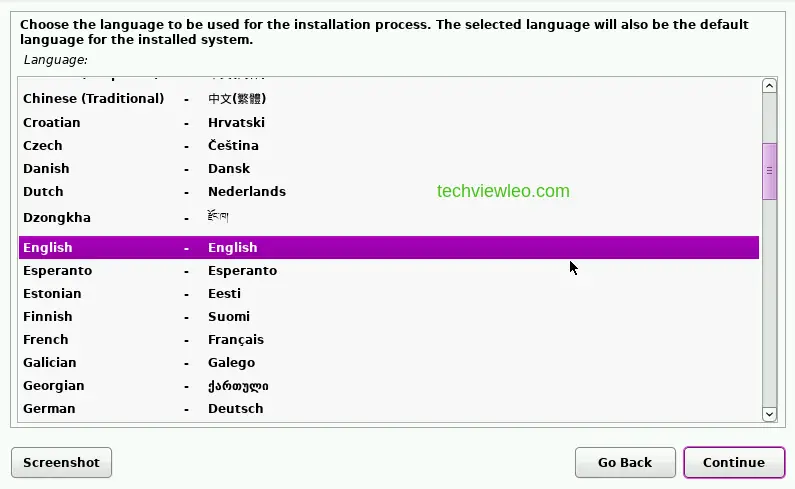
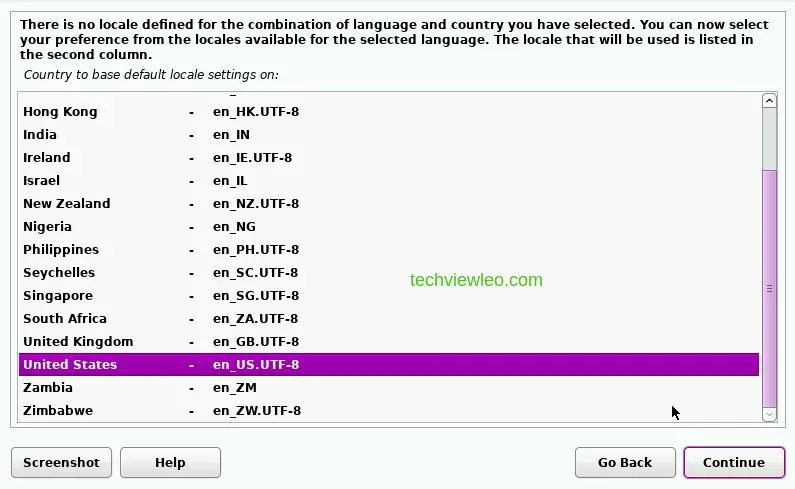
The first screen asks for your language and location. Pick the locale that matches your region.
Select your keyboard layout and click Continue.
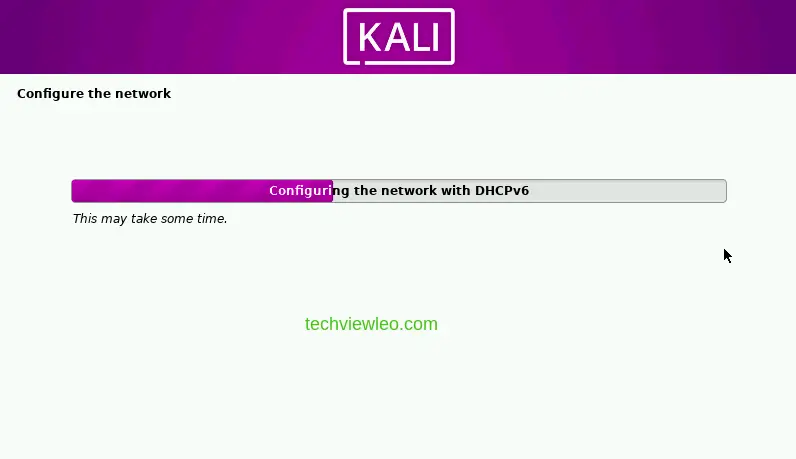
The installer detects and mounts the installation media, then configures the network.
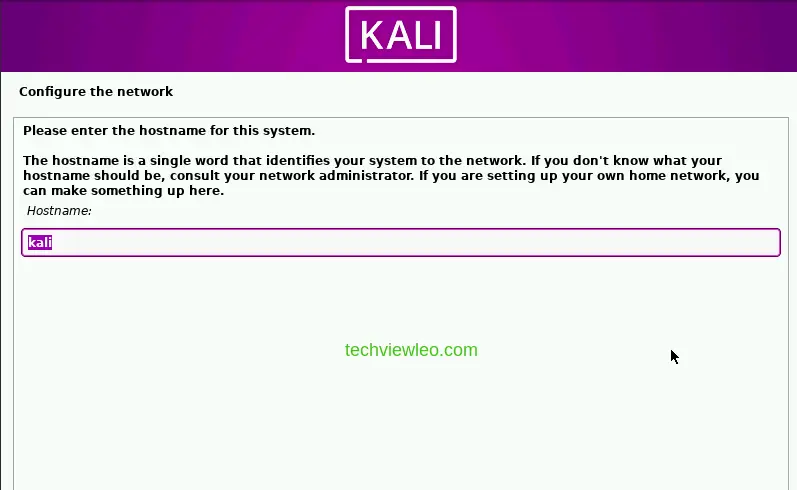
Enter a hostname for the system. This identifies the machine on your network.
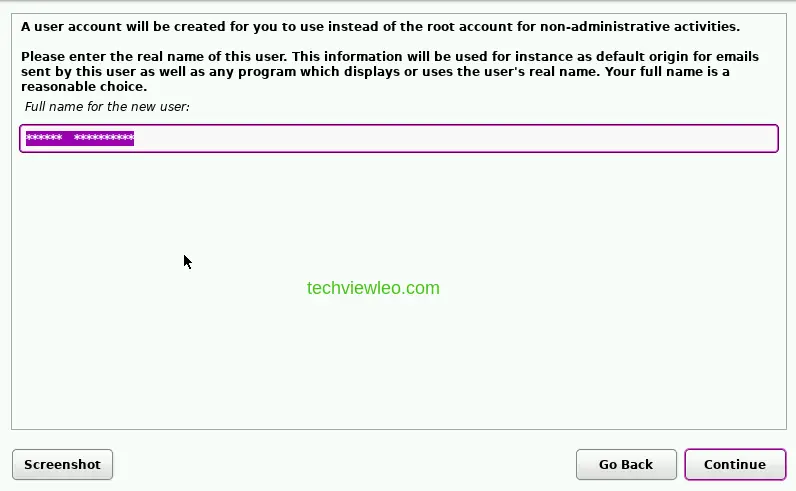
Provide a full name for the new user account. This account is for non-administrative work.
Set Up User Account and Disk
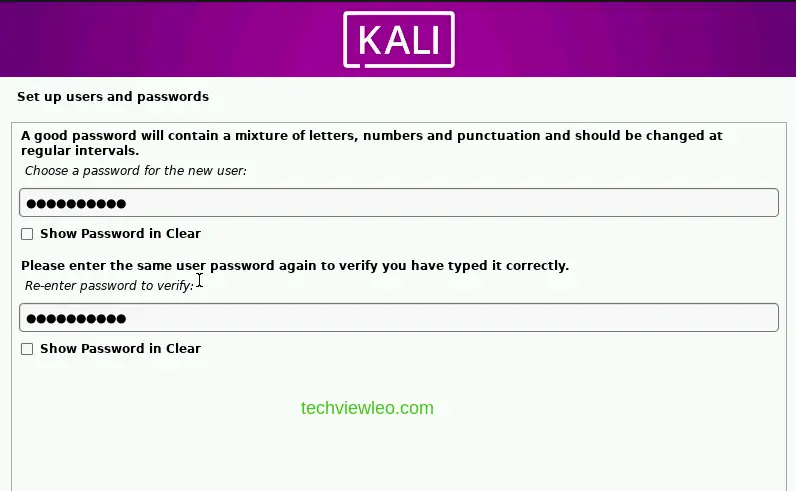
Set a strong password for the user account. You will use this to log in after installation completes.
The installer now asks how to partition the disk. For most setups, “Guided, use entire disk” works fine. If you need encrypted LVM or manual partitioning, select the appropriate option.
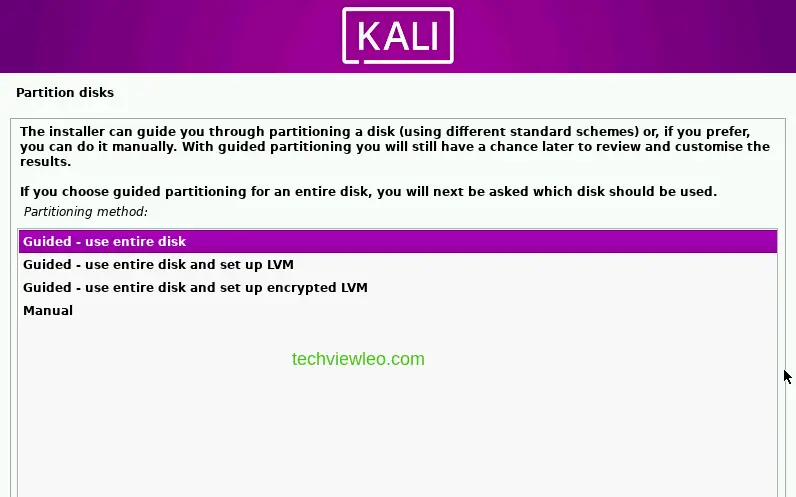
Choose a partitioning scheme. “All files in one partition” is the simplest option for a dedicated workstation.
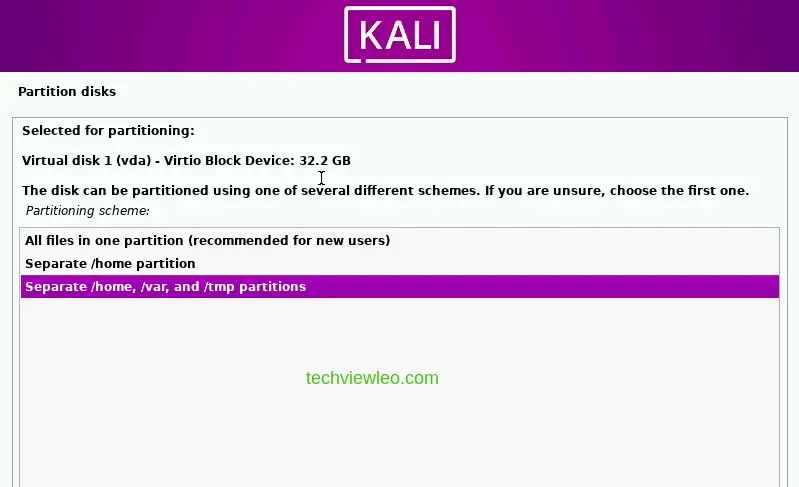
Review the partition overview before committing. Make sure the layout looks correct.
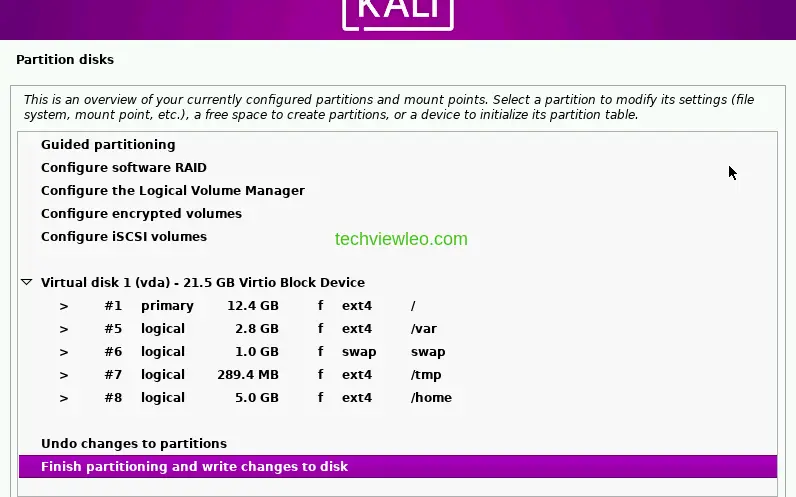
Confirm the partition changes.
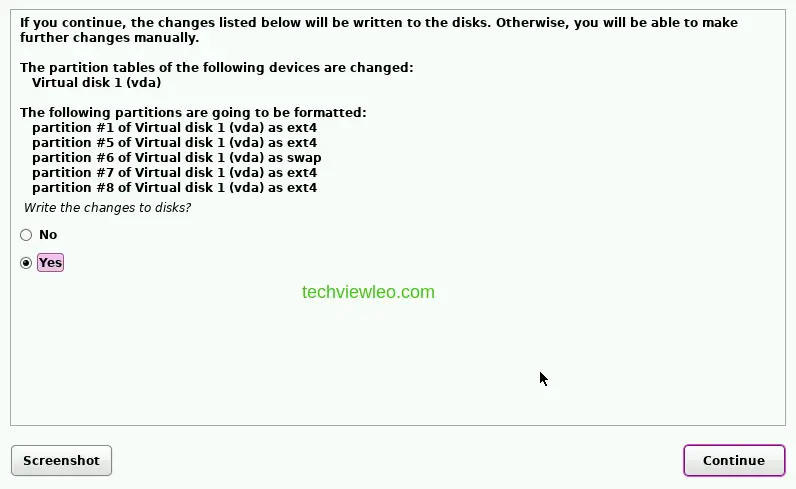
Select Yes when asked to write changes to disk, then click Continue.
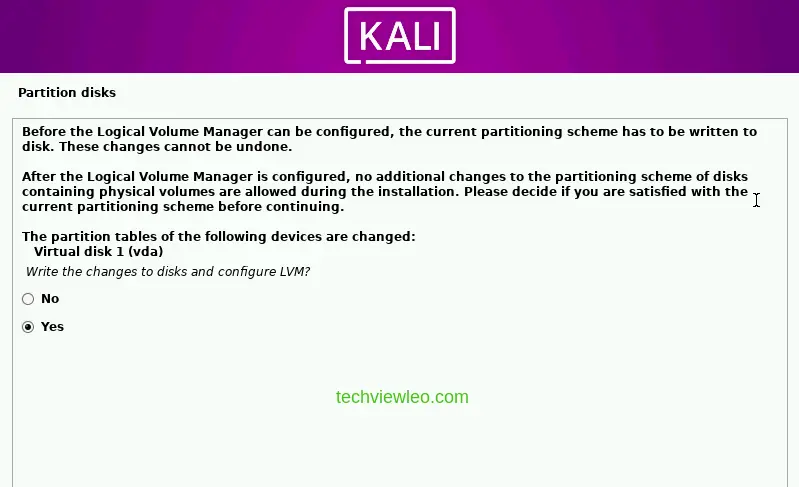
Software Selection and GRUB
The base system installs first. Then the installer presents the software selection screen. The default desktop environment (Xfce with the Purple theme) is already selected. You can change this if you prefer GNOME or KDE, but the Purple tools are the same regardless of desktop.
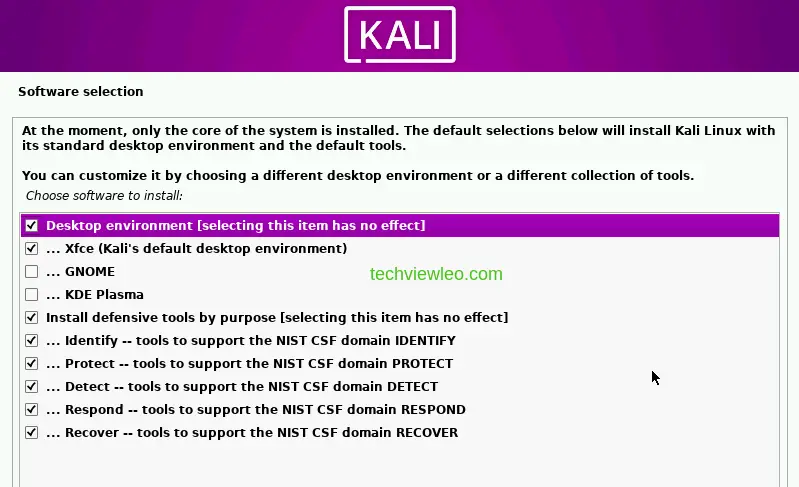
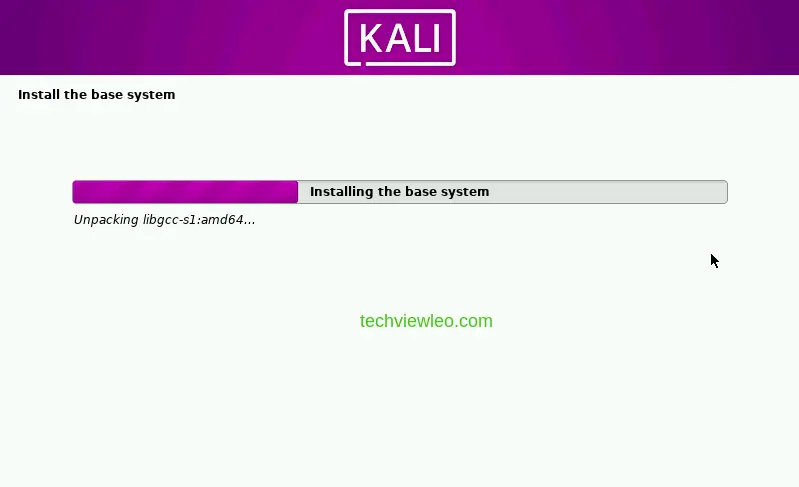
The installation continues with package downloads and configuration. This takes a while depending on your internet speed.
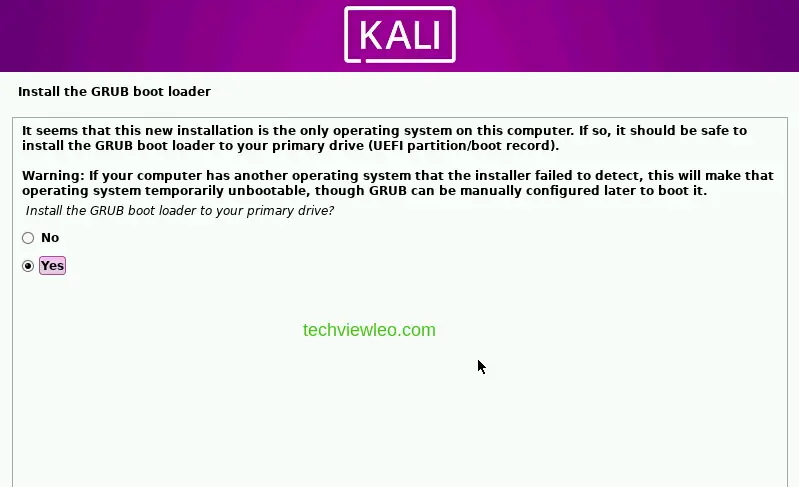
When prompted, install the GRUB bootloader to your primary drive. Select Yes.
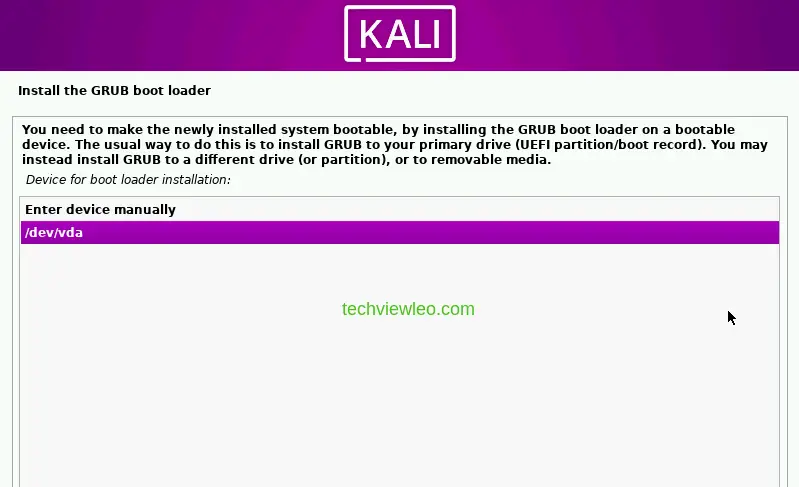
Pick the boot device for GRUB. Select /dev/vda (or your primary disk) and continue.
First Boot
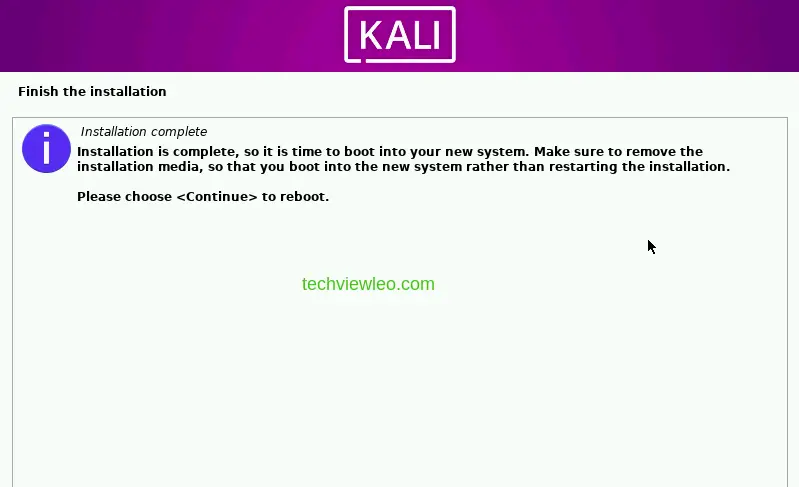
Installation is complete. Click Continue to reboot into your new system.
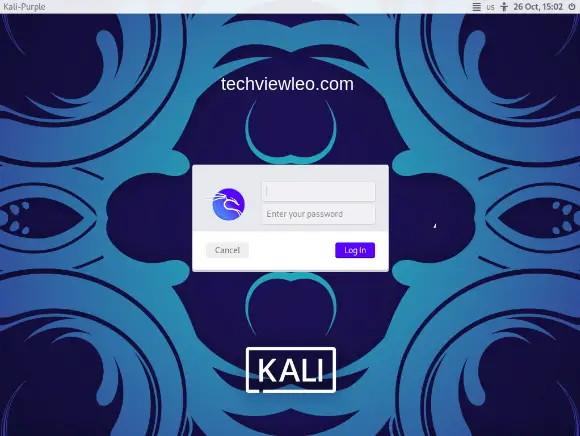
The login screen appears with the Purple branding. Enter the username and password you configured during installation.
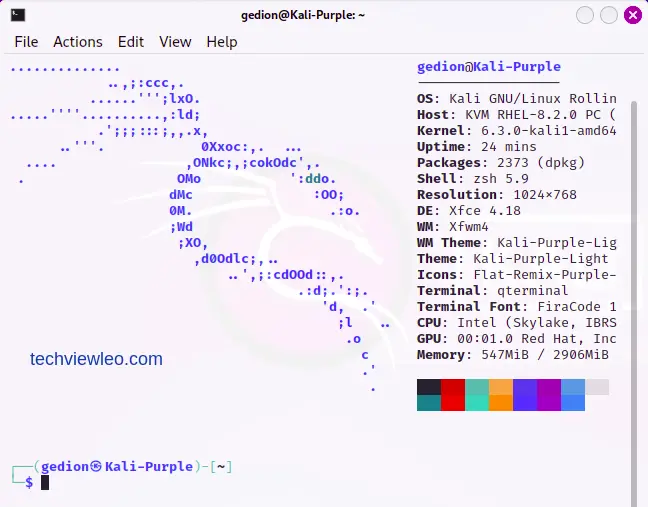
The Kali Purple desktop is ready. The Applications menu at the top organizes all defensive tools by NIST CSF domain.
Set Up GVM for Vulnerability Scanning
GVM (Greenbone Vulnerability Management, formerly OpenVAS) is the primary vulnerability scanner in Kali Purple. It falls under the “Identify” domain of the NIST CSF, which focuses on understanding what assets you have and what vulnerabilities exist. GVM is included in the Kali Purple metapackage, but it needs to be installed and initialized before first use.
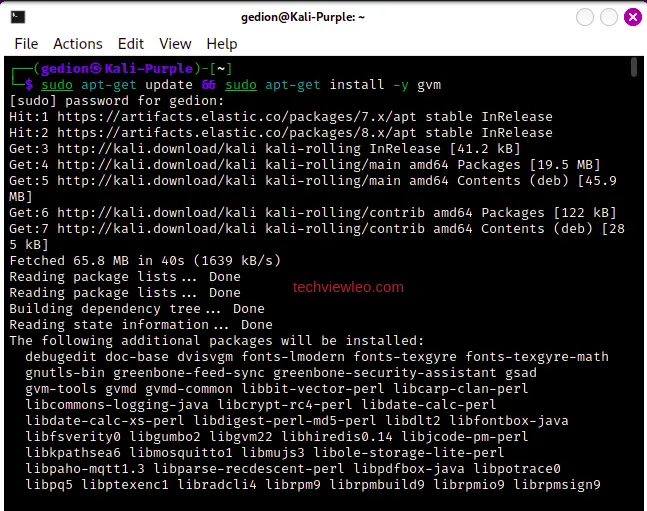
Install the GVM package:
sudo apt update && sudo apt install -y gvmThe package pulls in PostgreSQL, Redis, and all required GVM components.
Initialize the GVM setup. This downloads vulnerability feeds and configures the database:
sudo gvm-setupFix PostgreSQL Version Conflicts
The setup often fails because Kali ships with multiple PostgreSQL versions and the clusters conflict. If you see a PostgreSQL-related error, the fix is straightforward: stop the service, rename the newer cluster, upgrade the older one, then clean up.
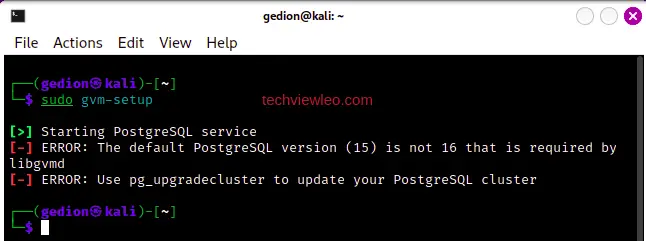
Stop the PostgreSQL service first:
sudo systemctl stop postgresqlRename the newer cluster that is causing the conflict:
sudo pg_renamecluster 16 main main_pristineUpgrade the older cluster to the new PostgreSQL version:
sudo pg_upgradecluster 15 mainStart PostgreSQL again:
sudo systemctl start postgresqlVerify the cluster status:
pg_lsclustersDrop the old cluster once everything is confirmed working:
sudo pg_dropcluster 14 main --stopNow re-run the GVM setup:
sudo gvm-setupThe setup will download NVT feeds and build the database. This can take 30 minutes or more depending on your connection speed.
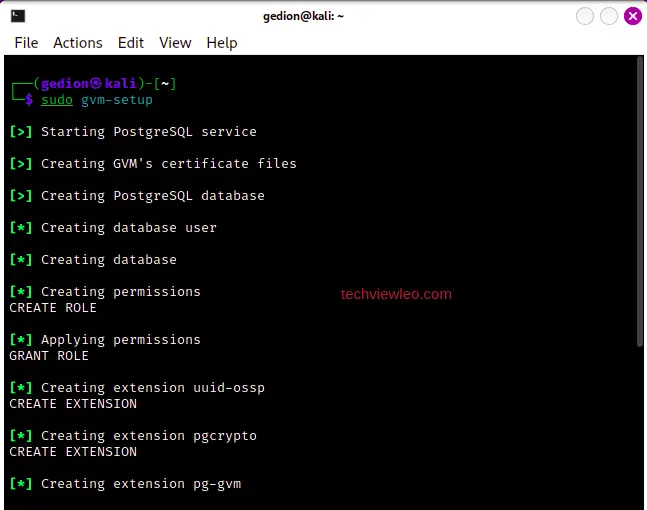
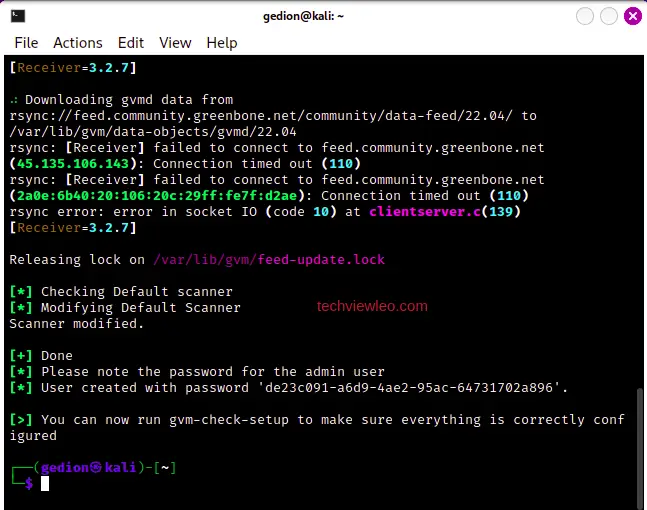
Verify the GVM Setup
Run the verification command to check that all components are configured correctly:
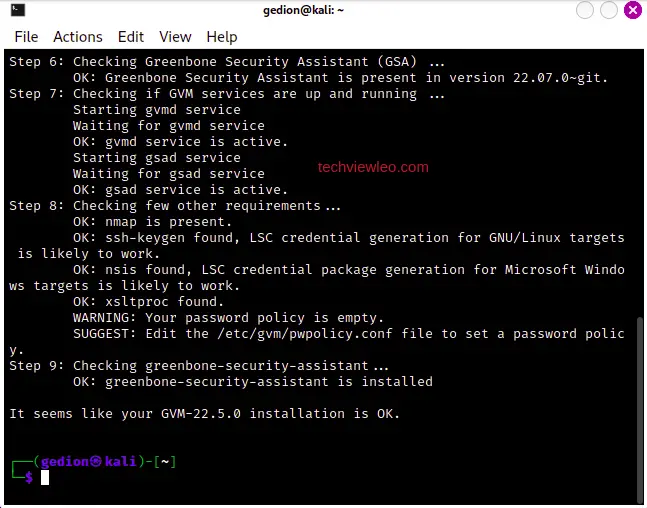
sudo gvm-check-setupIf the check reports errors, it also prints the exact commands to fix them. Follow those instructions and re-run the check.
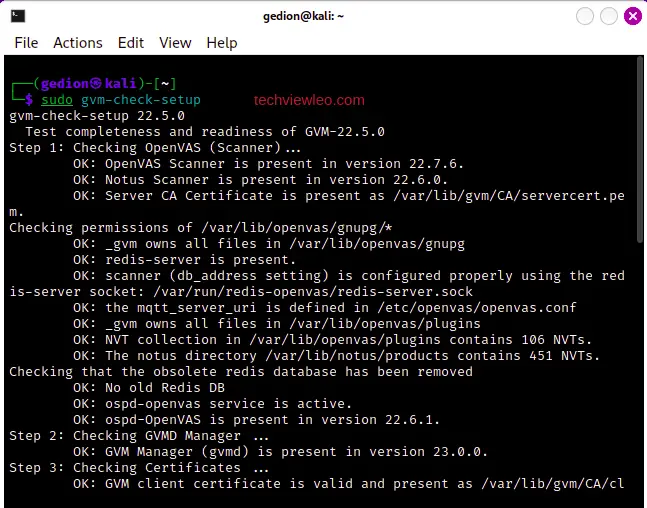
All checks should pass with an “OK” status:
Configure Network Access and Start GVM
By default, the GVM web interface (GSAD) listens only on localhost. To access it from other machines on your network, bind it to all interfaces:
sudo sed -e 's/127.0.0.1/0.0.0.0/g' -i /lib/systemd/system/gsad.service
sudo systemctl daemon-reload
Start the GVM services:
sudo gvm-stop
sudo gvm-start
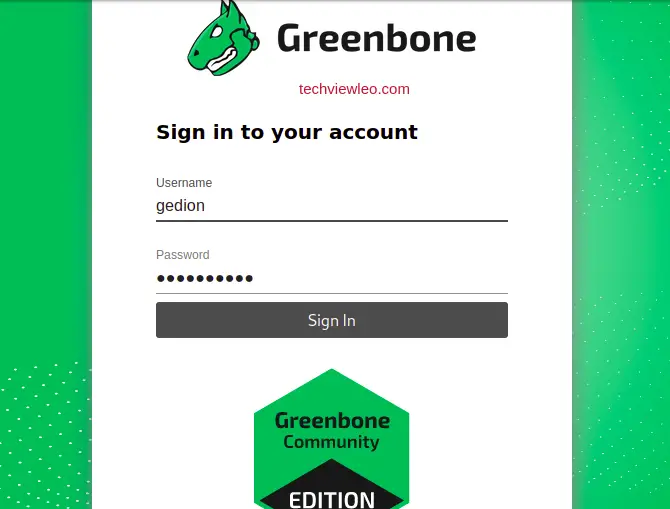
Open a browser and navigate to https://localhost:9392 (or replace localhost with the machine’s IP if accessing remotely). The GVM login page loads:
If you need to create a new admin user or reset the password, use the gvmd command. Replace the placeholders with your desired username and password:
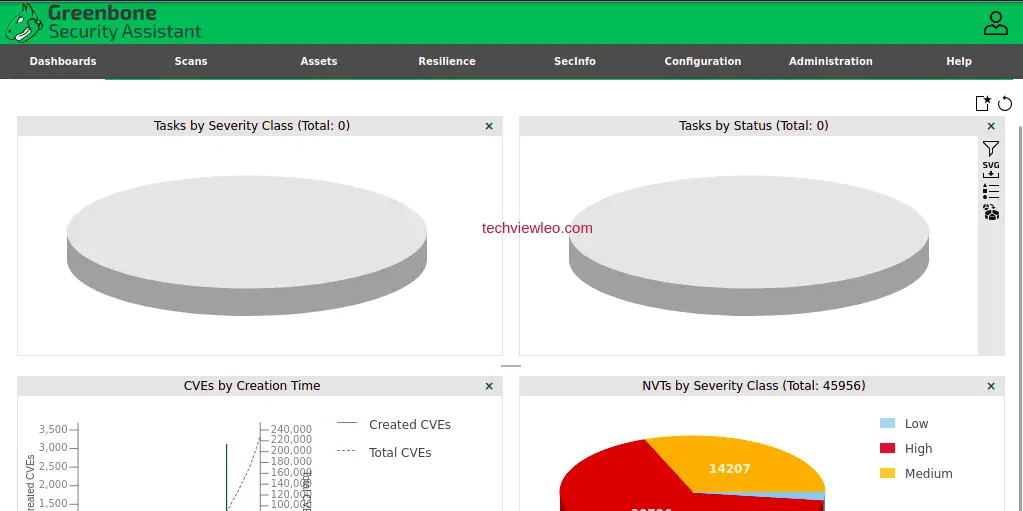
sudo runuser -u _gvm -- gvmd --create-user=<USERNAME> --password=<PASSWORD>After logging in, the GVM dashboard shows scan results, vulnerability counts, and task status:
Set Up Elastic Stack for SIEM
The Elastic Stack (Elasticsearch, Kibana, and Elastic Agent) provides centralized log collection, threat detection, and incident response capabilities. In the NIST CSF model, this covers the Protect and Detect domains. Elastic Security includes pre-built detection rules, SIEM dashboards, and an endpoint agent that collects system logs, network events, and process telemetry.
Add the Elastic Repository
Import the Elastic GPG signing key:
curl -fsSL https://artifacts.elastic.co/GPG-KEY-elasticsearch | sudo gpg --dearmor -o /usr/share/keyrings/elastic-archive-keyring.gpgAdd the Elastic 8.x APT repository:
echo "deb [signed-by=/usr/share/keyrings/elastic-archive-keyring.gpg] https://artifacts.elastic.co/packages/8.x/apt stable main" | sudo tee /etc/apt/sources.list.d/elastic-8.x.list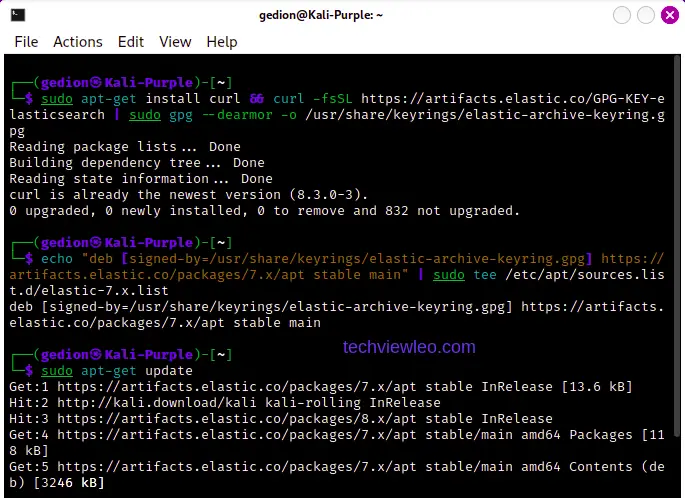
Install and Configure Elasticsearch
Install Elasticsearch:
sudo apt update
sudo apt install -y elasticsearch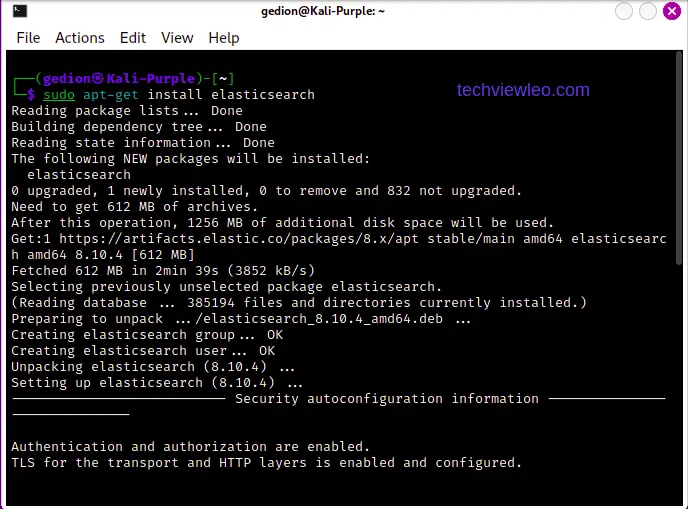
The installer outputs a generated password for the elastic superuser and an enrollment token. Save both of these. You will need them later.
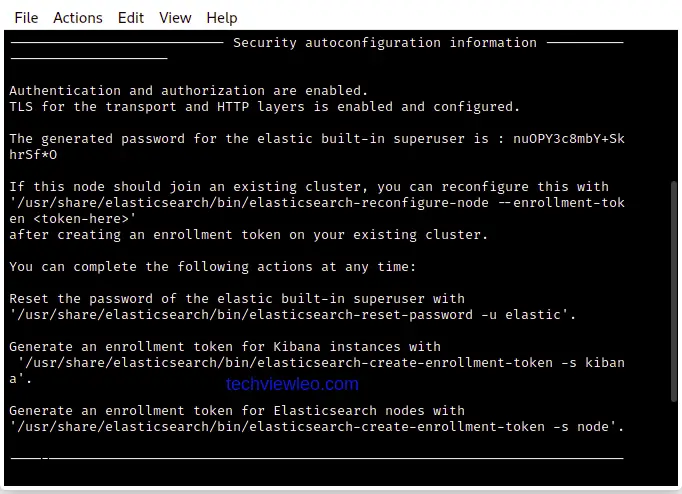
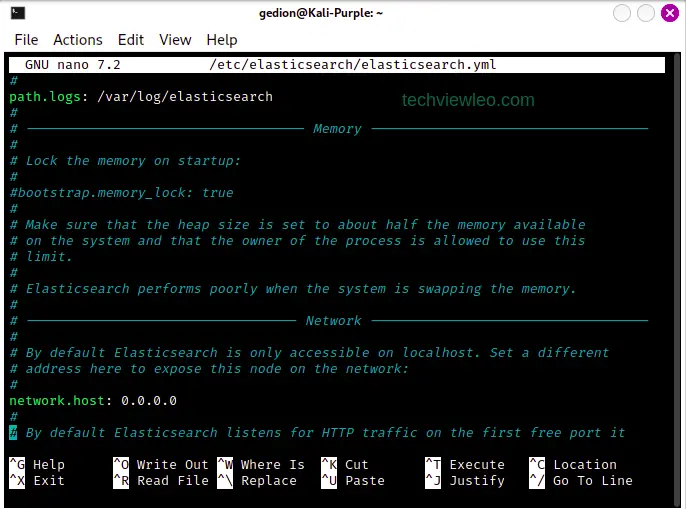
Edit the Elasticsearch configuration to allow network access:
sudo vi /etc/elasticsearch/elasticsearch.ymlFind the network.host line and uncomment it. Set the value to 0.0.0.0 to listen on all interfaces:
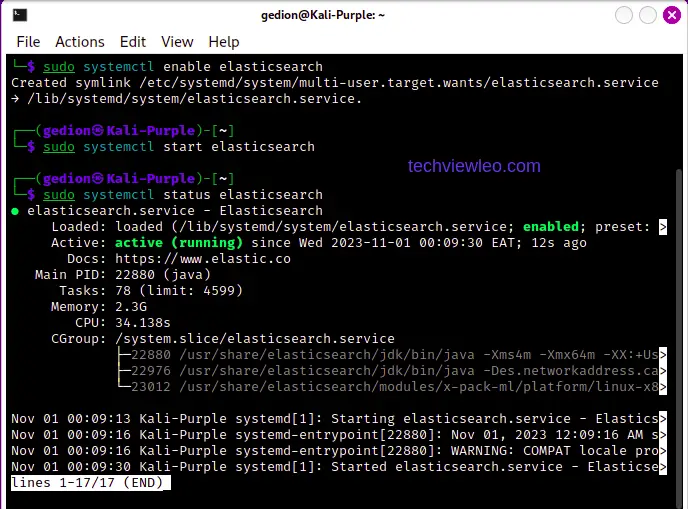
Enable and start Elasticsearch:
sudo systemctl daemon-reload
sudo systemctl enable --now elasticsearch
sudo systemctl status elasticsearch
The service should show active (running):
Install and Configure Kibana
Install Kibana from the same Elastic repository:
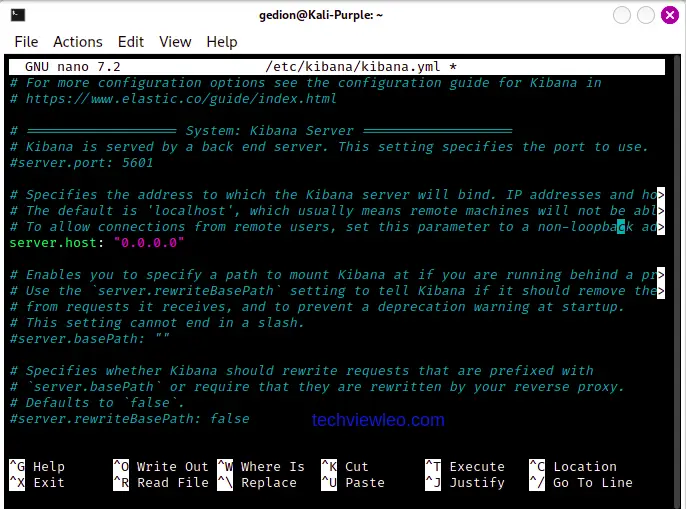
sudo apt install -y kibanaOpen the Kibana configuration file and set server.host to 0.0.0.0 so the dashboard is accessible from other machines:
sudo vi /etc/kibana/kibana.ymlUncomment the server.host line and set it to "0.0.0.0":
Enable and start Kibana:
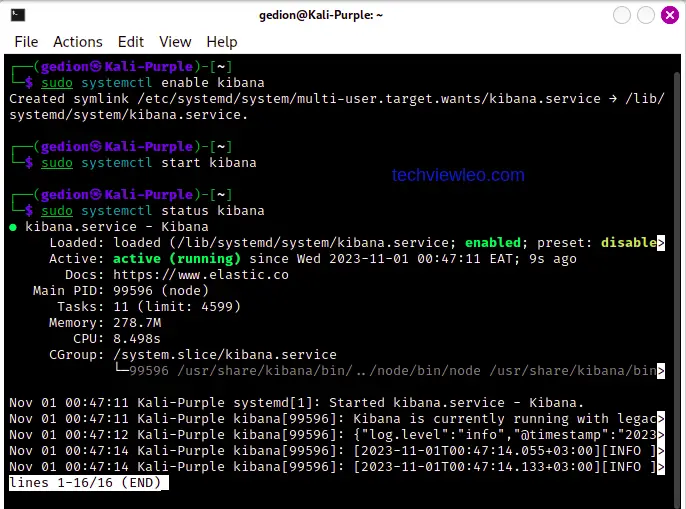
sudo systemctl enable --now kibana
sudo systemctl status kibana
Kibana should be active on port 5601:
Connect Kibana to Elasticsearch
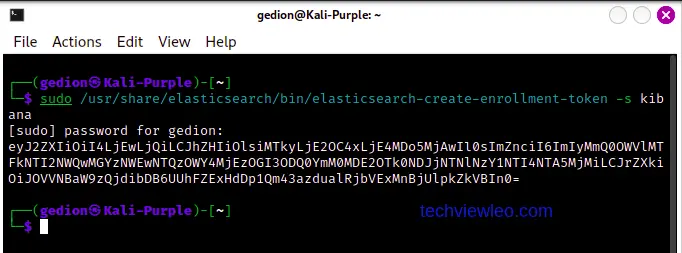
Open a browser and go to http://localhost:5601. Kibana asks for an enrollment token to connect to your Elasticsearch instance. Generate one:
sudo /usr/share/elasticsearch/bin/elasticsearch-create-enrollment-token -s kibanaCopy the token from the terminal output:
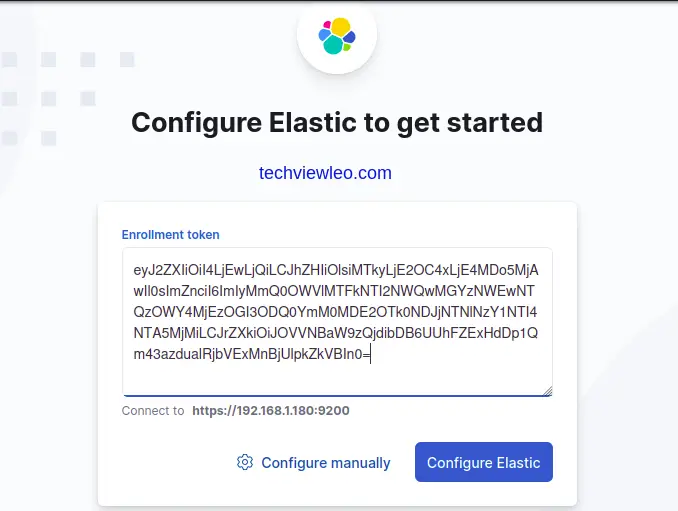
Paste the enrollment token into the Kibana web interface:
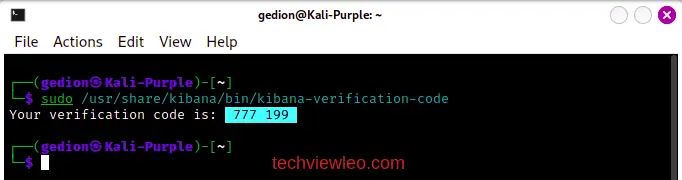
Kibana then asks for a verification code. Generate it with:
sudo /usr/share/kibana/bin/kibana-verification-codeThe code displays in the terminal:
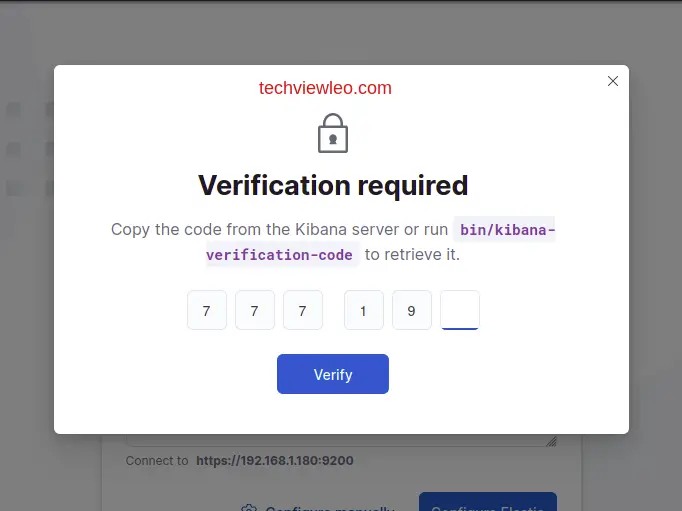
Enter the verification code in the Kibana UI:
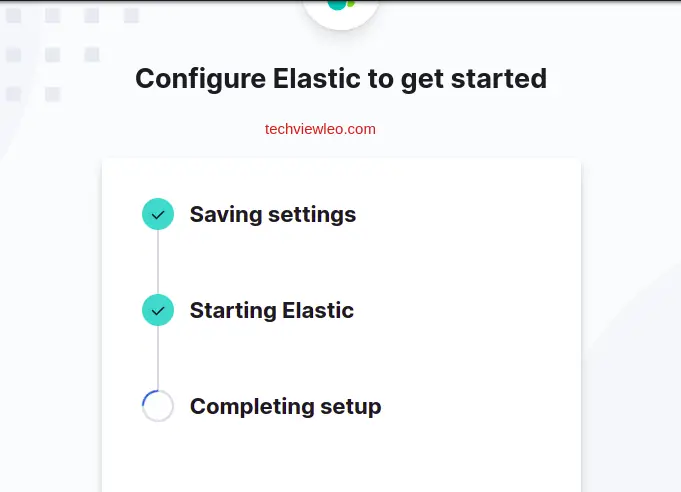
Kibana completes the connection to Elasticsearch:
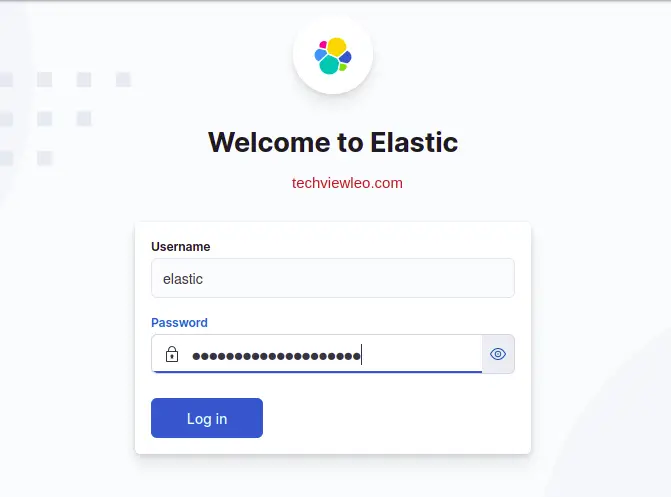
Log in with the elastic user and the password that was generated during Elasticsearch installation. If you lost the password, reset it:
sudo /usr/share/elasticsearch/bin/elasticsearch-reset-password -u elastic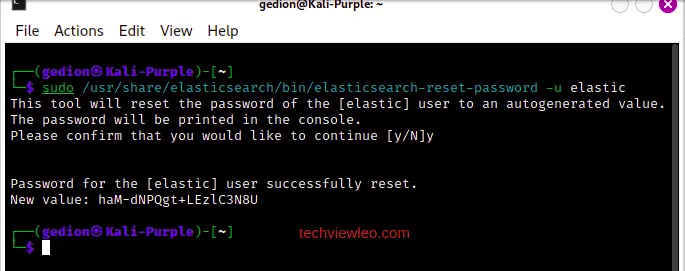
You are now logged into Elastic with full access to Security, Observability, and Analytics features:
Install Elastic Agent
Elastic Agent is the unified data shipper that collects logs, metrics, and security events from your Kali Purple workstation and sends them to Elasticsearch. Before installing the agent, make sure rsyslog is available:
sudo apt install -y rsyslogCreate a Fleet Agent Policy
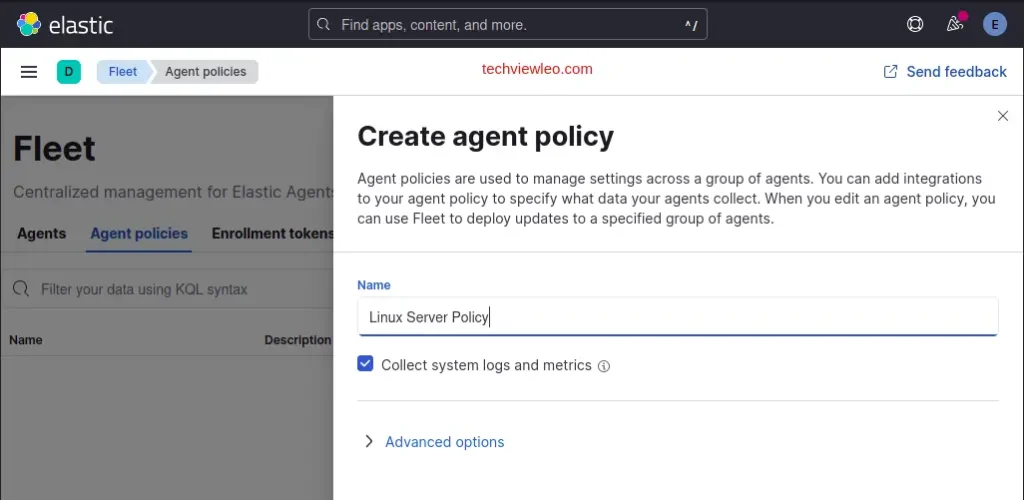
In Kibana, go to Management, then Fleet, then Agent policies. Create a new policy for your Kali Purple host:
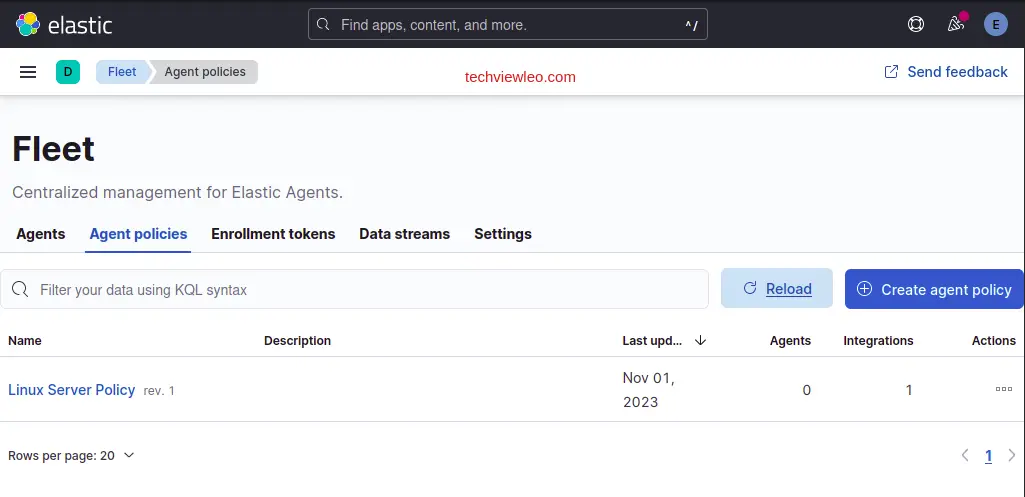
The policy overview shows the default integrations included:
Add any integrations you want (System, Network, Endpoint Security). Click “Add integration” to browse available options:
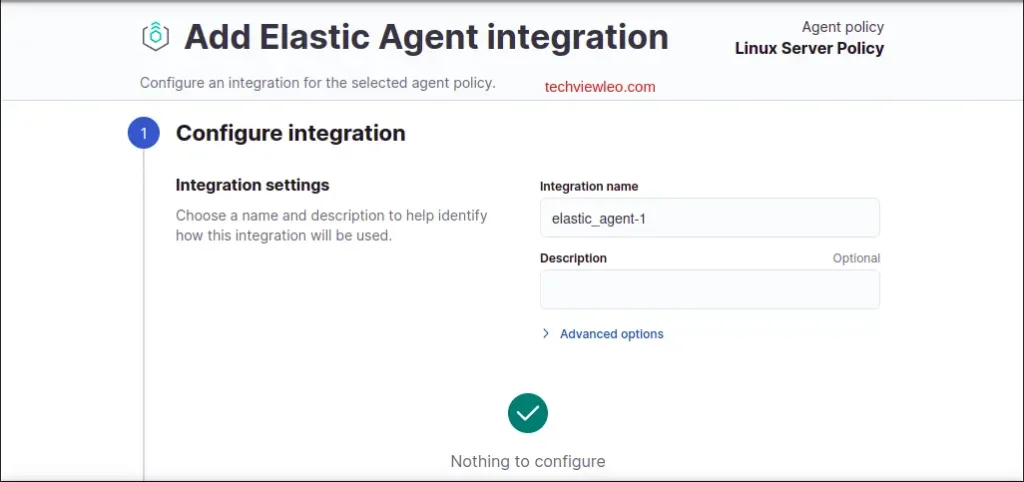
Configure the integration settings as needed for your environment:
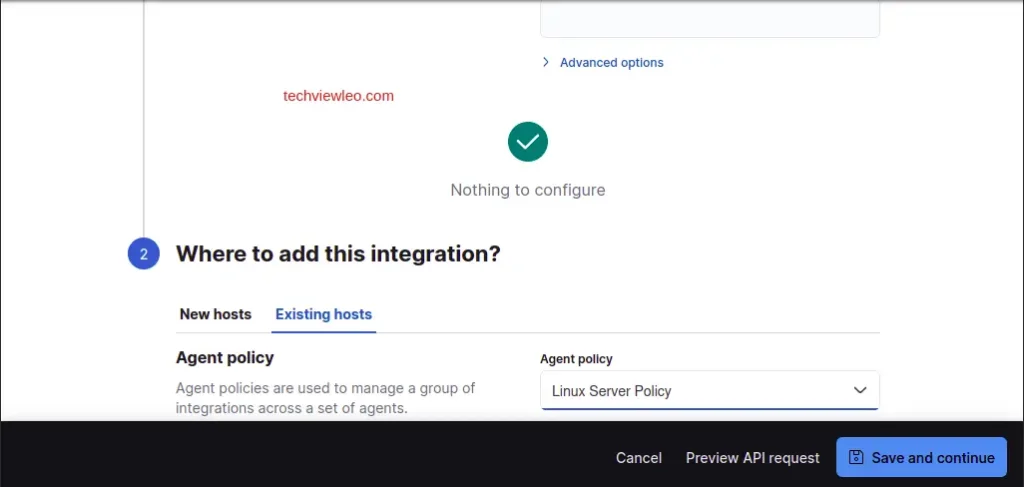
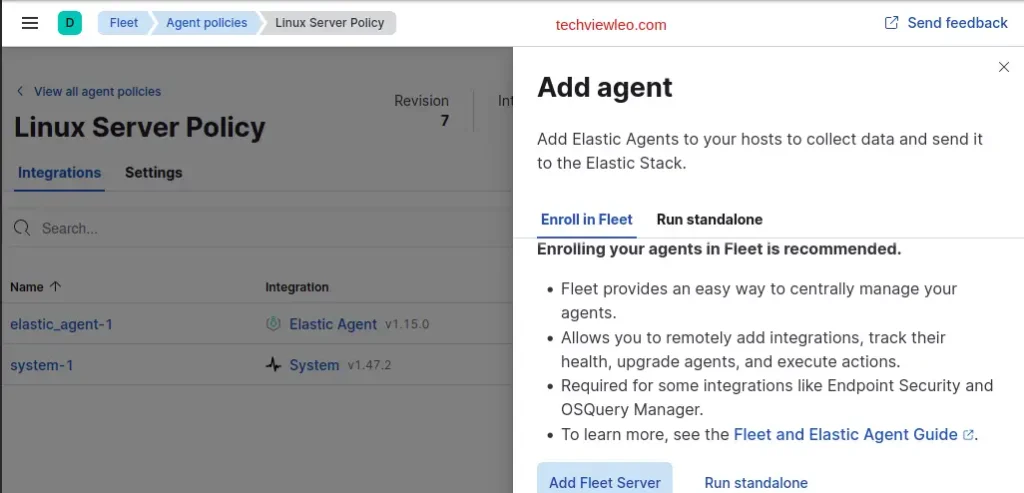
Enroll the Agent
Click “Add agent” on the policy page to get the enrollment instructions:
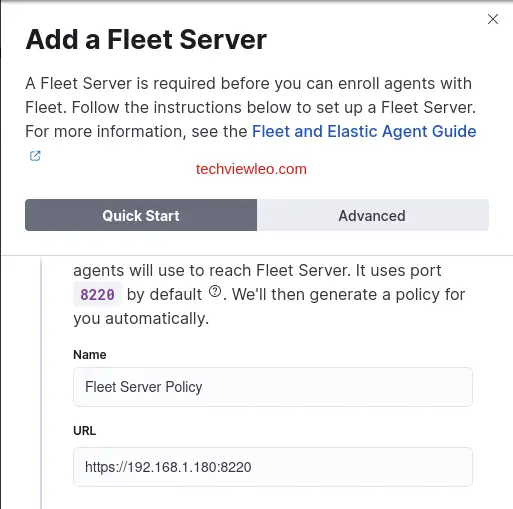
Select the Quick Start option for a self-managed setup. The enrollment token and Fleet server URL are auto-populated:
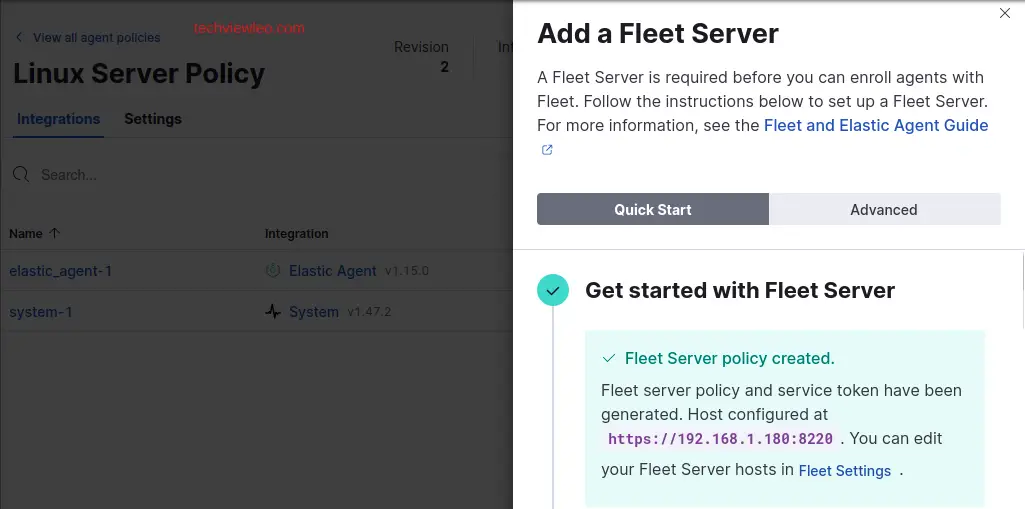
The generated agent policy and enrollment command appear on screen:
Switch to the “Linux Tar” tab to get the install commands. Copy the full block of commands from the Kibana UI:
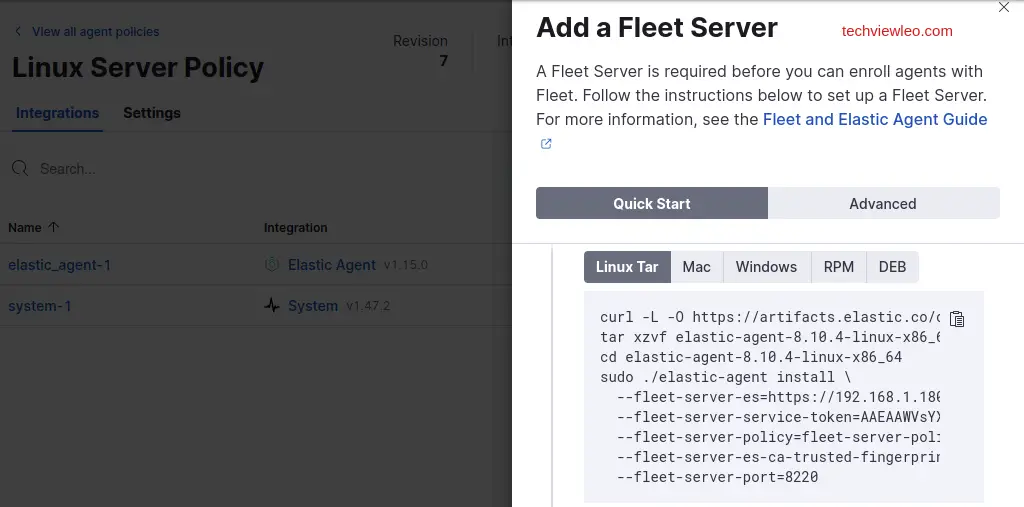
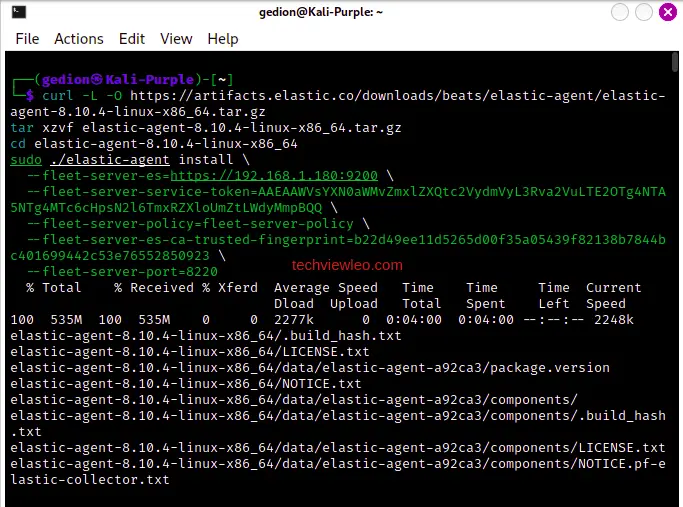
Paste and run the commands in your Kali Purple terminal. The agent downloads, extracts, and begins the enrollment process:
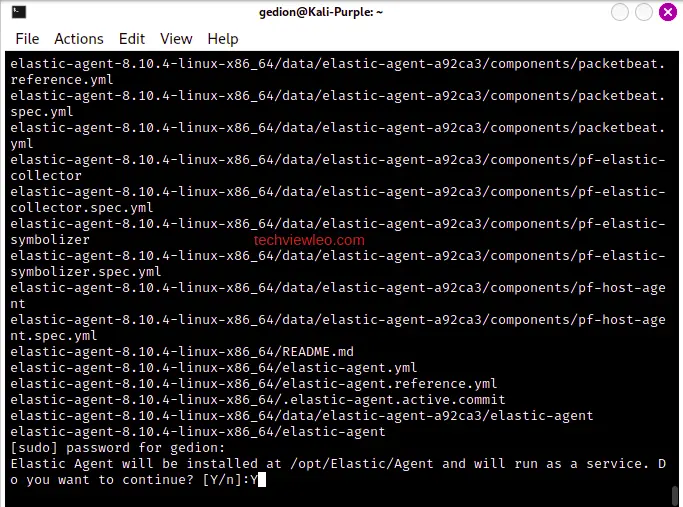
When prompted to confirm, type y to proceed with enrollment:
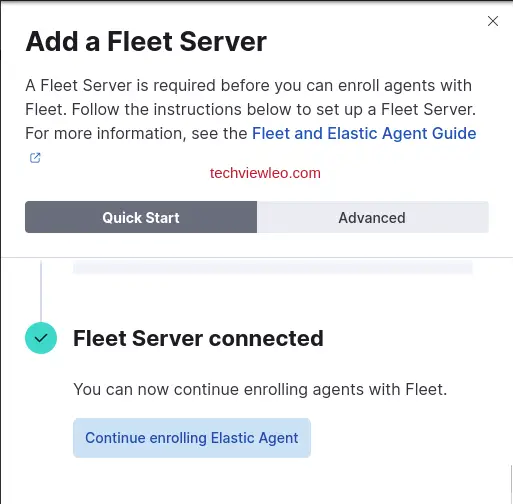
The agent confirms successful enrollment and starts sending data to Elasticsearch. Back in Kibana under Fleet, the agent shows as healthy:
Kali Purple gives you a complete defensive security workstation out of the box. GVM handles vulnerability identification, and the Elastic Stack covers log collection, threat detection, and incident response. From here, explore the other pre-installed tools under Kali’s Applications menu, organized by NIST CSF domain. For a standard Kali setup focused on offensive security, see our Kali Linux installation guide.

This is a great tutorial.