

Julia is a high-performance, high-level technical computing language that has a syntax that is familiar to users of technical computing systems. Julia is most effective at numerical analysis, data science, machine learning, and scientific computation, delivering the acceleration of languages like C but with Python or MATLAB-like ease of use.
Here, we are going to walk you through how to install the Julia programming language on a Linux system. Whether or not you are running Ubuntu, Debian, CentOS, Fedora, RHEL, FreeBSD, openSUSE, or some other distro, this tutorial has you covered so that you can start to harness the amazing powers of Julia.
Because of its friendly syntax, powerful features, and speed Julia has attracted a growing number of adopters from R, Python, R, and Matlab, and it keeps raising the bar for modern scientific and general computing.
Install Julia Programming Language on Linux Systems
Install Julia Using Juliaup
The suggested method of installing the Julia programming language is to use a tool called juliaup. This is a small standalone binary that has been created for this specific task. When you use juliaup, it will download and install the current stable release of the Julia binary for you. In addition, it will help you keep that installation up to date. Another benefit to using juliaup is that it allows for the installation and use of multiple versions of Julia simultaneously, which provides more flexibility for your development environment.
Install curl if you don’t have it installed yet, then install juliaup by running this in your terminal:
curl -fsSL https://install.julialang.org | shSample output:
info: downloading installer
Welcome to Julia!

This will download and install the official Julia Language distribution
and its version manager Juliaup.

Juliaup will be installed into the Juliaup home directory, located at:

  /home/cloudspinx/.juliaup

The julia, juliaup and other commands will be added to
Juliaup's bin directory, located at:

  /home/cloudspinx/.juliaup/bin

This path will then be added to your PATH environment variable by
modifying the profile files located at:

  /home/cloudspinx/.bashrc
  /home/cloudspinx/.profile

Julia will look for a new version of Juliaup itself every 1440 minutes when you start julia.

You can uninstall at any time with juliaup self uninstall and these
changes will be reverted.

✔ Do you want to install with these default configuration choices? · Proceed with installation

Now installing Juliaup
Checking for new Julia versions
Installing Julia 1.11.5+0.x64.linux.gnu
Configured the default Julia version to be 'release'.
Julia was successfully installed on your system.

Depending on which shell you are using, run one of the following
commands to reload the PATH environment variable:

  . /home/cloudspinx/.bashrc
  . /home/cloudspinx/.profile
This will install the latest stable version of Julia, which can be launched from a command-line by typing julia as well as the juliaup tool.
julia --versionLaunch Julia shell using the command below:
julia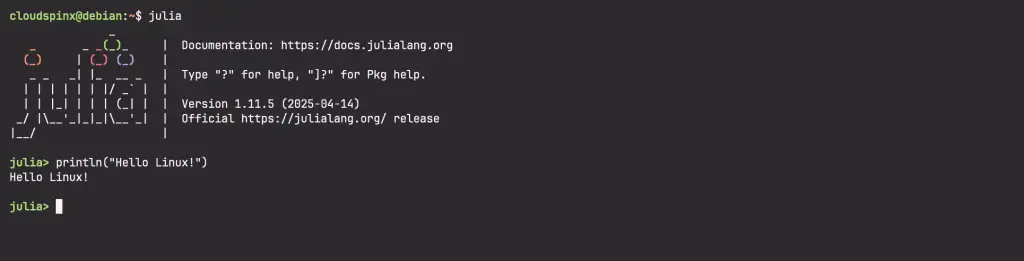
Install Julia Manually Using tarball
Binary packages of Julia are available for easy installation on any Linux system. I recommend you visit Julia Linux Binaries page to check the latest release before downloading. Let’s now start to install Julia on Linux Systems.
If you don’t have wget or tar install it.
sudo apt update
sudo apt install wget tar -y
With wget installed use it to pull the latest release of Julia binary package.
## LTS Version
wget https://julialang-s3.julialang.org/bin/linux/x64/1.10/julia-1.10.9-linux-x86_64.tar.gz

## Current Stable Version
wget https://julialang-s3.julialang.org/bin/linux/x64/1.11/julia-1.11.5-linux-x86_64.tar.gz
Extract the file downloaded using tar command line tool.
tar xvf julia-*-linux-x86_64.tar.gzMove the folder that was created from extractions to the /opt directory.
sudo mv julia-1.10.9 /opt/juliaAdd /opt/julia/bin directory to your PATH.
# For Bash
$ vim ~/.bashrc
export PATH=$PATH:/opt/julia/bin

# For Zsh
$ vim ~/.zshrc
export PATH=$PATH:/opt/julia/bin
Source the bashrc file to update the settings. If you’re using zshrc the file to be modified should be ~/.zshrc
$ source ~/.bashrc
# Or for Zsh
$ source ~/.zshrc
Validate your current PATH settings.
$ echo $PATH
/usr/local/sbin:/usr/local/bin:/usr/sbin:/usr/bin:/sbin:/bin:/usr/games:/usr/local/games:/opt/julia/bin
Confirm julia binary file is executable from your shell terminal session.
$ julia --version
julia version 1.10.9
Start Julia shell using julia and run hello world:
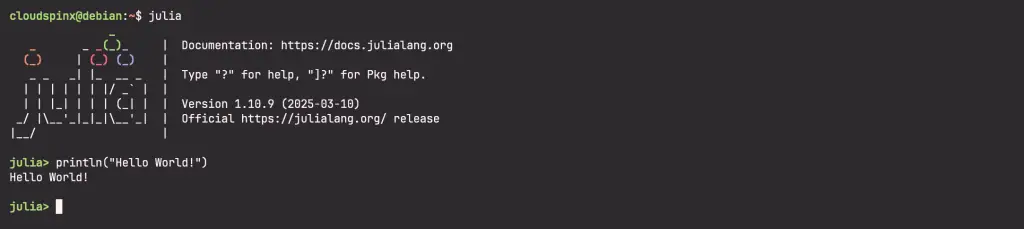
Let’s print Hello World message on the terminal.
julia> println("hello world")
hello world
Julia programs should end with extension .jl. I’ll create a new function file called myfuctions.jl.
vim myfuctions.jlThe file have below contents.
# [function](https://docs.julialang.org/en/v1/manual/functions/#man-functions-1) to calculate the volume of a sphere
function sphere_vol(r)
    # julia allows [Unicode names](https://docs.julialang.org/en/v1/manual/unicode-input/#Unicode-Input-1) (in UTF-8 encoding)
    # so either "pi" or the symbol π can be used
    return 4/3*pi*r^3
end

# functions can also be defined more succinctly
quadratic(a, sqr_term, b) = (-b + sqr_term) / 2a

# calculates x for 0 = a*x^2+b*x+c, [arguments types](https://docs.julialang.org/en/v1/manual/functions/#Further-Reading-1) can be defined in function definitions
function quadratic2(a::Float64, b::Float64, c::Float64)
    # unlike other languages 2a is equivalent to 2*a
    # a^2 is used instead of a**2 or pow(a,2)
    sqr_term = sqrt(b^2-4a*c)
    r1 = quadratic(a, sqr_term, b)
    r2 = quadratic(a, -sqr_term, b)
    # multiple values can be returned from a function using tuples
    # if the [return](https://docs.julialang.org/en/v1/manual/functions/#The-return-Keyword-1) keyword is omitted, the last term is returned
    r1, r2
end

vol = sphere_vol(3)
# @printf allows number formatting but does not automatically append the \n to statements, see below
using Printf
@printf "volume = %0.3f\n" vol
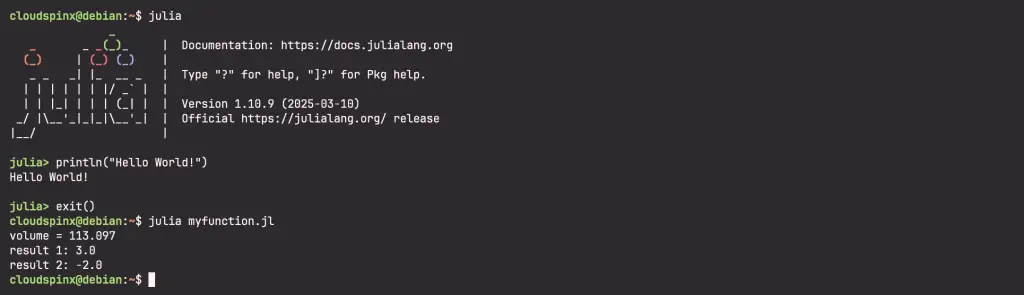
#> volume = 113.097

quad1, quad2 = quadratic2(2.0, -2.0, -12.0)
println("result 1: ", quad1)
#> result 1: 3.0
println("result 2: ", quad2)
#> result 2: -2.0
Then run the file on command prompt or terminal with the command:
We hope this guide helped you to install Julia on Linux. For more examples go through the Julia samples page which captures standard concepts to get you started.
More articles:
