

Jira is a project management and issue tracking platform developed by Atlassian. It is widely used by development teams to plan sprints, track bugs, manage releases, and coordinate work across distributed teams. Jira supports Scrum, Kanban, and mixed methodologies out of the box.
This guide walks through installing Jira on Debian 13 (Trixie) and Ubuntu 24.04 (Noble Numbat) with PostgreSQL as the database backend, Nginx as a reverse proxy, and Let’s Encrypt for TLS. We also cover JVM performance tuning, LDAP/Active Directory integration, backups, and plugin management.
Prerequisites
- A server running Debian 13 or Ubuntu 24.04 with at least 4 GB RAM and 2 CPU cores
- Root or sudo access to the server
- A fully qualified domain name (FQDN) pointing to your server IP – for example
jira.example.com - Ports 80 (HTTP), 443 (HTTPS), and 8080 (Jira default) open on the firewall
- OpenJDK 17 (installed in Step 1 below)
- PostgreSQL 16 or MySQL 8.x (PostgreSQL is the recommended database for Jira)
Step 1: Update System Packages and Install Java 17
Start by updating the package index and upgrading installed packages on your Debian 13 or Ubuntu 24.04 server.
sudo apt update && sudo apt upgrade -yReboot the server if any kernel updates were applied.
sudo rebootJira 10.x requires Java 17. Install OpenJDK 17 from the default repositories.
sudo apt install -y openjdk-17-jdkVerify the installation.
$ java -version
openjdk version "17.0.13" 2024-10-15
OpenJDK Runtime Environment (build 17.0.13+11-Debian-2)
OpenJDK 64-Bit Server VM (build 17.0.13+11-Debian-2, mixed mode, sharing)
Set the JAVA_HOME environment variable so Jira can locate the JDK.
echo 'export JAVA_HOME=/usr/lib/jvm/java-17-openjdk-amd64' | sudo tee /etc/profile.d/java.sh
source /etc/profile.d/java.sh
Step 2: Install and Configure PostgreSQL Database
PostgreSQL is the recommended database engine for Jira in production. Atlassian officially supports PostgreSQL 13 through 16. If you need a detailed walkthrough on installing PostgreSQL on Ubuntu, follow that guide first, then return here to create the Jira database.
Install PostgreSQL 16 from the default repositories.
sudo apt install -y postgresql postgresql-contribEnable and start the PostgreSQL service.
sudo systemctl enable --now postgresqlConfirm the service is running.
$ systemctl status postgresql
● postgresql.service - PostgreSQL RDBMS
     Loaded: loaded (/usr/lib/systemd/system/postgresql.service; enabled; preset: enabled)
     Active: active (exited) since Mon 2026-03-19 10:12:45 UTC; 5s ago
Switch to the postgres system user and create a dedicated database and role for Jira.
sudo -u postgres psqlRun the following SQL statements inside the PostgreSQL shell.
CREATE ROLE jirauser WITH LOGIN PASSWORD 'Str0ng!P@ssw0rd';
CREATE DATABASE jiradb WITH ENCODING 'UTF8' LC_COLLATE 'C' LC_CTYPE 'C' TEMPLATE template0 OWNER jirauser;
GRANT ALL PRIVILEGES ON DATABASE jiradb TO jirauser;
\q
The LC_COLLATE='C' setting is an Atlassian requirement for correct sorting behavior. Verify that the database was created.
$ sudo -u postgres psql -c "\l" | grep jiradb
 jiradb    | jirauser | UTF8     | C       | C       |
Alternative: Using MySQL 8.x
If you prefer MySQL over PostgreSQL, install mysql-server and create the database with the utf8mb4 character set. You can follow our guide on installing MySQL on Debian for a full walkthrough.
sudo apt install -y mysql-server
sudo systemctl enable --now mysql
Then create the Jira database and user inside the MySQL shell.
sudo mysql -u root -pRun these statements.
CREATE DATABASE jiradb CHARACTER SET utf8mb4 COLLATE utf8mb4_bin;
CREATE USER 'jirauser'@'localhost' IDENTIFIED BY 'Str0ng!P@ssw0rd';
GRANT SELECT,INSERT,UPDATE,DELETE,CREATE,DROP,REFERENCES,ALTER,INDEX ON jiradb.* TO 'jirauser'@'localhost';
FLUSH PRIVILEGES;
EXIT;
If you go the MySQL route, you also need to download the MySQL JDBC connector and place it in the Jira lib directory (covered in Step 3 below).
Step 3: Download and Install Jira on Debian 13 / Ubuntu 24.04
Visit the Atlassian Jira download page to check the latest version. At the time of writing, Jira 10.3 is the current release. Download the Linux installer binary.
cd /tmp
wget https://www.atlassian.com/software/jira/downloads/binary/atlassian-jira-software-10.3.0-x64.bin
Make the binary executable.
chmod +x atlassian-jira-software-10.3.0-x64.binRun the installer. You will be prompted to choose installation options. The defaults work for most setups.
$ sudo ./atlassian-jira-software-10.3.0-x64.bin
Unpacking JRE ...
Starting Installer ...

This will install Jira Software 10.3.0 on your computer.
OK [o, Enter], Cancel [c] Enter

Choose the appropriate installation or upgrade option.
Express Install (use default settings) [1], Custom Install (recommended for advanced users) [2, Enter], Upgrade an existing Jira installation [3] Enter

Select the folder where you would like Jira Software to be installed.
Where should Jira Software be installed?
[/opt/atlassian/jira] Enter

Default location for Jira Software data
[/var/atlassian/application-data/jira] Enter

Use default ports (HTTP: 8080, Control: 8005) - Recommended [1, Enter], Set custom value for HTTP and Control ports [2] Enter

Install Jira as Service?
Yes [y, Enter], No [n] Enter

Installation Directory: /opt/atlassian/jira
Home Directory: /var/atlassian/application-data/jira
HTTP Port: 8080
RMI Port: 8005
Install as service: Yes
Install [i, Enter], Exit [e] Enter

Extracting files ...
Please wait a few moments while Jira Software is configured.

Installation of Jira Software 10.3.0 is complete
Start Jira Software 10.3.0 now?
Yes [y, Enter], No [n] Enter

Launching Jira Software ...
Jira Software 10.3.0 can be accessed at http://localhost:8080
Finishing installation ...
The installer creates a dedicated jira system user and registers a systemd service. Verify Jira is running.
$ sudo /opt/atlassian/jira/bin/check-java.sh
Java version detected: 17.0.13
Check that Jira is listening on port 8080.
$ ss -tlnp | grep 8080
LISTEN  0  100  *:8080  *:*  users:(("java",pid=12345,fd=45))
MySQL JDBC Connector (MySQL users only)
If you chose MySQL as your database, download and install the MySQL JDBC driver into Jira’s lib directory.
cd /tmp
wget https://dev.mysql.com/get/Downloads/Connector-J/mysql-connector-j-8.3.0.tar.gz
tar xzf mysql-connector-j-8.3.0.tar.gz
sudo cp mysql-connector-j-8.3.0/mysql-connector-j-8.3.0.jar /opt/atlassian/jira/lib/
Restart Jira after adding the connector.
sudo /opt/atlassian/jira/bin/stop-jira.sh
sudo /opt/atlassian/jira/bin/start-jira.sh
Step 4: Open Firewall Ports
Allow traffic on ports used by Jira and Nginx. On Debian 13 / Ubuntu 24.04 with UFW.
sudo apt install -y ufw
sudo ufw allow OpenSSH
sudo ufw allow 80/tcp
sudo ufw allow 443/tcp
sudo ufw allow 8080/tcp
sudo ufw enable
Verify the rules are active.
$ sudo ufw status
Status: active

To                         Action      From
--                         ------      ----
OpenSSH                    ALLOW       Anywhere
80/tcp                     ALLOW       Anywhere
443/tcp                    ALLOW       Anywhere
8080/tcp                   ALLOW       Anywhere
Once the Nginx reverse proxy is set up and confirmed working, you can remove the 8080 rule so Jira is only accessible through Nginx.
sudo ufw delete allow 8080/tcpStep 5: Configure Nginx Reverse Proxy for Jira
Nginx sits in front of Jira and handles TLS termination, HTTP/2 support, and request buffering. Install Nginx from the default repositories.
sudo apt install -y nginxEnable and start Nginx.
sudo systemctl enable --now nginxConfigure Jira Tomcat for Reverse Proxy
Before configuring Nginx, tell Jira’s embedded Tomcat server that it sits behind a proxy. Stop Jira first.
sudo /opt/atlassian/jira/bin/stop-jira.shOpen the Tomcat server configuration file.
sudo vim /opt/atlassian/jira/conf/server.xmlFind the <Connector> element (around line 18) and update it to include proxy settings. Replace jira.example.com with your actual domain name.
<Connector port="8080"
           relaxedPathChars="[]|"
           relaxedQueryChars="[]|{}^\`"<>"
           maxThreads="150"
           minSpareThreads="25"
           connectionTimeout="20000"
           enableLookups="false"
           maxHttpHeaderSize="8192"
           protocol="HTTP/1.1"
           useBodyEncodingForURI="true"
           redirectPort="8443"
           acceptCount="100"
           disableUploadTimeout="true"
           bindOnInit="false"
           proxyName="jira.example.com"
           proxyPort="443"
           scheme="https"
           secure="true"/>
Save the file but do not start Jira yet – we will start it after Nginx is configured.
Create Nginx Virtual Host
Remove the default Nginx site configuration.
sudo rm -f /etc/nginx/sites-enabled/defaultCreate a new virtual host file for Jira.
sudo vim /etc/nginx/sites-available/jira.confAdd the following configuration. Replace jira.example.com with your domain.
server {
    listen 80;
    listen [::]:80;
    server_name jira.example.com;

    location / {
        proxy_set_header X-Forwarded-Host $host;
        proxy_set_header X-Forwarded-Server $host;
        proxy_set_header X-Forwarded-For $proxy_add_x_forwarded_for;
        proxy_set_header X-Real-IP $remote_addr;
        proxy_set_header X-Forwarded-Proto $scheme;
        proxy_pass http://127.0.0.1:8080;
        proxy_redirect off;
        client_max_body_size 100M;
        proxy_read_timeout 300;
        proxy_connect_timeout 300;
        proxy_send_timeout 300;
    }
}
Enable the site by creating a symlink.
sudo ln -s /etc/nginx/sites-available/jira.conf /etc/nginx/sites-enabled/jira.confTest the Nginx configuration and reload.
$ sudo nginx -t
nginx: the configuration file /etc/nginx/nginx.conf syntax is ok
nginx: configuration file /etc/nginx/nginx.conf test is successful
Reload Nginx and start Jira.
sudo systemctl reload nginx
sudo /opt/atlassian/jira/bin/start-jira.sh
At this point you should be able to reach Jira at http://jira.example.com. We will add HTTPS in the next step.
Step 6: Secure Jira with Let’s Encrypt SSL Certificate
Install Certbot and the Nginx plugin to automate certificate issuance and renewal.
sudo apt install -y certbot python3-certbot-nginxRequest a certificate for your Jira domain. Replace the domain and email with your own values.
sudo certbot --nginx -d jira.example.com --non-interactive --agree-tos -m [email protected]Certbot modifies the Nginx configuration automatically. After it completes, update the Nginx config to enforce HTTPS and add security headers. Open the configuration file.
sudo vim /etc/nginx/sites-available/jira.confReplace the entire file contents with the following. Certbot-managed lines for the certificate paths may differ slightly based on your domain.
server {
    listen 80;
    listen [::]:80;
    server_name jira.example.com;
    return 301 https://jira.example.com$request_uri;
}

server {
    listen 443 ssl http2;
    listen [::]:443 ssl http2;
    server_name jira.example.com;

    ssl_certificate /etc/letsencrypt/live/jira.example.com/fullchain.pem;
    ssl_certificate_key /etc/letsencrypt/live/jira.example.com/privkey.pem;
    ssl_protocols TLSv1.2 TLSv1.3;
    ssl_ciphers HIGH:!aNULL:!MD5;
    ssl_prefer_server_ciphers on;
    ssl_session_cache shared:SSL:10m;

    add_header X-Frame-Options "SAMEORIGIN" always;
    add_header X-Content-Type-Options "nosniff" always;
    add_header Strict-Transport-Security "max-age=31536000; includeSubDomains" always;

    location / {
        proxy_set_header X-Forwarded-Host $host;
        proxy_set_header X-Forwarded-Server $host;
        proxy_set_header X-Forwarded-For $proxy_add_x_forwarded_for;
        proxy_set_header X-Real-IP $remote_addr;
        proxy_set_header X-Forwarded-Proto https;
        proxy_set_header Host $host;
        proxy_pass http://127.0.0.1:8080;
        proxy_redirect off;
        client_max_body_size 100M;
        proxy_read_timeout 300;
        proxy_connect_timeout 300;
        proxy_send_timeout 300;
    }
}
Test and reload Nginx.
sudo nginx -t && sudo systemctl reload nginxVerify auto-renewal is active. Certbot installs a systemd timer that renews certificates before they expire.
$ sudo certbot renew --dry-run
Congratulations, all simulated renewals succeeded
Jira should now be accessible at https://jira.example.com with a valid TLS certificate.
Step 7: Complete the Jira Setup Wizard
Open https://jira.example.com in your browser. The Jira setup wizard guides you through the initial configuration.
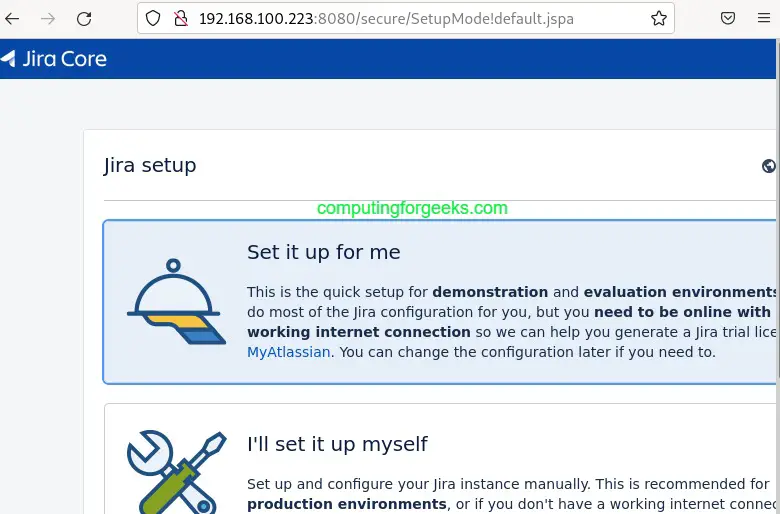
Select “I’ll set it up myself” to use a custom configuration. Click Next.

Configure Database Connection
On the database configuration page, select “My Own Database” and enter the connection details. For PostgreSQL, use these values:
- Database Type: PostgreSQL
- Hostname: localhost
- Port: 5432
- Database: jiradb
- Username: jirauser
- Password: the password you set in Step 2
Click “Test Connection” to verify the database is reachable before proceeding.


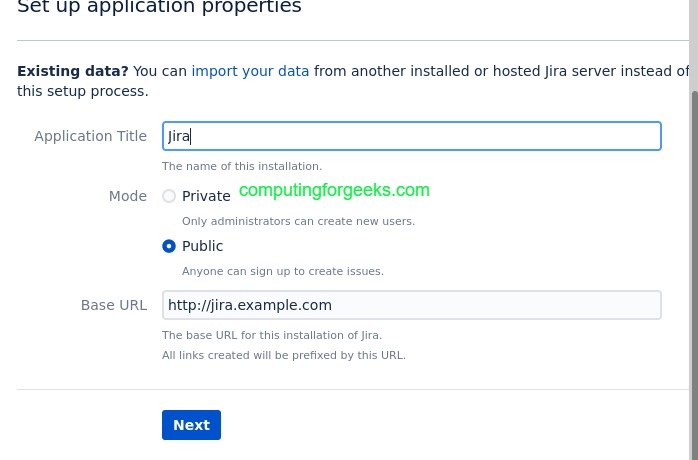
Set Application Properties
Set your application title and base URL. The base URL should match your domain with HTTPS, for example https://jira.example.com. Choose whether to make the instance public or private.
Enter License Key
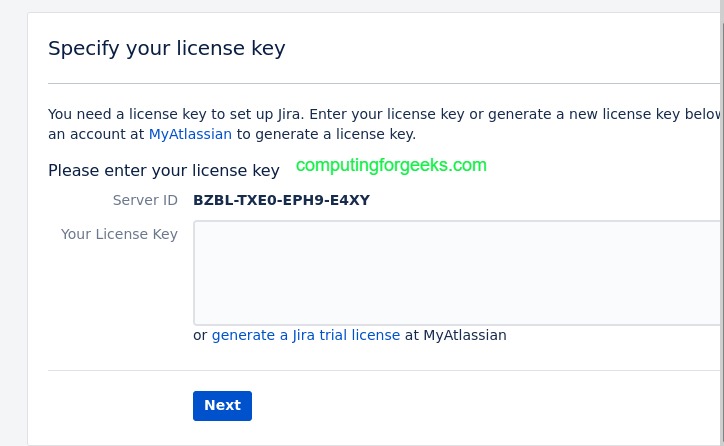
Paste your Jira license key or generate a free evaluation license from your Atlassian account. Click Next.
Create Administrator Account
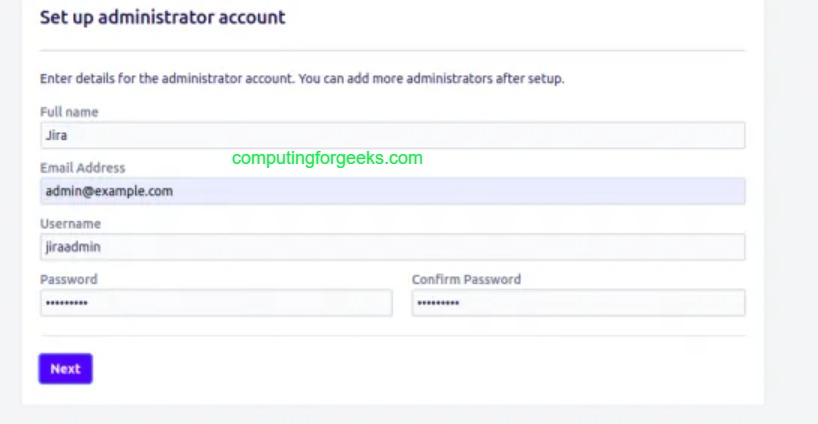
Set up the administrator account with a strong password. This account has full control over Jira settings.
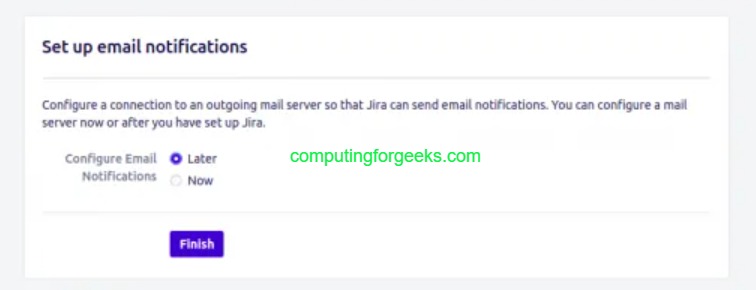
Configure email notifications (you can skip this and set it up later). Select your language and choose an avatar.

After completing the wizard, the Jira dashboard loads and you can start creating projects.

Step 8: JVM Heap Memory and Performance Tuning
The default JVM heap settings work for small teams, but production instances with 50+ users should adjust memory allocation. Open the Jira environment configuration file.
sudo vim /opt/atlassian/jira/bin/setenv.shFind the JVM memory settings and adjust them. For a server with 8 GB RAM, set the heap to 4 GB.
JVM_MINIMUM_MEMORY="2048m"
JVM_MAXIMUM_MEMORY="4096m"
General guidelines for heap sizing based on team size:
| Team Size | Server RAM | JVM Heap (Xmx) |
|---|---|---|
| 1-25 users | 4 GB | 2048m |
| 25-100 users | 8 GB | 4096m |
| 100-300 users | 16 GB | 8192m |
| 300+ users | 32 GB | 12288m |
Additional JVM tuning parameters can be added in the same file. These settings enable garbage collection logging and optimize GC behavior.
JVM_SUPPORT_RECOMMENDED_ARGS="-XX:+UseG1GC -XX:+ExplicitGCInvokesConcurrent -Xlog:gc*:file=/opt/atlassian/jira/logs/gc.log:time,uptime:filecount=5,filesize=20m"Restart Jira after changing JVM settings.
sudo /opt/atlassian/jira/bin/stop-jira.sh
sudo /opt/atlassian/jira/bin/start-jira.sh
Verify memory allocation from the Jira admin panel at Administration > System > System Info. Check the “Java VM Memory” section to confirm the new values are active.
Step 9: Configure Jira Backup Strategy
A production Jira instance needs regular backups of both the database and the application data directory. Jira has a built-in XML backup feature, but for large instances a native database dump is more reliable and faster to restore.
PostgreSQL Database Backup
Create a backup script that dumps the Jira database daily.
sudo vim /opt/atlassian/jira-backup.shAdd the following content.
#!/bin/bash
BACKUP_DIR="/var/backups/jira"
DATE=$(date +%Y%m%d_%H%M)
mkdir -p "$BACKUP_DIR"

# Database dump
sudo -u postgres pg_dump jiradb | gzip > "$BACKUP_DIR/jiradb_${DATE}.sql.gz"

# Application data backup
tar czf "$BACKUP_DIR/jira-data_${DATE}.tar.gz" /var/atlassian/application-data/jira/

# Remove backups older than 14 days
find "$BACKUP_DIR" -type f -mtime +14 -delete

echo "Backup completed: $DATE"
Make the script executable and schedule it with cron.
sudo chmod +x /opt/atlassian/jira-backup.shOpen the root crontab and add a daily backup job at 2 AM.
sudo crontab -eAdd this line.
0 2 * * * /opt/atlassian/jira-backup.sh >> /var/log/jira-backup.log 2>&1Jira Built-in Backup (XML Export)
Jira also supports XML-based backups through the admin panel. Navigate to Administration > System > Backup System. This is useful for smaller instances or one-off exports, but the database dump method above is preferred for production because it handles large datasets more efficiently.
Step 10: LDAP and Active Directory Integration
Connecting Jira to your organization’s LDAP or Active Directory server allows users to log in with their corporate credentials. This eliminates the need to manage separate Jira accounts. If you are running OpenLDAP on Ubuntu, the same connection settings apply here.
In the Jira admin panel, go to Administration > User Management > User Directories. Click “Add Directory” and select the type that matches your environment:
- LDAP: For OpenLDAP, FreeIPA, or other LDAP-compliant directories
- Microsoft Active Directory: For Windows AD environments
- Atlassian Crowd: If you have Crowd for centralized identity management
Example: Active Directory Configuration
For a typical Active Directory setup, use these connection parameters:
| Setting | Value |
|---|---|
| Directory Type | Microsoft Active Directory |
| Server | ldaps://dc01.corp.example.com:636 |
| Base DN | DC=corp,DC=example,DC=com |
| Bind User DN | CN=jirasvc,OU=Service Accounts,DC=corp,DC=example,DC=com |
| User Object Filter | (&(objectCategory=Person)(sAMAccountName=*)) |
| Group Object Filter | (objectCategory=Group) |
Click “Test and Save” after entering the settings. Jira syncs users and groups from the directory. Set the sync interval based on your organization’s needs – 60 minutes is a common choice.
For organizations that want to join Ubuntu or Debian to an Active Directory domain, that integration at the OS level can complement the Jira LDAP connection for single sign-on workflows.
Step 11: Manage Jira Plugins and Marketplace Apps
Jira’s functionality can be extended with plugins from the Atlassian Marketplace. Go to Administration > Manage Apps > Find New Apps to browse available plugins directly from the Jira interface.
Popular plugins for production Jira instances include:
- Tempo Timesheets – time tracking and resource planning
- Structure – project hierarchy and portfolio views
- ScriptRunner – custom automation scripts, listeners, and validators
- Zephyr Scale – test case management integrated with Jira issues
- BigPicture – Gantt charts and program-level planning
To install a plugin from the command line or a downloaded JAR file, copy it to the plugins directory.
sudo cp plugin-file.jar /var/atlassian/application-data/jira/plugins/installed-plugins/Restart Jira after manually adding plugins.
sudo /opt/atlassian/jira/bin/stop-jira.sh
sudo /opt/atlassian/jira/bin/start-jira.sh
Keep plugins updated and remove unused ones. Each plugin increases memory consumption and startup time. Check Administration > Manage Apps regularly to audit installed plugins.
Step 12: Create a Systemd Service for Jira
The installer registers Jira as a service, but if you need to customize the systemd unit or recreate it, here is the service file.
sudo vim /etc/systemd/system/jira.serviceAdd the following content.
[Unit]
Description=Atlassian Jira Software
After=network.target postgresql.service

[Service]
Type=forking
User=jira
Group=jira
ExecStart=/opt/atlassian/jira/bin/start-jira.sh
ExecStop=/opt/atlassian/jira/bin/stop-jira.sh
TimeoutStartSec=300
TimeoutStopSec=120
LimitNOFILE=65536
LimitNPROC=65536

[Install]
WantedBy=multi-user.target
Reload systemd and enable the service.
sudo systemctl daemon-reload
sudo systemctl enable jira
Now you can manage Jira with standard systemd commands.
sudo systemctl start jira
sudo systemctl stop jira
sudo systemctl status jira
Conclusion
Jira is now running on Debian 13 / Ubuntu 24.04 behind Nginx with a valid Let’s Encrypt TLS certificate. The setup uses PostgreSQL as the database, has JVM heap memory tuned for your team size, and includes automated daily backups.
For production hardening, consider setting up database replication for high availability, configuring an external object storage for attachments, enabling Jira’s audit log, and placing the server behind a CDN or WAF for additional protection. Monitor JVM heap usage and garbage collection logs regularly to catch performance issues early.
