

Jekyll is a static site generator written in Ruby that transforms Markdown and Liquid templates into a complete website. No database, no server-side processing, no security patches for a CMS – just static HTML files that any web server can serve. It powers GitHub Pages and is a solid choice for blogs, documentation sites, and project pages where speed and simplicity matter more than dynamic features.
This guide covers installing Jekyll on Debian 13 (Trixie) and Debian 12 (Bookworm), creating a site, customizing it, and deploying to production with Nginx.
Prerequisites
- Debian 13 or 12 with sudo access
- At least 512 MB RAM
- Basic familiarity with the command line and Markdown
Step 1: Install Ruby and Build Dependencies
Jekyll needs Ruby 2.7 or later. Debian 13 ships Ruby 3.3 and Debian 12 ships Ruby 3.1 – both work.
sudo apt update
sudo apt install -y ruby-full ruby-dev build-essential zlib1g-dev
Configure gem to install packages in your home directory (avoids running gem as root):
echo 'export GEM_HOME="$HOME/gems"' >> ~/.bashrc
echo 'export PATH="$HOME/gems/bin:$PATH"' >> ~/.bashrc
source ~/.bashrc
For Zsh users, replace ~/.bashrc with ~/.zshrc in both commands.
Verify Ruby is working:
$ ruby --version
ruby 3.3.x (2024-xx-xx revision xxxxx) [x86_64-linux-gnu]

$ gem --version
3.x.x
Step 2: Install Jekyll and Bundler
$ gem install bundler jekyll
Fetching bundler-2.5.x.gem
Successfully installed bundler-2.5.x
Fetching jekyll-4.4.x.gem
Successfully installed jekyll-4.4.x
...
Done installing documentation for bundler, jekyll after X seconds
Verify the installation:
$ jekyll --version
jekyll 4.x.y
Step 3: Create a New Jekyll Site
$ jekyll new my-blog
Running bundle install in /home/user/my-blog...
  Bundler: Bundle complete! 7 Gemfile dependencies, 34 gems now installed.
New jekyll site installed in /home/user/my-blog.
Check the directory structure:
$ sudo apt install -y tree
$ tree my-blog/
my-blog/
├── 404.html            # Custom 404 page
├── about.markdown      # About page
├── _config.yml         # Site configuration
├── Gemfile             # Ruby dependencies
├── Gemfile.lock
├── index.markdown      # Homepage
└── _posts/
    └── 2026-03-18-welcome-to-jekyll.markdown

2 directory, 7 files
Key files explained:
_config.yml– site title, description, URL, theme, and plugin settings_posts/– blog posts in Markdown format. Filename must followYYYY-MM-DD-title.markdown_site/– generated static HTML (created after first build). This is what you deployGemfile– Ruby gem dependencies. Runbundle installafter changing it
Step 4: Configure Your Site
Edit _config.yml with your site details:
title: My Tech Blog
description: Linux tutorials and DevOps guides
url: "https://blog.example.com"
baseurl: ""
author:
  name: Your Name
  email: [email protected]

# Build settings
markdown: kramdown
theme: minima
plugins:
  - jekyll-feed
  - jekyll-seo-tag
  - jekyll-sitemap

# Permalink structure
permalink: /:title/

# Exclude from build
exclude:
  - Gemfile
  - Gemfile.lock
  - README.md
Add the sitemap plugin to your Gemfile:
echo 'gem "jekyll-sitemap"' >> Gemfile
bundle install
Step 5: Write Your First Post
Create a new post in the _posts/ directory. The filename format is required:
vim _posts/2026-03-18-install-nginx-on-debian.markdownAdd content with front matter (YAML header):
---
layout: post
title:  "How to Install Nginx on Debian 13"
date:   2026-03-18 10:00:00 +0000
categories: tutorials linux
tags: nginx debian web-server
---

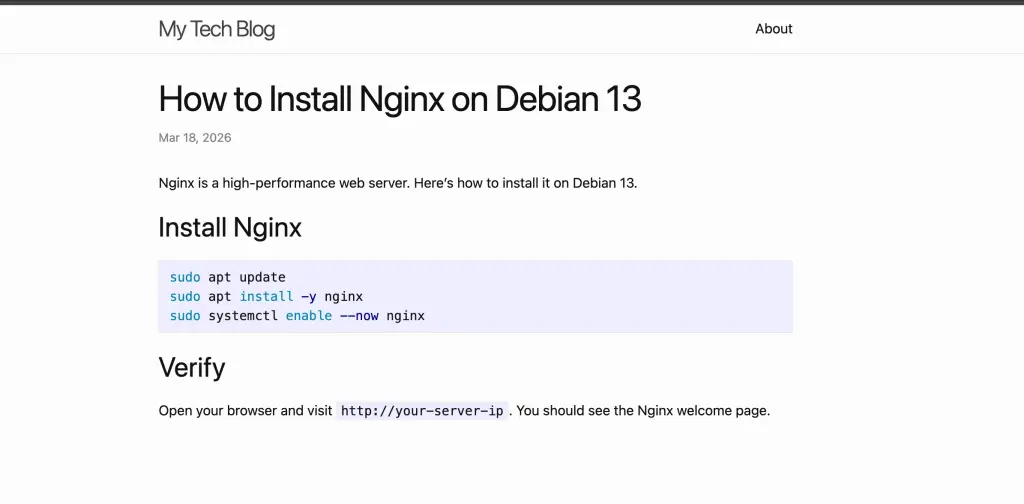
Nginx is a high-performance web server. Here's how to install it on Debian 13.

## Install Nginx

```bash
sudo apt update
sudo apt install -y nginx
sudo systemctl enable --now nginx
```

## Verify

Open your browser and visit `http://your-server-ip`. You should see the Nginx welcome page.
Jekyll supports GitHub Flavored Markdown including code fences, tables, task lists, and inline code.
Step 6: Start the Development Server
Allow port 4000 if you have a firewall:
sudo ufw allow 4000/tcpStart the Jekyll development server:
$ cd ~/my-blog
$ bundle exec jekyll serve --host=0.0.0.0
Configuration file: /home/user/my-blog/_config.yml
            Source: /home/user/my-blog
       Destination: /home/user/my-blog/_site
 Incremental build: disabled. Enable with --incremental
      Generating...
       Jekyll Feed: Generating feed for posts
                    done in 0.2 seconds.
 Auto-regeneration: enabled for '/home/user/my-blog'
    Server address: http://0.0.0.0:4000/
  Server running... press ctrl-c to stop.
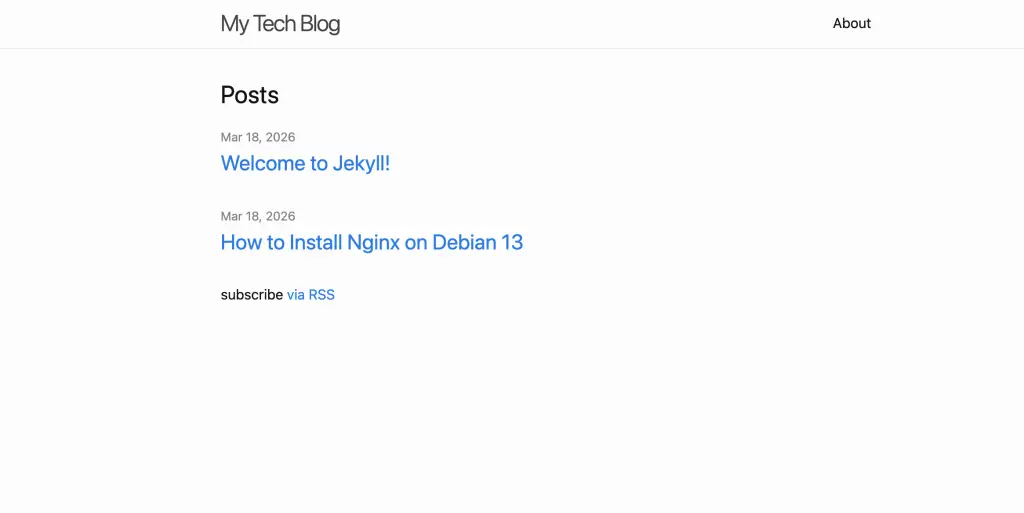
Open http://your-server-ip:4000 in your browser:
Open post to view it rendered:
Jekyll watches for file changes and auto-regenerates the site. Edit a post, save it, and refresh the browser.
Step 7: Change the Theme
Jekyll ships with the minima theme. To switch themes, find one at jekyllthemes.io or GitHub, then:
# Add to Gemfile
echo 'gem "jekyll-theme-chirpy"' >> Gemfile
bundle install

# Update _config.yml
# theme: minima
theme: jekyll-theme-chirpy
Rebuild with bundle exec jekyll serve to see the new theme.
Step 8: Build for Production
Generate the static site with the production environment flag:
JEKYLL_ENV=production bundle exec jekyll buildThe complete site is now in the _site/ directory:
$ ls _site/
404.html  about/  assets/  feed.xml  index.html  sitemap.xml  tutorials/
Step 9: Deploy with Nginx
Install Nginx and copy the built site:
sudo apt install -y nginx
sudo cp -r _site/* /var/www/html/
For a proper setup with your own domain and SSL:
sudo mkdir -p /var/www/my-blog

# Copy built site
sudo cp -r _site/* /var/www/my-blog/

# Create Nginx server block
sudo tee /etc/nginx/sites-available/my-blog > /dev/null << 'NGINX'
server {
    listen 80;
    server_name blog.example.com;
    root /var/www/my-blog;
    index index.html;

    location / {
        try_files $uri $uri/ =404;
    }

    # Cache static assets
    location ~* \.(css|js|png|jpg|gif|ico|svg|woff2)$ {
        expires 30d;
        add_header Cache-Control "public, immutable";
    }

    # Custom 404
    error_page 404 /404.html;
}
NGINX

sudo ln -s /etc/nginx/sites-available/my-blog /etc/nginx/sites-enabled/
sudo nginx -t && sudo systemctl reload nginx
Add SSL with Let’s Encrypt:
sudo apt install -y certbot python3-certbot-nginx
sudo certbot --nginx -d blog.example.com
Step 10: Deploy to GitHub Pages (Alternative)
GitHub Pages hosts Jekyll sites for free. Push your site to a GitHub repository:
cd ~/my-blog
git init
git add .
git commit -m "Initial Jekyll site"
git remote add origin [email protected]:youruser/my-blog.git
git push -u origin main
In your GitHub repo settings, enable Pages from the main branch. GitHub builds and deploys the site automatically on every push. Your site will be live at https://youruser.github.io/my-blog/.
Automate Builds with a Script
For self-hosted deployments, create a build-and-deploy script:
#!/bin/bash
# deploy.sh - Build and deploy Jekyll site
cd ~/my-blog
git pull
JEKYLL_ENV=production bundle exec jekyll build
sudo rsync -av --delete _site/ /var/www/my-blog/
echo "Deployed at $(date)"
Run it manually or add to cron for auto-deploy on schedule.
Troubleshooting
gem install fails with permission error:
You forgot to set GEM_HOME. Run the export commands from Step 1 and source your shell config again.
jekyll serve shows “Could not find gem”:
bundle install
bundle exec jekyll serve --host=0.0.0.0
Always use bundle exec to run Jekyll commands – it ensures the correct gem versions from your Gemfile.lock are used.
Build fails with Ruby version error:
Check your Ruby version with:
ruby --versionJekyll 4.4 requires Ruby 2.7+. Debian 12 ships 3.1 and Debian 13 ships 3.3, so this shouldn’t happen unless you installed Ruby from another source.
Site shows blank page after theme change:
Different themes expect different layouts. Check the theme’s README for required layout names and front matter variables. Run the following commands to see what’s happening.
bundle exec jekyll build --verboseConclusion
Jekyll gives you a fast, secure blog with zero server-side dependencies. Write in Markdown, build to static HTML, deploy anywhere. For production, pair it with Nginx and Let’s Encrypt for HTTPS, or use GitHub Pages for free hosting. Consider Hugo as an alternative if you need faster build times on large sites (1000+ pages).
Related guides:
