

Running your own mail server on Debian gives you complete ownership of your email infrastructure. iRedMail makes this practical by bundling Postfix, Dovecot, Amavisd, ClamAV, SpamAssassin, Roundcube, SOGo, and iRedAdmin into one automated installer. The whole process takes about 15 minutes on a fresh Debian server.
Verified working: March 2026 on Debian 12 (bookworm), kernel 6.1, PostgreSQL 15.16, Postfix 3.7.11, Dovecot 2.3.19, Nginx 1.22.1, PHP 8.2.30, iRedMail 1.7.4
iRedMail 1.7.4 currently supports Debian 12 (bookworm). Debian 13 (trixie) is not yet supported as of this writing. For Ubuntu servers, see our iRedMail Ubuntu 24.04 / 22.04 guide. Rocky Linux and AlmaLinux users can follow the RHEL-family installation guide.
Prerequisites
- A fresh Debian 12 server with no existing mail services (Postfix, Dovecot, MySQL, etc.)
- Minimum 4 GB RAM for spam/virus scanning (ClamAV and SpamAssassin are the main consumers)
- A registered domain with DNS control for MX, SPF, DKIM, and DMARC records
- Port 25 open outbound (check with your hosting provider, many block it by default)
- A PTR (reverse DNS) record matching your mail hostname. Gmail and most enterprise providers check this
- UIDs 2000, 2001, 2002 must be available (iRedMail creates system users with these IDs)
Update System and Set Hostname
The installer requires a fully qualified domain name (FQDN) as the server hostname. Set this before running anything else.
sudo apt update && sudo apt upgrade -ySet the hostname:
sudo hostnamectl set-hostname mail.example.comMap the hostname to your server IP in /etc/hosts:
echo "192.168.1.50 mail.example.com mail" | sudo tee -a /etc/hostsConfirm it resolves:
hostname -fExpected output:
mail.example.comInstall the prerequisites the installer needs:
sudo apt install -y gzip dialog wgetDownload iRedMail
Fetch the latest release version from GitHub:
VER=$(curl -sL https://api.github.com/repos/iredmail/iRedMail/releases/latest | grep tag_name | head -1 | sed 's/.*"\([^"]*\)".*/\1/')
echo "iRedMail version: $VER"
This should print the current version:
iRedMail version: 1.7.4Download and extract:
cd /root
wget -q "https://github.com/iredmail/iRedMail/archive/refs/tags/${VER}.tar.gz" -O iredmail-${VER}.tar.gz
tar xzf iredmail-${VER}.tar.gz
cd iRedMail-${VER}
Run the Installer
Start the interactive setup wizard:
sudo bash iRedMail.shThe wizard prompts for several configuration choices. Here’s what each screen asks:
- Mail storage path: accept the default
/var/vmail - Web server: select Nginx
- Database backend: choose PostgreSQL, MariaDB, or OpenLDAP based on your preference. This guide uses PostgreSQL. On Debian 12, you get PostgreSQL 15
- First mail domain: enter your bare domain (e.g.,
example.com), not the server hostname - Admin password: set a strong password for
[email protected] - Optional components: Roundcube (webmail), SOGo (groupware with calendar/ActiveSync), netdata (monitoring), iRedAdmin (admin panel), Fail2ban (brute-force protection). Enable all for a complete setup
The installer downloads packages, creates databases, and configures all services. On a standard VPS this takes 10 to 15 minutes. Accept the firewall rules when prompted (iRedMail uses nftables on Debian 12).
Reboot after installation completes:
sudo rebootVerify Services
After reboot, check that all mail services started:
sudo systemctl is-active postfix dovecot nginx postgresql clamav-daemon amavis sogo fail2banAll eight services should report active:
active
active
active
active
active
active
active
active
Verify the mail ports are open:
sudo ss -tlnp | grep -E ':25|:587|:993|:443'You should see Postfix on 25/587, Dovecot on 993, and Nginx on 443.
Replace the Self-Signed Certificate with Let’s Encrypt
The installer creates a self-signed certificate. Replace it with a trusted one from Let’s Encrypt so mail clients and browsers work without warnings.
sudo apt install -y certbotStop Nginx so certbot can bind to port 80:
sudo systemctl stop nginx
sudo certbot certonly --standalone -d mail.example.com --non-interactive --agree-tos -m [email protected]
On success, certbot stores the files at /etc/letsencrypt/live/mail.example.com/. Link them to where iRedMail expects its certificates:
sudo ln -sf /etc/letsencrypt/live/mail.example.com/fullchain.pem /etc/ssl/certs/iRedMail.crt
sudo ln -sf /etc/letsencrypt/live/mail.example.com/privkey.pem /etc/ssl/private/iRedMail.key
This approach works because Nginx, Postfix, and Dovecot all reference these two paths. One symlink swap updates everything. Restart the affected services:
sudo systemctl restart nginx postfix dovecotConfirm automatic renewal is working:
sudo certbot renew --dry-runConfigure DNS Records for Email Authentication
Without proper DNS records, your emails will land in spam or get rejected entirely. Set up all of the following in your domain’s DNS panel.
A and MX records
mail.example.com.    IN    A     192.168.1.50
example.com.         IN    MX    10    mail.example.com.
SPF record
Restricts which servers can send email for your domain:
example.com. IN TXT "v=spf1 mx ip4:192.168.1.50 -all"DKIM record
iRedMail generates DKIM keys during installation. Retrieve yours:
sudo amavisd showkeysCopy the public key output and create a TXT record at dkim._domainkey.example.com. After DNS propagation, verify the key:
sudo amavisd testkeysA successful test shows:
TESTING#1 example.com: dkim._domainkey.example.com => passDMARC record
_dmarc.example.com. IN TXT "v=DMARC1; p=reject; rua=mailto:[email protected]"Use p=none initially while testing deliverability, then tighten to p=reject once everything checks out.
PTR record
Configure reverse DNS at your hosting provider (not in your domain DNS). Your server’s IP must resolve back to mail.example.com. This is one of the first things Gmail checks when receiving mail.
Access the Web Interfaces
All three web applications are available over HTTPS using your postmaster credentials.
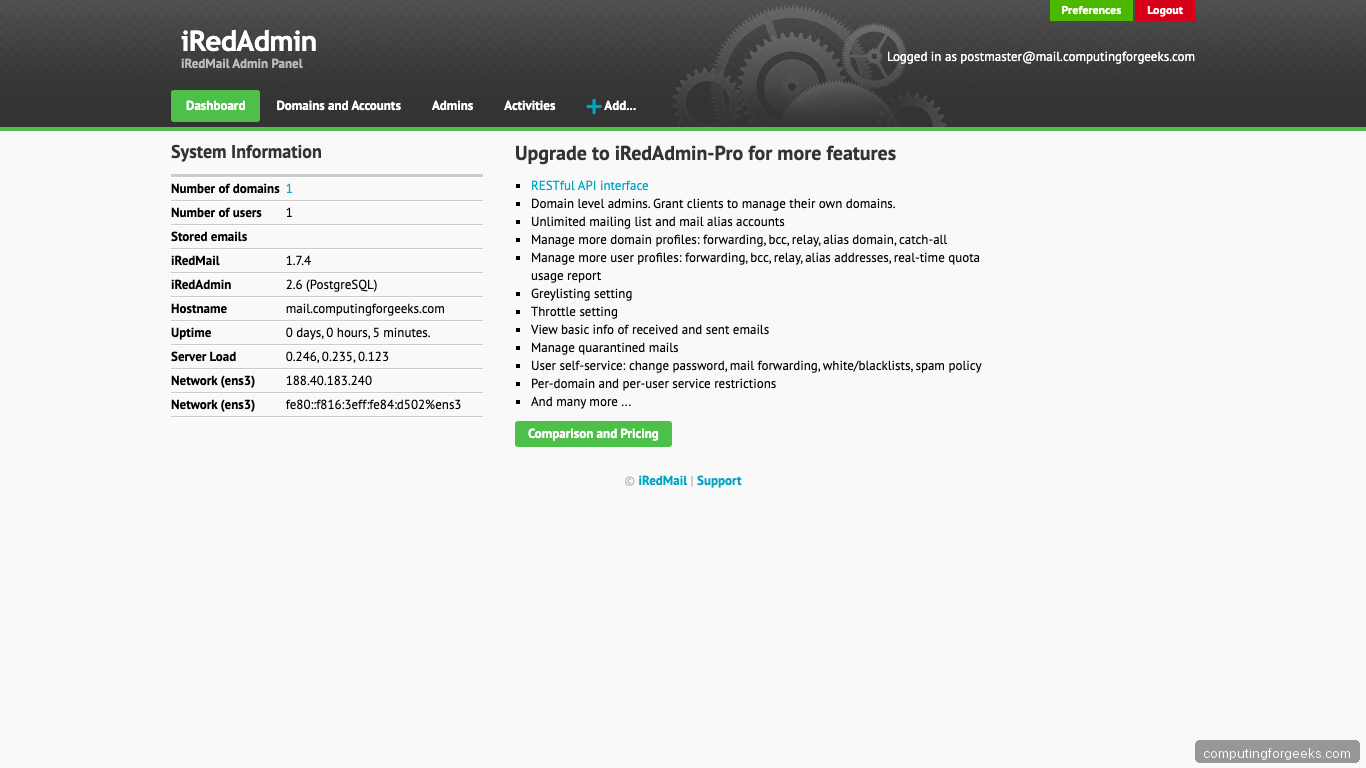
iRedAdmin panel
Manage domains, mailboxes, and aliases at https://mail.example.com/iredadmin/:
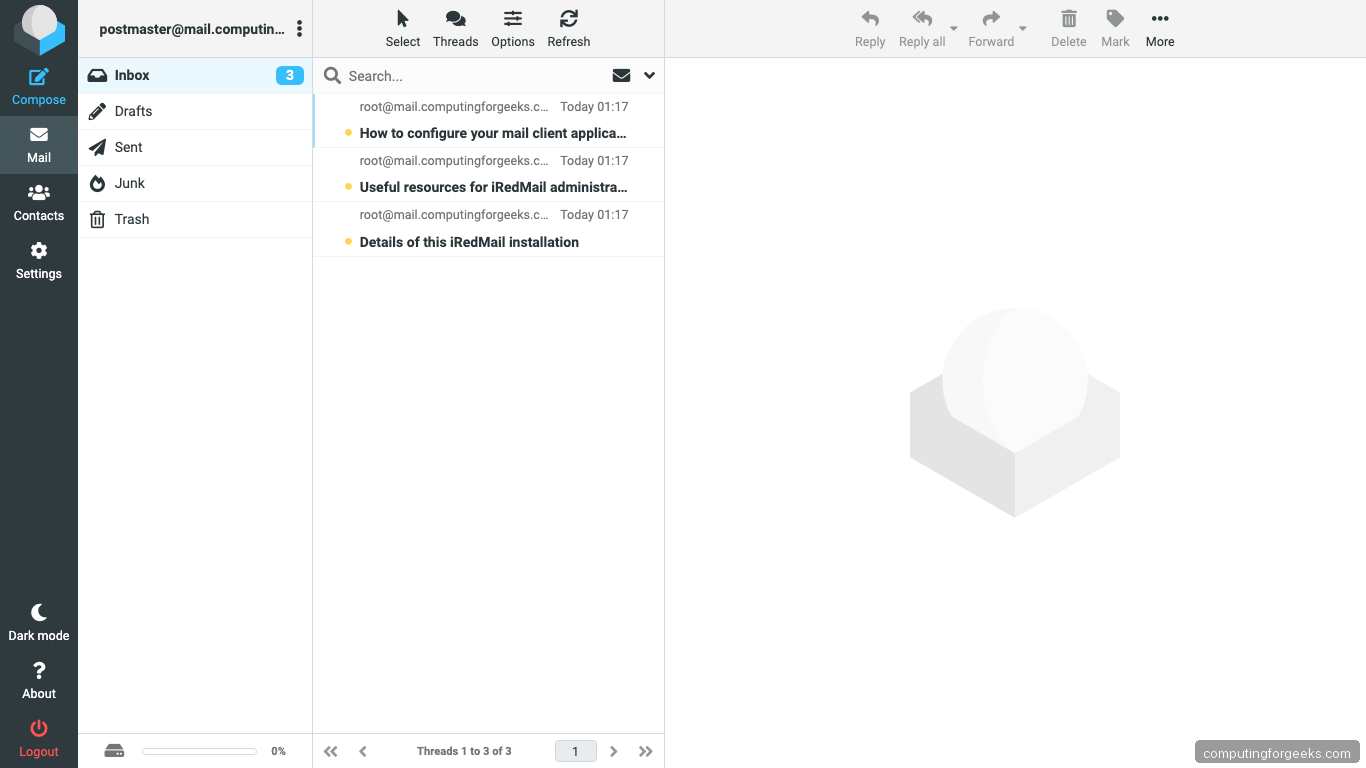
Roundcube webmail
Access webmail at https://mail.example.com/mail/. Roundcube 1.6.11 is bundled by iRedMail regardless of the Debian version:
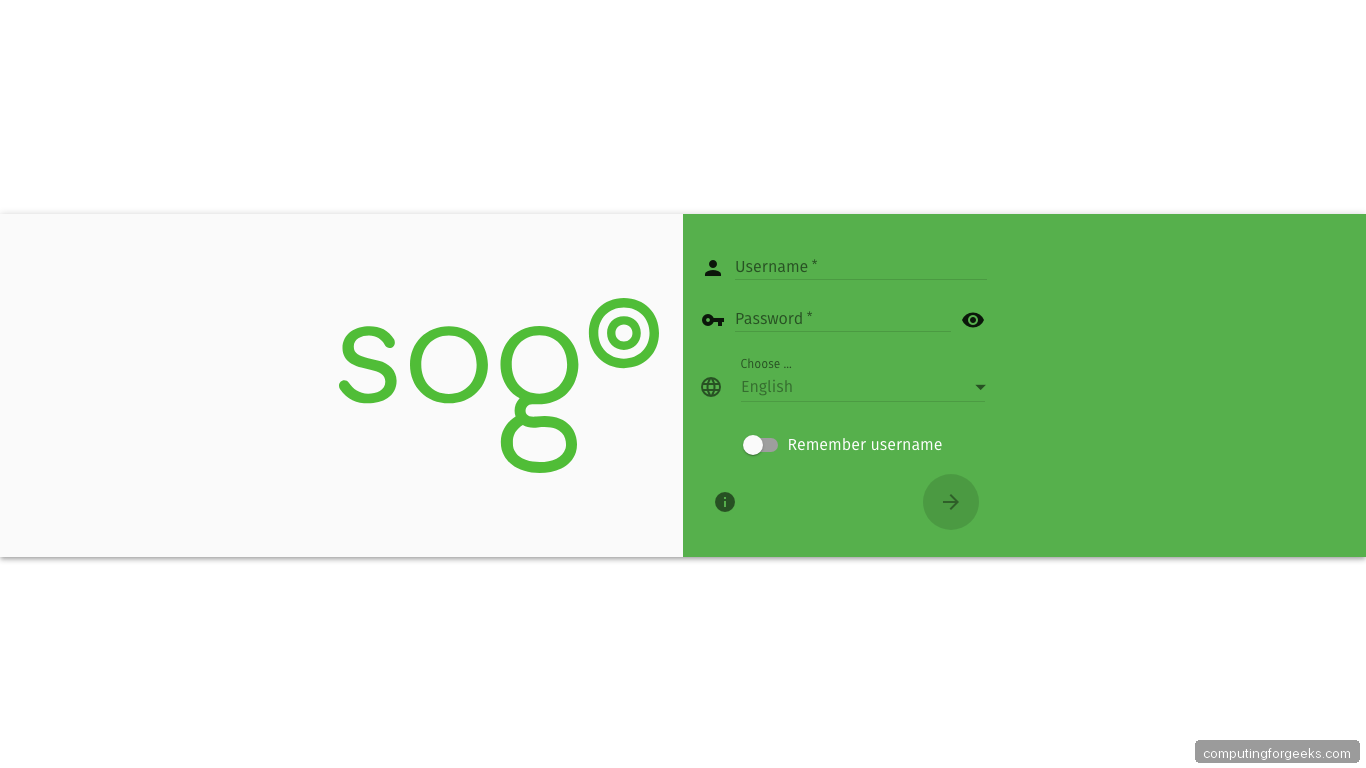
SOGo groupware
SOGo provides calendar, contacts, and ActiveSync support at https://mail.example.com/SOGo/. Useful if you need to sync email, calendars, and contacts with mobile devices without relying on third-party services.
Key File Locations
All credentials and paths from the installation are saved in a single file:
sudo cat /root/iRedMail-1.7.4/iRedMail.tipsMove this file somewhere secure after reviewing it. Here are the most commonly needed paths on Debian 12:
- Postfix:
/etc/postfix/main.cf,/etc/postfix/master.cf - Dovecot:
/etc/dovecot/dovecot.conf - Nginx SSL:
/etc/nginx/sites-available/00-default-ssl.conf - Amavisd:
/etc/amavis/conf.d/50-user - PostgreSQL:
/etc/postgresql/15/main/postgresql.conf - Mail storage:
/var/vmail/vmail1/ - DKIM key:
/var/lib/dkim/example.com.pem
Troubleshooting
Emails going to Gmail’s spam folder
Check these in order. The first one that fails is usually the cause:
- PTR record:
dig -x YOUR_IPmust return your mail hostname - SPF:
dig TXT example.commust show your SPF record - DKIM:
sudo amavisd testkeysmust show “pass” - DMARC:
dig TXT _dmarc.example.commust return your DMARC policy - IP reputation: check at MXToolbox Blacklist Check
Error: “do not list domain in BOTH mydestination and virtual_mailbox_domains”
This Postfix warning appears when your mail domain matches the server hostname. If your hostname is mail.example.com, set the first mail domain to example.com (the bare domain), not mail.example.com.
ClamAV “Resource temporarily unavailable” during install
This is harmless. The freshclam daemon starts automatically during installation and holds a lock file. After rebooting, both freshclam and clamd run normally and update virus definitions on their own schedule.
Going Further
- Add more mail domains and user accounts through iRedAdmin or follow our domain and user management guide
- Set up automatic security updates:
sudo apt install unattended-upgrades && sudo dpkg-reconfigure -plow unattended-upgrades - Back up
/var/vmail/(mailboxes),/etc/letsencrypt/(certificates), and the PostgreSQL databases regularly. iRedMail creates daily DB backups in/var/vmail/backup/ - Restrict iRedAdmin access by IP using the
allow/denydirectives in/etc/nginx/templates/iredadmin.tmpl - Review Fail2ban jail status with
sudo fail2ban-client statusand tune ban durations if needed

everything is well done i can send an email to Gmail but is in spam how can I solve the problem
Get a static IP.
Hello, i have a static adress and domen name, but “i can send an email to Gmail but is in spam how can I solve the problem”)))