

Remote access to servers usually means opening SSH ports, installing VNC clients, or fiddling with RDP configurations on every machine you touch. Apache Guacamole removes all of that. It gives you browser-based access to your servers through RDP, VNC, SSH, and Telnet, with nothing to install on the client side. Just open a browser and connect.
This guide walks through building Guacamole 1.6.0 from source on Rocky Linux 10 (also works on AlmaLinux 10), with MariaDB for authentication storage, Tomcat 9 as the servlet container, and Nginx as a reverse proxy with SSL. We cover SELinux configuration properly because running setenforce 0 is not an option in production. The Guacamole 1.6.0 release includes improvements to connection stability and protocol handling.
Tested March 2026 | Rocky Linux 10.1 (Red Quartz), Guacamole 1.6.0, Tomcat 9.0.87, MariaDB 10.11.15, Nginx 1.26.3, Java 21
Prerequisites
Before starting, confirm you have the following ready:
- Rocky Linux 10 or AlmaLinux 10 server (minimal install is fine)
- Root or sudo access
- Tested on: Rocky Linux 10.1 (kernel 6.12), SELinux enforcing
- A domain name pointed to your server’s IP (for SSL). We use
guacamole.computingforgeeks.comthroughout - Ports 80 and 443 open on your firewall
- At least 2 GB RAM (the build process is memory-hungry)
Update the system first:
sudo dnf update -yInstall Build Dependencies
Guacamole server (guacd) is written in C and needs to be compiled from source. The build requires a bunch of development libraries for the protocols it supports (RDP, VNC, SSH, Telnet) plus image rendering libraries.
Enable EPEL and install the core development tools:
sudo dnf install -y epel-release
sudo dnf groupinstall -y "Development Tools"
Install the protocol and rendering libraries:
sudo dnf install -y cairo-devel libjpeg-turbo-devel libpng-devel pango-devel libssh2-devel libuuid-devel libvncserver-devel libtelnet-devel libwebp-devel libgcrypt-devel pulseaudio-libs-devel openssl-devel systemd-develFor RDP support and session recording, you need FreeRDP and ffmpeg. These live in RPM Fusion since Rocky’s base repos don’t carry them:
sudo dnf install -y https://mirrors.rpmfusion.org/free/el/rpmfusion-free-release-10.noarch.rpm
sudo dnf install -y ffmpeg-free-devel freerdp2-devel
With all dependencies in place, we can build the server component.
Build and Install guacamole-server
The server component (guacd) is the proxy daemon that handles the actual protocol connections. We fetch the latest stable release dynamically so these instructions stay current.
Detect the latest stable version:
VER=$(curl -s https://api.github.com/repos/apache/guacamole-server/tags | grep '"name"' | grep -v 'RC\|alpha\|beta' | head -1 | cut -d'"' -f4)
echo "Guacamole version: $VER"
The output should confirm the version (1.6.0 at the time of testing):
Guacamole version: 1.6.0Download and extract the source tarball:
cd /tmp
wget https://downloads.apache.org/guacamole/${VER}/source/guacamole-server-${VER}.tar.gz
tar -xzf guacamole-server-${VER}.tar.gz
cd guacamole-server-${VER}
Run the configure script with systemd support enabled:
./configure --with-systemd-dir=/etc/systemd/systemAt the end of configure, check the protocol summary. All four should show yes:
------------------------------------------------
guacamole-server version 1.6.0
------------------------------------------------

   Library status:

     freerdp2 ............ yes
     pango ............... yes
     libavcodec .......... yes
     libavformat ......... yes
     libavutil ........... yes
     libssh2 ............ yes
     libssl .............. yes
     libswscale .......... yes
     libtelnet ........... yes
     libVNCServer ........ yes
     libvorbis ........... no
     libpulse ............ yes
     libwebsockets ....... no
     libwebp ............. yes
     wsock32 ............. no

   Protocol support:

      RDP ....... yes
      SSH ....... yes
      Telnet .... yes
      VNC ....... yes

   Services / init scripts: /etc/systemd/system

   FreeRDP plugins: /usr/lib64/freerdp2
   Init scripts: /etc/systemd/system

Type "make" to compile guacamole-server.
If RDP shows no, the freerdp2-devel package is missing. VNC requires libvncserver-devel, and SSH needs libssh2-devel. Confirm those are installed before proceeding.
Compile and install:
make -j$(nproc)
sudo make install
sudo ldconfig
The ldconfig step is easy to forget, and without it guacd will fail to start because it can’t find libguac.so. Reload the systemd daemon and enable the service:
sudo systemctl daemon-reload
sudo systemctl enable --now guacd
Verify it’s running:
sudo systemctl status guacdThe output should show active (running) and listening on port 4822:
● guacd.service - Guacamole Server
     Loaded: loaded (/etc/systemd/system/guacd.service; enabled; preset: disabled)
     Active: active (running) since Thu 2026-03-27 10:15:42 UTC; 5s ago
       Docs: man:guacd(8)
   Main PID: 12847 (guacd)
      Tasks: 1 (limit: 23053)
     Memory: 11.2M
        CPU: 32ms
     CGroup: /system.slice/guacd.service
             └─12847 /usr/local/sbin/guacd -f
Install Tomcat 9 and Java 21
Guacamole’s web application is a Java WAR file that needs a servlet container. A critical detail on Rocky 10: the default tomcat package installs Tomcat 10, which uses the Jakarta Servlet API. Guacamole 1.6.0 still uses the older javax API. Install tomcat9 specifically to avoid class loading errors.
sudo dnf install -y java-21-openjdk-headless tomcat9Enable and start Tomcat:
sudo systemctl enable --now tomcatConfirm it’s listening on port 8080:
sudo ss -tlnp | grep 8080You should see Tomcat bound to the port:
LISTEN 0 100 *:8080 *:* users:(("java",pid=13201,fd=43))Deploy the Guacamole Client (WAR)
The client is a prebuilt WAR file. Download it using the same version variable we set earlier:
VER=$(curl -s https://api.github.com/repos/apache/guacamole-server/tags | grep '"name"' | grep -v 'RC\|alpha\|beta' | head -1 | cut -d'"' -f4)
wget https://downloads.apache.org/guacamole/${VER}/binary/guacamole-${VER}.war -O /tmp/guacamole.war
Deploy it to Tomcat’s webapps directory:
sudo cp /tmp/guacamole.war /var/lib/tomcat/webapps/guacamole.warCreate the Guacamole configuration directory and link it so Tomcat can find it:
sudo mkdir -p /etc/guacamole/{extensions,lib}
sudo ln -sf /etc/guacamole /usr/share/tomcat/.guacamole
Tomcat will auto-deploy the WAR file. We’ll configure the properties file after setting up the database.
Install MariaDB and Create the Database
MariaDB stores user accounts, connection definitions, and permissions. Rocky 10 ships MariaDB 10.11 in the base repos.
sudo dnf install -y mariadb-server
sudo systemctl enable --now mariadb
Secure the installation:
sudo mariadb-secure-installationAccept all defaults (set a root password, remove anonymous users, disallow remote root login, remove test database).
Create the Guacamole database and user. Replace StrongPassword123! with your own password:
sudo mysql -u root -pRun these SQL statements at the MariaDB prompt:
CREATE DATABASE guacamole_db;
CREATE USER 'guacamole_user'@'localhost' IDENTIFIED BY 'StrongPassword123!';
GRANT SELECT,INSERT,UPDATE,DELETE ON guacamole_db.* TO 'guacamole_user'@'localhost';
FLUSH PRIVILEGES;
EXIT;
Now import the Guacamole schema. The SQL files ship inside the JDBC authentication extension, which we’ll download next.
Install the JDBC Authentication Extension
Guacamole needs two components for database authentication: the JDBC extension JAR (tells Guacamole how to talk to the database) and the MySQL Connector/J driver (the actual JDBC driver). Both use version-agnostic download commands.
Download the Guacamole JDBC extension:
VER=$(curl -s https://api.github.com/repos/apache/guacamole-server/tags | grep '"name"' | grep -v 'RC\|alpha\|beta' | head -1 | cut -d'"' -f4)
wget https://downloads.apache.org/guacamole/${VER}/binary/guacamole-auth-jdbc-${VER}.tar.gz -O /tmp/guacamole-auth-jdbc.tar.gz
cd /tmp
tar -xzf guacamole-auth-jdbc.tar.gz
Import the database schema:
cd /tmp/guacamole-auth-jdbc-${VER}/mysql/schema
cat *.sql | sudo mysql -u root -p guacamole_db
Copy the extension JAR to Guacamole’s extensions directory:
sudo cp /tmp/guacamole-auth-jdbc-${VER}/mysql/guacamole-auth-jdbc-mysql-${VER}.jar /etc/guacamole/extensions/Next, download the MySQL Connector/J driver:
JDBC_VER=$(curl -s https://api.github.com/repos/mysql/mysql-connector-j/tags | grep '"name"' | head -1 | cut -d'"' -f4)
echo "MySQL Connector/J version: $JDBC_VER"
At the time of testing, this returned version 9.6.0:
MySQL Connector/J version: 9.6.0Download and install the driver JAR:
wget https://dev.mysql.com/get/Downloads/Connector-J/mysql-connector-j-${JDBC_VER}.tar.gz -O /tmp/mysql-connector-j.tar.gz
cd /tmp
tar -xzf mysql-connector-j.tar.gz
sudo cp mysql-connector-j-${JDBC_VER}/mysql-connector-j-${JDBC_VER}.jar /etc/guacamole/lib/
Configure guacamole.properties
This file tells Guacamole where to find guacd and how to connect to the database. Create it with your database credentials:
sudo vi /etc/guacamole/guacamole.propertiesAdd the following configuration:
# Hostname and port of guacamole proxy (guacd)
guacd-hostname: localhost
guacd-port: 4822

# MySQL properties
mysql-hostname: localhost
mysql-port: 3306
mysql-database: guacamole_db
mysql-username: guacamole_user
mysql-password: StrongPassword123!
Restart Tomcat to pick up the new configuration:
sudo systemctl restart tomcatCheck the Tomcat logs if something goes wrong:
sudo journalctl -u tomcat --no-pager -n 50Look for lines mentioning “Guacamole” and “Authentication” to confirm the JDBC extension loaded successfully.
Configure SELinux
Rocky Linux 10 runs SELinux in enforcing mode by default, and it will block both guacd (because it’s installed to /usr/local/sbin, which SELinux doesn’t trust) and Nginx’s proxy connections. This section is not optional.
Allow Nginx (httpd) to make network connections to Tomcat:
sudo setsebool -P httpd_can_network_connect 1Fix the SELinux context on the guacd binary so it can execute properly:
sudo semanage fcontext -a -t bin_t "/usr/local/sbin/guacd"
sudo restorecon -v /usr/local/sbin/guacd
The restorecon output confirms the context was applied:
Relabeled /usr/local/sbin/guacd from unconfined_u:object_r:usr_t:s0 to unconfined_u:object_r:bin_t:s0Restart guacd after the SELinux change:
sudo systemctl restart guacdVerify no AVC denials are showing up:
sudo ausearch -m avc -ts recentIf this returns “no matches,” SELinux is happy and everything is properly labeled.
Configure Nginx Reverse Proxy with SSL
Nginx sits in front of Tomcat, handles SSL termination, and proxies WebSocket connections that Guacamole relies on for real-time screen updates. Rocky 10 ships Nginx 1.26.3, which supports the http2 on; directive natively.
Install Nginx and certbot:
sudo dnf install -y nginx certbotObtain an SSL certificate. Stop Nginx temporarily so certbot can bind to port 80:
sudo certbot certonly --standalone -d guacamole.computingforgeeks.com --non-interactive --agree-tos -m [email protected]Certbot stores the certificate at /etc/letsencrypt/live/guacamole.computingforgeeks.com/. Now create the Nginx configuration:
sudo vi /etc/nginx/conf.d/guacamole.confAdd the following server block:
server {
    listen 443 ssl;
    http2 on;
    server_name guacamole.computingforgeeks.com;

    ssl_certificate /etc/letsencrypt/live/guacamole.computingforgeeks.com/fullchain.pem;
    ssl_certificate_key /etc/letsencrypt/live/guacamole.computingforgeeks.com/privkey.pem;

    ssl_protocols TLSv1.2 TLSv1.3;
    ssl_ciphers HIGH:!aNULL:!MD5;
    ssl_prefer_server_ciphers on;

    location / {
        proxy_pass http://127.0.0.1:8080/guacamole/;
        proxy_buffering off;
        proxy_http_version 1.1;
        proxy_set_header Host $host;
        proxy_set_header X-Real-IP $remote_addr;
        proxy_set_header X-Forwarded-For $proxy_add_x_forwarded_for;
        proxy_set_header X-Forwarded-Proto $scheme;
        proxy_set_header Upgrade $http_upgrade;
        proxy_set_header Connection $http_connection;
        proxy_cookie_path /guacamole/ /;

        access_log off;
    }
}

server {
    listen 80;
    server_name guacamole.computingforgeeks.com;
    return 301 https://$host$request_uri;
}
The proxy_cookie_path /guacamole/ /; directive is essential. Without it, the session cookie path won’t match your URL and you’ll get stuck in a login loop. The WebSocket headers (Upgrade and Connection) allow Guacamole’s tunnel to function through the proxy.
Test the configuration and start Nginx:
sudo nginx -t
sudo systemctl enable --now nginx
Nginx should report the config is valid:
nginx: the configuration file /etc/nginx/nginx.conf syntax is ok
nginx: configuration file /etc/nginx/nginx.conf test is successful
Verify certificate auto-renewal works:
sudo certbot renew --dry-runConfigure the Firewall
Open HTTP and HTTPS ports in firewalld. There’s no need to expose Tomcat’s port 8080 directly since Nginx handles all external traffic:
sudo firewall-cmd --permanent --add-service=http
sudo firewall-cmd --permanent --add-service=https
sudo firewall-cmd --reload
Confirm the rules are active:
sudo firewall-cmd --list-servicesYou should see http and https in the output alongside any existing services like ssh and cockpit.
Access the Web Interface
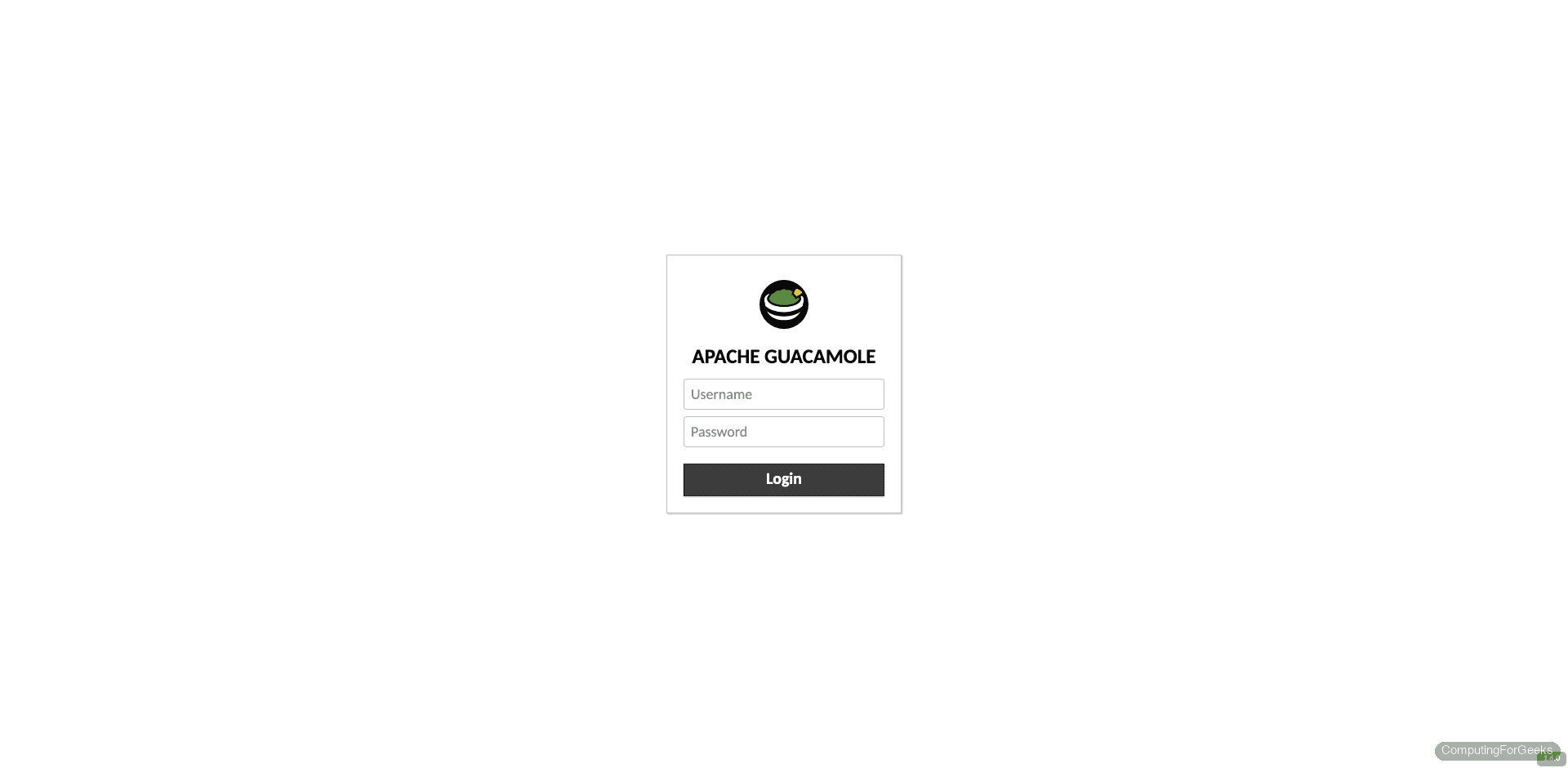
Open your browser and navigate to https://guacamole.computingforgeeks.com. You’ll see the Guacamole login page. The default credentials are:
- Username:
guacadmin - Password:
guacadmin
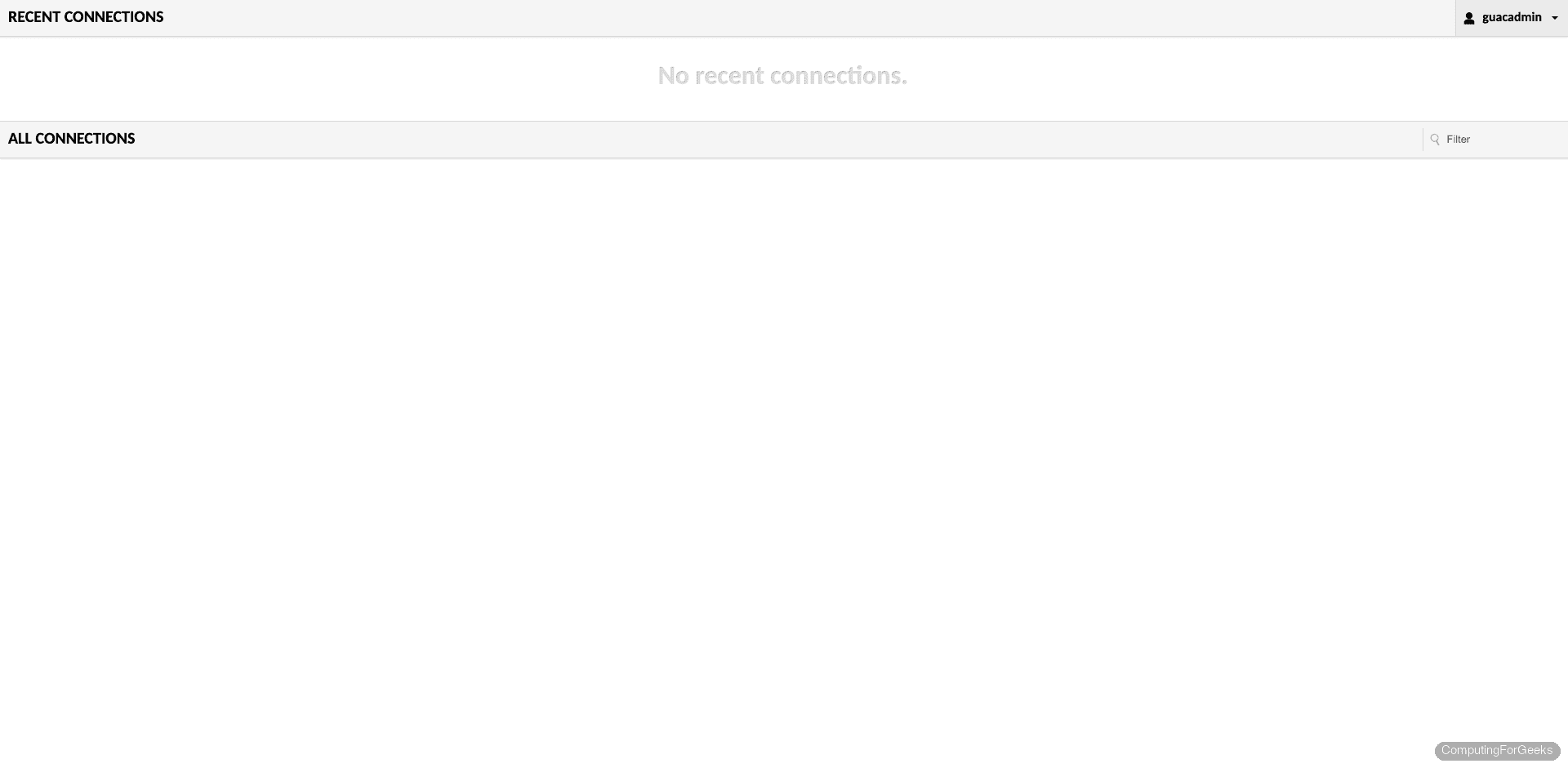
After logging in, you land on the home dashboard. It’s empty for now since no connections exist yet.
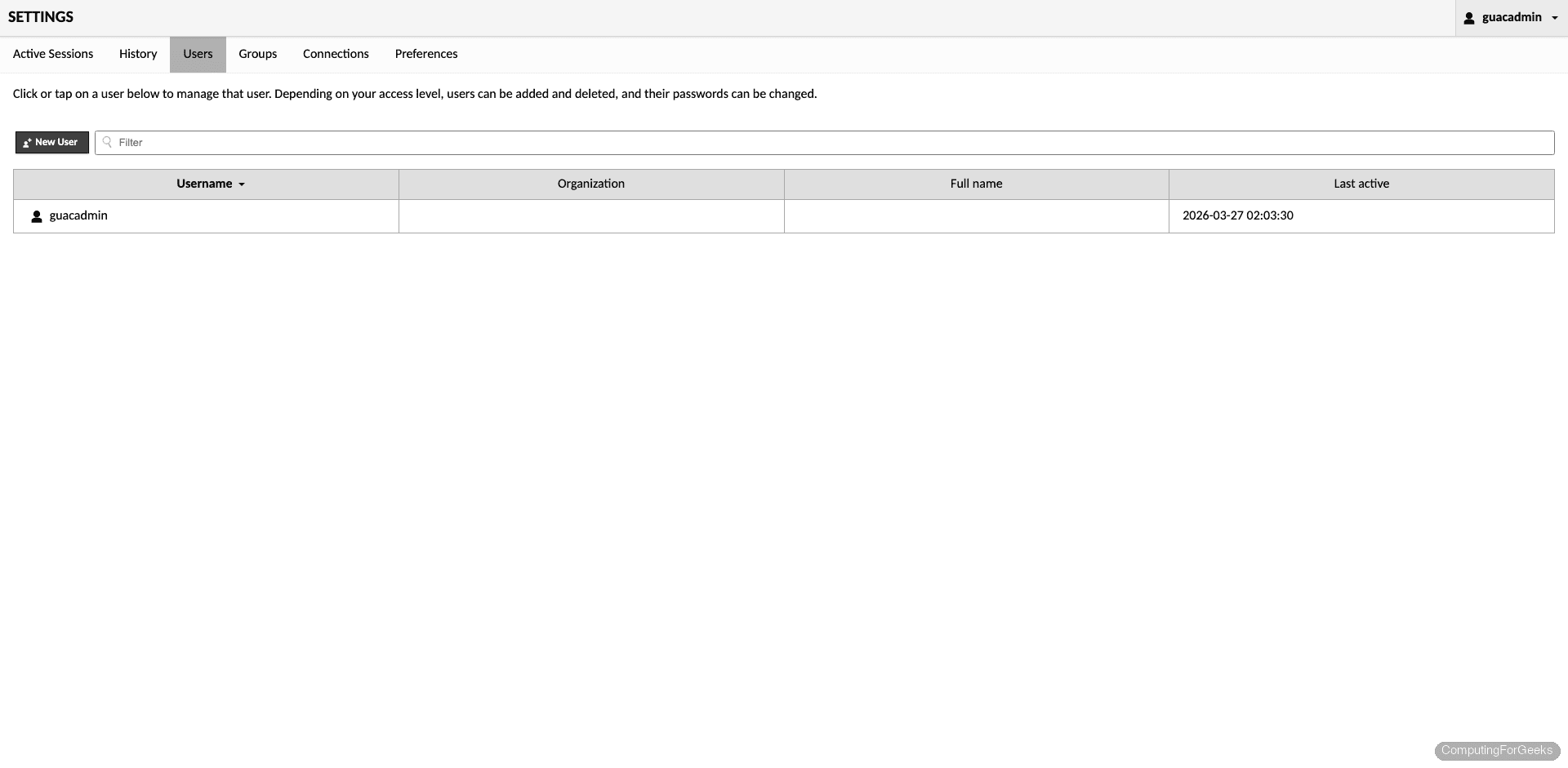
Change the default password immediately. Click your username in the top-right corner, then select Settings. Under the Users tab, click guacadmin and set a new password.
Create Your First Connection
Go to Settings > Connections and click New Connection. Here’s how to set up an SSH connection to a remote server:
- Name – Give it a descriptive name like “Web Server (SSH)”
- Protocol – Select SSH
- Hostname – The IP or FQDN of the target server (e.g.,
192.168.1.50) - Port – 22 (default SSH port)
- Username – Your SSH username
- Password – Your SSH password (or configure key-based auth)
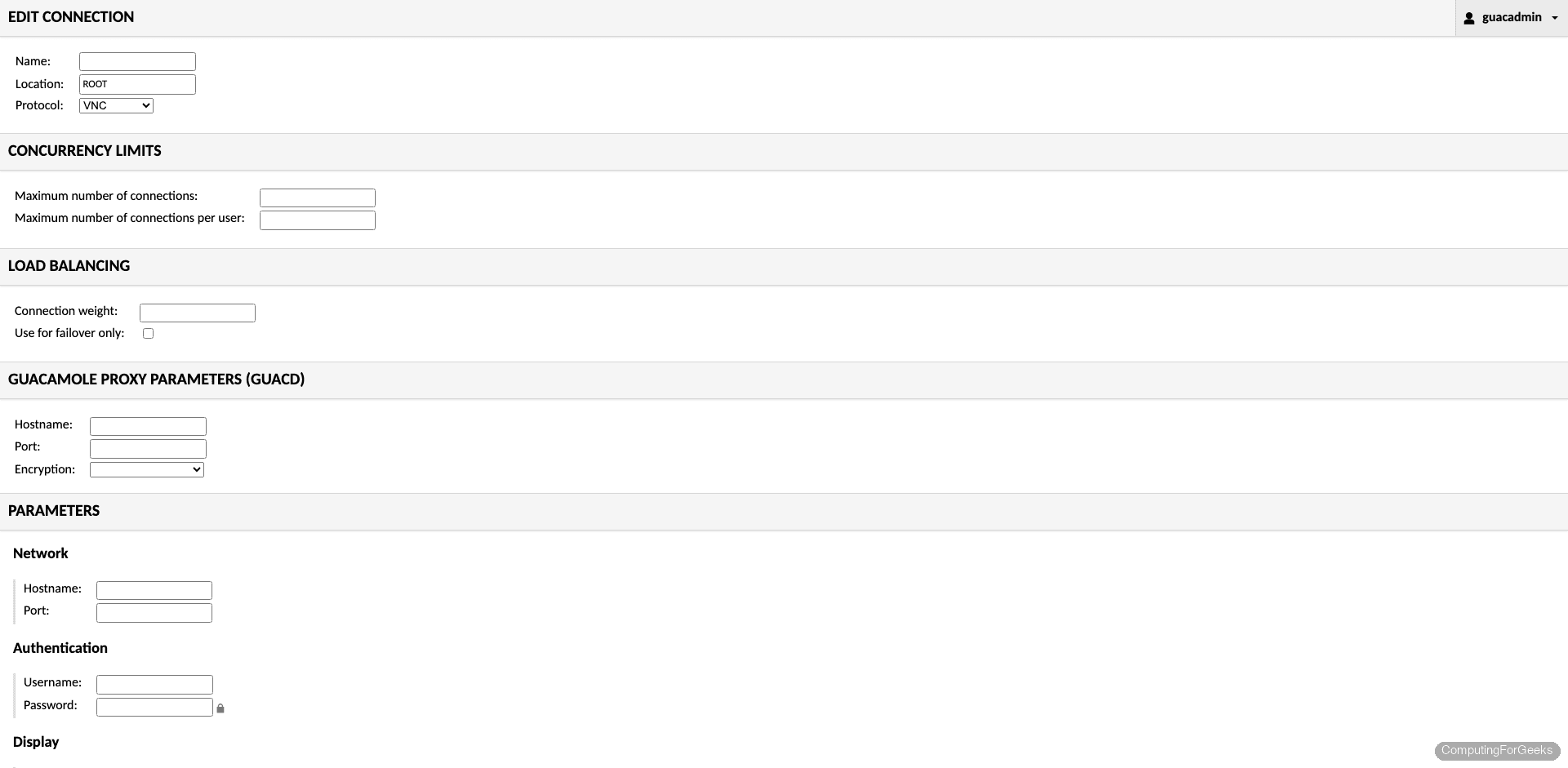
Click Save and return to the home page. Your new connection appears in the list. Click it to open an SSH session right in your browser. For RDP or VNC connections, the process is the same but with protocol-specific parameters (display size, color depth, NLA settings for RDP).
Production Hardening
The default install works, but a few changes make it production-ready:
- Disable the default account – Create a new admin user with a strong password, then disable or delete
guacadmin. Bots scan for default credentials constantly - Restrict Tomcat to localhost – Edit
/etc/tomcat/server.xmland addaddress="127.0.0.1"to the Connector element on port 8080. This prevents direct access to Tomcat, forcing all traffic through Nginx - Enable TOTP two-factor authentication – Download the
guacamole-auth-totpextension from the Guacamole releases page and place it in/etc/guacamole/extensions/. Restart Tomcat, and every user will be prompted to set up TOTP on their next login - Set session timeout – Add
api-session-timeout: 30to/etc/guacamole/guacamole.propertiesto expire idle sessions after 30 minutes - Rate-limit login attempts – Add rate limiting in the Nginx config with
limit_req_zoneto slow down brute-force attempts against the login page - Audit logging – The JDBC extension already logs connection history to MariaDB. Query the
guacamole_connection_historytable to see who connected where and when
What port does Apache Guacamole use?
Guacamole uses three ports: guacd listens on TCP 4822 for internal proxy communication, Tomcat serves the web app on TCP 8080, and Nginx exposes the service externally on TCP 443 (HTTPS). Only port 443 needs to be accessible from the network. Ports 4822 and 8080 should remain accessible only on localhost.
How do you update Guacamole to a newer version?
Rebuild guacamole-server from the new source tarball (same steps as above), replace the WAR file in /var/lib/tomcat/webapps/, and update the JDBC extension JAR in /etc/guacamole/extensions/. The database schema may need upgrading too. Check the release notes for any required SQL migration scripts, which ship in the guacamole-auth-jdbc tarball under the mysql/schema/upgrade/ directory.
Error: “Could not connect to guacd”
This error on the login page means the Guacamole web app can’t reach the guacd daemon on port 4822. Check that guacd is actually running with systemctl status guacd. If it shows “Permission denied” in the logs, the SELinux context on /usr/local/sbin/guacd wasn’t set. Run the semanage fcontext and restorecon commands from the SELinux section above, then restart the service.

Had to use these commands to get things installed on my Centos 8
# lower case:
yum config-manager –enable devel
yum config-manager –set-enabled powertools
# Needed for libssh2-devel and libwebsockets-devel:
yum install epel-release -y
Additionally, I had to disable the Windows Remote Desktop NLA setting in order for RDP to work. Otherwise, I would see this line in /var/log/messages: RDP server closed/refused connection: Server refused connection (wrong security type?)
Also, for SSH connections, the /etc/ssh/sshd_config file has to enable this:
PasswordAuthentication yes
is there any way to use Active directory groups to control who gets access to what in the XML file?
Hello @jeremy,
We have a guide for AD access here