

Apache Guacamole gives you browser-based remote desktop access to your servers without installing any client software. VNC, SSH, Telnet, even Kubernetes pods, all accessible through a web browser. For anyone managing a fleet of Linux (or Windows) machines, it removes the need to juggle dedicated RDP/VNC clients and lets you connect from any device with a browser.
Version 1.6.0 is the latest stable release, and this guide walks through building it from source on Debian 13 (Trixie) and Debian 12 (Bookworm). The setup uses MariaDB for authentication storage and Nginx as a reverse proxy with SSL. One thing to watch out for: Debian 13 ships Tomcat 10, which uses the Jakarta namespace instead of javax. That means the Guacamole WAR file and JDBC extension both need conversion before they’ll work. Debian 12 with Tomcat 9 doesn’t have this problem.
Tested March 2026 | Debian 13.4 (Trixie) with Guacamole 1.6.0, Tomcat 10.1.52, MariaDB 11.8.6, Nginx 1.26.3
Prerequisites
Before starting, confirm you have:
- A Debian 13 or Debian 12 server with root or sudo access
- A domain or subdomain pointed to your server’s IP (for SSL)
- Tested on: Debian 13.4 (Trixie), Guacamole 1.6.0, Tomcat 10.1.52, MariaDB 11.8.6
- At least 2 GB RAM and 10 GB free disk space
- Ports 443 (HTTPS) and 22 (SSH) open in your firewall
If you need MariaDB installed separately or want a deeper dive on tuning it, see Install MariaDB on Debian.
Install Build Dependencies
Guacamole server (guacd) compiles from C source, so you need development libraries for every protocol you want to support. Install everything in one shot:
sudo apt-get update
sudo apt-get install -y build-essential make gcc libcairo2-dev libjpeg62-turbo-dev libpng-dev libtool-bin uuid-dev libossp-uuid-dev libvncserver-dev libssh2-1-dev libssl-dev libtelnet-dev libpango1.0-dev libwebsockets-dev libavcodec-dev libavformat-dev libavutil-dev libswscale-dev libvorbis-dev libwebp-dev libpulse-dev tomcat10 mariadb-server nginx certbot wget curl
This pulls in libraries for VNC, SSH, Telnet, Kubernetes, audio, and video encoding. It also installs Tomcat 10, MariaDB, and Nginx so they’re ready when we need them.
RDP support note: On Debian 12, install freerdp2-dev to enable RDP. On Debian 13, the system ships FreeRDP 3, which is incompatible with Guacamole 1.6.0 (experimental support only, the build fails). If you need RDP on Debian 13, you’ll have to wait for a future Guacamole release that fully supports FreeRDP 3.
For Debian 12 with RDP:
sudo apt-get install -y freerdp2-devBuild and Install guacamole-server
Detect the latest stable Guacamole release and download the source tarball:
VER=$(curl -s https://api.github.com/repos/apache/guacamole-server/tags | grep '"name"' | grep -v 'RC\|alpha\|beta' | head -1 | cut -d'"' -f4)
echo "Guacamole version: $VER"
Download and extract the source:
wget https://downloads.apache.org/guacamole/${VER}/source/guacamole-server-${VER}.tar.gz
tar xzf guacamole-server-${VER}.tar.gz
cd guacamole-server-${VER}
Run configure with systemd integration enabled:
./configure --with-systemd-dir=/etc/systemd/system/At the end of the configure output, check the protocol support summary. On Debian 13, you should see:
   Kubernetes .... yes
   RDP ........... no
   SSH ........... yes
   Telnet ........ yes
   VNC ........... yes
On Debian 12 with freerdp2-dev installed, RDP will show yes instead. Now build and install:
make -j$(nproc)
sudo make install
sudo ldconfig
The ldconfig step is easy to forget. Without it, guacd won’t find its shared libraries at runtime.
Start and enable guacd:
sudo systemctl daemon-reload
sudo systemctl enable --now guacd
Verify the service is running:
sudo systemctl status guacdThe output should show active (running) with guacd listening on port 4822.
Install Tomcat and Deploy guacamole.war
Tomcat was already installed with the dependencies above. Create the Guacamole configuration directories first:
sudo mkdir -p /etc/guacamole/{extensions,lib}Download the pre-built WAR file:
sudo wget https://downloads.apache.org/guacamole/${VER}/binary/guacamole-${VER}.war -O /var/lib/tomcat10/webapps/guacamole.warDebian 13: Convert javax to Jakarta (Required)
This is the step that catches most people off guard. The Guacamole 1.6.0 WAR is built for the javax namespace (Tomcat 9), but Debian 13 ships Tomcat 10, which uses the jakarta namespace. If you skip this conversion, you’ll get a blank page or 404 errors when trying to access Guacamole.
sudo apt-get install -y tomcat-jakartaee-migrationConvert the WAR file:
sudo javax2jakarta /var/lib/tomcat10/webapps/guacamole.war /var/lib/tomcat10/webapps/guacamole-jakarta.war
sudo rm -rf /var/lib/tomcat10/webapps/guacamole /var/lib/tomcat10/webapps/guacamole.war
sudo mv /var/lib/tomcat10/webapps/guacamole-jakarta.war /var/lib/tomcat10/webapps/guacamole.war
Debian 12 users: skip this conversion entirely. Debian 12 ships Tomcat 9, which uses javax natively. The WAR deploys without modification.
Restart Tomcat to deploy the application:
sudo systemctl restart tomcat10Configure MariaDB Database
Guacamole stores user accounts, connections, and session history in a database. Create the database and a dedicated user:
sudo mariadb -e "
CREATE DATABASE guacamole_db CHARACTER SET utf8mb4;
CREATE USER 'guacamole_user'@'localhost' IDENTIFIED BY 'YourStr0ngP@ss!';
GRANT SELECT,INSERT,UPDATE,DELETE ON guacamole_db.* TO 'guacamole_user'@'localhost';
FLUSH PRIVILEGES;"
Now download and install the JDBC authentication extension:
cd /tmp
wget https://downloads.apache.org/guacamole/${VER}/binary/guacamole-auth-jdbc-${VER}.tar.gz
tar xzf guacamole-auth-jdbc-${VER}.tar.gz
Import the database schema. The SQL files must be loaded in order:
cat guacamole-auth-jdbc-${VER}/mysql/schema/*.sql | sudo mariadb guacamole_dbCopy the JDBC extension JAR to the Guacamole extensions directory:
sudo cp guacamole-auth-jdbc-${VER}/mysql/guacamole-auth-jdbc-mysql-${VER}.jar /etc/guacamole/extensions/Debian 13 only: the JDBC extension JAR also needs javax-to-jakarta conversion, just like the WAR file:
sudo javax2jakarta /etc/guacamole/extensions/guacamole-auth-jdbc-mysql-${VER}.jar /etc/guacamole/extensions/guacamole-auth-jdbc-mysql-${VER}-jakarta.jar
sudo mv /etc/guacamole/extensions/guacamole-auth-jdbc-mysql-${VER}-jakarta.jar /etc/guacamole/extensions/guacamole-auth-jdbc-mysql-${VER}.jar
Next, install the MySQL Connector/J so Guacamole can talk to MariaDB. Detect the latest version and download:
cd /tmp
JDBC_VER=$(curl -s https://api.github.com/repos/mysql/mysql-connector-j/tags | grep '"name"' | head -1 | cut -d'"' -f4)
echo "MySQL Connector/J version: $JDBC_VER"
wget https://dev.mysql.com/get/Downloads/Connector-J/mysql-connector-j-${JDBC_VER}.tar.gz
tar xzf mysql-connector-j-${JDBC_VER}.tar.gz
sudo cp mysql-connector-j-${JDBC_VER}/mysql-connector-j-${JDBC_VER}.jar /etc/guacamole/lib/
Configure guacamole.properties
Create the main configuration file that tells Guacamole how to connect to guacd and the database. Replace the password with something strong for production use:
echo "guacd-hostname: localhost
guacd-port: 4822
mysql-hostname: localhost
mysql-port: 3306
mysql-database: guacamole_db
mysql-username: guacamole_user
mysql-password: YourStr0ngP@ss!
mysql-auto-create-accounts: true" | sudo tee /etc/guacamole/guacamole.properties
Link the configuration so Tomcat can find it:
sudo ln -sf /etc/guacamole /var/lib/tomcat10/.guacamoleRestart both services to pick up the new configuration:
sudo systemctl restart tomcat10 guacdSet Up Nginx Reverse Proxy with SSL
Tomcat listens on port 8080 by default. Nginx sits in front of it, handles SSL termination, and proxies WebSocket connections that Guacamole relies on for real-time remote desktop sessions.
First, obtain an SSL certificate with Let’s Encrypt. Replace guac.yourdomain.com with your actual domain:
sudo certbot certonly --standalone -d guac.yourdomain.com --non-interactive --agree-tos -m [email protected]Create the Nginx virtual host configuration:
sudo vi /etc/nginx/sites-available/guacamoleAdd the following server block:
server {
    listen 443 ssl http2;
    server_name guac.yourdomain.com;

    ssl_certificate /etc/letsencrypt/live/guac.yourdomain.com/fullchain.pem;
    ssl_certificate_key /etc/letsencrypt/live/guac.yourdomain.com/privkey.pem;
    ssl_protocols TLSv1.2 TLSv1.3;

    location / {
        proxy_pass http://localhost:8080/guacamole/;
        proxy_buffering off;
        proxy_http_version 1.1;
        proxy_set_header X-Forwarded-For $proxy_add_x_forwarded_for;
        proxy_set_header Upgrade $http_upgrade;
        proxy_set_header Connection $http_connection;
        proxy_set_header Host $host;
        proxy_cookie_path /guacamole/ /;
    }
}

server {
    listen 80;
    server_name guac.yourdomain.com;
    return 301 https://$host$request_uri;
}
The proxy_cookie_path directive rewrites cookies so they work at the root path instead of under /guacamole/. The WebSocket headers (Upgrade and Connection) are required for the remote desktop tunnel to function.
Enable the site and restart Nginx:
sudo ln -sf /etc/nginx/sites-available/guacamole /etc/nginx/sites-enabled/
sudo rm -f /etc/nginx/sites-enabled/default
sudo nginx -t
sudo systemctl restart nginx
Confirm Nginx started without errors:
sudo systemctl status nginxOpen port 443 in your firewall if it’s not already allowed. Verify certificate auto-renewal works:
sudo certbot renew --dry-runAccess the Web UI
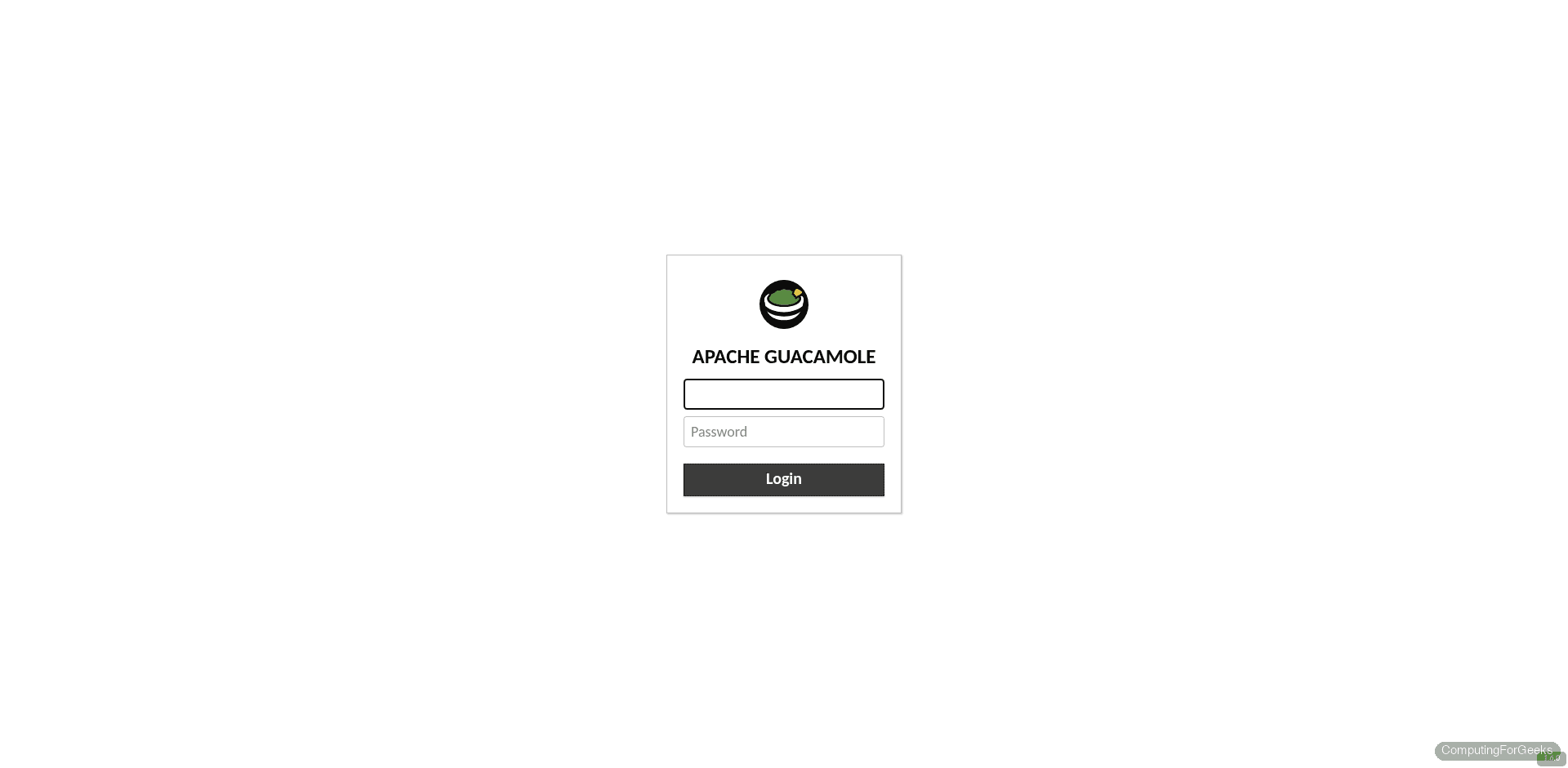
Open your browser and navigate to https://guac.yourdomain.com. You should see the Guacamole login page. The default credentials are guacadmin / guacadmin.
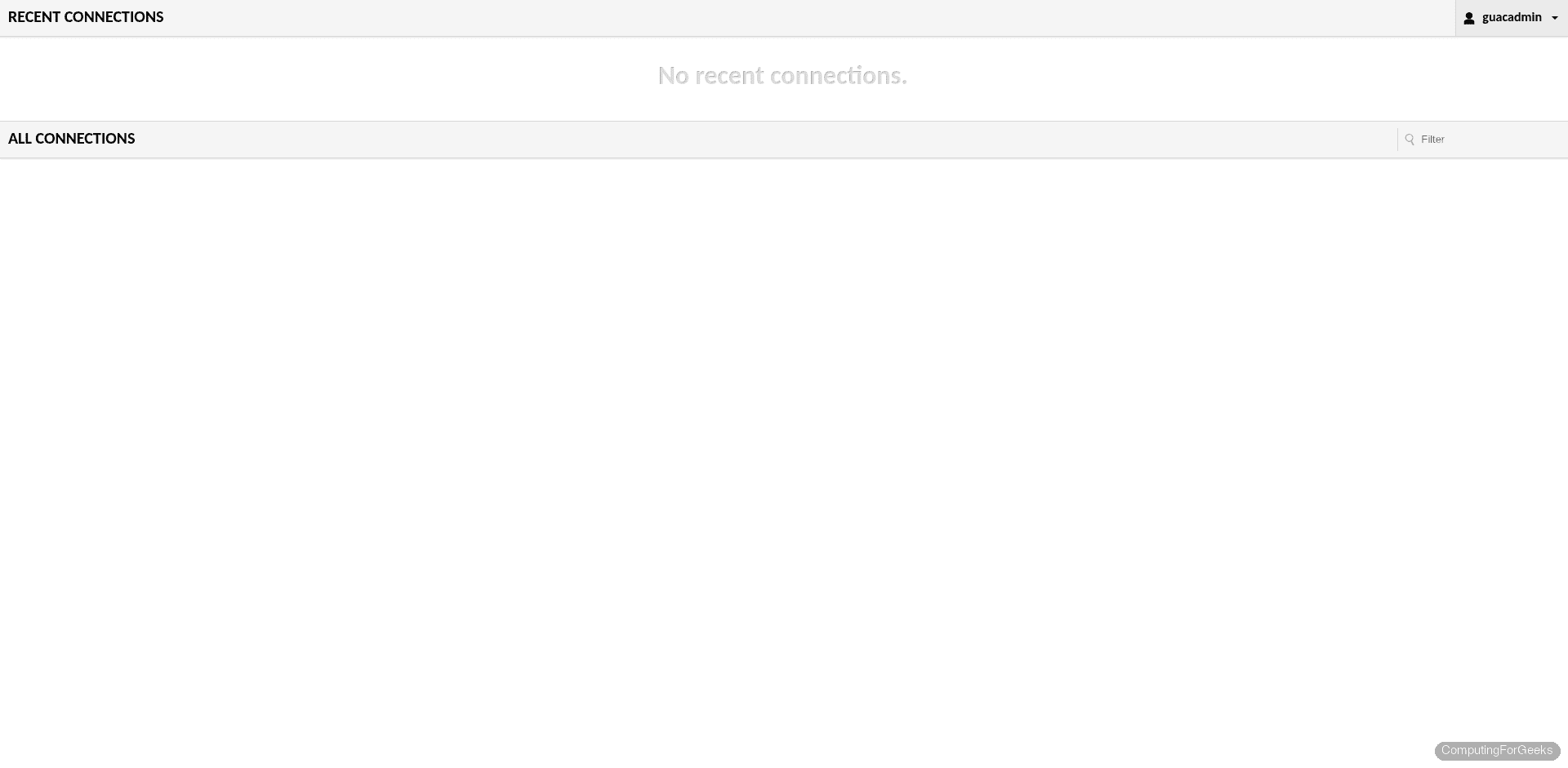
After logging in with the default credentials, the home dashboard appears. From here you can launch saved connections or navigate to the admin settings.
Change the default password immediately. Click your username in the top-right corner, select Settings, then update the password under Preferences.
Manage Users and Connections
Click Settings in the top-right menu to access the admin panel. The Connections tab is where you define remote servers. Each connection specifies a protocol (VNC, SSH, Telnet, or Kubernetes), the target hostname or IP, and authentication credentials.

The Users tab lets you create accounts with granular permissions. You can restrict users to specific connections, prevent them from creating new ones, or grant full admin rights. In production, create individual accounts for each team member and disable the default guacadmin account once you have a separate admin user set up.
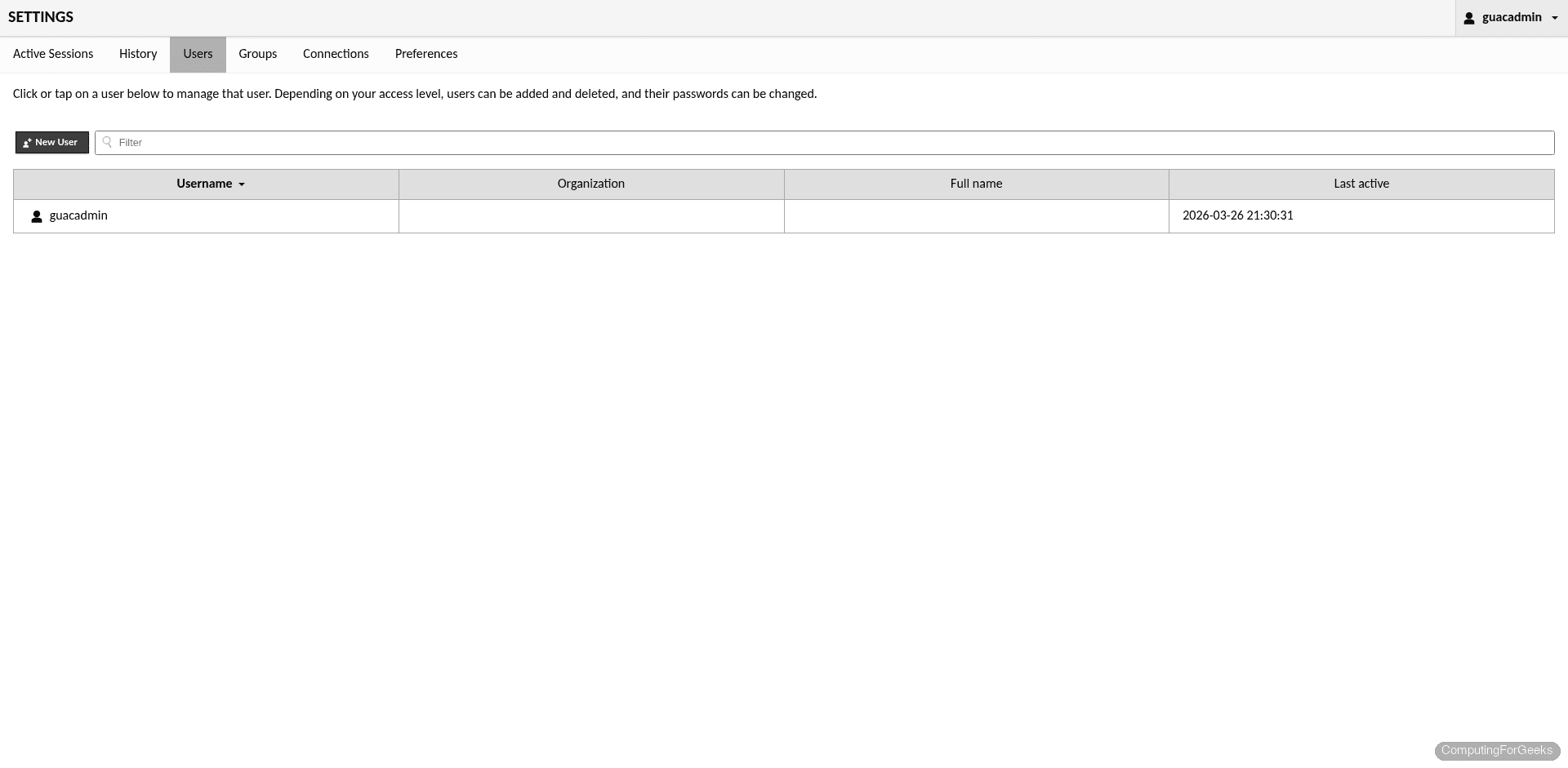
To add a new connection, click “New Connection” in the Connections tab, select the protocol, enter the target server’s IP and port, and provide the credentials. For VNC, that’s typically port 5901. For SSH, port 22.
Troubleshooting
Blank page or 404 after deploying the WAR on Debian 13
If you see a blank page, a 404, or Tomcat’s default “application not available” message, the most likely cause is the javax/jakarta namespace mismatch. Debian 13 ships Tomcat 10, which requires the jakarta namespace. The Guacamole 1.6.0 WAR is built for javax (Tomcat 9).
Check the Tomcat logs for confirmation:
sudo tail -50 /var/log/tomcat10/catalina.outIf you see errors referencing javax.servlet classes not found, you need to convert both the WAR file and the JDBC extension JAR using javax2jakarta. Scroll back to the “Convert javax to Jakarta” section and run those commands. Both the WAR and the JDBC JAR must be converted, not just one.
RDP build failure on Debian 13 (FreeRDP 3)
Debian 13 ships FreeRDP 3, which Guacamole 1.6.0 only supports experimentally. The build fails during compilation if you install freerdp3-dev and try to enable RDP. This is a known incompatibility.
If you need RDP, your options are: use Debian 12 (which ships FreeRDP 2 and works fine), or wait for a future Guacamole release with full FreeRDP 3 support. For most use cases, VNC covers what RDP would, and SSH handles headless servers. Kubernetes pod access is also fully functional in 1.6.0.
guacd fails to start
The most common cause is a missing ldconfig after installation. Run it and restart:
sudo ldconfig
sudo systemctl restart guacd
sudo systemctl status guacd
If guacd still fails, check the logs for missing library errors:
journalctl -u guacd --no-pager -n 30Going Further
With Guacamole running and accessible over HTTPS, here are some next steps to harden and extend the setup:
- Two-factor authentication: Guacamole supports TOTP natively. Install the
guacamole-auth-totpextension and drop it into/etc/guacamole/extensions/(convert withjavax2jakartaon Debian 13) - LDAP/Active Directory: for larger teams, integrate with your existing directory service using the
guacamole-auth-ldapextension - Session recording: Guacamole can record sessions to video files for audit trails. Enable it per-connection in the settings
- Connection groups: organize connections into folders by environment (production, staging, development) or by team
- Proxmox integration: if you’re running Proxmox VE (see our Proxmox on Debian guide), point Guacamole connections at your VM console ports for unified access
The official Guacamole documentation covers these extensions and more advanced configurations in detail.

Hi,
i installed it server times but each time with I called in the browser http://my IP:8080/guacamole it tells me the resource can not be found.
but its in …/webapps/guacamole
I tried the tomcate server with …/examples and it works
when I copy it eg. to the examples directory and call it with the browser , I get at least the facicon but the page is emply.
maybe somethnig is wrong for tomcat to find this resource
Hey there! Thanks for this write up. I’ve followed your tutorial and I am not able to access the web client via http://myip/:8080… I’ve run through all the checks I can think of and configured the guacd and tomcat. My server shows that both the guacd and tomcat services are running. Any tips to find out where I may have messed up? FYI I installed this on an Azure VM running Debian 11 & connected to it via WSL debian app on my pc.
Thx!
Hello I followed your tutorial to install Guacamole on a debian VM server hosted on Azure. I am having issues where i cannot connect to the web client via http://ipaddress:8080. The port is open in settings for the vm on azure, and i have checked that tomcat and guacd are both running successfully. Any advice on what to look for to see where I may have made a mistake?
Thanks for the article!
Please share the output of
ss -tunelp|grep 8080the output is: tcp LISTEN 0 100 *:8080 *:* uid:1001 ino:111160 sk:6 cgroup:/system.slice/tomcat.service v6only:0
This will make it work:
sudo echo “GUACAMOLE_HOME=/etc/guacamole” | sudo tee -a /etc/default/tomcat9