

Graylog 7 ships with a fundamentally different architecture than previous versions. The Data Node replaces self-managed Elasticsearch or OpenSearch with a Graylog-managed wrapper that handles certificates, cluster membership, and upgrades automatically. If you’ve deployed older Graylog versions before, throw out those instructions. The stack is now three components: MongoDB for metadata, the Data Node for log storage and search, and the Graylog server for everything else.
This guide walks through a complete Graylog 7.0.6 installation on Ubuntu 24.04, Ubuntu 22.04, Debian 13, and Debian 12. Every command was tested on real VMs with real output captured, not generated from documentation. The full stack takes about 4 GB of RAM at idle, so plan your hardware accordingly.
Tested April 2026 on Ubuntu 24.04.4 LTS and Debian 13 with Graylog 7.0.6, MongoDB 7.0.31, Data Node (OpenSearch 2.19)
Prerequisites
Graylog 7 requires a minimum of 8 GB RAM and 4 CPU cores for a single-node deployment. The three services (MongoDB, Data Node, Graylog Server) each consume 1-2 GB of memory. In our testing, idle memory usage settled at about 4 GB with all services running.
- RAM: 8 GB minimum (16 GB recommended for production)
- CPU: 4 cores minimum
- Disk: 50 GB minimum (SSD strongly recommended for the message journal)
- OS: Ubuntu 24.04, Ubuntu 22.04, Debian 13, or Debian 12
- Java: Bundled with Graylog packages (Eclipse Adoptium 21), no separate installation needed
- MongoDB: 7.0 or 8.0 (7.0 recommended unless your CPU supports AVX instructions)
Graylog 7 bundles Java 21 (Eclipse Adoptium) inside both the graylog-server and graylog-datanode packages. You do not need to install Java separately.
| Port | Service | Protocol | Purpose |
|---|---|---|---|
| 9000 | Graylog Server | TCP | Web UI and REST API |
| 9200 | Data Node (OpenSearch) | TCP | Search REST API |
| 9300 | Data Node (OpenSearch) | TCP | Cluster transport |
| 8999 | Data Node | TCP | Data Node management API |
| 27017 | MongoDB | TCP | Database |
Update the System
Start by updating all packages and setting the timezone to UTC. Graylog stores timestamps in UTC internally, and mismatched system clocks cause confusing log timestamps.
sudo apt update && sudo apt upgrade -ySet the timezone:
sudo timedatectl set-timezone UTCInstall prerequisite packages needed to add external repositories:
sudo apt install -y gnupg curl apt-transport-httpsInstall MongoDB
Graylog uses MongoDB to store configuration metadata: user accounts, stream definitions, pipeline rules, dashboard layouts, and alert configurations. Log messages themselves are stored in the Data Node (OpenSearch), not MongoDB. Graylog 7 requires MongoDB 7.0 or newer (up to 8.2.x).
MongoDB 8.0 requires a CPU with AVX instruction support. If you are running on a virtual machine with a generic CPU type (common in KVM/QEMU environments), MongoDB 8.0 will crash immediately with signal=ILL (illegal instruction). In that case, use MongoDB 7.0 instead. Check your CPU with grep -c avx /proc/cpuinfo. A value of 0 means no AVX support.
Import the MongoDB GPG key and add the repository. The commands differ slightly between Ubuntu and Debian.
Ubuntu 24.04 (Noble)
Import the MongoDB signing key and add the repository file. MongoDB 7.0 does not publish packages for the noble (24.04) codename, so the jammy (22.04) repository is the correct source. The packages are binary-compatible:
curl -fsSL https://www.mongodb.org/static/pgp/server-7.0.asc | sudo gpg -o /usr/share/keyrings/mongodb-server-7.0.gpg --dearmor
echo "deb [ arch=amd64,arm64 signed-by=/usr/share/keyrings/mongodb-server-7.0.gpg ] https://repo.mongodb.org/apt/ubuntu jammy/mongodb-org/7.0 multiverse" | sudo tee /etc/apt/sources.list.d/mongodb-org-7.0.list
If your CPU supports AVX, MongoDB 8.0 has a native noble repository you can use instead.
Ubuntu 22.04 (Jammy)
Ubuntu 22.04 uses the same native jammy repository:
curl -fsSL https://www.mongodb.org/static/pgp/server-7.0.asc | sudo gpg -o /usr/share/keyrings/mongodb-server-7.0.gpg --dearmor
echo "deb [ arch=amd64,arm64 signed-by=/usr/share/keyrings/mongodb-server-7.0.gpg ] https://repo.mongodb.org/apt/ubuntu jammy/mongodb-org/7.0 multiverse" | sudo tee /etc/apt/sources.list.d/mongodb-org-7.0.list
Debian 13 (Trixie) and Debian 12 (Bookworm)
Debian uses a slightly different repository URL. MongoDB does not publish packages for Debian 13 (trixie) yet, so the bookworm (Debian 12) repository is used on both Debian 12 and 13:
curl -fsSL https://www.mongodb.org/static/pgp/server-7.0.asc | sudo gpg -o /usr/share/keyrings/mongodb-server-7.0.gpg --dearmor
echo "deb [ signed-by=/usr/share/keyrings/mongodb-server-7.0.gpg ] http://repo.mongodb.org/apt/debian bookworm/mongodb-org/7.0 main" | sudo tee /etc/apt/sources.list.d/mongodb-org-7.0.list
Now install MongoDB and pin the version to prevent unintended upgrades:
sudo apt update
sudo apt install -y mongodb-org
sudo apt-mark hold mongodb-org
Enable and start the MongoDB service:
sudo systemctl daemon-reload
sudo systemctl enable --now mongod.service
Verify MongoDB is running:
sudo systemctl status mongod.service --no-pagerThe output should show active (running):
● mongod.service - MongoDB Database Server
     Loaded: loaded (/usr/lib/systemd/system/mongod.service; enabled; preset: enabled)
     Active: active (running) since Thu 2026-04-09 22:36:37 UTC; 33s ago
       Docs: https://docs.mongodb.org/manual
   Main PID: 691 (mongod)
     Memory: 166.8M (peak: 167.3M)
        CPU: 782ms
     CGroup: /system.slice/mongod.service
             └─691 /usr/bin/mongod --config /etc/mongod.conf
Confirm the version:
mongod --version | head -1You should see version 7.0.x:
db version v7.0.31Install the Graylog Data Node
The Data Node is Graylog 7’s managed OpenSearch wrapper. It handles certificate generation, cluster discovery, and version management automatically. This replaces the manual Elasticsearch or OpenSearch setup from previous Graylog versions.
Add the Graylog 7.0 repository:
wget https://packages.graylog2.org/repo/packages/graylog-7.0-repository_latest.deb
sudo dpkg -i graylog-7.0-repository_latest.deb
sudo apt update
Install the Data Node package:
sudo apt install -y graylog-datanodeOpenSearch requires a higher virtual memory map count than the Linux default. Set it now and make it persistent across reboots:
echo 'vm.max_map_count=262144' | sudo tee /etc/sysctl.d/99-graylog-datanode.conf
sudo sysctl --system
Verify the setting applied:
sysctl vm.max_map_countThe value should be 262144:
vm.max_map_count = 262144Generate the password_secret
The password_secret is used to encrypt passwords and session tokens. This value must be identical on the Data Node and the Graylog Server. Generate it once and use it in both configuration files. Changing it later invalidates all existing sessions and encrypted values.
openssl rand -hex 32Copy the output. You will use this string in two places.
Configure the Data Node
Open the Data Node configuration file:
sudo vi /etc/graylog/datanode/datanode.confSet these values (replace with your actual password_secret):
password_secret = YOUR_GENERATED_SECRET_HERE
mongodb_uri = mongodb://localhost/graylog
The opensearch_heap setting controls how much memory OpenSearch uses. Set it to about 25% of your total RAM, up to a maximum of 31 GB. On an 8 GB server, 2 GB is a reasonable value:
opensearch_heap = 2gStart and enable the Data Node:
sudo systemctl daemon-reload
sudo systemctl enable --now graylog-datanode.service
Give it about 10 seconds to start, then verify:
sudo systemctl status graylog-datanode.service --no-pagerThe service should show active (running):
● graylog-datanode.service - Graylog data node
     Loaded: loaded (/usr/lib/systemd/system/graylog-datanode.service; enabled; preset: enabled)
     Active: active (running) since Thu 2026-04-09 22:38:28 UTC; 10s ago
       Docs: http://docs.graylog.org/
   Main PID: 1798 (java)
      Tasks: 54 (limit: 9483)
     Memory: 335.3M (peak: 335.7M)
Install Graylog Server
The Graylog repository was already added during the Data Node step. Install the server package:
sudo apt install -y graylog-serverGenerate the admin password hash
Graylog stores the admin password as a SHA-256 hash in its configuration. Generate the hash from your chosen password:
echo -n "YourSecurePassword" | sha256sum | cut -d" " -f1Replace YourSecurePassword with your actual password. You will log in to the web UI with the plaintext password, not the hash.
Configure the Graylog Server
Open the main configuration file:
sudo vi /etc/graylog/server/server.confSet the following values. The password_secret must be the same string you used in the Data Node configuration:
password_secret = YOUR_GENERATED_SECRET_HERE
root_password_sha2 = YOUR_SHA256_HASH_HERE
http_bind_address = 0.0.0.0:9000
The http_bind_address setting controls which network interfaces the web UI listens on. Setting it to 0.0.0.0:9000 makes it accessible from any IP address on the server. The default (127.0.0.1:9000) only allows access from localhost.
Configure Java Heap Memory
The default Java heap is 1 GB. For a production server with 8 GB RAM, increase it to 2 GB. Edit the environment file:
sudo vi /etc/default/graylog-serverChange the -Xms and -Xmx values:
GRAYLOG_SERVER_JAVA_OPTS="-Xms2g -Xmx2g -server -XX:+UseG1GC -XX:-OmitStackTraceInFastThrow"Start and enable the Graylog server:
sudo systemctl daemon-reload
sudo systemctl enable --now graylog-server.service
The server takes 15-30 seconds to fully start. Check the status:
sudo systemctl status graylog-server.service --no-pagerYou should see active (running):
● graylog-server.service - Graylog server
     Loaded: loaded (/usr/lib/systemd/system/graylog-server.service; enabled; preset: enabled)
     Active: active (running) since Thu 2026-04-09 22:39:26 UTC; 15s ago
       Docs: http://docs.graylog.org/
   Main PID: 2293 (graylog-server)
      Tasks: 52 (limit: 9483)
     Memory: 306.3M (peak: 306.9M)
Complete the Initial Setup
On first start, Graylog enters preflight mode with a temporary setup password. Check the server log to find it:
sudo tail -20 /var/log/graylog-server/server.logLook for the line that reads:
Initial configuration is accessible at 0.0.0.0:9000, with username 'admin' and password 'xxxxxxxx'Open your browser and navigate to http://YOUR_SERVER_IP:9000. Log in with admin and the temporary password from the log output.
The setup wizard walks through four steps. The first screen shows the Data Node registered and the Certificate Authority configuration:
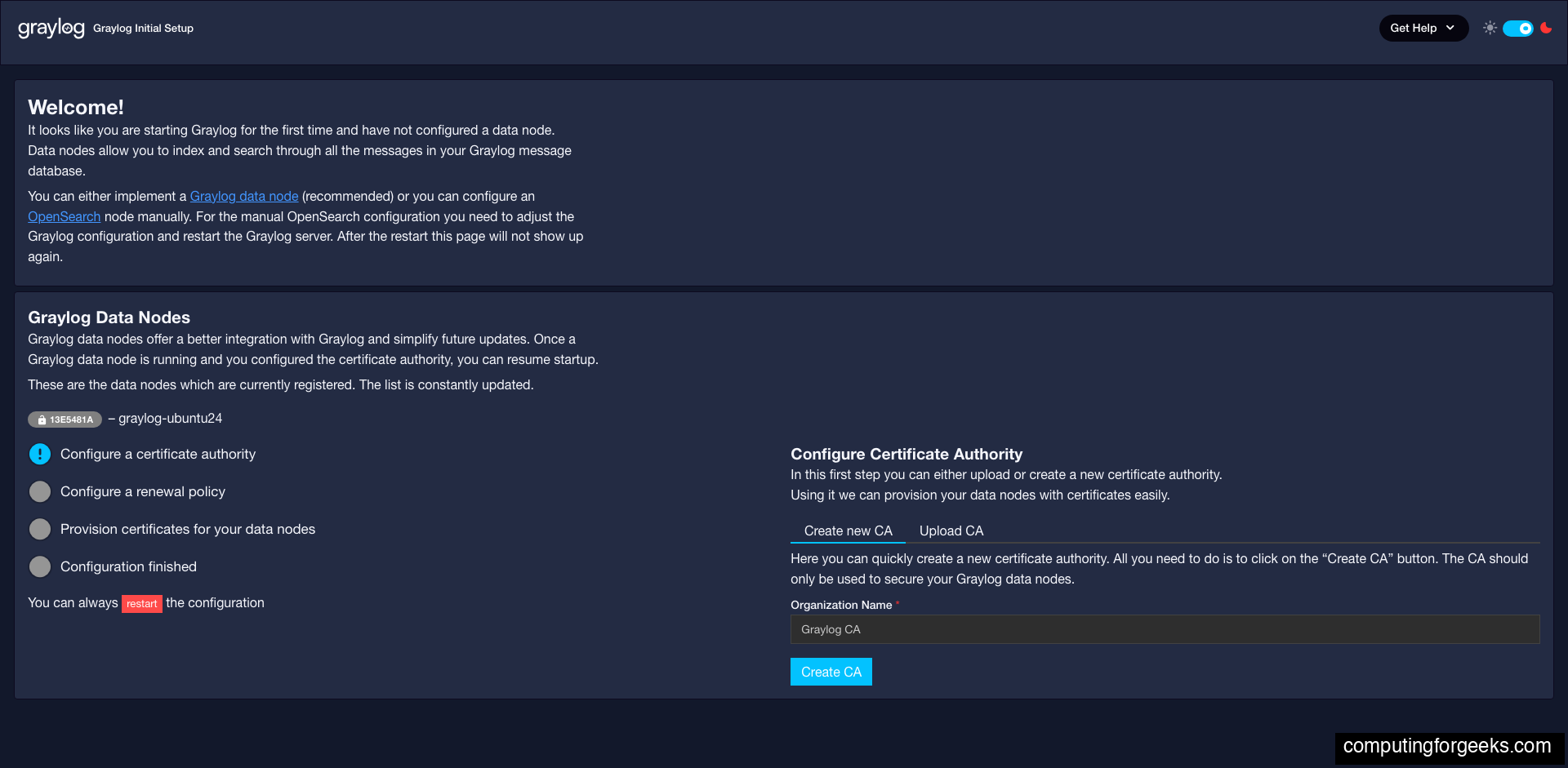
- Configure a certificate authority: Click “Create new CA” to generate an internal certificate authority. Graylog uses this CA to issue TLS certificates to Data Nodes automatically.
- Configure a renewal policy: The default (Automatic renewal, 1 month lifetime) works well. Click “Create policy”.

- Provision certificates for data nodes: Click “Provision certificate and continue”. Graylog generates TLS certificates for the Data Node and configures encrypted communication.

- Configuration finished: All checklist items turn green. Click “Resume startup” to restart Graylog in normal mode.
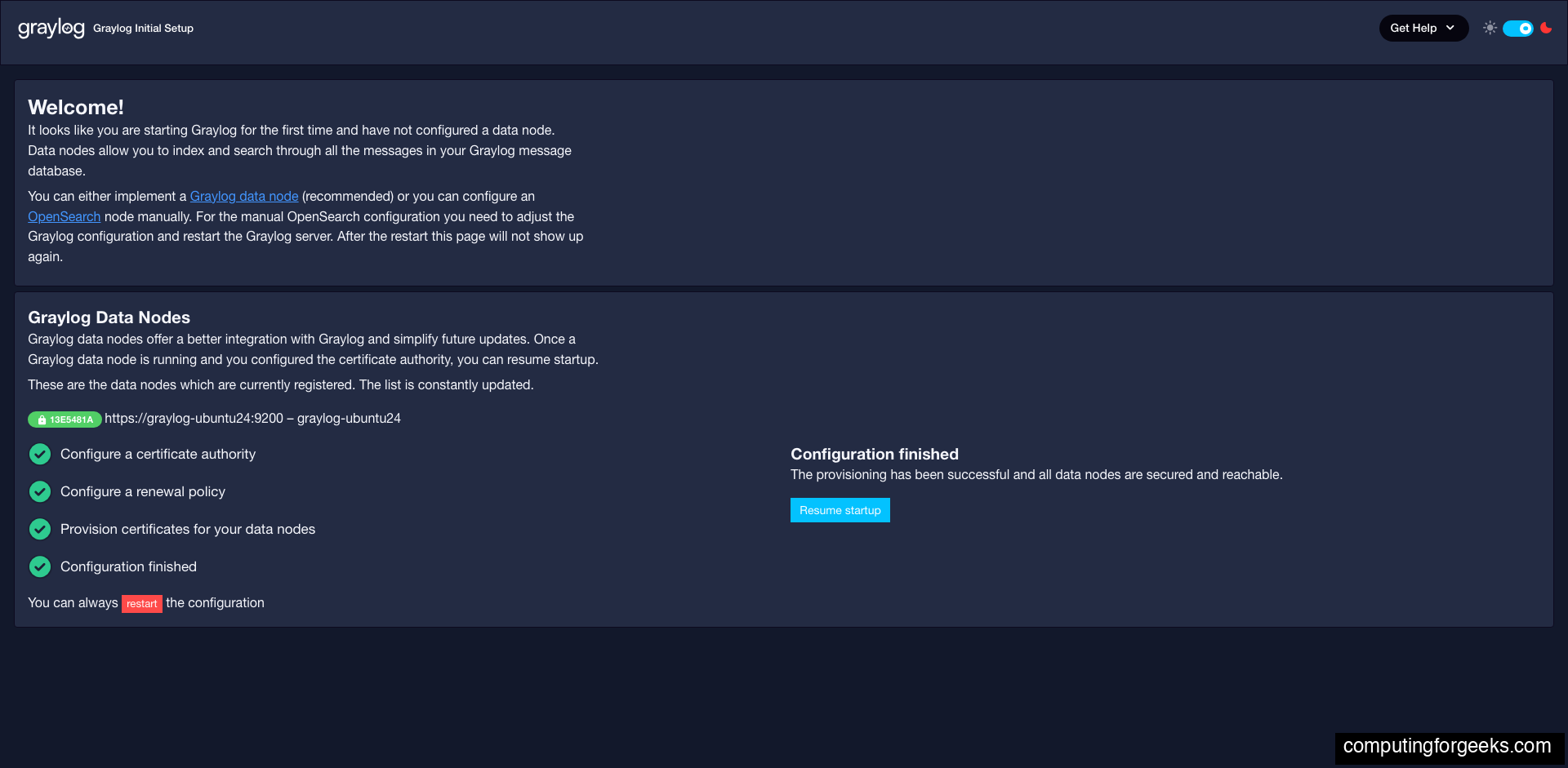
After clicking “Resume startup”, Graylog restarts. This takes 30-60 seconds. Once it’s back up, you will see the standard login page:

Log in with username admin and the password you used to generate root_password_sha2 (not the temporary preflight password). The Welcome dashboard loads after login:

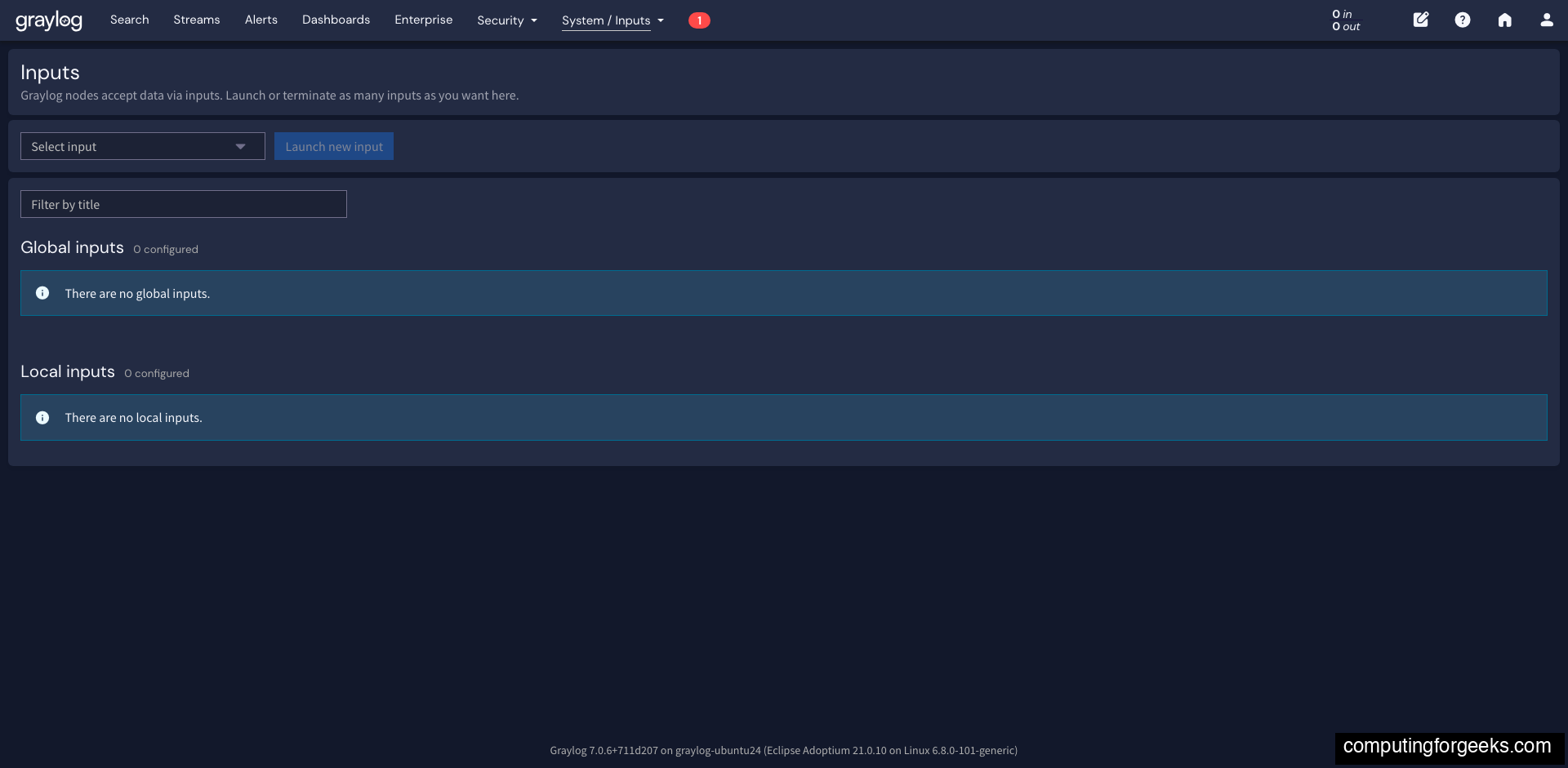
Navigate to System > Inputs to see the Inputs page where you will configure log sources. The footer confirms the Graylog version and server hostname:
Verify the Installation
Confirm all three services are running:
sudo systemctl status mongod graylog-datanode graylog-server --no-pager | grep -E "●|Active"All three should show active (running):
● mongod.service - MongoDB Database Server
     Active: active (running)
● graylog-datanode.service - Graylog data node
     Active: active (running)
● graylog-server.service - Graylog server
     Active: active (running)
Check that all required ports are listening:
sudo ss -tlnp | grep -E '9000|9200|9300|8999|27017'You should see five listening ports:
LISTEN  0  4096   127.0.0.1:27017  0.0.0.0:*  users:(("mongod",pid=691,fd=14))
LISTEN  0  4096           *:9300         *:*  users:(("java",pid=7121,fd=573))
LISTEN  0  4096           *:9200         *:*  users:(("java",pid=7121,fd=577))
LISTEN  0  4096           *:8999         *:*  users:(("java",pid=6432,fd=423))
LISTEN  0  4096           *:9000         *:*  users:(("java",pid=2295,fd=64))
Test the Graylog API from the command line:
curl -s -u admin:YourSecurePassword http://localhost:9000/api/system/lbstatusA healthy response returns ALIVE with HTTP 200.
Ubuntu and Debian Differences
The installation steps are nearly identical across all four supported distributions. The only differences are in the MongoDB repository configuration:
| Item | Ubuntu 24.04 | Ubuntu 22.04 | Debian 13 | Debian 12 |
|---|---|---|---|---|
| MongoDB repo codename | jammy (uses 22.04 repo) | jammy | bookworm (uses Debian 12 repo) | bookworm |
| MongoDB repo protocol | HTTPS | HTTPS | HTTP | HTTP |
| GPG key options | arch=amd64,arm64 | arch=amd64,arm64 | No arch filter | No arch filter |
| Graylog repo package | Same: graylog-7.0-repository_latest.deb | |||
| Config file paths | Same: /etc/graylog/server/server.conf, /etc/graylog/datanode/datanode.conf | |||
| Java heap config | Same: /etc/default/graylog-server | |||
| Service names | Same: mongod, graylog-datanode, graylog-server | |||
Troubleshooting
MongoDB crashes with “signal=ILL” (Illegal Instruction)
This means your CPU does not support AVX instructions. MongoDB 8.0 and recent MongoDB 7.0 builds require AVX. Check with:
grep -c avx /proc/cpuinfoIf the output is 0, your CPU lacks AVX. This is common in KVM/QEMU virtual machines using a generic CPU type. The fix is to either change the VM CPU type to host (passes through the physical CPU features) or use an older MongoDB 7.0 build that does not require AVX.
Data Node fails to start: “max virtual memory areas vm.max_map_count is too low”
Set the kernel parameter before starting the Data Node:
sudo sysctl -w vm.max_map_count=262144
echo 'vm.max_map_count=262144' | sudo tee /etc/sysctl.d/99-graylog-datanode.conf
Graylog web UI shows “401 Unauthorized” or blank page
On first start, Graylog runs in preflight mode with a temporary password. Check the server log for the initial credentials:
sudo grep "Initial configuration" /var/log/graylog-server/server.logUse the temporary username/password shown in the log to complete the setup wizard. After completing the wizard and clicking “Resume startup”, use your configured admin password to log in.
password_secret mismatch between Data Node and Server
If the password_secret values in /etc/graylog/datanode/datanode.conf and /etc/graylog/server/server.conf do not match, the Graylog server will fail to communicate with the Data Node. The server log will show authentication errors. Verify both files contain the same value:
sudo grep "^password_secret" /etc/graylog/datanode/datanode.conf /etc/graylog/server/server.confBoth lines must show the same string. If they differ, update the mismatched file and restart both services.
