

Rocky Linux and AlmaLinux are the default RHEL-family distributions for production Graylog deployments. This guide walks through installing Graylog 7.0.6 on Rocky Linux 10, Rocky Linux 9, Rocky Linux 8, AlmaLinux 10, AlmaLinux 9, and AlmaLinux 8. Every command here was tested on a real Rocky Linux 10.1 VM with SELinux enforcing throughout. Most tutorials either skip SELinux or tell you to disable it. This one shows SELinux working correctly with Graylog 7.
Graylog 7 ships with a bundled OpenJDK 21 runtime and a bundled OpenSearch Data Node, so you do not need to install Java separately or manage OpenSearch yourself. The three processes you will run are MongoDB (metadata storage), Graylog Data Node (log storage and search), and Graylog Server (web UI, API, processing pipeline).
Tested April 2026 on Rocky Linux 10.1 with Graylog 7.0.6, MongoDB 8.0.20, Data Node (OpenSearch 2.19), SELinux enforcing
Hardware and OS Requirements
Graylog 7 is resource-hungry. The three JVM processes each claim at least 1 GB of RAM, and the Data Node reserves another 2 GB for OpenSearch heap. On our Rocky 10 test VM with 8 GB RAM, idle usage after all three services stabilize is about 4 GB.
- RAM: 8 GB minimum, 16 GB recommended for production ingestion
- CPU: 4 cores minimum. Must support AVX instructions for MongoDB 8.0
- Disk: 50 GB minimum on SSD (the Graylog message journal needs fast storage)
- OS: Rocky Linux 10 / 9 / 8 or AlmaLinux 10 / 9 / 8
- SELinux: Enforcing (default). Graylog packages ship with the correct SELinux contexts
- Java: Bundled (Eclipse Adoptium 21). No separate installation needed
Ports that must be reachable between clients and the Graylog server, and internally between the server and the Data Node:
| Port | Service | Protocol | Exposure |
|---|---|---|---|
| 9000 | Graylog web UI and REST API | TCP | External |
| 9200 | Data Node (OpenSearch REST) | TCP | Internal |
| 9300 | Data Node (OpenSearch transport) | TCP | Internal |
| 8999 | Data Node management API | TCP | Internal |
| 27017 | MongoDB | TCP | Internal |
Check your CPU supports AVX before you start. MongoDB 8.0 crashes immediately with signal=ILL on CPUs without AVX. This is most common on virtual machines configured with a generic CPU type:
grep -c avx /proc/cpuinfoAny value above 0 means AVX is available. A value of 0 means you need to either change the VM CPU type to host passthrough or install MongoDB 7.0 instead.
Step 1: Prepare the System
Update the system to the latest packages and install a few utilities needed for the rest of the install:
sudo dnf update -y
sudo dnf install -y wget curl policycoreutils-python-utils firewalld
The policycoreutils-python-utils package provides semanage, ausearch, and other SELinux management tools you will need later. Enable and start the firewall:
sudo systemctl enable --now firewalldSet the system timezone to UTC. Graylog stores all timestamps in UTC internally, and mismatched host clocks cause confusing log displays:
sudo timedatectl set-timezone UTCStep 2: Install MongoDB 8.0
Graylog stores its configuration metadata (users, streams, pipelines, dashboards, alerts) in MongoDB. Log messages themselves go to the Data Node, not MongoDB. Graylog 7 requires MongoDB 7.0 or 8.0. MongoDB 8.0 is recommended when your CPU supports AVX.
Create the MongoDB 8.0 repository file. MongoDB does not publish a Rocky/RHEL 10 repository yet, so use the RHEL 9 path. The packages are binary-compatible:
sudo vi /etc/yum.repos.d/mongodb-org-8.0.repoAdd the following repository definition:
[mongodb-org-8.0]
name=MongoDB Repository
baseurl=https://repo.mongodb.org/yum/redhat/9/mongodb-org/8.0/x86_64/
gpgcheck=1
enabled=1
gpgkey=https://www.mongodb.org/static/pgp/server-8.0.asc
On Rocky Linux 9 or AlmaLinux 9, change the baseurl path to /yum/redhat/9/ (same as shown). On Rocky 8 or AlmaLinux 8, use /yum/redhat/8/. The packages are identical; only the path differs.
Install MongoDB:
sudo dnf install -y mongodb-orgEnable and start the MongoDB service:
sudo systemctl daemon-reload
sudo systemctl enable --now mongod.service
Confirm MongoDB is running:
sudo systemctl status mongod.service --no-pagerYou should see the service in the active (running) state:
● mongod.service - MongoDB Database Server
     Loaded: loaded (/usr/lib/systemd/system/mongod.service; enabled; preset: disabled)
     Active: active (running) since Fri 2026-04-10 07:58:58 UTC; 3s ago
 Invocation: bca77eb17b464fa89fa8a3538964eabe
       Docs: https://docs.mongodb.org/manual
   Main PID: 45961 (mongod)
     Memory: 100.7M (peak: 101.2M)
        CPU: 138ms
     CGroup: /system.slice/mongod.service
             └─45961 /usr/bin/mongod -f /etc/mongod.conf
Verify the version:
mongod --version | head -1The output confirms MongoDB 8.0 is installed and ready:
db version v8.0.20Step 3: Install the Graylog Data Node
Install the Graylog 7.0 repository package. This RPM adds the Graylog package repository and GPG key to your system:
sudo rpm -Uvh https://packages.graylog2.org/repo/packages/graylog-7.0-repository_latest.rpmInstall the Data Node package. On first install, DNF imports the Graylog GPG key:
sudo dnf install -y graylog-datanodeOpenSearch requires the vm.max_map_count kernel parameter to be at least 262144. The Linux default is too low. Set it now and persist it across reboots:
echo 'vm.max_map_count=262144' | sudo tee /etc/sysctl.d/99-graylog-datanode.conf
sudo sysctl --system
Generate the password_secret. This value is used to encrypt session tokens and stored passwords. It must be at least 16 characters. Graylog uses it in two places: the Data Node configuration and the Graylog Server configuration. Both must have the exact same value:
openssl rand -hex 32Copy the output. You will paste it into both config files in the next steps.
Open the Data Node configuration:
sudo vi /etc/graylog/datanode/datanode.confSet these three values:
password_secret = YOUR_GENERATED_SECRET_HERE
mongodb_uri = mongodb://localhost/graylog
opensearch_heap = 2g
The opensearch_heap setting controls the Java heap for OpenSearch. A good starting point is 25% of total system RAM, capped at 31 GB. On an 8 GB server, 2 GB is reasonable. For production systems with 32 GB RAM, set it to 8 GB.
Start and enable the Data Node:
sudo systemctl daemon-reload
sudo systemctl enable --now graylog-datanode.service
Give it about 10-15 seconds to initialize, then check the status:
sudo systemctl status graylog-datanode.service --no-pagerThe output should confirm the service is active:
● graylog-datanode.service - Graylog data node
     Loaded: loaded (/usr/lib/systemd/system/graylog-datanode.service; enabled; preset: disabled)
     Active: active (running) since Fri 2026-04-10 08:01:01 UTC; 12s ago
 Invocation: 8468996faf65457c8cd1067e3bcb9f3a
       Docs: http://docs.graylog.org/
   Main PID: 46329 (java)
      Tasks: 60 (limit: 48673)
     Memory: 356.6M (peak: 357.1M)
        CPU: 8.770s
At this stage the Data Node is running but not yet bound to OpenSearch ports 9200/9300. That happens after certificate provisioning in the web UI setup wizard later.
Step 4: Install and Configure Graylog Server
The Graylog repository was added during the Data Node install, so the server package is already available:
sudo dnf install -y graylog-serverGenerate the SHA-256 hash of your admin password. The plaintext password is never stored anywhere; only the hash goes into the config file. Replace YourSecurePassword with a real password:
echo -n "YourSecurePassword" | sha256sum | cut -d" " -f1Remember the plaintext password. You will use it to log in to the web UI later.
Edit the Graylog server configuration:
sudo vi /etc/graylog/server/server.confSet the three critical values. The password_secret must be the same string you generated for the Data Node:
password_secret = YOUR_GENERATED_SECRET_HERE
root_password_sha2 = YOUR_SHA256_HASH_HERE
http_bind_address = 0.0.0.0:9000
Setting http_bind_address to 0.0.0.0:9000 exposes the web UI on all network interfaces. The default (127.0.0.1:9000) restricts access to localhost only, which is useful if you’re running Graylog behind a reverse proxy on the same host.
Tune the Java heap. On RHEL-family distributions, the environment file lives at /etc/sysconfig/graylog-server, not /etc/default/ as on Debian-based systems:
sudo vi /etc/sysconfig/graylog-serverFor an 8 GB server, increase the heap from the default 1 GB to 2 GB:
GRAYLOG_SERVER_JAVA_OPTS="-Xms2g -Xmx2g -server -XX:+UseG1GC -XX:-OmitStackTraceInFastThrow"Start and enable the Graylog server. First startup takes 30-60 seconds because the server provisions its preflight setup mode:
sudo systemctl daemon-reload
sudo systemctl enable --now graylog-server.service
Confirm the server is running:
sudo systemctl status graylog-server.service --no-pagerThe service should report active with a low memory footprint:
● graylog-server.service - Graylog server
     Loaded: loaded (/usr/lib/systemd/system/graylog-server.service; enabled; preset: disabled)
     Active: active (running) since Fri 2026-04-10 08:01:38 UTC; 20s ago
       Docs: http://docs.graylog.org/
   Main PID: 46662 (graylog-server)
      Tasks: 61 (limit: 48673)
     Memory: 312.5M (peak: 319.7M)
Step 5: Configure firewalld
Only the web UI port (9000/tcp) needs to be exposed externally. The Data Node and MongoDB ports stay internal. Open port 9000:
sudo firewall-cmd --add-port=9000/tcp --permanent
sudo firewall-cmd --reload
Verify the port is open:
sudo firewall-cmd --list-portsThe output lists the allowed ports:
9000/tcpIf you’re setting up log ingestion on this same host, open the input ports too. Common ones:
sudo firewall-cmd --add-port=1514/udp --permanent    # Syslog UDP
sudo firewall-cmd --add-port=1514/tcp --permanent    # Syslog TCP
sudo firewall-cmd --add-port=12201/udp --permanent   # GELF UDP
sudo firewall-cmd --add-port=12201/tcp --permanent   # GELF TCP
sudo firewall-cmd --add-port=5044/tcp --permanent    # Beats
sudo firewall-cmd --reload
Step 6: SELinux Considerations
Here’s the good news. The official Graylog 7 RPM packages ship with the correct SELinux file contexts already applied. On Rocky 10.1 with SELinux enforcing, a clean install of Graylog 7.0.6 produces zero AVC denials. You can verify this yourself after all services are running:
sudo ausearch -m avc -ts recentOn a successful install, the output is:
<no matches>Confirm that SELinux is still enforcing (you should never disable it):
getenforceThe expected answer is a single word:
EnforcingIf you change default ports in the Graylog or Data Node configuration, SELinux will block the service from binding to non-standard ports. For example, if you change the Graylog web UI to listen on port 8080 instead of 9000, add the port to the http_port_t context:
sudo semanage port -a -t http_port_t -p tcp 8080For custom syslog input ports (say 5514/udp instead of 1514/udp):
sudo semanage port -a -t syslogd_port_t -p udp 5514If you run into any permission issues, check AVC denials in real time and generate a custom policy:
sudo ausearch -m avc -ts recent | audit2allow -M graylog-custom
sudo semodule -i graylog-custom.pp
Step 7: Complete the Initial Setup
On first start, Graylog runs in preflight mode with a temporary setup password. This password is generated randomly and written to the server log file:
sudo grep "Initial configuration" /var/log/graylog-server/server.logThe log line shows the temporary credentials:
Initial configuration is accessible at 0.0.0.0:9000, with username 'admin' and password 'KnmumgaZSl'.Open http://YOUR_SERVER_IP:9000 in a browser. Log in with admin and the temporary password from the log. The initial setup wizard appears:
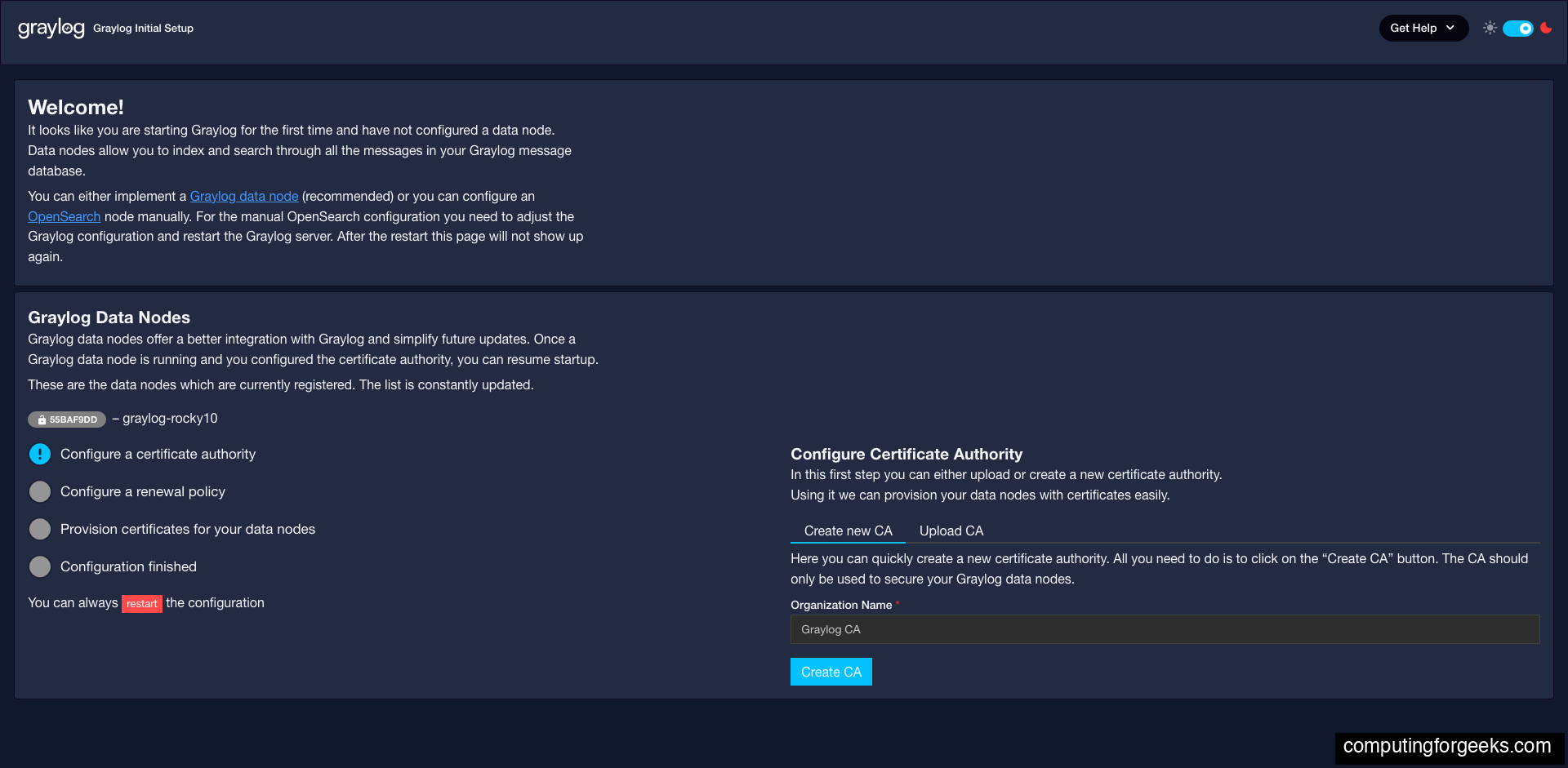
The wizard has four checklist items on the left side. Work through them in order.
Configure a Certificate Authority
Click Create new CA. Graylog generates an internal certificate authority. This CA issues TLS certificates to Data Nodes so all communication between Graylog Server and the Data Node is encrypted.
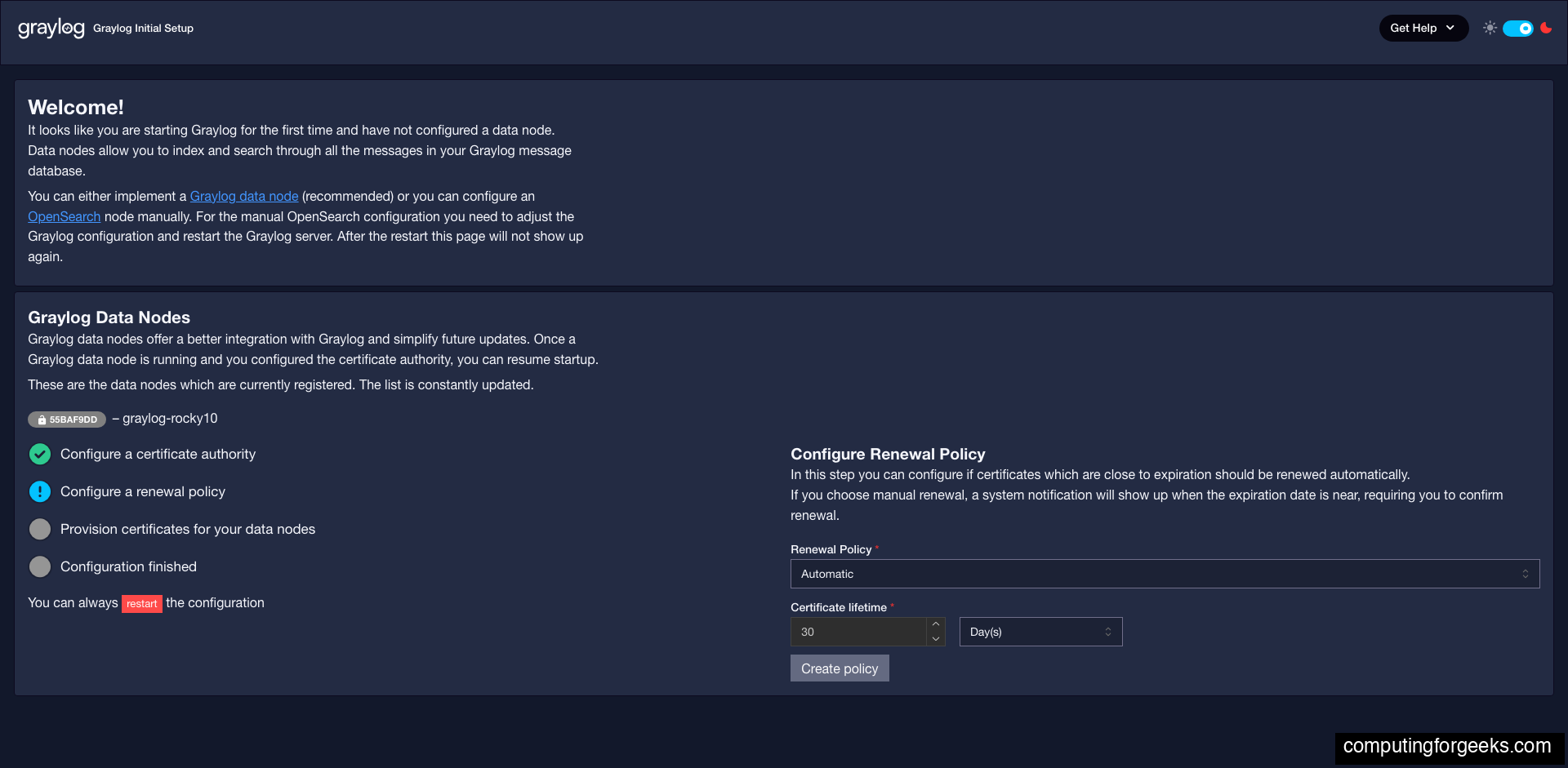
Configure a Renewal Policy
The renewal policy decides what happens when certificates are about to expire. The defaults (Automatic mode, 1 month certificate lifetime) work well for most deployments. Click Create policy:
Provision Certificates
Click Provision certificate and continue. Graylog generates a TLS certificate for the Data Node and uploads it. The Data Node restarts with the new certificate applied. This step takes about 10-20 seconds:
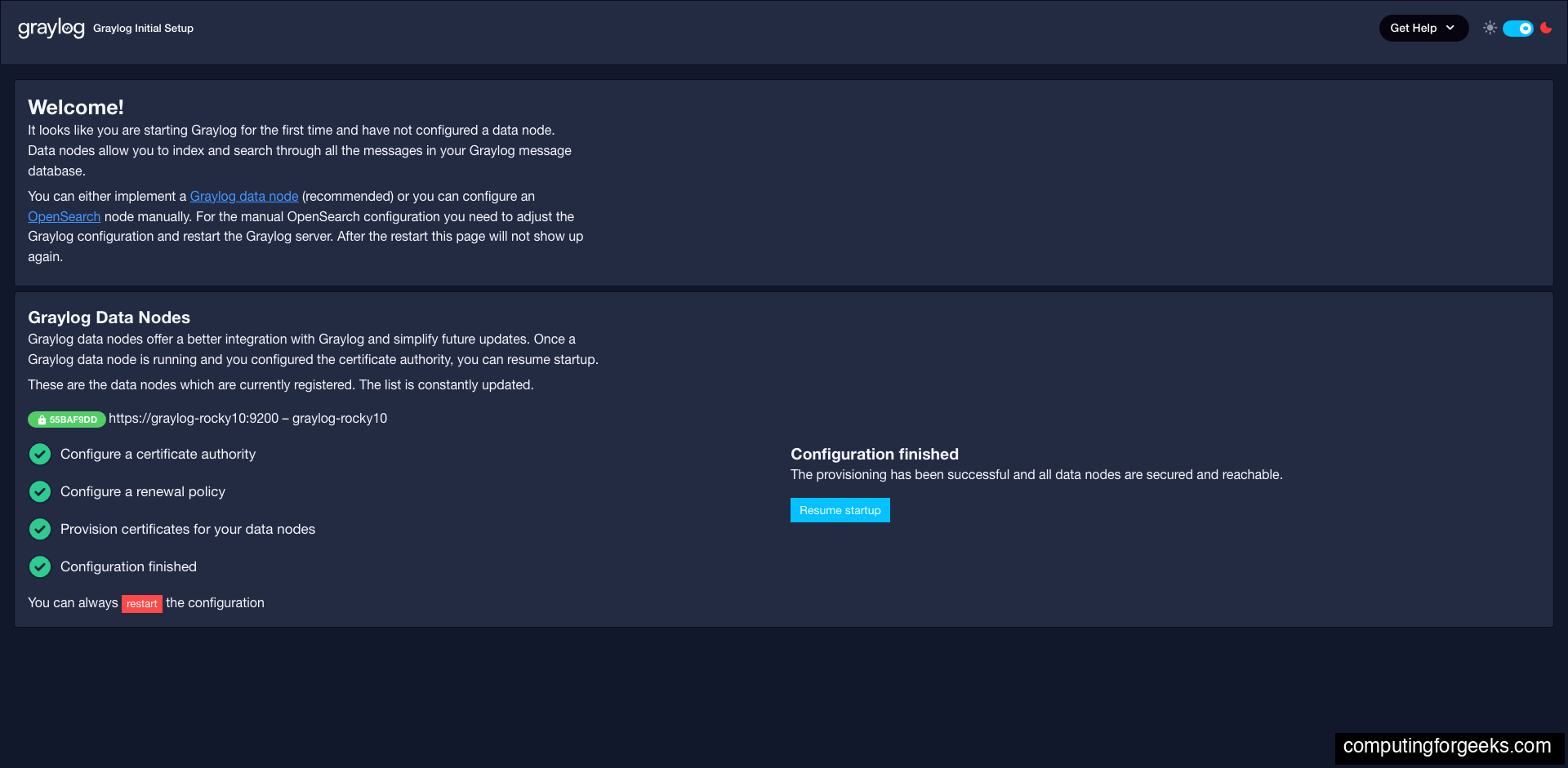
All four checklist items turn green. Click Resume startup. Graylog exits preflight mode and restarts into normal mode. This takes 30-60 seconds.
Log in with Your Admin Password
After the restart, Graylog shows the standard login page. Use admin and the plaintext password you hashed for root_password_sha2, not the preflight password:

The Welcome dashboard loads with Last Opened, Favorite Items, Recent Activity, News, and Releases panels. Graylog is now ready to receive logs.
Step 8: Verify the Installation
Confirm all three services are running:
sudo systemctl is-active mongod graylog-datanode graylog-serverAll three should return active:
active
active
active
Confirm all expected ports are listening. After certificate provisioning, the Data Node should be bound to 9200 and 9300:
sudo ss -tlnp | grep -E '9000|9200|9300|8999|27017'You should see five listeners, one per Graylog component:
LISTEN 0  4096  127.0.0.1:27017  0.0.0.0:*  users:(("mongod",pid=45961,fd=9))
LISTEN 0  4096          *:9200         *:*  users:(("java",pid=56595,fd=576))
LISTEN 0  4096          *:9000         *:*  users:(("java",pid=46664,fd=65))
LISTEN 0  4096          *:8999         *:*  users:(("java",pid=46329,fd=422))
LISTEN 0  4096          *:9300         *:*  users:(("java",pid=56595,fd=573))
Test the REST API load balancer endpoint:
curl -s -u admin:YourSecurePassword http://localhost:9000/api/system/lbstatusA healthy cluster returns ALIVE.
OS Version Differences
The installation steps are identical across Rocky Linux 10, 9, 8 and AlmaLinux 10, 9, 8. The only difference is the MongoDB repository path:
| Item | Rocky 10 / AlmaLinux 10 | Rocky 9 / AlmaLinux 9 | Rocky 8 / AlmaLinux 8 |
|---|---|---|---|
| MongoDB repo path | /yum/redhat/9/ (RHEL 10 repo not yet published) | /yum/redhat/9/ | /yum/redhat/8/ |
| Package manager | dnf | dnf | dnf |
| Java heap config | /etc/sysconfig/graylog-server | ||
| Graylog repo package | graylog-7.0-repository_latest.rpm | ||
| SELinux behavior | Graylog packages ship with correct contexts, zero denials on default install | ||
| Default firewall | firewalld | ||
Production Hardening Notes
The installation above gives you a working Graylog 7 deployment, but there are a few things to address before exposing it to production traffic.
- TLS on the web UI: Set up an Nginx reverse proxy with Let’s Encrypt for HTTPS access. Never expose Graylog on plain HTTP over the internet.
- Stronger admin password: The SHA-256 hash method is fine, but the underlying password should be at least 20 random characters. Consider moving to LDAP, OIDC, or SAML authentication for production.
- Resource limits: On servers with more RAM, increase both the Graylog Server heap (
-Xmx) and the Data Nodeopensearch_heap. The rule of thumb is 50% of total RAM split between the two, capped at 31 GB each. - Message journal: Move
/var/lib/graylog-server/journalto a dedicated SSD partition if you expect more than 1000 messages per second. - Backup MongoDB: Configuration (users, streams, pipelines, dashboards) lives in MongoDB. A backup strategy for the
graylogdatabase is essential. - Monitor the Data Node: Track OpenSearch cluster health via
curl localhost:9200/_cluster/healthfrom within the server. Aredstatus means indexing has stopped.
With the server running and the web UI reachable, the next step is creating your first input. Most Linux servers ship with rsyslog already configured, so the fastest path to seeing real logs is a Syslog input on port 1514/udp. Head to System > Inputs, select Syslog UDP from the dropdown, and launch a new input.
