

Running Graylog on Docker Compose is the fastest way to get the full stack working on a single host. No package repositories to add, no MongoDB installation dance, no hunting for Java 17. Pull three images, write one compose file, start the stack, complete the setup wizard. The whole thing takes about five minutes on a decent connection.
This guide deploys Graylog 7.0.6 with MongoDB 7.0 and the Graylog Data Node using Docker Compose v2. Every command was tested on a real Ubuntu 24.04 VM with 8 GB RAM and 4 vCPUs. The stack includes proper health checks, named volumes, resource limits on the Data Node, and TLS between Graylog and the Data Node.
Tested April 2026 on Ubuntu 24.04.4 LTS, Docker 29.4.0, Docker Compose v5.1.2, Graylog 7.0.6, MongoDB 7.0
Prerequisites
- Docker Engine 20.10+ with the Compose v2 plugin
- 8 GB RAM minimum (the stack uses about 4 GB at idle)
- 4 vCPUs minimum
- 20 GB free disk space for Docker images and volumes
- Host kernel parameter
vm.max_map_count=262144(required by OpenSearch inside the Data Node container)
This guide uses Docker Compose v2 (docker compose, space, not hyphen). Compose v1 (the standalone docker-compose binary) is deprecated. If you are still using v1, upgrade before continuing.
Install Docker Engine
If Docker is already installed, skip to the next section. Otherwise, install the official Docker Engine with Compose v2 plugin using the upstream repository.
sudo apt update
sudo apt install -y ca-certificates curl gnupg
Add Docker’s official GPG key and repository:
sudo install -m 0755 -d /etc/apt/keyrings
sudo curl -fsSL https://download.docker.com/linux/ubuntu/gpg -o /etc/apt/keyrings/docker.asc
sudo chmod a+r /etc/apt/keyrings/docker.asc

echo "deb [arch=$(dpkg --print-architecture) signed-by=/etc/apt/keyrings/docker.asc] https://download.docker.com/linux/ubuntu $(. /etc/os-release && echo "$VERSION_CODENAME") stable" | sudo tee /etc/apt/sources.list.d/docker.list > /dev/null
Install Docker Engine, the Buildx plugin, and the Compose v2 plugin:
sudo apt update
sudo apt install -y docker-ce docker-ce-cli containerd.io docker-buildx-plugin docker-compose-plugin
Add your user to the docker group so you can run Docker commands without sudo. Log out and back in for the group change to take effect:
sudo usermod -aG docker $USERVerify Docker is running:
docker --version
docker compose version
You should see versions similar to:
Docker version 29.4.0, build 9d7ad9f
Docker Compose version v5.1.2
Tune the Host Kernel Parameter
OpenSearch (inside the Data Node container) needs the host’s vm.max_map_count to be at least 262144. The Linux default is too low. This is a host setting, not a container setting, so you must set it on the Docker host:
echo 'vm.max_map_count=262144' | sudo tee /etc/sysctl.d/99-graylog.conf
sudo sysctl --system
Verify:
sysctl vm.max_map_countThe current value should now be the tuned figure:
vm.max_map_count = 262144Generate the Graylog Secrets
Graylog needs two secrets before it can start: a password_secret that encrypts passwords and session tokens, and a root_password_sha2 that is the SHA-256 hash of the admin login password.
Create a working directory:
mkdir -p ~/graylog && cd ~/graylogGenerate a 96-character password secret. The Graylog documentation recommends at least 64 characters, and the same value must be used for both the Graylog Server and the Data Node:
PASSWORD_SECRET=$(< /dev/urandom tr -dc 'A-Za-z0-9' | head -c96)
echo "$PASSWORD_SECRET"
Generate the SHA-256 hash of your chosen admin password. Replace YourSecurePassword with a real password you will remember:
ROOT_PASSWORD_SHA2=$(echo -n "YourSecurePassword" | sha256sum | cut -d" " -f1)
echo "$ROOT_PASSWORD_SHA2"
Create the .env File
Docker Compose reads environment variables from a .env file in the same directory as the compose file. Create one:
vi .envAdd the following content, replacing the secret values with the ones you generated:
# Shared secret for encrypting passwords and session tokens
# Must be identical between Graylog server and Data Node
GRAYLOG_PASSWORD_SECRET=YOUR_GENERATED_SECRET_HERE

# SHA-256 hash of the admin password
# Generate with: echo -n yourpassword | sha256sum | cut -d' ' -f1
GRAYLOG_ROOT_PASSWORD_SHA2=YOUR_SHA256_HASH_HERE

# Pin image versions (do not use :latest in production)
GRAYLOG_IMAGE=graylog/graylog:7.0.6-1
GRAYLOG_DATANODE_IMAGE=graylog/graylog-datanode:7.0.6
MONGODB_IMAGE=mongo:7.0
Restrict permissions on the .env file since it contains secrets:
chmod 600 .envWrite the docker-compose.yml File
Create the compose file that defines all three services:
vi docker-compose.ymlAdd the following content:
services:
  mongodb:
    image: "${MONGODB_IMAGE}"
    container_name: graylog-mongodb
    restart: on-failure
    networks:
      - graylog
    volumes:
      - mongodb_data:/data/db
      - mongodb_config:/data/configdb
    healthcheck:
      test: ["CMD", "mongosh", "--quiet", "--eval", "db.runCommand('ping').ok"]
      interval: 30s
      timeout: 10s
      retries: 5
      start_period: 30s

  datanode:
    image: "${GRAYLOG_DATANODE_IMAGE}"
    container_name: graylog-datanode
    hostname: datanode
    restart: on-failure
    depends_on:
      mongodb:
        condition: service_started
    environment:
      GRAYLOG_DATANODE_NODE_ID_FILE: "/var/lib/graylog-datanode/node-id"
      GRAYLOG_DATANODE_PASSWORD_SECRET: "${GRAYLOG_PASSWORD_SECRET}"
      GRAYLOG_DATANODE_ROOT_PASSWORD_SHA2: "${GRAYLOG_ROOT_PASSWORD_SHA2}"
      GRAYLOG_DATANODE_MONGODB_URI: "mongodb://mongodb:27017/graylog"
      GRAYLOG_DATANODE_OPENSEARCH_HEAP: "2g"
    ulimits:
      memlock:
        hard: -1
        soft: -1
      nofile:
        soft: 65536
        hard: 65536
    ports:
      - "8999:8999/tcp"
      - "9200:9200/tcp"
      - "9300:9300/tcp"
    networks:
      - graylog
    volumes:
      - graylog_datanode:/var/lib/graylog-datanode

  graylog:
    image: "${GRAYLOG_IMAGE}"
    container_name: graylog-server
    hostname: server
    restart: on-failure
    depends_on:
      mongodb:
        condition: service_started
      datanode:
        condition: service_started
    entrypoint: "/usr/bin/tini -- /docker-entrypoint.sh"
    environment:
      GRAYLOG_NODE_ID_FILE: "/usr/share/graylog/data/config/node-id"
      GRAYLOG_PASSWORD_SECRET: "${GRAYLOG_PASSWORD_SECRET}"
      GRAYLOG_ROOT_PASSWORD_SHA2: "${GRAYLOG_ROOT_PASSWORD_SHA2}"
      GRAYLOG_HTTP_BIND_ADDRESS: "0.0.0.0:9000"
      GRAYLOG_HTTP_EXTERNAL_URI: "http://localhost:9000/"
      GRAYLOG_MONGODB_URI: "mongodb://mongodb:27017/graylog"
    ports:
      - "5044:5044/tcp"       # Beats
      - "5140:5140/udp"       # Syslog UDP
      - "5140:5140/tcp"       # Syslog TCP
      - "5555:5555/tcp"       # RAW TCP
      - "5555:5555/udp"       # RAW UDP
      - "9000:9000/tcp"       # Web UI and REST API
      - "12201:12201/tcp"     # GELF TCP
      - "12201:12201/udp"     # GELF UDP
      - "13301:13301/tcp"     # Forwarder control
      - "13302:13302/tcp"     # Forwarder data
    networks:
      - graylog
    volumes:
      - graylog_data:/usr/share/graylog/data/data
      - graylog_journal:/usr/share/graylog/data/journal

networks:
  graylog:
    driver: bridge

volumes:
  mongodb_data:
  mongodb_config:
  graylog_datanode:
  graylog_data:
  graylog_journal:
A few things worth knowing about this compose file. The Data Node has ulimits set because OpenSearch needs unlimited memory locking and at least 65536 open file descriptors. The memlock unlimited setting prevents the kernel from swapping OpenSearch’s JVM heap, which would destroy search performance.
All volumes are named volumes, not bind mounts. The Graylog documentation explicitly warns that bind mounts do not work correctly with these images. Named volumes are managed by Docker and persist across container recreations.
The depends_on with condition: service_started ensures the containers start in the correct order. MongoDB first, then the Data Node, then the Graylog server. Without this, the Graylog server would try to connect to an unavailable database and crash-loop for 30 seconds before settling down.
Start the Stack
Start all three services in detached mode:
docker compose up -dOn first run, Docker pulls the three images (about 1.5 GB total), creates the network, creates the named volumes, and starts the containers in the correct order:
Network graylog_graylog Created
Volume graylog_mongodb_config Created
Volume graylog_graylog_datanode Created
Volume graylog_graylog_data Created
Volume graylog_graylog_journal Created
Volume graylog_mongodb_data Created
Container graylog-mongodb Started
Container graylog-datanode Started
Container graylog-server Started
Wait about 45 seconds for all three containers to fully initialize, then check their status:
docker compose psAll three should show Up status. MongoDB should show healthy after its health check passes:
NAME               IMAGE                            STATUS
graylog-datanode   graylog/graylog-datanode:7.0.6   Up 7 minutes
graylog-mongodb    mongo:7.0                        Up 7 minutes (healthy)
graylog-server     graylog/graylog:7.0.6-1          Up 7 minutes (healthy)
Retrieve the Preflight Password
On first start, Graylog enters preflight mode with a randomly generated setup password. Pull it from the container logs:
docker compose logs graylog | grep "Initial configuration"The log line contains the temporary admin password:
graylog-server | Initial configuration is accessible at 0.0.0.0:9000, with username 'admin' and password 'WEHXBQHXGR'.Copy the password. You will use it once to complete the setup wizard.
Complete the Initial Setup Wizard
Open http://YOUR_HOST_IP:9000 in a browser. Log in with admin and the preflight password from the log. The setup wizard appears:
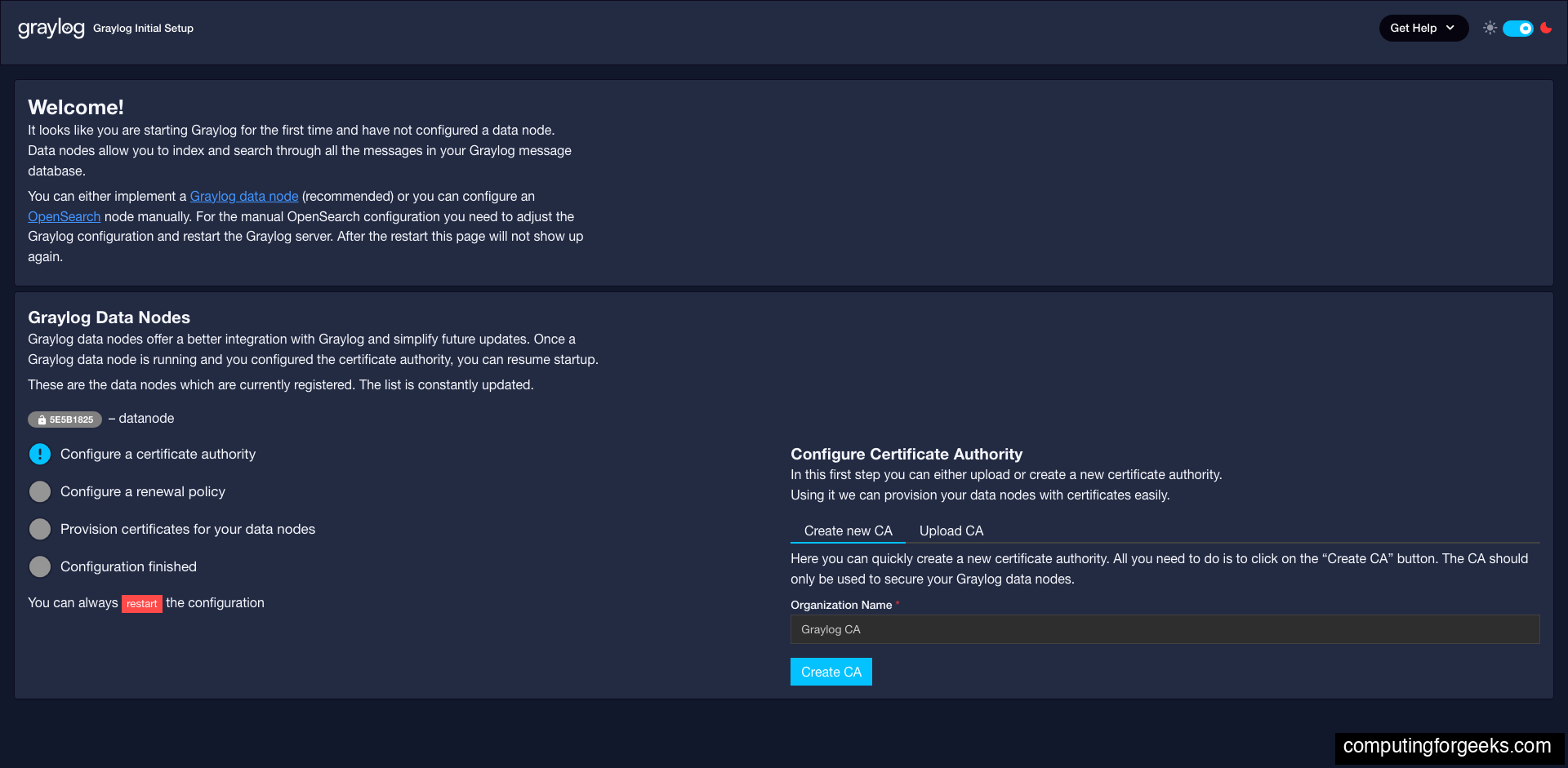
Work through the four wizard steps in order. Click Create new CA, then Create policy (accept the Automatic mode defaults with a 1-month certificate lifetime), then Provision certificate and continue. Graylog creates a certificate authority inside the server container, issues a certificate to the Data Node container, and configures TLS between them.
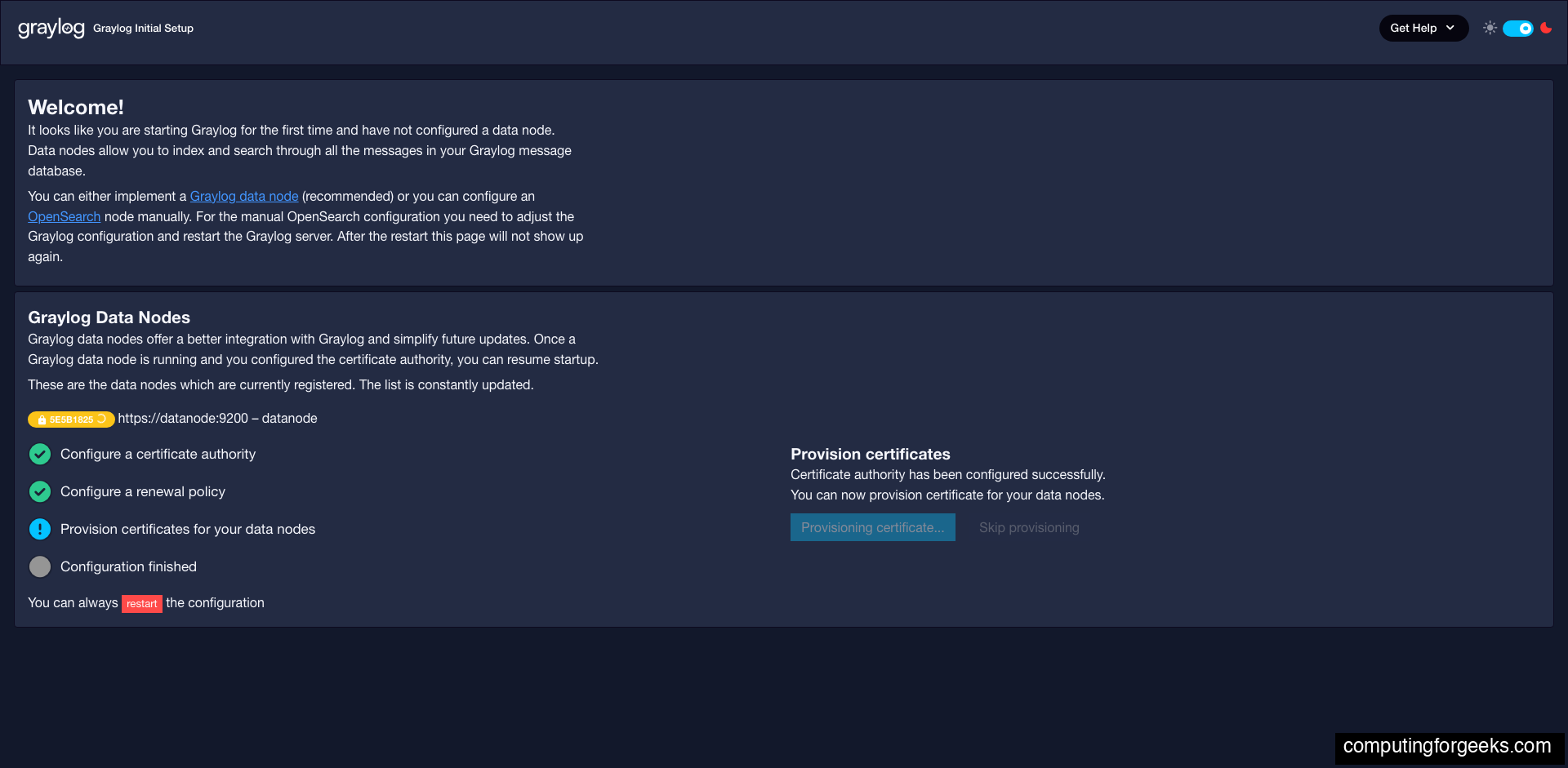
When all four checklist items show green checkmarks, click Resume startup. Graylog restarts inside its container and switches from preflight mode to normal mode. This takes about 60 seconds.
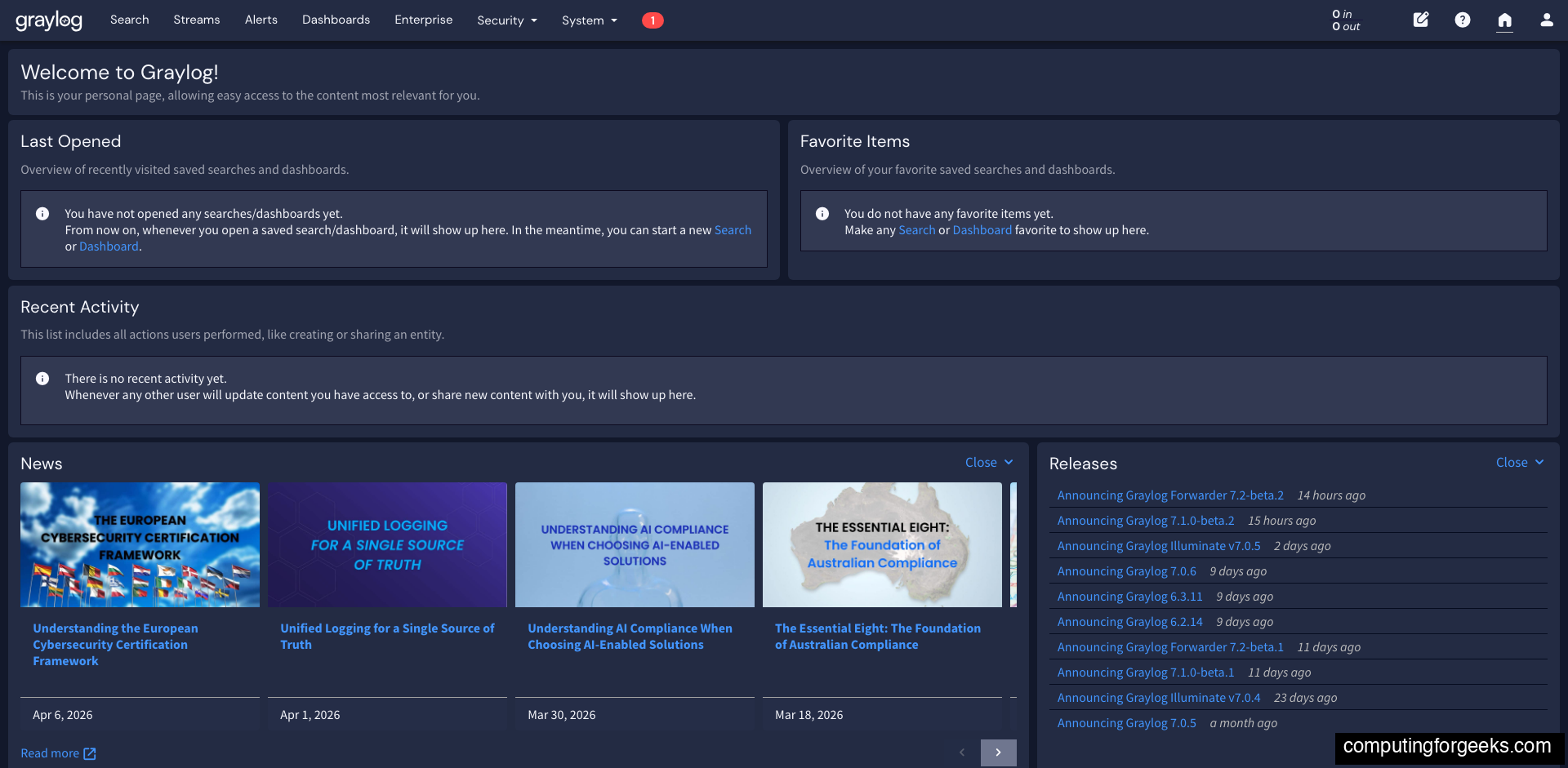
After the restart, the page reloads into the standard login form. Log in with admin and the plaintext password you used to generate GRAYLOG_ROOT_PASSWORD_SHA2 (not the preflight password). The Welcome dashboard appears:
Verify the Installation
Confirm all three containers are healthy:
docker compose ps --format "table {{.Name}}\t{{.Status}}"Both the server and MongoDB should show healthy:
NAME               STATUS
graylog-datanode   Up 7 minutes
graylog-mongodb    Up 7 minutes (healthy)
graylog-server     Up 7 minutes (healthy)
Check container resource usage. On an 8 GB VM, the Data Node is the heaviest container at about 3 GB of RAM:
docker stats --no-stream --format "table {{.Name}}\t{{.CPUPerc}}\t{{.MemUsage}}"On an idle stack the Data Node dominates the memory footprint:
NAME               CPU %     MEM USAGE / LIMIT
graylog-server     2.35%     661.7MiB / 7.755GiB
graylog-datanode   22.73%    3.071GiB / 7.755GiB
graylog-mongodb    1.21%     102.3MiB / 7.755GiB
Test the Graylog REST API load balancer endpoint:
curl -s -u admin:YourSecurePassword http://localhost:9000/api/system/lbstatusA healthy cluster returns:
ALIVEPort Reference
The compose file exposes a broad set of ports on the Docker host. This lets you point clients at the host IP without extra network plumbing. Trim this list down to only the ports you actually need if you are not using every input type:
| Port | Protocol | Service | Purpose |
|---|---|---|---|
| 9000 | TCP | Graylog Server | Web UI and REST API |
| 5044 | TCP | Graylog Server | Beats input (Filebeat, Winlogbeat) |
| 5140 | TCP/UDP | Graylog Server | Syslog input |
| 5555 | TCP/UDP | Graylog Server | Raw plaintext input |
| 12201 | TCP/UDP | Graylog Server | GELF input (Docker native log driver) |
| 13301-13302 | TCP | Graylog Server | Graylog Forwarder (Enterprise) |
| 8999 | TCP | Data Node | Data Node management API |
| 9200 | TCP | Data Node | OpenSearch REST API |
| 9300 | TCP | Data Node | OpenSearch transport (cluster) |
| 27017 | TCP | MongoDB | Not exposed to host (internal network only) |
Common Operations
View logs
Tail the live logs for any service by name. Use Ctrl+C to stop following:
docker compose logs -f graylog
docker compose logs -f datanode
docker compose logs -f mongodb
Restart a single service
Sometimes only one container needs a restart, for example after editing GRAYLOG_HTTP_EXTERNAL_URI in the compose file:
docker compose restart graylogStop the stack
To shut everything down cleanly:
docker compose downThis stops and removes the containers but preserves the named volumes, so your data survives. To destroy the volumes as well (for a complete clean reset):
docker compose down -vUpgrade Graylog to a newer version
Edit the image tags in .env, then pull and recreate:
docker compose pull
docker compose up -d
Always back up MongoDB and the Data Node volume before upgrading. Upgrades between major Graylog versions sometimes involve schema migrations that cannot be rolled back.
Back up volumes
Run a one-shot alpine container that mounts the MongoDB data volume and writes a compressed tarball to a host directory:
docker run --rm \
  -v graylog_mongodb_data:/data \
  -v $(pwd)/backups:/backup \
  alpine tar czf /backup/mongodb-$(date +%F).tar.gz -C /data .
Production Hardening
The compose file above works fine for testing and small deployments, but production use needs additional steps.
- Put Graylog behind a reverse proxy with TLS. The web UI uses plain HTTP by default. Never expose it on the open internet without HTTPS. Configure Nginx or Traefik with Let’s Encrypt and point
GRAYLOG_HTTP_EXTERNAL_URIat your HTTPS URL. - Only expose the ports you need. Remove unused input ports from the compose file. If you are only using GELF, you do not need Beats, Syslog, Raw, or Forwarder ports.
- Restrict port bindings to localhost where appropriate. Change
"9000:9000/tcp"to"127.0.0.1:9000:9000/tcp"when you have a reverse proxy on the same host. - Use Docker secrets instead of environment variables for the password values. The
.envfile withchmod 600is acceptable for small deployments, but Docker secrets are safer for multi-host setups. - Set resource limits via
deploy.resourcesin the compose file. Without limits, the Data Node can consume all available RAM under load. - Enable MongoDB authentication. The compose file above runs MongoDB without auth, which is fine since it is only reachable on the internal Docker network. Enable auth if you ever expose port 27017.
- Schedule volume backups. The
docker run --rmtar command above can be automated with cron for daily backups.
With Graylog running on Docker Compose, the next logical step is setting up your first input. System > Inputs in the web UI lets you launch a GELF or Syslog input, and because Docker’s native logging driver speaks GELF, you can send logs from other containers into Graylog with a single --log-driver=gelf flag. That makes this setup especially useful when Graylog is running on the same host as the applications generating logs.
