

Grafana Loki is a horizontally-scalable, multi-tenant log aggregation system built for efficiency. Unlike Elasticsearch which indexes the full text of every log line, Loki only indexes metadata labels – making it significantly cheaper to operate while still providing fast log queries through its LogQL language.
This guide covers installing Loki on Ubuntu 24.04 and Debian 13 as a standalone service, configuring it for production use with proper storage paths and retention, connecting Grafana Alloy to send logs, and querying those logs through Grafana.
Prerequisites
- A server running Ubuntu 24.04 LTS or Debian 13 with at least 2GB RAM
- Root or sudo access
- Grafana Alloy or Promtail installed on the hosts you want to collect logs from
- Grafana installed for log visualization (recommended)
1. Add the Grafana APT Repository
Loki is available in the official Grafana APT repository. If you already added this repository when installing Alloy or Grafana, skip to the next step.
sudo apt update && sudo apt install -y gpg
sudo mkdir -p /etc/apt/keyrings
sudo wget -qO /etc/apt/keyrings/grafana.asc https://apt.grafana.com/gpg-full.key
sudo chmod 644 /etc/apt/keyrings/grafana.asc
echo "deb [signed-by=/etc/apt/keyrings/grafana.asc] https://apt.grafana.com stable main" | sudo tee /etc/apt/sources.list.d/grafana.list
sudo apt update
2. Install Grafana Loki
Install the Loki package:
sudo apt install -y lokiConfirm the installed version:
loki --versionYou should see the installed version:
loki, version 3.6.7 (branch: release-3.6.x, revision: 7e1daf3a)
  build user:       root@eac71e31e07b
  build date:       2026-02-23T09:19:39Z
  go version:       go1.25.7
  platform:         linux/amd64
The APT package creates a systemd service, a loki system user, and places the default configuration at /etc/loki/config.yml.
3. Configure Loki for Production
The default configuration stores data in /tmp/loki which gets wiped on reboot. For production, you need persistent storage paths, retention policies, and proper resource limits.
Create the data directories first:
sudo mkdir -p /var/lib/loki/{chunks,rules,compactor}
sudo chown -R loki:loki /var/lib/loki
Open the Loki configuration file:
sudo vi /etc/loki/config.ymlReplace the contents with this production-ready configuration:
auth_enabled: false

server:
  http_listen_port: 3100
  grpc_listen_port: 9096
  log_level: info

common:
  instance_addr: 127.0.0.1
  path_prefix: /var/lib/loki
  storage:
    filesystem:
      chunks_directory: /var/lib/loki/chunks
      rules_directory: /var/lib/loki/rules
  replication_factor: 1
  ring:
    kvstore:
      store: inmemory

schema_config:
  configs:
    - from: 2020-10-24
      store: tsdb
      object_store: filesystem
      schema: v13
      index:
        prefix: index_
        period: 24h

query_range:
  results_cache:
    cache:
      embedded_cache:
        enabled: true
        max_size_mb: 100

limits_config:
  retention_period: 744h
  metric_aggregation_enabled: true

compactor:
  working_directory: /var/lib/loki/compactor
  compaction_interval: 10m
  retention_enabled: true
  retention_delete_delay: 2h
  retention_delete_worker_count: 150
  delete_request_store: filesystem

pattern_ingester:
  enabled: true
  metric_aggregation:
    loki_address: localhost:3100

frontend:
  encoding: protobuf

analytics:
  reporting_enabled: false
Key settings in this configuration:
- auth_enabled: false – single-tenant mode, no authentication headers required
- path_prefix: /var/lib/loki – persistent storage that survives reboots
- retention_period: 744h – keeps logs for 31 days before automatic deletion
- compactor – runs every 10 minutes, cleans up expired log data after a 2-hour delay
- schema v13 with TSDB store – the latest and most efficient storage schema
- embedded_cache: 100MB – caches query results in memory for faster repeated queries
4. Start and Enable Loki
Start the Loki service and enable it to run at boot:
sudo systemctl enable --now lokiVerify it is running:
sudo systemctl status lokiThe service should show as active:
● loki.service - Loki service
     Loaded: loaded (/etc/systemd/system/loki.service; enabled; preset: enabled)
     Active: active (running) since Mon 2026-03-23 22:04:35 UTC; 30min ago
   Main PID: 2716 (loki)
      Tasks: 8 (limit: 9489)
     Memory: 207.2M (peak: 229.4M)
        CPU: 19.789s
     CGroup: /system.slice/loki.service
             └─2716 /usr/bin/loki -config.file /etc/loki/config.yml
Check the readiness endpoint to confirm Loki is accepting requests:
curl -s http://localhost:3100/readyA healthy Loki returns ready.
5. Open Firewall Port
If UFW is active, allow the Loki HTTP port:
sudo ufw allow 3100/tcpOnly open this port if remote agents need to push logs to this Loki instance. For a single-server setup where Alloy runs on the same host, localhost access is sufficient and you can skip this step.
6. Configure Grafana Alloy to Send Logs to Loki
With Loki running, configure Grafana Alloy to forward collected logs. Add these blocks to your Alloy configuration at /etc/alloy/config.alloy:
loki.relabel "journal" {
  forward_to = []

  rule {
    source_labels = ["__journal__systemd_unit"]
    target_label  = "unit"
  }
  rule {
    source_labels = ["__journal__hostname"]
    target_label  = "hostname"
  }
  rule {
    source_labels = ["__journal_priority_keyword"]
    target_label  = "level"
  }
}

loki.source.journal "system" {
  forward_to    = [loki.write.loki.receiver]
  relabel_rules = loki.relabel.journal.rules
  labels        = {job = "journal"}
  max_age       = "12h"
}

loki.source.file "varlog" {
  targets = [
    {__path__ = "/var/log/syslog", job = "syslog"},
    {__path__ = "/var/log/auth.log", job = "auth"},
  ]
  forward_to    = [loki.write.loki.receiver]
  tail_from_end = true
}

loki.write "loki" {
  endpoint {
    url = "http://localhost:3100/loki/api/v1/push"
  }
}
Restart Alloy to pick up the changes:
sudo systemctl restart alloyAfter a minute, verify logs are flowing by querying Loki’s labels endpoint:
curl -s http://localhost:3100/loki/api/v1/labels | python3 -m json.toolYou should see labels like job, unit, hostname, and level appear in the response:
{
    "status": "success",
    "data": [
        "filename",
        "hostname",
        "job",
        "level",
        "service_name",
        "unit"
    ]
}
7. Add Loki as a Grafana Data Source
In Grafana, go to Connections > Data sources > Add data source and select Loki. Set the URL to http://localhost:3100 and click Save & test. No authentication is needed when Grafana and Loki run on the same host.
Alternatively, create the data source automatically via a provisioning file:
sudo vi /etc/grafana/provisioning/datasources/loki.yamlAdd the following content:
apiVersion: 1
datasources:
  - name: Loki
    type: loki
    access: proxy
    url: http://localhost:3100
    editable: true
Restart Grafana to apply the provisioned data source:
sudo systemctl restart grafana-server8. Query Logs with LogQL
LogQL is Loki’s query language, inspired by PromQL. Open Grafana’s Explore view, select the Loki data source, and try these queries.
View all journal logs:
{job="journal"}Filter SSH authentication attempts:
{job="auth"} |= "sshd"Show only error-level journal entries:
{job="journal", level="err"}Count log entries per systemd unit over time:
sum by (unit) (rate({job="journal"}[5m]))Find entries matching a regex pattern (5xx HTTP errors):
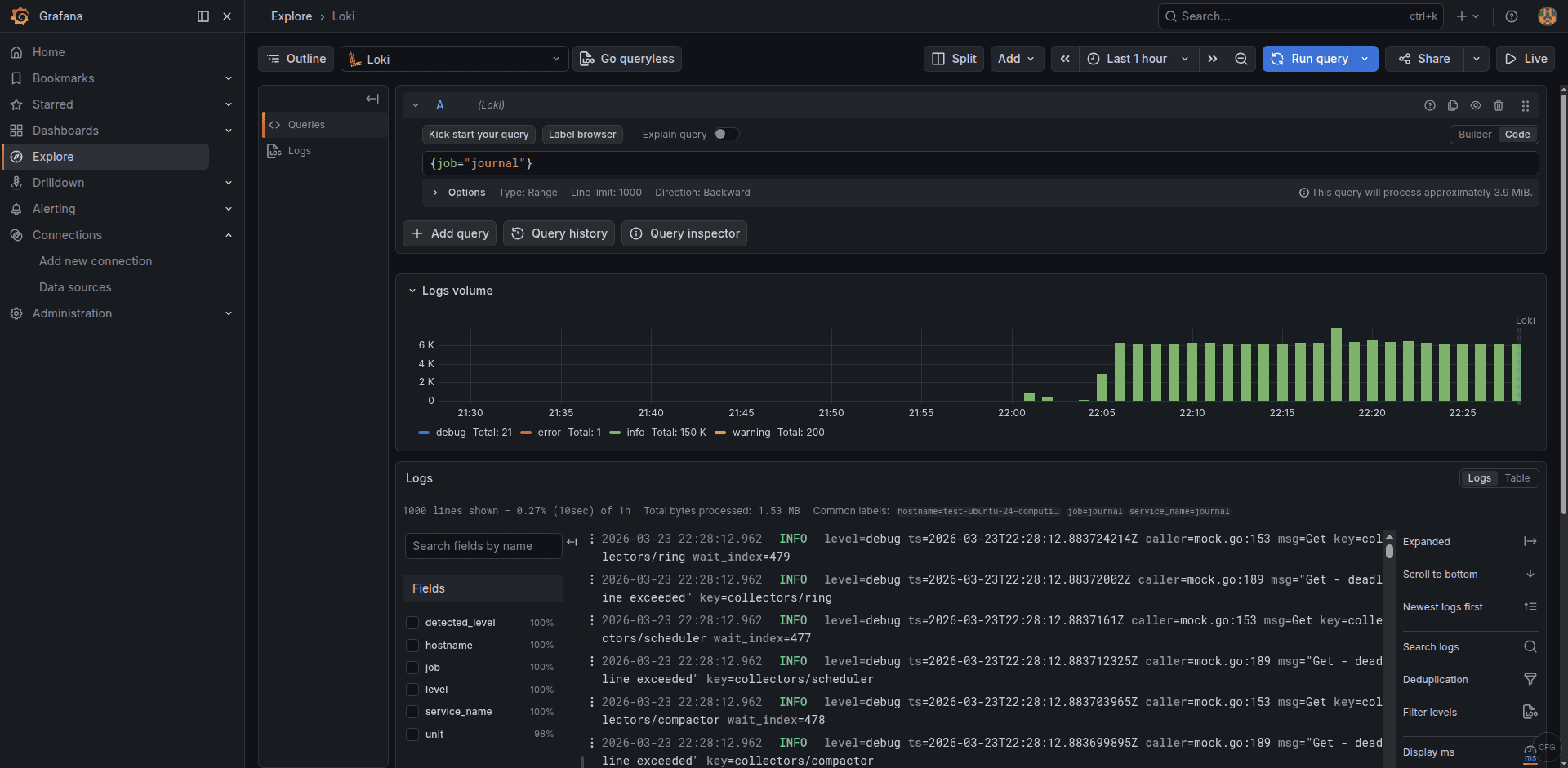
{job="syslog"} |~ "5[0-9]{2}"The Explore view shows a log volume graph at the top and individual log entries below, with labels and parsed fields visible for each entry:
Loki HTTP API Reference
Loki exposes a REST API on port 3100 for pushing and querying logs. Here are the key endpoints:
| Method | Endpoint | Purpose |
|---|---|---|
| POST | /loki/api/v1/push | Ingest log entries |
| GET | /loki/api/v1/query_range | Run a LogQL query over a time range |
| GET | /loki/api/v1/labels | List all known label names |
| GET | /loki/api/v1/label/<name>/values | List values for a specific label |
| GET | /loki/api/v1/tail | WebSocket stream for live tailing |
| GET | /ready | Health check – returns “ready” when healthy |
Test the API directly from the command line to verify logs are stored:
curl -s -G 'http://localhost:3100/loki/api/v1/query_range' --data-urlencode 'query={job="journal"}' --data-urlencode 'limit=5' | python3 -m json.tool | head -20Troubleshooting Common Issues
Loki shows “too many outstanding requests”
This happens when Loki receives more writes than it can process. Increase the ingestion limits in limits_config:
limits_config:
  ingestion_rate_mb: 10
  ingestion_burst_size_mb: 20
  per_stream_rate_limit: 5MB
  per_stream_rate_limit_burst: 15MB
Disk usage growing too fast
Check that the compactor is running and retention is enabled. Verify with curl -s http://localhost:3100/metrics | grep loki_compactor. If retention is enabled but disk isn’t shrinking, the retention_delete_delay (default 2h) means there’s a delay before data is actually removed.
Query returns “no data” but logs are being pushed
The most common cause is a time range mismatch. Loki stores timestamps in UTC. Make sure your Grafana time picker covers the correct range. Also verify with the labels endpoint that your expected labels exist: curl -s http://localhost:3100/loki/api/v1/labels.
Wrapping Up
You now have Grafana Loki running as a log aggregation backend with Alloy shipping systemd journal and file logs. The combination of Loki’s label-based indexing and LogQL’s query flexibility gives you a lightweight yet powerful logging stack that costs a fraction of running Elasticsearch.
For production hardening, consider setting up object storage (S3 or GCS) instead of local filesystem for horizontal scalability, configuring multi-tenancy if you serve multiple teams, and placing Loki behind an Nginx reverse proxy with SSL for secure remote access.
