

Google Chrome is the most widely used web browser, and installing it on Ubuntu takes about 30 seconds. Google distributes Chrome as a .deb package that adds the official repository automatically, so future updates come through apt like any other package.
This guide covers installing Chrome on Ubuntu 24.04 and 22.04 from the official .deb package, setting it as the default browser, and removing it if you later decide to switch. If you need a fully open-source alternative, see how to install Chromium on Linux instead.
Tested March 2026 on Ubuntu 24.04.4 LTS with Google Chrome 146.0.7680.164
Prerequisites
- Ubuntu 24.04 or 22.04 (desktop or server with X11/Wayland)
- A user account with
sudoprivileges - 64-bit (amd64) system. Google does not ship Chrome for ARM or 32-bit Linux
Install Google Chrome on Ubuntu
Download the official .deb package directly from Google. The filename contains _current_ rather than a version number, so this URL always fetches the latest stable release:
wget https://dl.google.com/linux/direct/google-chrome-stable_current_amd64.debInstall it with apt. This pulls in any missing dependencies (fonts, libraries) automatically:
sudo apt install -y ./google-chrome-stable_current_amd64.debThat’s the entire install. Verify the version:
google-chrome --versionYou should see the installed version confirmed:
Google Chrome 146.0.7680.164 Google’s APT Repository
The .deb package automatically adds the official Google Chrome repository to your system. This means Chrome updates arrive through apt update && apt upgrade alongside your regular system updates.
Check the repository configuration:
cat /etc/apt/sources.list.d/google-chrome.listThe file shows the stable channel pointing to Google’s deb repository:
### THIS FILE IS AUTOMATICALLY CONFIGURED ###
# You may comment out this entry, but any other modifications may be lost.
deb [arch=amd64] https://dl.google.com/linux/chrome/deb/ stable main
You can check available updates anytime with:
apt-cache policy google-chrome-stableThe output shows the installed and candidate versions:
google-chrome-stable:
  Installed: 146.0.7680.164-1
  Candidate: 146.0.7680.164-1
  Version table:
 *** 146.0.7680.164-1 100
        100 /var/lib/dpkg/status
Launch Chrome
From a terminal, run:
google-chromeOn an Ubuntu Desktop, Chrome also appears in the Activities menu. Search for “Chrome” and click the icon to launch it. The first launch asks whether to make Chrome the default browser and whether to send usage statistics to Google.
The About Chrome page confirms the installed version and checks for updates automatically:
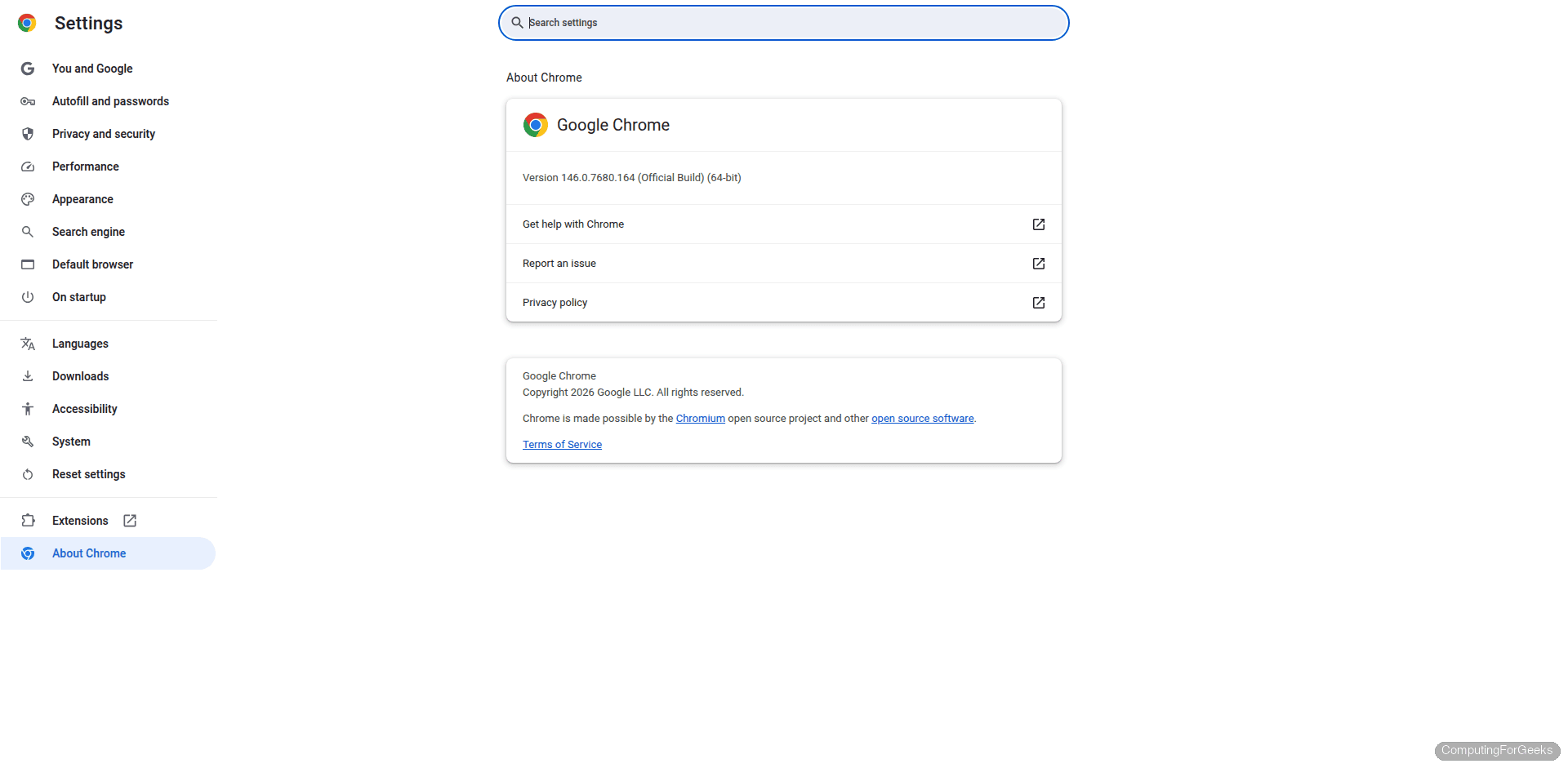
Navigate to chrome://settings/help in the address bar to reach this page. If an update is available, Chrome downloads and applies it on the next relaunch.
Set Chrome as the Default Browser
If you skipped the first-launch prompt, set Chrome as default from the terminal:
sudo update-alternatives --set x-www-browser /usr/bin/google-chrome-stableOr use the xdg-settings command, which works for the current user without root:
xdg-settings set default-web-browser google-chrome.desktopVerify the change:
xdg-settings get default-web-browserThis should return google-chrome.desktop.
Install Chrome Beta or Dev Channels
Google also provides Beta and Dev (unstable) channels for testing upcoming features. These install as separate applications alongside the stable version.
For the Beta channel:
wget https://dl.google.com/linux/direct/google-chrome-beta_current_amd64.deb
sudo apt install -y ./google-chrome-beta_current_amd64.deb
For the Dev channel:
wget https://dl.google.com/linux/direct/google-chrome-unstable_current_amd64.deb
sudo apt install -y ./google-chrome-unstable_current_amd64.deb
Each channel has its own binary: google-chrome-beta and google-chrome-unstable. They use separate profiles, so running beta or dev won’t affect your stable Chrome data.
Remove Google Chrome
If you no longer need Chrome, remove the package and its repository:
sudo apt remove -y google-chrome-stable
sudo rm /etc/apt/sources.list.d/google-chrome.list
To also remove your Chrome profile data (bookmarks, extensions, saved passwords):
rm -rf ~/.config/google-chromeChrome vs Chromium
| Feature | Google Chrome | Chromium |
|---|---|---|
| License | Proprietary (based on open-source Chromium) | Open source (BSD license) |
| Auto-updates | Yes, via Google’s repo | Through system package manager |
| Sync | Full Google account sync | Limited (no Google API keys by default) |
| Media codecs | Includes proprietary codecs (H.264, AAC) | Open codecs only (unless patched) |
| Widevine DRM | Included (Netflix, Disney+ work) | Not included |
| Install method | .deb from Google | apt install chromium-browser (Snap on Ubuntu) |
For most users, Chrome is the practical choice because it includes media codecs and DRM support out of the box. Chromium is better if you want a fully open-source browser and don’t need Netflix or Spotify web player.
Running Chrome Headless
On headless Ubuntu servers (no GUI), Chrome can still be useful for automated testing, PDF generation, and web scraping. Run Chrome in headless mode:
google-chrome --headless --dump-dom https://example.comGenerate a PDF from a URL:
google-chrome --headless --print-to-pdf=output.pdf https://example.comTake a screenshot:
google-chrome --headless --screenshot=screenshot.png --window-size=1920,1080 https://example.comThese commands work on both desktop and server installations. On a server, Chrome detects the missing display and runs headless automatically.
For Selenium testing or browser automation, you will also need ChromeDriver. Install it to match your Chrome version. You can check related guides on configuring SSH on Ubuntu for remote access to your test servers, or explore the Opera browser installation as another Chromium-based alternative.
