

Running your own GitLab instance gives you full control over your source code, CI/CD pipelines, container registry, and issue tracking without relying on a third-party SaaS platform. GitLab Community Edition (CE) is the open-source, self-hosted version that packs most of the features teams actually need: Git repository management, merge requests, a built-in Docker container registry, wiki pages, and a full CI/CD engine with runners you own and operate.
This guide walks through a complete GitLab CE deployment on Ubuntu 24.04 LTS or Debian 13 (Trixie), with TLS certificates, a CI/CD runner using the Docker executor, backup procedures, and production hardening. Every command below has been tested on a fresh Ubuntu 24.04.4 minimal install with GitLab CE 18.10.1.
Tested March 2026 | Ubuntu 24.04.4 LTS, GitLab CE 18.10.1, PostgreSQL 16.11, Ruby 3.3.10, Redis 7.2.11, Git 2.53
Prerequisites
Before you start, make sure you have the following in place:
- A server running Ubuntu 24.04 LTS or Debian 13 with root or sudo access.
- At least 8 GB of RAM. GitLab runs Puma, Sidekiq, PostgreSQL, Redis, Prometheus, and Gitaly all on one box. In our test, a fresh install with one project consumed 6.1 GB of RAM. The 4 GB minimum documented by GitLab is tight and will hit swap under any real load.
- A minimum of 2 CPU cores (4 recommended). Build jobs and background workers compete for CPU time on anything less.
- A registered domain name (for example,
gitlab.example.com) with a DNS A record pointing to your server’s public IP. Let’s Encrypt needs this to issue a certificate. - Ports 22, 80, and 443 open in your firewall.
- Tested on: Ubuntu 24.04.4 LTS (Noble Numbat), GitLab CE 18.10.1
Update the System and Install Dependencies
Start with a fully updated system, then install the packages GitLab expects on the host: an SSH server for Git-over-SSH operations, CA certificates for HTTPS, curl for the repository setup script, and Postfix for outbound notification mail.
sudo apt update && sudo apt upgrade -yInstall the required dependencies:
sudo apt install -y curl openssh-server ca-certificates postfix perl tzdataWhen the Postfix configuration dialog appears, select Internet Site and accept the default system mail name (your server’s FQDN). If you plan to use an external SMTP relay like SendGrid or Mailgun, you can reconfigure Postfix later or point GitLab directly at the relay in gitlab.rb.
Verify that the SSH server is running and enabled:
sudo systemctl enable --now sshOpen the firewall ports GitLab needs. On Ubuntu, use ufw:
sudo ufw allow OpenSSH
sudo ufw allow 80/tcp
sudo ufw allow 443/tcp
sudo ufw enable
Confirm the rules are active:
sudo ufw statusThe output should show all three ports allowed:
Status: active

To                         Action      From
--                         ------      ----
22/tcp (OpenSSH)           ALLOW IN    Anywhere
80/tcp                     ALLOW IN    Anywhere
443/tcp                    ALLOW IN    Anywhere
22/tcp (OpenSSH (v6))      ALLOW IN    Anywhere (v6)
80/tcp (v6)                ALLOW IN    Anywhere (v6)
443/tcp (v6)               ALLOW IN    Anywhere (v6)
Add the GitLab CE Repository
GitLab provides an official shell script that configures the Omnibus package repository. This script detects whether you are running Ubuntu or Debian and adds the correct APT source.
curl -fsSL https://packages.gitlab.com/install/repositories/gitlab/gitlab-ce/script.deb.sh | sudo bashYou should see “Repository configured successfully” at the end. Verify the repository is active:
apt-cache policy gitlab-ce | head -10The output confirms candidate versions from packages.gitlab.com:
gitlab-ce:
  Installed: (none)
  Candidate: 18.10.1-ce.0
  Version table:
     18.10.1-ce.0 500
        500 https://packages.gitlab.com/gitlab/gitlab-ce/ubuntu/noble noble/main amd64 Packages
     18.10.0-ce.0 500
        500 https://packages.gitlab.com/gitlab/gitlab-ce/ubuntu/noble noble/main amd64 Packages
Install GitLab CE
Set the EXTERNAL_URL environment variable to your HTTPS domain before installing. The Omnibus package reads this during initial configuration and writes it into /etc/gitlab/gitlab.rb. Using an https:// URL tells GitLab to automatically provision a Let’s Encrypt certificate.
sudo EXTERNAL_URL="https://gitlab.example.com" apt install -y gitlab-ceReplace gitlab.example.com with your actual domain. This single command installs GitLab and all bundled components (Nginx, PostgreSQL 16, Redis, Puma, Sidekiq, Gitaly, Prometheus, and more), writes the initial configuration, attempts the Let’s Encrypt ACME challenge, and starts every service. On our 4-core / 8 GB test VM the process took about 3.5 minutes.
If the Let’s Encrypt challenge fails during installation (common if DNS hasn’t propagated yet), don’t worry. GitLab still installs. Fix the configuration in the next step and re-run gitlab-ctl reconfigure.
Configure SSL and gitlab.rb
The main configuration file lives at /etc/gitlab/gitlab.rb. Open it:
sudo vi /etc/gitlab/gitlab.rbVerify or set these directives. If you passed EXTERNAL_URL during installation, the first line should already be present.
## URL
external_url 'https://gitlab.example.com'

## Let's Encrypt
letsencrypt['enable'] = true
letsencrypt['contact_emails'] = ['[email protected]']
letsencrypt['auto_renew'] = true
letsencrypt['auto_renew_hour'] = 3
letsencrypt['auto_renew_minute'] = 30
letsencrypt['auto_renew_day_of_month'] = "*/4"

## Redirect HTTP to HTTPS
nginx['redirect_http_to_https'] = true

## Time zone (adjust to your location)
gitlab_rails['time_zone'] = 'UTC'
The auto_renew settings create a cron job that renews the certificate every four days at 03:30. Let’s Encrypt certificates are valid for 90 days, so this gives you plenty of renewal attempts before expiration.
If your server has a private IP (behind NAT, in a private network, or a Proxmox VM), the HTTP-01 challenge won’t work because Let’s Encrypt can’t reach port 80. In this case, obtain a certificate using certbot with DNS validation, then point GitLab at the certificate files:
letsencrypt['enable'] = false
nginx['ssl_certificate'] = "/etc/letsencrypt/live/gitlab.example.com/fullchain.pem"
nginx['ssl_certificate_key'] = "/etc/letsencrypt/live/gitlab.example.com/privkey.pem"
nginx['redirect_http_to_https'] = true
Apply the configuration:
sudo gitlab-ctl reconfigureA successful run ends with gitlab Reconfigured!. Verify all services are running:
sudo gitlab-ctl statusAll 15 services should show run with a PID:
run: alertmanager: (pid 31674) 8s; run: log: (pid 31440) 50s
run: gitaly: (pid 30052) 133s; run: log: (pid 29037) 316s
run: gitlab-exporter: (pid 31631) 10s; run: log: (pid 31349) 68s
run: gitlab-kas: (pid 29475) 307s; run: log: (pid 29504) 304s
run: gitlab-workhorse: (pid 30012) 134s; run: log: (pid 29694) 201s
run: logrotate: (pid 28896) 331s; run: log: (pid 28910) 330s
run: nginx: (pid 31612) 11s; run: log: (pid 29741) 195s
run: node-exporter: (pid 31622) 11s; run: log: (pid 31317) 73s
run: postgres-exporter: (pid 31685) 8s; run: log: (pid 31462) 45s
run: postgresql: (pid 29100) 313s; run: log: (pid 29116) 312s
run: prometheus: (pid 31649) 9s; run: log: (pid 31401) 56s
run: puma: (pid 31535) 34s; run: log: (pid 29594) 213s
run: redis: (pid 28950) 325s; run: log: (pid 28965) 324s
run: redis-exporter: (pid 31636) 10s; run: log: (pid 31375) 62s
run: sidekiq: (pid 31495) 38s; run: log: (pid 29634) 207s
Retrieve the Initial Root Password
During installation, GitLab generates a random password for the root account and stores it in a temporary file:
sudo cat /etc/gitlab/initial_root_passwordCopy the password value. This file is automatically deleted 24 hours after the first reconfigure, so grab it now. You will use it to log in for the first time.
Access the Web UI
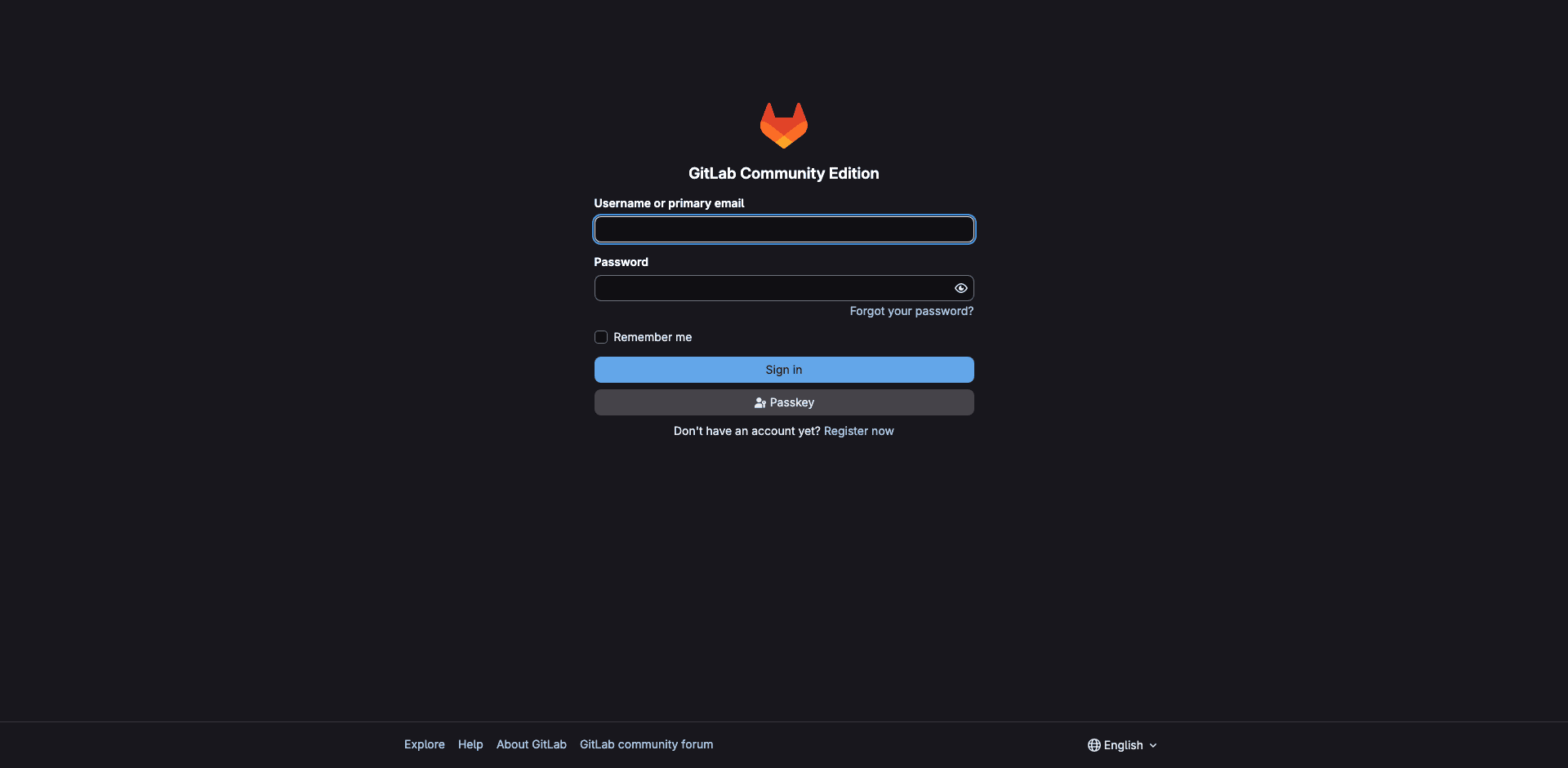
Open your browser and navigate to https://gitlab.example.com. You should see the GitLab Community Edition login page:
Log in with username root and the password from the previous step. After logging in, you’ll see the dashboard with a welcome wizard:
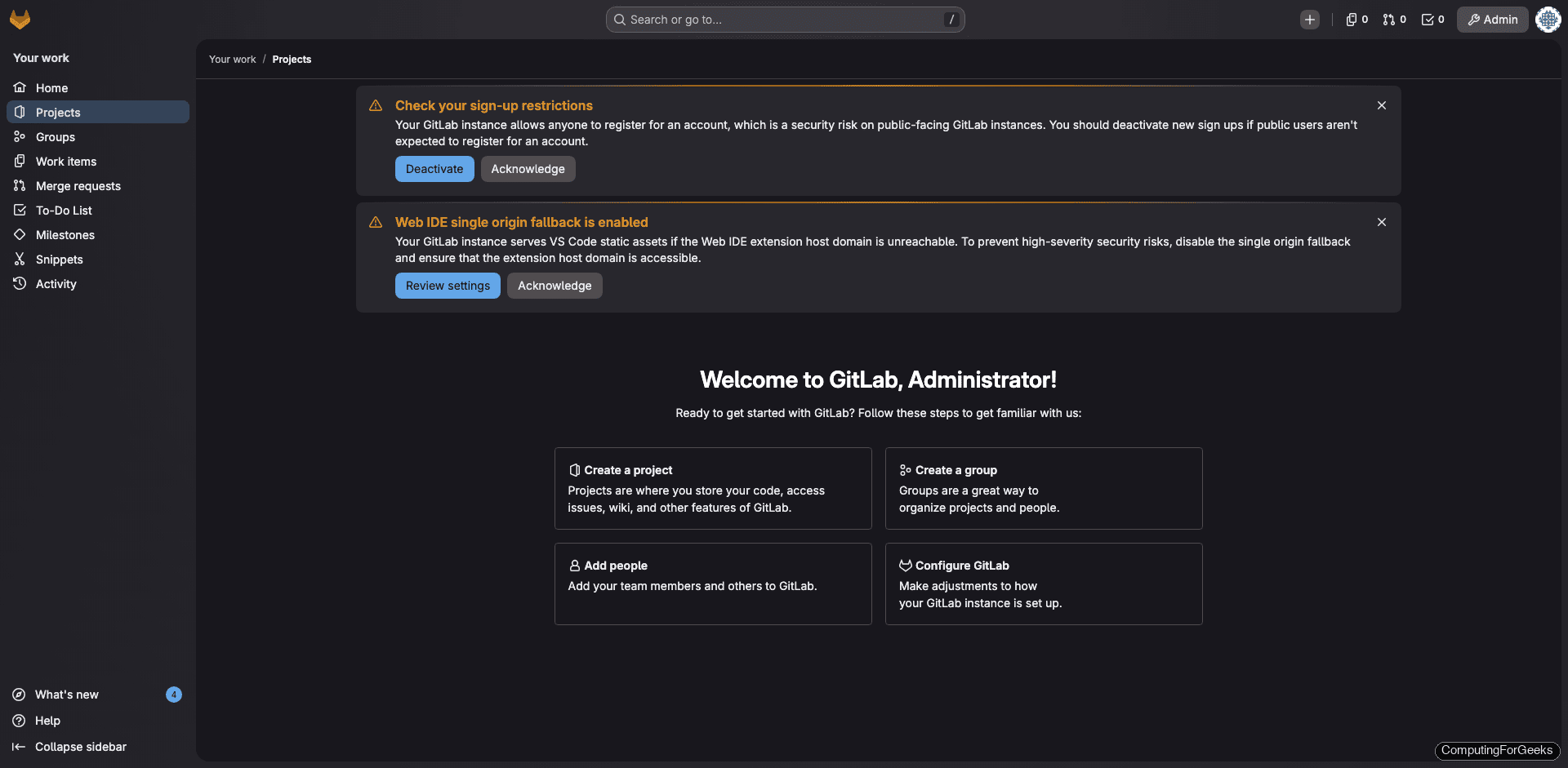
Notice the two warnings at the top: one about sign-up restrictions and one about Web IDE single origin fallback. The sign-up warning is important because by default, anyone can register an account on your instance. We’ll fix that next.
First, change the root password. Go to Edit Profile (click the avatar in the top-left corner), then select Password in the left sidebar. Set a strong password and save.
Disable Public Sign-Up
Unless you intentionally want anyone to create an account, disable open registration immediately. Navigate to Admin Area (the wrench icon), then Settings > General. Scroll down to Sign-up restrictions, expand the section, uncheck Sign-up enabled, and click Save changes.
After disabling sign-up, the login page no longer shows the “Register now” link:

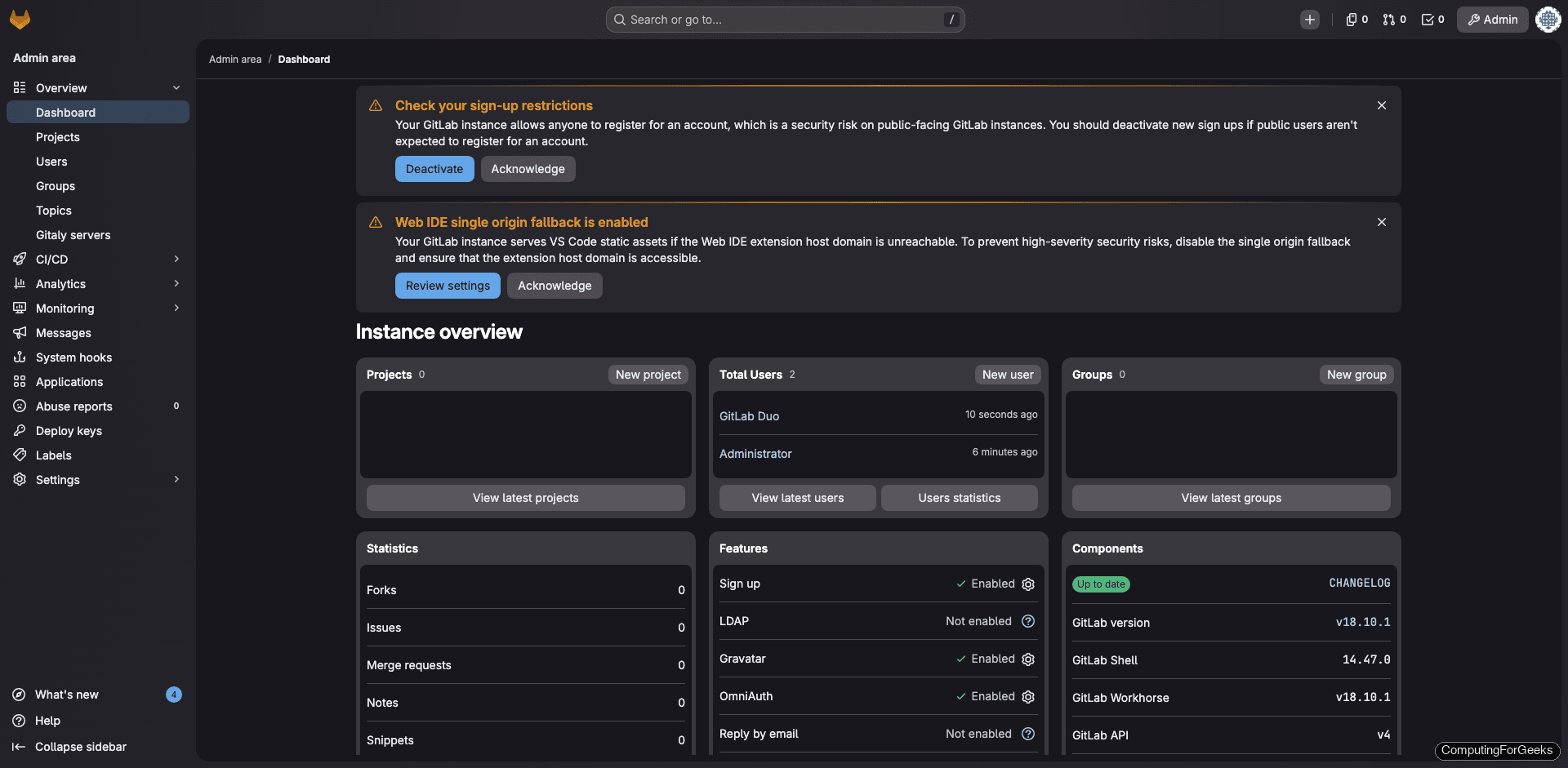
The Admin Area also gives a quick overview of your instance, including components and versions:
Create Your First Project
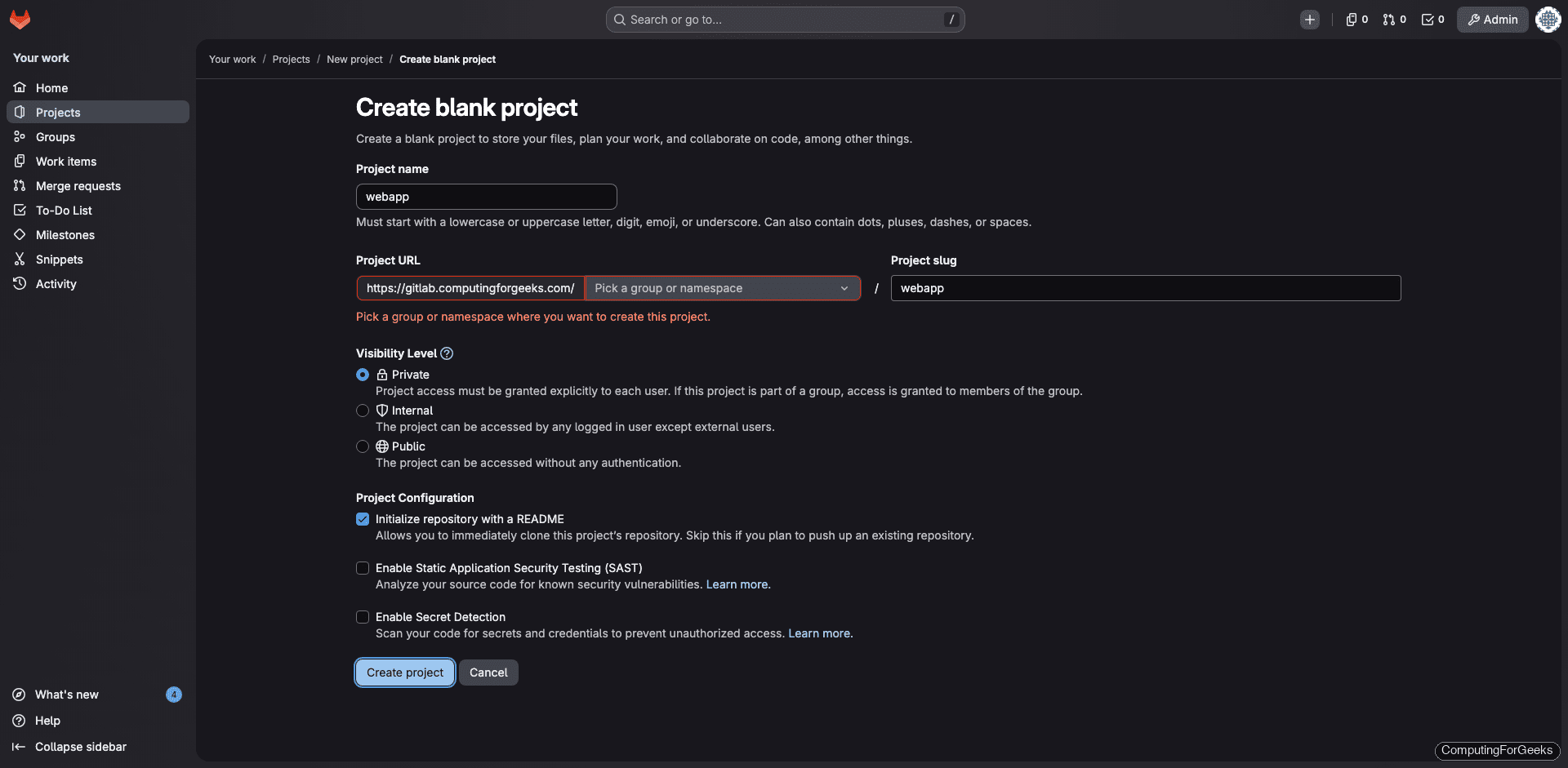
Click New project on the dashboard, then Create blank project. Give it a name, set the visibility, and optionally initialize with a README:
After creation, the project overview shows the repository with your initial files:
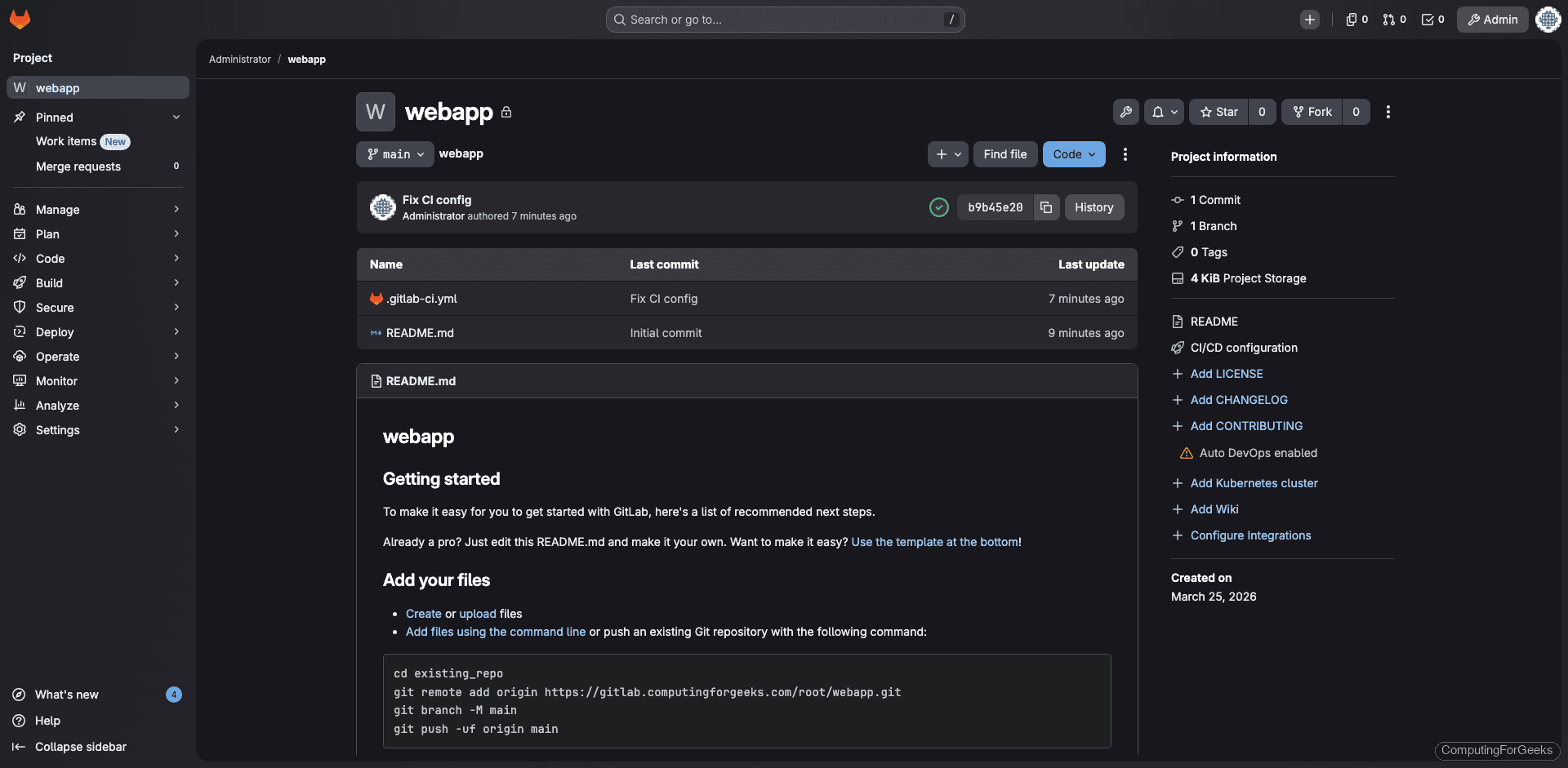
To push code from your local workstation, clone the repo and commit:
git clone https://gitlab.example.com/root/webapp.git
cd webapp
echo "# My Project" > README.md
git add .
git commit -m "Initial commit"
git push -u origin main
If you prefer SSH access, add your public key in Edit Profile > SSH Keys first. For teams, SSH keys are the standard approach since they remove the need for personal access tokens on every push.
Install and Register a GitLab CI/CD Runner
GitLab CI/CD pipelines need a runner to execute jobs. You can install a runner on the same server (for small teams) or on a dedicated build machine. Here we install it on the GitLab host itself.
Add the GitLab Runner repository:
curl -fsSL https://packages.gitlab.com/install/repositories/runner/gitlab-runner/script.deb.sh | sudo bashInstall the runner and Docker (needed for the Docker executor):
sudo apt install -y gitlab-runner docker.io
sudo systemctl enable --now docker
sudo usermod -aG docker gitlab-runner
Confirm the runner version:
gitlab-runner --versionOn our test system this showed:
Version:      18.10.0
Git revision: ac71f4d8
Git branch:   18-10-stable
GO version:   go1.25.7 X:cacheprog
Built:        2026-03-16T14:23:19Z
OS/Arch:      linux/amd64
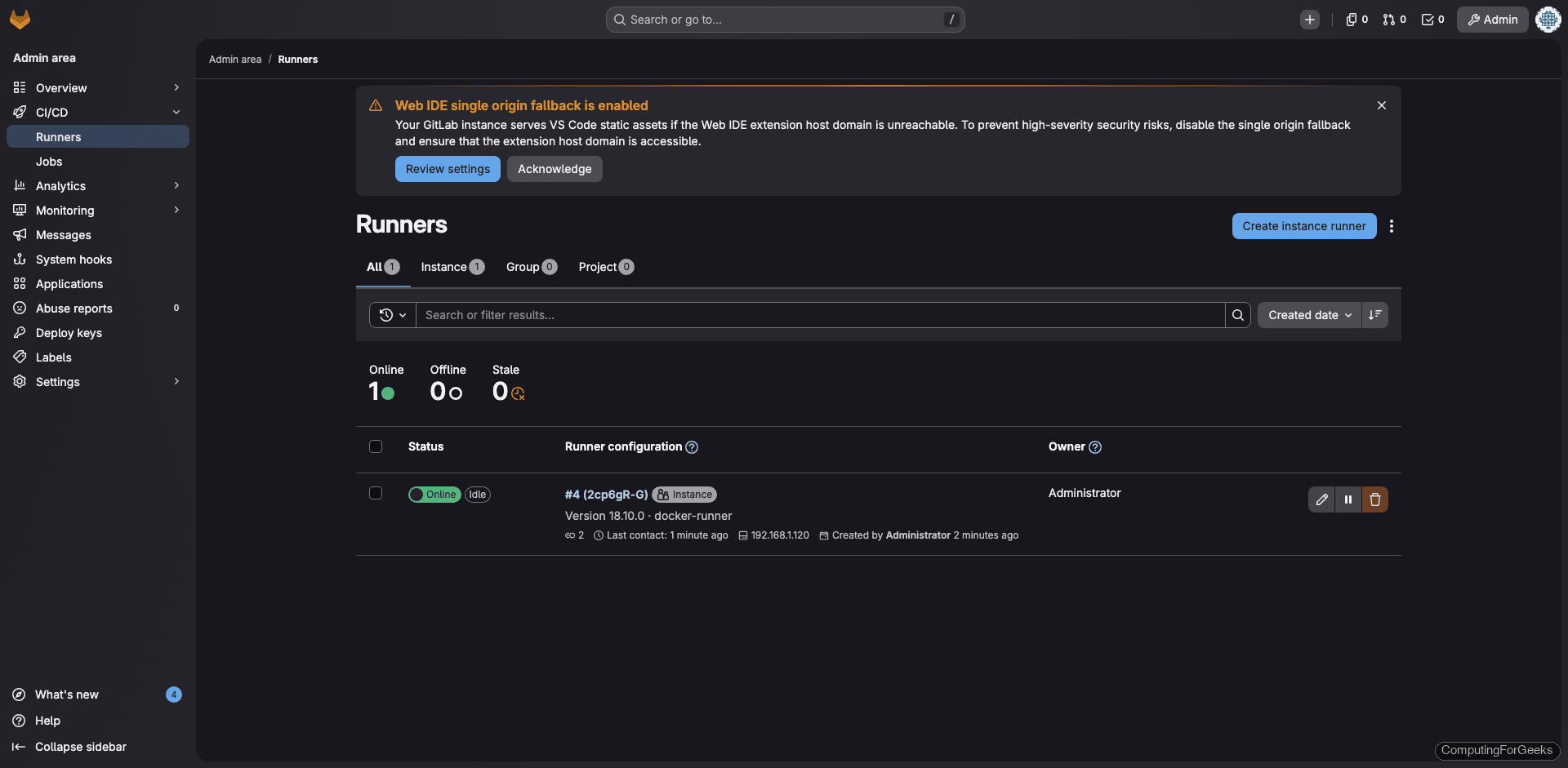
Now create a runner in the web UI. Go to Admin Area > CI/CD > Runners and click Create instance runner. Select your platform (Linux), optionally add tags, and check Run untagged jobs if you want this runner to pick up all jobs. Click Create runner and copy the token.
Register the runner with the token:
sudo gitlab-runner register \
  --non-interactive \
  --url "https://gitlab.example.com" \
  --token "YOUR_RUNNER_TOKEN" \
  --executor "docker" \
  --docker-image "alpine:latest" \
  --name "docker-runner"
A successful registration shows:
Verifying runner... is valid
Runner registered successfully. Feel free to start it, but if it's running already the config should be automatically reloaded!
Configuration (with the authentication token) was saved in "/etc/gitlab-runner/config.toml"
The runner appears in the Admin Area as online with a green indicator:
Test the CI/CD Pipeline
Create a .gitlab-ci.yml file in your project root:
stages:
  - test

hello-job:
  stage: test
  script:
    - echo "Pipeline is working"
    - uname -a
    - cat /etc/os-release | head -3
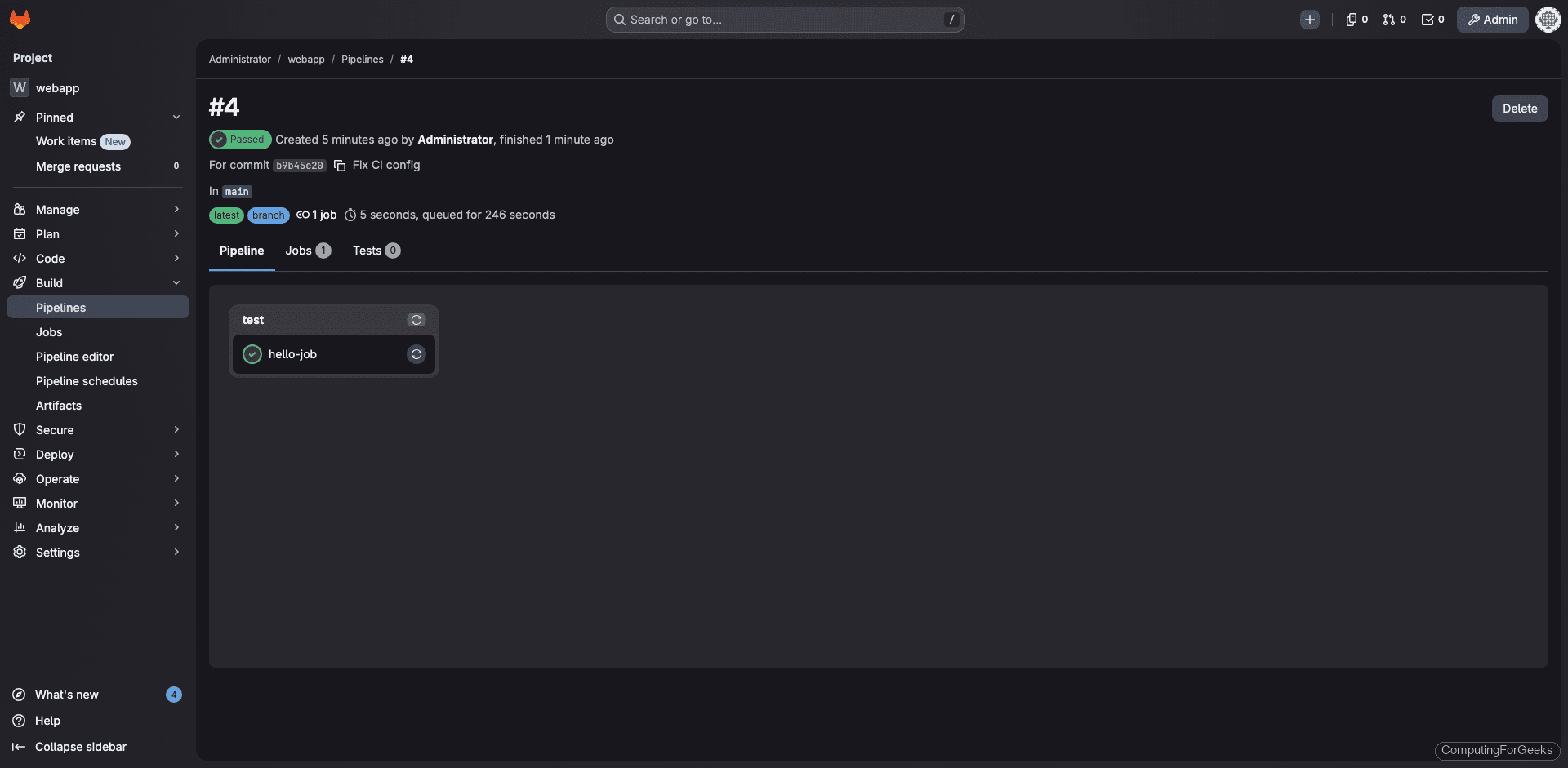
Commit and push. The pipeline triggers automatically and the runner picks it up within seconds. A successful pipeline looks like this:
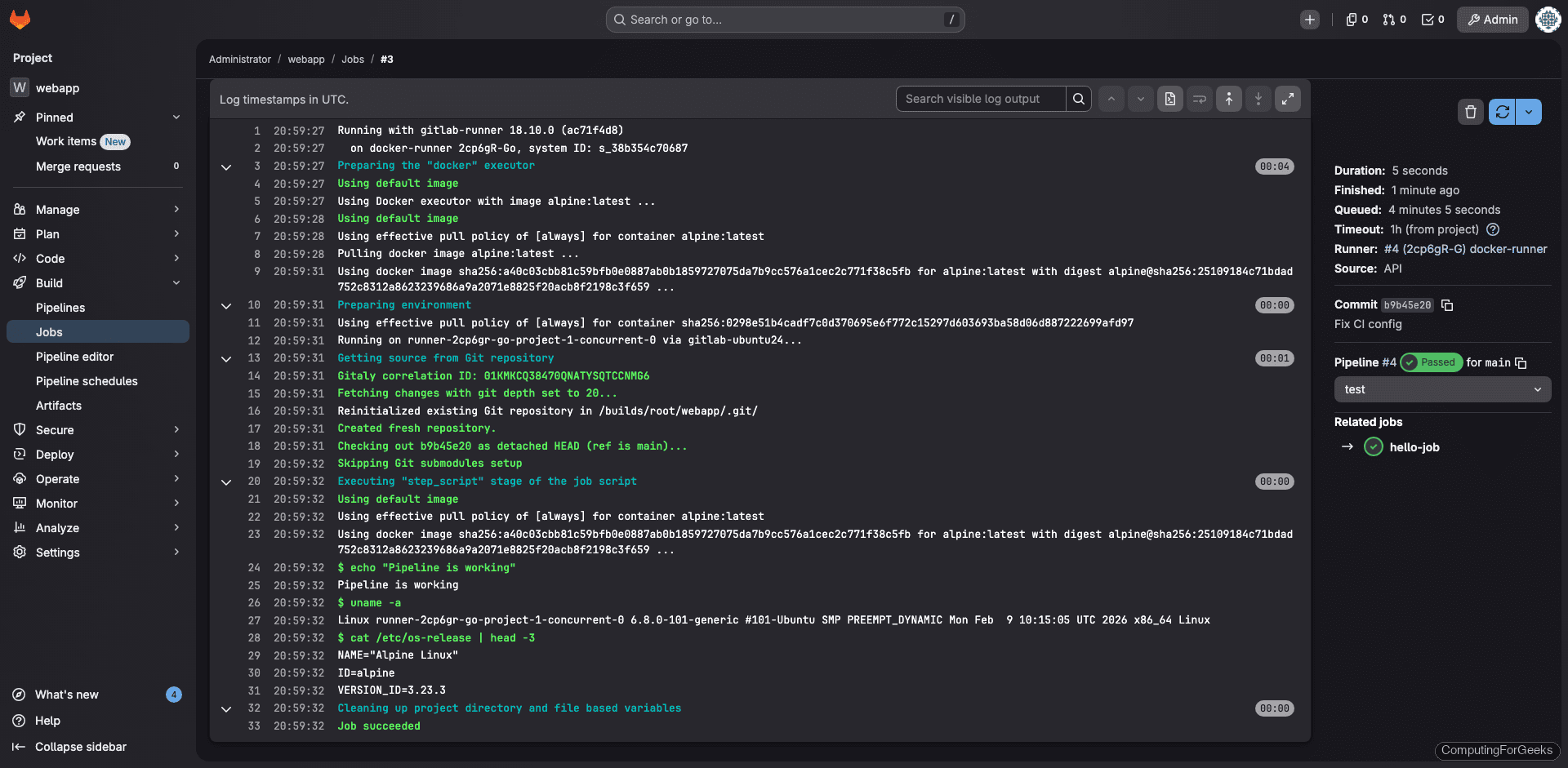
The job log confirms the Docker executor ran the commands inside an Alpine Linux container:
Configure the Container Registry
GitLab ships with a built-in Docker container registry, enabled by default. This lets you build, store, and deploy Docker images directly from your GitLab projects without running a separate registry.
If you want the registry on a separate subdomain (recommended for production), add to /etc/gitlab/gitlab.rb:
sudo vi /etc/gitlab/gitlab.rbAdd the registry configuration:
registry_external_url 'https://registry.example.com'
gitlab_rails['registry_enabled'] = true
registry_nginx['redirect_http_to_https'] = true
Create a DNS A record for registry.example.com pointing to the same server, then apply:
sudo gitlab-ctl reconfigureTest the registry by logging in from a machine with Docker installed:
docker login registry.example.comEnter your GitLab username and a personal access token with read_registry and write_registry scopes. After a successful login, try pushing an image:
docker pull alpine:latest
docker tag alpine:latest registry.example.com/root/webapp/alpine:latest
docker push registry.example.com/root/webapp/alpine:latest
The image will appear in your project under Deploy > Container Registry.
Backup and Restore
Backups are not optional in production. GitLab includes a built-in backup utility that dumps the database, repositories, uploads, and CI/CD artifacts into a single tar file.
Run a manual backup:
sudo gitlab-backup createOn our test instance with one project, the backup completed in about 4 seconds and produced a 800 KB tar file:
2026-03-25 21:02:19 UTC -- Warning: Your gitlab.rb and gitlab-secrets.json files contain sensitive data
and are not included in this backup. You will need these files to restore a backup.
Please back them up manually.
2026-03-25 21:02:19 UTC -- Backup 1774472535_2026_03_25_18.10.1 is done.
Backup files land in /var/opt/gitlab/backups/. You also need to back up two configuration files that are not included in the backup tar:
sudo cp /etc/gitlab/gitlab.rb /var/opt/gitlab/backups/
sudo cp /etc/gitlab/gitlab-secrets.json /var/opt/gitlab/backups/
Without gitlab-secrets.json, you cannot decrypt CI/CD variables, two-factor authentication secrets, or encrypted database columns after a restore. Treat this file with the same care you give to private keys.
To automate daily backups, add a cron entry. Open the crontab:
sudo crontab -eAdd the following line for daily backups at 2:00 AM:
0 2 * * * /opt/gitlab/bin/gitlab-backup create CRON=1 2>&1 | logger -t gitlab-backupSet a retention policy in gitlab.rb to keep 7 days of backups (604800 seconds):
gitlab_rails['backup_keep_time'] = 604800Apply with sudo gitlab-ctl reconfigure.
To restore from a backup on a fresh GitLab install of the same version, stop the database-connected services first:
sudo gitlab-ctl stop puma
sudo gitlab-ctl stop sidekiq
Run the restore, replacing the timestamp with your backup file’s prefix:
sudo gitlab-backup restore BACKUP=1774472535_2026_03_25_18.10.1After the restore, copy your backed-up gitlab.rb and gitlab-secrets.json back to /etc/gitlab/, then reconfigure and restart:
sudo gitlab-ctl reconfigure
sudo gitlab-ctl restart
Verify the Installation
Run the built-in health check to confirm everything is properly configured:
sudo gitlab-rake gitlab:check SANITIZE=trueKey lines to look for in the output:
Database config exists? ... yes
All migrations up? ... yes
GitLab config exists? ... yes
GitLab config up to date? ... yes
Log directory writable? ... yes
Uploads directory exists? ... yes
Redis version >= 6.2.14? ... yes
Ruby version >= 3.0.6 ? ... yes (3.3.10)
Git user has default SSH configuration? ... yes
Active users: ... 1
Is authorized keys file accessible? ... yes
All projects are in hashed storage? ... yes
You can also check the full environment details:
sudo gitlab-rake gitlab:env:infoOur test instance reported:
GitLab information
Version:        18.10.1
Revision:       6bef35b5226
Directory:      /opt/gitlab/embedded/service/gitlab-rails
DB Adapter:     PostgreSQL
DB Version:     16.11
URL:            https://gitlab.computingforgeeks.com
HTTP Clone URL: https://gitlab.computingforgeeks.com/some-group/some-project.git
SSH Clone URL:  [email protected]:some-group/some-project.git
Using LDAP:     no
Using Omniauth: yes
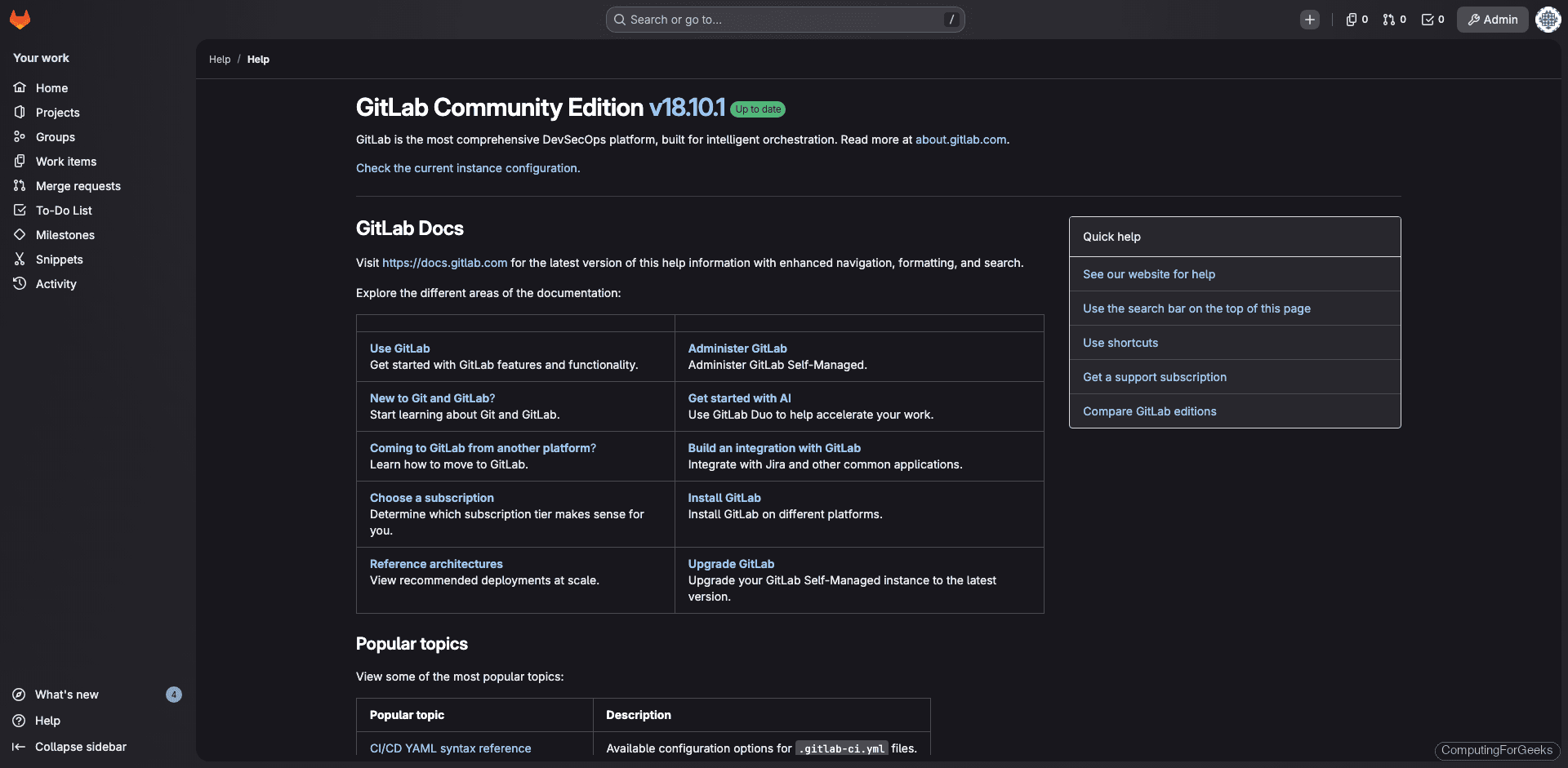
The Help page in the web UI also confirms the version:
Upgrading GitLab CE
GitLab releases new versions monthly. The upgrade process through APT is straightforward. Always take a backup first:
sudo gitlab-backup create
sudo apt update
sudo apt install -y gitlab-ce
The Omnibus package automatically runs gitlab-ctl reconfigure as part of the post-install process, handling database migrations and service restarts.
If you need to upgrade across multiple major versions (for example, from 16.x to 18.x), do not jump directly. GitLab requires you to follow a specific upgrade path and stop at certain intermediate versions. Check the official upgrade documentation before proceeding.
To pin a specific version:
sudo apt install -y gitlab-ce=18.10.1-ce.0Troubleshooting
502 Errors After Installation
A 502 from Nginx means Puma hasn’t finished starting. GitLab can take 2 to 5 minutes to fully boot, especially on servers with limited RAM. Wait a few minutes and refresh.
If the 502 persists, check the Puma logs:
sudo gitlab-ctl tail pumaCommon causes: insufficient memory (run free -h to check), a port conflict with another web server on 80/443, or a Puma socket issue (try sudo gitlab-ctl restart puma).
Let’s Encrypt Certificate Failures
If the ACME challenge fails during gitlab-ctl reconfigure, verify:
- DNS resolves correctly:
dig +short gitlab.example.com - Port 80 is reachable from the internet (Let’s Encrypt always validates over HTTP on port 80)
- No other process is binding port 80:
sudo ss -tlnp | grep :80 - You haven’t exceeded rate limits (5 duplicate certificates per week per domain)
Manually trigger a certificate renewal:
sudo gitlab-ctl renew-le-certsRunner Gets 403 Forbidden When Requesting Jobs
We hit this during testing. If the runner logs show 403 Forbidden on job requests and the runner gets marked “unhealthy”, the most common causes are:
- Stale runner token. If you deleted and recreated a runner in the web UI, the old token in
/etc/gitlab-runner/config.tomlis invalid. Rungitlab-runner unregister --all-runnersand re-register with the new token. - Tag mismatch. If you assigned tags during registration but your
.gitlab-ci.ymljobs don’t reference those tags, the runner won’t pick them up. Either add matching tags to your jobs or enable “Run untagged jobs” in the runner settings. - Docker socket permission. The
gitlab-runneruser needs access to/var/run/docker.sock. Confirm withsudo -u gitlab-runner docker ps.
Check runner logs for detailed errors:
sudo journalctl -u gitlab-runner -fHigh Memory Usage
GitLab is memory-hungry by design. On our 8 GB test server, it used 6.1 GB with just one project and a handful of pipelines. On a 4 GB server, you’ll be hitting swap constantly. If you’re seeing OOM kills, tune these settings in /etc/gitlab/gitlab.rb:
## Reduce Puma workers (default is auto-detected based on CPU cores)
puma['worker_processes'] = 2

## Reduce Sidekiq concurrency
sidekiq['concurrency'] = 10

## Disable monitoring if not needed (saves 300-500 MB)
prometheus_monitoring['enable'] = false
alertmanager['enable'] = false
grafana['enable'] = false
Apply with sudo gitlab-ctl reconfigure. If you still need headroom, add swap as a safety net:
sudo fallocate -l 4G /swapfile
sudo chmod 600 /swapfile
sudo mkswap /swapfile
sudo swapon /swapfile
echo '/swapfile none swap sw 0 0' | sudo tee -a /etc/fstab
Swap is not a replacement for actual RAM, but it prevents hard OOM kills during memory spikes from large Git operations or CI/CD bursts.
Production Hardening
A few additional steps to lock down your GitLab instance:
- Enforce two-factor authentication (2FA) under Admin Area > Settings > General > Sign-in restrictions. For any team handling sensitive code, this is non-negotiable.
- Set a session timeout. The default is 7 days (10080 minutes), which is generous. A 60-minute timeout is a reasonable starting point for most teams.
- Restrict project visibility defaults to Internal or Private. Public projects on a self-hosted instance are rarely what you want.
- Enable audit logging and review it periodically. GitLab CE provides basic audit events under Admin Area > Monitoring > Audit Events.
- Set up external object storage (S3-compatible) for uploads, artifacts, and LFS objects if your repository sizes are growing. This prevents the local disk from filling up.
- Rate-limit the API under Admin Area > Settings > Network > User and IP rate limits. This protects against credential stuffing and brute-force attacks on the login page.
Debian 13 Notes
The installation process on Debian 13 (Trixie) is identical to Ubuntu 24.04. The script.deb.sh repository setup script auto-detects Debian and configures the correct APT source. All apt commands, service names, and file paths are the same. The only differences you might notice:
For RHEL-based systems, see our GitLab installation guide for Rocky Linux and AlmaLinux. After installation, configure a GitLab Runner and follow the CI/CD pipeline tutorial to start automating.
- Debian 13 uses
nftablesas the default firewall backend rather thaniptables. If you’re usingufw, it works the same way on both distributions. - The SSH service is named
sshon both Ubuntu 24.04 and Debian 13. - Postfix configuration dialogs may differ slightly in wording, but the “Internet Site” option remains the correct choice.

Hi Josphat,
I try to start a test installation. So I installed GitLab ce inside a docker container from image
https://github.com/fcwu/docker-ubuntu-vnc-desktop
Everithing went fine, all gitlab services are running. External URL was set to http://gitlab.example.com, but when I try to access http://gitlab.example.com via browser, the site could not be found. localhost:80 will cascade the desctop image.
Every hint will be appreciated.
Cheers
Did you configure DNS?.
gitlab.example.comshould be replaced with your actual domain.