

Frigate is an open-source network video recorder (NVR) with real-time AI object detection built in. It runs person, car, and animal detection locally on your hardware – no cloud subscriptions, no data leaving your network. Version 0.17 added face recognition, license plate reading, and semantic search that lets you find events by describing what happened in plain English.
This guide covers installing Frigate 0.17 with Docker on Ubuntu 24.04 or Debian 13. We set up Mosquitto MQTT for event messaging, configure cameras with RTSP streams, enable AI detection, and integrate with Home Assistant. The full project source is on GitHub with excellent documentation.
Prerequisites
- Ubuntu 24.04 LTS or Debian 13 (server or desktop)
- Docker and Docker Compose installed (install Docker on Ubuntu/Debian)
- 4 GB RAM minimum (8 GB recommended for face recognition and LPR)
- IP cameras with RTSP support on the same network
- Dedicated storage for recordings (calculate ~5-15 GB/day per 1080p camera with motion-only recording, ~40 GB/day for continuous)
- Optional: Intel GPU (6th gen+) for hardware-accelerated video decoding, Google Coral or Hailo-8 for faster AI inference
Step 1: Create the Project Directory
Create a directory structure for Frigate, Mosquitto MQTT broker, and media storage. Keep everything under one project root for easy management with Docker Compose.
sudo mkdir -p /opt/frigate/{config,media,mosquitto/{config,data,log}}Step 2: Configure Mosquitto MQTT Broker
Frigate uses MQTT to publish detection events, camera status updates, and statistics. Mosquitto is a lightweight broker that handles this messaging. Create the configuration file:
sudo vi /opt/frigate/mosquitto/config/mosquitto.confAdd the following configuration for a basic MQTT setup. For production, enable authentication by setting allow_anonymous false and creating a password file with mosquitto_passwd:
persistence true
persistence_location /mosquitto/data/

log_dest stdout
log_type error
log_type warning
log_type notice

# Set to false and configure password_file for production
allow_anonymous true

listener 1883
protocol mqtt

listener 9001
protocol websockets
Step 3: Create the Frigate Configuration
The Frigate configuration file controls everything – MQTT connection, camera streams, detection settings, recording policies, and AI features. This is the most important file in the entire setup.
sudo vi /opt/frigate/config/config.ymlStart with this production-ready configuration. Replace the camera RTSP URLs with your actual camera streams (see the RTSP URL Reference section below for your camera brand):
mqtt:
  enabled: true
  host: mosquitto
  port: 1883
  topic_prefix: frigate
  client_id: frigate
  stats_interval: 60

database:
  path: /config/frigate.db

# Birdseye combines all camera feeds into a single view
birdseye:
  enabled: true
  mode: continuous

# Global detection settings (override per camera if needed)
detect:
  enabled: true
  width: 1280
  height: 720
  fps: 5

# Objects to track across all cameras
objects:
  track:
    - person
    - car
    - dog
    - cat

# Recording settings
record:
  enabled: true
  retain:
    days: 7
    mode: motion

# Snapshot settings
snapshots:
  enabled: true
  timestamp: true
  bounding_box: true
  retain:
    default: 7

# go2rtc handles WebRTC streaming and RTSP restreaming
go2rtc:
  streams:
    front_door: rtsp://admin:[email protected]:554/Streaming/Channels/101
    backyard: rtsp://admin:[email protected]:554/Streaming/Channels/101
  webrtc:
    candidates:
      - 192.168.1.100:8555  # Replace with your server IP

# Camera definitions - use direct RTSP URLs to your cameras
cameras:
  front_door:
    enabled: true
    ffmpeg:
      inputs:
        - path: rtsp://admin:[email protected]:554/Streaming/Channels/101
          input_args: preset-rtsp-restream
          roles:
            - detect
            - record
      hwaccel_args: preset-vaapi  # Intel GPU acceleration (remove if no Intel GPU)
    detect:
      enabled: true
      width: 1280
      height: 720
      fps: 5
    record:
      enabled: true
      retain:
        days: 7
        mode: motion
    snapshots:
      enabled: true
      timestamp: true
      bounding_box: true
    ui:
      order: 1

  backyard:
    enabled: true
    ffmpeg:
      inputs:
        - path: rtsp://admin:[email protected]:554/Streaming/Channels/101
          input_args: preset-rtsp-restream
          roles:
            - detect
            - record
      hwaccel_args: preset-vaapi
    detect:
      enabled: true
      width: 1280
      height: 720
      fps: 5
    record:
      enabled: true
      retain:
        days: 7
        mode: motion
    snapshots:
      enabled: true
      bounding_box: true
    ui:
      order: 2

ui:
  timezone: America/New_York

version: 0.16-0
Key configuration notes:
- go2rtc streams – define RTSP sources here for WebRTC live viewing in the browser. Camera names must match between go2rtc streams and the cameras section
- preset-rtsp-restream – optimized FFmpeg input args for go2rtc restreamed sources
- preset-vaapi – enables Intel GPU hardware decoding. Remove this line if you do not have an Intel GPU
- mode: motion – only retains recordings where motion was detected, saving significant storage
- version: 0.16-0 – required config version field for Frigate 0.16+
Step 4: Create the Docker Compose File
The Docker Compose file ties Mosquitto and Frigate together. Frigate needs privileged mode to access hardware devices (GPU, USB Coral) and uses a tmpfs mount for cache to reduce disk I/O.
sudo vi /opt/frigate/docker-compose.ymlAdd the following configuration:
networks:
  frigate-net:
    driver: bridge

services:
  mosquitto:
    container_name: mosquitto
    image: eclipse-mosquitto:latest
    restart: unless-stopped
    networks:
      - frigate-net
    ports:
      - "1883:1883"
      - "9001:9001"
    volumes:
      - ./mosquitto/config:/mosquitto/config
      - ./mosquitto/data:/mosquitto/data
      - ./mosquitto/log:/mosquitto/log

  frigate:
    container_name: frigate
    image: ghcr.io/blakeblackshear/frigate:stable
    restart: unless-stopped
    privileged: true
    networks:
      - frigate-net
    ports:
      - "5000:5000"   # Web UI
      - "8554:8554"   # RTSP restream
      - "8555:8555/tcp"  # WebRTC (TCP)
      - "8555:8555/udp"  # WebRTC (UDP)
    volumes:
      - ./config:/config
      - ./media:/media/frigate
      - type: tmpfs
        target: /tmp/cache
        tmpfs:
          size: 1000000000  # 1GB cache
    shm_size: "256mb"
    devices:
      - /dev/dri/renderD128  # Intel GPU (remove if not available)
    environment:
      - TZ=America/New_York
    depends_on:
      - mosquitto
    deploy:
      resources:
        limits:
          memory: 8G
If you do not have an Intel GPU, remove the devices section and the hwaccel_args lines from config.yml. Frigate works fine with CPU-only decoding for a few cameras.
Step 5: Deploy Frigate
Pull the container images and start the services. The Frigate image is approximately 7.5 GB, so the initial pull takes a few minutes depending on your internet speed.
cd /opt/frigate
sudo docker compose pull
sudo docker compose up -d
Verify both containers are running and healthy:
sudo docker ps --format "table {{.Names}}\t{{.Status}}\t{{.Image}}"Both containers should show “Up” status. Frigate takes about 15-20 seconds to initialize before showing “healthy”:
NAMES       STATUS                  IMAGE
frigate     Up 30 seconds (healthy) ghcr.io/blakeblackshear/frigate:stable
mosquitto   Up 30 seconds           eclipse-mosquitto:latest
Check the Frigate startup logs for any configuration errors:
sudo docker logs frigate 2>&1 | tail -20A successful startup shows go2rtc initializing, the RTSP and WebRTC listeners starting, and the FastAPI web server ready:
[INFO] Starting NGINX...
[INFO] Preparing Frigate...
[INFO] Starting go2rtc...
[INFO] Starting Frigate...
INF go2rtc platform=linux/amd64 version=1.9.10
INF [rtsp] listen addr=:8554
INF [api] listen addr=:1984
INF [webrtc] listen addr=:8555
[INFO] Starting FastAPI app
[INFO] FastAPI started
Step 6: Access Frigate Web UI
Open your browser and navigate to http://YOUR-SERVER-IP:5000. On first launch, Frigate generates an admin password and displays it in the logs:
sudo docker logs frigate 2>&1 | grep -i passwordThe output shows the auto-generated admin password. Save it – you need it to log in:
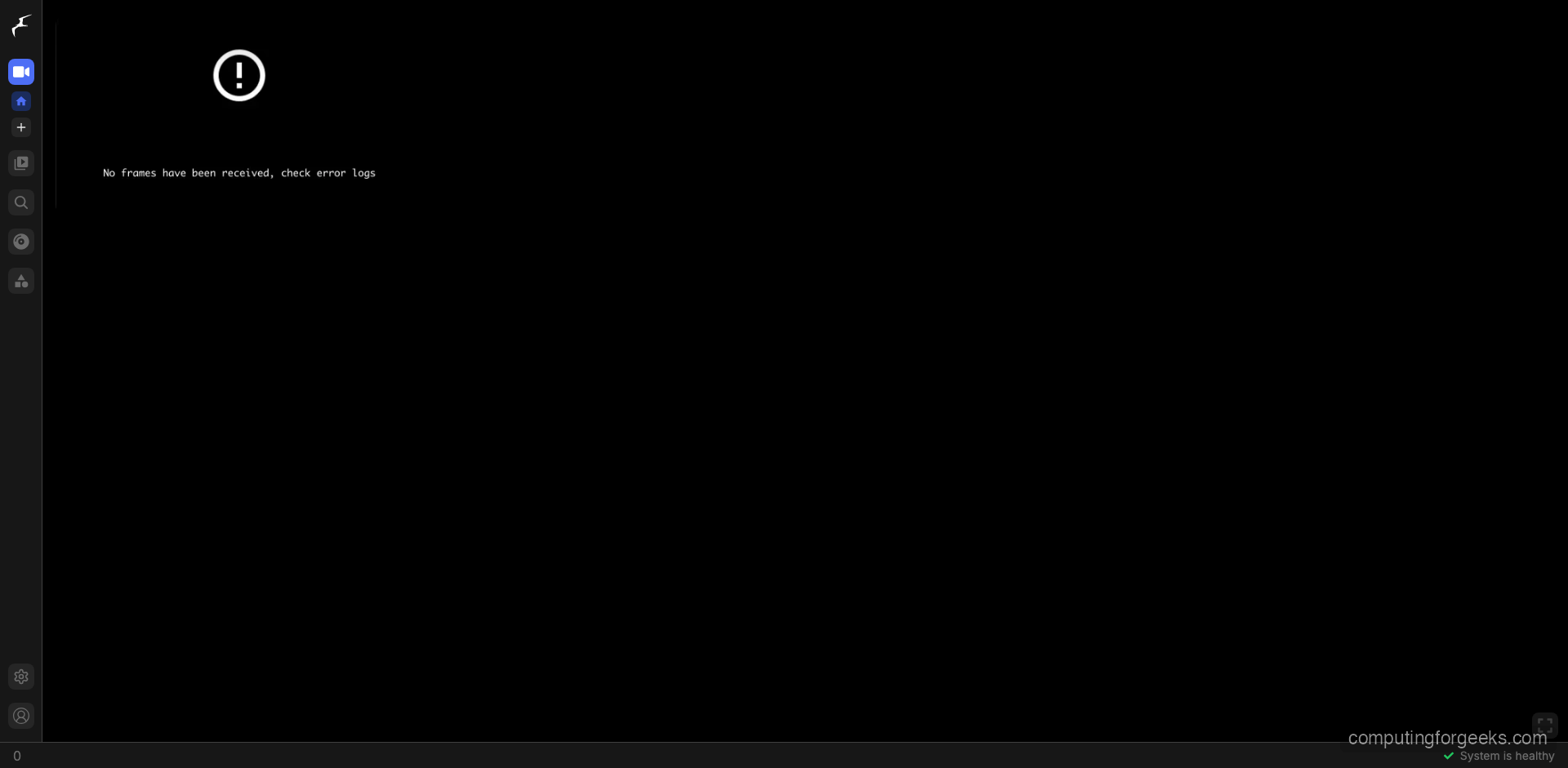
*** Password: 843771cf4c18b0cd6d70d2e2b67025fc ***The Frigate dashboard shows live camera feeds, detection status, and a sidebar with navigation to cameras, review (detected events), search, notifications, and settings. The bottom-right corner shows “System is healthy” when everything is working correctly.
Step 7: Discover Cameras on Your Network
Before configuring cameras in Frigate, you need to find their RTSP stream URLs. Most IP cameras use RTSP on port 554 but each brand has a different URL path format.
Scan for RTSP devices with nmap
Scan your local network for devices with port 554 (RTSP) open. This finds all IP cameras, NVRs, and any other RTSP-capable devices:
sudo apt install -y nmap
nmap -p 554 192.168.1.0/24 --open
The output lists every device with port 554 open – these are your camera candidates:
Nmap scan report for 192.168.1.50
PORT    STATE SERVICE
554/tcp open  rtsp

Nmap scan report for 192.168.1.51
PORT    STATE SERVICE
554/tcp open  rtsp
Test RTSP streams with ffprobe
Once you know a camera’s IP, test the RTSP URL with ffprobe to verify connectivity and stream details:
ffprobe -rtsp_transport tcp rtsp://admin:[email protected]:554/Streaming/Channels/101A successful connection shows the video codec, resolution, and frame rate. If it fails, try different URL paths from the reference table below.
ONVIF discovery with Python
For ONVIF-compliant cameras (most modern IP cameras), use the python-onvif-zeep library to auto-discover stream URLs:
pip install onvif-zeep
python3 -c "
from onvif import ONVIFCamera
cam = ONVIFCamera('192.168.1.50', 80, 'admin', 'password')
media = cam.create_media_service()
profiles = media.GetProfiles()
for p in profiles:
    uri = media.GetStreamUri({'StreamSetup': {'Stream': 'RTP-Unicast', 'Transport': {'Protocol': 'RTSP'}}, 'ProfileToken': p.token})
    print(f'{p.Name}: {uri.Uri}')
"
Step 8: Camera RTSP URL Reference
Each camera manufacturer uses different RTSP URL paths. Use this table to find the correct format for your cameras. If your camera is a generic Chinese brand, try the Hikvision format first – most are Hikvision OEM clones.
Hikvision / Chinese OEM (most generic Chinese cameras use this format):
# Main stream (high quality)
rtsp://user:pass@IP:554/Streaming/Channels/101
# Sub stream (low quality, use for detect role)
rtsp://user:pass@IP:554/Streaming/Channels/102
Dahua / Amcrest (Amcrest uses the same Dahua protocol):
# Main stream
rtsp://user:pass@IP:554/cam/realmonitor?channel=1&subtype=0
# Sub stream
rtsp://user:pass@IP:554/cam/realmonitor?channel=1&subtype=1Reolink:
# Main stream
rtsp://user:pass@IP:554/Preview_01_main
# Sub stream
rtsp://user:pass@IP:554/Preview_01_sub
TP-Link Tapo (create camera account in Tapo app first – Settings, Advanced, Camera Account):
# High quality
rtsp://user:pass@IP:554/stream1
# Standard quality
rtsp://user:pass@IP:554/stream2
UniFi Protect / Ubiquiti (enable RTSP per camera in UniFi Protect settings first):
# Secure RTSP (default)
rtsps://IP:7441/CAMERA_ID?enableSrtp
# Unencrypted RTSP
rtsp://IP:7447/CAMERA_IDAxis:
# Default H.264 stream
rtsp://user:pass@IP:554/axis-media/media.amp
# With specific codec and resolution
rtsp://user:pass@IP:554/axis-media/media.amp?videocodec=h264&resolution=1920x1080
For Hikvision-format cameras, the channel numbering is: first digit = channel number, second digit = stream type (1 = main, 2 = sub). So channel 2 main stream is /Streaming/Channels/201.
TP-Link Tapo cameras require creating a separate camera account in the Tapo app (different from your Tapo cloud account). Go to Camera Settings, then Advanced Settings, then Camera Account to set it up.
Step 9: Configure Hardware Acceleration
Hardware acceleration offloads video decoding from the CPU to the GPU, dramatically reducing CPU usage. Without it, each 1080p camera stream uses about 15-20% of a single CPU core for decoding alone.
Check if your Intel GPU is available in the container:
ls -la /dev/dri/You should see renderD128 (or similar). If it exists, Intel VAAPI acceleration is available. Verify the driver works:
sudo apt install -y vainfo
vainfo
Add the GPU device to your Docker Compose and set the acceleration preset in config.yml:
| GPU Type | Docker Device | Config Preset |
|---|---|---|
| Intel Gen 6-7 | /dev/dri/renderD128 | preset-vaapi |
| Intel Gen 8+ | /dev/dri/renderD128 | preset-intel-qsv-h264 or preset-intel-qsv-h265 |
| NVIDIA | Use nvidia-docker runtime | preset-nvidia |
| AMD | /dev/dri/renderD128 | Set LIBVA_DRIVER_NAME=radeonsi |
| No GPU | Remove devices section | Remove hwaccel_args line |
Step 10: Configure Object Detection Zones
Zones let you define specific areas of the camera frame for focused detection. For example, ignore the street and only detect people in your driveway. Add zones to a camera definition in config.yml:
cameras:
  front_door:
    zones:
      driveway:
        coordinates: 0.2,0.4,0.8,0.4,0.8,1.0,0.2,1.0
        objects:
          - person
          - car
      porch:
        coordinates: 0.0,0.0,0.3,0.0,0.3,0.5,0.0,0.5
        objects:
          - person
          - dog
Coordinates are normalized (0.0 to 1.0) relative to the detection frame. Use the Frigate web UI’s mask editor to draw zones visually instead of calculating coordinates manually.
Motion masks prevent detection in areas with constant motion (trees blowing, traffic). Add under the camera definition:
cameras:
  front_door:
    motion:
      mask:
        - 0.0,0.0,0.15,0.0,0.15,0.3,0.0,0.3  # Block top-left (tree)
Step 11: Configure Recording and Retention
Frigate supports three recording modes. Choose based on your storage capacity and monitoring needs:
| Mode | What it Records | Storage per Camera/Day (1080p) |
|---|---|---|
all | Everything, 24/7 | ~40-45 GB |
motion | Only when motion is detected | ~5-15 GB |
active_objects | Only when tracked objects are present | ~2-8 GB |
For a typical 4-camera home setup with motion-only recording, plan for about 40-60 GB per day total. A 2 TB drive gives you roughly 30+ days of retention.
Step 12: Enable Face Recognition
Frigate 0.16+ includes built-in face recognition that identifies known people in camera feeds. It first detects a person object, then scans the face against your trained library. Requires a CPU with AVX2 instructions and at least 8 GB RAM.
Add to your config.yml:
face_recognition:
  enabled: true
  model_size: small  # small=FaceNet (CPU), large=ArcFace (GPU recommended)
  min_area: 500      # Minimum face pixel area to attempt recognition
Train faces through the Frigate web UI by navigating to a detected person event, clicking the face, and assigning a name. Upload 5-10 photos of each person from different angles for best results. Recognized faces appear as sub-labels on person events.
Step 13: Enable License Plate Recognition
License plate recognition (LPR) uses YOLOv9 for plate detection and PaddleOCR for text reading. All processing runs locally. Requires 4 GB+ RAM and AVX2-capable CPU.
lpr:
  enabled: true
For best results, ensure your camera captures license plates at a resolution where the plate occupies at least 100 pixels wide. Position cameras at a slight angle rather than head-on to reduce glare. Recognized plates appear as sub-labels on car events.
Step 14: Integrate with Home Assistant
Frigate integrates natively with Home Assistant through the official Frigate integration. This gives you camera feeds, event notifications, and automation triggers in your smart home dashboard.
Install HACS (if not already installed)
HACS (Home Assistant Community Store) is required to install the Frigate integration. Run this inside your Home Assistant container:
docker exec homeassistant bash -c "wget -O - https://get.hacs.xyz | bash -"
docker restart homeassistant
Install Frigate Integration
After HACS is set up in the Home Assistant UI:
- Go to HACS in the sidebar, click Integrations
- Search for “Frigate” and download
- Restart Home Assistant
- Go to Settings, Devices & Services, Add Integration
- Search “Frigate” and enter the URL:
http://frigate:5000(if on the same Docker network) orhttp://YOUR-SERVER-IP:5000
Once connected, each Frigate camera appears as a Home Assistant camera entity with live feed, and detection events trigger automations. Example automation – send a notification when a person is detected at the front door:
automation:
  - alias: "Front Door Person Alert"
    trigger:
      - platform: mqtt
        topic: frigate/events
    condition:
      - condition: template
        value_template: "{{ trigger.payload_json.after.label == 'person' }}"
      - condition: template
        value_template: "{{ trigger.payload_json.after.camera == 'front_door' }}"
    action:
      - service: notify.mobile_app_phone
        data:
          title: "Person Detected"
          message: "Someone is at the front door"
          data:
            image: "https://YOUR-SERVER:5000/api/events/{{ trigger.payload_json.after.id }}/snapshot.jpg"
Step 15: Configure Firewall
Open the required ports for Frigate’s web UI, RTSP restreaming, and WebRTC. If you use UFW:
sudo ufw allow 5000/tcp comment "Frigate Web UI"
sudo ufw allow 8554/tcp comment "Frigate RTSP restream"
sudo ufw allow 8555/tcp comment "Frigate WebRTC TCP"
sudo ufw allow 8555/udp comment "Frigate WebRTC UDP"
sudo ufw allow 1883/tcp comment "MQTT"
sudo ufw reload
For firewalld on RHEL/Rocky systems:
sudo firewall-cmd --permanent --add-port={5000,8554,8555,1883}/tcp
sudo firewall-cmd --permanent --add-port=8555/udp
sudo firewall-cmd --reload
System Requirements Reference
Use this table to size your Frigate server based on the number of cameras and features you plan to enable:
| Setup | CPU | RAM | Storage (7 days) |
|---|---|---|---|
| 1-4 cameras, basic detection | Any modern 4-core | 4 GB | 500 GB |
| 4-8 cameras, face recognition | Intel N100 or i3 10th gen+ | 8 GB | 1 TB |
| 8-16 cameras, all AI features | Intel i5/i7 12th gen+ | 16 GB | 2-4 TB |
| 16+ cameras, enterprise | Intel i7/Xeon + Coral/Hailo | 32 GB | 4+ TB NVR drives |
Frigate vs Other NVR Solutions
Choosing an NVR depends on your platform, budget, and AI requirements. Here is how Frigate compares to the main alternatives:
| Feature | Frigate | Blue Iris | Shinobi | ZoneMinder |
|---|---|---|---|---|
| Platform | Docker (Linux/macOS) | Windows only | Docker/Node.js | Linux |
| License | Free, open source | $70 one-time | Free, open source | Free, open source |
| AI Detection | Built-in (person, car, etc.) | Via CodeProject.AI | Via plugins | No |
| Face Recognition | Built-in | Third-party | No | No |
| License Plate | Built-in | Third-party | No | No |
| Home Assistant | Native integration | Via add-on | Via API | Via API |
| Setup | Moderate (YAML) | Easiest (GUI) | Moderate | Complex |
| Active Development | Very active | Active | Slower | Slower |
Conclusion
Frigate 0.17 is installed and configured with Docker, MQTT messaging, AI object detection, and camera streams. For a production deployment, mount your recording storage on a dedicated NVR-rated drive (WD Purple or Seagate SkyHawk), put the server behind a UPS for power outage protection, and use a reverse proxy with SSL if accessing Frigate remotely. Enable face recognition and license plate reading only after confirming your hardware meets the AVX2 and RAM requirements – these features are CPU-intensive and will degrade performance on underpowered machines.
