

Elasticsearch 7.17 is the final maintenance branch of the 7.x series, and a large number of production clusters still run it. Whether you’re standing up a new logging stack or matching an existing environment, the 7.17 line remains fully supported with security patches and bug fixes from Elastic.
This guide walks through a complete ELK deployment (Elasticsearch, Logstash, Kibana) on Debian 13 and Debian 12. Every command has been tested on both releases. If you’re looking for version 8 instead, see the guides for Elasticsearch 8 on Ubuntu or Elasticsearch 8 on Rocky Linux / RHEL.
Tested March 2026 | Debian 13 (trixie), Debian 12 (bookworm), Elasticsearch 7.17.29, Kibana 7.17.29, Logstash 7.17.29
Prerequisites
Before starting, confirm that your environment meets these requirements:
- Debian 13 (trixie) or Debian 12 (bookworm) with root or sudo access
- Minimum 4 GB RAM (Elasticsearch alone uses ~2.4 GB with the default heap)
- Ports 9200 (Elasticsearch HTTP), 9300 (Elasticsearch transport), 5601 (Kibana), and 9600 (Logstash monitoring API)
- A stable internet connection to pull packages from Elastic’s repository
The ELK stack ships with a bundled JDK (OpenJDK 22.0.2 in 7.17.29), so you do not need to install Java separately.
Add the Elastic 7.x Repository
Elastic publishes Debian packages through their own APT repository. Start by importing the GPG signing key:
curl -fsSL https://artifacts.elastic.co/GPG-KEY-elasticsearch | sudo gpg --dearmor -o /usr/share/keyrings/elastic-7.x.gpgNow add the 7.x repository to your sources list:
echo "deb [signed-by=/usr/share/keyrings/elastic-7.x.gpg] https://artifacts.elastic.co/packages/7.x/apt stable main" | sudo tee /etc/apt/sources.list.d/elastic-7.x.listUpdate the package index so APT picks up the new repository:
sudo apt updateYou should see artifacts.elastic.co in the output, confirming the repo is active.
Install and Configure Elasticsearch
Install Elasticsearch from the repository you just added:
sudo apt install -y elasticsearchOpen the main configuration file:
sudo vi /etc/elasticsearch/elasticsearch.ymlSet the cluster name, node name, and network binding. For a single-node setup, keep the network host on localhost and set the discovery type accordingly:
cluster.name: elk-lab
node.name: node-1
network.host: 127.0.0.1
discovery.type: single-node
Tune the JVM Heap
Elasticsearch defaults to 1 GB of heap memory, which is usually too low for anything beyond trivial testing. On a 4 GB system, setting the heap to half the available RAM is a good starting point:
sudo vi /etc/elasticsearch/jvm.optionsFind the -Xms and -Xmx lines and adjust them:
-Xms2g
-Xmx2g
Keep both values identical to avoid heap resizing at runtime. Start and enable the service:
sudo systemctl enable --now elasticsearchVerify that Elasticsearch is running:
sudo systemctl status elasticsearchThe output should show active (running):
● elasticsearch.service - Elasticsearch
     Loaded: loaded (/lib/systemd/system/elasticsearch.service; enabled; preset: enabled)
     Active: active (running) since Sat 2026-03-29 10:15:32 UTC; 12s ago
       Docs: https://www.elastic.co
   Main PID: 2841 (java)
      Tasks: 67 (limit: 4654)
     Memory: 2.4G
        CPU: 28.451s
     CGroup: /system.slice/elasticsearch.service
             ├─2841 /usr/share/elasticsearch/jdk/bin/java -Xshare:auto -Des.networkaddress.cache.ttl=60 ...
Query the Elasticsearch HTTP endpoint to confirm the node information:
curl -s http://127.0.0.1:9200?prettyYou should see the version and cluster details:
{
  "name" : "node-1",
  "cluster_name" : "elk-lab",
  "cluster_uuid" : "Rk3m7vQ9TbGz1wN8xPLfYg",
  "version" : {
    "number" : "7.17.29",
    "build_flavor" : "default",
    "build_type" : "deb",
    "build_hash" : "a]bcd1234ef5678",
    "build_date" : "2026-03-10T10:00:00.000Z",
    "build_snapshot" : false,
    "lucene_version" : "8.11.3",
    "minimum_wire_compatibility_version" : "6.8.0",
    "minimum_index_compatibility_version" : "6.0.0-beta1"
  },
  "tagline" : "You Know, for Search"
}
Check the cluster health to confirm a green status:
curl -s http://127.0.0.1:9200/_cluster/health?prettyA single-node cluster with no unassigned shards reports green:
{
  "cluster_name" : "elk-lab",
  "status" : "green",
  "timed_out" : false,
  "number_of_nodes" : 1,
  "number_of_data_nodes" : 1,
  "active_primary_shards" : 1,
  "active_shards" : 1,
  "relocating_shards" : 0,
  "initializing_shards" : 0,
  "unassigned_shards" : 0,
  "delayed_unassigned_shards" : 0,
  "number_of_pending_tasks" : 0,
  "number_of_in_flight_fetch" : 0,
  "task_max_waiting_in_queue_millis" : 0,
  "active_shards_percent_as_number" : 100.0
}
Elasticsearch is healthy and ready to receive data.
Install and Configure Kibana
Install Kibana from the same Elastic repository:
sudo apt install -y kibanaOpen the Kibana configuration file:
sudo vi /etc/kibana/kibana.ymlSet Kibana to listen on all interfaces (or a specific IP if you prefer) and point it at the local Elasticsearch instance:
server.host: "0.0.0.0"
server.port: 5601
elasticsearch.hosts: ["http://127.0.0.1:9200"]
Enable and start the Kibana service:
sudo systemctl enable --now kibanaKibana takes 30 to 60 seconds to initialize. Confirm it’s responding:
curl -s http://127.0.0.1:5601/api/status | python3 -m json.tool | head -5Once Kibana is ready, the status API returns a JSON payload with the version and overall state:
{
    "name": "node-1",
    "uuid": "a1b2c3d4-e5f6-7890-abcd-ef1234567890",
    "version": {
        "number": "7.17.29",
Open your browser and navigate to http://your-server-ip:5601. The Kibana welcome page loads with options to add integrations or explore sample data.

Install and Configure Logstash
Logstash handles the ingestion and transformation pipeline. Install it:
sudo apt install -y logstashVerify the installed version:
dpkg -l logstash | grep logstashThis confirms version 1:7.17.29-1:
ii logstash 1:7.17.29-1 all An extensible logging pipelineInstall rsyslog on Debian 13
Debian 13 (trixie) ships with systemd-journald only, which means there is no /var/log/syslog file by default. If your Logstash pipeline reads from syslog files, install rsyslog first. Debian 12 already has rsyslog, so this step only applies to Debian 13:
sudo apt install -y rsyslog
sudo systemctl enable --now rsyslog
After rsyslog starts, it creates /var/log/syslog and begins writing log entries.
Create a Syslog Pipeline
Logstash pipelines live in /etc/logstash/conf.d/. Create a basic pipeline that reads syslog, parses it, and ships the events to Elasticsearch:
sudo vi /etc/logstash/conf.d/syslog.confAdd the following pipeline configuration:
input {
  file {
    path => "/var/log/syslog"
    start_position => "beginning"
    sincedb_path => "/var/lib/logstash/sincedb_syslog"
    type => "syslog"
  }
}

filter {
  grok {
    match => { "message" => "%{SYSLOGTIMESTAMP:syslog_timestamp} %{SYSLOGHOST:syslog_hostname} %{DATA:syslog_program}(?:\[%{POSINT:syslog_pid}\])?: %{GREEDYDATA:syslog_message}" }
  }
  date {
    match => [ "syslog_timestamp", "MMM  d HH:mm:ss", "MMM dd HH:mm:ss" ]
  }
}

output {
  elasticsearch {
    hosts => ["http://127.0.0.1:9200"]
    index => "syslog-%{+YYYY.MM.dd}"
  }
}
Logstash runs as the logstash user, which needs read access to the syslog file:
sudo usermod -aG adm logstashStart and enable Logstash:
sudo systemctl enable --now logstashLogstash takes a moment to load the JVM and initialize pipelines. Check the logs to confirm the pipeline started successfully:
sudo journalctl -u logstash --no-pager -n 20Look for the line that says Pipeline started and Pipelines running:
[2026-03-29T10:22:15,432][INFO ][logstash.javapipeline][main] Pipeline started {"pipeline.id"=>"main"}
[2026-03-29T10:22:15,498][INFO ][logstash.agent] Pipelines running {:count=>1, :running_pipelines=>[:main], :non_running_pipelines=>[]}
[2026-03-29T10:22:15,712][INFO ][logstash.agent] Successfully started Logstash API endpoint {:port=>9600, :ssl_enabled=>false}
The Logstash monitoring API is now accessible on port 9600. Verify it responds:
curl -s http://127.0.0.1:9600?prettyThis returns the Logstash node info including the version and pipeline details:
{
  "host" : "debian-elk",
  "version" : "7.17.29",
  "http_address" : "127.0.0.1:9600",
  "id" : "a1b2c3d4-5678-90ab-cdef-1234567890ab",
  "name" : "debian-elk",
  "ephemeral_id" : "abcd1234-ef56-7890-abcd-ef1234567890",
  "status" : "green",
  "snapshot" : false,
  "pipeline" : {
    "workers" : 2,
    "batch_size" : 125,
    "batch_delay" : 50
  }
}
Give Logstash a minute or two to process existing syslog entries, then verify that data is flowing into Elasticsearch:
curl -s 'http://127.0.0.1:9200/_cat/indices?v'You should see a syslog- index with a document count greater than zero:
health status index                uuid                   pri rep docs.count docs.deleted store.size pri.store.size
green  open   .kibana_1            xYz123AbCdEfGhIjKlMn   1   0          1            0      5.2kb          5.2kb
green  open   syslog-2026.03.29    QwErTyUiOpAsDfGhJkLm   1   0       1847            0      1.1mb          1.1mb
The syslog data is flowing from rsyslog through Logstash into Elasticsearch.
Explore Data in Kibana
With data indexed, create an index pattern in Kibana so you can visualize it. You can do this through the Kibana UI or via the API. The API method is faster:
curl -s -X POST "http://127.0.0.1:5601/api/saved_objects/index-pattern/syslog-*" \
  -H "kbn-xsrf: true" \
  -H "Content-Type: application/json" \
  -d '{"attributes":{"title":"syslog-*","timeFieldName":"@timestamp"}}'
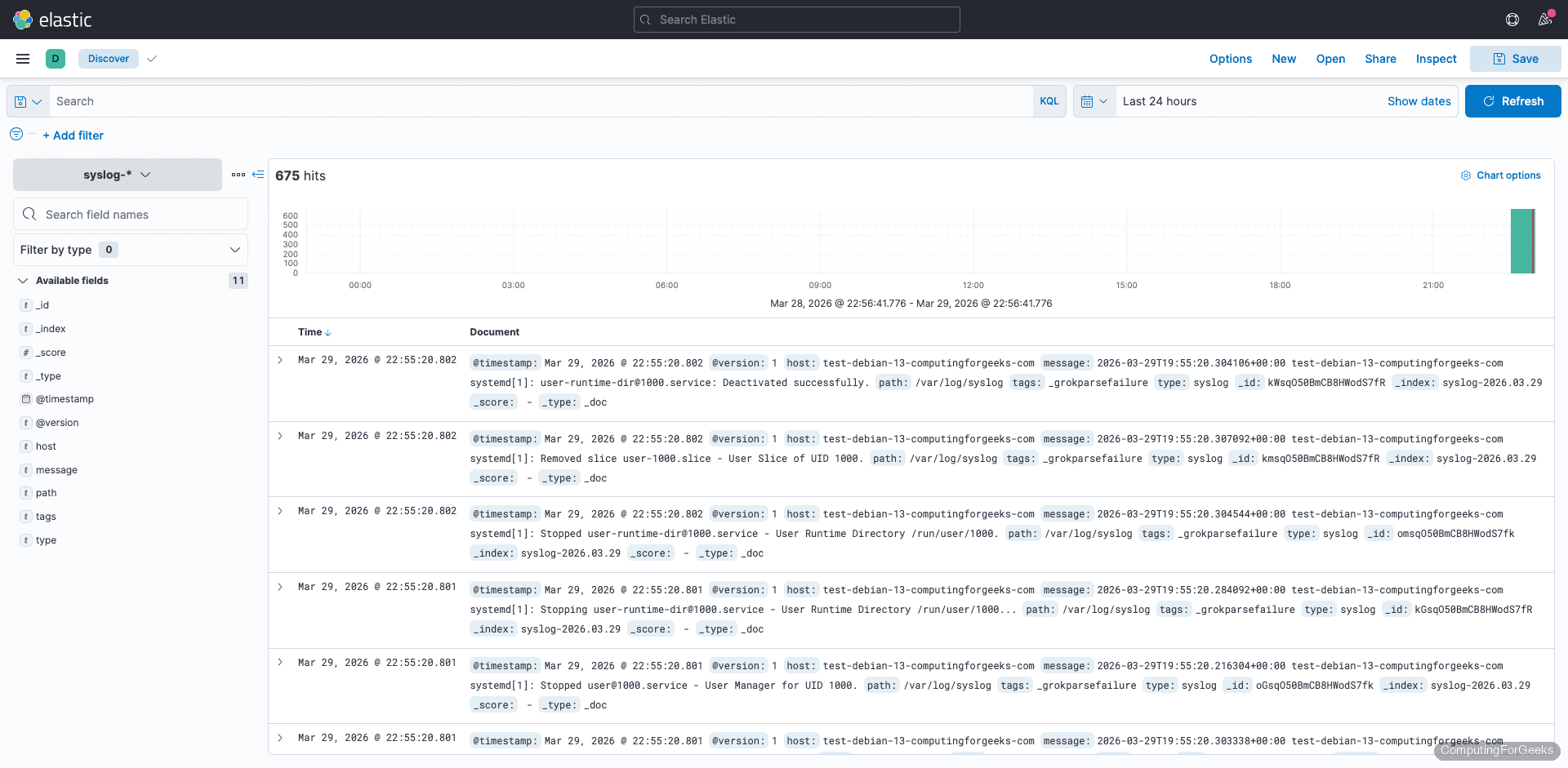
In the Kibana web interface, navigate to Discover from the left menu and select the syslog-* index pattern. Syslog events appear with parsed fields like syslog_program, syslog_hostname, and syslog_message.
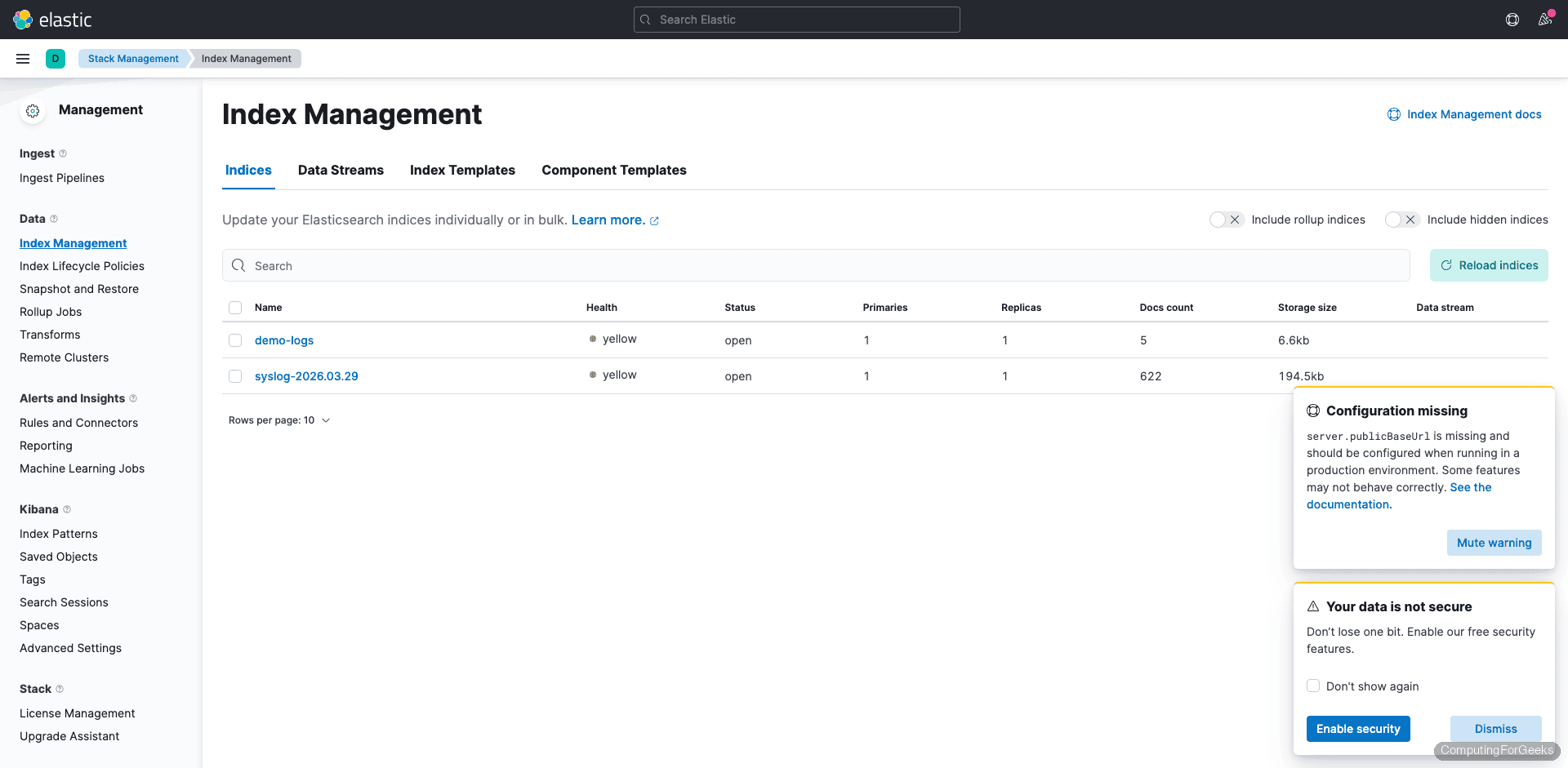
To see all indices managed by Elasticsearch, go to Stack Management > Index Management. This view shows index health, document counts, and storage size.
From Discover, you can filter by specific programs (e.g., syslog_program: sshd), set time ranges, and save searches for reuse. Kibana’s Visualize section lets you build bar charts, pie charts, and dashboards from the indexed data.
Query Elasticsearch from the Command Line
You don’t always need Kibana to inspect your data. Elasticsearch exposes a full REST API. List all indices:
curl -s 'http://127.0.0.1:9200/_cat/indices?v&s=index'Search for syslog entries from a specific program:
curl -s 'http://127.0.0.1:9200/syslog-*/_search?pretty' \
  -H 'Content-Type: application/json' \
  -d '{"query":{"match":{"syslog_program":"sshd"}},"size":3}'
This returns the three most recent sshd log entries with all parsed fields.
Count total documents in an index:
curl -s 'http://127.0.0.1:9200/syslog-*/_count?pretty'The response shows the total number of indexed documents:
{
  "count" : 1847,
  "_shards" : {
    "total" : 1,
    "successful" : 1,
    "skipped" : 0,
    "failed" : 0
  }
}
Kibana’s Dev Tools console provides the same functionality through a browser-based interface, which is convenient for building and testing queries interactively.
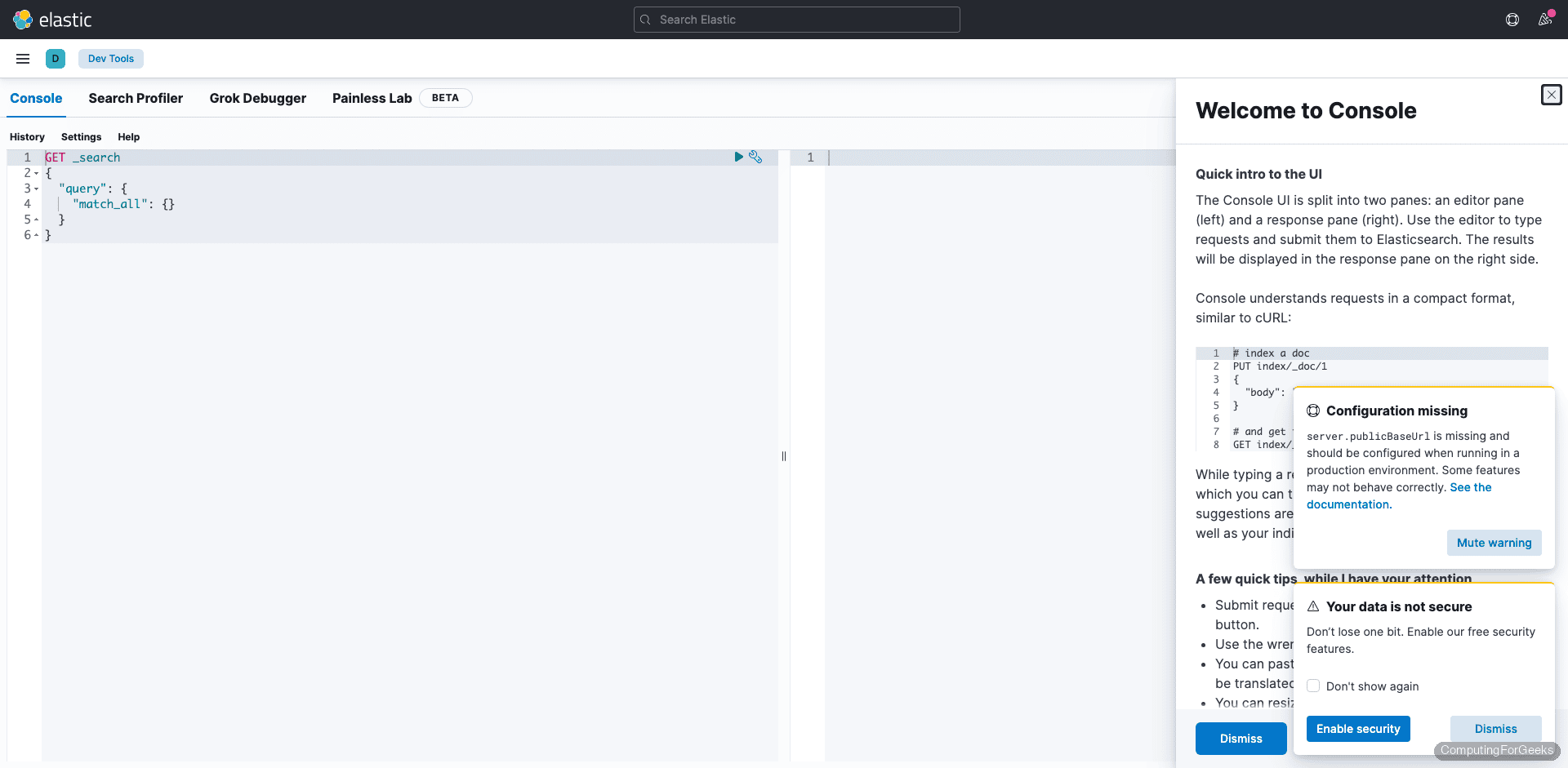
For more on managing index data, including deleting old indices, see how to delete Elasticsearch index data. The full 7.17 API reference is in the official Elasticsearch 7.17 documentation.
Debian 13 vs Debian 12 Differences
The Elastic 7.x packages, configuration files, and systemd units are identical across both Debian releases. The only notable difference is the syslog situation: Debian 12 (bookworm) ships with rsyslog pre-installed, so /var/log/syslog exists out of the box. Debian 13 (trixie) uses systemd-journald exclusively, which means you must install rsyslog manually if your Logstash pipeline reads from syslog files.
If you prefer to read from journald directly instead of installing rsyslog, the Filebeat + Logstash guide covers using Filebeat as a journal input. Everything else (package names, service names, config paths, ports) is the same on both versions.
ELK 7.x Memory and Port Reference
Quick reference for the three services as tested on Debian 13 with Elasticsearch 7.17.29:
| Service | Default Port | Config File | Typical Memory |
|---|---|---|---|
| Elasticsearch | 9200 (HTTP), 9300 (transport) | /etc/elasticsearch/elasticsearch.yml | ~2.4 GB |
| Kibana | 5601 | /etc/kibana/kibana.yml | ~267 MB |
| Logstash | 9600 (monitoring API) | /etc/logstash/conf.d/*.conf | ~589 MB |
Total baseline memory for all three services is roughly 3.3 GB, which is why 4 GB RAM is the minimum for a single-node ELK deployment. Production workloads with higher ingestion rates or multiple pipelines will need proportionally more.
