

Docker 29 shipped with native support for Ubuntu 26.04 on day one. No PPA hacks, no pinning to the Noble repo. The official Docker repository already carries resolute packages, which means you get a clean install path from the start.
This guide covers the full setup: adding Docker’s GPG key and apt repository, installing Docker Engine with Compose v2, and running your first containers. Everything here was tested on a fresh Ubuntu 26.04 LTS server running kernel 7.0.0.
Tested April 2026 on Ubuntu 26.04 LTS (Resolute Raccoon), kernel 7.0.0-10-generic, Docker CE 29.4.0, containerd 2.2.2
What You Get with Docker CE on Ubuntu 26.04
Ubuntu 26.04 ships with docker.io in its default repositories, but that package lags behind the official Docker CE releases. Here’s what the official Docker repo gives you on 26.04:
| Component | Version |
|---|---|
| Docker Engine | 29.4.0 |
| Docker CLI | 29.4.0 |
| containerd | 2.2.2 |
| Docker Buildx | 0.33.0 |
| Docker Compose | v5.1.2 (plugin) |
One notable change: containerd 2.x is now the default on Ubuntu 26.04. Previous Ubuntu releases shipped containerd 1.x. For a deeper look at how the container runtime landscape has evolved, see our comparison of Docker, CRI-O, and containerd runtimes. The storage driver uses the containerd snapshotter with overlayfs, and cgroup v2 is mandatory (no more cgroup v1 fallback).
Prerequisites
- Ubuntu 26.04 LTS server (fresh install or existing)
- A user with
sudoprivileges - Internet connectivity for downloading packages
If you’re running an older Ubuntu release, check our guides for Docker on Debian 13 / 12, Docker on Rocky Linux / AlmaLinux, or Docker on Fedora.
Remove Old Docker Packages
If you have the distro-provided docker.io or older Docker installations, remove them first. Leftover packages cause version conflicts.
for pkg in docker.io docker-doc docker-compose podman-docker containerd runc; do sudo apt remove -y $pkg 2>/dev/null; doneOn a fresh Ubuntu 26.04 server, this will report that none of them are installed. That’s expected.
Add Docker’s Official Repository
Docker publishes its own apt repository with packages built specifically for each Ubuntu release. Start by installing the prerequisites and adding Docker’s GPG key.
sudo apt update
sudo apt install -y ca-certificates curl
Create the keyrings directory and download Docker’s GPG key:
sudo install -m 0755 -d /etc/apt/keyrings
sudo curl -fsSL https://download.docker.com/linux/ubuntu/gpg -o /etc/apt/keyrings/docker.asc
sudo chmod a+r /etc/apt/keyrings/docker.asc
Now add the Docker repository. This uses your system’s codename (resolute for Ubuntu 26.04) to pull the correct packages:
echo "deb [arch=$(dpkg --print-architecture) signed-by=/etc/apt/keyrings/docker.asc] https://download.docker.com/linux/ubuntu $(. /etc/os-release && echo "$VERSION_CODENAME") stable" | sudo tee /etc/apt/sources.list.d/docker.list > /dev/nullVerify the repo file was created correctly:
cat /etc/apt/sources.list.d/docker.listThe output should show the resolute codename:
deb [arch=amd64 signed-by=/etc/apt/keyrings/docker.asc] https://download.docker.com/linux/ubuntu resolute stableThe repository is configured and pointing to the correct resolute codename.
Install Docker Engine
Update the package index and install Docker CE along with all its companion tools:
sudo apt update
sudo apt install -y docker-ce docker-ce-cli containerd.io docker-buildx-plugin docker-compose-plugin
This pulls in about 95 MB of packages. The Docker and containerd services start automatically after installation.
Verify the installed versions:
docker --versionYou should see Docker 29.4.0:
Docker version 29.4.0, build 9d7ad9fCheck Docker Compose:
docker compose versionCompose v5.1.2 ships as a CLI plugin:
Docker Compose version v5.1.2Both components are at the expected versions.
Verify the Docker Service
Confirm Docker is running and enabled to start on boot:
sudo systemctl status dockerThe output confirms Docker is active and enabled:
● docker.service - Docker Application Container Engine
     Loaded: loaded (/usr/lib/systemd/system/docker.service; enabled; preset: enabled)
     Active: active (running) since Sun 2026-04-12 22:41:20 UTC; 10s ago
   Main PID: 22120 (dockerd)
      Tasks: 10
     Memory: 27.1M (peak: 27.9M)
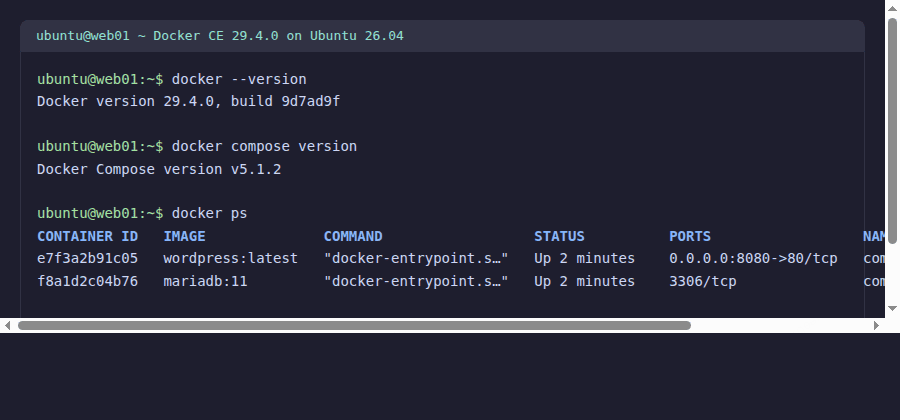
Here is the full Docker environment running on Ubuntu 26.04:
With Docker running and containers responding, the installation is verified. Time to test with a real image.
Run a Test Container
The classic first test. Pull and run the hello-world image:
sudo docker run hello-worldDocker pulls the image from Docker Hub and prints the confirmation message:
Unable to find image 'hello-world:latest' locally
latest: Pulling from library/hello-world
e6590344b1a5: Pull complete
Digest: sha256:c41088499908a59aae8c1b54b97e0e5c14281f1a0c5ee1419c38e3493c69f45a
Status: Downloaded newer image for hello-world:latest

Hello from Docker!
This message shows that your installation appears to be working correctly.
Docker pulled the image, ran the container, and printed the success message. The engine is working.
Run Docker Without sudo
By default, Docker commands require root privileges. To run Docker as a regular user, add your account to the docker group:
sudo usermod -aG docker $USERFor the group change to take effect, either log out and back in, or activate the new group in your current session:
newgrp dockerTest that it works without sudo:
docker run --rm hello-worldIf you see the “Hello from Docker!” message, you’re set. The --rm flag removes the container after it exits, keeping your system clean.
Run a Real Container: Nginx Web Server
A more practical test. Spin up an Nginx web server and access it from the network:
docker run -d -p 8080:80 --name web nginx:alpineThis starts Nginx in the background, mapping port 8080 on the host to port 80 inside the container. Verify it’s running:
docker psThe container shows as running with port 8080 mapped:
CONTAINER ID   IMAGE          COMMAND                  STATUS          PORTS                  NAMES
e7f3a2b91c05   nginx:alpine   "/docker-entrypoint.…"   Up 5 seconds    0.0.0.0:8080->80/tcp   web
Test the response:
curl -sI http://localhost:8080Nginx responds with HTTP 200:
HTTP/1.1 200 OK
Server: nginx/1.27.4
Content-Type: text/html
Clean up when done:
docker rm -f webThat covers running individual containers. Now try a multi-container deployment with Compose.
Docker Compose: Multi-Container Example
Docker Compose is installed as a CLI plugin (not a separate binary). Create a quick WordPress stack to verify it works:
mkdir -p ~/compose-test && cd ~/compose-testCreate a file called docker-compose.yml with the following content:
services:
  db:
    image: mariadb:11
    environment:
      MARIADB_ROOT_PASSWORD: rootpass
      MARIADB_DATABASE: wordpress
      MARIADB_USER: wpuser
      MARIADB_PASSWORD: wppass
    volumes:
      - db_data:/var/lib/mysql

  wordpress:
    image: wordpress:latest
    depends_on:
      - db
    ports:
      - "8080:80"
    environment:
      WORDPRESS_DB_HOST: db
      WORDPRESS_DB_USER: wpuser
      WORDPRESS_DB_PASSWORD: wppass
      WORDPRESS_DB_NAME: wordpress

volumes:
  db_data:
Start the stack in detached mode:
docker compose up -dCheck the running containers:
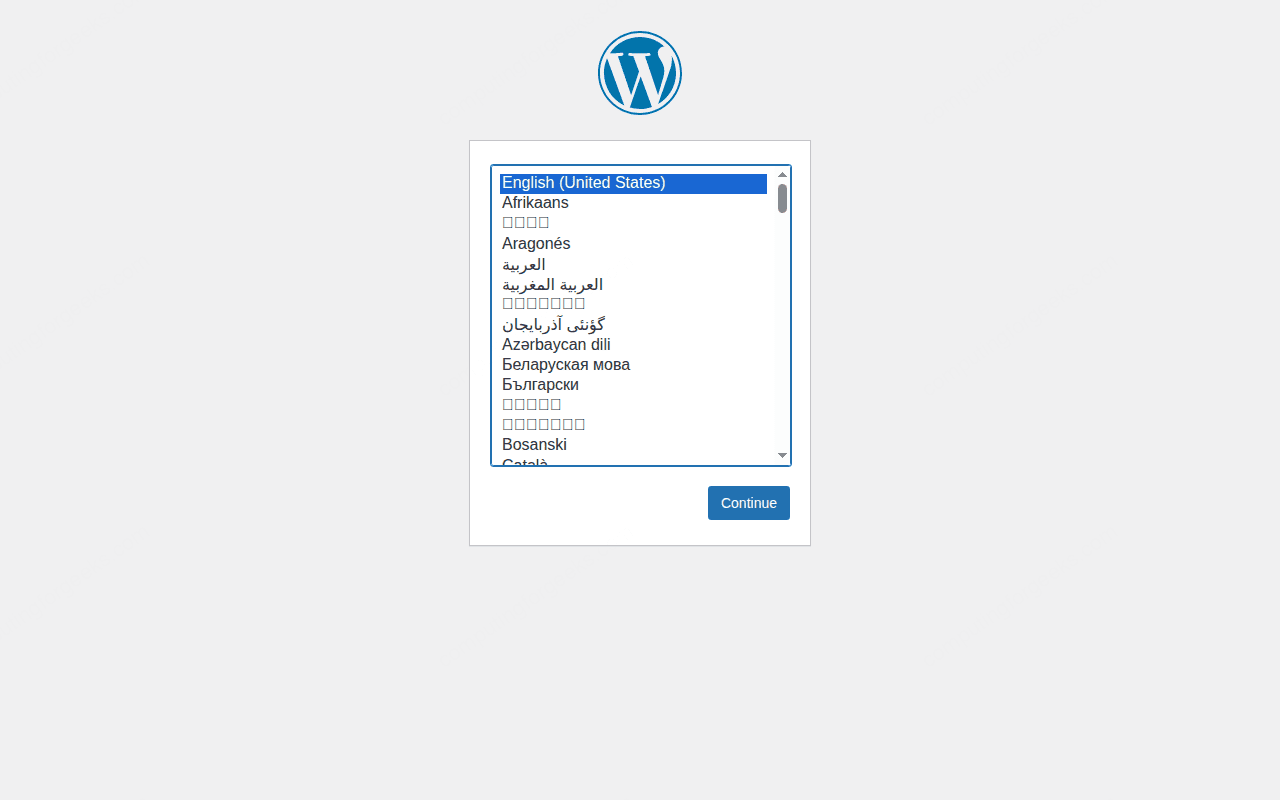
docker compose psBoth containers should show as “running”. Access the WordPress setup wizard at http://10.0.1.50:8080 to confirm everything connects.
Tear it down when you’re finished testing:
docker compose down -vThe -v flag removes the volumes along with the containers. For a deeper look at managing multi-container applications, see our Docker Compose complete guide.
Configure Docker Daemon (Optional)
Docker’s default settings work for most use cases, but you can tune them via /etc/docker/daemon.json. Common tweaks for servers:
sudo vi /etc/docker/daemon.jsonAdd the following configuration:
{
  "log-driver": "json-file",
  "log-opts": {
    "max-size": "10m",
    "max-file": "3"
  },
  "default-address-pools": [
    {"base": "172.17.0.0/16", "size": 24}
  ],
  "storage-driver": "overlay2"
}
The log rotation settings prevent Docker logs from consuming all your disk space, which is a common issue on long-running servers. Once your containers are in production, you can monitor Docker containers with Prometheus and Grafana to track resource usage and catch problems early. Restart Docker to apply:
sudo systemctl restart dockerDocker picks up the new settings after the restart.
Open Firewall Ports
If you’re running UFW (Ubuntu’s default firewall), Docker bypasses it by default because Docker manipulates iptables directly. For containers you want accessible from the network:
sudo ufw allow 2375/tcp comment 'Docker API (unsecured - use only on trusted networks)'
sudo ufw allow 2376/tcp comment 'Docker API (TLS)'
For most setups, you only expose the application ports (like 80 and 443 for web containers) and leave the Docker API ports closed. See our UFW firewall commands guide for more details.
Docker Storage and Cleanup
Over time, Docker accumulates images, stopped containers, and unused volumes. Check your current disk usage:
docker system dfClean up everything that’s not in use:
docker system prune -a --volumesThis removes all stopped containers, unused networks, dangling images, and unused volumes. On production servers, consider running this on a cron schedule or use the --filter flag to prune only items older than a certain age.
Uninstall Docker CE
If you need to remove Docker completely:
sudo apt purge -y docker-ce docker-ce-cli containerd.io docker-buildx-plugin docker-compose-plugin docker-ce-rootless-extras
sudo rm -rf /var/lib/docker /var/lib/containerd /etc/docker
sudo rm /etc/apt/sources.list.d/docker.list /etc/apt/keyrings/docker.asc
This removes the packages, all images, containers, volumes, and the repository configuration.
What about the docker.io package from Ubuntu’s repo?
Ubuntu 26.04 includes docker.io in its default repositories, but that package is typically a few versions behind Docker CE. For development and testing it works fine. For production workloads where you want the latest security patches and features, use the official Docker repository as shown in this guide.
Does Docker work with Ubuntu 26.04’s kernel 7.0?
Yes. Docker CE 29.4.0 works out of the box with kernel 7.0.0. The cgroup v2 support has been stable since kernel 5.8, and Ubuntu 26.04 uses cgroup v2 exclusively (no v1 fallback). Docker detects this automatically.
How do I check if Docker is using cgroup v2?
Run docker info | grep -i cgroup. You should see Cgroup Driver: systemd and Cgroup Version: 2. This is the expected configuration on Ubuntu 26.04.