

DBeaver Community Edition is the SQL client most of us reach for when the CLI stops scaling. It speaks PostgreSQL, MySQL, MariaDB, SQLite, Oracle, SQL Server, Redshift, ClickHouse, Snowflake, MongoDB and about sixty other backends over JDBC, and the whole thing installs from a single .deb on Ubuntu and Debian without pulling a separate JRE from your distro. No Snap requirement, no Flatpak dance, just apt install.
This guide walks through the installation on Ubuntu 24.04 LTS, notes that the same .deb works on Ubuntu 26.04 LTS, Debian 13 (trixie), and Debian 12 (bookworm), and covers the Snap and Flatpak alternatives for readers who prefer them. Then we configure a PostgreSQL connection, set up an SSH tunnel for enterprise database access, and tune dbeaver.ini for larger JVM heaps so DBeaver stops choking on 500-row result sets. Target keyword coverage: install DBeaver Ubuntu, DBeaver Ubuntu 24.04, install DBeaver Debian, DBeaver Community Edition Linux.
Tested April 2026 on Ubuntu 24.04.4 LTS with DBeaver Community Edition 26.0.2 (released 5 April 2026), bundled OpenJDK 21 runtime
Prerequisites
Before starting, make sure you have:
- A desktop system running Ubuntu 24.04 LTS (tested), Ubuntu 26.04 LTS, Debian 13 (trixie), or Debian 12 (bookworm)
- A user account with
sudoprivileges - An X11 or Wayland session (DBeaver is a GUI application; headless servers work for the install but not for running the UI)
- At least 2 GB RAM free, 4 GB recommended for large schemas
- Network reachability to the databases you plan to connect to
Most readers run DBeaver on their laptop or dev workstation and connect out to remote database servers. If you are spinning up a VPS to host those databases, DigitalOcean and Hetzner Cloud both have free-tier-adjacent pricing that works well for a PostgreSQL or MySQL sandbox.
Install DBeaver from the official .deb package
The .deb from dbeaver.io is the canonical install path and the one DBeaver Corp recommend. It bundles a private OpenJDK 21 runtime at /usr/share/dbeaver-ce/jre/, so the package has zero Debian dependencies and installs cleanly on minimal systems.
Download the latest package:
wget -O /tmp/dbeaver-ce.deb https://dbeaver.io/files/dbeaver-ce_latest_amd64.debThe dbeaver-ce_latest_amd64.deb URL is a redirect DBeaver maintains to the current stable release, so the command stays current as new versions ship. Install the package with apt (not dpkg -i, so apt can pull in any missing bits):
sudo apt install -y /tmp/dbeaver-ce.debOn the test VM the install completed with no additional packages required:
Selecting previously unselected package dbeaver-ce.
(Reading database ... 75035 files and directories currently installed.)
Preparing to unpack /tmp/dbeaver-ce.deb ...
Unpacking dbeaver-ce (26.0.2) ...
Setting up dbeaver-ce (26.0.2) ...
Confirm the package is installed and check the version:
dpkg -l dbeaver-ce | tail -3You should see a single ii row with the current release:
||/ Name       Version  Architecture Description
+++-==========-========-============-=================================
ii  dbeaver-ce 26.0.2   amd64        DBeaver Community
The package drops binaries under /usr/share/dbeaver-ce/ and symlinks two launchers (dbeaver and dbeaver-ce) into /usr/bin/. Listing the install directory shows where the configuration lives:
ls /usr/share/dbeaver-ce/The directory contains the bundled JRE, the Eclipse plugins DBeaver is built on, and the dbeaver.ini we will tune later:
configuration dbeaver dbeaver.ini features jre plugins readme.txt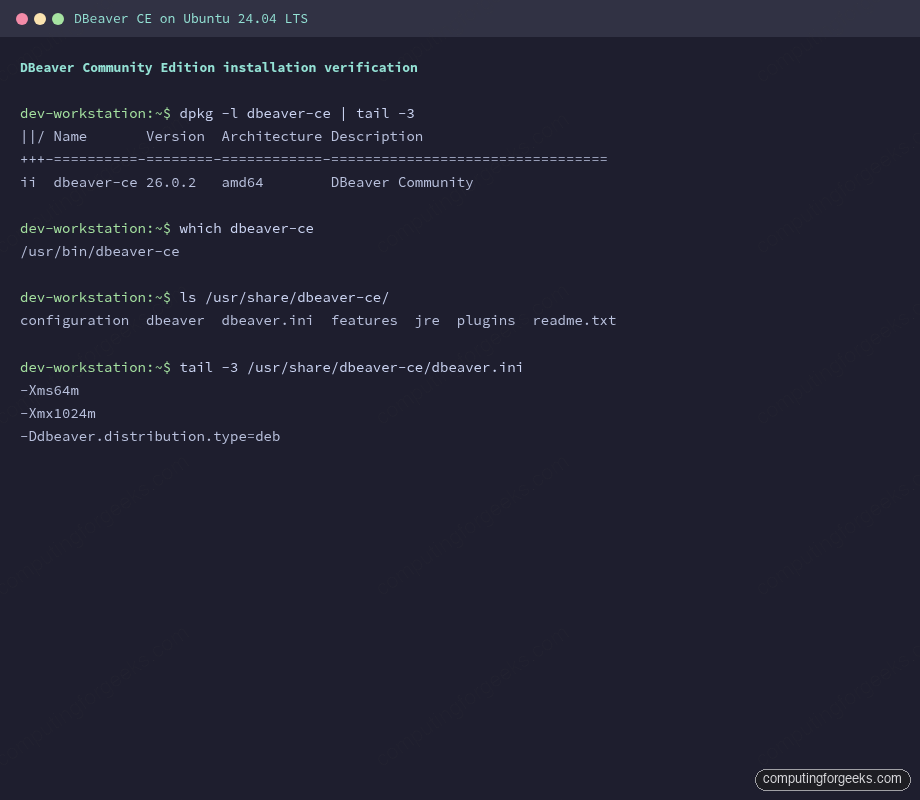
/usr/share/dbeaver-ce/jre/ so the package has no external Java dependency.Install DBeaver via Snap (Ubuntu alternative)
On Ubuntu, Snap is installed and running by default. The dbeaver-ce snap is published by DBeaver Corp themselves, so it tracks the same release cadence as the .deb:
sudo snap install dbeaver-ce --classicChecking snap info on the test VM confirmed the stable channel ships the same build as the .deb:
channels:
  latest/stable:    26.0.2.202604051735 2026-04-05 (459) 247MB classic
  latest/candidate: 26.0.3.202604171321 2026-04-17 (467) 247MB classic
The --classic confinement is needed because DBeaver reaches into the host filesystem (to read ~/.ssh/, driver caches, local SQLite files and similar). Without it the SSH tunnel tab will silently fail to find your private keys. Do not install with --devmode; it works but disables auto-refresh.
Snap installs a larger bundle (~247 MB vs ~125 MB for the .deb) because it ships its own filesystem slice. Pick whichever fits your workflow. If you run a mixed-distro team and want one install command everywhere, Flatpak is the cross-distro option.
Install DBeaver via Flatpak (cross-distro alternative)
Flatpak is not enabled on a default Debian or Ubuntu install but is a one-line setup. Install the runtime, add Flathub, and pull the DBeaver Community flatpak:
sudo apt install -y flatpak
flatpak remote-add --if-not-exists flathub https://flathub.org/repo/flathub.flatpakrepo
flatpak install -y flathub io.dbeaver.DBeaverCommunity
The first install is large because it pulls the GNOME runtime DBeaver depends on (about 1.2 GB total). Subsequent Flatpak apps share that runtime. Launch it with flatpak run io.dbeaver.DBeaverCommunity or from the desktop menu.
Flatpak runs DBeaver in a sandbox. If you plan to use SSH tunnels, grant the flatpak access to your ~/.ssh directory explicitly:
flatpak override --user --filesystem=~/.ssh:ro io.dbeaver.DBeaverCommunityWithout that override the SSH configuration tab works but cannot find your keys. This is the most common Flatpak-specific issue.
Launch DBeaver for the first time
With the .deb installed, launch DBeaver from the application menu (search for “DBeaver”) or from a terminal:
dbeaver-ce &The first start is slower than subsequent ones because DBeaver provisions a workspace at ~/.local/share/DBeaverData/. The initial dialog asks whether to create a sample SQLite database. Skip it unless you want a playground; for real work you configure your own connection.
If the launcher returns Failed to load swt-pi3, loading swt-pi4 as fallback in the terminal, that is normal on recent GTK versions and DBeaver runs fine anyway. The warning is cosmetic and tracked upstream.
Configure a PostgreSQL database connection
This is where DBeaver earns its keep. Open the New Database Connection wizard with Database > New Database Connection or the plug-icon in the top-left toolbar. Pick PostgreSQL from the driver list (or MySQL, MariaDB, SQLite: the flow is identical).
On first use DBeaver will prompt to download the JDBC driver for your database. Click Download and it pulls the driver into ~/.local/share/DBeaverData/drivers/. You only do this once per driver.
The connection dialog asks for the standard fields. For a local PostgreSQL 18 instance:
- Host:
10.0.1.50orlocalhost - Port:
5432(PostgreSQL default) - Database: the target database name (for example
appdb) - Username: the PostgreSQL role (for example
appuser) - Password: either enter it now or leave blank and let DBeaver prompt at connect time
Click Test Connection before saving. DBeaver runs a SELECT version() against the server and reports either the server version string or the exact JDBC exception. If the test fails with Connection refused, check listen_addresses in postgresql.conf and the relevant rule in pg_hba.conf. If it fails with FATAL: password authentication failed, the password is wrong: DBeaver passes it through to the server untouched.
Setting up PostgreSQL on the database side is covered in the companion guide on installing PostgreSQL 18 on Ubuntu, which handles the listen_addresses and pg_hba.conf changes readers usually hit first. For MySQL or MariaDB, the MySQL on Ubuntu/Debian guide and MariaDB install guide cover the equivalent server-side steps.
Once the test passes, click Finish. The new connection appears in the Database Navigator tree on the left. Double-click it to expand schemas, tables and views, or right-click and pick SQL Editor > Open SQL Script to start writing queries.
Configure an SSH tunnel for a bastion-protected database
Production databases are rarely exposed on public ports. The common topology is a bastion host with SSH, and the database listening only on a private network behind it. DBeaver tunnels through the bastion using a built-in SSH client, so there is no need to run ssh -L by hand.
Open the connection properties (right-click the connection, Edit Connection) and switch to the SSH tab. Enable the Use SSH Tunnel checkbox and fill in:
- Host/IP: the bastion’s public IP, for example
203.0.113.15 - Port:
22(or whatever you expose SSH on) - User Name: your SSH login (for example
ubuntuorec2-user) - Authentication Method: Public Key
- Private key: path to your key, typically
~/.ssh/id_ed25519 - Passphrase: your key passphrase if set; tick Save passphrase locally to avoid retyping it every connect
On the Main tab, set Host to what the bastion sees as the database server. That is the internal DNS name or private IP, for example db-internal.example.internal or 10.0.1.50. DBeaver opens the SSH session, then forwards a local port to that address.
Click Test tunnel configuration to validate SSH independently of the database connection. If the SSH test passes but the database test fails, the issue is between the bastion and the database: not the SSH tunnel itself. Firewall rules on the database host or security groups on the VPC are the usual suspects.
Our guide on SSH tunneling from the CLI covers the same pattern outside DBeaver if you need to script the tunnel for other tools. For securing the bastion itself, SSH key authentication on Ubuntu walks through key-only login and disabling password auth.
Keep the SSH private key and any saved DBeaver passwords out of shared dotfiles. A password manager with CLI access (1Password has a decent CLI that plays nicely with DBeaver’s credential prompts) is the cleanest way to handle database credentials without leaving them in plaintext in the workspace.
Tune JVM memory in dbeaver.ini
The default heap is 1 GB, which is fine for a handful of tables but chokes on large schemas (10,000+ objects) and wide result sets. The JVM arguments live in /usr/share/dbeaver-ce/dbeaver.ini under the -vmargs section. The relevant lines are near the end of the file:
sudo tail -3 /usr/share/dbeaver-ce/dbeaver.iniOn a fresh install the memory block reads:
-Xms64m
-Xmx1024m
-Ddbeaver.distribution.type=deb
-Xms is the initial heap, -Xmx is the maximum. Raise -Xmx to 4 GB for production work and bump -Xms so the JVM does not spend time growing the heap from 64 MB repeatedly. Open the file in an editor:
sudo vi /usr/share/dbeaver-ce/dbeaver.iniChange the last three lines to:
-Xms512m
-Xmx4096m
-Ddbeaver.distribution.type=deb
Save, restart DBeaver, and it will pick up the new heap size on next launch. The -vmargs marker must come before the -Xms and -Xmx lines: Eclipse launchers read everything after -vmargs as JVM arguments, everything before as launcher arguments. Do not move those flags above the -vmargs line or they will be silently ignored.
If you have 16 GB or more on your workstation, -Xmx8192m is a reasonable ceiling for DBA work across dozens of large Postgres clusters. Beyond that you run into G1GC pause-time issues, at which point switching to ZGC (-XX:+UseZGC) is the next tuning step, though that is rarely needed outside genuinely huge schemas.
DBeaver Pro and commercial alternatives
Community Edition handles every mainstream open-source database and most commercial ones. The upgrade path is DBeaver Pro, which adds native MongoDB, Cassandra, Redis, DynamoDB, BigQuery and a few other NoSQL drivers, plus AI-assisted query authoring and visual ER diagrams. Pricing is per-seat annual and only worth it if you actively work across relational and NoSQL or need the vendor support SLA.
If DBeaver does not fit your workflow, JetBrains DataGrip is the other serious contender: same feature set, better query completion and refactoring (JetBrains inspections), but a paid license. It is included in the JetBrains All Products Pack if you already use IntelliJ or PyCharm.
Uninstall DBeaver
If you want to remove DBeaver, apt remove takes care of the binaries and autoremove cleans up anything orphaned:
sudo apt remove -y dbeaver-ce
sudo apt autoremove -y
The workspace at ~/.local/share/DBeaverData/ stays on disk so your saved connections, query history and JDBC driver cache survive a reinstall. Delete it manually if you want a clean slate:
rm -rf ~/.local/share/DBeaverData ~/.dbeaver-driversFor the Snap and Flatpak installs, use sudo snap remove dbeaver-ce and flatpak uninstall io.dbeaver.DBeaverCommunity respectively. Snap and Flatpak store their data in their own per-app directories, not in ~/.local/share/DBeaverData/.
Troubleshooting
Error: “Failed to load swt-pi3” on launch
This warning prints on recent GTK4 systems and does not prevent DBeaver from starting. DBeaver falls back to swt-pi4 automatically. No action required.
DBeaver hangs at “Loading DBeaver” splash
Almost always a JVM out-of-memory condition. Check ~/.local/share/DBeaverData/workspace6/.metadata/.log for OutOfMemoryError and raise -Xmx in dbeaver.ini. A corrupt workspace can also cause it; back up the workspace and remove it to force DBeaver to recreate one.
Connection test fails with “No suitable driver”
DBeaver did not download the JDBC driver for the database type you picked. Open Database > Driver Manager, find the driver (PostgreSQL, MySQL, etc.), click Edit > Download/Update, and retry the connection.
SSH tunnel fails with “Private key is invalid”
DBeaver’s bundled SSH client does not accept OpenSSH’s default Ed25519 keys in every format. If the key file starts with -----BEGIN OPENSSH PRIVATE KEY----- and DBeaver rejects it, regenerate as PEM: ssh-keygen -p -m PEM -f ~/.ssh/id_ed25519. The key itself is unchanged, only the on-disk format.
Frequently asked questions
Does DBeaver Community Edition work with commercial databases like Oracle and SQL Server?
Yes. DBeaver Community Edition includes JDBC drivers for Oracle, Microsoft SQL Server, IBM DB2, Sybase and most other commercial relational databases. The paid DBeaver Pro edition adds NoSQL databases (MongoDB, Cassandra, Redis, DynamoDB) and cloud data warehouses with tighter integration.
Can I run DBeaver on a headless server?
Not practically. DBeaver is an Eclipse RCP GUI application and requires a running X11 or Wayland session. You can install the package on a headless server and export the display over SSH with ssh -X, but performance is poor over WAN. Run DBeaver on a desktop or laptop and use SSH tunnels to reach remote databases.
Does the same .deb work on Ubuntu 24.04, 26.04, Debian 12 and Debian 13?
Yes. The DBeaver Community .deb bundles its own OpenJDK 21 runtime and has no declared Debian dependencies, so the single package installs cleanly on Ubuntu 22.04, 24.04, 26.04, Debian 12 and Debian 13. The only common blocker is missing GTK libraries on a minimal install, fixed with sudo apt install -y libgtk-3-0.
How do I update DBeaver to a new release?
For the .deb install, re-run the download and apt install commands; apt treats it as an upgrade. DBeaver also has a built-in updater under Help > Check for Updates, but it expects write access to /usr/share/dbeaver-ce/, which a normal user does not have. Stick with the apt path on Debian and Ubuntu.
Subscribe to our newsletter for more Linux tutorials, database guides and DevOps walkthroughs: join here.
Need help setting up a production database stack with DBeaver access and SSH bastions? Contact us for hands-on configuration and security hardening.







Hello. Thanks for this useful article. Unfortunately running: ‘openjdk version “11.0.11” 2021-04-20’ on Ubuntu Server 20.04 results in openjdk: command not found. I have run the installation twice.
You use java -version command to check version of OpenJDK.
Obrigada pelo post, extremamente útil. Gratidão.
Thank you, very helpful