

Arch Linux installation doesn’t have to be complicated. archinstall is the official guided installer bundled with every Arch ISO since 2021. It is a TUI menu system that walks you through disk setup, desktop selection, user creation, and system configuration. The result is a clean Arch install identical to a manual setup, but in a fraction of the time.
This guide covers every archinstall menu option, what each one does, and the recommended choices for a GNOME desktop setup. We tested this with archinstall 3.0.15 on the latest Arch ISO. If you want full manual control with custom LVM partitioning, see our Arch Linux manual install with LVM guide instead.
What You Need
- A UEFI system with at least 2 GB RAM and 20 GB of disk space
- Arch Linux ISO from archlinux.org/download
- A USB drive (2 GB or larger) for the bootable installer
- Internet connection – Ethernet is recommended, but WiFi works via
iwctl
Creating a Bootable USB
Download the latest Arch Linux ISO and write it to a USB drive. The method depends on your current operating system.
On Linux or macOS, use dd. Replace /dev/sdX with your actual USB device (check with lsblk on Linux or diskutil list on macOS):
sudo dd if=archlinux-2026.03.01-x86_64.iso of=/dev/sdX bs=4M status=progress oflag=syncOn Windows, use Rufus or Ventoy. Rufus is straightforward – select the ISO, choose DD mode when prompted, and write.
Booting into the Live Environment
Insert the USB drive and boot from it. You may need to press F2, F12, or Del during boot to access the BIOS/UEFI boot menu – this varies by manufacturer. Select the USB drive and boot into the Arch live environment.
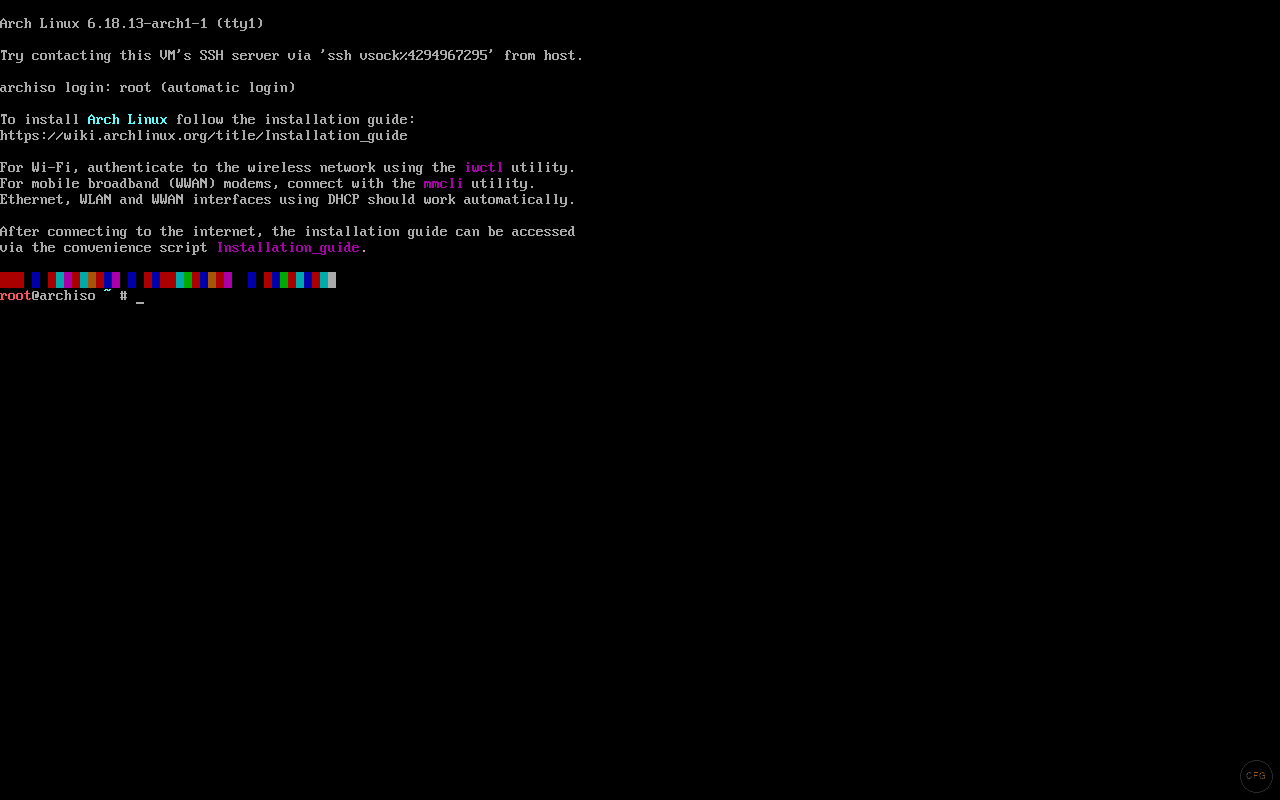
Once booted, you land at a root shell prompt. Confirm you’re in UEFI mode by checking that this directory exists:
ls /sys/firmware/efi/efivarsIf the directory has content, you’re in UEFI mode. If it doesn’t exist, your system booted in legacy BIOS mode – restart and fix your boot settings.
Verify your internet connection works:
ping -c 3 archlinux.orgIf you’re on WiFi, connect first with iwctl:
iwctl station wlan0 connect YOUR_NETWORK_NAMEThe live boot environment looks like this:
Running archinstall
With internet confirmed, launch the installer:
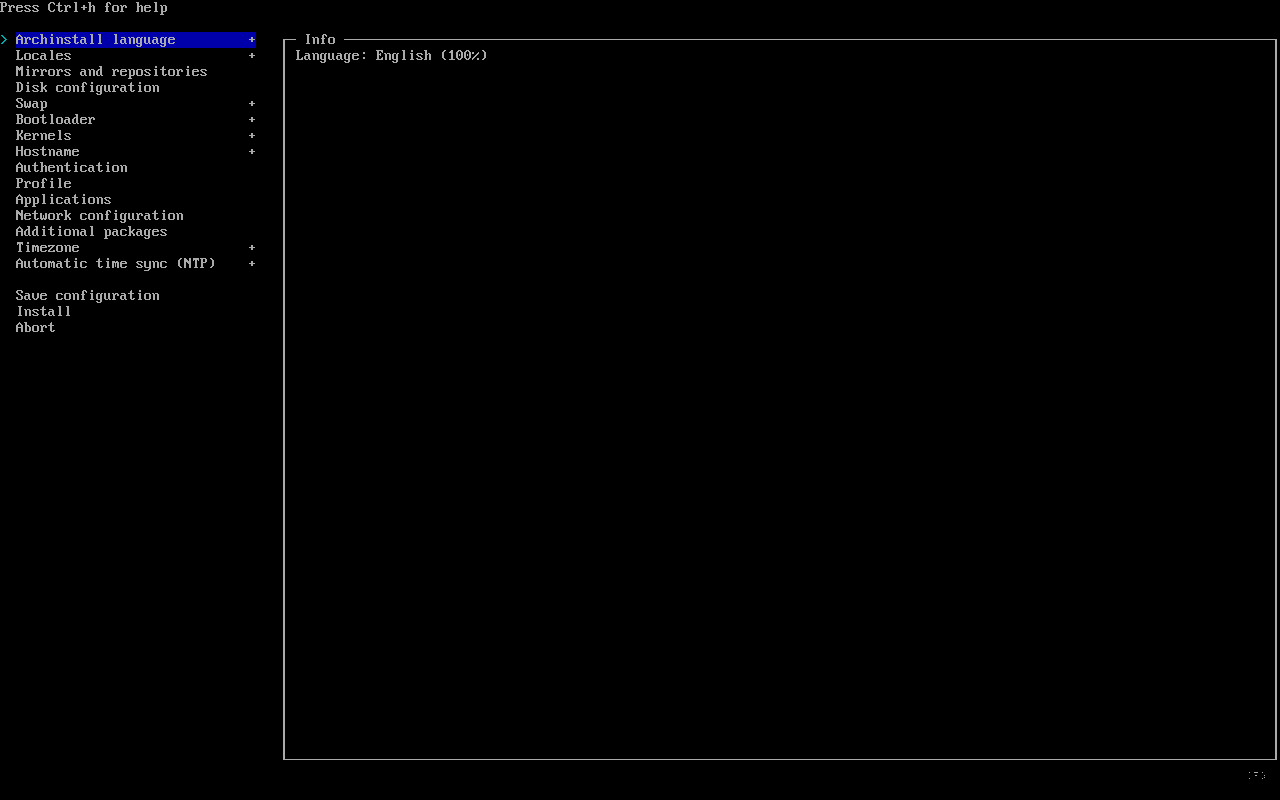
archinstallThe TUI fetches the latest package database and presents you with the main menu. Every option you need to configure is listed here – work through them from top to bottom.
Understanding Every Menu Option
Here’s what each option does and what to pick. Options marked with a + in the TUI mean they’ve been configured.
Archinstall Language
This sets the language of the installer interface itself, not the installed system. Leave it on English unless you prefer another language for the menus.
Locales
Three settings here:
- Keyboard layout –
usfor standard US layout. Change if you use a different keyboard - Locale encoding –
UTF-8. Don’t change this - Locale language –
en_USfor English. This sets the system language after installation
Mirrors and Repositories
Select mirror servers by your geographic region for faster package downloads. The installer uses reflector to rank mirrors by speed. Pick your country or a nearby one. If you skip this, the installer uses the default mirror list which usually works fine but may be slower.
Disk Configuration
This is the most important step – getting it wrong means starting over. The disk configuration submenu gives you two main choices:

Use a best-effort default partition layout – the recommended option for most users. Select your target disk and archinstall creates:
- A 512 MB EFI System Partition (
/boot) - A root partition (
/) using the remaining disk space
Manual Partitioning – for custom setups where you need separate /home, /var, or other partitions. Most desktop users don’t need this.
After selecting your disk, choose a filesystem:
- ext4 – the reliable default. Fast, stable, well-supported. Best choice if you don’t need advanced features
- btrfs – supports snapshots, compression, and subvolumes. Good if you plan to use Timeshift for system snapshots
- xfs – excellent performance for large files, but no shrink support
- f2fs – optimized for flash storage (SSDs, NVMe)
You’ll also see an option to enable disk encryption (LUKS). This encrypts the root partition and requires a passphrase at every boot. Good for laptops, less practical for servers or desktops that need unattended boot.
Swap
Leave this enabled. archinstall uses zram by default, which creates a compressed swap space in RAM. This is more efficient than a traditional swap partition and works well for desktops with 4 GB or more RAM.
Bootloader
Two options:
- GRUB – the classic choice. Supports both UEFI and legacy BIOS, has a visible boot menu, and is easier to troubleshoot. Recommended for most users
- systemd-boot – minimal and fast, but UEFI only. Good if you want a cleaner setup and don’t need GRUB’s extra features
Kernels
You can install one or more kernels:
- linux – the standard kernel, updated frequently with the latest features and hardware support. This is the default
- linux-lts – the long-term support kernel. Fewer updates, more stability. Good for production machines or if you’ve had issues with the latest kernel
- linux-zen – tuned for desktop responsiveness. Lower latency, better for gaming and interactive workloads
For a general desktop, stick with linux. You can always install additional kernels later.
Hostname
Your machine’s network name. Pick something short and descriptive – archdesktop, workstation, or your machine’s actual name. This shows up in your terminal prompt and on the local network.
Authentication
Set up your passwords and user account here:
- Root password – set a strong root password. You’ll rarely use it directly, but it’s your emergency access
- User account – create your daily-use account with sudo privileges. This is the account you’ll log into at the desktop
Always create a regular user. Logging in as root on a desktop system is a bad habit you don’t want to start.
Profile
This is where you choose what kind of system to install:
- Desktop – installs a full graphical environment. Options include GNOME, KDE Plasma, XFCE, i3, Sway, Hyprland, and more. For this guide we pick GNOME
- Server – installs base server packages without a desktop
- Minimal – bare base system. You install everything yourself
When you select Desktop and choose GNOME, archinstall installs the gnome package group, GDM display manager, and all standard GNOME applications. It also asks about graphics drivers – select the appropriate option for your GPU (open-source Mesa for AMD/Intel, proprietary for NVIDIA).
Applications
Optional application bundles you can install alongside the desktop. Browse through and pick any that match your needs, or skip this and install packages manually later.
Network Configuration
For desktop installs with GNOME, select NetworkManager. GNOME expects NetworkManager for managing WiFi, VPN, and wired connections through the GUI. For server installs, systemd-networkd is lighter and works fine.
Additional Packages
Type package names separated by spaces to install extra packages during setup. Some useful ones to include:
vim git htop fastfetch firefoxYou can install anything from the Arch repositories here. Saves you from having to install them after first boot.
Timezone
Select your timezone from the list. Start typing your region to filter – for example, America/New_York or Europe/London.
Automatic Time Sync (NTP)
Leave this enabled. It keeps your system clock accurate via network time protocol. There’s no good reason to disable it on a machine with internet access.
Starting the Installation
After configuring all options, select Install from the menu. archinstall asks for confirmation, then handles everything automatically:
- Partitions and formats the disk
- Runs
pacstrapto install the base system and selected packages - Generates
fstab - Installs and configures the bootloader
- Creates user accounts
- Installs the desktop environment and display manager
- Enables system services (NetworkManager, GDM, etc.)
This takes 5 to 15 minutes depending on your internet speed and the packages selected. When it finishes, it asks if you want to chroot into the new system. You can skip this – just type no and reboot:
rebootRemove the USB drive when the system restarts.
First Boot
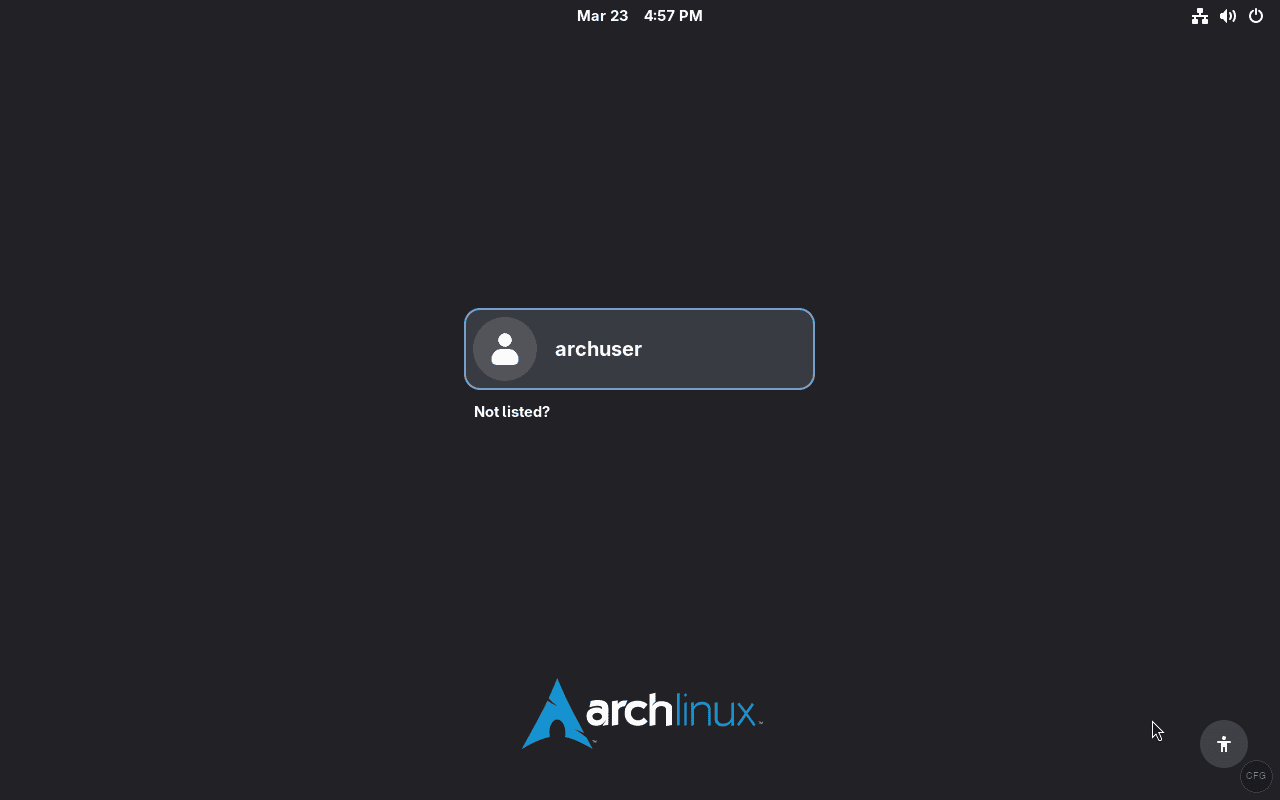
After rebooting, GRUB loads and boots into your new Arch system. GDM (the GNOME display manager) presents the login screen with your user account ready.
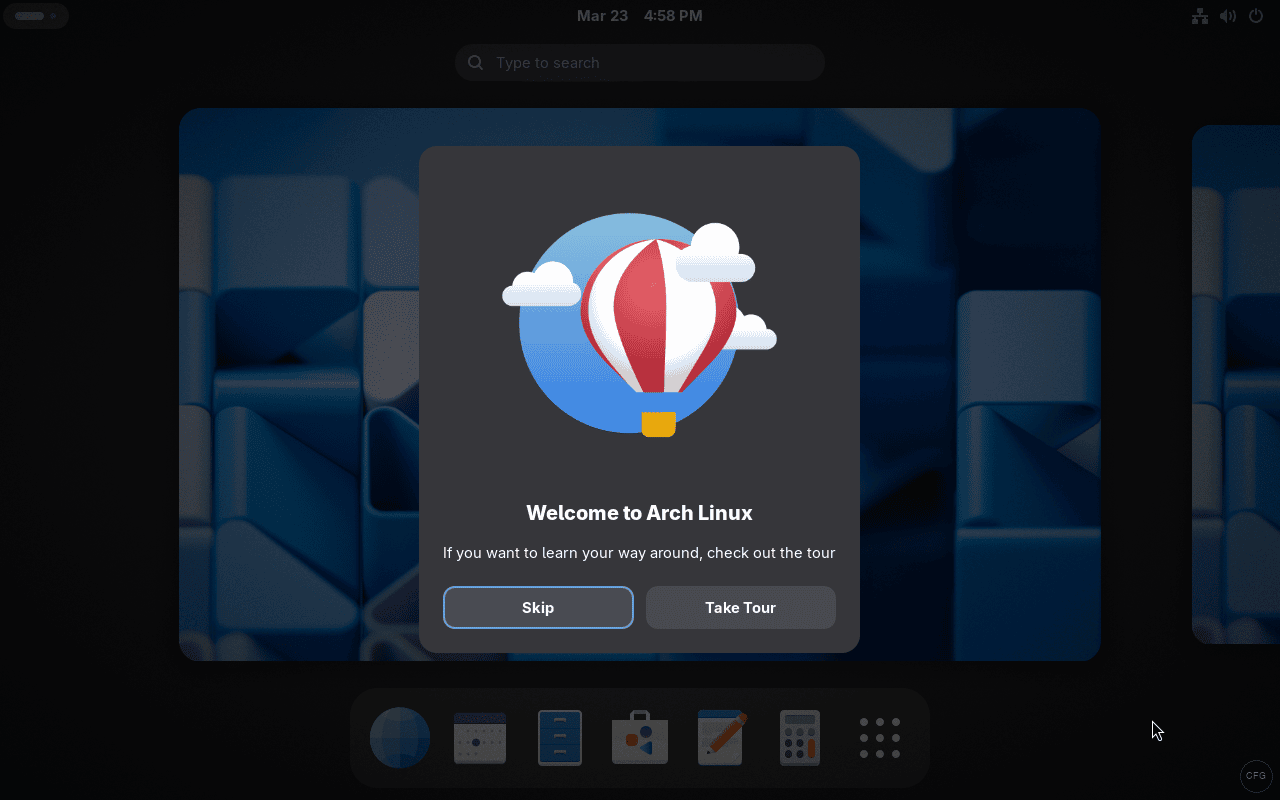
Log in and GNOME greets you with the welcome dialog:
Your New GNOME Desktop
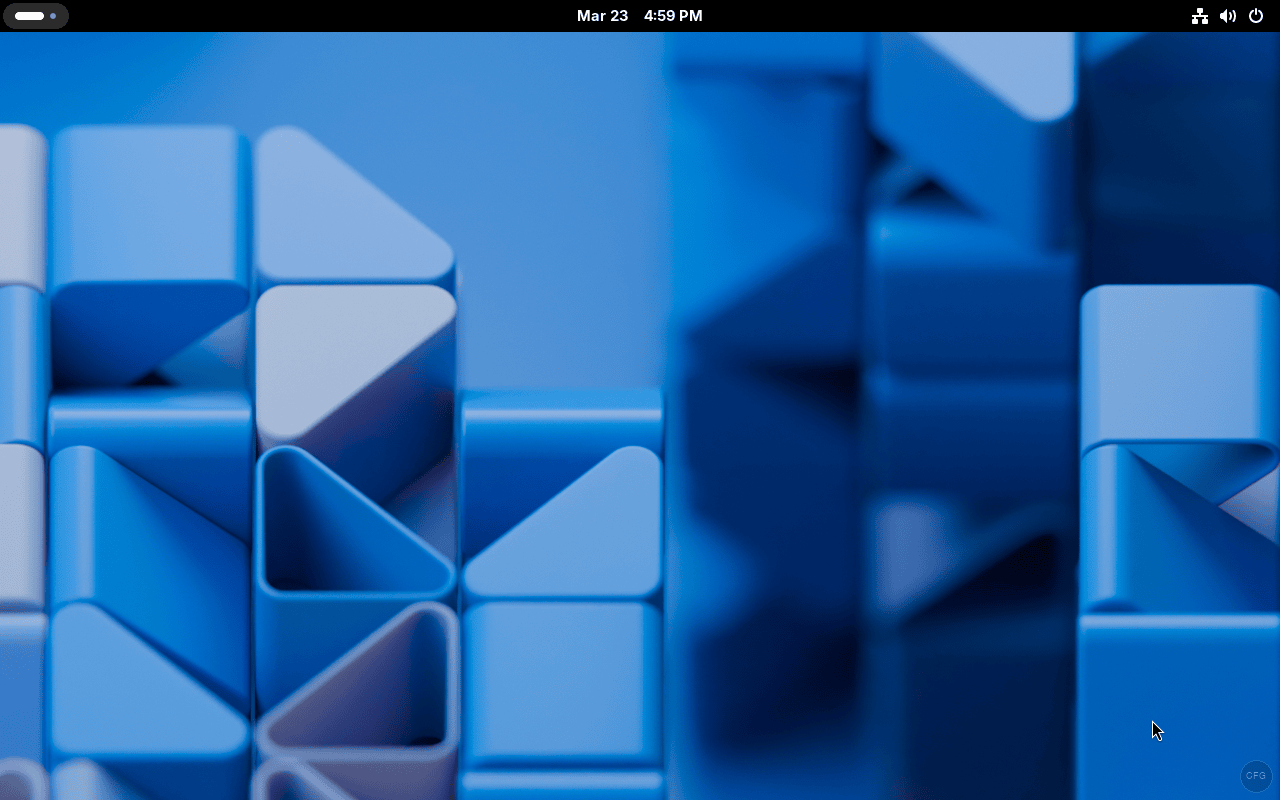
With the install complete, you have a fully functional GNOME desktop on Arch Linux. Here’s what it looks like out of the box.
The Activities overview shows your running apps and workspace switcher. Press the Super key or click “Activities” in the top-left:
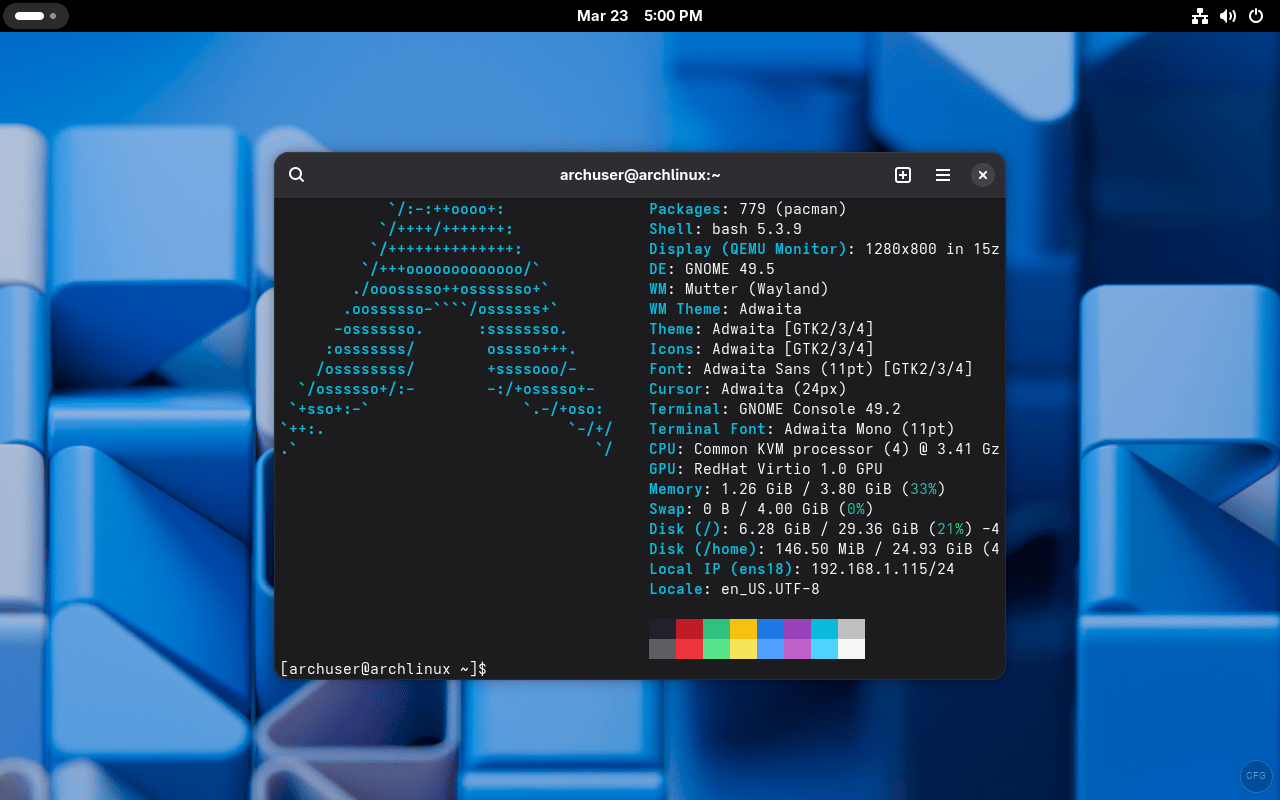
Running fastfetch in the terminal confirms the system details – Arch Linux with GNOME 48.5, kernel 6.18.13, running on Wayland:
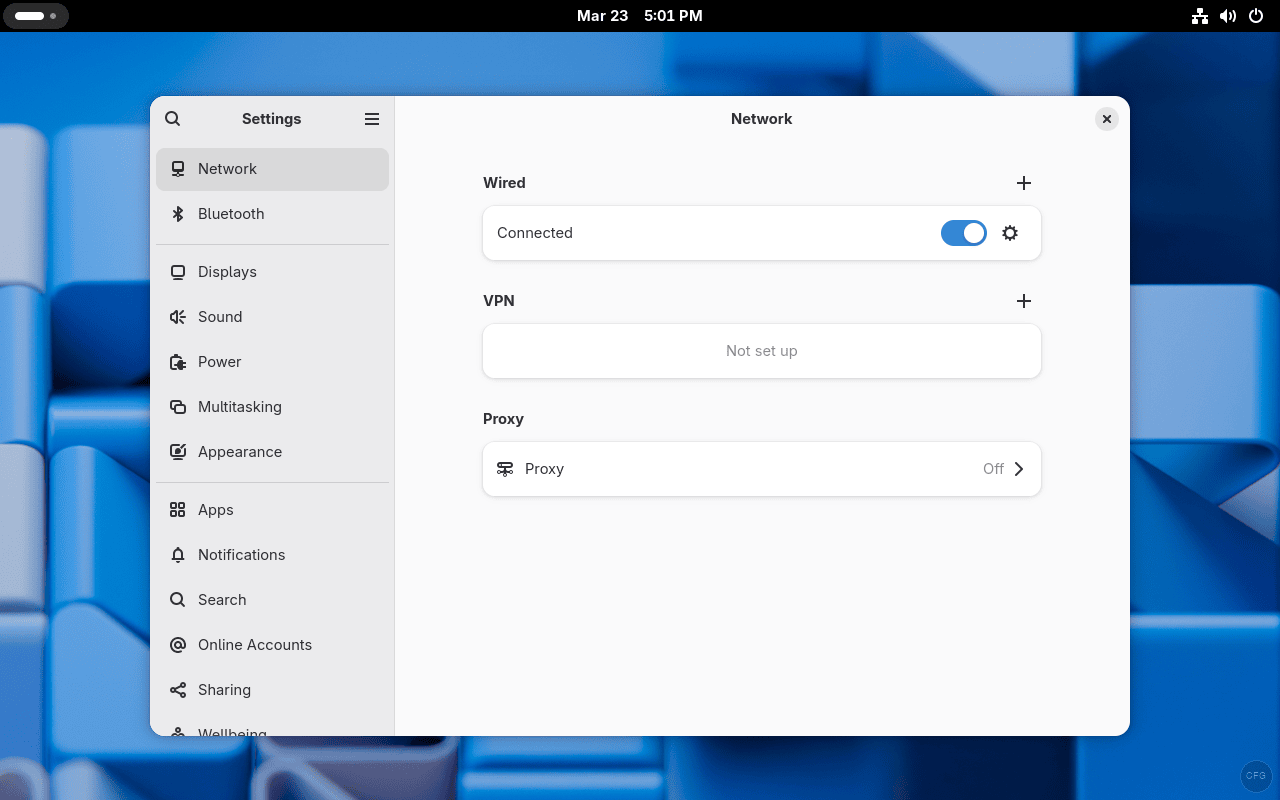
GNOME Settings gives you control over displays, network, sound, power, and more:
Post-Install Essentials
Your Arch install works, but a few things need attention before you start using it daily. For a full walkthrough, check our things to do after installing Arch Linux guide.
Install an AUR Helper
The Arch User Repository (AUR) has thousands of community packages not in the official repos. Install yay to manage them:
sudo pacman -S --needed git base-devel
git clone https://aur.archlinux.org/yay.git
cd yay && makepkg -si
Once installed, use yay just like pacman but with access to AUR packages too.
Enable a Firewall
Arch doesn’t enable a firewall by default. Install and enable ufw:
sudo pacman -S ufw
sudo ufw default deny incoming
sudo ufw default allow outgoing
sudo ufw enable
sudo systemctl enable ufw
This blocks all incoming connections while allowing outgoing traffic – the right default for a desktop.
Enable SSD TRIM
If your system runs on an SSD or NVMe drive, enable periodic TRIM to maintain drive performance:
sudo systemctl enable --now fstrim.timerThis runs TRIM weekly, which is enough for most setups.
Optimize Pacman
Enable parallel downloads and color output in pacman. Open the config file:
sudo vi /etc/pacman.confUncomment or add these lines under [options]:
Color
ParallelDownloads = 5
Package downloads will be noticeably faster with parallel fetching enabled.
Install Multimedia Codecs
For video and audio playback support across all formats:
sudo pacman -S gstreamer gst-plugins-base gst-plugins-good gst-plugins-bad gst-plugins-ugly gst-libavThis gives you playback support for MP4, MKV, MP3, FLAC, and most other media formats.
Using Config Files for Repeatable Installs
One of archinstall’s best features is config file support. After configuring your options in the menu, you can save the configuration to JSON files. Next time, feed them back and skip the menus entirely.
To save your current configuration, select Save configuration from the menu before running Install. archinstall writes two files:
user_configuration.json– all system settings (disk, packages, locale, etc.)user_credentials.json– passwords and user accounts
On future installs, run archinstall with those files to automate the entire process:
archinstall --config user_configuration.json --creds user_credentials.json --silentThis is great for deploying identical setups across multiple machines or rebuilding your system after hardware changes.
archinstall vs Manual Installation
Both methods produce the same result – a working Arch Linux system. The difference is in the process and flexibility.
| Feature | archinstall | Manual Install |
|---|---|---|
| Install time | 10-15 minutes | 30-60 minutes |
| Partitioning | Guided or manual | Full manual (fdisk/gdisk) |
| LVM support | Limited | Full control |
| Desktop setup | One menu selection | Manual package install + config |
| Learning curve | Low | High |
| Customization | Good for common setups | Unlimited |
| Reproducibility | Config files (JSON) | Scripts or documentation |
| Error recovery | Restart the installer | Debug and fix in chroot |
Use archinstall when you want a standard setup fast. Use the manual method when you need LVM, custom partition schemes, or want to understand every step of the process.
Troubleshooting Common Issues
No Internet Connection After Boot
If NetworkManager isn’t running, your desktop won’t have network access. Check and start it:
sudo systemctl enable --now NetworkManagerFor wired connections that still don’t work, check if your interface is up:
ip linkIf your Ethernet interface shows state DOWN, bring it up manually and request a DHCP lease:
sudo ip link set enp0s3 up
sudo dhcpcd enp0s3
Black Screen on Login
This usually means the graphics driver is wrong. Switch to a TTY with Ctrl+Alt+F2, log in, and check which GPU you have:
lspci | grep -i vgaFor NVIDIA GPUs, install the proprietary driver:
sudo pacman -S nvidia nvidia-utilsThen reboot. For AMD or Intel GPUs, the open-source Mesa drivers should work out of the box – if they don’t, reinstall them:
sudo pacman -S mesa xf86-video-amdgpuAudio Not Working
GNOME uses PipeWire for audio. Verify the service is running:
systemctl --user status pipewire pipewire-pulseIf the services aren’t active, start them:
systemctl --user enable --now pipewire pipewire-pulse wireplumberAlso check GNOME Settings and make sure the correct output device is selected.
archinstall Fails to Fetch Package Database
If archinstall hangs or errors when loading, your internet connection in the live environment may not be working. Test with ping first:
ping -c 3 archlinux.orgIf DNS fails, set a manual DNS server:
echo "nameserver 1.1.1.1" | tee /etc/resolv.confThen try running archinstall again.
Wrapping Up
archinstall gives you a properly configured Arch Linux system without manually partitioning disks, writing fstab, or chrooting into the new install. The result is identical to a manual install – same packages, same configs, same rolling-release updates. You can set up KVM virtualization on Arch or any other server software just the same.
Keep your system current with regular updates:
sudo pacman -SyuRun this at least weekly. Arch is a rolling release – falling behind on updates makes eventual upgrades more painful. Check the Arch Wiki archinstall page for the latest options and configuration examples.
