

Ajenti is a lightweight, open-source server management panel that gives you a clean web-based interface for handling everyday Linux administration tasks. If you have used Webmin or Cockpit before, think of Ajenti as a streamlined alternative that stays out of your way while still covering the essentials: service management, package updates, firewall rules, cron jobs, file browsing, and a built-in terminal.
This guide walks through installing Ajenti on Debian 13 (Trixie), Debian 12 (Bookworm), and Ubuntu 24.04 (Noble Numbat) using the official virtual environment install script. We also cover SSL configuration, common plugins, and troubleshooting.
Why Ajenti
- Lightweight footprint – runs on Python, consumes minimal RAM compared to heavier panels
- Plugin architecture – install only what you need. The base panel handles system management; Ajenti V adds web hosting
- Built-in terminal – full shell access directly from the browser
- File manager – browse, edit, upload, and manage files through the web UI
- Service and package management – start, stop, restart services and install packages visually
Prerequisites
- A server running Debian 13, Debian 12, or Ubuntu 24.04 with root or sudo access
- At least 512 MB RAM (1 GB recommended with Ajenti V)
- Port 8000 open for the web UI
- A domain name pointed to the server IP (optional, for SSL)
Step 1: Update the System
sudo apt update && sudo apt upgrade -yStep 2: Install Ajenti Using the Virtual Environment Script (Recommended)
Debian 12+ and Ubuntu 24.04 enforce PEP 668, which blocks system-wide pip installs. The official Ajenti installer handles this by creating an isolated Python virtual environment under /opt/ajenti. This is the recommended method for all current distros.
curl https://raw.githubusercontent.com/ajenti/ajenti/master/scripts/install-venv.sh | sudo bash -s -The script installs all required system dependencies (build-essential, python3-dev, libssl-dev, etc.), creates the virtual environment, installs Ajenti and its core plugins, generates a self-signed SSL certificate, and sets up a systemd service.
Once successful, you are shown login details:
:: Creating config files


:: Generating SSL certificate

:: Certificate /etc/ajenti/ajenti.pem generated!
:: /etc/ajenti/config.yml updated with certificate path!

:: Installing initscript

/usr/bin/systemctl
Created symlink /etc/systemd/system/multi-user.target.wants/ajenti.service → /usr/lib/systemd/system/ajenti.service.

:: Complete


Ajenti will be listening at https://192.168.10.11:8000
Log in with your root password or another OS user
Verify the service is running:
$ systemctl status ajenti
● ajenti.service - Ajenti panel
     Loaded: loaded (/lib/systemd/system/ajenti.service; enabled)
     Active: active (running)
Check the listening port:
$ ss -tlnp | grep 8000
LISTEN  0  128  *:8000  *:*  users:(("ajenti-panel",pid=1234,fd=6))
Step 3: Alternative – Manual Installation (skip if used 2)
If you prefer to control the installation yourself, install the dependencies first:
Debian/Ubuntu:
sudo apt install -y build-essential python3-pip python3-dev python3-venv python3-lxml \
  libssl-dev python3-dbus python3-augeas python3-apt ntpdate
Create a virtual environment and install Ajenti:
sudo python3 -m venv /opt/ajenti
sudo /opt/ajenti/bin/pip install setuptools pip wheel -U
sudo /opt/ajenti/bin/pip install ajenti-panel ajenti.plugin.core ajenti.plugin.dashboard \
  ajenti.plugin.settings ajenti.plugin.plugins ajenti.plugin.filemanager \
  ajenti.plugin.services ajenti.plugin.terminal ajenti.plugin.passwd \
  ajenti.plugin.packages ajenti.plugin.notepad ajenti.plugin.filesystem \
  ajenti.plugin.network ajenti.plugin.datetime ajenti.plugin.power \
  ajenti.plugin.auth-users ajenti.plugin.ace ajenti.plugin.augeas
Create the systemd service file:
sudo cat > /lib/systemd/system/ajenti.service << 'EOF'
[Unit]
Description=Ajenti panel
After=network.target

[Service]
Type=forking
PIDFile=/var/run/ajenti.pid
ExecStart=/opt/ajenti/bin/ajenti-panel -d
ExecStartPost=/bin/sleep 3

[Install]
WantedBy=multi-user.target
EOF

sudo systemctl daemon-reload
sudo systemctl enable --now ajenti
Step 4: Configure the Firewall
Open port 8000 for the Ajenti web UI.
UFW (Ubuntu/Debian):
sudo ufw allow 8000/tcp comment "Ajenti Panel"
sudo ufw reload
nftables (Debian 13 default):
sudo nft add rule inet filter input tcp dport 8000 acceptStep 5: Access the Web UI
Open your browser and navigate to:
https://your-server-ip:8000Accept the self-signed certificate warning. The default credentials are:
- Username: root
- Password: your system root password
If you don’t remember your system root password, reset it:
sudo passwd rootAfter login you will see a page like this:
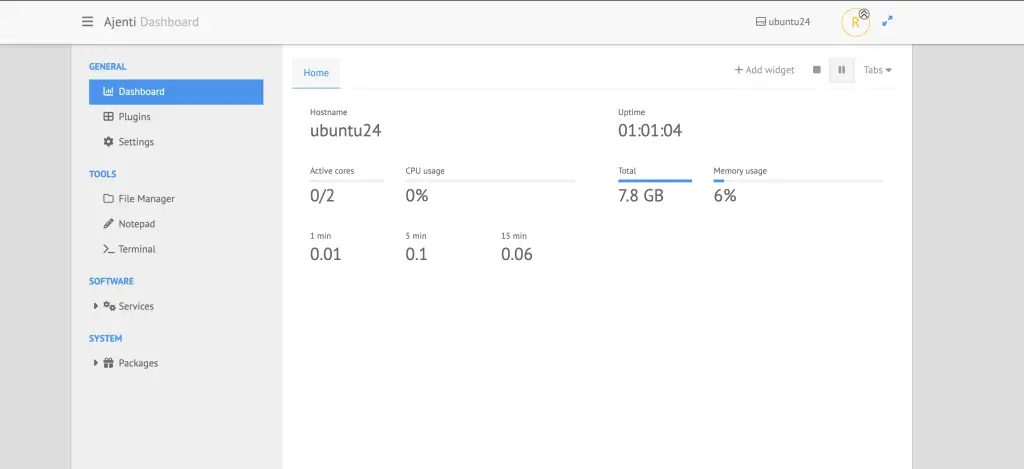
Change the admin password immediately after your first login under Settings > Password.
Step 6: Fix Common Post-Install Issues
Empty response or blank page after login:
This is a known issue with older versions of gipc and gevent. Upgrade them inside the Ajenti venv:
sudo /opt/ajenti/bin/python3 -m pip install gipc gevent -U
sudo systemctl restart ajenti
Missing HTTPS certificate:
sudo /opt/ajenti/bin/python3 /opt/ajenti/bin/ajenti-ssl-gen $(hostname)
sudo systemctl restart ajenti
Step 7: Configure SSL with Let’s Encrypt
For production servers, replace the self-signed certificate with a Let’s Encrypt cert. Install certbot:
sudo apt install -y certbot
sudo certbot certonly --standalone -d panel.yourdomain.com
Edit the Ajenti configuration to use the new certificate:
sudo vim /etc/ajenti/config.ymlUpdate the SSL section:
ssl:
  enable: true
  certificate: /etc/letsencrypt/live/panel.yourdomain.com/fullchain.pem
  key: /etc/letsencrypt/live/panel.yourdomain.com/privkey.pem
sudo systemctl restart ajentiSet up auto-renewal with a deploy hook:
sudo cat > /etc/letsencrypt/renewal-hooks/deploy/ajenti.sh << 'EOF'
#!/bin/bash
systemctl restart ajenti
EOF
sudo chmod +x /etc/letsencrypt/renewal-hooks/deploy/ajenti.sh
Step 8: Install Additional Plugins
You can install more plugins from the Ajenti panel under Plugins > Plugins,
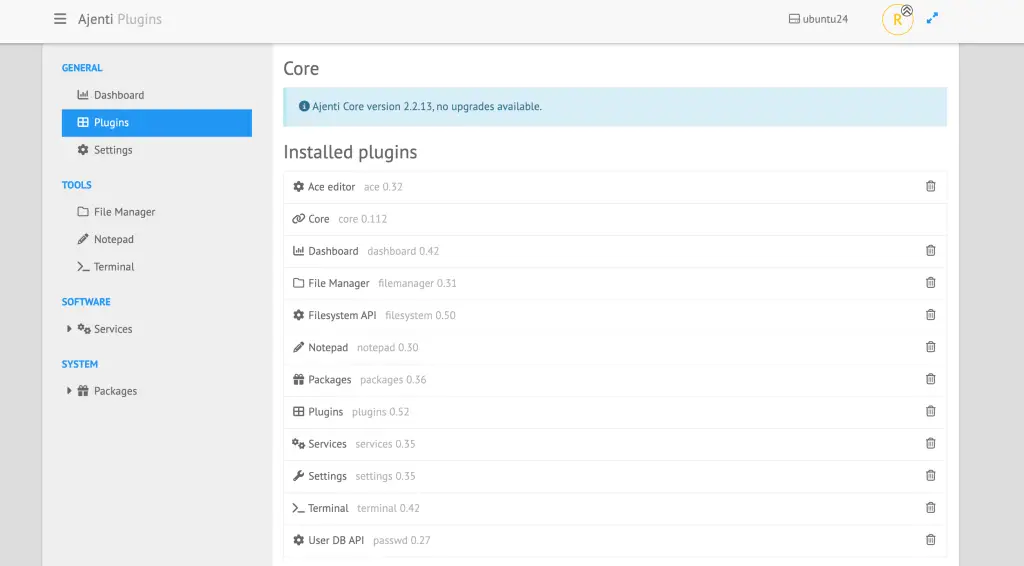
or via pip:
# List available plugins
/opt/ajenti/bin/pip search ajenti.plugin 2>/dev/null || \
  /opt/ajenti/bin/pip index versions ajenti-panel

# Install a specific plugin
sudo /opt/ajenti/bin/pip install ajenti.plugin.cron
sudo systemctl restart ajenti
Core plugins worth installing:
ajenti.plugin.cron– manage cron jobs from the UIajenti.plugin.supervisor– manage supervisor processesajenti.plugin.docker– basic Docker container management
Step 9: Panel Management from the UI
Once logged in, the sidebar gives you access to:
- Dashboard – system overview (CPU, RAM, disk, uptime, load)
- File Manager – browse, edit, upload, download, set permissions
- Terminal – full interactive shell in the browser
- Services – start, stop, restart, enable/disable systemd services
- Packages – search and install/remove packages via apt
- Users – manage system users and passwords
- Network – view and configure network interfaces
Step 10: Hardening
A few things to lock down on a production server:
Change the default port (from 8000 to something less obvious):
sudo vim /etc/ajenti/config.yml
# Change: bind: port: 8000
# To:     bind: port: 9443
Restrict access by IP using UFW:
sudo ufw delete allow 8000/tcp
sudo ufw allow from 10.0.0.0/24 to any port 9443 proto tcp comment "Ajenti admin only"
sudo ufw reload
Create a non-root admin user in Ajenti Settings > Users instead of using root for daily access.
Updating Ajenti
sudo /opt/ajenti/bin/pip install ajenti-panel -U
sudo /opt/ajenti/bin/pip install ajenti.plugin.core ajenti.plugin.dashboard -U
sudo systemctl restart ajenti
Uninstalling Ajenti
sudo systemctl stop ajenti
sudo systemctl disable ajenti
sudo rm -f /lib/systemd/system/ajenti.service
sudo systemctl daemon-reload
sudo rm -rf /opt/ajenti
sudo rm -rf /etc/ajenti
Troubleshooting
Service fails to start:
sudo journalctl -u ajenti -n 50 --no-pagerCommon cause: missing Python dependencies. Reinstall them:
sudo /opt/ajenti/bin/pip install ajenti-panel ajenti.plugin.core -U --force-reinstallPort 8000 already in use:
sudo ss -tlnp | grep 8000Either stop the conflicting service or change Ajenti’s port in /etc/ajenti/config.yml.
“externally-managed-environment” error:
This means you ran the old install.sh script instead of the venv version. Use the recommended install command from Step 2 which creates an isolated virtual environment.
Blank page after login:
sudo /opt/ajenti/bin/python3 -m pip install gipc gevent -U
sudo systemctl restart ajenti
Conclusion
Ajenti gives you a clean, lightweight server management panel without the bloat of larger hosting platforms. For production use, replace the self-signed certificate with Let’s Encrypt, restrict access by IP, and keep the panel updated. If you need web hosting features (Nginx/PHP-FPM site management), look into the Ajenti V plugin set.
Related guides:

Same problem on Debian 11.
After half a day’s work I managed to work out this solution:
“`
sudo apt update
sudo apt install -y build-essential
sudo apt install -y python
sudo apt install -y python-dev libldap2-dev libsasl2-dev ldap-utils tox lcov valgrind
python get-pip.py
pip install ajenti
sudo apt install -y curl
curl https://bootstrap.pypa.io/pip/2.7/get-pip.py -o get-pip.py
sudo apt -y install gnupg2
wget http://repo.ajenti.org/debian/key -O- | sudo apt-key add –
echo “deb http://repo.ajenti.org/debian main main debian” | sudo tee /etc/apt/sources.list.d/ajenti.list
sudo apt update
sudo apt download ajenti
sudo dpkg -i –force-depends ajenti_1.2.23.13_all.deb
“`
Problem after installing ajenti like this is that `apt` thinks it is now holding broken dependencies. It always asks you to run `apt –fix-broken install`, which would then uninstall ajenti again.