

Baking AWS access keys into container images was acceptable in 2017. In 2026 it is career-ending. One leaked image on a public registry, one curious intern running docker history, one misconfigured CI artifact, and suddenly your billing dashboard looks like someone mined a lot of Monero on your dime. The fix has existed for years, yet plenty of production EKS clusters still ship with hardcoded credentials because the alternative was poorly understood.
IAM Roles for Service Accounts (IRSA) solves this by wiring Kubernetes ServiceAccount tokens directly into the AWS STS trust chain. The pod gets a short-lived JWT, AWS trades it for temporary IAM credentials, and no long-lived secret ever lives inside the container. This guide walks through how IRSA actually works under the hood, how to set it up from scratch, three production patterns (AWS Load Balancer Controller, External Secrets Operator, Karpenter), cross-account role assumption with External ID, a cluster-wide audit technique, the five errors you will definitely hit, and how IRSA compares to the newer EKS Pod Identity feature so you know when to pick each one.
Tested April 2026 on Amazon EKS 1.33 with eksctl 0.225, AWS CLI v2.22, and Amazon Linux 2023 worker nodes
IRSA vs EKS Pod Identity: Which Should You Use?
Before touching any YAML, settle this question. AWS shipped EKS Pod Identity in November 2023 as the eventual replacement for IRSA, and for most new EC2-based clusters it is now the recommended default. Pod Identity is simpler (no per-cluster OIDC provider, no 100-provider-per-account limit, reusable roles across clusters) and faster to set up. So why are we writing a complete IRSA guide in 2026?
Because IRSA is still the only option for several real-world scenarios, and because the entire IAM/OIDC/STS machinery underneath it is foundational knowledge. If you work with EKS, you will touch IRSA whether you like it or not. Here is the honest decision matrix based on what actually ships in EKS today.
| Scenario | Use |
|---|---|
| New EC2-based EKS cluster, greenfield | EKS Pod Identity |
| Fargate workloads | IRSA only (Pod Identity Agent needs a node DaemonSet) |
| Direct cross-account role assumption | IRSA (Pod Identity requires role chaining) |
| Self-managed Kubernetes, EKS Anywhere, OpenShift on AWS | IRSA only |
| Existing production setup already on IRSA | Keep IRSA, no rush to migrate |
| Reuse same IAM role across many clusters | Pod Identity |
| Hit the 100-OIDC-provider-per-account limit | Pod Identity |
| Need ABAC with session tags | Pod Identity (native support) |
The rest of this guide focuses on IRSA because it is still the right choice for many production scenarios and because understanding it is foundational knowledge even if you eventually migrate to Pod Identity. If you have already decided to go with Pod Identity, read the mechanics sections anyway. The trust model is nearly identical and the troubleshooting instincts transfer.
One practical note on migration planning. If you are running a cluster with dozens of IRSA workloads and you want to move to Pod Identity, you do not need a big-bang switch. Pod Identity and IRSA coexist cheerfully on the same cluster, on the same namespace, even on the same pod (though you should never do that last one because it is confusing). The usual migration path is to move one workload at a time during its normal deployment cycle, verify it works, and only decommission the old IAM role after the rollout settles. There is no rush, because IRSA is not deprecated and has no published end-of-life date.
How IRSA Actually Works
Most guides wave hands at “IRSA uses OIDC” and move on. That is not enough. The reason people struggle with IRSA errors is that they do not understand which component is failing. Three distinct primitives are in play, and any of the three can break in isolation.
Primitive 1: The OIDC identity provider
Every EKS cluster publishes a JWKS endpoint containing the public keys used to sign ServiceAccount tokens. The AWS console surfaces this as OpenID Connect provider URL under Cluster info > Overview > Details, formatted like https://oidc.eks.eu-west-1.amazonaws.com/id/4656D0B75473F4BFF2CFD94B17FB9DEC, where the trailing ID is unique per cluster. On its own, this endpoint is just JSON sitting on HTTPS. It becomes useful only when you register it as an IAM OIDC Identity Provider in your AWS account, which is a one-time action per cluster.
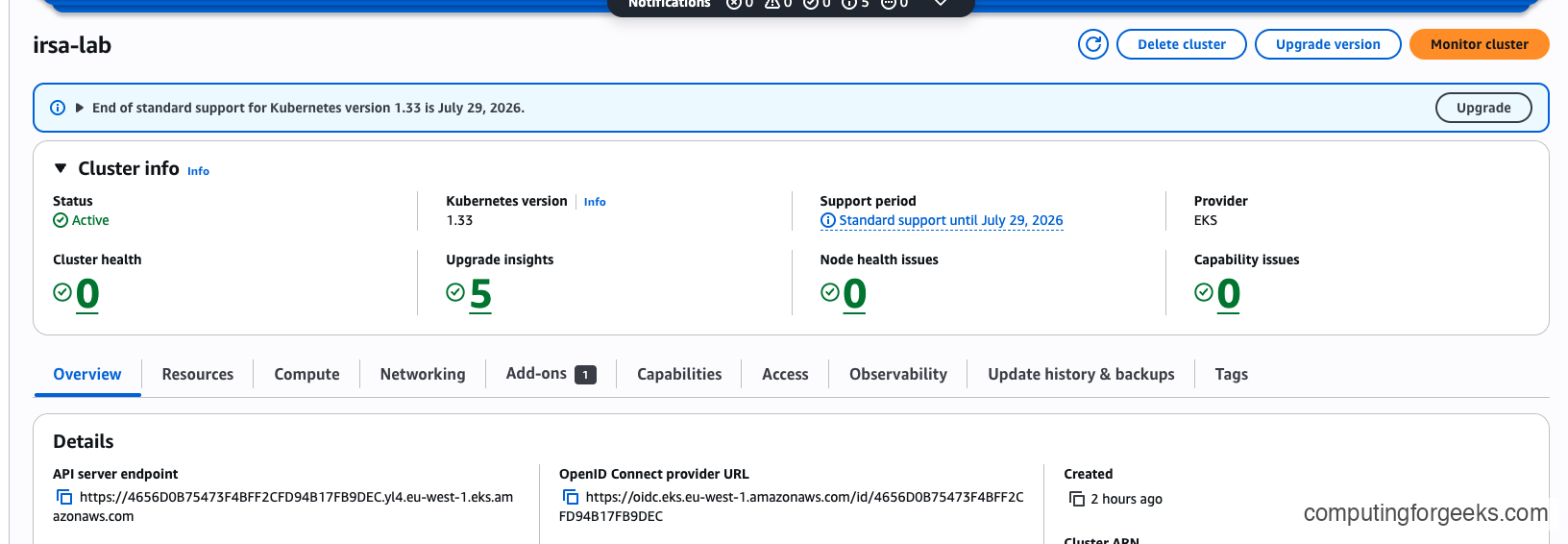
Once registered, IAM knows it can verify tokens signed by that cluster. Without this registration step, every IRSA call returns InvalidIdentityToken: No OpenIDConnect provider found in your account.
Primitive 2: Projected ServiceAccount tokens
Kubernetes 1.12 introduced projected ServiceAccount tokens, which are JWTs with a configurable audience and a short, bounded lifetime. Unlike legacy secret-based tokens, projected tokens are generated on demand by the API server, mounted into the pod by kubelet, and rotated automatically as they approach expiry. The default TTL on EKS is 24 hours and kubelet refreshes the file at roughly 80% of that window (around 19 hours in).
Here is what the JWT payload actually looks like once base64-decoded from a real pod on our test cluster:
{
    "aud": ["sts.amazonaws.com"],
    "exp": 1775899819,
    "iat": 1775813419,
    "iss": "https://oidc.eks.eu-west-1.amazonaws.com/id/4656D0B75473F4BFF2CFD94B17FB9DEC",
    "kubernetes.io": {
        "namespace": "demo",
        "pod": {
            "name": "s3-test"
        },
        "serviceaccount": {
            "name": "s3-reader"
        }
    },
    "sub": "system:serviceaccount:demo:s3-reader"
}
Every field in that payload earns its keep. The aud claim is pinned to sts.amazonaws.com, which STS will check before accepting the token. The iss claim matches exactly what IAM has registered as the OIDC provider URL. The sub claim is the canonical system:serviceaccount:<namespace>:<sa-name> string, and this is the value your trust policy will pin against. The gap between iat and exp is exactly 86400 seconds (24 hours), which is the default EKS token lifetime.
Primitive 3: STS AssumeRoleWithWebIdentity
STS exposes an API called AssumeRoleWithWebIdentity that trades a third-party JWT for temporary AWS credentials. When the AWS SDK inside your pod sees the environment variables AWS_ROLE_ARN and AWS_WEB_IDENTITY_TOKEN_FILE, it automatically reads the token from disk, calls sts:AssumeRoleWithWebIdentity, and caches the resulting temporary credentials. Default session duration is one hour, configurable up to twelve on the role.
The glue between these primitives is the pod-identity-webhook, a mutating admission webhook that AWS manages on every EKS cluster. On each pod creation, the webhook inspects the pod’s ServiceAccount. If the SA carries an eks.amazonaws.com/role-arn annotation, the webhook rewrites the pod spec to inject the relevant environment variables and mount a projected token volume at /var/run/secrets/eks.amazonaws.com/serviceaccount/. The source is open on GitHub, and reading it will teach you more about IRSA in an hour than most blog posts.
These are the exact environment variables you can expect to find inside an IRSA-enabled pod:
AWS_ROLE_ARN=arn:aws:iam::123456789012:role/eks-irsa-lab-demo-s3-reader-role
AWS_WEB_IDENTITY_TOKEN_FILE=/var/run/secrets/eks.amazonaws.com/serviceaccount/token
AWS_STS_REGIONAL_ENDPOINTS=regional
AWS_DEFAULT_REGION=eu-west-1
AWS_REGION=eu-west-1
The SDK does the rest. Your application code just calls boto3.client('s3') or the Go equivalent and the credential provider chain picks up the web identity transparently. You never write an AssumeRoleWithWebIdentity call yourself unless you are doing something exotic like cross-account chaining, which we cover later.
One subtlety worth calling out. The credential provider chain tries web identity before IMDS, which is exactly what you want. But if the web identity lookup fails for any reason (file missing, JWT expired, STS rejects the call), the SDK falls back to IMDS and silently uses the EC2 node instance profile instead. This is why a broken IRSA setup often looks like “my pod works, just with the wrong permissions” rather than a loud failure. The audit techniques in section 10 catch this, and the IMDS hop-limit hardening in section 12 closes the loophole entirely.
Prerequisites
- AWS account with IAM admin permissions (or at minimum:
iam:CreateRole,iam:CreatePolicy,iam:AttachRolePolicy,iam:CreateOpenIDConnectProvider) - An EKS cluster running Kubernetes 1.29 or later. Examples here use EKS 1.33.8
- eksctl 0.175 or later (tested with 0.225)
- kubectl 1.29 or later, configured for the target cluster
- AWS CLI v2 installed and authenticated. Tested with v2.22
- Helm 3 for the AWS Load Balancer Controller and External Secrets Operator sections
- Tested on: EKS 1.33 control plane, Amazon Linux 2023 worker nodes, Kubernetes 1.33.8
If you are new to Kubernetes ServiceAccounts and RBAC, the RBAC and ServiceAccounts primer will give you the Kubernetes-side vocabulary this guide assumes you already have.
Enable the OIDC Provider
This is a one-time setup per cluster. Two paths depending on whether the cluster already exists.
For a brand new cluster, pass --with-oidc at creation time and eksctl will register the provider for you:
eksctl create cluster --name=irsa-lab --region=eu-west-1 --version=1.33 --with-oidc --nodes=2 --node-type=t3.mediumFor an existing cluster that was created without OIDC (common for clusters built before 2020), a single command retrofits it:
eksctl utils associate-iam-oidc-provider --cluster=irsa-lab --region=eu-west-1 --approveVerify that the cluster exposes an OIDC issuer URL:
aws eks describe-cluster --name irsa-lab --region eu-west-1 --query 'cluster.identity.oidc.issuer' --output textThe output is the unique issuer URL that every trust policy will reference:
https://oidc.eks.eu-west-1.amazonaws.com/id/4656D0B75473F4BFF2CFD94B17FB9DECNow confirm IAM knows about it:
aws iam list-open-id-connect-providersYou should see an entry whose ARN ends with the same ID shown by the previous command. If the list is empty, the OIDC association step did not run. Rerun it before moving on.
Hello IRSA: Pod Reading from S3
Time to wire everything together end to end. The goal for this walkthrough is a pod that lists and downloads objects from an S3 bucket without a single hardcoded credential. We will do it manually first so the machinery is visible, then show the eksctl one-liner that compresses the whole dance into a single command.
Create the S3 bucket and a test object
Create a bucket in the same region as your cluster. Same-region access is faster and avoids egress charges during testing:
aws s3api create-bucket --bucket my-app-bucket --region eu-west-1 --create-bucket-configuration LocationConstraint=eu-west-1Drop a tiny object into it so there is something to list:
echo "hello from irsa" | aws s3 cp - s3://my-app-bucket/hello.txtCreate the IAM permissions policy
Save the read-only S3 policy to a file. This policy grants the minimum needed: list the bucket and download any object within it. Anything broader violates least privilege.
vim s3-read-policy.jsonPaste the following JSON into the editor (or pipe it in from your tool of choice):
{
  "Version": "2012-10-17",
  "Statement": [
    {
      "Effect": "Allow",
      "Action": ["s3:GetObject", "s3:ListBucket"],
      "Resource": [
        "arn:aws:s3:::my-app-bucket",
        "arn:aws:s3:::my-app-bucket/*"
      ]
    }
  ]
}
Register the policy with IAM:
aws iam create-policy --policy-name irsa-lab-s3-read-policy --policy-document file://s3-read-policy.jsonNote the ARN that comes back. You will need it in a moment.
Write the trust policy
The trust policy is the critical part. It is what tells IAM that a specific ServiceAccount in a specific namespace on a specific cluster is allowed to assume this role. Save it to a file:
vim trust-policy.jsonPaste the trust policy shown below. Replace 123456789012 with your actual account ID. The OIDC issuer suffix must match the one from the describe-cluster command earlier.
{
  "Version": "2012-10-17",
  "Statement": [
    {
      "Effect": "Allow",
      "Principal": {
        "Federated": "arn:aws:iam::123456789012:oidc-provider/oidc.eks.eu-west-1.amazonaws.com/id/4656D0B75473F4BFF2CFD94B17FB9DEC"
      },
      "Action": "sts:AssumeRoleWithWebIdentity",
      "Condition": {
        "StringEquals": {
          "oidc.eks.eu-west-1.amazonaws.com/id/4656D0B75473F4BFF2CFD94B17FB9DEC:sub": "system:serviceaccount:demo:s3-reader",
          "oidc.eks.eu-west-1.amazonaws.com/id/4656D0B75473F4BFF2CFD94B17FB9DEC:aud": "sts.amazonaws.com"
        }
      }
    }
  ]
}
Two details in that policy deserve scrutiny. The :sub condition pins the role to exactly one ServiceAccount (s3-reader in namespace demo). Without this pin, any ServiceAccount on the cluster could assume the role, which defeats the purpose. The :aud condition forces the token audience to be sts.amazonaws.com, which blocks a subtle attack where a token minted for a different audience could be replayed.
Create the role with this trust policy:
aws iam create-role --role-name eks-irsa-lab-demo-s3-reader-role --assume-role-policy-document file://trust-policy.jsonAttach the permissions policy to the new role:
aws iam attach-role-policy --role-name eks-irsa-lab-demo-s3-reader-role --policy-arn arn:aws:iam::123456789012:policy/irsa-lab-s3-read-policyCreate the Kubernetes ServiceAccount
Create a namespace for the demo workload:
kubectl create namespace demoNow save the ServiceAccount manifest to a file. The eks.amazonaws.com/role-arn annotation is the magic that the webhook looks for.
vim s3-reader-sa.yamlPaste this YAML into the file:
apiVersion: v1
kind: ServiceAccount
metadata:
  name: s3-reader
  namespace: demo
  annotations:
    eks.amazonaws.com/role-arn: arn:aws:iam::123456789012:role/eks-irsa-lab-demo-s3-reader-role
Adapt the annotation value to your environment. The format is arn:aws:iam::ACCOUNT_ID:role/ROLE_NAME, where ACCOUNT_ID is your 12-digit AWS account ID (get it with aws sts get-caller-identity --query Account --output text) and ROLE_NAME is the IAM role you created in the previous step. The name and namespace fields must match exactly what you used in the trust policy’s :sub condition. If any of those three values drift (account, role name, or system:serviceaccount:<namespace>:<name>), the pod will get an AccessDenied error when it tries to call AWS APIs.
Apply the manifest:
kubectl apply -f s3-reader-sa.yamlLaunch the test pod
Save a simple pod manifest that uses the AWS CLI image and sleeps so you can exec into it:
vim s3-test-pod.yamlPaste the pod spec:
apiVersion: v1
kind: Pod
metadata:
  name: s3-test
  namespace: demo
spec:
  serviceAccountName: s3-reader
  containers:
  - name: awscli
    image: amazon/aws-cli:2.22.4
    command: ["sleep", "3600"]
Create the pod:
kubectl apply -f s3-test-pod.yamlCheck that the pod-identity-webhook actually fired by dumping AWS-related env vars inside the container:
kubectl exec -n demo s3-test -- env | grep AWS_You should see the five variables we covered in the mechanics section, with AWS_ROLE_ARN matching the role you created. If this output is empty, the SA annotation was missing when the pod was created (webhook only fires at creation time, not on updates). Delete and recreate the pod after fixing the annotation.
Prove the pod is actually assuming the role
The cleanest proof is sts get-caller-identity, which returns the ARN of whoever is calling. If IRSA is working, the ARN will be an assumed-role ARN, not the EC2 node instance profile.
kubectl exec -n demo s3-test -- aws sts get-caller-identityThe output confirms the pod is using temporary credentials minted from the IRSA role, not the worker node’s EC2 role:
{
    "UserId": "AROAEXAMPLEROLEID12345:botocore-session-1712000000",
    "Account": "123456789012",
    "Arn": "arn:aws:sts::123456789012:assumed-role/eks-irsa-lab-demo-s3-reader-role/botocore-session-1712000000"
}
The assumed-role segment is what you want to see. If this shows arn:aws:sts::...:assumed-role/eksctl-irsa-lab-nodegroup..., the pod is falling back to IMDS and hitting the node role instead. That usually means the webhook did not fire or the SDK inside the container is too old to understand web identity.
List the bucket contents:
kubectl exec -n demo s3-test -- aws s3 ls s3://my-app-bucket/And download the object to prove GetObject works end to end:
kubectl exec -n demo s3-test -- aws s3 cp s3://my-app-bucket/hello.txt -The namespace-pinning negative test
This is the test most IRSA tutorials skip, and it is the one that proves the security model works. Create an identically-named ServiceAccount in a different namespace and try to assume the same role. The trust policy :sub condition should stop you cold.
kubectl create namespace demo2
kubectl create sa s3-reader -n demo2
kubectl annotate sa s3-reader -n demo2 eks.amazonaws.com/role-arn=arn:aws:iam::123456789012:role/eks-irsa-lab-demo-s3-reader-role
Launch a pod in the new namespace with the same SA name:
kubectl run s3-negative --image=amazon/aws-cli:2.22.4 -n demo2 --overrides='{"spec":{"serviceAccountName":"s3-reader"}}' --command -- sleep 3600Try the same call that worked from the first pod:
kubectl exec -n demo2 s3-negative -- aws sts get-caller-identitySTS rejects the assume-role call because the sub claim in the token is system:serviceaccount:demo2:s3-reader, which does not match the trust policy’s pinned value:
An error occurred (AccessDenied) when calling the AssumeRoleWithWebIdentity operation: Not authorized to perform sts:AssumeRoleWithWebIdentity
command terminated with exit code 254
That is the security boundary doing its job. A compromised pod in one namespace cannot impersonate an IRSA ServiceAccount in another namespace just because the SA names happen to match.
The eksctl shortcut
Everything in this section collapses to a single eksctl command if you are in a hurry:
eksctl create iamserviceaccount \
  --cluster=irsa-lab \
  --region=eu-west-1 \
  --namespace=demo \
  --name=s3-reader \
  --role-name=eks-irsa-lab-demo-s3-reader-role \
  --attach-policy-arn=arn:aws:iam::123456789012:policy/irsa-lab-s3-read-policy \
  --approve
Under the hood, eksctl creates a CloudFormation stack that builds the trust policy, creates the IAM role, attaches the managed policy, and annotates the ServiceAccount. It is the right default for day-to-day work. But doing it manually once is worth the time because it teaches you exactly which piece fails when something goes wrong.
Production Use Case: AWS Load Balancer Controller with IRSA
The AWS Load Balancer Controller is the de facto ingress for EKS. It translates Kubernetes Ingress and Service objects into ALB and NLB resources in your AWS account, which means it needs permission to call dozens of EC2 and ELBv2 APIs. IRSA is the only sane way to grant it those permissions.
Download the canonical IAM policy from the project’s GitHub. This policy is maintained by AWS and is kept in sync with the controller release cycle.
curl -o iam-policy.json https://raw.githubusercontent.com/kubernetes-sigs/aws-load-balancer-controller/main/docs/install/iam_policy.jsonCreate the policy in IAM:
aws iam create-policy --policy-name AWSLoadBalancerControllerIAMPolicy --policy-document file://iam-policy.jsonUse eksctl to create the IAM role and ServiceAccount in one command. The SA must live in kube-system and be named aws-load-balancer-controller because the Helm chart looks for that exact combination by default:
eksctl create iamserviceaccount \
  --cluster=irsa-lab \
  --region=eu-west-1 \
  --namespace=kube-system \
  --name=aws-load-balancer-controller \
  --role-name=eks-irsa-lab-alb-controller-role \
  --attach-policy-arn=arn:aws:iam::123456789012:policy/AWSLoadBalancerControllerIAMPolicy \
  --approve
Look at the trust policy eksctl generated in the background. It pins :sub to system:serviceaccount:kube-system:aws-load-balancer-controller, sets the audience to sts.amazonaws.com, and references the correct OIDC provider ARN. No manual errors, no typos. This is why eksctl is the right default once you understand the underlying mechanics.
Install the controller via Helm, pointing it at the existing ServiceAccount:
Look up the VPC ID of your cluster (the Helm chart needs it along with the region):
aws eks describe-cluster --name irsa-lab --region eu-west-1 --query 'cluster.resourcesVpcConfig.vpcId' --output textExport the returned VPC ID so you can reference it in the Helm install:
export VPC_ID=vpc-0eff978855e0677a0Add the AWS EKS Helm repository and install the controller. Note the serviceAccount.create=false flag, which tells Helm to reuse the SA eksctl already created with the IRSA annotation instead of creating a new unannotated one:
helm repo add eks https://aws.github.io/eks-charts
helm repo update eks
helm install aws-load-balancer-controller eks/aws-load-balancer-controller \
  --namespace kube-system \
  --set clusterName=irsa-lab \
  --set region=eu-west-1 \
  --set vpcId=$VPC_ID \
  --set serviceAccount.create=false \
  --set serviceAccount.name=aws-load-balancer-controller \
  --wait
Check that both controller replicas come up Running:
kubectl get pods -n kube-system -l app.kubernetes.io/name=aws-load-balancer-controllerExpected output on a healthy install:
NAME                                            READY   STATUS    RESTARTS   AGE
aws-load-balancer-controller-7499459764-mkttk   1/1     Running   0          34s
aws-load-balancer-controller-7499459764-s9dgx   1/1     Running   0          34s
Tail the controller logs and look for the leader election and event source registration messages. If IRSA is misconfigured, you will see repeated WebIdentityErr or AccessDenied lines instead:
kubectl -n kube-system logs -l app.kubernetes.io/name=aws-load-balancer-controller --tail=20A healthy log stream looks like this (truncated for readability):
{"level":"info","msg":"Successfully acquired lease","lock":"kube-system/aws-load-balancer-controller-leader"}
{"level":"info","msg":"Starting EventSource","controller":"ingress","source":"kind source: *v1.Ingress"}
{"level":"info","msg":"Starting Controller","controller":"ingress"}
{"level":"info","msg":"Starting workers","controller":"ingress","worker count":3}
{"level":"info","msg":"Serving webhook server","host":"","port":9443}
If any pod is in CrashLoopBackOff and the logs mention AccessDenied, you missed a permission in the IAM policy. Always pull the latest iam_policy.json from the controller version you are installing. Older policies lack permissions for newer controller features (WAFv2 integration, IPv6 ALBs, and similar).
Prove IRSA works end-to-end: deploy an Ingress and watch an ALB appear
The controller being Running is necessary but not sufficient. The real test is whether it can actually call ELBv2 APIs to provision a load balancer. Deploy a small nginx app with a Service and an Ingress so the controller has something to act on:
vim nginx-ingress.yamlPaste the manifest. The ingressClassName: alb and the two alb.ingress.kubernetes.io/* annotations are what tell the AWS Load Balancer Controller (rather than some other ingress controller) to handle this Ingress:
apiVersion: apps/v1
kind: Deployment
metadata:
  name: nginx-demo
  namespace: demo
spec:
  replicas: 2
  selector:
    matchLabels:
      app: nginx-demo
  template:
    metadata:
      labels:
        app: nginx-demo
    spec:
      containers:
      - name: nginx
        image: nginx:1.27
        ports:
        - containerPort: 80
---
apiVersion: v1
kind: Service
metadata:
  name: nginx-demo
  namespace: demo
spec:
  type: NodePort
  selector:
    app: nginx-demo
  ports:
  - port: 80
    targetPort: 80
---
apiVersion: networking.k8s.io/v1
kind: Ingress
metadata:
  name: nginx-demo
  namespace: demo
  annotations:
    alb.ingress.kubernetes.io/scheme: internet-facing
    alb.ingress.kubernetes.io/target-type: ip
spec:
  ingressClassName: alb
  rules:
  - http:
      paths:
      - path: /
        pathType: Prefix
        backend:
          service:
            name: nginx-demo
            port:
              number: 80
Apply the manifest:
kubectl apply -f nginx-ingress.yamlWatch the Ingress until the ADDRESS column populates with a real ALB DNS name. This takes 30 to 90 seconds because the controller has to create the load balancer, attach the target group, and register the pod IPs:
kubectl -n demo get ingress nginx-demo -wOnce it is ready you will see something like this:
NAME         CLASS   HOSTS   ADDRESS                                                              PORTS   AGE
nginx-demo   alb     *       k8s-demo-nginxdem-4dbde51261-1244077269.eu-west-1.elb.amazonaws.com   80      90s
That DNS name is a real Application Load Balancer the controller just provisioned in your AWS account, using nothing but the temporary credentials it assumed through its IRSA role. Give the target group another 30 seconds to pass its first health checks, then hit the ALB with curl:
curl -s -o /dev/null -w "HTTP %{http_code}\n" http://k8s-demo-nginxdem-4dbde51261-1244077269.eu-west-1.elb.amazonaws.com/A successful response confirms the whole chain: ingress reconciled, ALB created, target group registered, pods healthy, traffic flowing:
HTTP 200Fetch the HTML to confirm nginx is actually answering rather than the ALB returning some cached error page:
curl -s http://k8s-demo-nginxdem-4dbde51261-1244077269.eu-west-1.elb.amazonaws.com/ | head -5The nginx welcome page comes back through the ALB:
<!DOCTYPE html>
<html>
<head>
<title>Welcome to nginx!</title>
<style>
At no point did we give the controller a long-lived access key. The pod’s ServiceAccount token was traded for temporary STS credentials, which the controller used to create real AWS resources on our behalf. That is IRSA doing exactly what it was designed to do.
Production Use Case: External Secrets Operator with Secrets Manager
External Secrets Operator (ESO) pulls secrets from AWS Secrets Manager (or SSM Parameter Store, or Vault, or many others) and materializes them as native Kubernetes Secrets. This is how you keep database passwords out of Git without running your own secret injection sidecar.
Create a secret in Secrets Manager first so there is something to pull:
aws secretsmanager create-secret --name prod/app/db --region eu-west-1 --secret-string '{"username":"appuser","password":"redacted-example-pass"}'Save the ESO permissions policy to a file:
vim eso-policy.jsonPaste in the policy. Restrict the resource to the exact secret path this cluster should read. Avoid Resource: "*" in production.
{
  "Version": "2012-10-17",
  "Statement": [
    {
      "Effect": "Allow",
      "Action": [
        "secretsmanager:GetSecretValue",
        "secretsmanager:DescribeSecret"
      ],
      "Resource": "arn:aws:secretsmanager:eu-west-1:123456789012:secret:prod/app/*"
    }
  ]
}
Create the IAM policy and the IRSA-enabled ServiceAccount in one go:
aws iam create-policy --policy-name irsa-lab-eso-policy --policy-document file://eso-policy.json

eksctl create iamserviceaccount \
  --cluster=irsa-lab \
  --region=eu-west-1 \
  --namespace=external-secrets \
  --name=external-secrets \
  --role-name=eks-irsa-lab-eso-role \
  --attach-policy-arn=arn:aws:iam::123456789012:policy/irsa-lab-eso-policy \
  --approve
Install ESO via Helm, reusing the ServiceAccount eksctl just created:
helm repo add external-secrets https://charts.external-secrets.io
helm install external-secrets external-secrets/external-secrets \
  -n external-secrets \
  --set serviceAccount.create=false \
  --set serviceAccount.name=external-secrets
Now define a ClusterSecretStore that tells ESO where to fetch secrets from. Save the manifest:
vim aws-secrets-store.yamlPaste the manifest below:
apiVersion: external-secrets.io/v1
kind: ClusterSecretStore
metadata:
  name: aws-secretsmanager
spec:
  provider:
    aws:
      service: SecretsManager
      region: eu-west-1
      auth:
        jwt:
          serviceAccountRef:
            name: external-secrets
            namespace: external-secrets
Apply it:
kubectl apply -f aws-secrets-store.yamlCheck the status to confirm ESO can authenticate to AWS using the IRSA role:
kubectl get clustersecretstore aws-secretsmanager -o yaml | grep -A 6 conditionsA validated store reports Ready: True with the message store validated:
  conditions:
  - lastTransitionTime: "2026-04-10T09:35:27Z"
    message: store validated
    reason: Valid
    status: "True"
    type: Ready
Create an ExternalSecret that pulls the DB credentials and rematerializes them as a Kubernetes Secret:
vim app-db-externalsecret.yamlPaste the manifest:
apiVersion: external-secrets.io/v1
kind: ExternalSecret
metadata:
  name: app-db-credentials
  namespace: demo
spec:
  refreshInterval: 1h
  secretStoreRef:
    kind: ClusterSecretStore
    name: aws-secretsmanager
  target:
    name: app-db-credentials
    creationPolicy: Owner
  data:
  - secretKey: username
    remoteRef:
      key: prod/app/db
      property: username
  - secretKey: password
    remoteRef:
      key: prod/app/db
      property: password
Apply and verify:
kubectl apply -f app-db-externalsecret.yaml
kubectl get externalsecret -n demo app-db-credentials -o yaml | grep -A 6 conditions
A successful sync looks like this:
  conditions:
  - lastTransitionTime: "2026-04-10T09:35:51Z"
    message: secret synced
    reason: SecretSynced
    status: "True"
    type: Ready
The native Kubernetes Secret app-db-credentials now exists in the demo namespace and your applications can mount it like any other secret. Rotate the value in AWS Secrets Manager and ESO picks up the change on the next refresh interval, no pod restart required beyond the application’s own secret-reload behavior.
Production Use Case: Karpenter with IRSA
Karpenter is the modern node autoscaler for EKS. It replaces the old Cluster Autoscaler with a much faster, more flexible model that provisions nodes directly via EC2 Fleet rather than going through ASGs. In 2026, Karpenter is the default choice for new clusters, and it needs IAM permissions to call ec2:RunInstances, ec2:CreateTags, iam:PassRole, and a handful of EC2 describe calls.
Grab the canonical policy from the Karpenter docs (the policy differs by Karpenter version so always check karpenter.sh for the version you are installing). Save it to karpenter-policy.json and create it:
aws iam create-policy --policy-name KarpenterControllerPolicy --policy-document file://karpenter-policy.jsonCreate the IRSA ServiceAccount for the Karpenter controller:
eksctl create iamserviceaccount \
  --cluster=irsa-lab \
  --region=eu-west-1 \
  --namespace=karpenter \
  --name=karpenter \
  --role-name=eks-irsa-lab-karpenter-role \
  --attach-policy-arn=arn:aws:iam::123456789012:policy/KarpenterControllerPolicy \
  --approve
Install Karpenter with Helm, pointing it at the existing ServiceAccount:
helm install karpenter oci://public.ecr.aws/karpenter/karpenter \
  -n karpenter \
  --set serviceAccount.create=false \
  --set serviceAccount.name=karpenter \
  --set settings.clusterName=irsa-lab
Karpenter will start scheduling nodes against its NodePool and NodeClass resources as soon as pending pods appear. The full Karpenter configuration (NodePools, NodeClasses, topology spreads, disruption budgets) is a separate topic. What matters for this guide is that the controller’s IAM access comes exclusively from the IRSA role, not from a baked-in access key.
There is a second IAM role in the Karpenter picture that often confuses people: the node role. Karpenter itself uses the IRSA role we just created to call EC2 APIs. But the nodes Karpenter launches also need their own instance profile so kubelet can talk to the cluster, pull ECR images, and run the CNI. That node role is a completely separate IAM role, referenced by ARN inside the Karpenter EC2NodeClass, and it is not an IRSA role at all. Mixing these two up is a common first-time mistake when setting up Karpenter.
Cross-Account IRSA with External ID
Real organizations run multiple AWS accounts. A pod in the platform account might need to read from an S3 bucket in the data-lake account. IRSA handles this beautifully through standard STS role chaining, but you need to add an External ID to the trust chain to block confused deputy attacks.
The confused deputy problem works like this. Account B trusts Account A’s role. A malicious Account C convinces Account A (via a ticket, an integration, whatever) to execute a workload on their behalf. Account A’s IRSA role assumes Account B’s role and accesses data that Account C should never have seen. External ID is a shared secret that Account B demands on every assume-role call, and only legitimate Account A workloads know it. Without matching External ID, the assume-role fails.
Set up Account B’s role
In Account B (the data-lake account), create a role that trusts Account A’s IRSA role ARN and requires an External ID. Save the trust policy:
vim accountb-trust-policy.jsonPaste in the policy:
{
  "Version": "2012-10-17",
  "Statement": [
    {
      "Effect": "Allow",
      "Principal": {
        "AWS": "arn:aws:iam::123456789012:role/eks-irsa-lab-demo-s3-reader-role"
      },
      "Action": "sts:AssumeRole",
      "Condition": {
        "StringEquals": {
          "sts:ExternalId": "irsa-lab-accountb-shared-id"
        }
      }
    }
  ]
}
Create the role and attach an S3 read policy to it. The target bucket lives in Account B:
aws iam create-role --role-name accountb-data-reader --assume-role-policy-document file://accountb-trust-policy.json
aws iam attach-role-policy --role-name accountb-data-reader --policy-arn arn:aws:iam::210987654321:policy/accountb-s3-read-policy
Let Account A’s IRSA role call AssumeRole on Account B
The IRSA role in Account A needs permission to call sts:AssumeRole targeting Account B’s role. Attach this policy to the existing eks-irsa-lab-demo-s3-reader-role:
{
  "Version": "2012-10-17",
  "Statement": [
    {
      "Effect": "Allow",
      "Action": "sts:AssumeRole",
      "Resource": "arn:aws:iam::210987654321:role/accountb-data-reader"
    }
  ]
}
Make the assume-role call from the pod
From inside the IRSA-enabled pod, call sts assume-role with the External ID, capture the temporary credentials, and export them into the shell:
kubectl exec -n demo -it s3-test -- bashInside the container, assume the Account B role:
aws sts assume-role \
  --role-arn arn:aws:iam::210987654321:role/accountb-data-reader \
  --role-session-name irsa-cross-account \
  --external-id irsa-lab-accountb-shared-id
STS returns a Credentials block with AccessKeyId, SecretAccessKey, and SessionToken. Export those into the shell and list the cross-account bucket:
export AWS_ACCESS_KEY_ID=ASIA...
export AWS_SECRET_ACCESS_KEY=...
export AWS_SESSION_TOKEN=...
aws s3 ls s3://accountb-data-bucket/
You are now reading from a bucket your pod has no direct trust relationship with, using nothing but a JWT and an External ID. The whole chain has zero long-lived credentials anywhere on disk. STS returned a 1-hour session by default, and when it expires the SDK can repeat the assume-role dance transparently because the underlying web identity token (the primary IRSA credential) is still valid for another 18 hours.
In real applications you rarely write the manual assume-role dance. Modern AWS SDKs support a source_profile / role_arn pattern in ~/.aws/config that automates it, and for Python workloads the botocore built-in credential provider chain picks up web identity tokens plus chained role assumption transparently. Showing the manual flow is useful because it makes the mechanics visible.
Auditing IRSA Across Your Cluster
Most IRSA guides stop at “here’s how to set it up.” Once you have five or six IRSA-enabled workloads, the harder question is: what does my cluster look like right now? Which ServiceAccounts are wired to which IAM roles? This is the kind of question a security auditor will ask, and it is the one you want answered in thirty seconds, not thirty minutes.
Here is a one-liner that walks every ServiceAccount in the cluster and prints a table of IRSA mappings. The trick is reading the eks.amazonaws.com/role-arn annotation out of the JSON dump:
kubectl get sa -A -o json | python3 -c "
import sys,json
d = json.load(sys.stdin)
print(f'{\"Namespace\":<25} {\"ServiceAccount\":<40} {\"IAM Role\":<60}')
print('-' * 125)
for item in d.get('items', []):
    ann = item.get('metadata', {}).get('annotations', {})
    if 'eks.amazonaws.com/role-arn' in ann:
        ns = item['metadata']['namespace']
        name = item['metadata']['name']
        role = ann['eks.amazonaws.com/role-arn'].split('/')[-1]
        print(f'{ns:<25} {name:<40} {role:<60}')
"
Running it against the lab cluster produces exactly the inventory you want:
Namespace                 ServiceAccount                           IAM Role
-----------------------------------------------------------------------------------------------------------------------------
demo                      s3-reader                                eks-irsa-lab-demo-s3-reader-role
external-secrets          external-secrets                         eks-irsa-lab-eso-role
kube-system               aws-load-balancer-controller             eks-irsa-lab-alb-controller-role
kube-system               aws-node                                 eksctl-irsa-lab-addon-vpc-cni-Role1-07fh0xtQf45i
The aws-node entry is worth explaining because it surprises people. When eksctl creates a cluster, it enables IRSA for the VPC CNI addon automatically, because the CNI needs to call EC2 APIs to attach ENIs and allocate IPs. That role is managed by the eksctl addon stack, not by you, and the naming convention (eksctl-<cluster>-addon-vpc-cni-Role1-...) reflects that. If you ever see the VPC CNI suddenly fail to allocate IPs after a cluster upgrade, the first thing to check is whether this role still has the AmazonEKS_CNI_Policy attached. I have seen multiple incidents where an automated IAM cleanup script swept it up as “unused.”
Extend the audit further by chaining into the AWS CLI. Pipe each role name into aws iam list-attached-role-policies to see what each IRSA role actually grants:
for role in $(kubectl get sa -A -o jsonpath='{range .items[?(@.metadata.annotations.eks\.amazonaws\.com/role-arn)]}{.metadata.annotations.eks\.amazonaws\.com/role-arn}{"\n"}{end}' | awk -F/ '{print $NF}'); do
  echo "=== $role ==="
  aws iam list-attached-role-policies --role-name "$role" --query 'AttachedPolicies[].PolicyName' --output text
done
That is the kind of report security teams actually need. One pass across the cluster, one pass across IAM, every mapping visible on a single screen. Save it as a cron job that dumps to a file daily and you have a poor-man’s compliance report for a total investment of ten minutes.
Troubleshooting
Five errors cover 95% of real-world IRSA failures. Each one has a distinctive signature and a quick fix.
Error: “An error occurred (AccessDenied) when calling the AssumeRoleWithWebIdentity operation: Not authorized to perform sts:AssumeRoleWithWebIdentity”
This is the most common IRSA error, and it always means the trust policy’s :sub condition does not match the pod’s actual ServiceAccount. Maybe the namespace is wrong, maybe the SA name has a typo, maybe the trust policy was copy-pasted from a different cluster and the OIDC issuer ID is stale. Confirm the pod’s exact SA identity:
kubectl get sa -n demo s3-reader -o yamlCompare the namespace and name against the trust policy’s system:serviceaccount:<ns>:<sa> string. They must match exactly, character for character, case sensitive. This is the same error you saw in the negative test earlier, and the fix is always the same: correct the trust policy or correct the SA, but never both at once.
Error: “InvalidIdentityToken: No OpenIDConnect provider found in your account”
IAM has no OIDC provider registered for this cluster’s issuer URL. It usually hits brand new clusters that were created without --with-oidc. Fix it with one command:
eksctl utils associate-iam-oidc-provider --cluster=irsa-lab --region=eu-west-1 --approveThen verify the provider is listed with aws iam list-open-id-connect-providers and retry the pod’s assume-role call.
Error: “InvalidIdentityToken: Incorrect token audience”
The JWT’s audience claim does not match what IAM expects. On standard EKS this is rare because the pod-identity-webhook always sets the audience to sts.amazonaws.com. It shows up when people self-manage the webhook, use a custom admission controller, or minted tokens manually with the wrong --audience flag. Check the pod’s token with a JWT decoder and compare the aud claim to the ClientIDList on the IAM OIDC provider. Both sides must agree on sts.amazonaws.com.
Error: “WebIdentityErr: failed to retrieve credentials”
Two distinct causes share this message. First, the token file was not mounted because the webhook did not fire when the pod started. This happens when the SA was annotated after the pod was created. Delete the pod and let its controller recreate it so the webhook gets a chance to inject the volume. Second, the AWS SDK inside the image is ancient and predates web identity support. SDK versions older than 2019 (boto3 < 1.9.166, AWS SDK for Go v1 < 1.23.13, Java SDK v1 < 1.11.704) do not understand AWS_WEB_IDENTITY_TOKEN_FILE. Upgrade the image.
Pod uses node IAM role instead of IRSA
The pod runs without errors, but aws sts get-caller-identity returns the EC2 node instance profile ARN instead of the expected IRSA role. Two root causes. First, the pod was created before the SA annotation existed, so the webhook never ran for this pod. Second, the pod is bypassing the SDK’s web identity logic entirely and hitting the IMDS endpoint at 169.254.169.254, which returns the node role.
The fix for both is the same, and it is one of the most important hardening steps in this guide: set the IMDS hop limit to 1 on your worker node EC2 instances. Pods run in a container network namespace, so their calls to IMDS traverse an extra network hop through the host. A hop limit of 1 means pods cannot reach IMDS at all and the SDK is forced to use IRSA instead. Set this on the launch template or via aws ec2 modify-instance-metadata-options.
Security Hardening Checklist for Production IRSA
Running IRSA in production is not just about making it work. It is about making sure it keeps working safely as your cluster grows. This checklist captures the hard-won lessons from real incident reviews.
- One IAM role per ServiceAccount. Do not share roles across SAs even if the permission set is identical. Auditing and rotation become nightmares once roles are shared.
- Naming convention:
eks-<cluster>-<namespace>-<sa>-role. Predictable names make the audit script from the previous section readable and they make Terraform modules trivial. - Trust policy
:subpinned exactly. No wildcards, noStringLike, no regex. Explicit equality only. - Always include
:audcondition. It costs nothing and blocks a subtle class of token-replay attacks. - External ID on every cross-account role. Confused deputy is not theoretical. Use a per-tenant ID, not a global shared secret.
- Permission boundaries on every IRSA role. A permission boundary caps the maximum permissions the role can ever receive, even if a misconfigured CI pipeline attaches something reckless.
- IMDS hop limit 1 on all EC2 worker nodes. This is critical. Without it, pods can bypass IRSA entirely by hitting the metadata service directly. Set this in your launch template and verify with
aws ec2 describe-instances --query 'Reservations[].Instances[].MetadataOptions'. - Tag IAM roles with
cluster,namespace,app,managed-by. When you inherit a cluster from someone who left the company, these tags are the only thing that tells you what each role is for. - Manage IRSA roles as code. Terraform, eksctl ClusterConfig, or Crossplane. Click-ops IRSA roles become orphaned the moment someone renames a namespace.
- Audit periodically with the one-liner from the previous section. Weekly at minimum. Feed the output into your compliance pipeline.
Beyond that list, lean on the upstream guidance from the AWS EKS Best Practices Guide. It is maintained by the EKS team and updated as new features land. Every IRSA hardening pattern in this checklist has a deeper writeup there if you want the full rationale.
Complete IRSA Module in Terraform
Production IRSA lives in Terraform, not in ad-hoc eksctl commands. Here is a complete working module that reads the OIDC issuer directly from the cluster (no hardcoding), creates an IAM policy and role with a correctly scoped trust policy, attaches the policy, and creates the Kubernetes ServiceAccount with the IRSA annotation in one apply. Every file below was tested end-to-end against a live EKS 1.33 cluster.
Create a working directory and the main configuration file:
mkdir irsa-terraform && cd irsa-terraform
vim main.tf
Paste the following. Note how the aws_eks_cluster data source pulls the OIDC issuer URL straight from the cluster, which means you never need to copy-paste it by hand:
terraform {
  required_version = ">= 1.5"

  required_providers {
    aws = {
      source  = "hashicorp/aws"
      version = "~> 5.70"
    }
    kubernetes = {
      source  = "hashicorp/kubernetes"
      version = "~> 2.33"
    }
  }
}

provider "aws" {
  region = var.region
}

data "aws_caller_identity" "current" {}

data "aws_eks_cluster" "this" {
  name = var.cluster_name
}

data "aws_eks_cluster_auth" "this" {
  name = var.cluster_name
}

locals {
  oidc_issuer       = replace(data.aws_eks_cluster.this.identity[0].oidc[0].issuer, "https://", "")
  oidc_provider_arn = "arn:aws:iam::${data.aws_caller_identity.current.account_id}:oidc-provider/${local.oidc_issuer}"
}

provider "kubernetes" {
  host                   = data.aws_eks_cluster.this.endpoint
  cluster_ca_certificate = base64decode(data.aws_eks_cluster.this.certificate_authority[0].data)
  token                  = data.aws_eks_cluster_auth.this.token
}

resource "aws_iam_policy" "s3_read" {
  name        = "${var.cluster_name}-${var.namespace}-${var.service_account}-s3-read"
  description = "Allows the ${var.service_account} ServiceAccount to read ${var.bucket_name}"

  policy = jsonencode({
    Version = "2012-10-17"
    Statement = [{
      Effect = "Allow"
      Action = ["s3:GetObject", "s3:ListBucket"]
      Resource = [
        "arn:aws:s3:::${var.bucket_name}",
        "arn:aws:s3:::${var.bucket_name}/*"
      ]
    }]
  })
}

resource "aws_iam_role" "irsa" {
  name = "eks-${var.cluster_name}-${var.namespace}-${var.service_account}-role"

  assume_role_policy = jsonencode({
    Version = "2012-10-17"
    Statement = [{
      Effect = "Allow"
      Principal = {
        Federated = local.oidc_provider_arn
      }
      Action = "sts:AssumeRoleWithWebIdentity"
      Condition = {
        StringEquals = {
          "${local.oidc_issuer}:sub" = "system:serviceaccount:${var.namespace}:${var.service_account}"
          "${local.oidc_issuer}:aud" = "sts.amazonaws.com"
        }
      }
    }]
  })

  tags = {
    cluster    = var.cluster_name
    namespace  = var.namespace
    sa         = var.service_account
    managed-by = "terraform"
  }
}

resource "aws_iam_role_policy_attachment" "s3_read" {
  role       = aws_iam_role.irsa.name
  policy_arn = aws_iam_policy.s3_read.arn
}

resource "kubernetes_namespace" "this" {
  metadata {
    name = var.namespace
  }
}

resource "kubernetes_service_account" "irsa" {
  metadata {
    name      = var.service_account
    namespace = kubernetes_namespace.this.metadata[0].name
    annotations = {
      "eks.amazonaws.com/role-arn" = aws_iam_role.irsa.arn
    }
  }
}
Next, add the variables file so the module is reusable across clusters and ServiceAccounts:
vim variables.tfPaste these five variable declarations:
variable "region" {
  description = "AWS region where the EKS cluster lives"
  type        = string
  default     = "eu-west-1"
}

variable "cluster_name" {
  description = "Name of the EKS cluster"
  type        = string
}

variable "namespace" {
  description = "Kubernetes namespace for the ServiceAccount"
  type        = string
}

variable "service_account" {
  description = "Name of the Kubernetes ServiceAccount"
  type        = string
}

variable "bucket_name" {
  description = "S3 bucket the role should be allowed to read"
  type        = string
}
Add outputs so the role ARN is easy to grab from CI or a downstream module:
vim outputs.tfPaste the output definitions:
output "role_arn" {
  description = "ARN of the IAM role the ServiceAccount assumes"
  value       = aws_iam_role.irsa.arn
}

output "oidc_issuer" {
  description = "OIDC issuer URL extracted from the cluster"
  value       = data.aws_eks_cluster.this.identity[0].oidc[0].issuer
}

output "service_account" {
  description = "Fully qualified ServiceAccount reference"
  value       = "system:serviceaccount:${var.namespace}:${var.service_account}"
}
Finally, create a terraform.tfvars file with values for your cluster. Change cluster_name, bucket_name, and the namespace/SA names to match your environment:
vim terraform.tfvarsPaste your cluster-specific values:
cluster_name    = "irsa-lab"
namespace       = "tf-demo"
service_account = "tf-s3-reader"
bucket_name     = "my-app-bucket"
region          = "eu-west-1"
Initialize the working directory so Terraform downloads the AWS and Kubernetes providers:
terraform initRun a plan to see exactly what will be created. You should see five resources to add and three computed outputs:
terraform planThe bottom of the plan output shows the summary and the outputs that will become available after apply:
Plan: 5 to add, 0 to change, 0 to destroy.

Changes to Outputs:
  + oidc_issuer     = "https://oidc.eks.eu-west-1.amazonaws.com/id/4656D0B75473F4BFF2CFD94B17FB9DEC"
  + role_arn        = (known after apply)
  + service_account = "system:serviceaccount:tf-demo:tf-s3-reader"
Apply the plan:
terraform apply -auto-approveTerraform creates the policy, role, policy attachment, namespace, and ServiceAccount in the correct order based on the dependency graph. On a healthy apply you will see:
aws_iam_policy.s3_read: Creation complete after 2s
aws_iam_role.irsa: Creation complete after 2s
kubernetes_namespace.this: Creation complete after 2s [id=tf-demo]
aws_iam_role_policy_attachment.s3_read: Creation complete after 1s
kubernetes_service_account.irsa: Creation complete after 1s [id=tf-demo/tf-s3-reader]

Apply complete! Resources: 5 added, 0 changed, 0 destroyed.

Outputs:

oidc_issuer = "https://oidc.eks.eu-west-1.amazonaws.com/id/4656D0B75473F4BFF2CFD94B17FB9DEC"
role_arn = "arn:aws:iam::123456789012:role/eks-irsa-lab-tf-demo-tf-s3-reader-role"
service_account = "system:serviceaccount:tf-demo:tf-s3-reader"
Verify the ServiceAccount was created with the IRSA annotation pointing at the Terraform-managed role:
kubectl -n tf-demo get sa tf-s3-reader -o yamlThe annotation should match the role_arn output exactly:
  annotations:
    eks.amazonaws.com/role-arn: arn:aws:iam::123456789012:role/eks-irsa-lab-tf-demo-tf-s3-reader-role
Launch a test pod using the Terraform-created ServiceAccount to prove the full loop works:
kubectl -n tf-demo run tf-s3-test \
  --image=amazon/aws-cli:2.22.4 \
  --serviceaccount=tf-s3-reader \
  --command -- sleep 3600
Check the assumed role from inside the pod. The ARN should match the role_arn output from Terraform:
kubectl -n tf-demo exec tf-s3-test -- aws sts get-caller-identityThe assumed role confirms the pod is using the Terraform-built IRSA role, not the node IAM role:
{
    "UserId": "AROAEXAMPLEROLEID67890:botocore-session-1712000000",
    "Account": "123456789012",
    "Arn": "arn:aws:sts::123456789012:assumed-role/eks-irsa-lab-tf-demo-tf-s3-reader-role/botocore-session-1712000000"
}
List the bucket to confirm the attached policy actually grants S3 access:
kubectl -n tf-demo exec tf-s3-test -- aws s3 ls s3://my-app-bucket/The bucket contents come back, proving the whole chain works: Terraform created the IAM policy, the role with the correct trust policy, the policy attachment, the Kubernetes ServiceAccount, and the annotation. The pod then assumed the role through OIDC and used the temporary credentials to call S3. Everything is declarative and reproducible.
For anything beyond a handful of roles, reach for the community module terraform-aws-modules/iam/aws//modules/iam-role-for-service-accounts-eks. It implements this pattern with presets for the AWS Load Balancer Controller, External Secrets, Karpenter, Cluster Autoscaler, and about fifteen other common workloads. You pass the OIDC provider ARN, the namespace, and the SA name, and the module emits the correct trust policy every time. When you want to destroy everything the module created, run terraform destroy in the same working directory and Terraform will tear down the role, policy, attachment, ServiceAccount, and namespace in reverse dependency order.
Frequently Asked Questions
Can I use IRSA on Fargate?
Yes, and IRSA is the only option for Fargate workloads. EKS Pod Identity relies on the eks-pod-identity-agent DaemonSet, which cannot run on Fargate because Fargate pods do not share a host with DaemonSets. If any of your workloads run on Fargate profiles, keep them on IRSA.
How often does the projected ServiceAccount token rotate?
The default TTL on EKS is 24 hours, and kubelet refreshes the token file at approximately 80% of that window (roughly every 19 hours). You can override the TTL per-SA or per-pod with the eks.amazonaws.com/token-expiration annotation (value in seconds). STS session credentials rotate separately with their own 1-hour default, configurable up to 12 hours via the role’s MaxSessionDuration setting. The AWS SDK handles both rotations transparently as long as the pod keeps running.
What is the per-account OIDC provider limit?
IAM permits 100 OIDC identity providers per AWS account. Large organizations with many clusters sometimes hit this wall, and it is one of the main reasons AWS built EKS Pod Identity. Pod Identity does not require a per-cluster OIDC provider, which means you can scale to thousands of clusters in a single account without touching the limit.
Can I reuse the same IAM role for multiple ServiceAccounts?
Technically yes, by writing a trust policy with multiple StringEquals values in the :sub condition, or by using StringLike with a glob. Practically no. Sharing roles across ServiceAccounts violates least privilege because the broadest grant applies to all workloads sharing the role. The naming convention eks-<cluster>-<ns>-<sa>-role plus Terraform modules makes one-role-per-SA manageable even at hundreds of workloads.
Does IRSA work with Windows containers?
Yes. IRSA works on EKS Windows nodegroups running Kubernetes 1.18 or later. The pod-identity-webhook injects the same environment variables into Windows pods, and the AWS SDK for .NET picks up the web identity credentials the same way boto3 and the Go SDK do. One caveat: older AWS Tools for PowerShell versions had buggy web identity handling, so keep PowerShell AWSPowerShell.NetCore up to date.
If you are rolling this pattern out across a fleet, the official AWS IRSA documentation is worth bookmarking alongside this guide. For broader Kubernetes operations, the kubectl cheat sheet covers the day-two commands you will use around IRSA debugging, and the Velero backup and restore guide handles the disaster-recovery story for the workloads that now depend on these roles. Clusters built from scratch with these patterns in mind are dramatically easier to audit than ones where IRSA was retrofitted in a hurry.
