

In this blog post we will start a MySQL database inside a container, and then create and populate a database. In most production environments you may not find database server instances running in containers because of performance issues around Storage IOPs and network bandwidth which is critical for heavy database operations.
In this setup you can choose Podman or Docker as your container runtime engine. For Ubuntu and Debian based systems Docker might be the best option and for RHEL based systems you can go with Podman. Use the commands provided in the next sections to install either Podman and Docker runtimes.
Step 1: Install Docker / Podman Container Engine
For Docker and Podman installation we’ll provide installation commands for Debian/Ubuntu and CentOS Linux system.
Install Docker on Debian:
Run the following commands in your Debian system to install Docker CE.
# Add Docker's official GPG key:
sudo apt update
sudo apt install ca-certificates curl
sudo install -m 0755 -d /etc/apt/keyrings
sudo curl -fsSL https://download.docker.com/linux/debian/gpg -o /etc/apt/keyrings/docker.asc
sudo chmod a+r /etc/apt/keyrings/docker.asc

# Add the repository to Apt sources:
sudo tee /etc/apt/sources.list.d/docker.sources <<EOF
Types: deb
URIs: https://download.docker.com/linux/debian
Suites: $(. /etc/os-release && echo "$VERSION_CODENAME")
Components: stable
Signed-By: /etc/apt/keyrings/docker.asc
EOF

# Update package index
sudo apt update

# Install Docker packages
sudo apt install docker-ce docker-ce-cli containerd.io docker-buildx-plugin docker-compose-plugin

# Add user to docker group
sudo usermod -aG sudo $USER
newgrp docker
Install Docker on Ubuntu:
Below are the commands you need to install Docker CE on Ubuntu Server and Desktop.
# Add Docker's official GPG key:
sudo apt update
sudo apt install ca-certificates curl
sudo install -m 0755 -d /etc/apt/keyrings
sudo curl -fsSL https://download.docker.com/linux/ubuntu/gpg -o /etc/apt/keyrings/docker.asc
sudo chmod a+r /etc/apt/keyrings/docker.asc

# Add the repository to Apt sources:
sudo tee /etc/apt/sources.list.d/docker.sources <<EOF
Types: deb
URIs: https://download.docker.com/linux/ubuntu
Suites: $(. /etc/os-release && echo "${UBUNTU_CODENAME:-$VERSION_CODENAME}")
Components: stable
Signed-By: /etc/apt/keyrings/docker.asc
EOF

# Update system package index
sudo apt update

# Install Docker packages
sudo apt install docker-ce docker-ce-cli containerd.io docker-buildx-plugin docker-compose-plugin

# Add User to docker group
sudo usermod -aG docker $USER
newgrp docker
Install Docker on CentOS:
On a CentOS Linux docker community edition can be installed by running the following commands as a user with sudo permissions.
# Set up the repository
sudo dnf -y install dnf-plugins-core
sudo dnf config-manager --add-repo https://download.docker.com/linux/centos/docker-ce.repo

# Install Docker Packages
sudo dnf install docker-ce docker-ce-cli containerd.io docker-buildx-plugin docker-compose-plugin

# Start Docker Engine
sudo systemctl enable --now docker

# Add user to docker group
sudo usermod -aG docker $USER
newgrp docker
Step 2: Download MySQL Docker Image
Before we can created MySQL instance in a container we need to pull the latest image for the MySQL version we intend on running.
MySQL 8.4:
## Docker
docker pull mysql:8.4
MySQL 8.0:
## Docker
docker pull mysql:8.0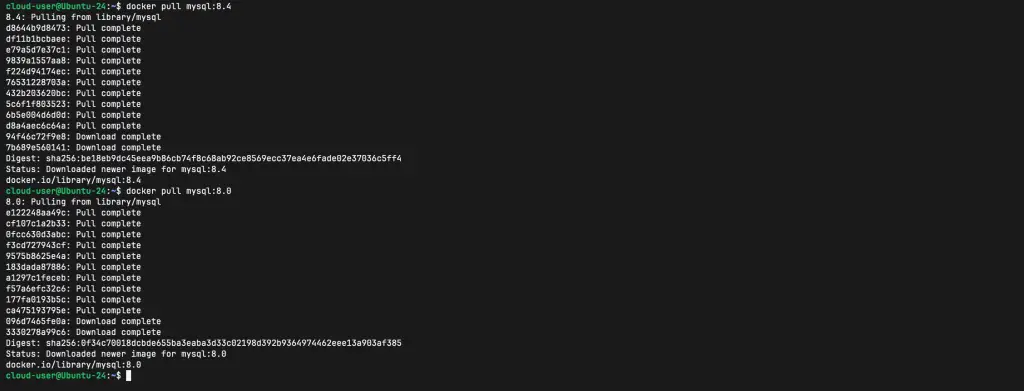
Listing Docker images:
~$ docker image list
IMAGE       ID             DISK USAGE   CONTENT SIZE   EXTRA
mysql:8.0   0f34c70018dc       1.08GB          247MB
mysql:8.4   be18eb9dc45e       1.09GB          248MB
Step 3: Create Persistent Data Directory
If we want to persist database data let’s create a directory where data will be store in our host system.
mkdir ~/mysql_dataConfirm the directory is created and empty.
$ ls -lh ~/mysql_data
total 0
If you have SELinux in enforcing mode apply the container_file_t context to the directory to allow container access to all of its contents.
sudo semanage fcontext -a -t container_file_t ~/mysql_data
sudo restorecon -Rv ~/mysql_data
Step 4: Run MySQL Database Instance in a Container
With all requirements met we can create MySQL database instance. The key Environment Variables available when running a MySQL Container are:
- MYSQL_ROOT_PASSWORD: This variable is mandatory and specifies the password that will be set for the MySQL root superuser account.
- MYSQL_DATABASE: This variable is optional and allows you to specify the name of a database to be created on image startup.
- MYSQL_USER, MYSQL_PASSWORD: Optional and used in conjunction to create a new user and to set that user’s password. This user will be granted superuser permissions for the database specified by the MYSQL_DATABASE variable.
As an alternative to passing sensitive information via environment variables, _FILE may be appended to the previously listed environment variables, causing the initialization script to load the values for those variables from files present in the container.
This is an example container:
docker run -d \
  --name mysql-8 \
  -p 3306:3306 \
  -v mysql_data:/var/lib/mysql \
  -e MYSQL_ROOT_PASSWORD='MyStr0ngP@ssw0rd' \
  mysql:8.4
Verify that the container was started withoutt errors. You can run the docker ps command to list all running containers:
docker ps --format "{{.ID}} {{.Image}} {{.Names}}"
docker ps
Run container and create new database and user on startup.
docker run -d \
  --name mysql-8 \
  -p 3306:3306 \
  -v ~/mysql_data:/var/lib/mysql \
  -e MYSQL_ROOT_PASSWORD='MyStr0ngP@ssw0rd' \
  -e MYSQL_USER=DBUser \
  -e MYSQL_PASSWORD='DBUserpassword' \
  -e MYSQL_DATABASE=SampleDB \
  mysql:8.4
Check data directory to confirm volume mounting works:
ls ~/mysql_data
Remove and clean data of running container.
$ docker ps
CONTAINER ID   IMAGE       COMMAND                  CREATED              STATUS              PORTS                                                    NAMES
0de0204eef8d   mysql:8.4   "docker-entrypoint.s…"   About a minute ago   Up About a minute   0.0.0.0:3306->3306/tcp, [::]:3306->3306/tcp, 33060/tcp   mysql-8

$ docker rm -f 0de0204eef8d
b28ffd77d489

$ sudo rm -rf ~/mysql_data/*
Step 4: Running mysql commands inside container
You can access the container sandbox by running the following command:
## Docker
$ docker exec -it mysql-8 /bin/bash
bash-5.1#
Connect to MySQL as the database administrator user (root).
bash-5.1# mysql -uroot -p'MyStr0ngP@ssw0rd'
mysql: [Warning] Using a password on the command line interface can be insecure.
Welcome to the MySQL monitor.  Commands end with ; or \g.
Your MySQL connection id is 9
Server version: 8.4.8 MySQL Community Server - GPL

Copyright (c) 2000, 2026, Oracle and/or its affiliates.

Oracle is a registered trademark of Oracle Corporation and/or its
affiliates. Other names may be trademarks of their respective
owners.

Type 'help;' or '\h' for help. Type '\c' to clear the current input statement.

mysql>
You can also connect from a remote machine.
mysql -uroot -p'MyStr0ngP@ssw0rd' -h 127.0.0.1
# OR
mysql -uroot -p'MyStr0ngP@ssw0rd' -h 192.168.1.143
Sample Output:
cloud-user@Ubuntu-24:~$ mysql -uroot -p'MyStr0ngP@ssw0rd' -h 127.0.0.1
mysql: [Warning] Using a password on the command line interface can be insecure.
Welcome to the MySQL monitor.  Commands end with ; or \g.
Your MySQL connection id is 10
Server version: 8.4.8 MySQL Community Server - GPL

Copyright (c) 2000, 2026, Oracle and/or its affiliates.

Oracle is a registered trademark of Oracle Corporation and/or its
affiliates. Other names may be trademarks of their respective
owners.

Type 'help;' or '\h' for help. Type '\c' to clear the current input statement.

mysql>
Use MySQL interactive prompt to list created databases.
mysql> SHOW DATABASES;
+--------------------+
| Database           |
+--------------------+
| SampleDB           |
| information_schema |
| mysql              |
| performance_schema |
| sys                |
+--------------------+
5 rows in set (0.01 sec)
You can create new table in the database:
mysql> USE SampleDB;
Database changed
Create a table called Projects in the testdb database.
CREATE TABLE Projects (id int(11) NOT NULL,
  name varchar(255) DEFAULT NULL,
  code varchar(255) DEFAULT NULL,
  PRIMARY KEY (id));
Use the show tables command to verify that the table was created.
mysql> SHOW TABLES;
+--------------------+
| Tables_in_SampleDB |
+--------------------+
| Projects           |
+--------------------+
1 row in set (0.00 sec)
Use the insert command to insert a row into the table.
mysql> INSERT INTO Projects (id, name, code) values (1,'IT','Servers');
Query OK, 1 row affected (0.03 sec)
Verify data added to the table.
mysql> SELECT * FROM Projects;
+----+------+---------+
| id | name | code    |
+----+------+---------+
|  1 | IT   | Servers |
+----+------+---------+
1 row in set (0.00 sec)
When done exit from the MySQL prompt and the MySQL container:
mysql> QUIT
Bye
bash-5.1# exit
exitReference:
