

All applications generate information when running, this information is stored as logs. As a system administrator, you need to monitor these logs to ensure the proper functioning of the system and therefore prevent risks and errors. These logs are normally scattered over servers and management becomes harder as the data volume increases.
Graylog is a free and open-source log management tool that can be used to capture, centralize and view real-time logs from several devices across a network. It can be used to analyze both structured and unstructured logs. The Graylog setup consists of MongoDB, Elasticsearch, and the Graylog server. The server receives data from the clients installed on several servers and displays it on the web interface.
Below is a diagram illustrating the Graylog architecture

Graylog offers the following features:
- Log Collection – Graylog’s modern log-focused architecture can accept nearly any type of structured data, including log messages and network traffic from; syslog (TCP, UDP, AMQP, Kafka), AWS (AWS Logs, FlowLogs, CloudTrail), JSON Path from HTTP API, Beats/Logstash, Plain/Raw Text (TCP, UDP, AMQP, Kafka) e.t.c
- Log analysis – Graylog really shines when exploring data to understand what is happening in your environment. It uses; enhanced search, search workflow and dashboards.
- Extracting data – whenever log management system is in operations, there will be summary data that needs to be passed to somewhere else in your Operations Center. Graylog offers several options that include; scheduled reports, correlation engine, REST API and data fowarder.
- Enhanced security and performance – Graylog often contains sensitive, regulated data so it is critical that the system itself is secure, accessible, and speedy. This is achieved using role-based access control, archiving, fault tolerance e.t.c
- Extendable – with the phenomenal Open Source Community, extensions are built and made available in the market to improve the funmctionality of Graylog
This guide will walk you through how to run the Graylog Server in Docker Containers. This method is preferred since you can run and configure Graylog with all the dependencies, Elasticsearch and MongoDB already bundled.
Setup Prerequisites.
Before we begin, you need to update the system and install the required packages.
## On Debian/Ubuntu
sudo apt update && sudo apt upgrade
sudo apt install curl vim git

## On RHEL/CentOS/RockyLinux 8
sudo yum -y update
sudo yum -y install curl vim git

## On Fedora
sudo dnf update
sudo dnf -y install curl vim git
1. Install Docker and Docker-Compose on Linux
Of course, you need the docker engine to run the docker containers. To install the docker engine, use the dedicated guide below:
Once installed, check the installed version.
$ docker -v
Docker version 24.0.7, build afdd53b
You also need to add your system user to the docker group. This will allow you to run docker commands without using sudo
sudo usermod -aG docker $USER
newgrp docker
With docker installed, proceed and install docker-compose using the guide below:
Verify the installation.
$ docker-compose version
Docker Compose version v2.23.1
Now start and enable docker to run automatically on system boot.
sudo systemctl start docker && sudo systemctl enable docker2. Provision the Graylog Container
The Graylog container will consist of the Graylog server, Elasticsearch, and MongoDB. To be able to achieve this, we will capture the information and settings in a YAML file.
Create the YAML file as below:
mkdir ~/graylog && cd  ~/graylog
vim docker-compose.yml
In the file, replace:
- GRAYLOG_PASSWORD_SECRET with your own password which must be at least 16 characters
- GRAYLOG_ROOT_PASSWORD_SHA2 with a SHA2 password obtained using the command:
echo -n "Enter Password: " && head -1 </dev/stdin | tr -d '\n' | sha256sum | cut -d" " -f1- GRAYLOG_HTTP_EXTERNAL_URI with your server IP address and port.
Modify and paste the contents.
version: '3'
services:
  # MongoDB: https://hub.docker.com/_/mongo/
  mongodb:
    image: mongo:6.0
    networks:
      - graylog
  #DB in share for persistence
    volumes:
      - mongo_data:/data/db
   # Elasticsearch: https://www.elastic.co/guide/en/elasticsearch/reference/7.10/docker.html
  elasticsearch:
    image: docker.elastic.co/elasticsearch/elasticsearch-oss:7.10.2
    #data folder in share for persistence
    volumes:
      - es_data:/usr/share/elasticsearch/data
    environment:
      - http.host=0.0.0.0
      - transport.host=localhost
      - network.host=0.0.0.0
      - "ES_JAVA_OPTS=-Xms512m -Xmx512m"
    ulimits:
      memlock:
        soft: -1
        hard: -1
    mem_limit: 1g
    networks:
      - graylog
  # Graylog: https://hub.docker.com/r/graylog/graylog/
  graylog:
    image: graylog/graylog:5.2
    #journal and config directories in local NFS share for persistence
    volumes:
      - graylog_journal:/usr/share/graylog/data/journal
    environment:
      # CHANGE ME (must be at least 16 characters)!
      - GRAYLOG_PASSWORD_SECRET=somepasswordpepper
      # Password: admin
      - GRAYLOG_ROOT_PASSWORD_SHA2=e1b24204830484d635d744e849441b793a6f7e1032ea1eef40747d95d30da592
      - GRAYLOG_HTTP_EXTERNAL_URI=http://192.168.205.4:9000/
    entrypoint: /usr/bin/tini -- wait-for-it elasticsearch:9200 --  /docker-entrypoint.sh
    networks:
      - graylog
    links:
      - mongodb:mongo
      - elasticsearch
    restart: always
    depends_on:
      - mongodb
      - elasticsearch
    ports:
      # Graylog web interface and REST API
      - 9000:9000
      # Syslog TCP
      - 1514:1514
      # Syslog UDP
      - 1514:1514/udp
      # GELF TCP
      - 12201:12201
      # GELF UDP
      - 12201:12201/udp
networks:
    graylog:
      driver: bridge
# Volumes for persisting data, see https://docs.docker.com/engine/admin/volumes/volumes/
volumes:
  mongo_data:
    driver: local
  es_data:
    driver: local
  graylog_journal:
driver: local- GRAYLOG_HTTP_EXTERNAL_URI with the IP address of your server.
You can also set more configurations for your server using GRAYLOG_, for example, to enable SMTP for sending alerts;
.......
    graylog:
......
      environment:
        GRAYLOG_TRANSPORT_EMAIL_ENABLED: "true"
        GRAYLOG_TRANSPORT_EMAIL_HOSTNAME: smtp
        GRAYLOG_TRANSPORT_EMAIL_PORT: 25
        GRAYLOG_TRANSPORT_EMAIL_USE_AUTH: "false"
        GRAYLOG_TRANSPORT_EMAIL_USE_TLS: "false"
        GRAYLOG_TRANSPORT_EMAIL_USE_SSL: "false"
.....
3. Create Persistent volumes
In order to persist the data, you will use external volumes to store the data. In this guide, we have already mapped the volumes in the YAML file. Create the 3 volumes for MongoDB, Elasticsearch, and Graylog as below:
mkdir ./{mongo_data,es_data,graylog_journal}Set the right permissions:
sudo chmod 777 -R ./{mongo_data,es_data,graylog_journal}
sudo chown -R 1000:1000 ./es_data
Om Rhel based systems, you need to set SELinux in permissive mode for the paths to be accessible.
sudo setenforce 0
sudo sed -i 's/^SELINUX=.*/SELINUX=permissive/g' /etc/selinux/config
4. Run Graylog Server in Docker Containers
With the container provisioned, we can now spin it easily using the command:
docker compose up -dSample Output:
[+] Running 30/30
✔ elasticsearch 9 layers [⣿⣿⣿⣿⣿⣿⣿⣿⣿] 0B/0B Pulled 24.5s
✔ ddf49b9115d7 Pull complete 3.9s
✔ a752d85b289a Pull complete 3.5s
✔ 57c9a166c575 Pull complete 4.0s
✔ 44fabf20c8a1 Pull complete 7.4s
✔ 45ea1d560ab5 Pull complete 4.4s
✔ 0dc15e54b214 Pull complete 4.9s
✔ cf11b2a25e23 Pull complete 5.3s
✔ 3a66822889ec Pull complete 5.4s
✔ be7444f2e9d6 Pull complete 5.9s
✔ graylog 10 layers [⣿⣿⣿⣿⣿⣿⣿⣿⣿⣿] 0B/0B Pulled 19.7s
✔ 43f89b94cd7d Pull complete 0.7s
✔ a4452d37e1e4 Pull complete 0.7s
✔ cae6cc00f059 Pull complete 0.9s
✔ dfaec5da5e63 Pull complete 1.0s
✔ eb7dcc43773c Pull complete 1.1s
✔ fa114749a7a9 Pull complete 3.6s
✔ 4f4fb700ef54 Pull complete 1.4s
✔ 53f3bd432e94 Pull complete 1.6s
✔ 2d085b48fa2a Pull complete 1.7s
✔ aa08c57b1142 Pull complete 1.9s
✔ mongodb 8 layers [⣿⣿⣿⣿⣿⣿⣿⣿] 0B/0B Pulled 22.1s
✔ 54a7480baa9d Pull complete 2.1s
✔ 7f9301fbd7df Pull complete 2.3s
✔ 5e4470f2e90f Pull complete 2.6s
✔ 40d046ff8fd3 Pull complete 2.7s
✔ 64d7f1f42d4e Pull complete 3.0s
✔ c9074c327c8e Pull complete 3.0s
✔ aff86e26764a Pull complete 5.6s
✔ 78bccb6b3ef9 Pull complete 3.4s
[+] Building 0.0s (0/0) docker:default
[+] Running 4/4
✔ Network graylog_graylog Created 0.1s
✔ Container graylog-elasticsearch-1 Started 0.2s
✔ Container graylog-mongodb-1 Started 0.2s
✔ Container graylog-graylog-1 Started 0.0sOnce all the images have been pulled and containers started, check the status as below:
$ docker ps
CONTAINER ID   IMAGE                                                      COMMAND                  CREATED          STATUS                             PORTS                                                                                                                                                                                                                           NAMES
7f969caa48f5   graylog/graylog:5.2                                        "/usr/bin/tini -- wa…"   30 seconds ago   Up 27 seconds (health: starting)   0.0.0.0:1514->1514/tcp, :::1514->1514/tcp, 0.0.0.0:9000->9000/tcp, 0.0.0.0:1514->1514/udp, :::9000->9000/tcp, :::1514->1514/udp, 0.0.0.0:12201->12201/tcp, 0.0.0.0:12201->12201/udp, :::12201->12201/tcp, :::12201->12201/udp   thor-graylog-1
1a21d2de4439   docker.elastic.co/elasticsearch/elasticsearch-oss:7.10.2   "/tini -- /usr/local…"   31 seconds ago   Up 28 seconds                      9200/tcp, 9300/tcp                                                                                                                                                                                                              thor-elasticsearch-1
1b187f47d77e   mongo:6.0                                                  "docker-entrypoint.s…"   31 seconds ago   Up 28 seconds                      27017/tcp                                                                                                                                                                                                                       thor-mongodb-1
If you have a firewall enabled, allow the Graylog service port through it.
##For Firewalld
sudo firewall-cmd --zone=public --add-port=9000/tcp --permanent
sudo firewall-cmd --reload

##For UFW
sudo ufw allow 9000/tcp
5. Access the Graylog Web UI
Now open the Graylog web interface using the URL http://IP_address:9000.
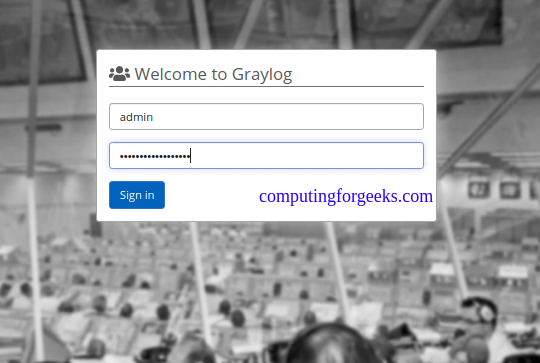
Log in using the username admin and SHA2 password(StrongPassw0rd) set in the YAML.
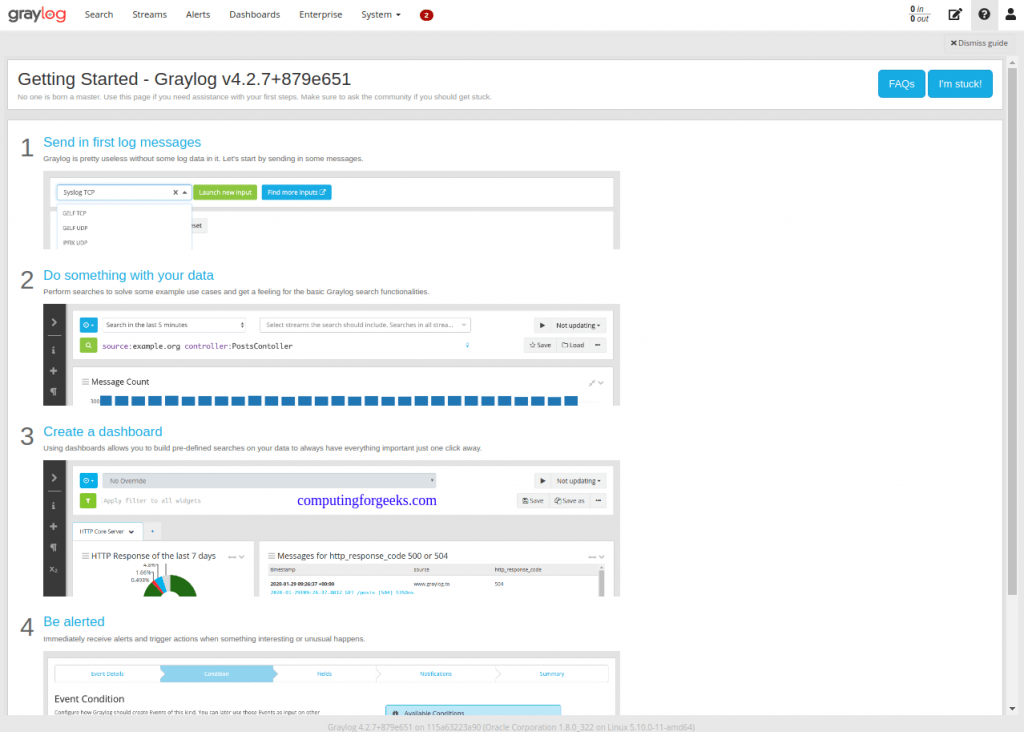
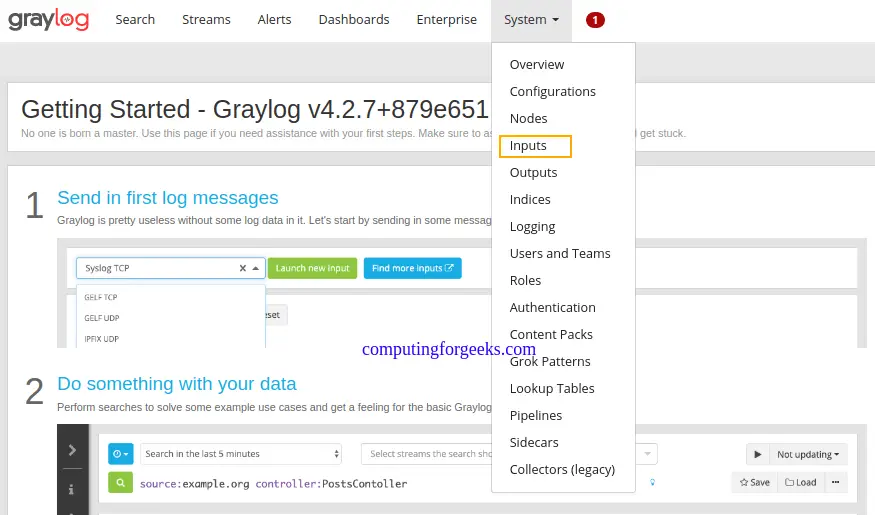
On the dashboard, let’s create the first input to get logs by navigating to the systems tab and selecting input.
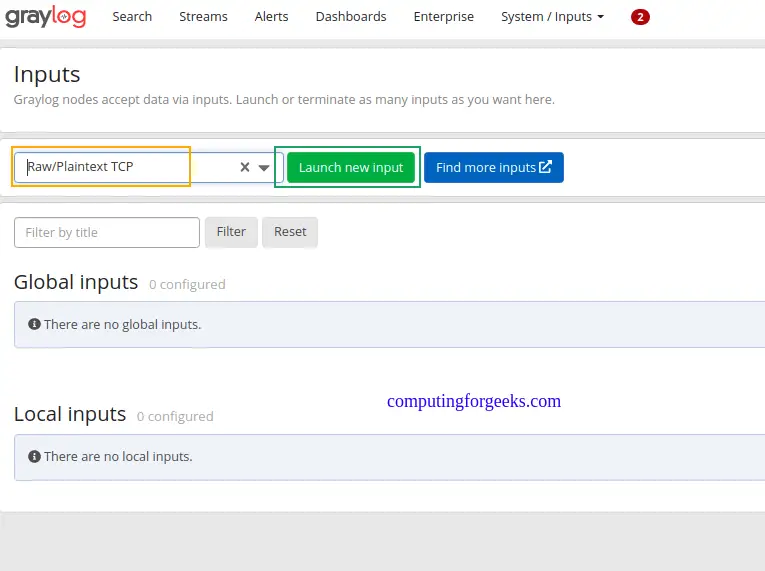
Now search for Raw/Plaintext TCP and click launch new input
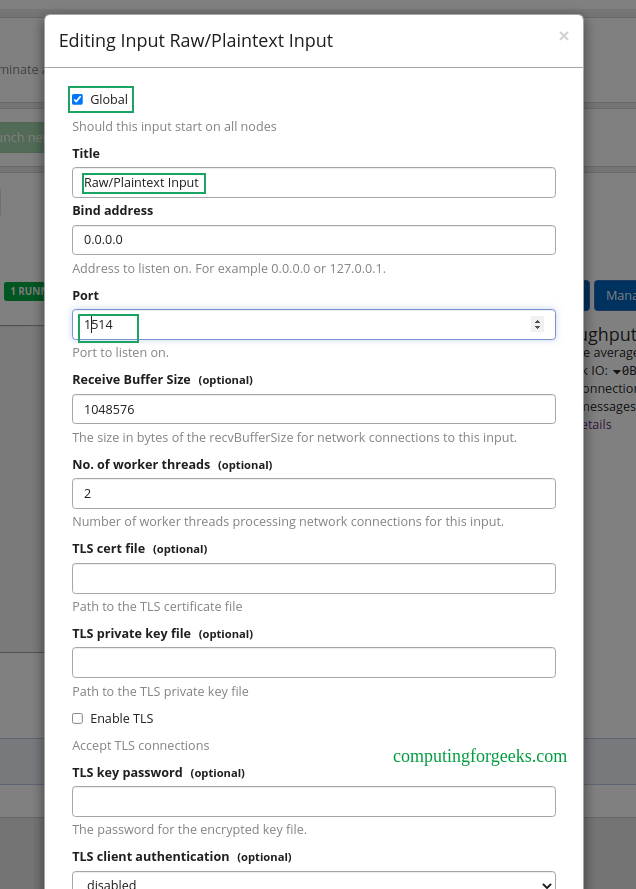
Once launched, a pop-up window will appear as below. You only need to change the name for the input, port(1514), and select the node, or “Global” for the location for the input. Leave the other details as they are.
Save the file and try sending a plain text message to the Graylog Raw/Plaintext TCP input on port 1514.
echo 'First log message' | nc localhost 1514

##OR from another server##

echo 'First log message' | nc 192.168.205.4 1514
On the running Raw/Plaintext Input, show received messages

The received message should be displayed as below.
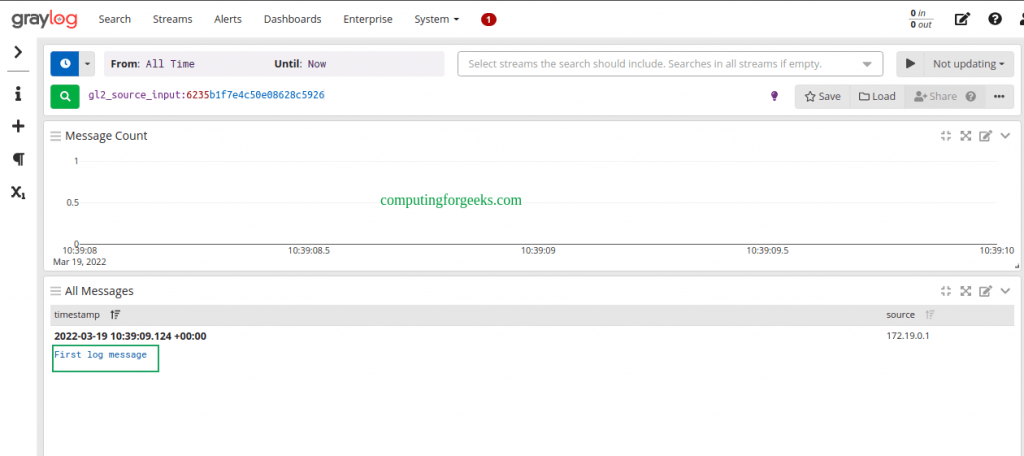
You can as well export this to a dashboard as below.

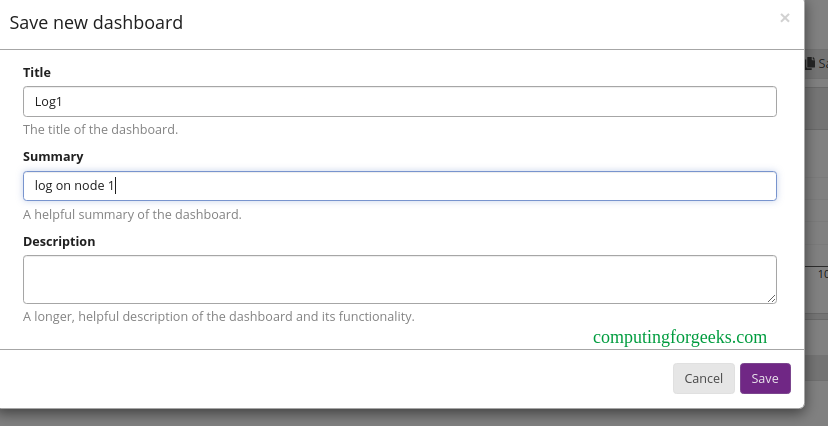
Create the dashboard by providing the required information.
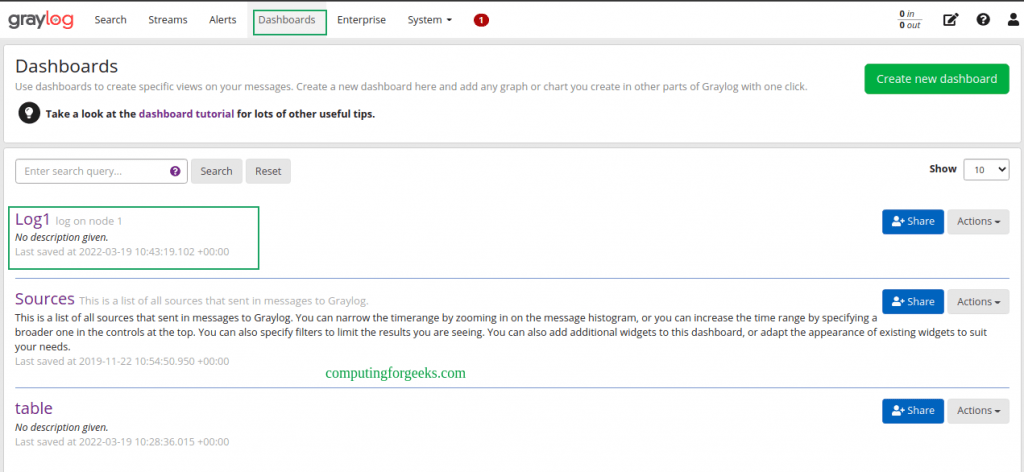
You will have the dashboard appear under the dashboards tab.
Conclusion
That is it!
We have triumphantly walked through how to run the Graylog Server in Docker Containers. Now you can monitor and access logs on several servers with ease. I hope this was significant to you.
Related posts:

Create Persistent volumes not work for my setup. My dockeruser ID 1000:1000. I can not map with graylog user id 1100.
Shetu, let me know the exact error that you are facing.
I changed the password in docker compose file, and after that I started all the containers and they work fine, but when I try to login to Graylog WebUI with credentials stored in docker compose file, the credentials provided are not correct. What can be the problem?
Hi, starting with 5.2, you need the GRAYLOG_ELASTICSEARCH_HOSTS: setting in your docker-compose.yml to be present and filled correctly. If you don’t include the setting, this setup guide is not working any more for new installs. We changed the defaults.
Is there an example of how to do this in the current docker-compose.yml file as seen above?
After starting i have error:
org.mongodb.driver.cluster – Cluster description not yet available. Waiting for 30000 ms before timing out
I just tested the setup and it seems to be working fine.
I attempted to set the password to something like “StrongPassw0rd00” (since its requiring 16 characters) and updated the SHA as well, but the login name of “admin” and the new password still doesn’t work. I keep getting the error message of: “You cannot access this resource, missing authorization header!”.
GRAYLOG_PASSWORD_SECRET=StrongPassw0rd00
GRAYLOG_ROOT_PASSWORD_SHA2=7910113f47edd71e9a42bcb308e22e6a5a742963c83a44a655525301da87e81a
I logged into the graylog docker container and looked at the graylog/data/config/graylog.conf file and noticed that both the “password_secret” and “root_password_sha2” were both empty. Since there is no editor installed, I wasn’t able to change these to like what was in the docker-compose.yaml file.
Is there a way to debug what is going on and/or why it’s not getting accepted? I am running this on Ubuntu 22.04.