

Did you happen to forget your ArgoCD admin login password? In older versions of ArgoCD, v1.8 and earlier, the default admin password was set to set to the name of the server pod. For ArgoCD version 1.9 and later, the initial password is saved as a secret during the installation. The secret is is called argocd-initial-admin-secret.
Getting initial admin password from a secret
If you never changed the default admin user password, it can be pulled from the secret by executing the following commands:
kubectl -n argocd get secret argocd-initial-admin-secret -o jsonpath="{.data.password}" | base64 -d;echoThe output will be the admin user password in plain text, for example:
RGfpwaAvhnh14KrlFor admin account with no password change in the past, the output can be copied and used to login to ArgoCD.
Resetting admin user password
If you want the ArgoCD server to autogenerate a new password and update the secret, then delete the admin.password and admin.passwordMtime keys from the argocd-secret secret.
kubectl -n argocd get secret argocd-secret -o yamlThis can be done using the kubectl patch command or by editing the secret directly. Here’s how to do it from CLI using patch command option.
- By nulling:
kubectl -n argocd patch secret argocd-secret -p '{"data": {"admin.password": null, "admin.passwordMtime": null}}' -n argocd- Or by removing them keys
kubectl -n argocd patch secret argocd-secret \
  --type=json \
  -p='[{"op": "remove", "path": "/data/admin.password"}, {"op": "remove", "path": "/data/admin.passwordMtime"}]'
You should get the output:
secret/argocd-secret patchedRestart argocd server after password is regenerated
kubectl -n argocd rollout restart deployment argocd-serverWait for the pod to get ready
kubectl -n argocd get podsThen retrieve generated password (this updated argocd-initial-admin-secret)
kubectl -n argocd get secret argocd-initial-admin-secret -o jsonpath="{.data.password}" | base64 -d;echoSample output:
-D0EQT3Qok3ZapYXUpdate admin password from ArgoCD UI
Access ArgoCD web interface, e.g by using port forwarding if no ingress is configured in your setup
# If using HTTP
kubectl -n argocd port-forward --address 0.0.0.0 service/argocd-server 8080:80

# If using HTTPS
kubectl -n argocd port-forward --address 0.0.0.0 service/argocd-server 8443:443
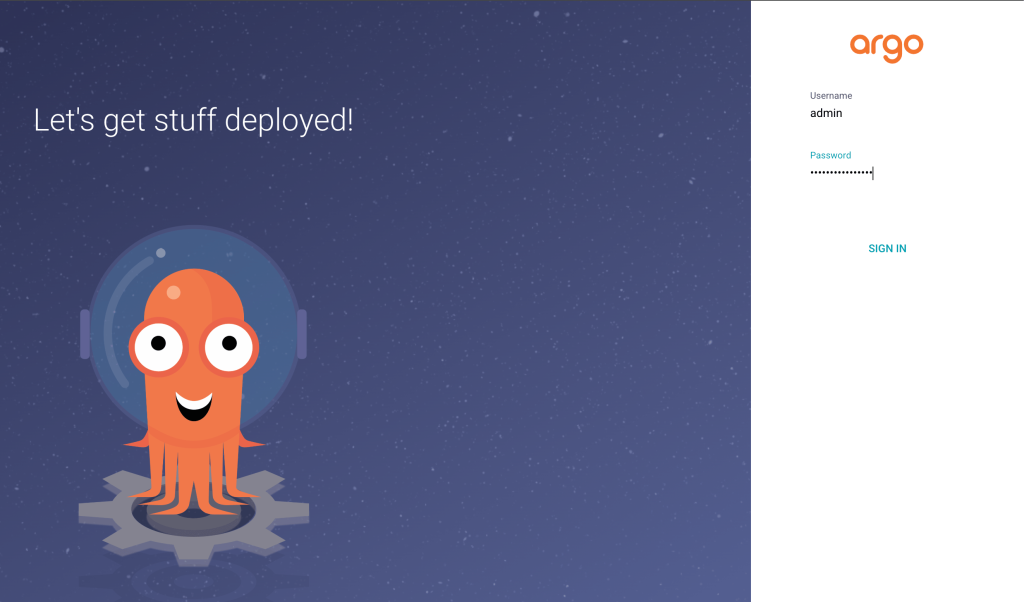
Login with admin as username, and regenerated password.
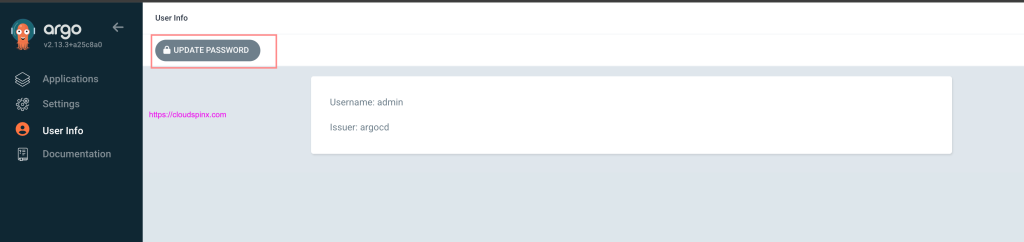
Click on “User Info” –> “UPDATE PASSWORD” to set your own custom password for the admin user.
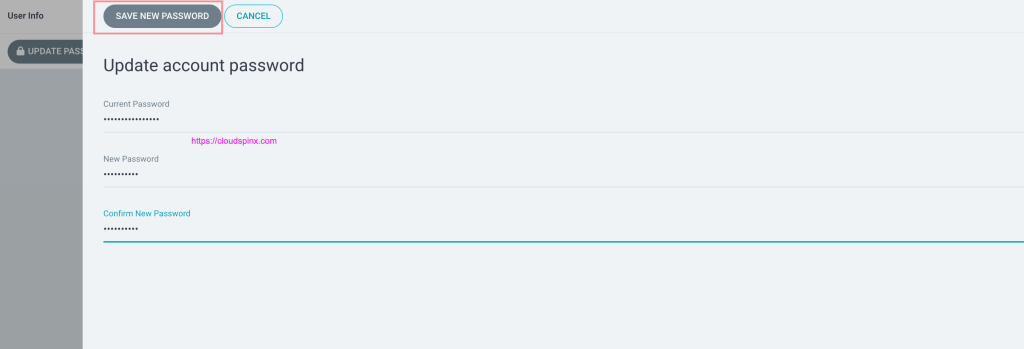
Once you’ve provided and confirmed the new password, click save to update it.
Test your new password by logging out and then logging back in. Our Engineers are available to support you in your GitOps journey, contact us today for a free consultation.
