

System admins are constantly looking for methods and tools that can make their day-to-day work easier. Their daily tasks revolve around managing several server aspects such as storage, domain names, firewalls, networks, services and monitoring processes. These tasks can be complex and challenging when the environment is large.
There are several tools such as Virtualmin, Webmin, Cockpit, DirectAdmin etc, that help solve this complexity. They make it easy to administer and manage several servers and hosting services. From the dashboards, you can easily configure server settings, install packages, manage users and groups, perform backups, manage firewalls and services etc.
1Panel is an open-source Linux server administration panel. It provides a modern dashboard from which you can perform several configurations and server management operations.
The features and benefits associated with 1Panel are:
- Efficient management: This tool makes it so easy to manage your Linux server via a web interface. This includes app management, monitoring, file management, container management, database management etc.
- Secure and reliable: 1Panel comes with firewall and security audit functions put in place to minimize vulnerability exposure.
- Quick website building: It is integrated with WordPress and Halo and still offers one-click solutions for domain name binding, SSL configuration etc.
- One-click backup: With 1Panel, you can perform backups and restore using a single click. The other advantage is that data can be backed up in the cloud to avoid data loss.
- App Store: It also provides innumerable high-quality open-source software and tools which can be easily installed and upgraded.
In this guide, we will learn how to install and use 1Panel on Ubuntu / Debian / CentOS by following the steps below;
1. Prepare Your Server
To be able to install 1panel, you need:
- Operating system: mainstream Linux release version based on RedHat and Debian
- Server architecture: x86_64, aarch64, armv7l, ppc64le, s390x
- Storage: 1GB or more free space
- Browser requirements: modern browsers such as Chrome, FireFox, IE10+, Edge etc are recommended.
Before we begin, you need to ensure that your server is up to date. To update the package index, use:
##On Debian/Ubuntu
sudo apt update

##On CentOS
sudo yum makecache
You also need to install cURL:
##On Debian/Ubuntu
sudo apt install curl -y

##On CentOS
sudo yum install curl -y
2. Install 1Panel server management tool
Once the server has been prepared, you can proceed and install 1Panel on Ubuntu / Debian / CentOS using the installer script as shown:
curl -sSL https://resource.fit2cloud.com/1panel/package/quick_start.sh -o quick_start.sh && sudo bash quick_start.sh

##On CentOS
curl -sSL https://resource.fit2cloud.com/1panel/package/quick_start.sh -o quick_start.sh && sh quick_start.sh
Proceed as shown:
Warning: Got more output options than URLs
1panel-v1.7.1-linux-amd64/1panel.service
1panel-v1.7.1-linux-amd64/1pctl
1panel-v1.7.1-linux-amd64/LICENSE
1panel-v1.7.1-linux-amd64/README.md
1panel-v1.7.1-linux-amd64/install.sh
1panel-v1.7.1-linux-amd64/1panel

 ██╗    ██████╗  █████╗ ███╗   ██╗███████╗██╗
███║    ██╔══██╗██╔══██╗████╗  ██║██╔════╝██║
╚██║    ██████╔╝███████║██╔██╗ ██║█████╗  ██║
 ██║    ██╔═══╝ ██╔══██║██║╚██╗██║██╔══╝  ██║
 ██║    ██║     ██║  ██║██║ ╚████║███████╗███████╗
 ╚═╝    ╚═╝     ╚═╝  ╚═╝╚═╝  ╚═══╝╚══════╝╚══════╝
[1Panel Log]: ======================= 开始安装 =======================
设置 1Panel 安装目录(默认为/opt):Press Enter
....
设置 1Panel 端口(默认为24273): <Set the default port number(press enter to set 24273)>
...
设置 1Panel 用户名称(默认为ac3571a30a):<set_username>
设置 1Panel 用户密码(默认为967aaac74e):<set_user_password>
......
Once complete, you will see this:
[1Panel Log]: =================感谢您的耐心等待,安装已经完成==================
[1Panel Log]:
[1Panel Log]: 请用浏览器访问面板:
[1Panel Log]: 面板地址: http://$LOCAL_IP:24273/f2fe136305
[1Panel Log]: 用户名称: admin
[1Panel Log]: 用户密码: Passw0rd!
[1Panel Log]:
[1Panel Log]: 项目官网: https://1panel.cn
[1Panel Log]: 项目文档: https://1panel.cn/docs
[1Panel Log]: 代码仓库: https://github.com/1Panel-dev/1Panel
[1Panel Log]:
[1Panel Log]: 如果使用的是云服务器,请至安全组开放 24273 端口
[1Panel Log]:
[1Panel Log]: ================================================================
3. Using 1Panel to Manage your Server
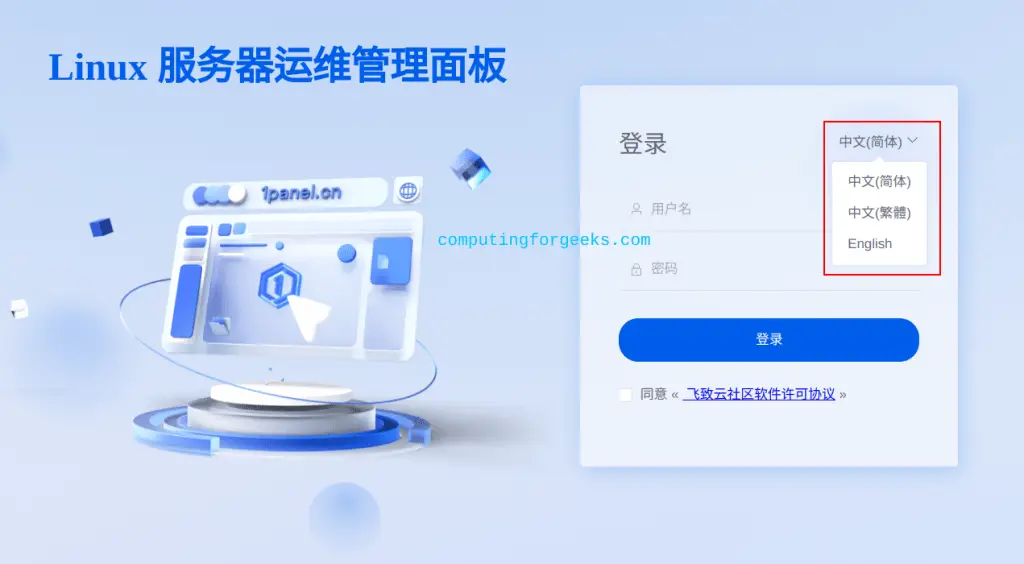
Once the installation is complete, you can proceed and access 1Panel web UI using the set port. Use the URL provided, for example http://IP_address:24273/f2fe136305 for my case.
Set the desired language on this page:
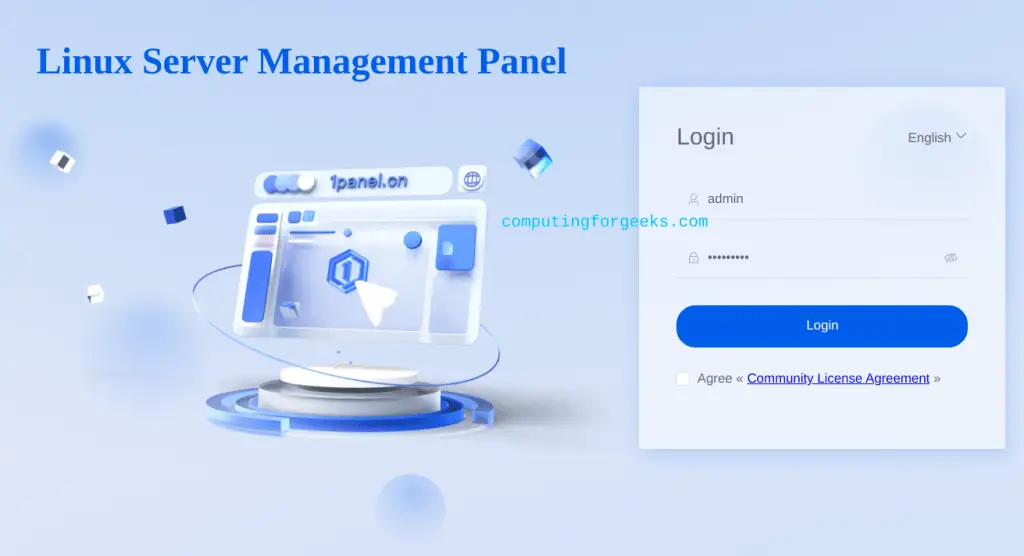
Proceed and log in using the created user and password
If all is okay, you will see this dashboard:
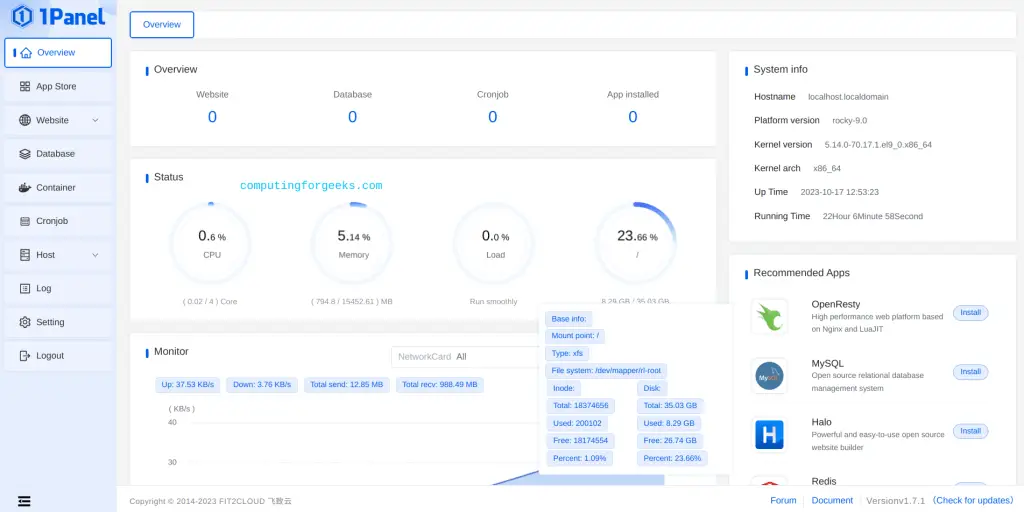
Now you are free to use 1panel as desired to manage your server. In this guide, I will show you the basic administration tasks.
App Store
The app store allows users to install and manage the various applications.
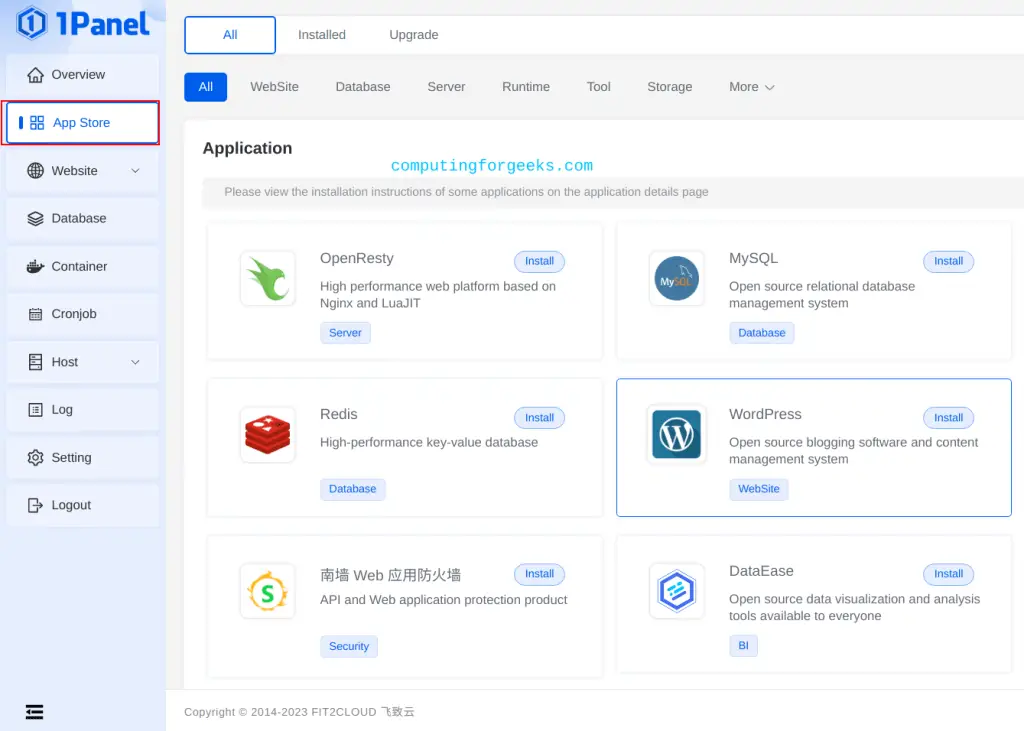
Just to test, I will install the MySQL package:
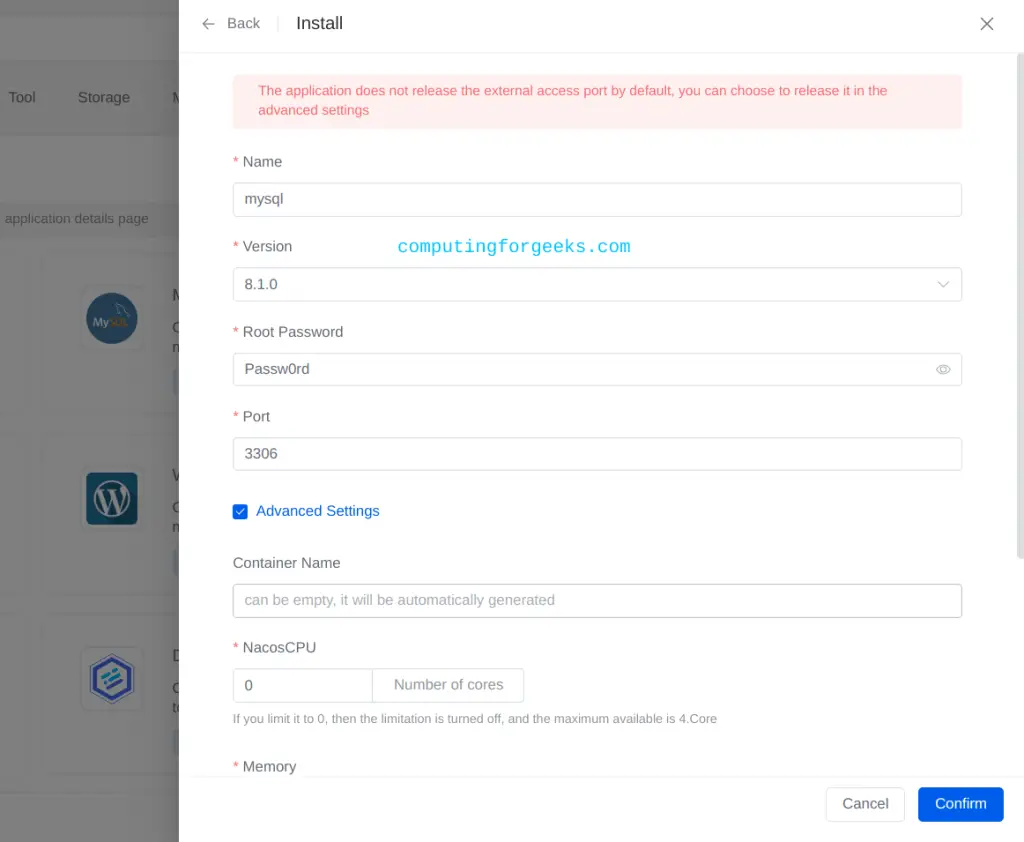
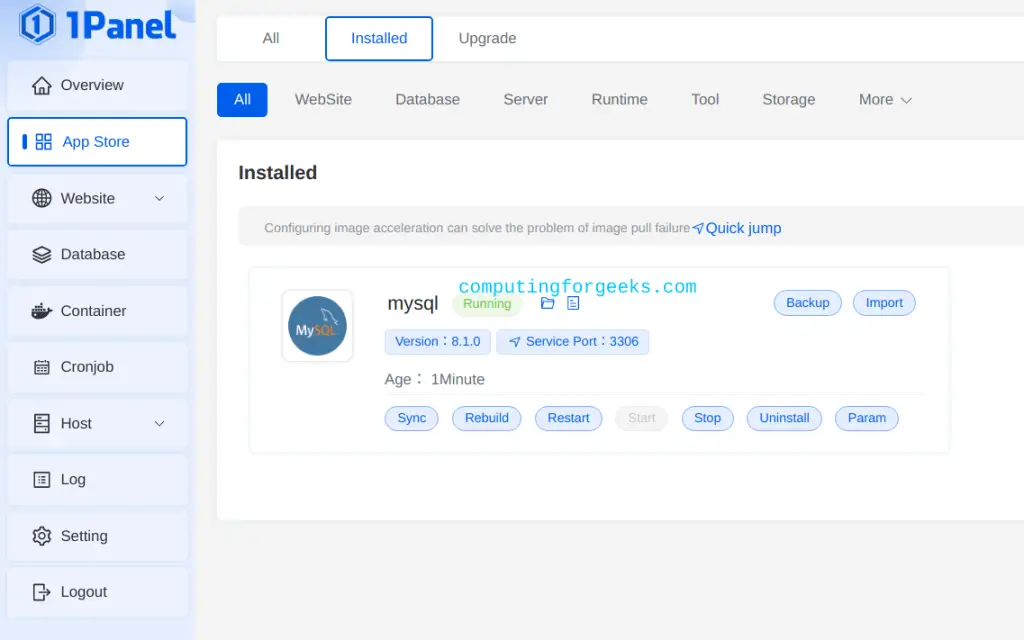
Once the desired configs have been made, click on Confirm and you will have your app installed and started in a docker container as shown:
Websites
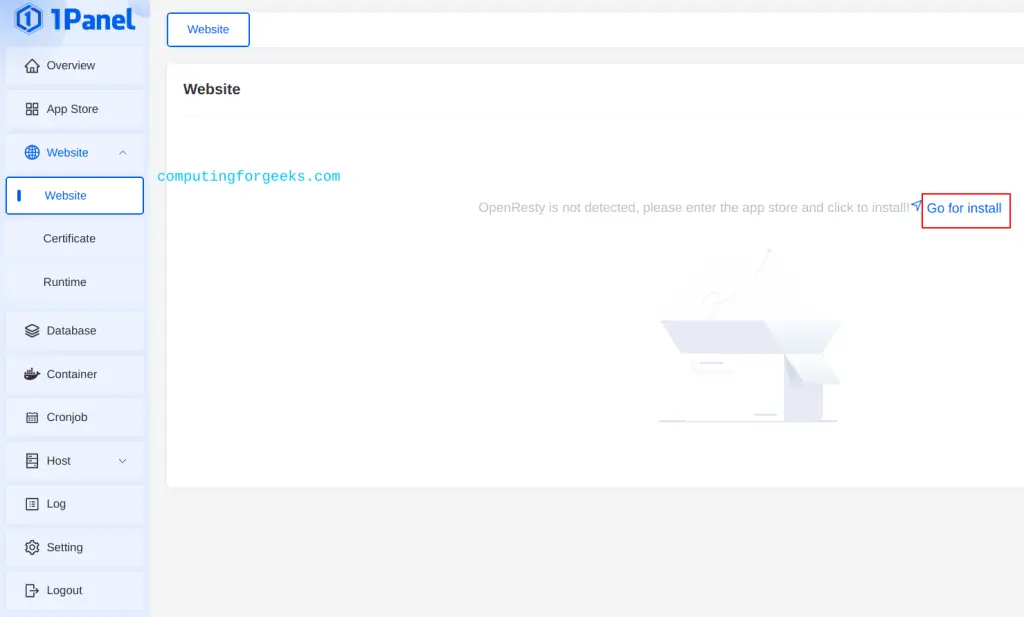
To manage websites, you need to install OpenResty first from the App Store.
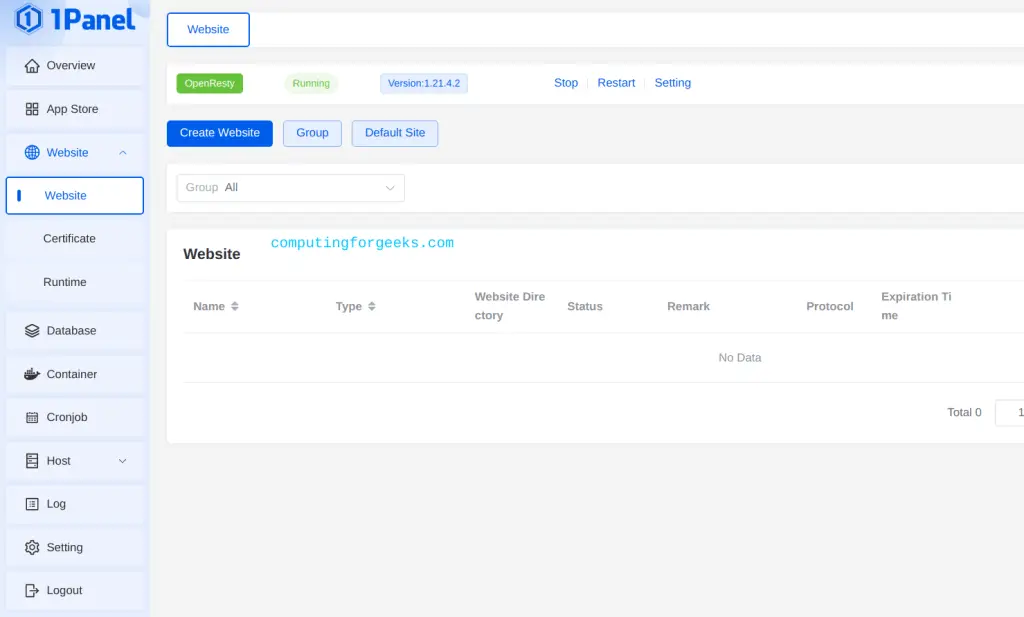
Once installed, you create and manage websites as desired.
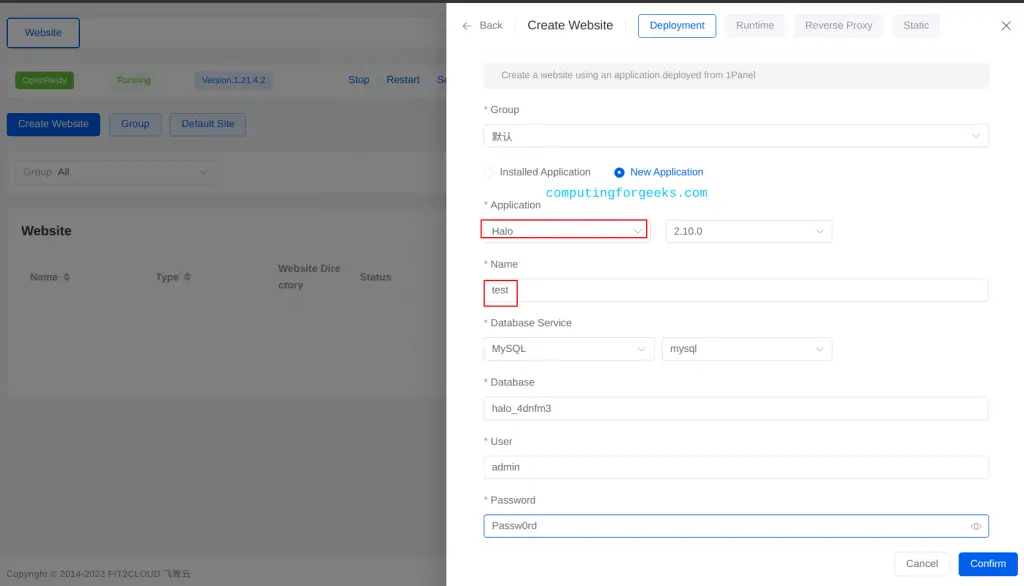
Provide the required configs for your site. For example, deploying a simple Halo site:
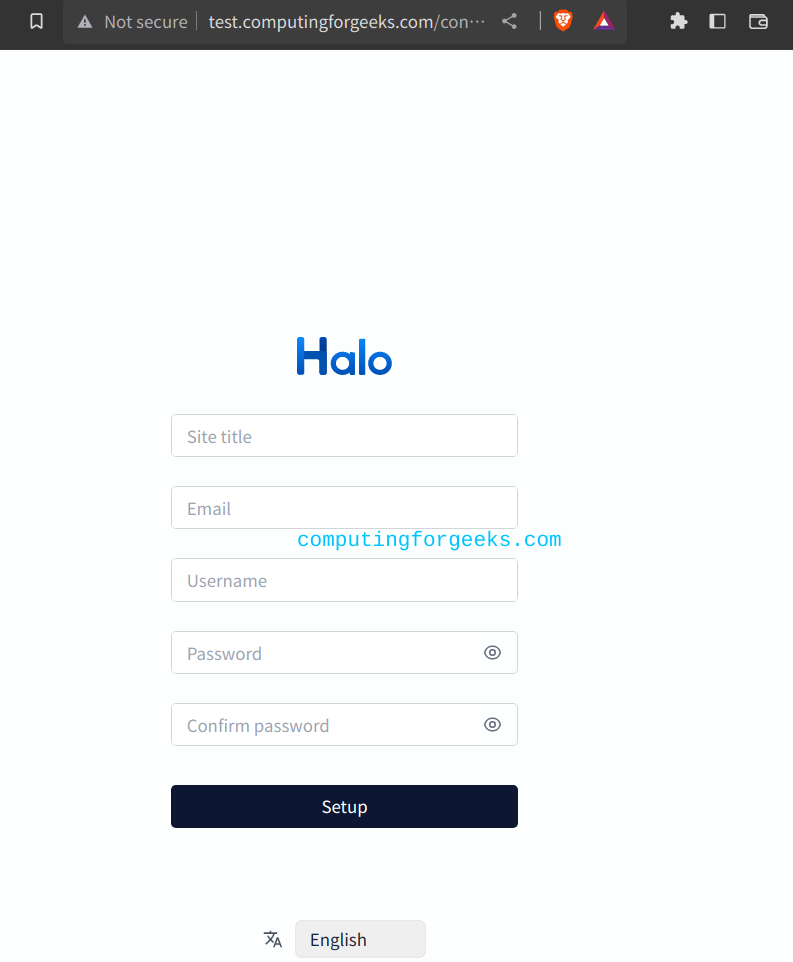
Once the website is running, you can access it using the provided Primary domain and port:
Databases
With a database installed, you proceed and manage it as desired from 1Panel UI.
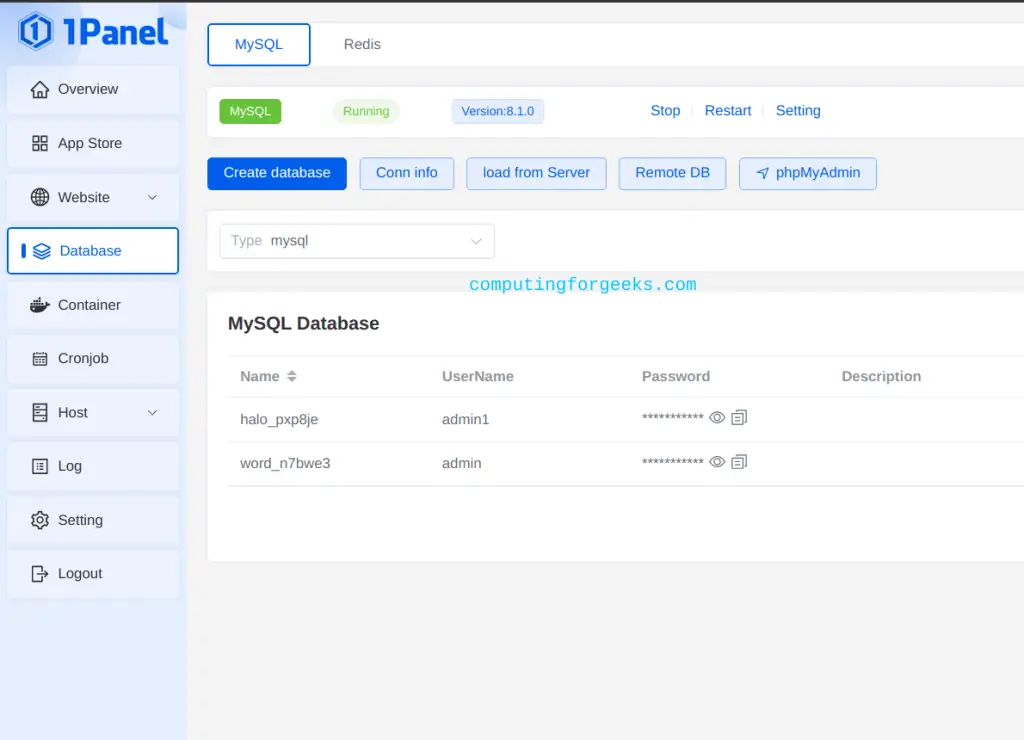
You can also install PHPMyAdmin to manage the databases if there is need to.
Containers
You can also manage all the running containers from this tab.
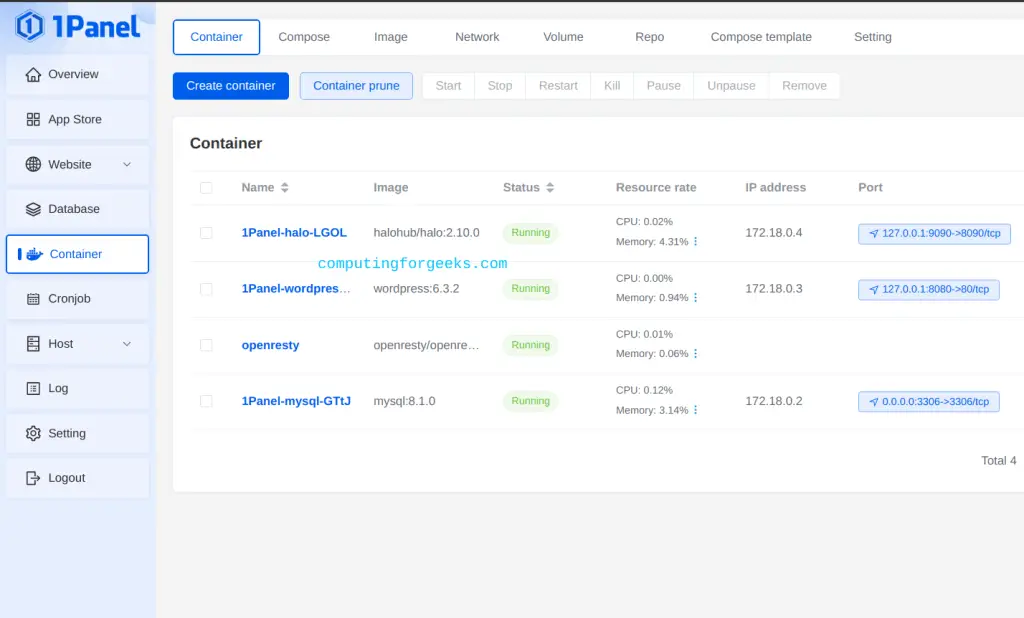
You can also create new containers if you need to:
Host
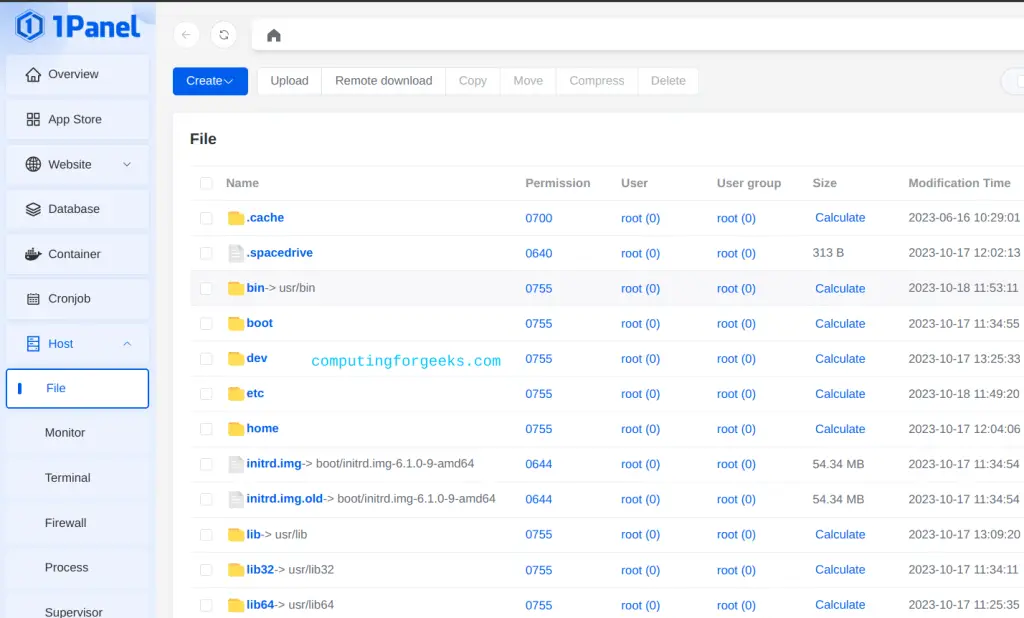
From this tab, you can manage the various resources on the host machine. This includes files, terminal, SSH, firewalls etc.
Settings
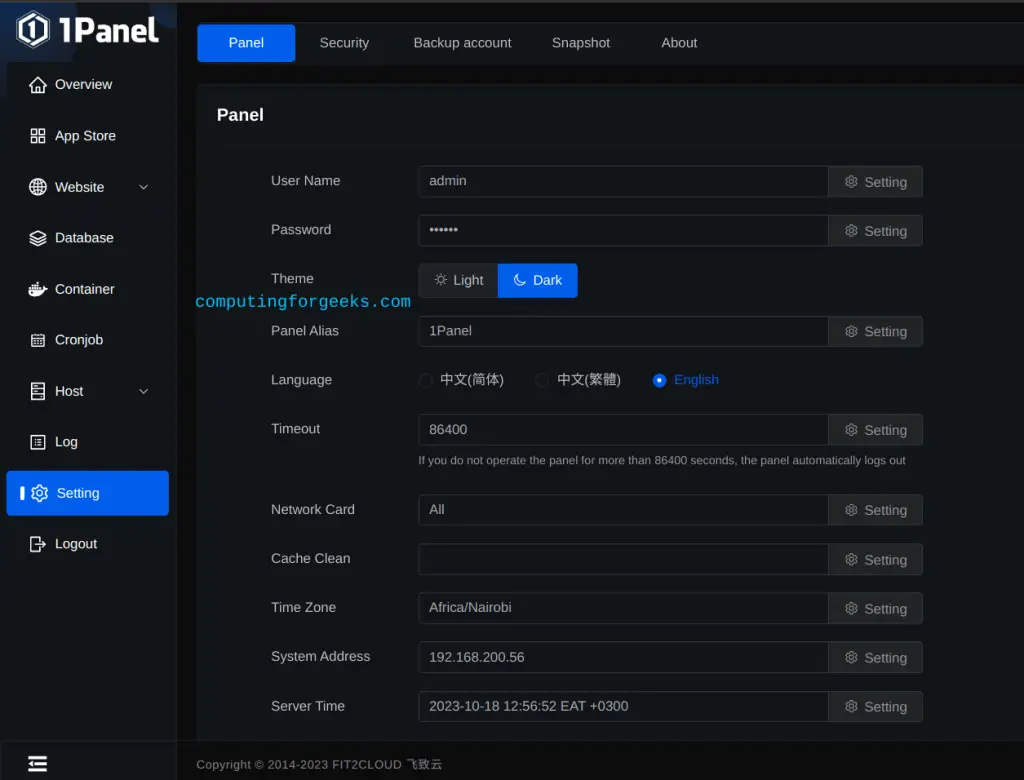
From this tab, you can make the various 1Panel settings. This includes setting the admin creds, theme, language, timezone, server IP address etc.
Wrap Up
That is the end of this detailed guide on how to install and use 1Panel on Ubuntu / Debian / CentOS. I hope this will help simplify your system administration tasks in your environment.
Interested in more:

I love the design and speed of 1Panel; in my opinion, it’s the most user-friendly interface. However, it’s important to note that 1Panel does not support multi-tenancy. If you need to share access with sub-users, it’s better to choose OpenPanel or CyberPanel.