

XAMPP is an open source and free to use software package that provides Apache distribution containing MariaDB, PHP, and Perl. XAMPP installer is available for Windows, Linux and macOS operating systems. The platform is build specifically for developers working on their Laptops and Desktops – To be able to build, deploy and test web applications without worrying about server hosting requirements.
Once the application has been tested to be working on the Dev machine only then can it be moved to UAT and Production environments where an actual Linux Server is setup with all dependencies installed. In this short guide you’ll be able to install and use XAMPP On Ubuntu 24.04|22.04.
The setup requirements are:
- User account with sudo privileges
- SSH Access to the local Ubuntu 24.04/22.04 machine or direct terminal on Desktop session.
- A ready Ubuntu 24.04/22.04 system
Step 1: Update System
If you don’t have any critical application running and afraid of breaking it you can run the following commands to ensure your system is updated.
sudo apt update
sudo apt upgrade -y
Once the system is upgraded go ahead and download XAMPP application.
Step 2: Download XAMPP On Ubuntu 24.04|22.04
Head over to XAMPP Downloads page and pull the latest release of XAMPP. Choose the version that matches the PHP version you’re doing software developments.
With PHP 8.2:
wget https://sourceforge.net/projects/xampp/files/XAMPP%20Linux/8.2.12/xampp-linux-x64-8.2.12-0-installer.runWith PHP 8.1:
wget https://sourceforge.net/projects/xampp/files/XAMPP%20Linux/8.1.25/xampp-linux-x64-8.1.25-0-installer.runWith PHP 8.0:
wget https://sourceforge.net/projects/xampp/files/XAMPP%20Linux/8.0.30/xampp-linux-x64-8.0.30-0-installer.runStep 3: Install XAMPP On Ubuntu 24.04|22.04
Once the application has been downloaded give it execution bits.
chmod a+x xampp-linux-*-installer.runThen run the installer script.
### PHP 8.2 example ###
sudo ./xampp-linux-x64-8.2.12-0-installer.run

### PHP 8.1 example ###
sudo ./xampp-linux-x64-8.1.25-0-installer.run
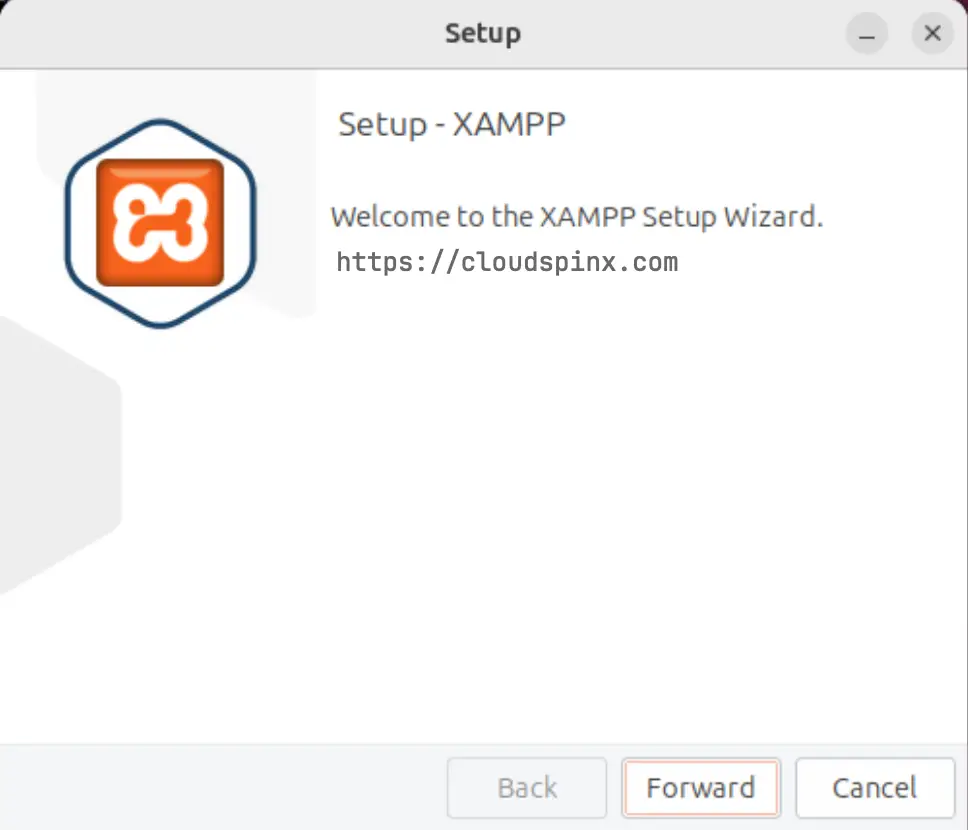
Then installation screen will open. Hit ‘Forward‘ to start the process.
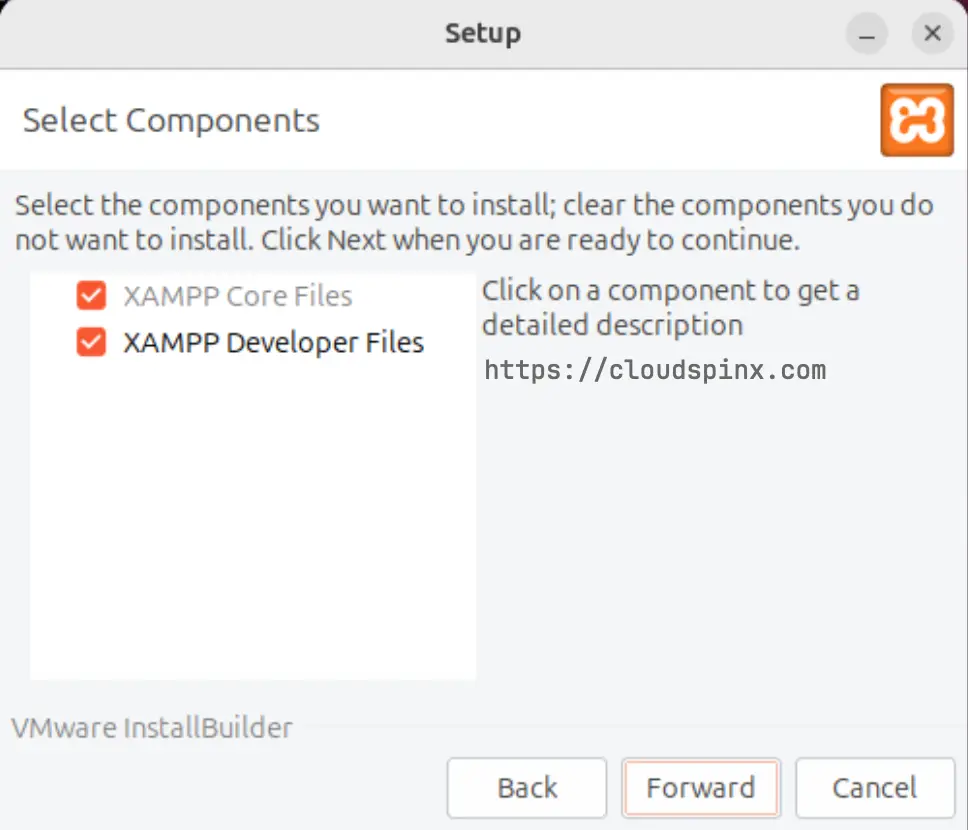
Select the components to install.
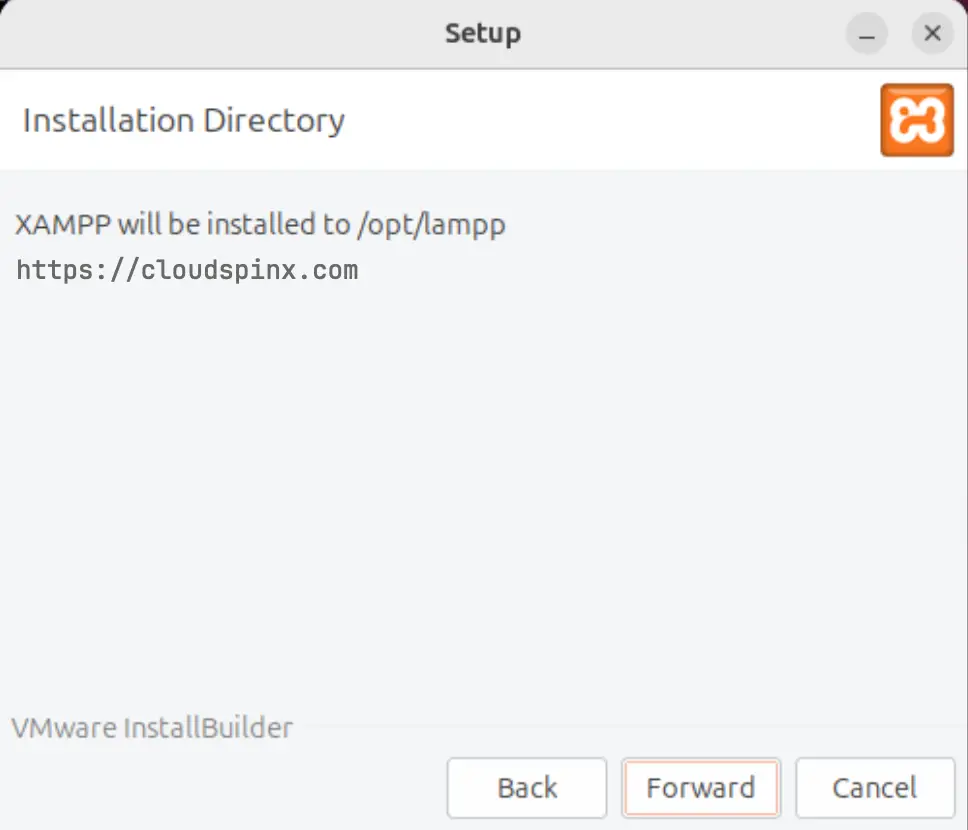
Agree to the default installation directory. Make sure you have free space in /opt mount directory.
Click ‘Forward‘ to start the installation:
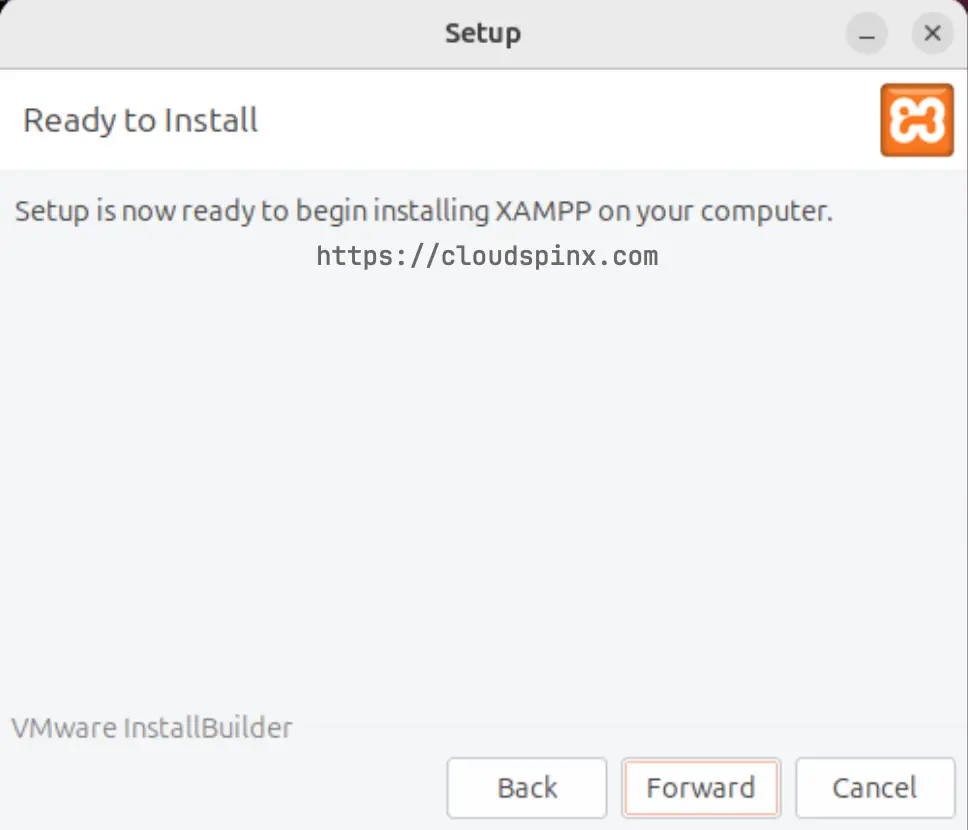
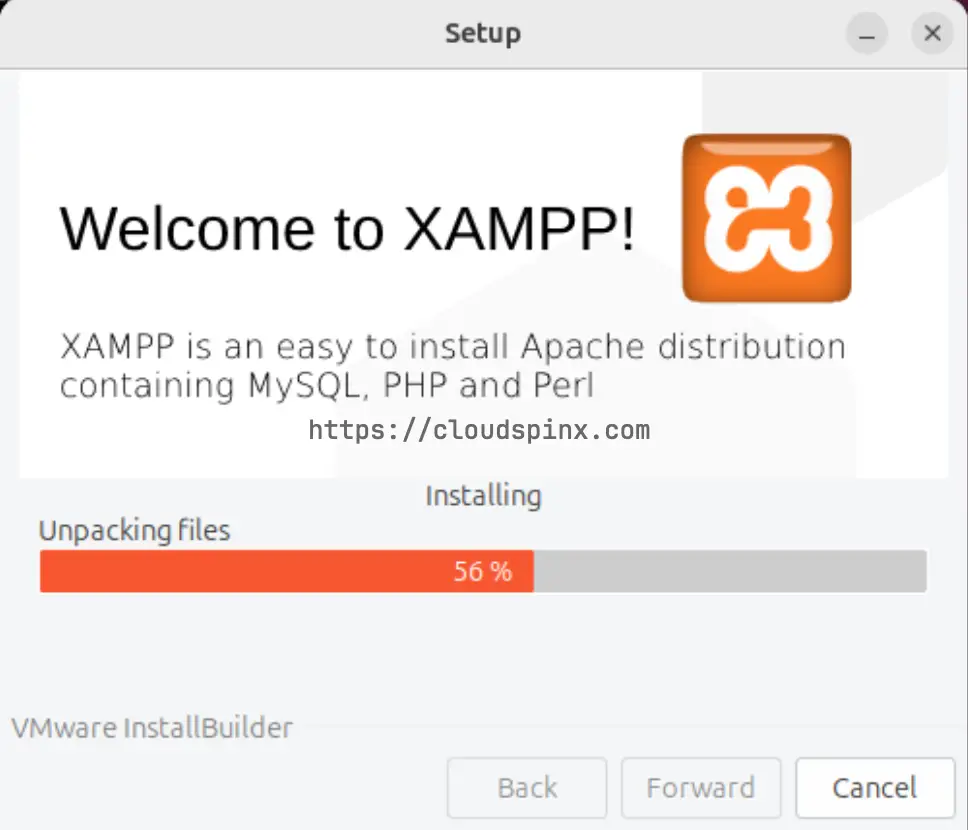
The installation of XAMPP on Ubuntu 24.04|22.04 should start.
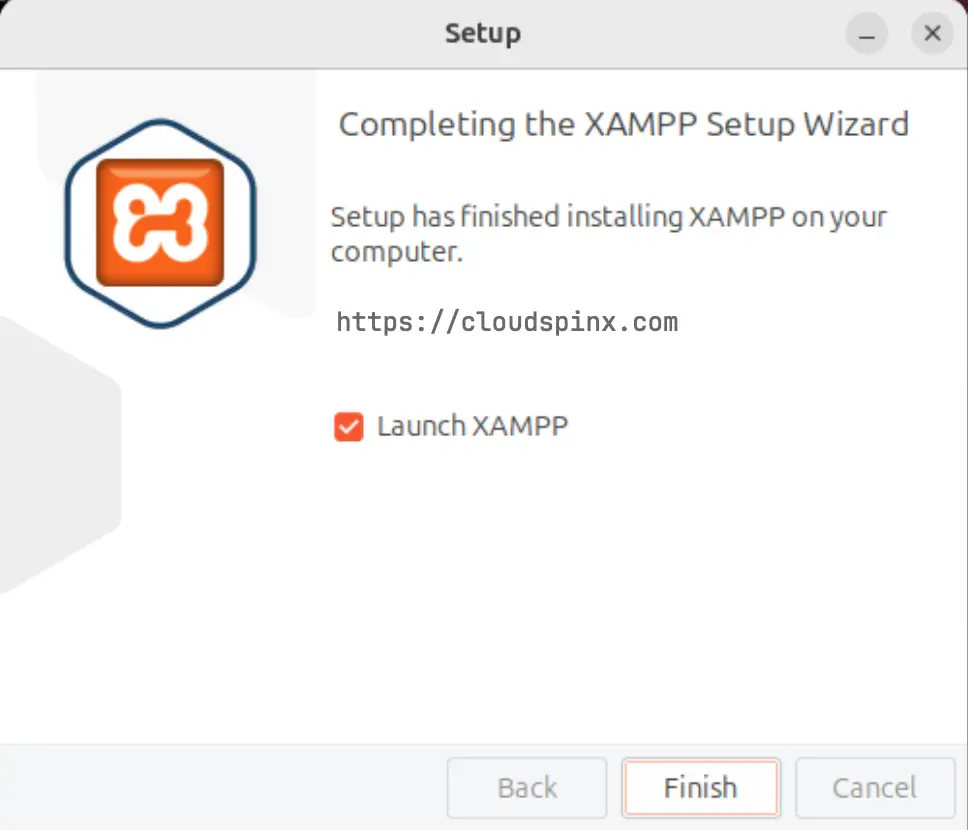
Click on Finish to Launch the application and start using it.
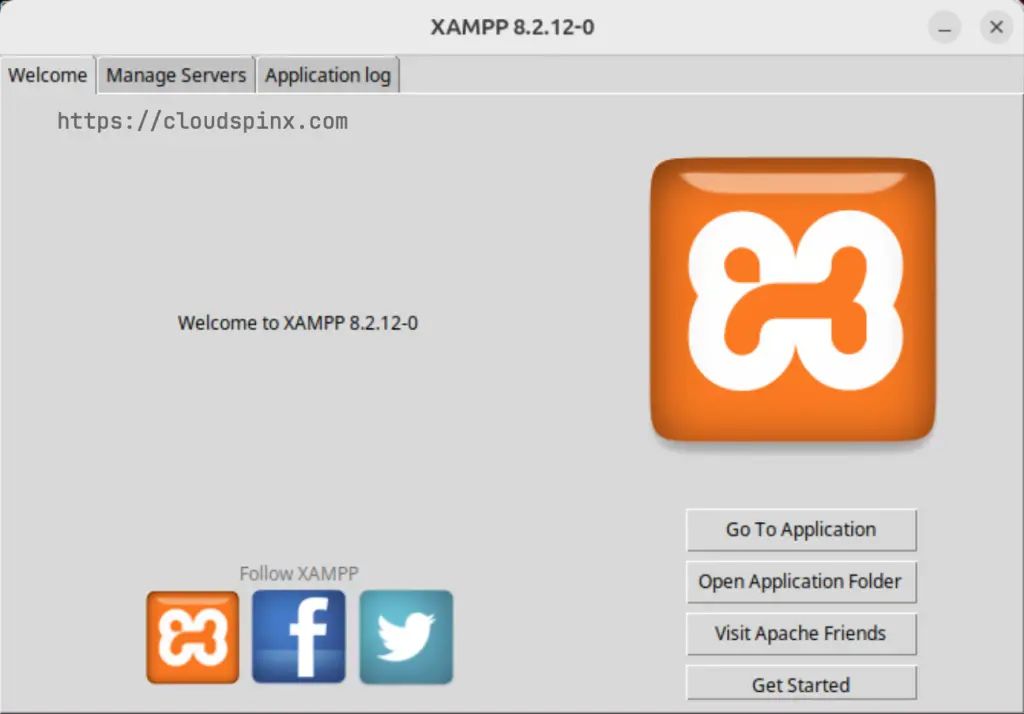
Under Welcome page section you can open application folder and upload web application files.
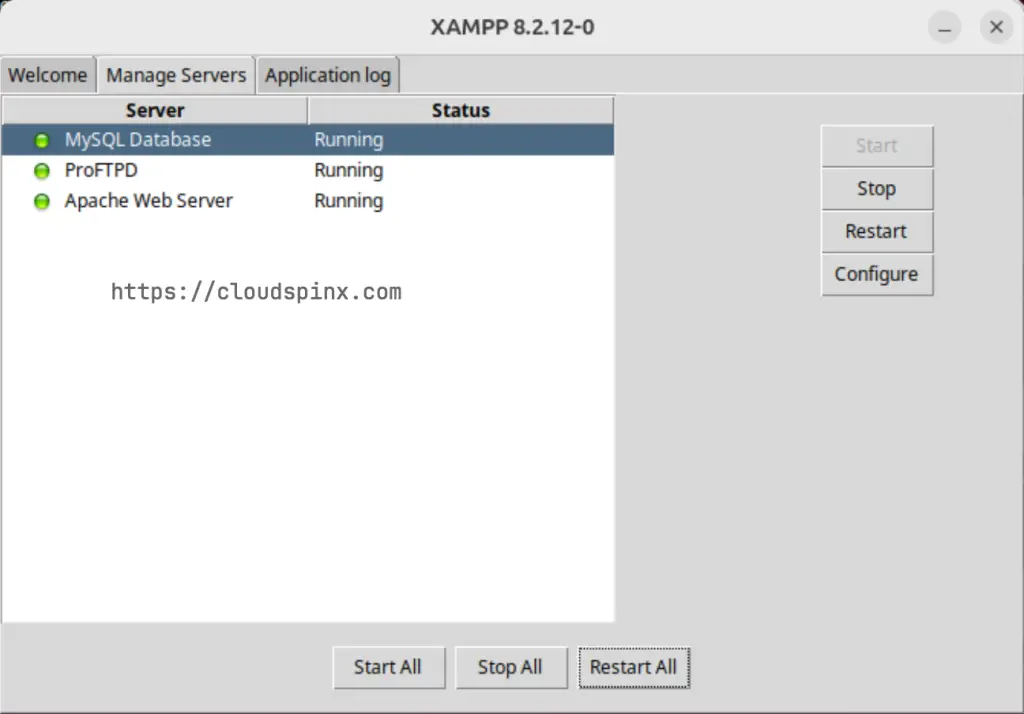
Services status can be managed under Manage Servers section.
Step 4: Accessing Web Dashboard and phpMyAdmin page
If the installation was successful and both web server and database services are started you should be able to access them from web browser.
Access Apache Web dashboard:
http://localhost/dashboard
# OR
http://SERVER_IP/dashboard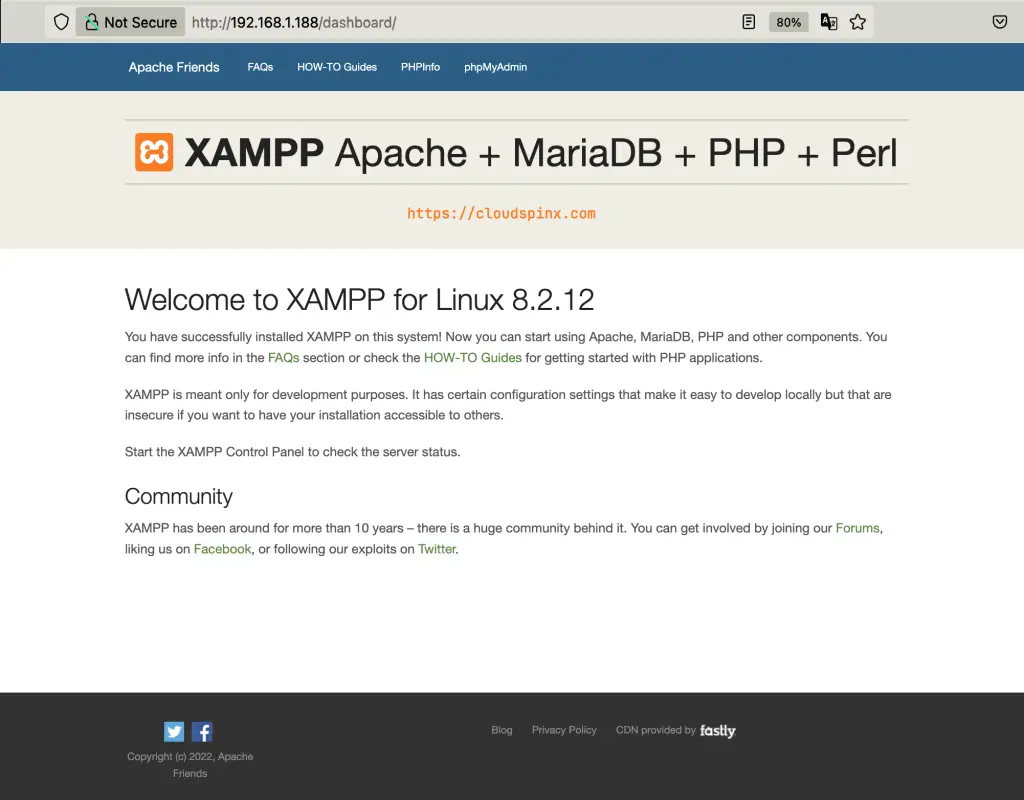
To access phpMyAdmin page use:
http://localhost/phpmyadmin
# OR
http://SERVER_IP/phpmyadmin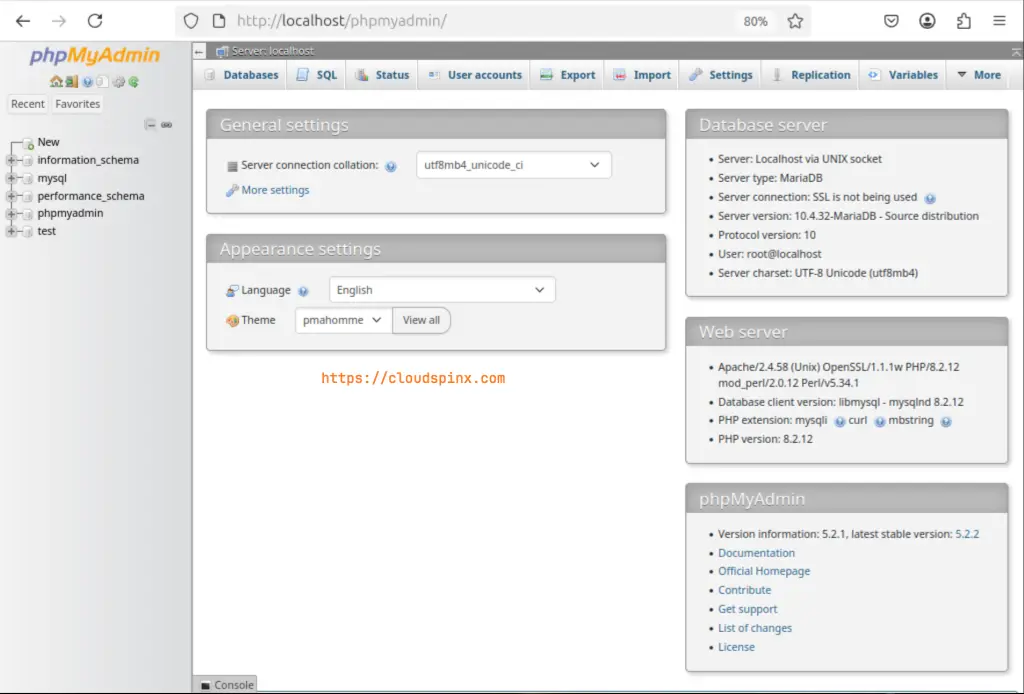
This is how it looks. For uninstallation, a script is provided.
cd /opt/lampp
sudo ./uninstall
Enjoy using XAMPP to host your locally Developed web applications on an Ubuntu system. Also check more guides available on our website.
