

The Web Host Manager Complete Solution(WHMCS) is a solution designed for web hosting business. It helps with clients management, support management, billing and invoicing, and as a complete order management system for hosting business. With tons of plugins available to extend the functionalities, it becomes easy to integrate other software solutions and package them for clients to order.
If you’re looking into starting a web hosting company, WHMCS is your best pet into automation and streamlining of the company operations. It ensure efficient management of clients, billing and general support processes. As stated earlier, the ease of integrations with various hosting-related tools make it a goto solution for centralized administation of hosting services.
In our past article we looked at the installation and configuration of WHMCS on Ubuntu server. You can reference it in the following article link.
This article will by extension focus on the installation, configuration and usage of WHMCS on Rocky / AlmaLinux 8 Linux system. Any clean installation of RHEL 8 based Linux system should also work when following the steps outlined in this guide. So let’s get started.
1) Set hostname, timezone, ntp time sync
We always champion for system upgrade before any other package installations are done. Do so by running the following commands on the server terminal.
sudo dnf -y updateSet hostname for the server. Substitute portal.example.com with your actual domain name.
sudo hostnamectl set-hostname portal.example.comMy timezone is Africa/Nairobi. This is set with timedatectl command.
sudo timedatectl set-timezone Africa/NairobiLet’s also install chrony ntp package on the system.
sudo dnf -y install chronyEnsure the service will come up when the system is booted up.
sudo systemctl enable --now chronydA check on status should return running status.
$ systemctl status chronyd
● chronyd.service - NTP client/server
   Loaded: loaded (/usr/lib/systemd/system/chronyd.service; enabled; vendor preset: enabled)
   Active: active (running) since Sun 2023-12-10 02:40:04 EAT; 3 days ago
     Docs: man:chronyd(8)
           man:chrony.conf(5)
 Main PID: 749 (chronyd)
    Tasks: 1 (limit: 203493)
   Memory: 2.1M
   CGroup: /system.slice/chronyd.service
           └─749 /usr/sbin/chronyd

Dec 10 02:40:04 hosting.example.com systemd[1]: Starting NTP client/server...
Dec 10 02:40:04 hosting.example.com chronyd[749]: chronyd version 4.2 starting (+CMDMON +NTP +REFCLOCK +RTC +PRIVDROP +SCFILTER +SIGND +ASYNCDNS +NTS +SECHASH +IPV6 +DEBUG)
Dec 10 02:40:04 hosting.example.com chronyd[749]: Frequency 0.000 +/- 1000000.000 ppm read from /var/lib/chrony/drift
Dec 10 02:40:04 hosting.example.com chronyd[749]: Using right/UTC timezone to obtain leap second data
Dec 10 02:40:04 hosting.example.com systemd[1]: Started NTP client/server.
Dec 10 02:40:11 hosting.example.com chronyd[749]: Selected source 160.119.216.202 (2.rocky.pool.ntp.org)
Dec 10 02:40:11 hosting.example.com chronyd[749]: System clock TAI offset set to 37 seconds
Sync your time and date on the server by execution of the following commands.
$ sudo chronyc sources
MS Name/IP address         Stratum Poll Reach LastRx Last sample
===============================================================================
^+ 160.119.216.197               3   6    37     5   +162us[  +67us] +/- 7212us
^- time.cloudflare.com           3   6    37     5    +52ms[  +52ms] +/-  163ms
^- time.cloudflare.com           3   6    37     4    +42ms[  +41ms] +/-  152ms
^* 160.119.216.206               3   6    37     4    -72us[ -168us] +/- 7425us
2) Install Apache web server and PHP
We’ll install PHP 8.1 on the system from REMI third party RPM repository for RHEL based systems. Install the repository release file which configures the repo on the system while importing GPG keys.
sudo dnf -y install https://rpms.remirepo.net/enterprise/remi-release-8.rpmLet us disable other PHP AppStream repositories and enable one for REMI PHP 8.1
sudo dnf module reset php -y
sudo dnf module install php:remi-8.1 -y
Next we install PHP and all other extensions required to run WHMCS platform.
sudo dnf -y install php php-cli php-fpm php-mysqlnd php-zip php-devel php-gd php-mcrypt php-mbstring php-curl php-xml php-pear php-bcmath php-json php-opcacheEnsure that httpd server with mod_ssl module is installed.
sudo dnf -y install @httpdEnable PHP FPM and httpd services.
sudo systemctl enable --now httpd php-fpm3) Install MariaDB database server
It’s okay to use the latest release of MariaDB database server. Add the repository in your RHEL based server using automated script configurator.
curl -LsS https://downloads.mariadb.com/MariaDB/mariadb_repo_setup | sudo bash -s --Next install MariaDB server and client packages.
sudo dnf -qy module disable mariadb
sudo dnf module reset mariadb -y
sudo dnf install MariaDB-server MariaDB-client MariaDB-backup
Start and enable mariadb service.
sudo systemctl enable --now mariadbCreate user and database for WHCMS with a strong password.
$ sudo mysql -u root
CREATE DATABASE whmcs;
GRANT ALL ON whmcs.* TO whmcs@localhost IDENTIFIED BY "DBUserPassw0rd";
FLUSH PRIVILEGES;
QUIT;
4) Install PHP IonCube Loader
IonCube loader is required for the decoding of encrypted PHP files. This is required during WHMCS installation. IonCube Loader is not available on OS packages and we need to install it manually for specific version of PHP on the system.
First check the version of PHP in the system.
$ php --version
PHP 8.1.26 (cli) (built: Nov 21 2023 21:53:48) (NTS gcc x86_64)
Copyright (c) The PHP Group
Zend Engine v4.1.26, Copyright (c) Zend Technologies
    with Zend OPcache v8.1.26, Copyright (c), by Zend Technologies
Install wget package used to download IonCube loader archive file.
sudo dnf -y install wgetNow download IonCube loader into your local system.
wget http://downloads3.ioncube.com/loader_downloads/ioncube_loaders_lin_x86-64.tar.gzExtract the package using tar
tar xvf ioncube_loaders_lin_x86-64.tar.gzLocate the extension directory of the installed PHP version
$ php -i | grep extension_dir
extension_dir => /usr/lib64/php/modules => /usr/lib64/php/modules
sqlite3.extension_dir => no value => no value
Copy and Configure IonCube Loader in PHP configuration files.
sudo cp ioncube/ioncube_loader_lin_8.1.so /usr/lib64/php/modules
echo "zend_extension=/usr/lib64/php/modules/ioncube_loader_lin_8.1.so"|sudo tee -a /etc/php.ini
Adjust PHP settings to the following recommended parameter values.
$ sudo vim /etc/php.ini
max_execution_time = 600
default_socket_timeout = 600
max_input_time = 600
memory_limit = 256M
Restart Apache web server after making the changes.
sudo systemctl restart httpd php-fpm5) Install and Configure WHMCS
Download and extract WHMCS archive. If you had one already, upload to the server and extract using unzip.
sudo dnf -y install unzip
unzip WHMCS-Archive.zip
Move the folder to /var/www/ directory.
sudo mv path/to/whmcs/folder /var/www/whmcsRename the configuration.php.new to configuration.php.
sudo mv /var/www/whmcs/configuration.sample.php /var/www/whmcs/configuration.php
#OR
sudo mv /var/www/whmcs/configuration.php.new /var/www/whmcs/configuration.php
The final code and all files should be on /var/www/html/whmcs. Update directory permissions accordingly.
### Apache Web Server ###
sudo chown -R apache:apache /var/www/whmcs/

### With Nginx Web Server ###
sudo chown -R nginx:nginx /var/www/whmcs/
If you have SELinux in Enforcing, turn on the following booleans.
sudo setsebool -P httpd_can_network_connect on
sudo setsebool -P httpd_can_network_connect_db on
sudo setsebool -P httpd_can_sendmail on
Also add SELinux labels to the directories.
sudo yum -y install policycoreutils-python-utils
sudo semanage fcontext -a -t httpd_sys_rw_content_t "/var/www/whmcs(/.*)?"
sudo restorecon -Rv /var/www/whmcs
Create VirtualHost file for WHMCS
Using Apache web server
sudo vim /etc/httpd/conf.d/whmcs.confYou can customize the following code snippet. At least change ServerName and ServerAdmin values.
<VirtualHost *:80>
        ServerName portal.example.com
        ServerAdmin [email protected]
        DocumentRoot /var/www/whmcs
        <Directory  /var/www/whmcs/>
	  Options Indexes FollowSymLinks MultiViews
	  AllowOverride All
 	  Order allow,deny
	  allow from all
          Require all granted
        </Directory>
        ErrorLog  /var/log/httpd/whmcs_error.log
        CustomLog /var/log/httpd/whmcs_access.log combined
</VirtualHost>
Check Apache server configurations syntax if okay.
$ sudo apachectl configtest
Syntax OK
Disable default virtualhost file for Apache.
sudo rm /etc/httpd/conf.d/welcome.confOnce done restart httpd service.
sudo systemctl restart httpdUsing Nginx web server
Create Nginx configuration file
sudo vim /etc/nginx/conf.d/whmcs.confCopy, modify and paste the following contents into the file.
server {
	listen 80;
	server_name whmcs.example.com www.whmcs.example.com;
	root /var/www/whmcs;
        access_log /var/log/nginx/whmcs_access_log;
        error_log /var/log/nginx/whmcs_error_log;

	add_header X-Frame-Options "SAMEORIGIN";
	add_header X-XSS-Protection "1; mode=block";
	add_header X-Content-Type-Options "nosniff";
	add_header Strict-Transport-Security "max-age=31536000; includeSubDomains; preload" always;

	index index.php index.html index.htm;

	charset utf-8;

	location ~ /clients/admin/(client!\.php|client/(.*)|table/(.*)|search!\.php|search/(.*)|apps|billing|setup|user|services|addons|domains|utilitiesemailmarketer!\.php|utilities/(.*)|logs|help!\.php|help/license|modules|image/(recent|upload)|validation_com/(.*))/?(.*)$ {
		rewrite ^/(.*)$ /clients/admin/index.php?rp=/admin/$1/$2;
	}

	location ~ /clients/(images/em|invoice|login|password|account|store|download|knowledgebase|announcements|clientarea/ssl-certificates|user/(verification|accounts|profile|password|security|verify)|cart/(domain/renew)|domain/pricing|cart/order|images/kb)/?(.*)$ {
                rewrite ^/(.*)$ /clients/index.php?rp=/$1/$2;
	}

	location / {
		try_files $uri $uri/ /index.php?$query_string;
	}

	location = /favicon.ico { access_log off; log_not_found off; }
	location = /robots.txt  { access_log off; log_not_found off; }

	error_page 404 /index.php;


	proxy_send_timeout 300s;
	proxy_read_timeout 300s;


	location ~ \.php$ {
		fastcgi_pass unix:/run/php-fpm/www.sock;
		fastcgi_send_timeout 300;
	        fastcgi_read_timeout 300;
		fastcgi_index index.php;
		fastcgi_param SCRIPT_FILENAME $realpath_root$fastcgi_script_name;
		include fastcgi_params;
	}

	location ~ /\.(?!well-known).* {
		deny all;
	}


	location ^~ /clients/vendor/ {
	        deny all;
		return 403;
	}

	location ~* \.(?:jpg|jpeg|gif|png|ico|cur|gz|svg|svgz|mp4|ogg|ogv|webm|htc|svg|woff|woff2|ttf)\$ {
		expires 1M;
		access_log off;
	        add_header Cache-Control "public";
	}

	location ~* \.(?:css|js)\$ {
	        expires 7d;
	        access_log off;
	        add_header Cache-Control "public";
	}

	location ~ /\.ht {
		deny  all;
	}
}
Sample template with https redirect and ssl certificate.
server {
	listen 80 default_server;
	server_name whmcs.example.com www.whmcs.example.com;
	return 301 https://whmcs.example.com$request_uri;
}

# HTTPS server
#
server {
	listen 443;
	server_name whmcs.example.com;
	root /var/www/whmcs;
        access_log /var/log/nginx/whmcs_access_log;
        error_log /var/log/nginx/whmcs_error_log;

	add_header X-Frame-Options "SAMEORIGIN";
	add_header X-XSS-Protection "1; mode=block";
	add_header X-Content-Type-Options "nosniff";
	add_header Strict-Transport-Security "max-age=31536000; includeSubDomains; preload" always;

	index index.php index.html index.htm;

	charset utf-8;

	ssl on;
	ssl_certificate /etc/letsencrypt/live/whmcs.example.com/fullchain.pem;
	ssl_certificate_key /etc/letsencrypt/live/whmcs.example.com/privkey.pem;

	ssl_session_timeout 5m;

	ssl_protocols SSLv3 TLSv1 TLSv1.1 TLSv1.2;
	ssl_ciphers "HIGH:!aNULL:!MD5 or HIGH:!aNULL:!MD5:!3DES";
	ssl_prefer_server_ciphers on;


	location ~ /clients/admin/(client!\.php|client/(.*)|table/(.*)|search!\.php|search/(.*)|apps|billing|setup|user|services|addons|domains|utilitiesemailmarketer!\.php|utilities/(.*)|logs|help!\.php|help/license|modules|image/(recent|upload)|validation_com/(.*))/?(.*)$ {
		rewrite ^/(.*)$ /clients/admin/index.php?rp=/admin/$1/$2;
	}

	location ~ /clients/(images/em|invoice|login|password|account|store|download|knowledgebase|announcements|clientarea/ssl-certificates|user/(verification|accounts|profile|password|security|verify)|cart/(domain/renew)|domain/pricing|cart/order|images/kb)/?(.*)$ {
                rewrite ^/(.*)$ /clients/index.php?rp=/$1/$2;
	}

	location / {
		try_files $uri $uri/ /index.php?$query_string;
	}

	location = /favicon.ico { access_log off; log_not_found off; }
	location = /robots.txt  { access_log off; log_not_found off; }

	error_page 404 /index.php;


	proxy_send_timeout 300s;
	proxy_read_timeout 300s;


	location ~ \.php$ {
		fastcgi_pass unix:/run/php-fpm/www.sock;
		fastcgi_send_timeout 300;
	        fastcgi_read_timeout 300;
		fastcgi_index index.php;
		fastcgi_param SCRIPT_FILENAME $realpath_root$fastcgi_script_name;
		include fastcgi_params;
	}

	location ~ /\.(?!well-known).* {
		deny all;
	}


	location ^~ /clients/vendor/ {
	        deny all;
		return 403;
	}

	location ~* \.(?:jpg|jpeg|gif|png|ico|cur|gz|svg|svgz|mp4|ogg|ogv|webm|htc|svg|woff|woff2|ttf)\$ {
		expires 1M;
		access_log off;
	        add_header Cache-Control "public";
	}

	location ~* \.(?:css|js)\$ {
	        expires 7d;
	        access_log off;
	        add_header Cache-Control "public";
	}

	location ~ /\.ht {
		deny  all;
	}
}
There are two ways used to configure WHCMS.
Option 1: Configure WHMCS from CLI
Switch to root user and navigate into var/www/whmcs/install directory.
sudo su -
cd /var/www/whmcs/install
The installation script uses the following syntax:
php -f bin/installer.php –- [options]The following options are available for CLI configuration of WHMCS.
| Option | Description |
|---|---|
| -c or –config | Provide configuration data in the JSON format. |
| -h or –help | View help information. |
| -i or –install | Perform a new installation. |
| -n or –non-interactive | Don’t require user input while the script runs. |
| -s or –status | Provide status information about the installation’s files and databases. |
| -u or –upgrade | Upgrade an existing installation. |
| -v or –verbose | Run the script with verbose output. |
We need to supply the configuration data in the JSON format while executing the script. To get encrypted hash use the commands below.
openssl rand -base64 128|tr -d "\n\/+="|cut -c 1-64Copy the configurations into a text editor and adjust them to suit your environment.
#!/bin/env bash
# The following assumes the respective environment variables are populated

CONF='{
 "admin":{
  "username":"admin",
  "password":"StrongAdminPassword"
 },
 "configuration":{
  "license": "License-Key",
  "db_host": "127.0.0.1",
  "db_username": "whmcs",
  "db_password": "DBUserPassw0rd",
  "db_name": "whmcs",
  "cc_encryption_hash": "4T9Td8eJMfYL6Wl0GYdttolEmVmh99ZTuOtDrgHZkSWWs01KSsSGLnqPTNJrI3IA",
  "mysql_charset": "utf8"
 }
}'
Once the customizations are done, paste the contents in your terminal.
Delete the existing configuration.php file.
sudo rm /var/www/whmcs/configuration.phpNow invoke installer to configure WHMCS using config contents above.
echo $(echo $CONF | tr -d "\n") | php -f bin/installer.php - -i -n -cCLI installation of WHMCS example.
************************************************************************
************************************************************************
***            __          ___    _ __  __  _____  _____             ***
***            \ \        / / |  | |  \/  |/ ____|/ ____|            ***
***             \ \  /\  / /| |__| | \  / | |    | (___              ***
***              \ \/  \/ / |  __  | |\/| | |     \___ \             ***
***               \  /\  /  | |  | | |  | | |____ ____) |            ***
***                \/  \/   |_|  |_|_|  |_|\_____|_____/             ***
***                                                                  ***
************************************************************************
************************************************************************

************************************************************************
*** Install WHMCS ***
*** NON-INTERACTIVE MODE ***
************************************************************************

** EULA NOT ACCEPTED via NON-INTERACTIVE MODE **

** Creating Configuration File **
/var/www/whmcs/configuration.php

** Preflight Checks **
1. Attempting to load configuration file ................... Ok
2. Attempting to connect to database ....................... Ok
3. Validating database for install ......................... Ok

All checks passed successfully. Ready to Install.

** Beginning Installation **
This may take a few minutes. Please Wait...

====================================================================================================> 100%
Install Completed Successfully!

A primary admin user account has been created with the following credentials:

Username: admin
Password: StrongAdminPassword


Program Completed
************************************************************************
************************************************************************
Update directory permissions.
### Apache ###
sudo chown -R apache:apache /var/www/whmcs/

### Nginx ###
sudo chown -R nginx:nginx /var/www/whmcs/
Next configure cron for WHMCS on the terminal.
$ sudo crontab -e -u apache
*/5 * * * * /usr/bin/php -q /var/www/whmcs/crons/cron.php
For Nginx user use:
$ sudo crontab -e -u nginx
*/5 * * * * /usr/bin/php -q /var/www/whmcs/crons/cron.php
Update permissions configuration script file.
sudo chmod 0400 /var/www/whmcs/configuration.phpAccess WHMCS frontend on http://fqdn/ and direct admin dashboard is on http://fqdn/admin.
Remove install directory.
sudo rm -r /var/www/whmcs/installOption 2: Configure WHMCS from web interface
For user who prefer web as opposed to CLI installation of WHMCS, visit http://portal.example.com/install/install.php in your browser.
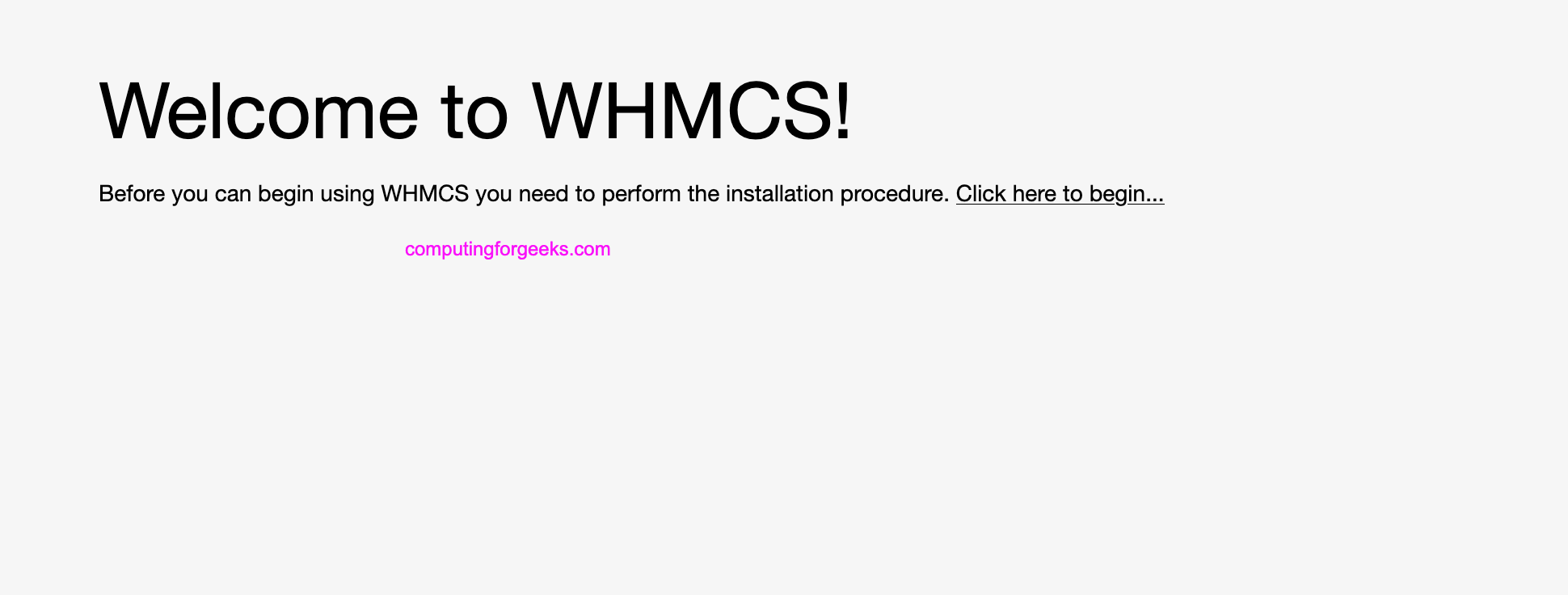
You’re greeted with the following WHMCS welcome page.
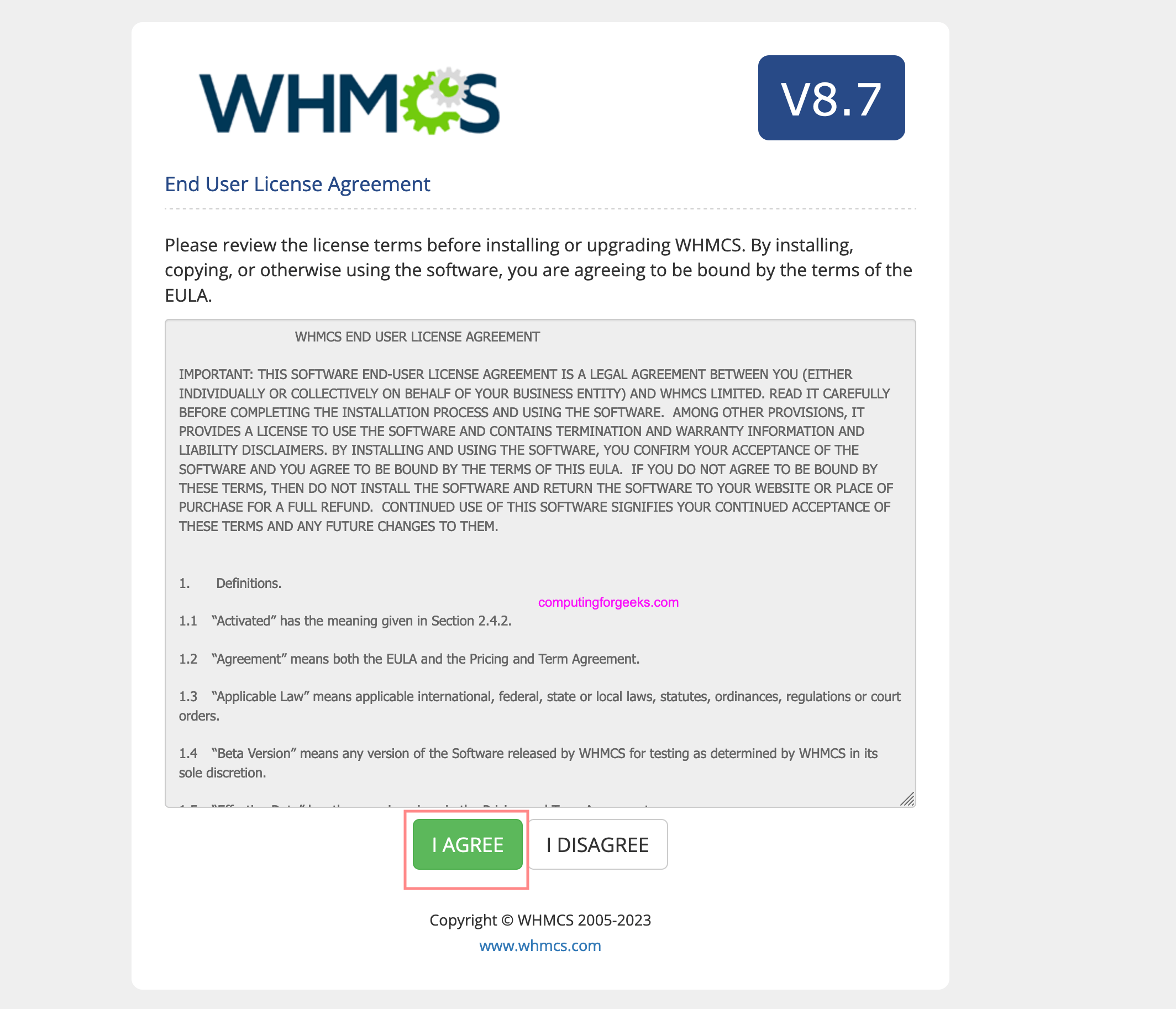
Accept end user license agreement to continue with the installation.
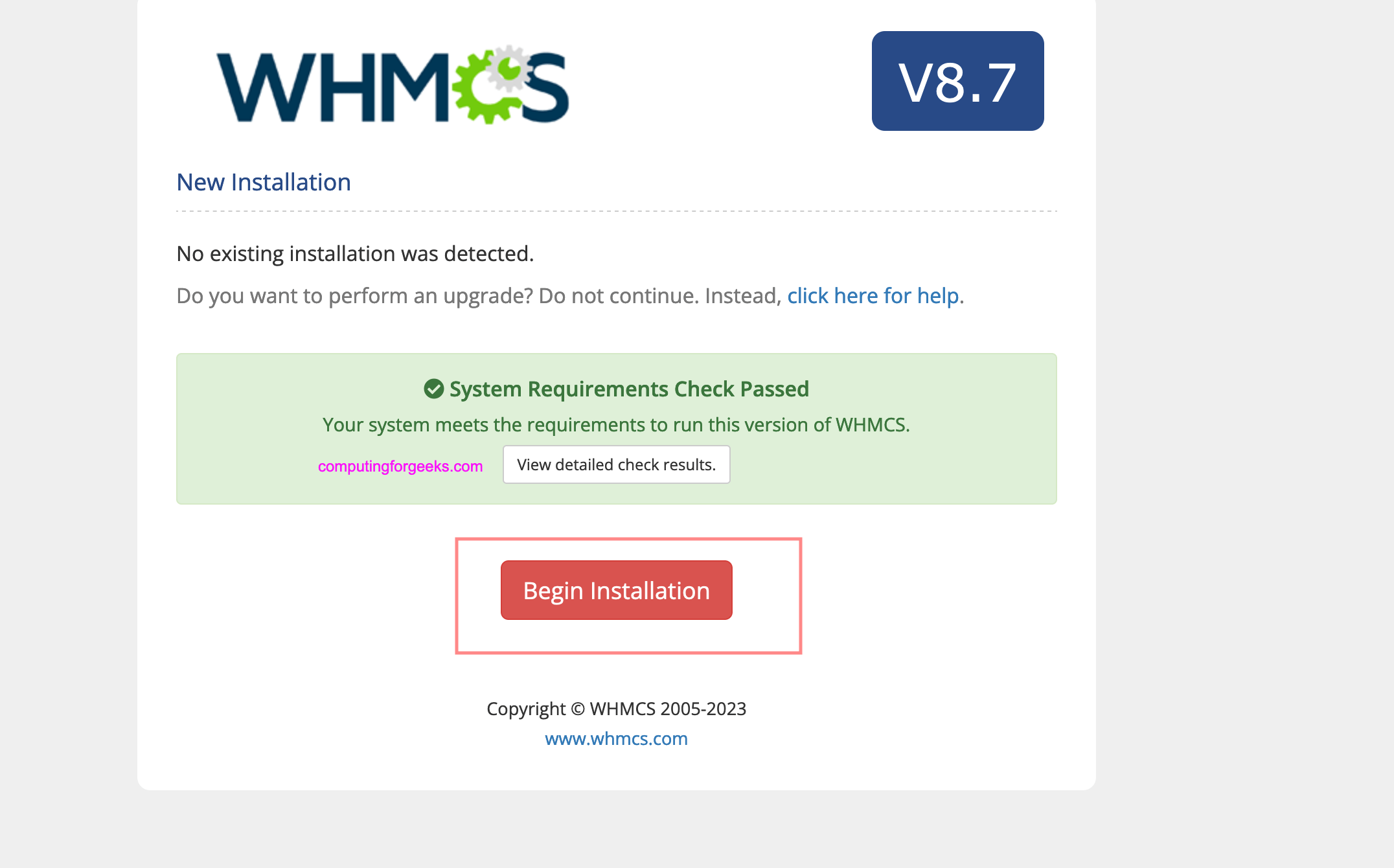
Begin WHCMS installation in your system.
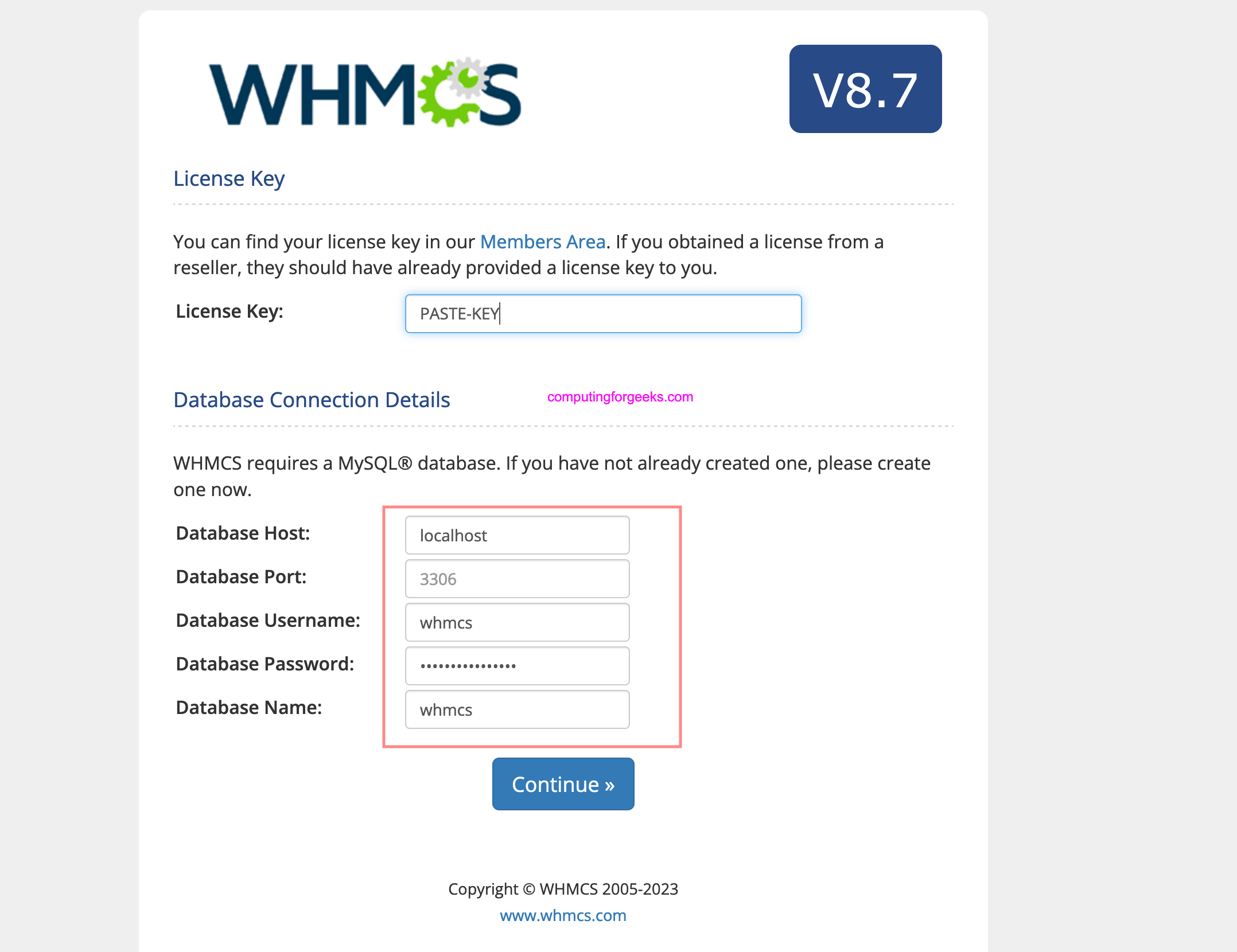
In the next step we configure database connection as per information used in MariaDB database installation.
Configure datab
- Database name: whmcs
- Database user: whmcs
- Database password: DBUserPassw0rd
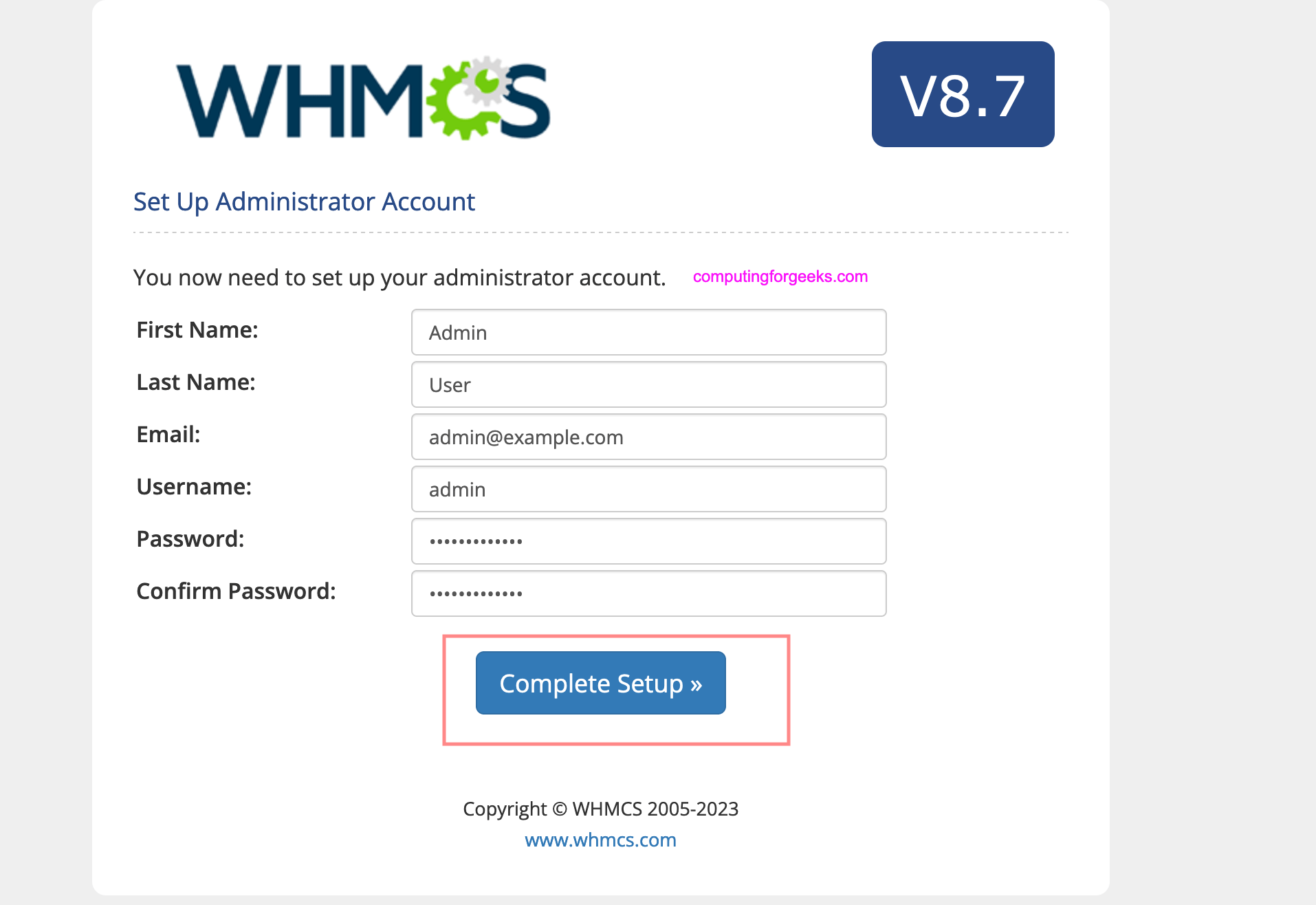
Complete the installation by creating first admin user for WHMCS administration
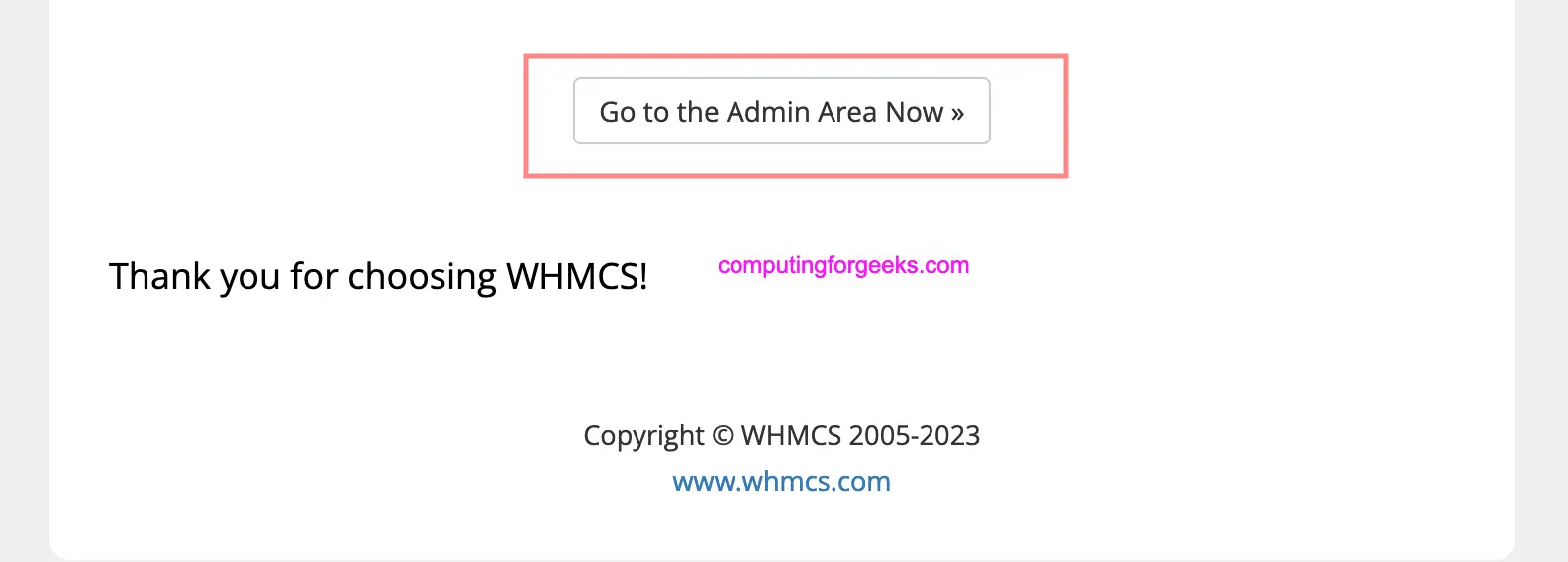
You should see success message if all went as expected.

Click “Go to Admin Area Now” link to access WHMCS admin portal.
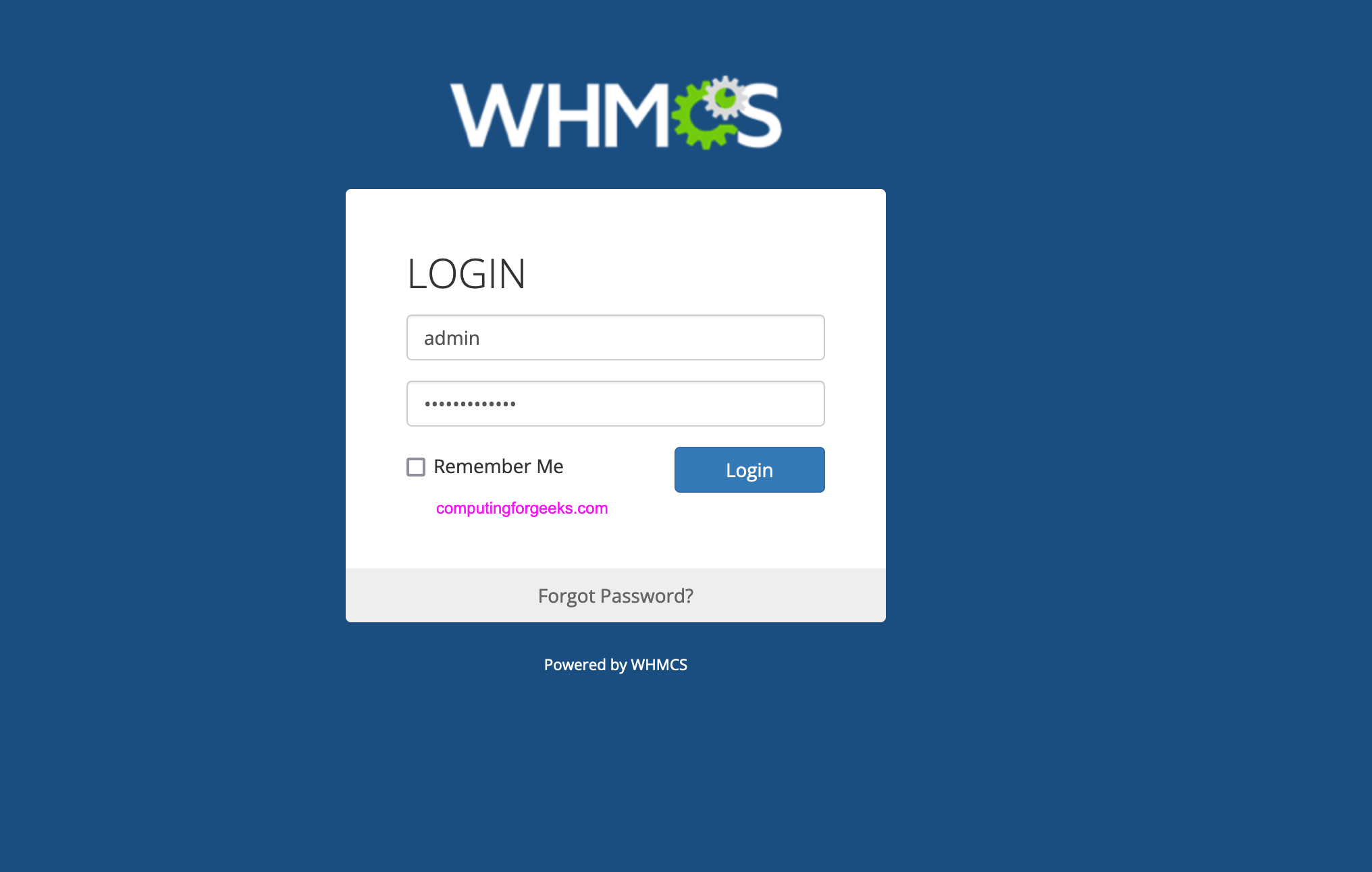
Login with admin username and password you just created.
Next configure cron for WHMCS on the terminal.
Apache httpd server
$ sudo crontab -e -u apache
*/5 * * * * /usr/bin/php -q /var/www/whmcs/crons/cron.php
Nginx web server.
$ sudo crontab -e -u nginx
*/5 * * * * /usr/bin/php -q /var/www/whmcs/crons/cron.php
Delete installation script
sudo rm -r /var/www/whmcs/installUpdate permissions configuration script file.
sudo chmod 0400 /var/www/whmcs/configuration.phpYou can access WHMCS frontend on http://fqdn/ and direct admin dashboard is on http://fqdn/admin.
6) Secure WHCMS with Let’s Encrypt SSL
Ensure installation script is deleted.
sudo rm -r /var/www/whmcs/installInstall certbot tools from EPEL repository.
sudo dnf -y install epel-release
sudo dnf -y install certbot
sudo dnf -y install  python3-certbot-apache
Change [email protected] to your valid email address for certificate expiration notifications. If your FQDN matches hostname set on the system use the DOMAIN value as provided here, else set your VirtualHost domain value with configured A record in the DNS server.
ALERT_EMAIL=[email protected]
DOMAIN=$(hostname -f)
sudo certbot --apache --redirect -d $DOMAIN --preferred-challenges http --agree-tos -n -m $ALERT_EMAIL --keep-until-expiring
For nginx
sudo certbot --nginx --redirect -d $DOMAIN --preferred-challenges http --agree-tos -n -m $ALERT_EMAIL --keep-until-expiringWith --apache flag certbot will modify the contents of our VirtualHost file to include SSL configurations.
Saving debug log to /var/log/letsencrypt/letsencrypt.log
Account registered.
Requesting a certificate for hosting.example.com

Successfully received certificate.
Certificate is saved at: /etc/letsencrypt/live/hosting.example.com/fullchain.pem
Key is saved at:         /etc/letsencrypt/live/hosting.example.com/privkey.pem
This certificate expires on 2024-03-12.
These files will be updated when the certificate renews.
Certbot has set up a scheduled task to automatically renew this certificate in the background.

Deploying certificate
Successfully deployed certificate for hosting.example.com to /etc/httpd/conf.d/whmcs-le-ssl.conf
Congratulations! You have successfully enabled HTTPS on https://hosting.example.com

- - - - - - - - - - - - - - - - - - - - - - - - - - - - - - - - - - - - - - - -
If you like Certbot, please consider supporting our work by:
 * Donating to ISRG / Let's Encrypt:   https://letsencrypt.org/donate
 * Donating to EFF:                    https://eff.org/donate-le
- - - - - - - - - - - - - - - - - - - - - - - - - - - - - - - - - - - - - - - -
We can confirm that a new file exists.
$ ls /etc/httpd/conf.d/whmcs*
/etc/httpd/conf.d/whmcs.conf  /etc/httpd/conf.d/whmcs-le-ssl.conf
Content of /etc/httpd/conf.d/whmcs-le-ssl.conffile can be viewed using cat.
$ cat  /etc/httpd/conf.d/whmcs-le-ssl.conf
<IfModule mod_ssl.c>
<VirtualHost *:443>
        ServerName hosting.example.com
        ServerAdmin [email protected]
        DocumentRoot /var/www/whmcs
        <Directory /var/www/whmcs/>
	  Options Indexes FollowSymLinks MultiViews
	  AllowOverride All
 	  Order allow,deny
	  allow from all
          Require all granted
        </Directory>
        ErrorLog  /var/log/httpd/whmcs_error.log
        CustomLog /var/log/httpd/whmcs_access.log combined

SSLCertificateFile /etc/letsencrypt/live/hosting.example.com/fullchain.pem
SSLCertificateKeyFile /etc/letsencrypt/live/hosting.example.com/privkey.pem
Include /etc/letsencrypt/options-ssl-apache.conf
And the same for /etc/httpd/conf.d/whmcs.conf.
$ cat  /etc/httpd/conf.d/whmcs.conf
<VirtualHost *:80>
        ServerName hosting.example.com
        ServerAdmin [email protected]
        DocumentRoot /var/www/whmcs
        <Directory /var/www/whmcs/>
	  Options Indexes FollowSymLinks MultiViews
	  AllowOverride All
 	  Order allow,deny
	  allow from all
          Require all granted
        </Directory>
        ErrorLog  /var/log/httpd/whmcs_error.log
        CustomLog /var/log/httpd/whmcs_access.log combined
RewriteEngine on
RewriteCond %{SERVER_NAME} =hosting.example.com
RewriteRule ^ https://%{SERVER_NAME}%{REQUEST_URI} [END,NE,R=permanent]
</VirtualHost>
Backup Apache /etc/httpd/conf.d/ssl.conf configuration file.
sudo mv /etc/httpd/conf.d/ssl.conf /etc/httpd/conf.d/ssl.conf.bakEdit the file and adjust to include Listen 443 https line.
$ sudo vim /etc/httpd/conf/httpd.conf
Listen 80
Listen 443 https
Restart httpd service.
sudo systemctl restart httpdNext Update the WHMCS System URL setting in the General tab at Configuration > System Settings > General Settings, entering your website’s https:// -enabled URL.
