

Today’s guide will be on the installation of TeamViewer on Linux Mint 22. TeamViewer is a software application used for remote support and administration, holding online meetings, doing Presentations, file transfer between computers and training sessions by companies in consultancy business.
In our recent guide we covered installation of AnyDesk which offers similar features to TeamViewer. The free offering of TeamViewer should only be used for personal use. For any commercial use cases check the licensing page for better fit. Key commercial features are:
- Access & Control Computers Remotely
- Secure Unattended Access
- Remote printing for Mac & Windows on any printer
- File Sharing
- Many Licensed users and Managed Devices
- Cross platform access
- Customized Device Information
- User Access Reporting
- Multiple sessions at a time (channels)
- Mass Deployment
- Device Access Reporting
- Tech support via phone
Install TeamViewer on Linux Mint 22
Pre-built packages are available on the TeamViewer downloads page. The options for downloading the software package include web console, wget or curl commands.
We’ll use wget command line tool which can be installed using the commands below:
sudo apt update
sudo apt install -y wget
Download TeamViewer package for Debian based systems:
wget https://download.teamviewer.com/download/linux/teamviewer_amd64.debUse the apt command to install TeamViewer on Linux Mint:
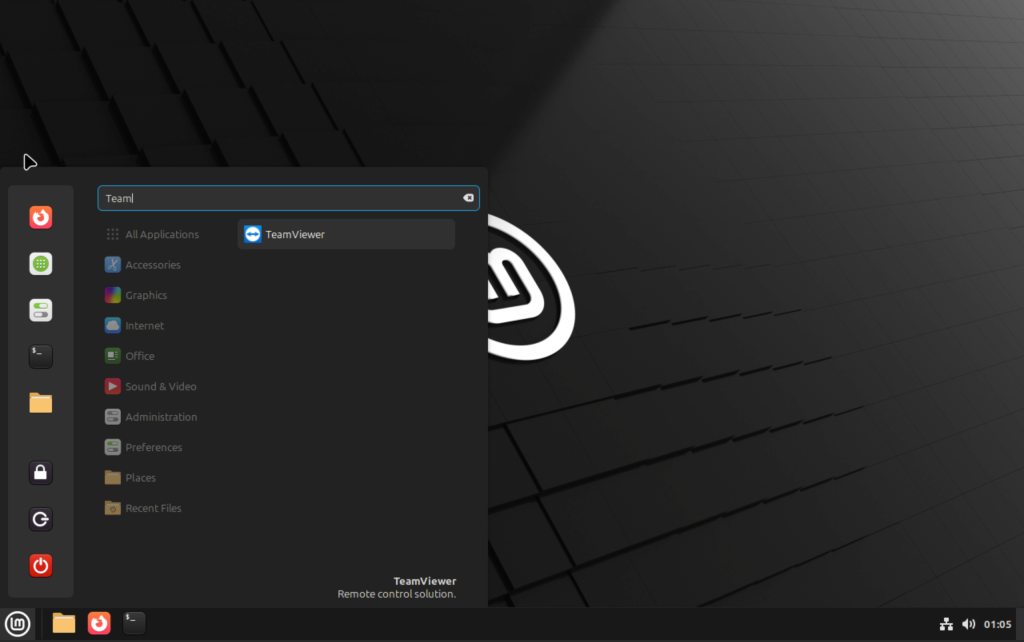
sudo apt install -y ./teamviewer_amd64.debDependencies are install automatically when the apt command is used. After complete installation of TeamViewer on Linux Mint you can launch the application from the terminal or Desktop applications menu:
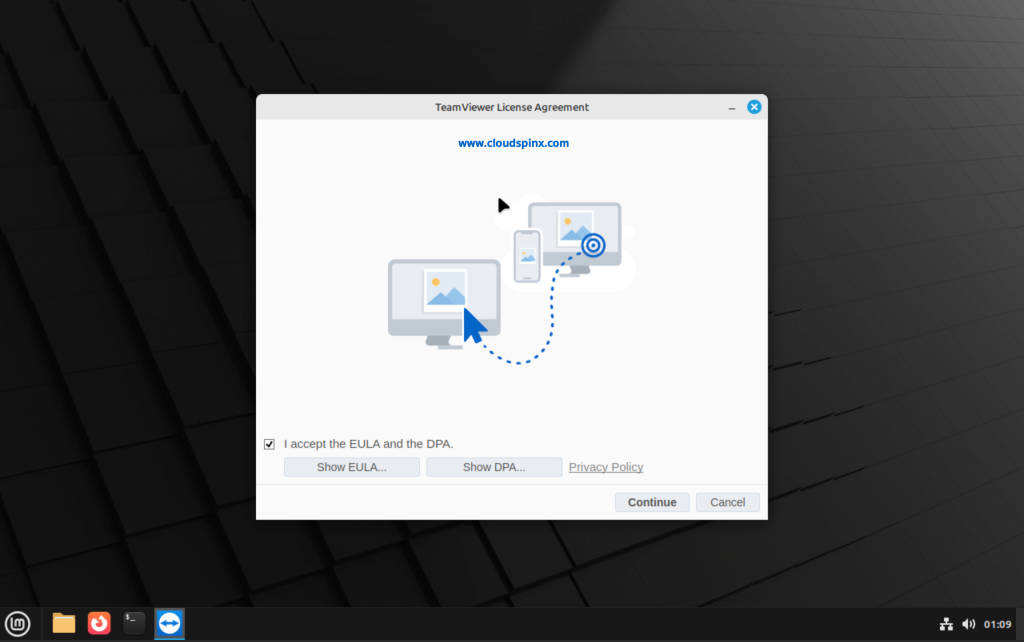
Accept License agreement in the first window:
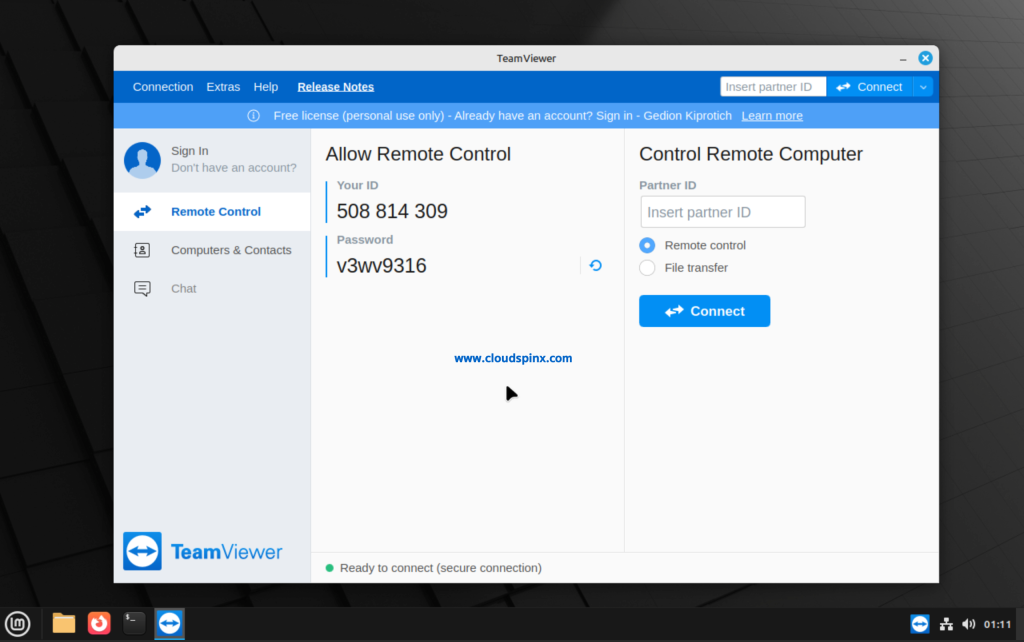
Your ID and Password will be shown and this can be shared to a user who needs to connect to our machine remotely:
Other guides:
