

This guide has been written to help you Install TeamViewer on Fedora. TeamViewer is a popular proprietary software used for Internet-based remote access and support. TeamViewer enables you to do:
- Remote server/desktop control
- Create desktop sharing
- Web conferencing
- Online meetings
- File transfer between two computers
It is easy to Install TeamViewer on Fedora. All you need to do is download an rpm package and install it.
Install TeamViewer on Fedora
The latest release of TeamViewer is available on the Website downloads page. Install wget then download TeamViewer on Fedora.
sudo dnf -y install wget
wget https://download.teamviewer.com/download/linux/teamviewer.x86_64.rpm
Once the package is downloaded, Install TeamViewer on Fedora by running the command below:
sudo dnf -y install ./teamviewer.x86_64.rpmPackage details can be found on:
$ rpm -qi teamviewer
Name        : teamviewer
Version     : 15.73.5
Release     : 0
Architecture: x86_64
Install Date: Sat 20 Dec 2025 11:39:41 AM EAT
Group       : Applications/Internet
Size        : 455832507
License     : Proprietary; includes Free Software components.
Signature   :
              RSA/SHA256, Thu 18 Dec 2025 12:06:12 AM EAT, Key ID ef9dbdc73b7d1a07
Source RPM  : teamviewer-15.73.5-0.src.rpm
Build Date  : Thu 18 Dec 2025 12:02:53 AM EAT
Build Host  : devsrvvie0104.tvcorp.org
Vendor      : TeamViewer Germany GmbH
URL         : http://www.teamviewer.com
Summary     : Remote control solution.
....
Launching TeamViewer on Fedora
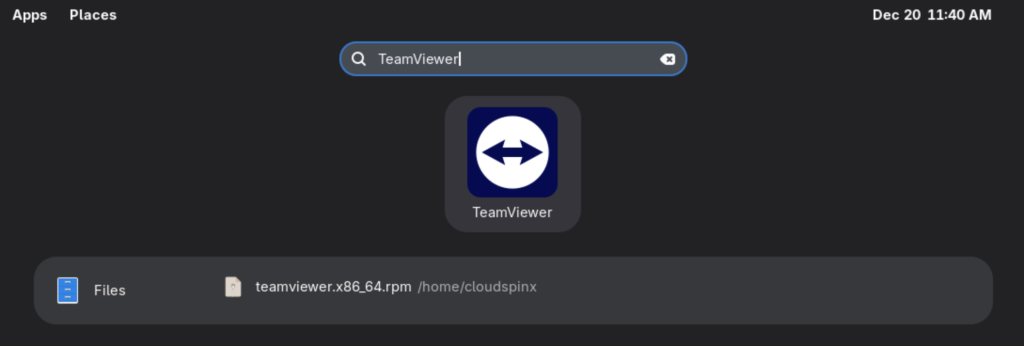
Now that you have TeamViewer installed on Fedora, you can launch it from your Desktop manager or from CLI. To Launch TeamViewer from your Desktop Environment Applications Launcher, search for “teamviewer” and then hit <Enter>.
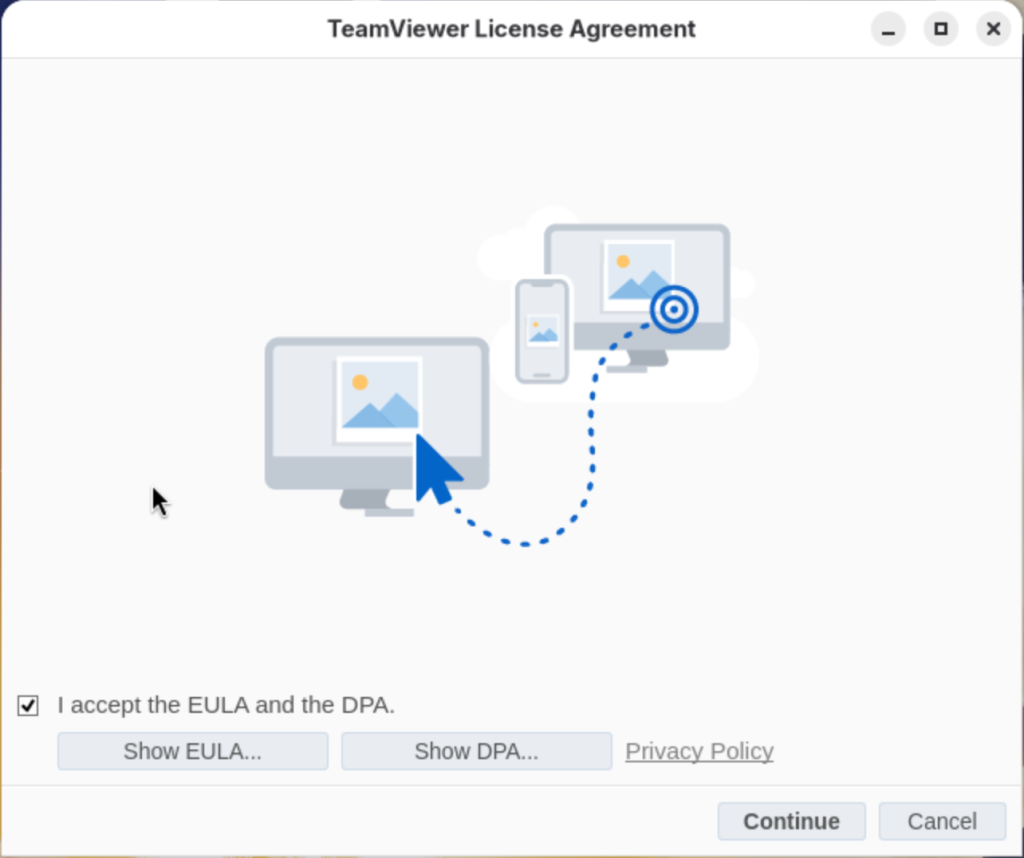
Accept License Agreement and enter remote computer details to gain access (ID & Password).
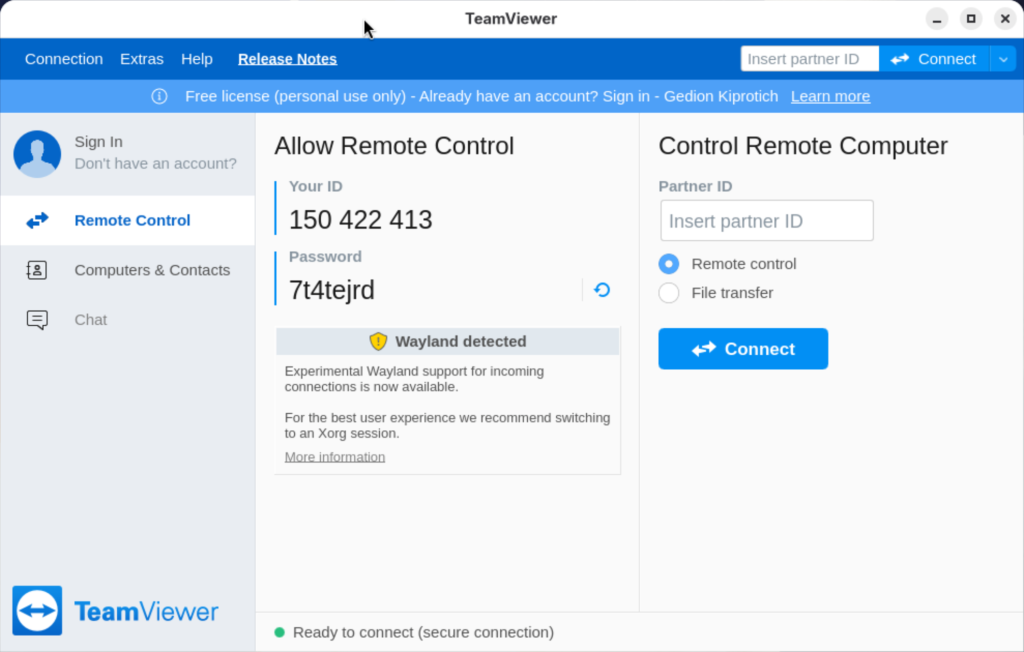
You should see a window like this.
The same can be done from the CLI by executing the following command:
$ teamviewer
Init...
CheckCPU: SSE2 support: yes
Checking setup...
Launching TeamViewer ...
Launching TeamViewer GUI ...
Thank you for installing TeamViewer on Fedora using our guide. You can also check;

In my experience TeamViewer on Fedora 34 is NOT supported under Wayland. If you use TeamViewer on Fedora 34 under Wayland it freezes and crashes after a few seconds of use.
It should work fine if you log in using X11 instead, but you will lose trackpad gestures.
sudo dnf -y install ./teamviewer.x86_64.rpm, result of this “dnf command not found”
It would be helpful if you also think one step ahead and present a remedy for this occurrence
@Maloo What Fedora version is that?