

RabbitMQ is an open source and free to use message broker that sits in between your applications. It enables asynchronous sending of messages between applications efficiently. RabbitMQ uses Advanced Message Queuing Protocol (AMQP) to implement message queueing, but it also support MQTT and STOMP. With its asynchronous communication there is efficiency since applications can send messages to RabbitMQ and continue with other processing, and RabbitMQ will ensure the message gets to other application eventually.
[ebook product=”2″ theme=”dark”]
In this short article we provide you with the steps used to install and configure RabbitMQ on Ubuntu 24.04 (Noble Numbat). We assume that you are working on a clean installation of RabbitMQ server.
Step 1: Update Sever
Login to your Ubuntu server and update package index list.
sudo apt update && sudo apt upgrade -yOnce the system has been updated, perform a reboot if needed.
[ -f /var/run/reboot-required ] && sudo reboot -fWait for the system to come back online then proceed to the next step.
Step 2: Add RabbitMQ repository
Run the script below to configure RabbitMQ repository on the system.
curl -1sLf 'https://dl.cloudsmith.io/public/rabbitmq/rabbitmq-erlang/setup.deb.sh' | sudo -E bashCheck to confirm the executed commands did run successful.
Executing the  setup script for the 'rabbitmq/rabbitmq-erlang' repository ...

   OK: Checking for required executable 'curl' ...
   OK: Checking for required executable 'apt-get' ...
   OK: Detecting your OS distribution and release using system methods ...
 ^^^^: ... Detected/provided for your OS/distribution, version and architecture:
 >>>>:
 >>>>: ... distro=ubuntu  version=24.04  codename=noble  arch=x86_64
 >>>>:
 NOPE: Checking for apt dependency 'apt-transport-https' ...
   OK: Updating apt repository metadata cache ...
   OK: Attempting to install 'apt-transport-https' ...
   OK: Checking for apt dependency 'ca-certificates' ...
   OK: Checking for apt dependency 'gnupg' ...
   OK: Checking for apt signed-by key support ...
   OK: Importing 'rabbitmq/rabbitmq-erlang' repository GPG keys ...
   OK: Checking if upstream install config is OK ...
   OK: Installing 'rabbitmq/rabbitmq-erlang' repository via apt ...
   OK: Updating apt repository metadata cache ...
   OK: The repository has been installed successfully - You're ready to rock!
Step 3: Install RabbitMQ on Ubuntu 24.04
Next run the commands to install RabbitMQ on your Ubuntu 24.04 Linux system.
sudo apt install rabbitmq-serverIf you agree with the installation, hit the y key.
Reading package lists... Done
Building dependency tree... Done
Reading state information... Done
The following additional packages will be installed:
  erlang-asn1 erlang-base erlang-crypto erlang-eldap erlang-ftp erlang-inets erlang-mnesia erlang-os-mon erlang-parsetools erlang-public-key erlang-runtime-tools erlang-snmp erlang-ssl
  erlang-syntax-tools erlang-tftp erlang-tools erlang-xmerl libsctp1 socat
Suggested packages:
  erlang erlang-manpages erlang-doc lksctp-tools
The following NEW packages will be installed:
  erlang-asn1 erlang-base erlang-crypto erlang-eldap erlang-ftp erlang-inets erlang-mnesia erlang-os-mon erlang-parsetools erlang-public-key erlang-runtime-tools erlang-snmp erlang-ssl
  erlang-syntax-tools erlang-tftp erlang-tools erlang-xmerl libsctp1 rabbitmq-server socat
0 upgraded, 20 newly installed, 0 to remove and 1 not upgraded.
Need to get 36.5 MB of archives.
After this operation, 57.9 MB of additional disk space will be used.
Do you want to continue? [Y/n] y
The status of the service should show as running.
$ systemctl status rabbitmq-server.service
● rabbitmq-server.service - RabbitMQ Messaging Server
     Loaded: loaded (/usr/lib/systemd/system/rabbitmq-server.service; enabled; preset: enabled)
     Active: active (running) since Thu 2024-05-09 21:15:03 UTC; 12s ago
   Main PID: 2120 (beam.smp)
      Tasks: 22 (limit: 2255)
     Memory: 94.3M (peak: 97.4M)
        CPU: 7.182s
     CGroup: /system.slice/rabbitmq-server.service
             ├─2120 /usr/lib/erlang/erts-13.2.2.5/bin/beam.smp -W w -MBas ageffcbf -MHas ageffcbf -MBlmbcs 512 -MHlmbcs 512 -MMmcs 30 -pc unicode -P 1048576 -t 5000000 -stbt db -zdbbl 128000 -sbwt >
             ├─2130 erl_child_setup 65536
             ├─2178 /usr/lib/erlang/erts-13.2.2.5/bin/inet_gethost 4
             ├─2179 /usr/lib/erlang/erts-13.2.2.5/bin/inet_gethost 4
             └─2185 /bin/sh -s rabbit_disk_monitor

May 09 21:14:56 noble systemd[1]: Starting rabbitmq-server.service - RabbitMQ Messaging Server...
May 09 21:15:03 noble systemd[1]: Started rabbitmq-server.service - RabbitMQ Messaging Server.
Step 4: Enable RabbitMQ Management plugin
Enable RabbitMQ Management plugin enhances your overall management and monitoring of RabbitMQ instances. Enable it using the commands below.
$ sudo rabbitmq-plugins enable rabbitmq_management
Enabling plugins on node rabbit@noble:
rabbitmq_management
The following plugins have been configured:
  rabbitmq_management
  rabbitmq_management_agent
  rabbitmq_web_dispatch
Applying plugin configuration to rabbit@noble...
The following plugins have been enabled:
  rabbitmq_management
  rabbitmq_management_agent
  rabbitmq_web_dispatch

started 3 plugins.
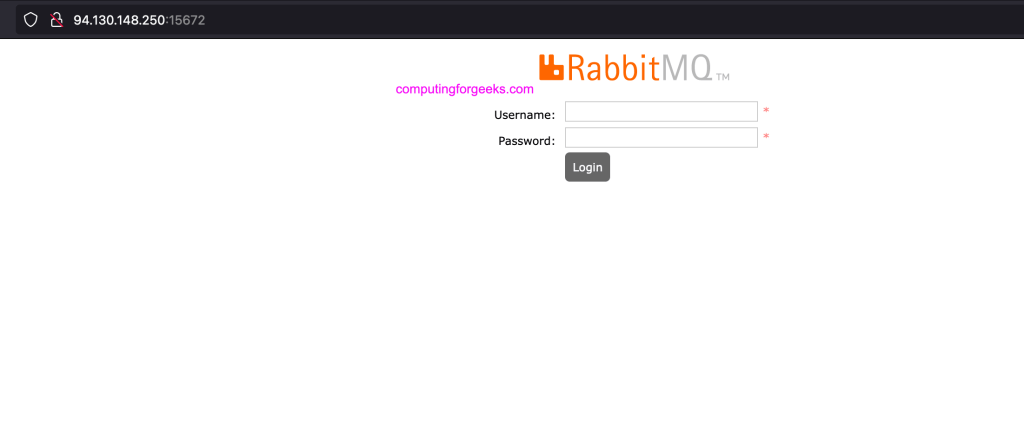
Access RabbitMQ UI on your web browser port 15672 – http://ServerIP:15672/.
Create admin user.
sudo rabbitmqctl add_user admin StrongPasswordGrant permissions to the user.
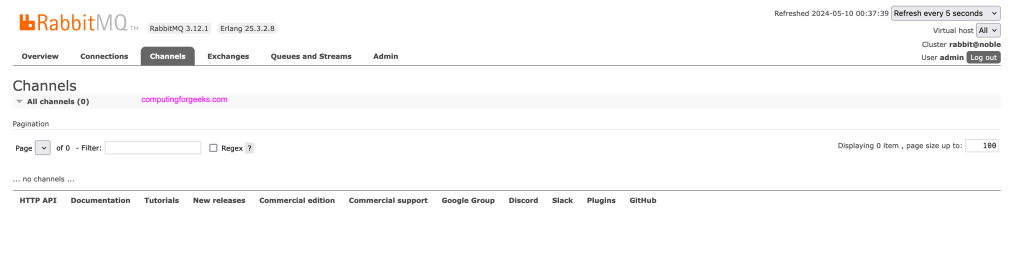
sudo rabbitmqctl set_user_tags admin administratorYou can then login with created username and its password.
Configure PATH to use rabbitmqadmin command line tool
sudo apt -y install plocate
sudo updatedb
sudo cp $(locate rabbitmqadmin) /usr/local/bin/
sudo chmod +x /usr/local/bin/rabbitmqadmin
Visit RabbitMQ Documentation to learn more about using RabbitMQ.
