

Pycharm is one of the well-known and mostly used Python IDE. It comes with two editions; the Community Edition which is free and the Professional Edition which has more advanced features and requires one to buy a licence to be able to use. In this guide, we are going to look at how to install Pycharm IDE Community Edition on Linux Mint.
What are the features of Pycharm Community Edition?
The link below provides an extensive comparison of Pycharm Professional Edition and Pycharm Community Edition.
Install Pycharm Community Edition On Linux Mint 22
First Visit JetBrains official website to download your Pycharm CE, scroll down to acess the Community edition:

If you prefer to use the terminal, run the commands below to download Pycharm Community:
cd Downloads
wget https://download.jetbrains.com/python/pycharm-community-2025.1.3.1.tar.gz
Once the download is done, open your Linux Mint command line and change to the directory on the Pycharm CE download. Now create a directory where you will install Pycharm. I am calling mine sites. Create in the $HOME/.local. Then go ahead to extract your Pycharm.tar.gz in your new directory
mkdir -p ~/.local/sites
tar xvzf pycharm-community-*.tar.gz -C ~/.local/sites/
If you check in the ~/.local/sites directory, you will find that a new directory for Pycharm has been added and it contains an installation file for Pycharm.

Note the name of the directory and run the command as follows to install Pycharm Community Edition on Linux Mint 22.
~/.local/sites/pycharm-community-*/bin/pycharm.shYou will be prompted to accept User Agreement terms. Check the box to accept and click continue:

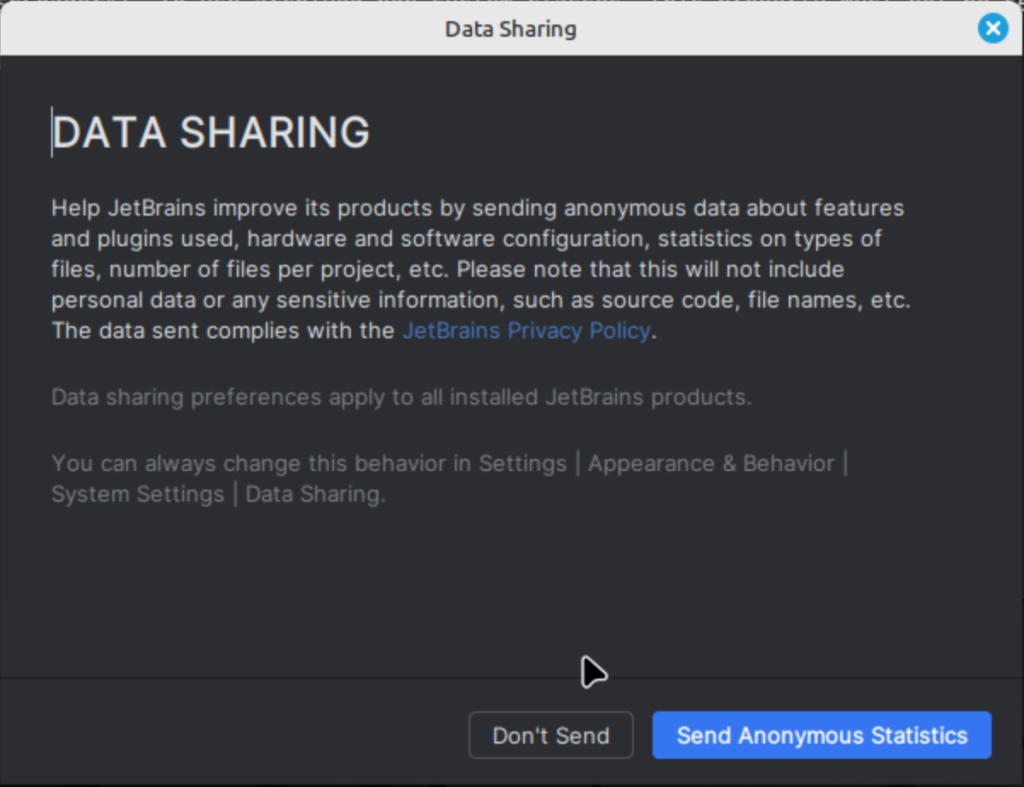
You can also choose to help JetBrains improve their by sending anonymous data:
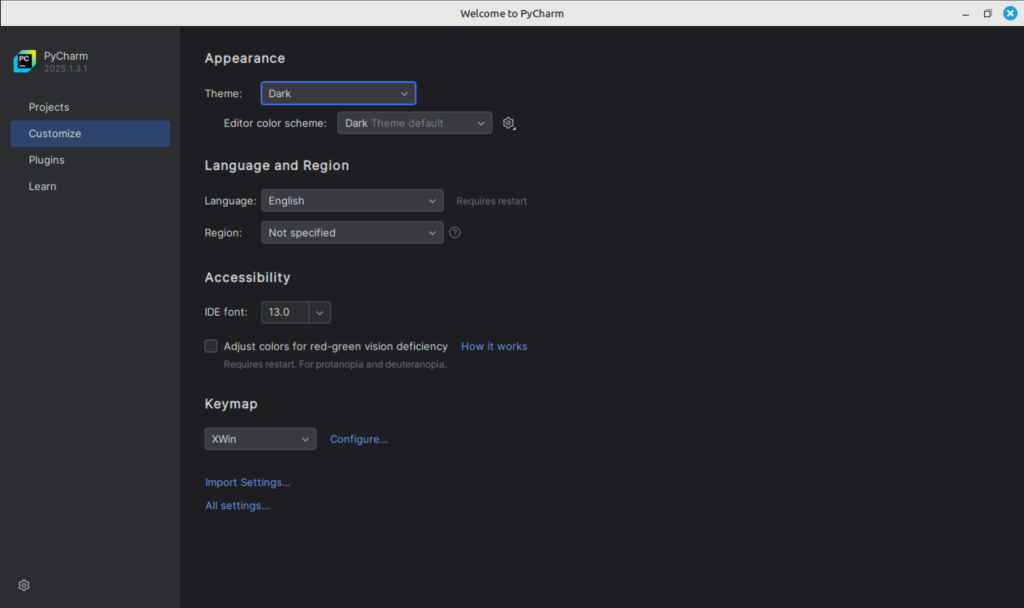
And you are typically done, you can customize Pycharm by switching to the Customize tab:
Install Pycharm Community Edition plugins
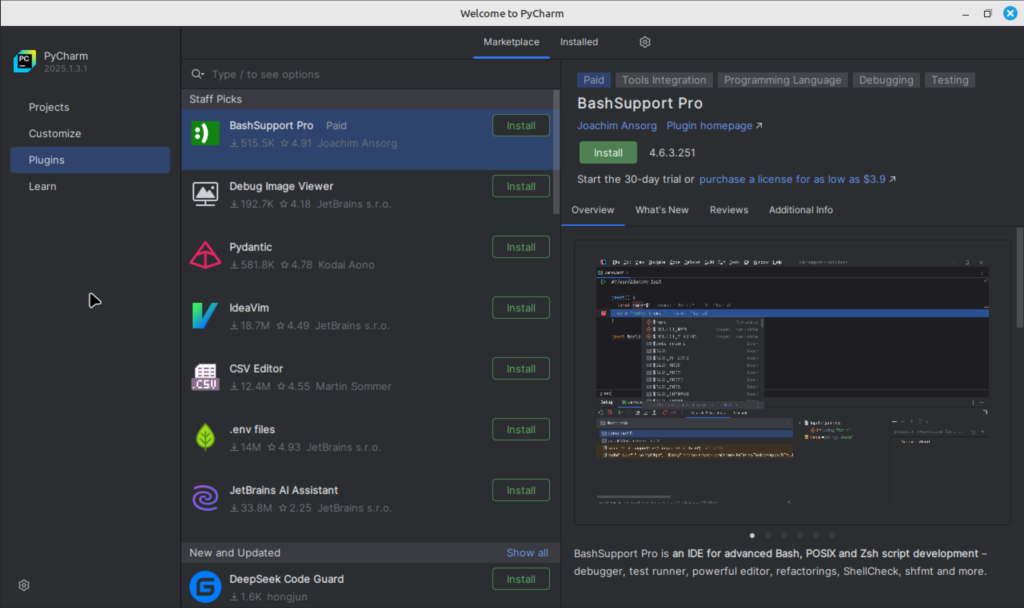
To install plugins, switch to the plugin page and browse for any plugin that you need, then click Install:
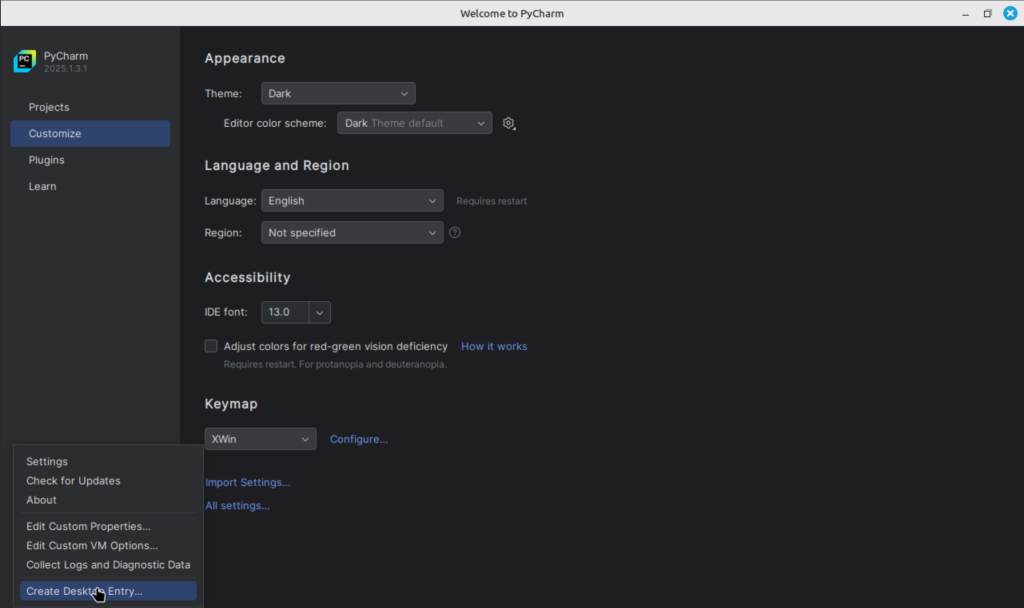
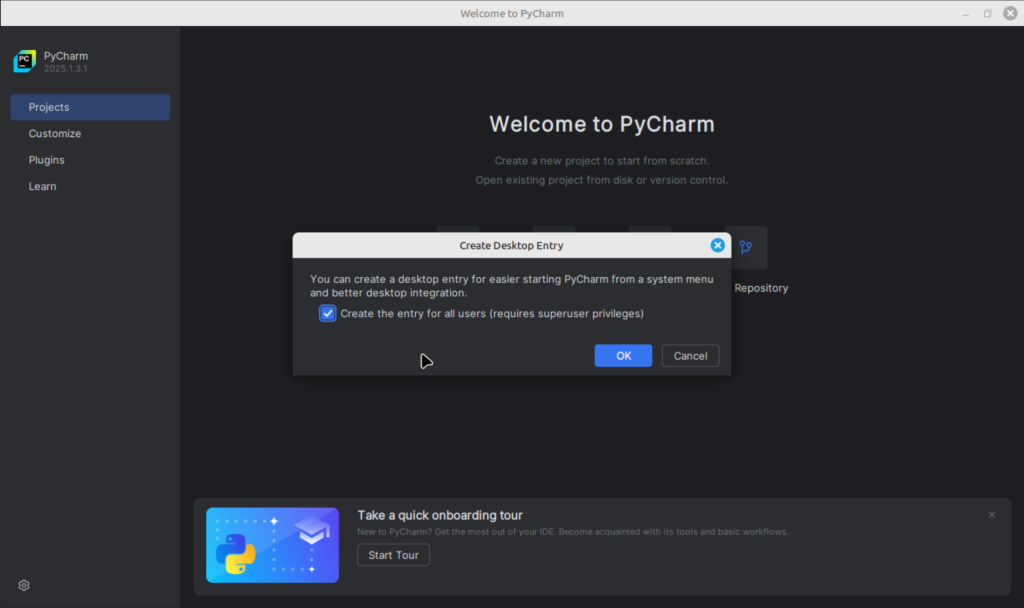
To create a desktop entry for Pycharm, click on the settings icon on the bottom left corner then click on Create desktop entry:
Click Ok to add Python icon to your desktop:
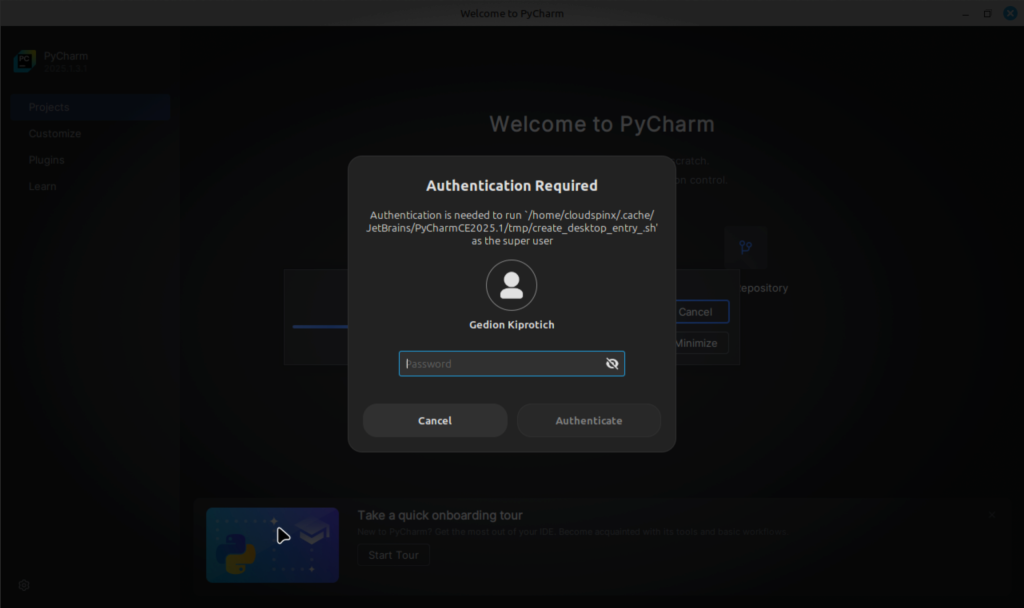
Then go ahead and authenticated your user:
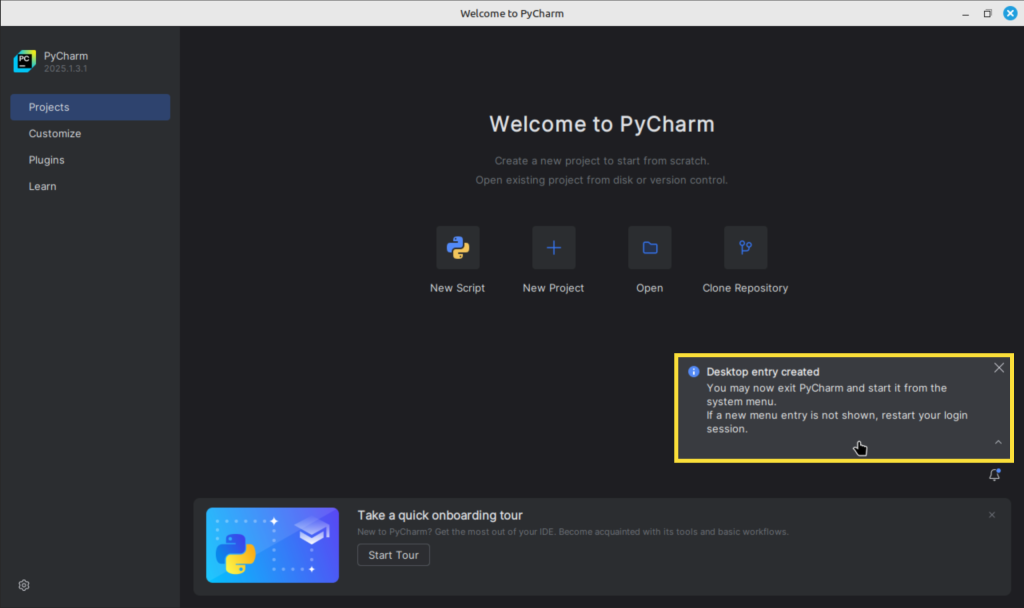
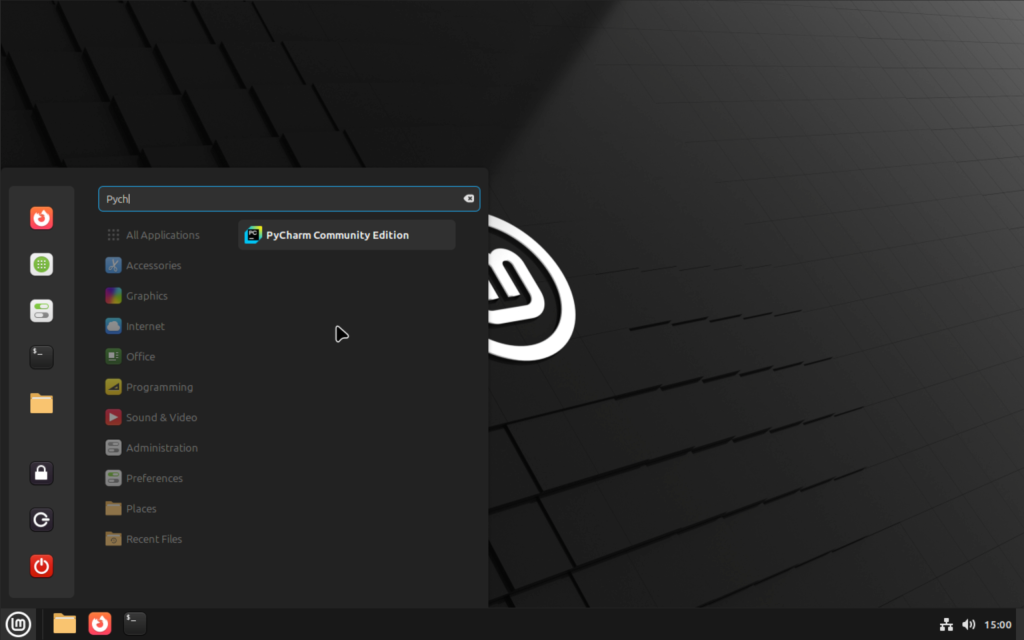
You should see Pycharm icon appearing as part of you applications.
You can always click on it to launch and start running your Python programs.
Happy Python Coding!
This has been a step-by-step guide on how to install Pycharm IDE Community Edition on Linux Mint 22. Check other interesting guides below:
