

NetBox is an open source IPAM / DCIM web application used for managing and documenting computer networks and managing IP addresses. It was Initially conceived by the network engineering team at DigitalOcean. The tool is written in Django Python framework and relies on PostgreSQL database for data store.
NetBox building blocks:
- IP address management (IPAM) – IP networks and addresses, VRFs, and VLANs
- Equipment racks – Organized by group and site
- Devices – Types of devices and where they are installed
- Connections – Network, console, and power connections among devices
- Virtualization – Virtual machines and clusters
- Data circuits – Long-haul communications circuits and providers
- Secrets – Encrypted storage of sensitive credentials
If you’re interested in deploying Netbox on other systems, checkout:
Here are the steps for installing Install NetBox on Debian Linux.
Step 1: Install required dependencies
Start by installing all dependency applications required to run NetBox:
sudo apt update
sudo apt -y install -y git gcc nginx redis supervisor python3 python3-dev python3-venv python3-pip python3-setuptools build-essential libxml2-dev libxslt1-dev libffi-dev graphviz libpq-dev libssl-dev zlib1g-dev vim
Step 2: Install and configure PostgreSQL
NetBox uses PostgreSQL database server to store its data. So install PostgreSQL server on Debian:
sudo apt update
curl -fsSL https://www.postgresql.org/media/keys/ACCC4CF8.asc|sudo gpg --dearmor -o /etc/apt/trusted.gpg.d/postgresql.gpg
RELEASE=$(lsb_release -cs)
sudo sh -c 'echo "deb http://apt.postgresql.org/pub/repos/apt $(lsb_release -cs)-pgdg main" > /etc/apt/sources.list.d/pgdg.list'
sudo apt update
sudo apt -y install postgresql-15
The Create a database and user for NetBox.
$ sudo -u postgres psql
CREATE DATABASE netbox;
CREATE USER netbox WITH PASSWORD 'StrongPassword';
ALTER DATABASE netbox OWNER TO netbox;
\connect netbox;
GRANT CREATE ON SCHEMA public TO netbox;
\q
Confirm that you can login to database as netbox user.
$ psql -U netbox -h localhost -W
Password:
psql (15.4 (Debian 15.4-2.pgdg120+1))
SSL connection (protocol: TLSv1.3, cipher: TLS_AES_256_GCM_SHA384, compression: off)
Type "help" for help.
netbox=> \q
Step 3: Install and configure Netbox
Switch to root user.
sudo su -Change to /opt/ directory and clone project code.
cd /opt/
git clone -b master https://github.com/digitalocean/netbox.git
Create a configuration file from provided example file.
cd netbox/netbox/netbox/
cp configuration_example.py configuration.py
Edit the configuration file and set allowed host and database login details:
# vim configuration.py
....
ALLOWED_HOSTS = ['*']
....
DATABASE = {
     'NAME': 'netbox',             # Database name
     'USER': 'netbox',             # PostgreSQL username
     'PASSWORD': 'StrongPassword', # PostgreSQL password
     'HOST': 'localhost',          # Database server
     'PORT': '',                   # Database port (leave blank for default)
     'CONN_MAX_AGE': 300,          # Max database connection age
 }
Generate Django SECRET Key:
cd ../
./generate_secret_key.py
Then set the key on the file /opt/netbox/netbox/netbox/configuration.py
Example:
# vim /opt/netbox/netbox/netbox/configuration.py
SECRET_KEY = 'L2lyoE^*DN)6w3PK_d$-pe5ZS@XmMQ4J9g!cvF1V=n0juWiATR'
Run the Upgrade Script
The Upgrade Script automatically runs the following:
- Creates a Python environment and installs all required Python packages
- Run database schema migrations
- Builds the documentation locally (for offline use)
- Aggregate static resource files on disk
/opt/netbox/upgrade.shSource environment.
source /opt/netbox/venv/bin/activate
cd /opt/netbox/netbox
Create admin user:
# python3 manage.py createsuperuser
Username (leave blank to use 'root'): admin
Email address: [email protected]
Password: <Enter Password>
Password (again): <Re-enter Password>
Superuser created successfully.
Proceed and schedule housekeeping tasks. This handles repetitive cleanup tasks.
ln -s /opt/netbox/contrib/netbox-housekeeping.sh /etc/cron.daily/netbox-housekeepingStep 4: Configure Netxbox system service
Install gunicorn using pip3:
# pip3 install gunicorn
Requirement already satisfied: gunicorn in /opt/netbox/venv/lib/python3.11/site-packages (21.2.0)
Requirement already satisfied: packaging in /opt/netbox/venv/lib/python3.11/site-packages (from gunicorn) (23.1)
Install and configure the Gunicorn module
Netbox ships default Gunicorn configuration that can be copied to the Netbox path as below.
cp /opt/netbox/contrib/gunicorn.py /opt/netbox/gunicorn.pyYou may wish to edit the file and make configurations for your Bind Ip and port.
vim /opt/netbox/gunicorn.pyIn the file, add the below lines.
bind = '127.0.0.1:8001'

workers = 5

threads = 3

timeout = 120

# The maximum number of requests a worker can handle before being respawned
max_requests = 5000
max_requests_jitter = 500
Create a systemd service file.
To be able to manage Netbox like other system services, we need to create the system file.
cp -v /opt/netbox/contrib/*.service /etc/systemd/system/
systemctl daemon-reload
Add netbox user:
sudo groupadd --system netbox
sudo useradd --system -g netbox netbox
sudo chown --recursive netbox /opt/netbox
Start and enable Netbox services.
sudo systemctl start netbox netbox-rq
sudo systemctl enable netbox netbox-rq
Confirm service status.
$ systemctl status netbox.service
● netbox.service - NetBox WSGI Service
     Loaded: loaded (/etc/systemd/system/netbox.service; enabled; preset: enabled)
     Active: active (running) since Thu 2023-09-21 20:35:59 UTC; 18s ago
       Docs: https://docs.netbox.dev/
   Main PID: 8240 (gunicorn)
      Tasks: 6 (limit: 4531)
     Memory: 558.6M
        CPU: 8.188s
     CGroup: /system.slice/netbox.service
             ├─8240 /opt/netbox/venv/bin/python3 /opt/netbox/venv/bin/gunicorn --pid /var/tmp/netbox.pid --pythonpath /opt/netbox/netbox --config /opt/netbox/gunicorn.py netbox.wsgi
             ├─8245 /opt/netbox/venv/bin/python3 /opt/netbox/venv/bin/gunicorn --pid /var/tmp/netbox.pid --pythonpath /opt/netbox/netbox --config /opt/netbox/gunicorn.py netbox.wsgi
             ├─8246 /opt/netbox/venv/bin/python3 /opt/netbox/venv/bin/gunicorn --pid /var/tmp/netbox.pid --pythonpath /opt/netbox/netbox --config /opt/netbox/gunicorn.py netbox.wsgi
             ├─8247 /opt/netbox/venv/bin/python3 /opt/netbox/venv/bin/gunicorn --pid /var/tmp/netbox.pid --pythonpath /opt/netbox/netbox --config /opt/netbox/gunicorn.py netbox.wsgi
             ├─8249 /opt/netbox/venv/bin/python3 /opt/netbox/venv/bin/gunicorn --pid /var/tmp/netbox.pid --pythonpath /opt/netbox/netbox --config /opt/netbox/gunicorn.py netbox.wsgi
             └─8263 /opt/netbox/venv/bin/python3 /opt/netbox/venv/bin/gunicorn --pid /var/tmp/netbox.pid --pythonpath /opt/netbox/netbox --config /opt/netbox/gunicorn.py netbox.wsgi

Sep 21 20:35:59 deb12 systemd[1]: Started netbox.service - NetBox WSGI Service.
Sep 21 20:36:00 deb12 gunicorn[8240]: [2023-09-21 20:36:00 +0000] [8240] [INFO] Starting gunicorn 21.2.0
Sep 21 20:36:00 deb12 gunicorn[8240]: [2023-09-21 20:36:00 +0000] [8240] [INFO] Listening at: http://127.0.0.1:8001 (8240)
Sep 21 20:36:00 deb12 gunicorn[8240]: [2023-09-21 20:36:00 +0000] [8240] [INFO] Using worker: gthread
Sep 21 20:36:00 deb12 gunicorn[8245]: [2023-09-21 20:36:00 +0000] [8245] [INFO] Booting worker with pid: 8245
Sep 21 20:36:00 deb12 gunicorn[8246]: [2023-09-21 20:36:00 +0000] [8246] [INFO] Booting worker with pid: 8246
Sep 21 20:36:00 deb12 gunicorn[8247]: [2023-09-21 20:36:00 +0000] [8247] [INFO] Booting worker with pid: 8247
Sep 21 20:36:00 deb12 gunicorn[8249]: [2023-09-21 20:36:00 +0000] [8249] [INFO] Booting worker with pid: 8249
Sep 21 20:36:00 deb12 gunicorn[8263]: [2023-09-21 20:36:00 +0000] [8263] [INFO] Booting worker with pid: 8263
Netbox service should be listening on port 8001.
# ss -tunelp | grep 8001
tcp   LISTEN 0      2048       127.0.0.1:8001      0.0.0.0:*    users:(("gunicorn",pid=8263,fd=5),("gunicorn",pid=8249,fd=5),("gunicorn",pid=8247,fd=5),("gunicorn",pid=8246,fd=5),("gunicorn",pid=8245,fd=5),("gunicorn",pid=8240,fd=5)) uid:999 ino:33912 sk:2 cgroup:/system.slice/netbox.service <->
Step 5: Configure Nginx Web Server
Let’s configure Nginx
apt install nginxCreate new Nginx configuration file for Netbox.
vim /etc/nginx/conf.d/netbox.confWith below data.
server {
    listen 80;
    server_name netbox.example.com;
    client_max_body_size 25m;

    location /static/ {
        alias /opt/netbox/netbox/static/;
    }

    location / {
        proxy_pass http://127.0.0.1:8001;
        proxy_set_header X-Forwarded-Host $http_host;
        proxy_set_header X-Real-IP $remote_addr;
        proxy_set_header X-Forwarded-Proto $scheme;
    }
}
Check Nginx configuration syntax and restart its service
$ sudo  nginx -t
nginx: the configuration file /etc/nginx/nginx.conf syntax is ok
nginx: configuration file /etc/nginx/nginx.conf test is successful
If OK, restart Nginx service
sudo systemctl restart nginxStep 6: Secure Netbox with Let’s Encrypt
To secure your Netbox installation with Let’s Encrypt SSL follow the guide below:
Step 7: Access Netbox Web UI
Open your default web browser and open Netbox server hostname. To make changes, login with admin user created earlier.

There you go!.. You have NetBox dashboard.
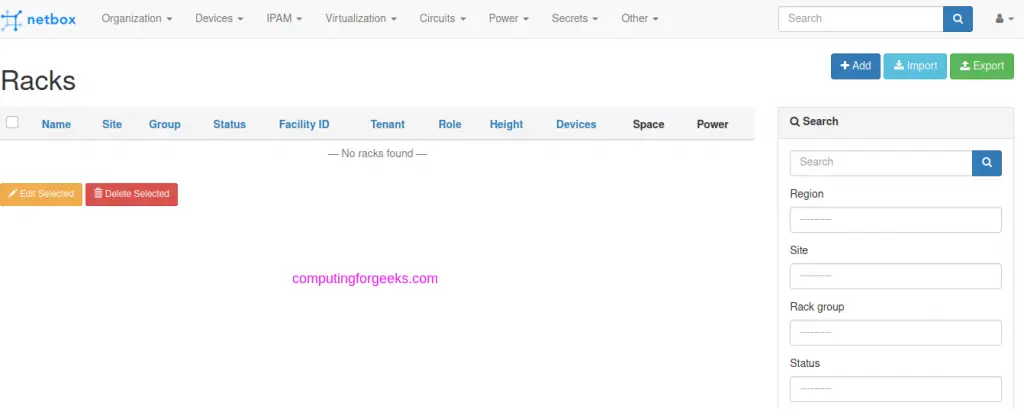
Enjoy using Netbox to document your network infrastructure. Access NetBox documentation to learn more about this awesome product.
You can also check:

Thank you very much!!!
Everything worked out! Installed on Ubuntu.
I have been trying to get this to work for a week. It is not a problem with your guide, my problem is that I cannot get it to work correctly with active directory authentication. I have tried Grok, ChatGPT, Claude and lastly Gemini. Claude finally concluded that it was too complex and error prone to use JIT provisioning and left it with netbox able to authenticate against active directory the first time a user logs in if they are in the appropriate groups. But after that initial login it creates a local user in netbox and future logins use the local account. So, if I remove the user from the active directory group, they can still login to netbox. I have been unable to find any guides or people who have been able to make that work. So, I thought I would ask the question. Has anyone actually seen active directory authentication work as it should or know how to make it work? Thank you for creating this guide it is very helpful.