

NetBeans is a free and open source integrated development environment for Java, PHP, C and C++ Applications. You use a set of modular software components called modules in NetBeans to develop your applications. NetBeans is created to simplify the development of enterprise, web, desktop, and mobile applications that use the Java and HTML5 platforms.
NetBeans IDE can be installed on Windows, macOS, Linux and Solaris operating systems. This guide title is for the installation of NetBeans IDE on Linux Mint 22 Desktop but it should also work for any other *NIX systems.
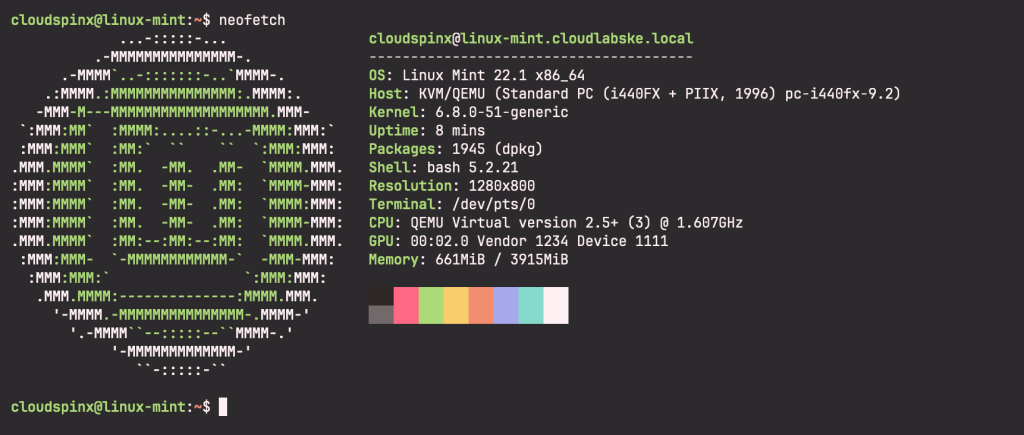
Install NetBeans IDE on Linux Mint 22
The latest release of NetBeans as of this article is version 26. Some of its new features are:
- Runs across all platforms
- Offers fast and smart editing
- Bundled nb-javac, startup experience simpler and smoother.
- Partial upgrades for Maven, Gradle, and PHP.
- Light FlatLaf look and feel by default.
- Improvements on PHP 8.1 support
- Improvements on CSS, LSP, and Groovy
- Upgrades and extends its editor
- Provides new dark look and feel options
- Includes a wide range of fixes.
You can visit the project release page for more details.
1: Update Linux Mint System
I recommend you update your OS packages before installing NetBeans IDE on Linux Mint.
sudo apt update && sudo apt upgrade -y
[ -f /var/run/reboot-required ] && sudo reboot -f
2: Install Java on Linux Mint 22
NetBeans is a Java Development environment, so you’ll need to install it:
sudo apt update
sudo apt install -y default-jdk default-jre
Check that Java has been installed:
java --version
3: Install NetBeans IDE on Linux Mint
We’ll install NetBeans IDE on Linux Mint by using snap and for that we’ll install snap package on your system.
From Linux Mint 20 onwards, installing Snap is blocked by a file called nosnap.pref in the directory /etc/apt/preferences.d/; this file needs to be either moved or removed from the directory, or renamed with an extension other than .pref before Snap can be installed.
This can be accomplished from the command line, and the following command (for example) renames nosnap.pref to nosnap.backup:
sudo mv /etc/apt/preferences.d/nosnap.pref ~/Documents/nosnap.backup
sudo apt update
sudo apt install snapd
Use Snap package to install NetBeans on Linux Mint 22:

3: Launch NetBeans IDE on Linux Mint 22
You can launch the NetBeans IDE on Linux Mint from the terminal by running the following command:
netbeansOr, from the applications menu:
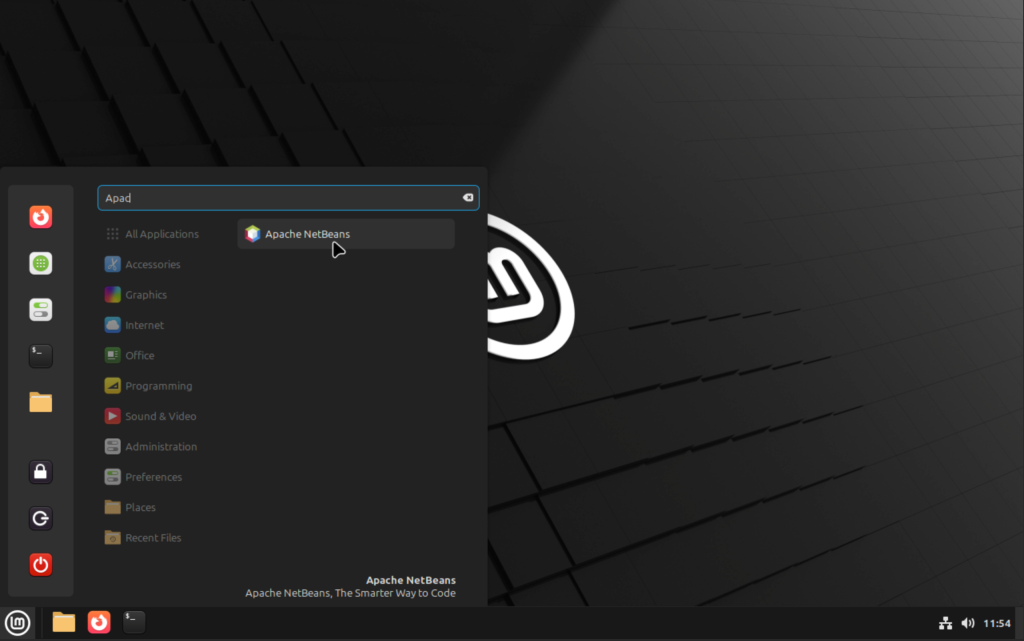
Application console should show after starting it.
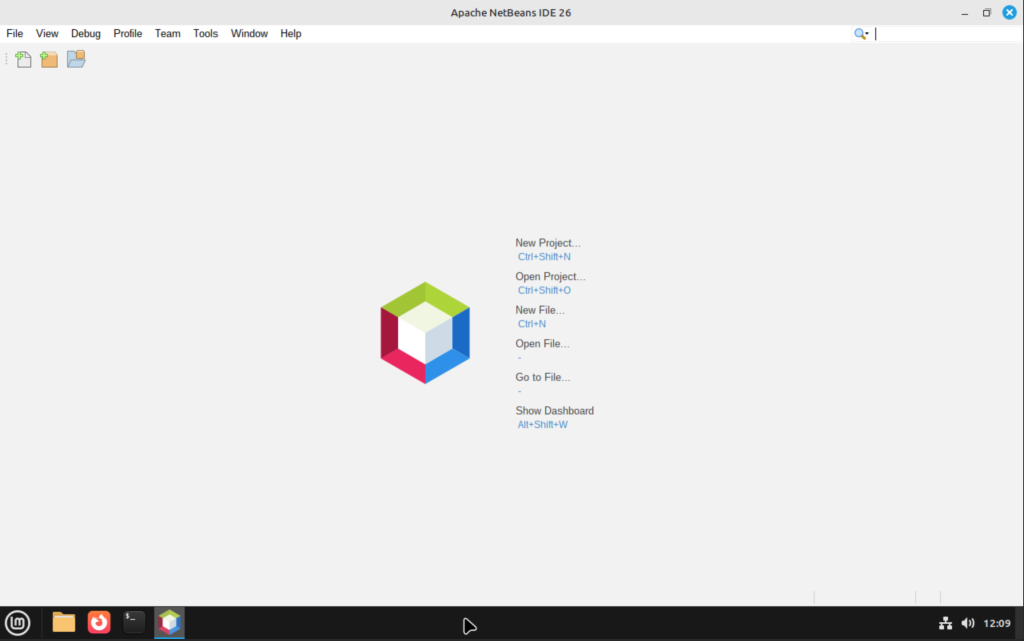
Congratulations for the successful installation of NetBeans IDE on Linux Mint Desktop machine. Consider joining the Apache NetBeans Community to get updates on project development and helping the team in various ways.
Check out more guides from our team:
