

Jenkins runs on Java, listens on port 8080, and takes about five minutes to install from the official apt repository. The setup wizard walks you through plugin selection and admin account creation, and then you have a working CI/CD server. This guide covers the install on Ubuntu 24.04 and 22.04 with OpenJDK 21, the updated 2026 GPG key, firewall configuration, and the full web setup wizard.
Everything below was tested on a fresh Ubuntu 24.04 LTS VM with Jenkins 2.541.3 (current LTS) and OpenJDK 21.0.10. For Debian 13 with Nginx reverse proxy and SSL, see our Jenkins on Ubuntu/Debian with Nginx guide instead.
Current as of March 2026. Verified on Ubuntu 24.04 LTS with Jenkins 2.541.3, OpenJDK 21.0.10
Requirements
- Ubuntu 24.04 LTS or 22.04 LTS with sudo access
- At least 2 GB RAM (4 GB recommended for moderate workloads)
- Port 8080/tcp open for the Jenkins web UI
Install Java 21
Jenkins requires Java 17 or 21. OpenJDK 21 is the better choice since it’s the current LTS with support through 2029:
sudo apt update
sudo apt install -y fontconfig openjdk-21-jre-headless
Confirm the version:
java -versionOutput from our test VM:
openjdk version "21.0.10" 2026-01-20
OpenJDK Runtime Environment (build 21.0.10+7-Ubuntu-124.04)
OpenJDK 64-Bit Server VM (build 21.0.10+7-Ubuntu-124.04, mixed mode, sharing)
Add the Jenkins Repository
Jenkins packages are not in the default Ubuntu repositories. Add the official Jenkins LTS repository. Note the GPG key URL changed to jenkins.io-2026.key in early 2026 (older guides reference the 2023 key which no longer works):
sudo wget -O /etc/apt/keyrings/jenkins-keyring.asc \
  https://pkg.jenkins.io/debian-stable/jenkins.io-2026.key
Add the repository:
echo "deb [signed-by=/etc/apt/keyrings/jenkins-keyring.asc] \
  https://pkg.jenkins.io/debian-stable binary/" | sudo tee \
  /etc/apt/sources.list.d/jenkins.list > /dev/null
Install Jenkins
Update apt and install:
sudo apt update
sudo apt install -y jenkins
Jenkins starts automatically after installation. Check the version and service status:
jenkins --version
sudo systemctl status jenkins
Real output from our test:
2.541.3
● jenkins.service - Jenkins Continuous Integration Server
     Loaded: loaded (/usr/lib/systemd/system/jenkins.service; enabled; preset: enabled)
     Active: active (running)
   Main PID: 2646 (java)
     Memory: 585.6M
     CGroup: /system.slice/jenkins.service
             └─2646 /usr/bin/java -Djava.awt.headless=true -jar /usr/share/java/jenkins.war --webroot=/var/cache/jenkins/war --httpPort=8080
Jenkins uses about 600 MB of RAM on startup. This grows as you add plugins and run builds.
Configure the Firewall
Open port 8080 in UFW:
sudo ufw allow 8080/tcp
sudo ufw allow OpenSSH
sudo ufw enable
sudo ufw status
Confirmed output:
Status: active

To                         Action      From
--                         ------      ----
8080/tcp                   ALLOW       Anywhere
OpenSSH                    ALLOW       Anywhere
8080/tcp (v6)              ALLOW       Anywhere (v6)
OpenSSH (v6)               ALLOW       Anywhere (v6)
Complete the Setup Wizard
Open http://your-server-ip:8080 in a browser. Jenkins asks for the initial admin password:
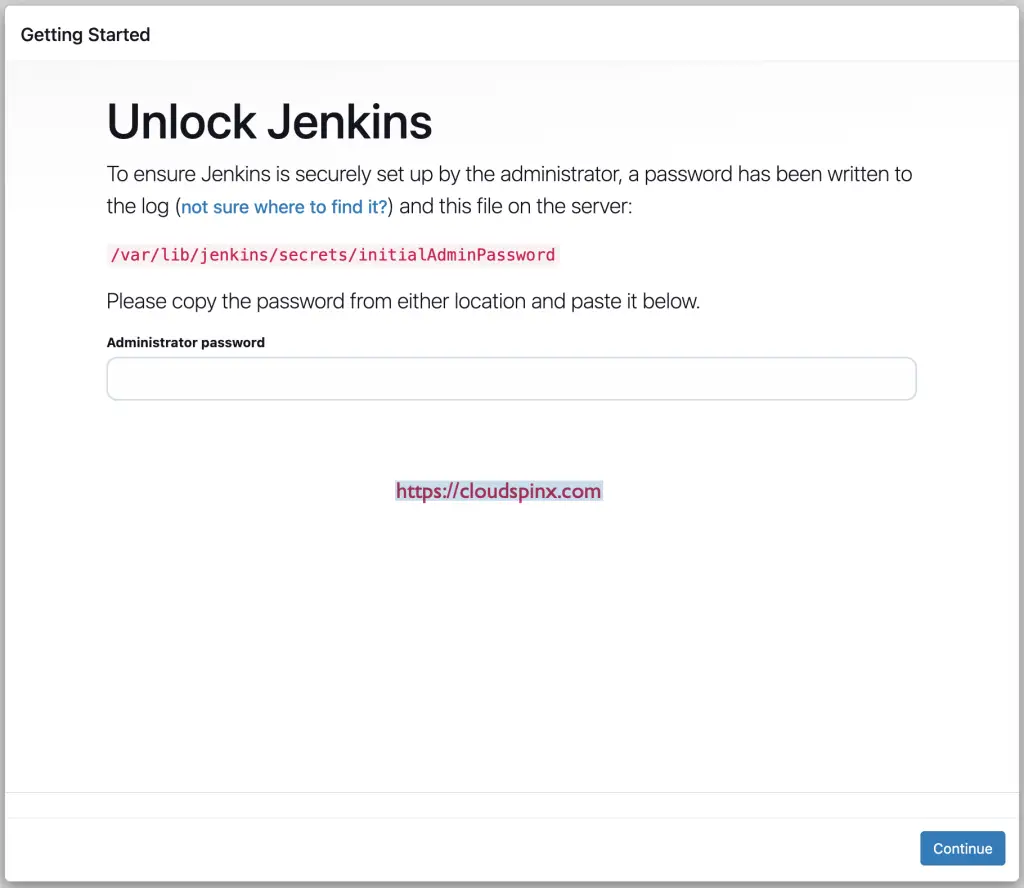
Retrieve the password from the server:
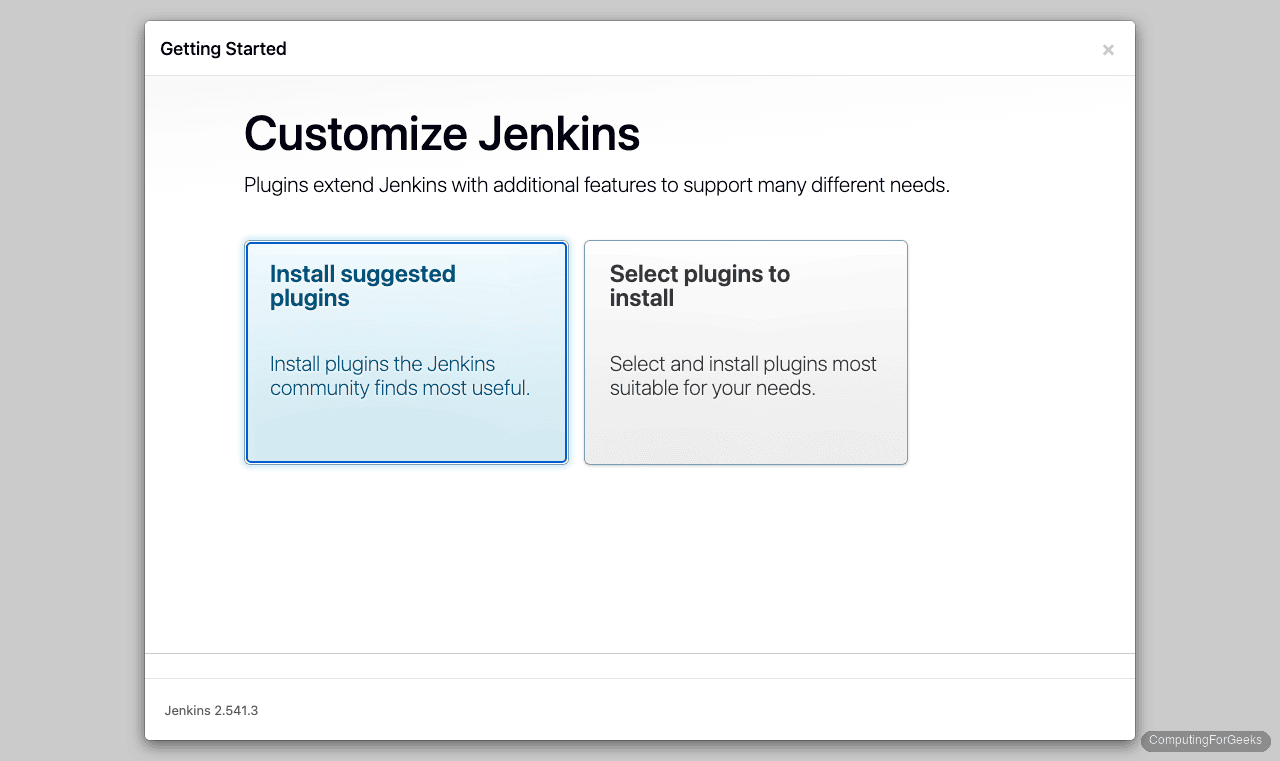
sudo cat /var/lib/jenkins/secrets/initialAdminPasswordPaste it and click Continue. On the next screen, select Install suggested plugins for a standard setup:
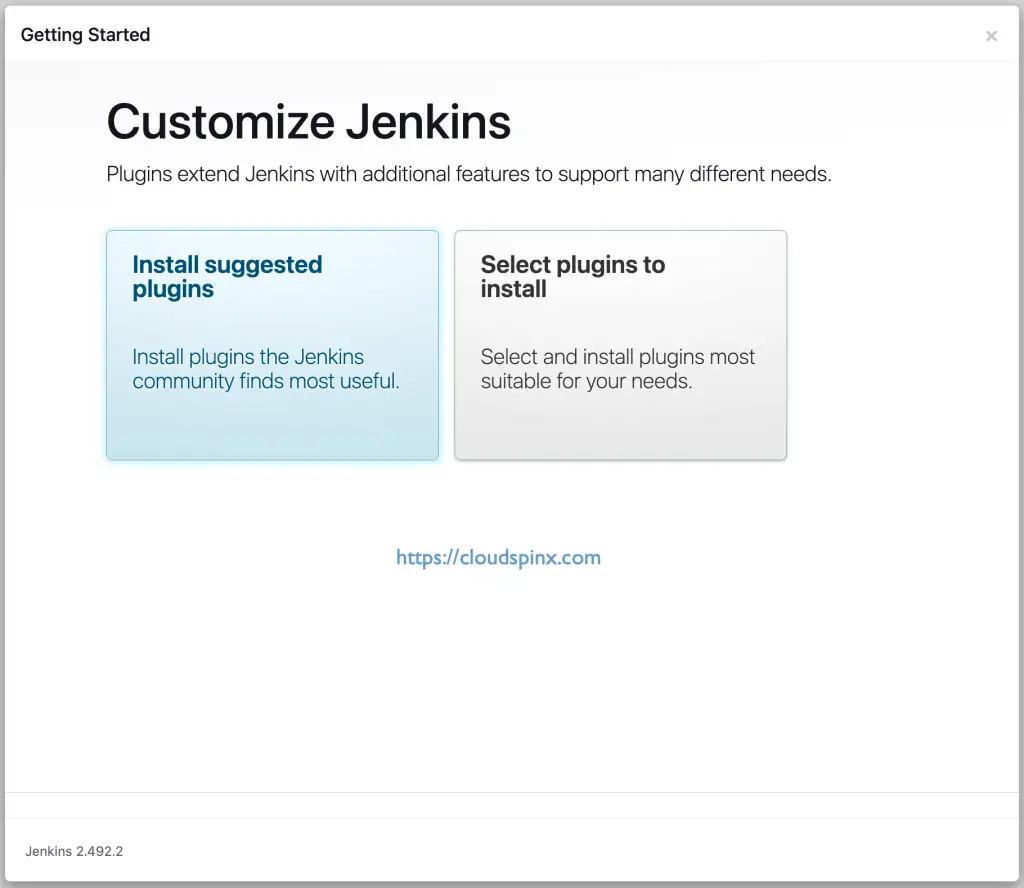
Plugin installation takes 2-3 minutes depending on your connection speed:
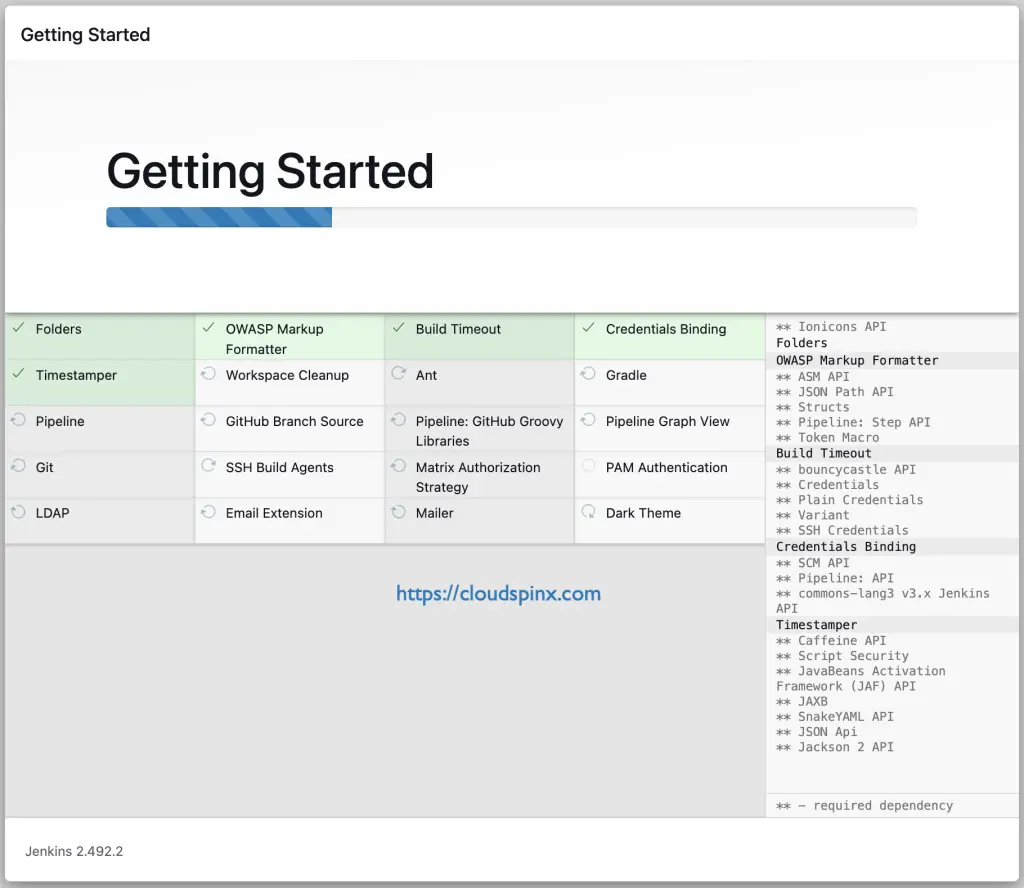
After plugins finish, create the admin user. Pick a strong password since this account has full control:
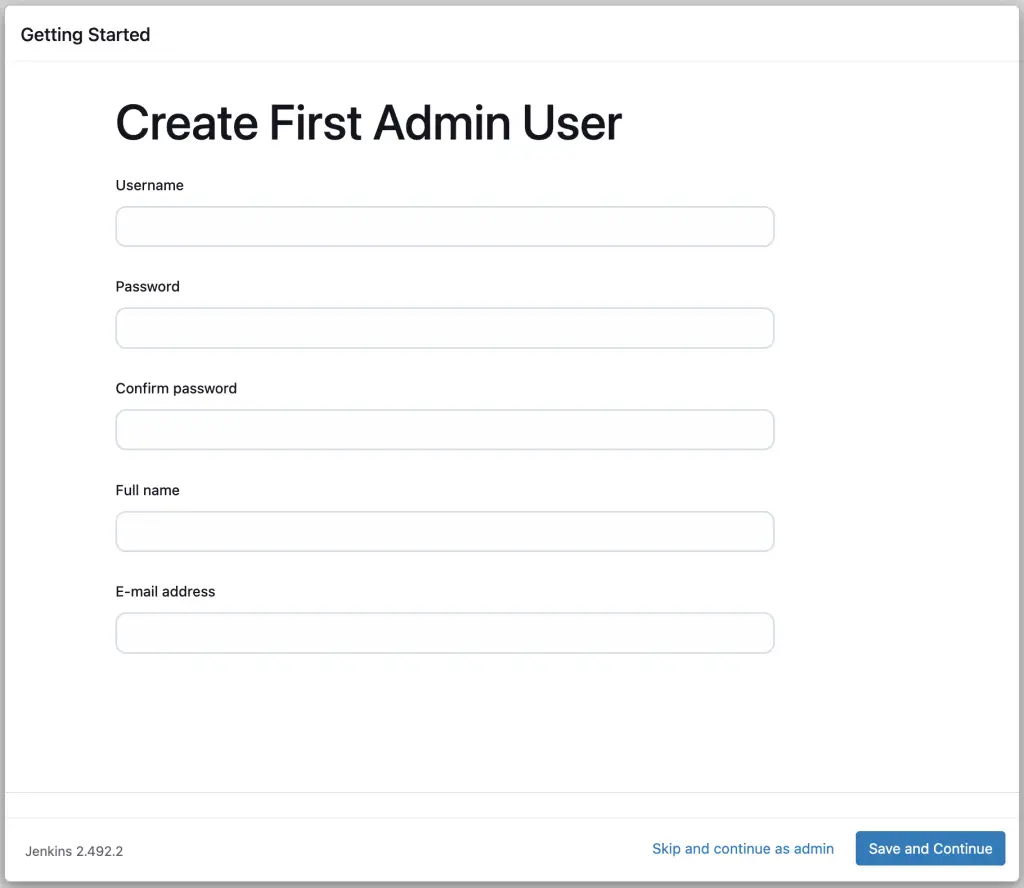
The next page confirms the Jenkins URL. Accept the default and click Save and Finish:
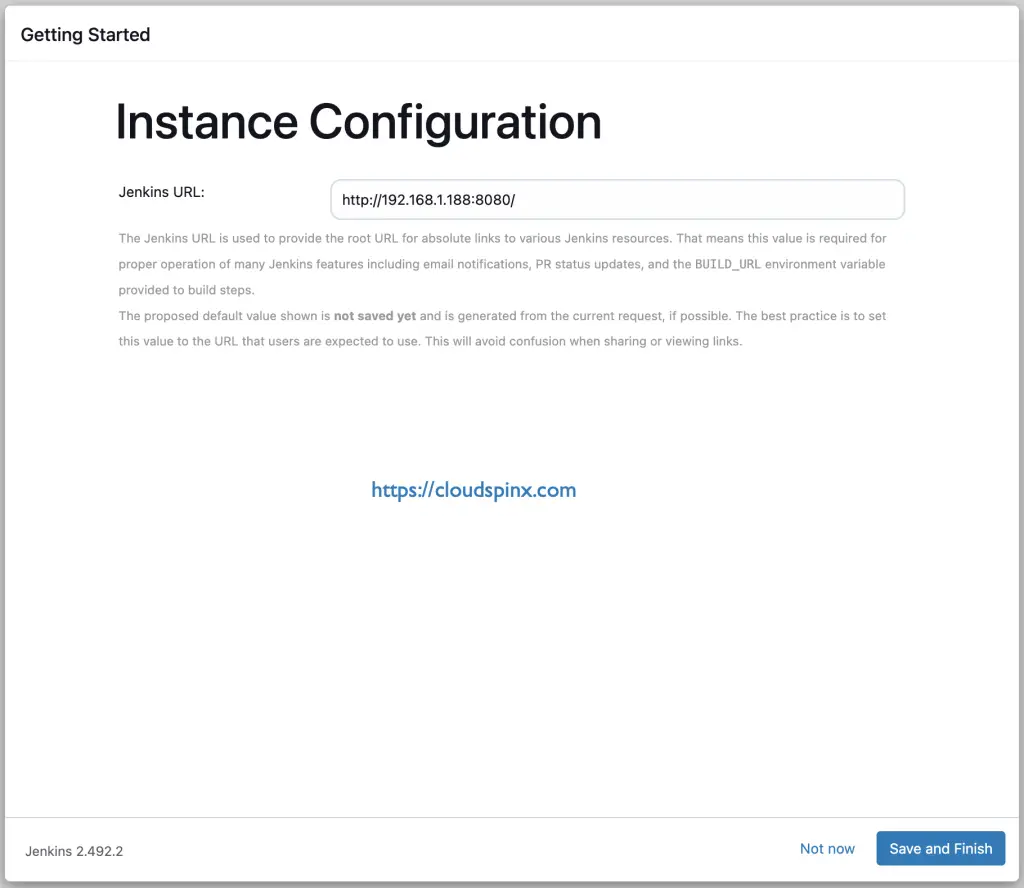
Click Start using Jenkins to reach the dashboard:
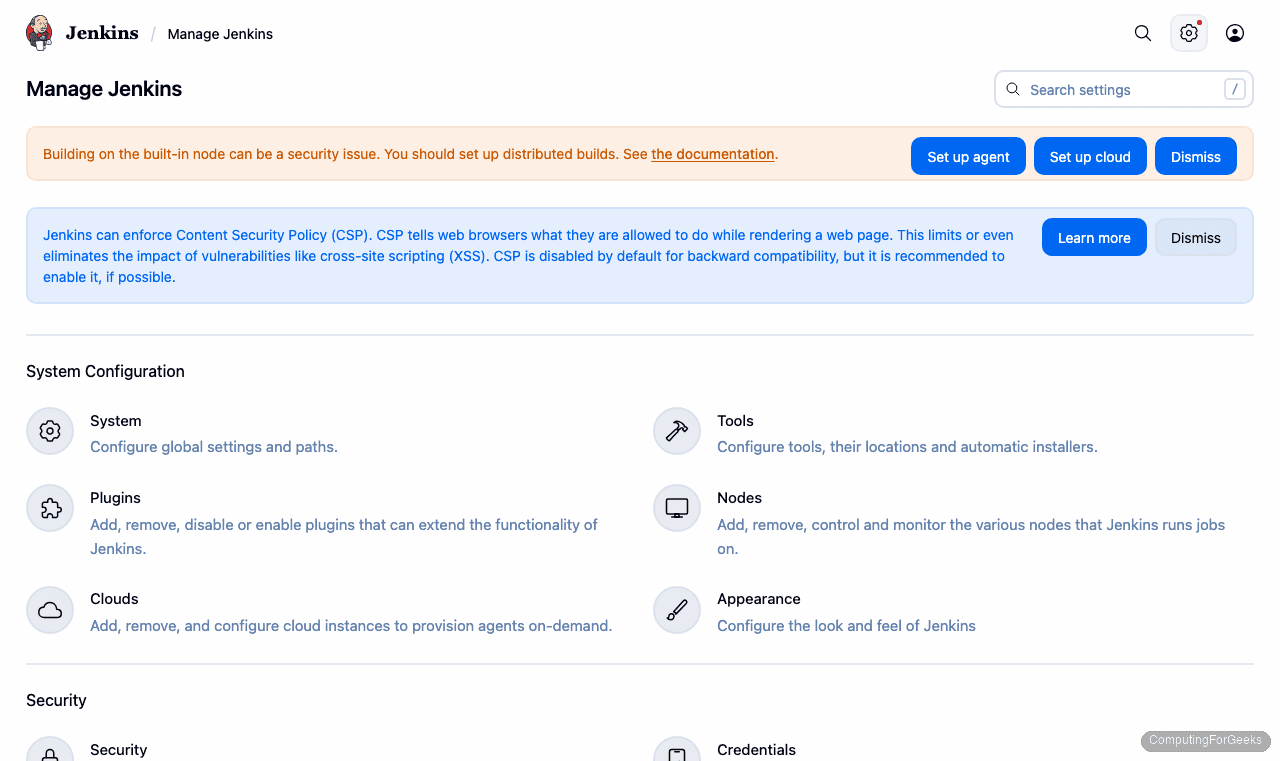
The Manage Jenkins page gives you access to system settings, plugins, credentials, and node management:
Create Your First Pipeline
With Jenkins running, create a quick pipeline to verify everything works. Go to New Item, name it “hello-world”, select Pipeline, and click OK.
In the Pipeline section, paste this minimal Jenkinsfile:
pipeline {
    agent any
    stages {
        stage('Hello') {
            steps {
                sh 'echo "Jenkins $(jenkins --version) on $(lsb_release -ds)"'
                sh 'java -version'
                sh 'uname -a'
            }
        }
    }
}
Click Save, then Build Now. The build should complete in a few seconds with green status. Check the console output to confirm Jenkins can execute shell commands on the host.
Production Next Steps
A bare Jenkins install on port 8080 is fine for testing. For production, you should add a few layers:
- Nginx reverse proxy with SSL: Put Jenkins behind Nginx on port 443 with a Let’s Encrypt certificate. Our Jenkins behind Nginx and Let’s Encrypt guide covers this
- User management: Configure users and roles in Jenkins with the Role-Based Authorization Strategy plugin
- Kubernetes integration: Connect Jenkins to Kubernetes clusters for container-based builds and deployments
- Backup: The Jenkins home directory (
/var/lib/jenkins) contains all jobs, configs, and credentials. Back it up regularly - Memory tuning: Edit
/etc/default/jenkinsor the systemd override to setJAVA_OPTS="-Xmx2g"if builds need more heap
For the same install on RHEL-family systems, see Jenkins on Rocky Linux 10 / AlmaLinux 10.
