

Invoice Ninja is a free and open source application used for generating invoices, managing payments, tracking expenses, time and tasks tracking and much more. The application is written in PHP and requires a web server such as Nginx or Apache httpd for serving its web content. This tool enables you to create and send invoices to clients in seconds after installation. It is designed to be highly customizable which means it is easy to integrate with your consultancy business, service offering website or for E-Commerce platforms.
In this article I’ll walk you through the installation of Invoice Ninja on CentOS 8 | Rocky Linux 8 Linux server. Some of the cool features of Invoice Ninja are:
- Create Recurring Invoicing & Auto-Bill Clients
- Alerts When Client Views & Pays Invoices
- Email Invoices & Accept Payments Online
- Accept Deposits & Partial Payments
- Password Protect Client-Side Portals
- Attach Invoice .PDFs to Emails
- Customize Invoices With Your Company Logo
- Create Project Tasks & Track Time Online
- Create Quotations & Pro-Forma Invoices
- Invoice Payment Auto-Reminder Emails
- Tax Settings per Item or Invoice Total
- Professional Invoice Template Design
- Quotes Convert to Invoices for Payment
- e.t.c
Some features are only available as commercial offerings. These includes:
- Fully Customizable Invoice Design: Match the look of your invoice with the design of your brand.
- Zapier Integration Automation: Use the power of Zapier to integrate just about any app with your Invoice Ninja account.
- Attach Invoice & Quotations PDFs to Emails: Give your clients another easy way to share and file your invoice.
- Proposals Creation Tool: Easily create and send beautiful proposals to your customers.
- Bulk Emailing Invoices & Quotations: Save time by quickly selecting multiple invoices and emailing them out together.
- Setup Automatic Late Fees on Unpaid Invoices: Bill a client extra for unpaid invoices with automatic late payment fees.
- Customize Email Subjects & Body Text: Tailor your invoice email text for improved open rates and brand recognition.
- Attach Invoice & Quotations PDFs to Emails: Give your clients another easy way to share and file your invoice.
You can check out the feature comparison page for more details.
Install Invoice Ninja on CentOS 8 / Rocky Linux 8
We will install Invoice Ninja on CentOS 8 Linux powered by LAMP ( CentOS Linux, Apache Web server, MariaDB and PHP) application stack. The minimum requirements at the hardware level is just 512mb of ram and 1 vcpu.
Login to your CentOS 8 Linux server as root or user that is able to run commands with sudo.
ssh username@serveripOnce you have the terminal access update the operating system.
sudo dnf -y update && sudo systemctl rebootStep 1: Install PHP and Extensions required
Ensure PHP and extensions required are installed on your CentOS 8 Linux.
sudo dnf -y install yum-utils
sudo dnf -y install https://dl.fedoraproject.org/pub/epel/epel-release-latest-8.noarch.rpm
sudo dnf -y install https://rpms.remirepo.net/enterprise/remi-release-8.rpm
sudo dnf module reset php -y
sudo dnf module install php:remi-8.1 -y
sudo yum -y install wget php php-{pear,cgi,common,curl,mbstring,gd,mysqlnd,gettext,bcmath,json,xml,fpm,intl,zip,imap,gmp}
Check the version of PHP to confirm installation was successful.
$ php --version
PHP 8.0.25 (cli) (built: Oct 25 2022 09:42:31) ( NTS gcc x86_64 )
Copyright (c) The PHP Group
Zend Engine v4.0.25, Copyright (c) Zend Technologies
    with Zend OPcache v8.0.25, Copyright (c), by Zend Technologies
Start and enable php-fpm service.
sudo systemctl enable --now php-fpmCheck status – It should be running.
$ systemctl status php-fpm
● php-fpm.service - The PHP FastCGI Process Manager
   Loaded: loaded (/usr/lib/systemd/system/php-fpm.service; enabled; vendor preset: disabled)
   Active: active (running) since Thu 2022-11-17 19:32:48 EAT; 4s ago
 Main PID: 11204 (php-fpm)
   Status: "Ready to handle connections"
    Tasks: 6 (limit: 49475)
   Memory: 17.1M
   CGroup: /system.slice/php-fpm.service
           ├─11204 php-fpm: master process (/etc/php-fpm.conf)
           ├─11205 php-fpm: pool www
           ├─11206 php-fpm: pool www
           ├─11207 php-fpm: pool www
           ├─11208 php-fpm: pool www
           └─11209 php-fpm: pool www

Nov 17 19:32:48 centos.com systemd[1]: Starting The PHP FastCGI Process Manager...
Nov 17 19:32:48 cwntos.com systemd[1]: Started The PHP FastCGI Process Manager.
Step 2: Install other dependencies
Insta
sudo dnf install libXcomposite libXcursor libXdamage libXext libXi libXtst libmng libXScrnSaver libXrandr libXv alsa-lib cairo pango atk at-spi2-atk gtk3 gcc-c++ make -yInstall nodejs/npm:
curl -sL https://rpm.nodesource.com/setup_18.x | sudo -E bash
sudo yum install nodejs -y
Install Composer
curl -sS https://getcomposer.org/installer | sudo php -- --install-dir=/usr/bin --filename=composerStep 3: Install and Configure MariaDB database
We’ll choose MariaDB database server for running Invoice Ninja application. Other database servers such as MySQL and PostgreSQL can also be used.
Run the following commands in your terminal to install MariaDB server.
curl -LsS -O https://downloads.mariadb.com/MariaDB/mariadb_repo_setup
sudo bash mariadb_repo_setup --mariadb-server-version
sudo yum install MariaDB-server MariaDB-client MariaDB-backup
Start and set the database server to be started at system boot.
sudo systemctl enable --now mariadbSecure the database server by setting root password and disable remote login for root user.
$ sudo mariadb-secure-installation

NOTE: RUNNING ALL PARTS OF THIS SCRIPT IS RECOMMENDED FOR ALL MariaDB
      SERVERS IN PRODUCTION USE!  PLEASE READ EACH STEP CAREFULLY!

In order to log into MariaDB to secure it, we'll need the current
password for the root user.  If you've just installed MariaDB, and
you haven't set the root password yet, the password will be blank,
so you should just press enter here.

Enter current password for root (enter for none):
OK, successfully used password, moving on...

Setting the root password ensures that nobody can log into the MariaDB
root user without the proper authorisation.

Set root password? [Y/n] y
New password:
Re-enter new password:
Password updated successfully!
Reloading privilege tables..
 ... Success!


By default, a MariaDB installation has an anonymous user, allowing anyone
to log into MariaDB without having to have a user account created for
them.  This is intended only for testing, and to make the installation
go a bit smoother.  You should remove them before moving into a
production environment.

Remove anonymous users? [Y/n] y
 ... Success!

Normally, root should only be allowed to connect from 'localhost'.  This
ensures that someone cannot guess at the root password from the network.

Disallow root login remotely? [Y/n] y
 ... Success!

By default, MariaDB comes with a database named 'test' that anyone can
access.  This is also intended only for testing, and should be removed
before moving into a production environment.

Remove test database and access to it? [Y/n] y
 - Dropping test database...
 ... Success!
 - Removing privileges on test database...
 ... Success!

Reloading the privilege tables will ensure that all changes made so far
will take effect immediately.

Reload privilege tables now? [Y/n] y
 ... Success!

Cleaning up...

All done!  If you've completed all of the above steps, your MariaDB
installation should now be secure.

Thanks for using MariaDB!
Create a database and user for Invoice Ninja running on CentOS 8.
$ mysql -u root -p
CREATE DATABASE invoice_ninja;
GRANT ALL ON invoice_ninja.* TO invoice_ninja@localhost IDENTIFIED BY "Str0ngDBP@ssw0rd";
FLUSH PRIVILEGES;
QUIT
Test database user connectivity.
$ mysql -u invoice_ninja -p'Str0ngDBP@ssw0rd'
Welcome to the MariaDB monitor.  Commands end with ; or \g.
Your MariaDB connection id is 8
Server version: 10.9.4-MariaDB MariaDB Server

Copyright (c) 2000, 2018, Oracle, MariaDB Corporation Ab and others.

Type 'help;' or '\h' for help. Type '\c' to clear the current input statement.

MariaDB [(none)]> SHOW DATABASES;
+--------------------+
| Database           |
+--------------------+
| information_schema |
| invoice_ninja      |
+--------------------+
2 rows in set (0.003 sec)

MariaDB [(none)]> QUIT
Bye
Step 3: Install and Configure Apache httpd server
Next we install Apache httpd server.
sudo dnf -y install @httpd mod_sslStart and enable the service.
sudo systemctl enable --now httpdAllow httpd and https service in the firewall.
sudo firewall-cmd --add-port={http,https} --permanent
sudo firewall-cmd --reload
Install wget and unzip.
sudo dnf -y install zip wget gitDownload Invoice Ninja Application.
VER=$(curl -s https://api.github.com/repos/invoiceninja/invoiceninja/releases/latest|grep tag_name|cut -d '"' -f 4|sed 's/v//')
wget https://github.com/invoiceninja/invoiceninja/releases/download/v${VER}/invoiceninja.zip
Unzip downloaded file
sudo unzip invoiceninja.zip -d /var/www/invoice-ninjaChange to directory in web root.
cd /var/www/invoice-ninjaGenerate .env file.
sudo cp .env.example .envConfigure key parameters:
$ sudo vim .env
APP_URL=http://invoices.example.com
DB_HOST=localhost
DB_DATABASE=invoice_ninja
DB_USERNAME=invoice_ninja
DB_PASSWORD='Str0ngDBP@ssw0rd'
DB_PORT=3306
Set correct directory permissions.
sudo chown -R apache:apache /var/www/invoice-ninja
sudo chmod -R 755 /var/www/invoice-ninja/storage/
Configure SELinux:
sudo setsebool -P httpd_can_network_connect 1
sudo semanage fcontext -a -t httpd_sys_rw_content_t "/var/www/invoice-ninja(/.*)?"
sudo restorecon -Rv /var/www/invoice-ninja
Install compose dependencies:
sudo -u apache php -d memory_limit=-1 `which composer` i --no-devIf the installation is successful you should get an output similar to one below:
...
Installing dependencies from lock file
Verifying lock file contents can be installed on current platform.
Nothing to install, update or remove
Package webmozart/path-util is abandoned, you should avoid using it. Use symfony/filesystem instead.
Generating optimized autoload files
> Illuminate\Foundation\ComposerScripts::postAutoloadDump
> @php artisan package:discover --ansi

   INFO  Discovering packages.

  imdhemy/laravel-purchases ................................................................................................................... DONE
  intervention/image .......................................................................................................................... DONE
  invoiceninja/inspector ...................................................................................................................... DONE
  laravel/slack-notification-channel .......................................................................................................... DONE
  laravel/socialite ........................................................................................................................... DONE
  laravel/tinker .............................................................................................................................. DONE
  laravel/ui .................................................................................................................................. DONE
  livewire/livewire ........................................................................................................................... DONE
  nesbot/carbon ............................................................................................................................... DONE
  nunomaduro/termwind ......................................................................................................................... DONE
  nwidart/laravel-modules ..................................................................................................................... DONE
  sentry/sentry-laravel ....................................................................................................................... DONE
  socialiteproviders/manager .................................................................................................................. DONE
  turbo124/beacon ............................................................................................................................. DONE
  webpatser/laravel-countries ................................................................................................................. DONE

88 packages you are using are looking for funding.
Use the `composer fund` command to find out more!
Run npm commands to install dependencies, especially for headless chrome, necessary for PDF generation
sudo -u apache npm install --no-optionalGenerate application encryption key for the software.
sudo -u apache php artisan key:generateAuto configure the server
sudo -u apache php artisan optimizeConfigure Apache Web server
Create Apache configuration file.
sudo vi /etc/httpd/conf.d/invoice-ninja.confAdd the following contents:
<VirtualHost *:80>
    ServerName invoices.computingforgeeks.com
    DocumentRoot /var/www/invoice-ninja/public

    <Directory /var/www/invoice-ninja/public>
       DirectoryIndex index.php
       Options +FollowSymLinks
       AllowOverride All
       Require all granted
    </Directory>

    CustomLog /var/log/httpd/invoice_ninja_access.log combined
    ErrorLog /var/log/httpd/invoice_ninja_error.log
</VirtualHost>
Confirm configuration file syntax:
$ sudo apachectl -t
Syntax OK
You can now restart httpd service and access Invoice Ninja Web console:
sudo systemctl restart httpdAccess web dashboard at http://invoices.computingforgeeks.com
Step 4: Configure SSL for the Invoice Ninja Domain
For security we need to obtain a valid SSL certificate. You can use a self-signed certificate, free Let’s Encrypt SSL certificate or a certificate signed by an authorized CA.
I’ll use Let’s Encrypt SSL Certificate. We first need to stop the httpd web server.
sudo systemctl stop httpdDownload cerbot tool.
sudo dnf -y install epel-release
sudo dnf -y install certbot
Request for the certificate.
export DOMAIN='invoices.computingforgeeks.com'
export EMAIL="[email protected]"
sudo /usr/bin/certbot certonly --standalone -d $DOMAIN --preferred-challenges http --agree-tos -n -m $EMAIL --keep-until-expiring
Execution output:
Saving debug log to /var/log/letsencrypt/letsencrypt.log
Plugins selected: Authenticator standalone, Installer None
Obtaining a new certificate
Performing the following challenges:
http-01 challenge for invoices.computingforgeeks.com
Waiting for verification...
Cleaning up challenges

IMPORTANT NOTES:
 - Congratulations! Your certificate and chain have been saved at:
   /etc/letsencrypt/live/invoices.computingforgeeks.com/fullchain.pem
   Your key file has been saved at:
   /etc/letsencrypt/live/invoices.computingforgeeks.com/privkey.pem
   Your cert will expire on 2020-10-11. To obtain a new or tweaked
   version of this certificate in the future, simply run certbot-auto
   again. To non-interactively renew *all* of your certificates, run
   "certbot-auto renew"
 - If you like Certbot, please consider supporting our work by:

   Donating to ISRG / Let's Encrypt:   https://letsencrypt.org/donate
   Donating to EFF:                    https://eff.org/donate-le
Reconfigure your Apache to include HTTPS sections.
<VirtualHost *:80>
    ServerName invoices.computingforgeeks.com
    DocumentRoot /var/www/invoice-ninja/public
    RewriteEngine On
    RewriteRule ^(.*)$ https://%{HTTP_HOST}$1 [R=301,L]
</VirtualHost>
    SSLEngine on
    SSLCertificateFile /etc/letsencrypt/live/invoices.computingforgeeks.com/fullchain.pem
    SSLCertificateKeyFile /etc/letsencrypt/live/invoices.computingforgeeks.com/privkey.pem
<VirtualHost *:443>
    ServerName invoices.computingforgeeks.com
    DocumentRoot /var/www/invoice-ninja/public
    <Directory /var/www/invoice-ninja/public>
       DirectoryIndex index.php
       Options +FollowSymLinks
       AllowOverride All
       Require all granted
    </Directory>

    CustomLog /var/log/httpd/invoice_ninja_access.log combined
    ErrorLog /var/log/httpd/invoice_ninja_error.log
</VirtualHost>
Restart apache web server.
sudo systemctl restart httpdOpen your web browser and load the domain configured. It needs to be in your /etc/hosts or valid DNS.
Check SSL Certificate information.

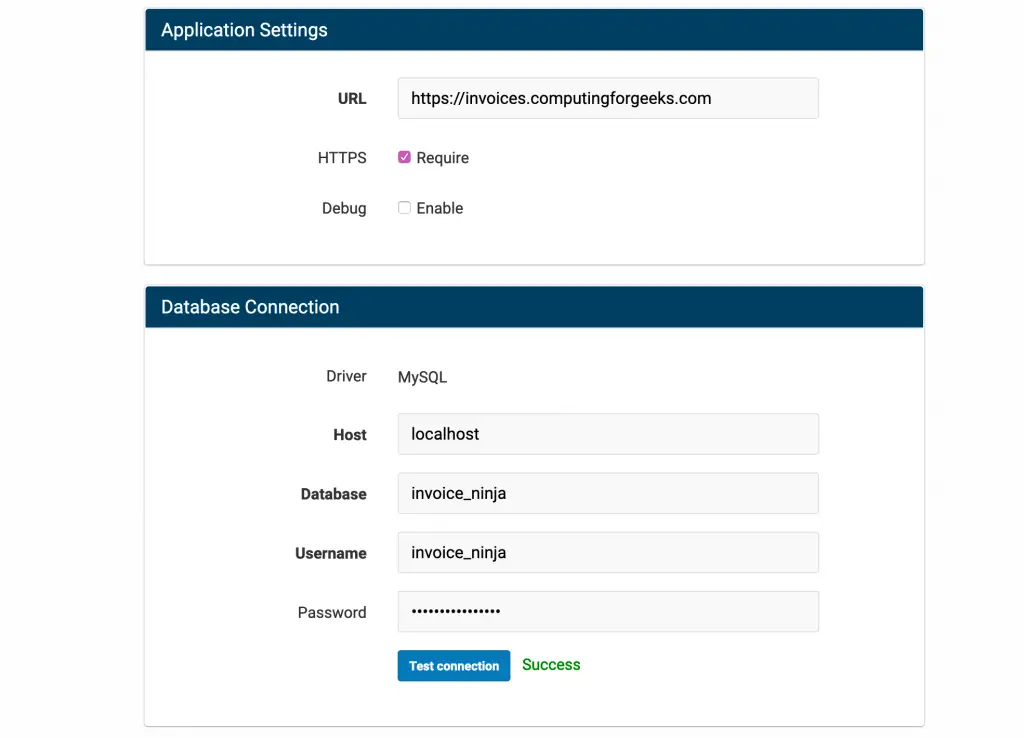
Provide URL and database connection values.
Create first user who’ll be admin.
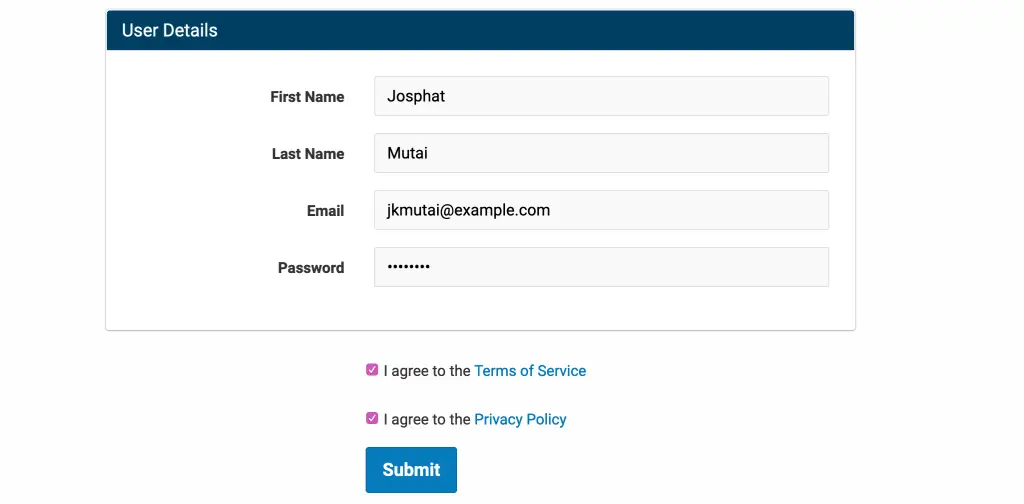
Once installation is complete login with the username and password set.

You should be taken to the Invoice Ninja dashboard which has the following look.

Visit Invoice Ninja documentation page for more learning on this great invoicing application.
