

Hugo builds entire websites in milliseconds. Where Jekyll and Gatsby take seconds (or minutes) to compile, Hugo finishes before you can switch terminal tabs. It is a single binary with no runtime dependencies, no plugins to install, and no package conflicts to debug. Written in Go, it handles thousands of pages without breaking a sweat.
The catch on Ubuntu and Debian is that the default repository versions lag far behind. Ubuntu 24.04 ships Hugo 0.123.7, Debian 13 ships 0.131.0, while the current release is 0.159.1. This guide covers installing the latest version from GitHub releases (recommended), creating your first site, and building it. If you are planning to deploy a static site to Cloudflare Pages, Hugo pairs well with Wrangler CLI for instant deploys.
Current as of March 2026. Verified on Ubuntu 24.04.4 LTS and Debian 13 (Trixie) with Hugo 0.159.1 extended
Prerequisites
- Ubuntu 24.04 LTS or Debian 13 (Trixie) server/desktop
- Root or sudo access
- Git installed (
sudo apt install git) - Tested with: Hugo 0.159.1 extended, Git 2.43.0 (Ubuntu), Git 2.47.3 (Debian 13)
Install Hugo on Ubuntu 24.04 / Debian 13
There are two practical ways to install Hugo: downloading the .deb package from GitHub (recommended, always latest), or installing from the default apt repository (quick but outdated). The table below shows what you get with each method:
| Method | Ubuntu 24.04 | Debian 13 |
|---|---|---|
| apt repository | 0.123.7 | 0.131.0 |
| GitHub .deb (recommended) | 0.159.1 | 0.159.1 |
| Snap | 0.159.1 | N/A (no snapd by default) |
Method 1: Install from GitHub Releases (Recommended)
This method fetches the latest version automatically from the GitHub API, so the commands stay valid when new versions are released.
Install curl and wget if they are not already present:
sudo apt update
sudo apt install -y curl wget
Detect the latest Hugo version and download the extended .deb package:
VER=$(curl -sL https://api.github.com/repos/gohugoio/hugo/releases/latest | grep tag_name | head -1 | sed 's/.*"v\([^"]*\)".*/\1/')
echo "Latest Hugo version: $VER"
The version detection should output a clean version string:
Latest Hugo version: 0.159.1Download and install the package:
wget "https://github.com/gohugoio/hugo/releases/download/v${VER}/hugo_extended_${VER}_linux-amd64.deb" -O /tmp/hugo.deb
sudo dpkg -i /tmp/hugo.deb
rm -f /tmp/hugo.deb
The installation is instant since Hugo has no external dependencies:
Selecting previously unselected package hugo.
(Reading database ... 75035 files and directories currently installed.)
Preparing to unpack /tmp/hugo.deb ...
Unpacking hugo (0.159.1) ...
Setting up hugo (0.159.1) ...
We install the extended edition because it includes SCSS/SASS compilation. Most popular themes (including PaperMod, Ananke, and Stack) require the extended build. The standard edition works for themes that use only CSS, but the extended version avoids compatibility headaches.
Verify the installation:
hugo versionBoth Ubuntu 24.04 and Debian 13 show the same output:
hugo v0.159.1-86c7d3afacab79dc53325602d77ef884b7570268+extended linux/amd64 BuildDate=2026-03-26T09:54:15Z VendorInfo=gohugoioMethod 2: Install from Apt Repository
The default apt repositories include Hugo, but the version is significantly behind. This method is fine for quick experiments where you don’t need the latest features.
sudo apt update
sudo apt install -y hugo
Check which version was installed:
hugo versionOn Ubuntu 24.04 this returns Hugo 0.123.7, on Debian 13 it returns 0.131.0. Both are missing features and bug fixes from the 30+ releases since then. If a theme requires a newer Hugo version (many do), the apt version will fail with a cryptic error about missing template functions.
Create Your First Hugo Site
Hugo scaffolds a new site with a single command:
hugo new site my-blog
cd my-blog
Hugo creates the project structure:
Congratulations! Your new Hugo project was created in /home/my-blog.

Just a few more steps...

1. Change the current directory to /home/my-blog.
2. Create or install a theme:
   - Create a new theme with the command "hugo new theme <THEMENAME>"
   - Or, install a theme from https://themes.gohugo.io/
3. Edit hugo.toml, setting the "theme" property to the theme name.
4. Create new content with the command "hugo new content <SECTIONNAME>/<FILENAME>.<FORMAT>".
5. Start the embedded web server with the command "hugo server --buildDrafts".

See documentation at https://gohugo.io/.
The project directory contains:
hugo.toml: site configuration (title, base URL, theme, parameters)content/: Markdown files for pages and poststhemes/: where themes are installedstatic/: files copied directly to the output (images, CSS, JS)layouts/: custom template overridespublic/: generated output (created when you runhugo)
Add a Theme
Hugo requires a theme before it can render content. The Hugo themes gallery has hundreds of options. PaperMod is a popular choice for blogs: clean, fast, and actively maintained.
Initialize Git and add the theme as a submodule:
git init
git submodule add https://github.com/adityatelange/hugo-PaperMod.git themes/PaperMod
Configure Hugo to use the theme by editing hugo.toml:
baseURL = "http://localhost:1313/"
languageCode = "en-us"
title = "My Tech Blog"
theme = "PaperMod"

[params]
  description = "A Hugo-powered tech blog"
  ShowReadingTime = true

[menu]
  [[menu.main]]
    name = "Home"
    url = "/"
    weight = 1
  [[menu.main]]
    name = "Posts"
    url = "/posts/"
    weight = 2
Using Git submodules for themes keeps the theme separate from your content and makes updates easy with git submodule update --remote.
Create Content and Build
Create a new post:
hugo new content posts/hello-world.mdHugo creates the file with front matter already populated:
Content "/home/my-blog/content/posts/hello-world.md" createdOpen content/posts/hello-world.md in your editor. Change draft: true to draft: false and add your Markdown content below the front matter. Hugo supports standard Markdown, shortcodes, and embedded HTML.
Build the site:
hugoHugo compiles the entire site in under 100 milliseconds:
Start building sites …
hugo v0.159.1+extended linux/amd64 BuildDate=2026-03-26T09:54:15Z

                   │ EN
───────────────────┼────
  Pages            │ 10
  Paginator pages  │  0
  Non-page files   │  0
  Static files     │  0
  Processed images │  0
  Aliases          │  2
  Cleaned          │  0

Total in 58 ms
The output goes to public/. This directory contains pure HTML, CSS, and JavaScript, ready to be served by any web server or uploaded to a static hosting platform.
Run the Development Server
Hugo includes a built-in development server with live reload. Every time you save a file, Hugo rebuilds the site and refreshes your browser automatically.
hugo serverThe server starts on port 1313 by default:
Watching for changes in /home/my-blog/{archetypes,assets,content,data,i18n,layouts,static,themes}
Watching for config changes in /home/my-blog/hugo.toml
Start building sites …

                   │ EN
───────────────────┼────
  Pages            │ 10

Web Server is available at http://localhost:1313/ (bind address 127.0.0.1)
Press Ctrl+C to stop
Open http://localhost:1313 in your browser to preview the site. On a remote server, bind to all interfaces so you can access it from your local machine:
hugo server --bind 0.0.0.0 --baseURL http://10.0.1.50:1313/Replace 10.0.1.50 with your server’s IP address. Open port 1313 in your firewall if needed:
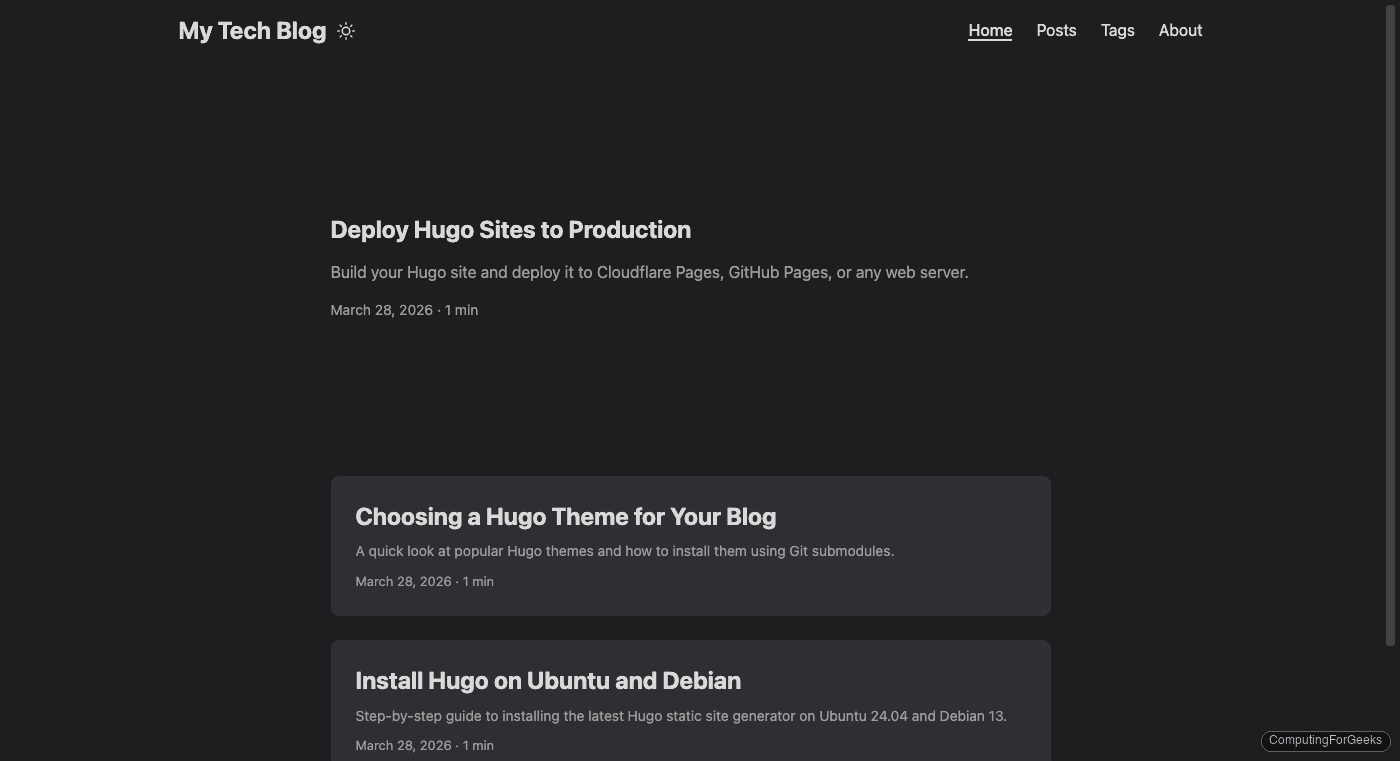
sudo ufw allow 1313/tcpThe PaperMod theme renders a clean blog layout with post summaries, reading time, and tag navigation:
Clicking a post shows the full article with breadcrumb navigation, tags, and estimated reading time:

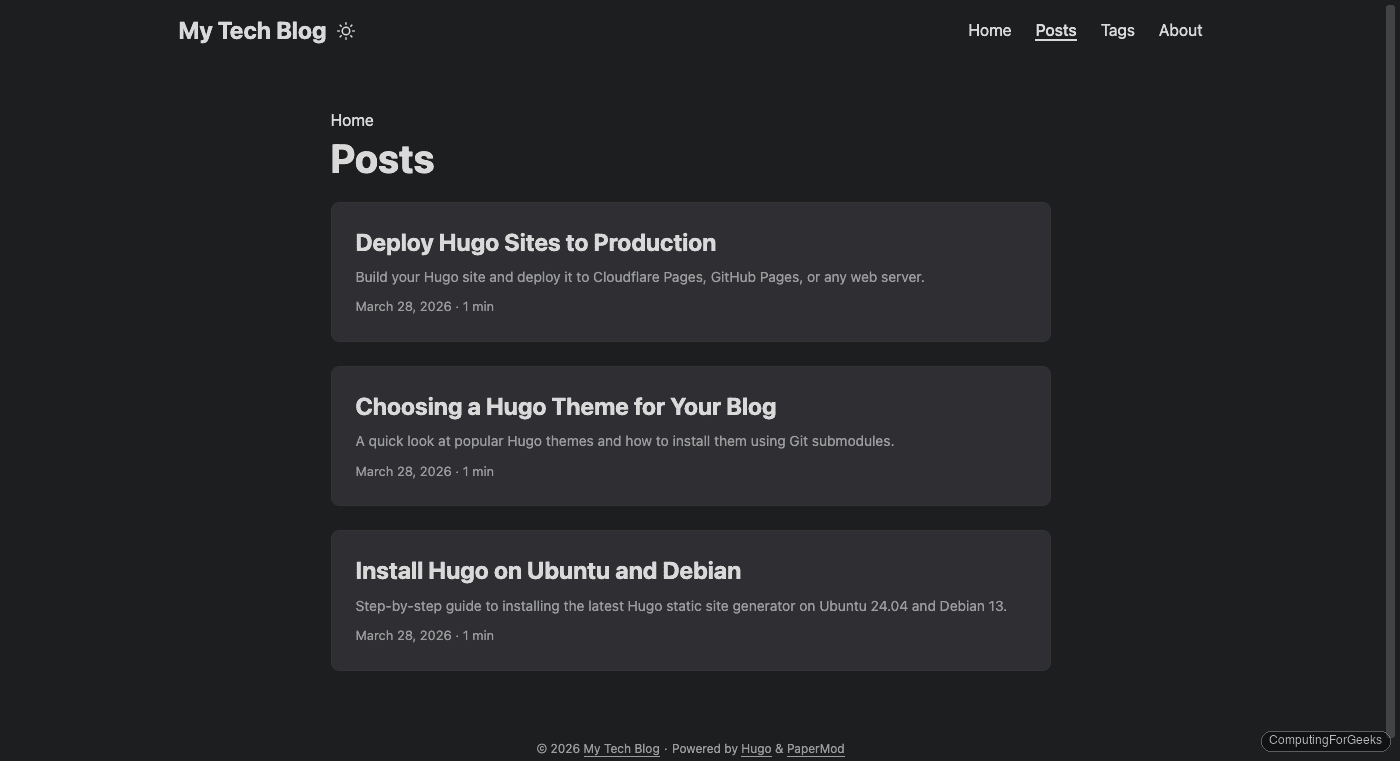
The posts archive lists all content chronologically with summaries:
Deploy the Site
The public/ directory contains the final static site. How you deploy it depends on your hosting:
- Cloudflare Pages:
wrangler pages deploy public/(see the Cloudflare Pages deployment guide) - GitHub Pages: push
public/to agh-pagesbranch or use a GitHub Actions workflow (see the Jekyll and GitHub Pages guide for the general pattern) - Nginx: copy
public/to your web root (/var/www/html/) and serve directly - Rsync to any server:
rsync -avz public/ user@server:/var/www/my-site/
For production, always build with hugo --minify to compress HTML, CSS, and JavaScript in the output.
Update Hugo
To update Hugo to the latest version, run the same download and install commands from the GitHub .deb method. The new package replaces the previous version cleanly:
VER=$(curl -sL https://api.github.com/repos/gohugoio/hugo/releases/latest | grep tag_name | head -1 | sed 's/.*"v\([^"]*\)".*/\1/')
wget "https://github.com/gohugoio/hugo/releases/download/v${VER}/hugo_extended_${VER}_linux-amd64.deb" -O /tmp/hugo.deb
sudo dpkg -i /tmp/hugo.deb
rm -f /tmp/hugo.deb
hugo version
Hugo Editions Compared
Hugo ships in three editions. Pick the one that matches your needs:
| Edition | Package name | Includes |
|---|---|---|
| Standard | hugo_${VER}_linux-amd64.deb | Core Hugo, Go templates, Markdown rendering |
| Extended | hugo_extended_${VER}_linux-amd64.deb | Standard + SCSS/SASS compilation, WebP encoding |
| Extended + Deploy | hugo_extended_withdeploy_${VER}_linux-amd64.deb | Extended + built-in deploy to S3, GCS, Azure |
The extended edition is the safe default. Most themes require SCSS support, and the size difference is minimal (around 20 MB for the extended binary vs 15 MB for the standard).
What Can You Build with Hugo?
Hugo goes well beyond simple blogs. Some practical use cases:
- Documentation sites: the Docsy and Book themes are purpose-built for technical docs, with search, versioning, and multi-language support
- Personal portfolios: themes like Terminal and Coder offer minimal, developer-focused designs
- Landing pages: Hugo’s single-page templates and shortcodes handle marketing pages with forms, pricing tables, and feature grids
- Knowledge bases: combine Hugo with search (Pagefind, Lunr.js) for fast, self-hosted knowledge bases that don’t need a database
- API documentation: integrate Swagger/OpenAPI specs using Hugo shortcodes to render interactive API docs as static pages






Thank you very, very much. It worked! 🙂
Maybe I found 2 small things which could be better:
IMHO there is a “/” missing between content/posts:
Code: hugo new content posts/hello-world.md
And the following put the themes into my home directory instead into the blog directory:
git submodule add https://github.com/adityatelange/hugo-PaperMod.git themes/PaperMod
Again, thank you very much!
Glad it worked. On the syntax: hugo new content posts/hello-world.md is correct — ‘content’ is the subcommand and ‘posts/hello-world.md’ is the path under content/. Both forms create the file in the same place. On the submodule, the article does include cd my-blog in the same block as hugo new site my-blog; if the theme ended up in your home directory, the cd was skipped before git init.