

Debian 13 “Trixie” is the latest stable release from the Debian project, shipping with kernel 6.12 LTS, Python 3.13, GCC 15, and GNOME 48 for desktop users. Whether you need a lean headless server or a full GNOME workstation, the installer handles both from the same ISO. You just pick different options on one screen.
This guide walks through the complete Debian 13 installation for both server (minimal, no GUI) and desktop (GNOME) setups, then covers post-install essentials: sudo configuration, SSH, firewall, static IP, and common packages. The official Debian 13 Trixie release page has the full changelog and upgrade paths if you’re coming from Bookworm.
Tested March 2026 | Debian 13.4 (Trixie), kernel 6.12.74, UEFI boot
What’s New in Debian 13 Trixie
Trixie brings significant upgrades across the toolchain and desktop stack. Here are the highlights:
- Kernel 6.12 LTS with improved hardware support and performance tuning
- Python 3.13, GCC 15, Go 1.24 for development workloads
- GNOME 48, KDE Plasma 6.3, Xfce 4.20 as desktop options
- systemd 257 with new service management features
- OpenSSL 3.5 for updated cryptographic support
- Improved ARM64 and RISC-V architecture support
The full list of changes is in the official release notes for amd64.
Download the Debian 13 ISO
Two ISO options cover most use cases. The netinst ISO (~600 MB) includes only the base system and pulls everything else from the internet during installation. The DVD ISO (~4 GB) bundles all packages offline, which is useful when network access is limited or unreliable.
Both server and desktop installations use the same ISO. The choice between server and desktop happens later during package selection. Grab the ISO from debian.org/distrib.
To write the ISO to a USB drive, follow our guide on creating a bootable USB on macOS and Linux.
Boot the Installer
Boot from your USB drive or DVD (adjust the boot order in BIOS/UEFI firmware settings if needed). The Debian installer boot menu offers three main options: Graphical Install, Install (text mode), and Advanced options. Text mode is lighter and easier to navigate over slow connections. Graphical mode looks nicer but produces the exact same result.
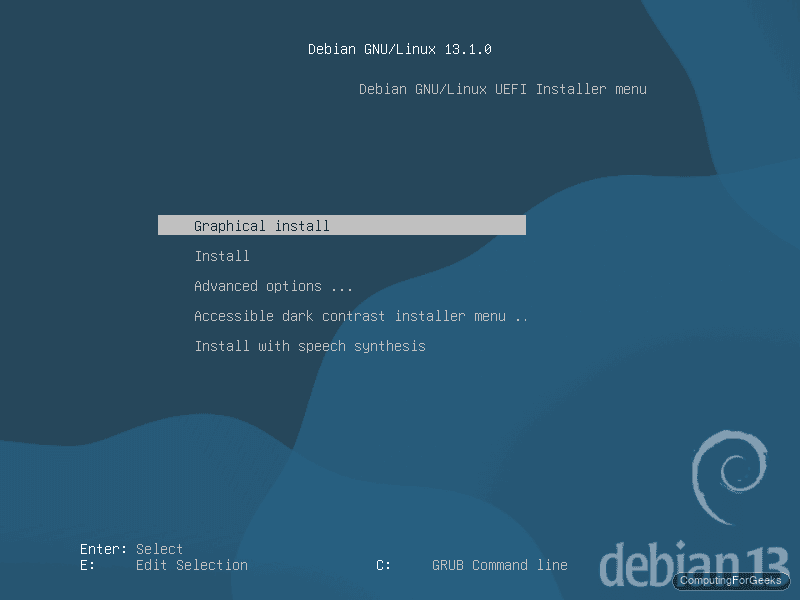
Select Install or Graphical Install and press Enter.
Language, Location, and Keyboard
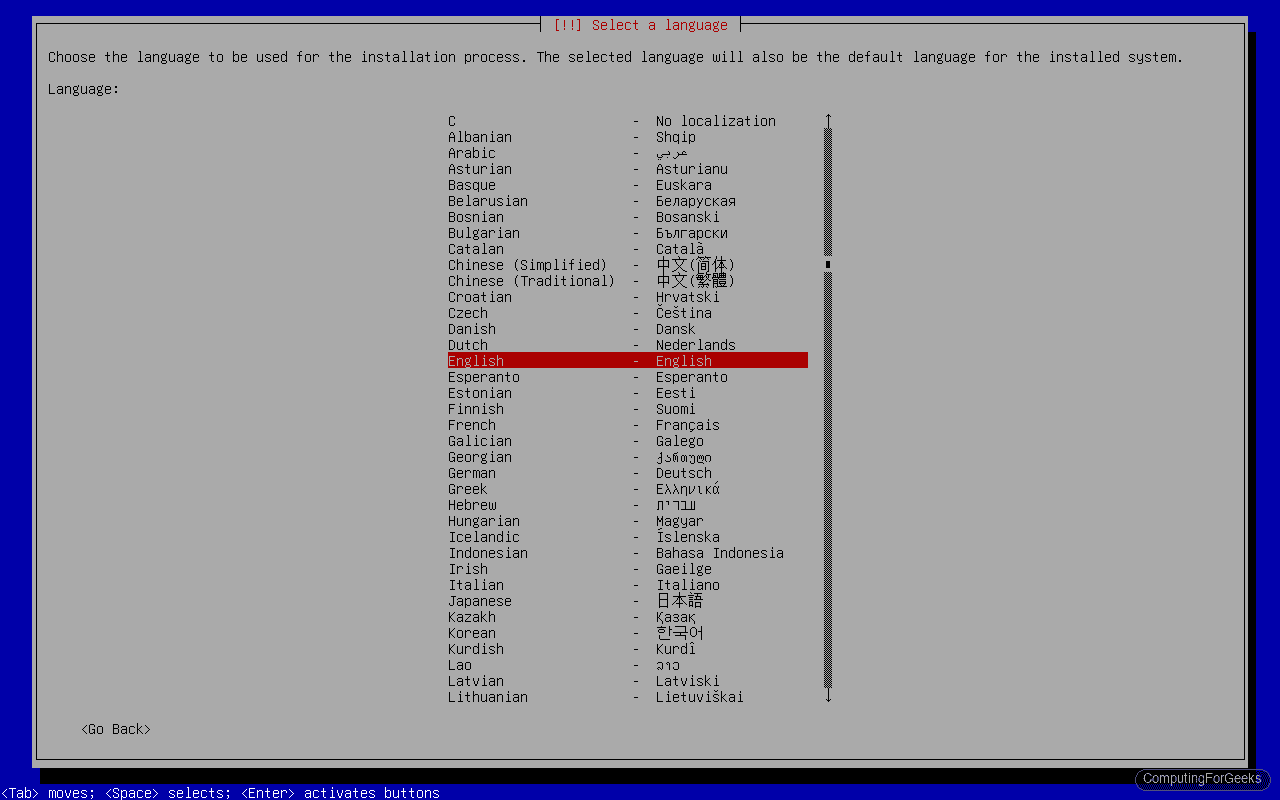
The first three screens set your locale. Pick your preferred language (English in this example).
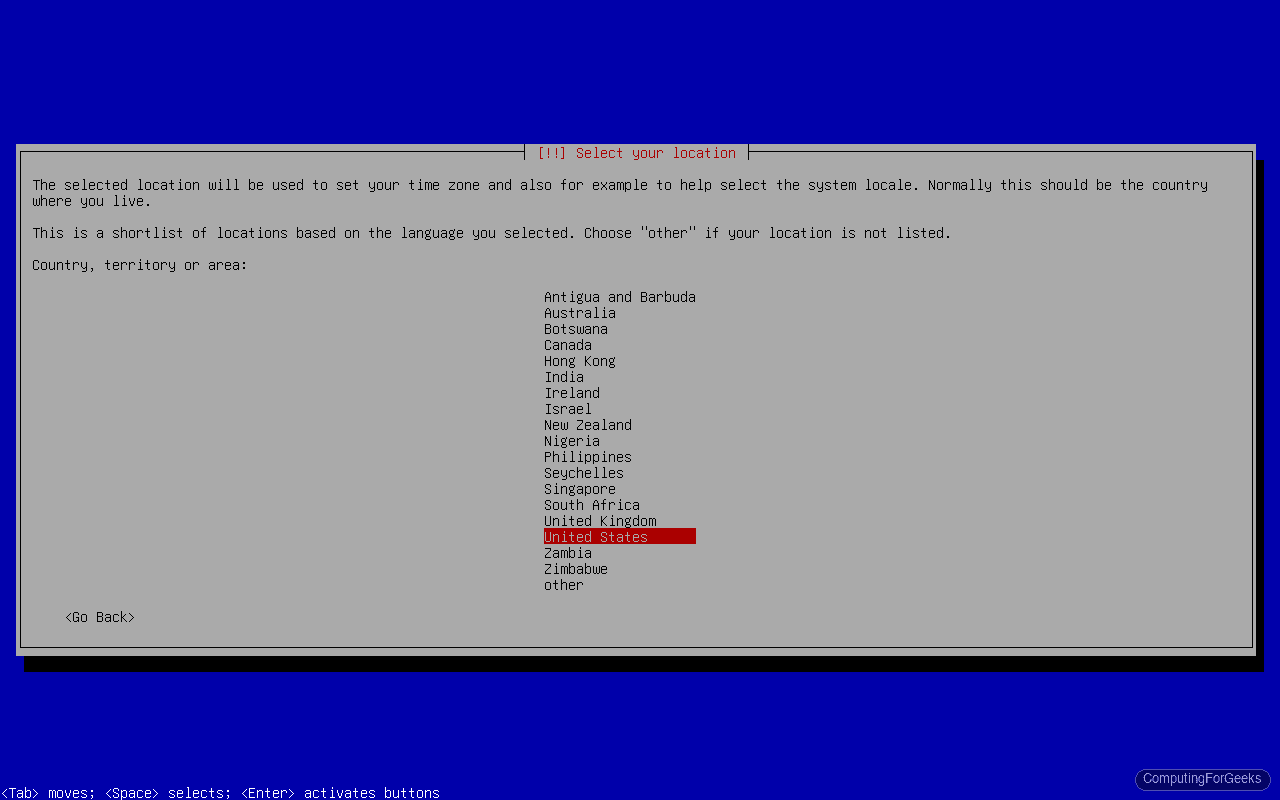
Next, select your country. This determines the timezone and the closest package mirror.
Choose your keyboard layout. American English is the default for most English-language installations.
Network Configuration
The installer auto-detects network interfaces and attempts DHCP. If your network has a DHCP server, the connection configures itself. Set the hostname to something meaningful for your environment.
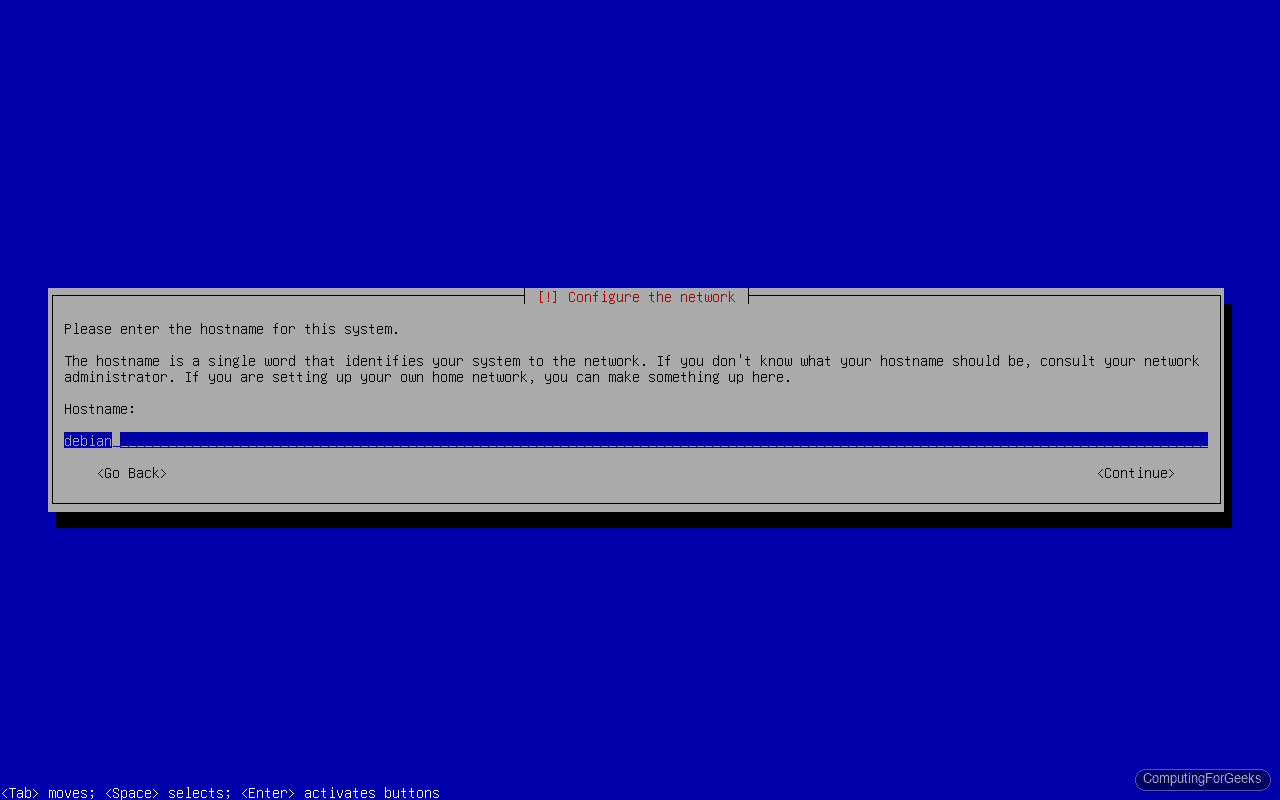
The domain name field can be left blank for standalone machines and home labs.
Root Password and User Account
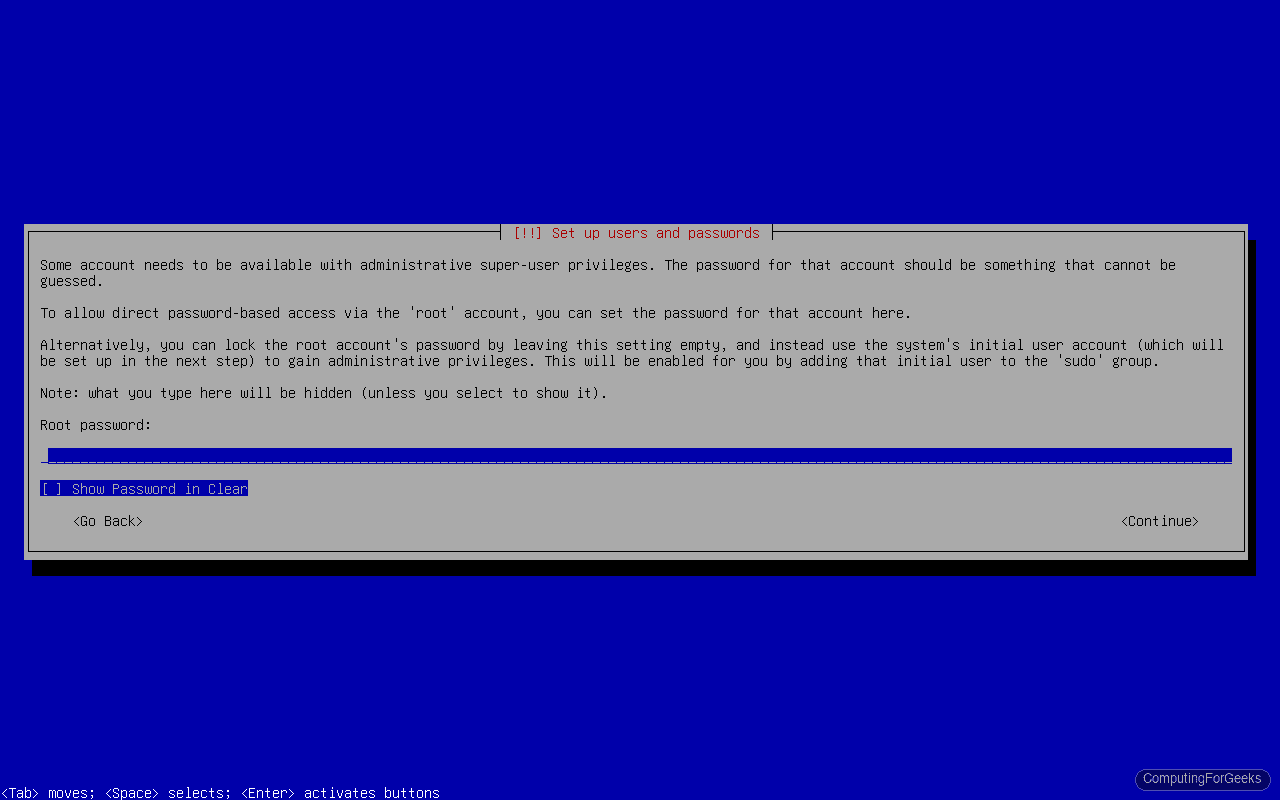
Debian gives you a choice here that affects how sudo works after installation. Set a root password if you want a traditional root account.
Then create a regular user account for daily use.
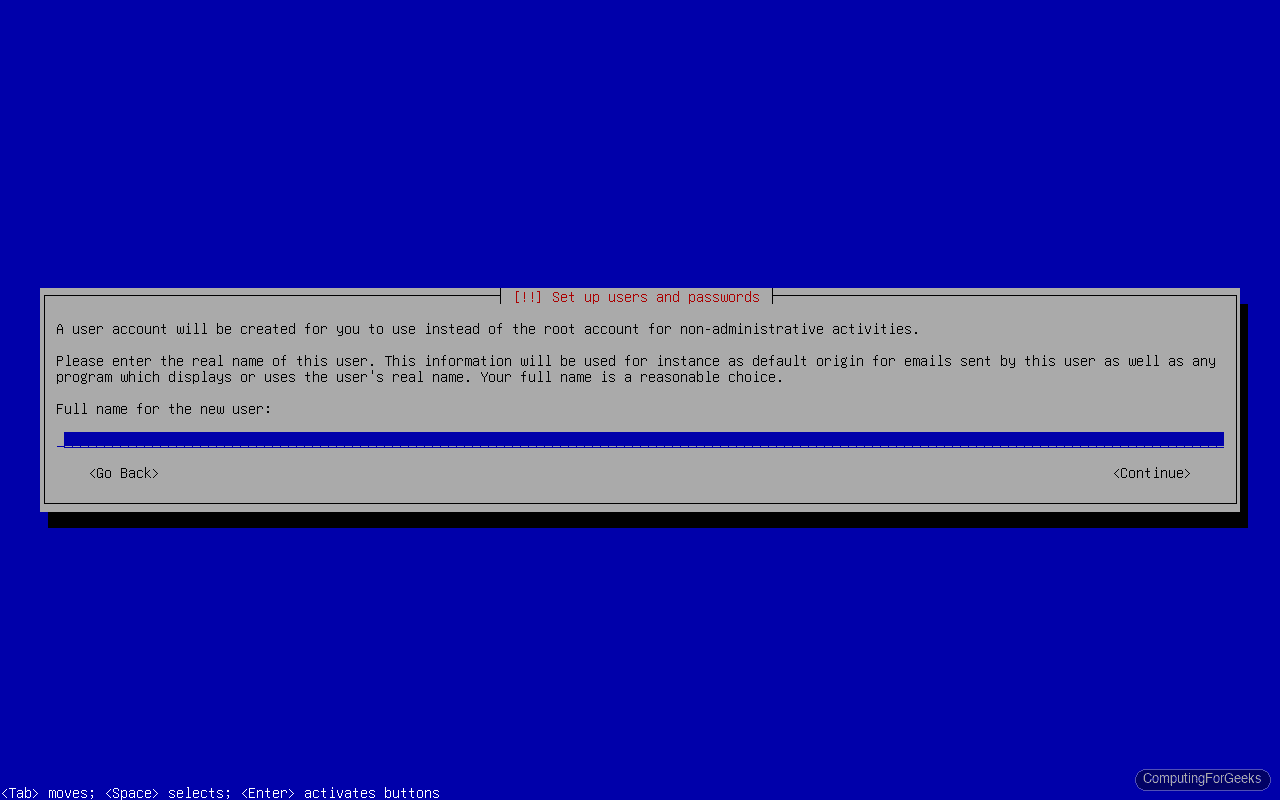
This is a key Debian design choice: if you set a root password, your regular user is not added to the sudo group. If you leave the root password blank, root login is disabled entirely and your user gets sudo access automatically. Most server setups benefit from setting a root password and configuring sudo manually afterward.
Clock and Timezone
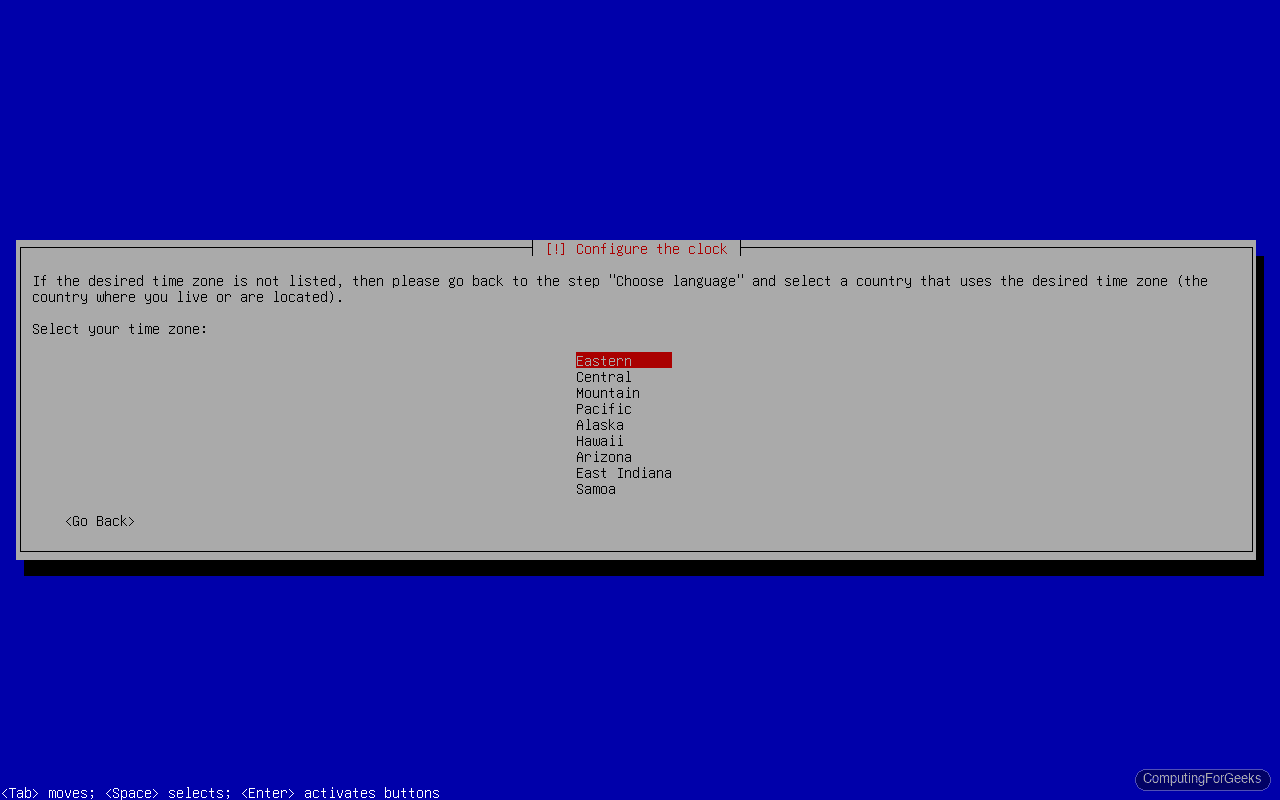
Select your timezone. The installer pre-filters based on the country you chose earlier.
Disk Partitioning
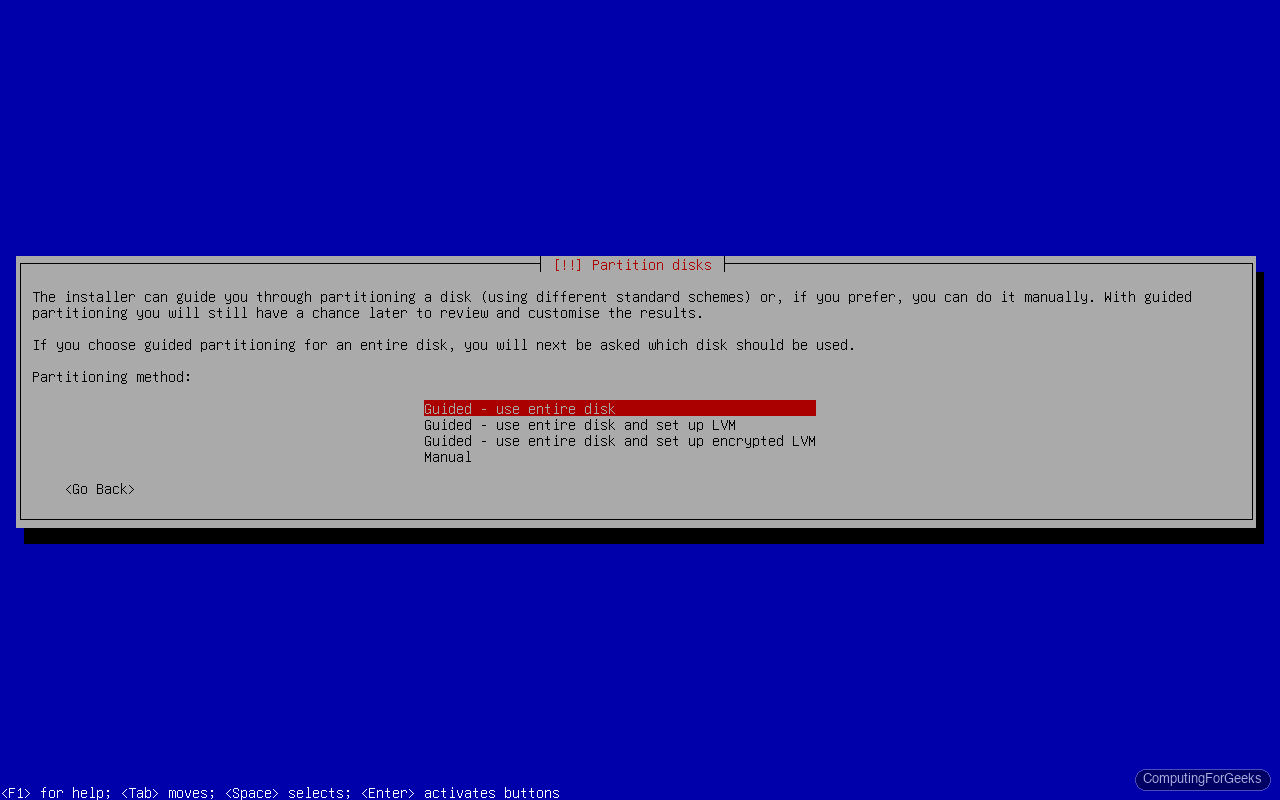
The partitioner offers four methods: Guided (entire disk), Guided with LVM, Guided with encrypted LVM, and Manual. For servers, LVM is recommended because it makes resizing partitions much easier down the road. For desktops where simplicity matters more, “Guided, use entire disk” works fine.
If you chose LVM, the installer asks how much of the volume group to use. Set it to the maximum unless you want to reserve space for snapshots or future volumes.
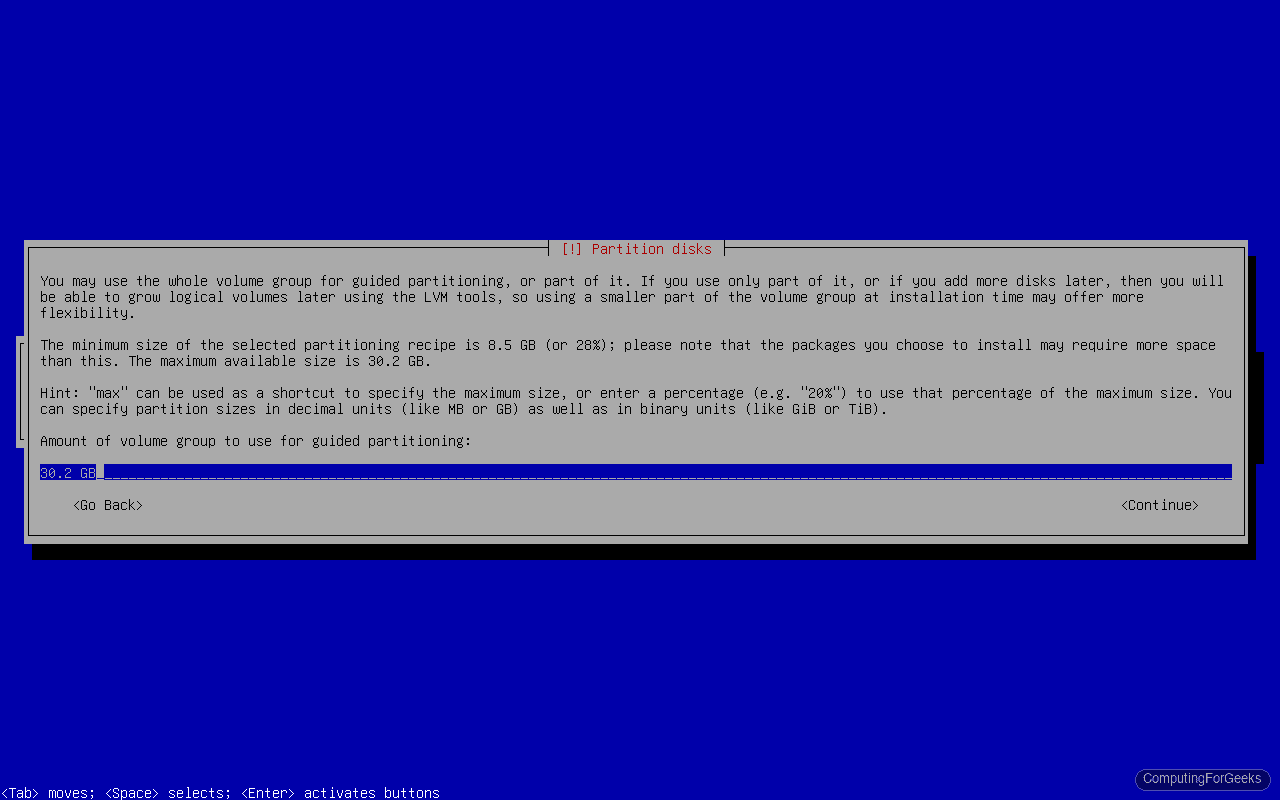
For the partition scheme, “All files in one partition” is the simplest option. Production servers sometimes benefit from a separate /home partition, but for most cases one partition is enough.
Server vs Desktop: Package Selection (tasksel)
This is the screen where the server/desktop decision happens. The tasksel menu lets you pick exactly what gets installed.
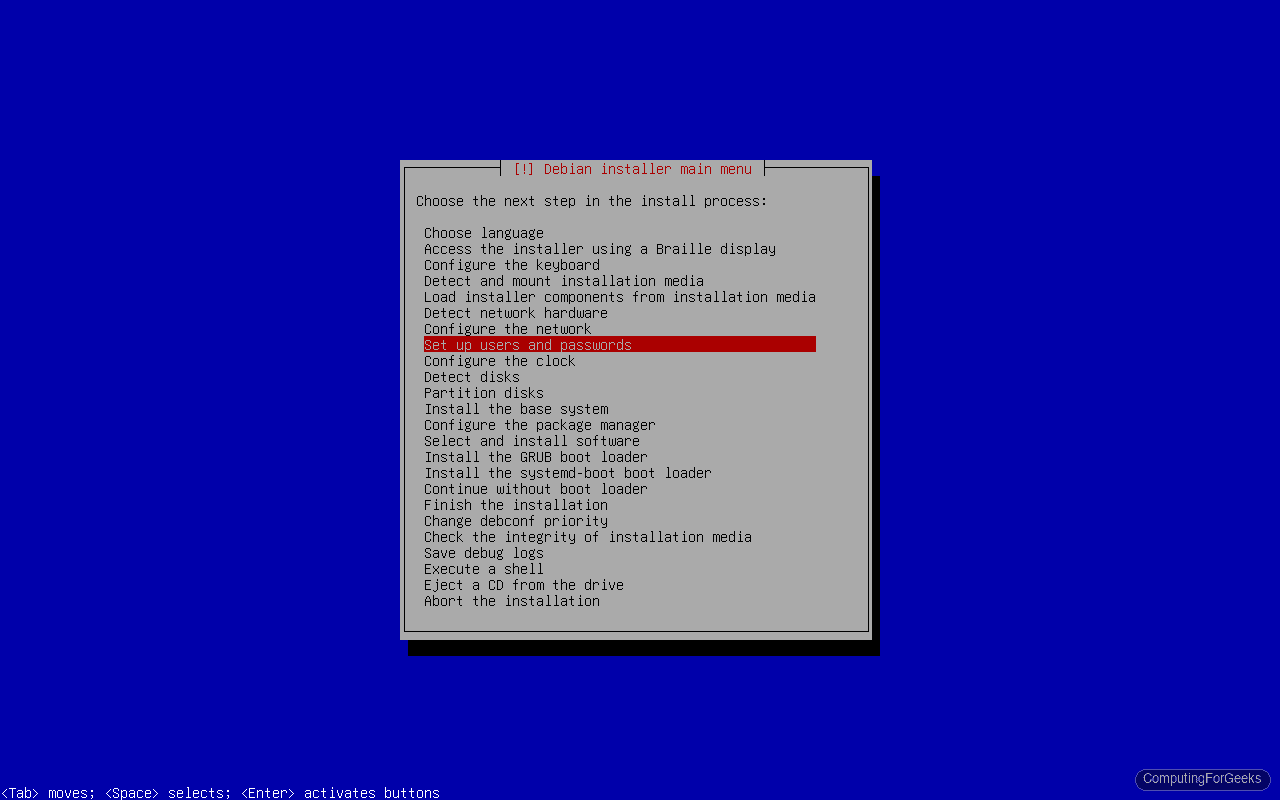
For a server (minimal, no GUI): select only “SSH server” and “standard system utilities.” Deselect everything else. This gives you a clean, headless system with remote access.
For a desktop: select “Debian desktop environment,” then your preferred desktop (GNOME, KDE, Xfce, etc.), plus “SSH server” and “standard system utilities.”
Debian 13 ships with six desktop environments. Here’s how they compare:
| Desktop | Package | RAM | Best for |
|---|---|---|---|
| GNOME 48 | gnome | 2 GB+ | Full-featured, modern, most popular |
| KDE Plasma 6.3 | kde | 2 GB+ | Customizable, Windows-like layout |
| Xfce 4.20 | xfce | 512 MB+ | Lightweight, fast |
| LXQt 2.1 | lxqt | 256 MB+ | Minimal, very lightweight |
| Cinnamon | cinnamon | 2 GB+ | Traditional desktop, Mint-like |
| MATE | mate | 1 GB+ | Classic GNOME 2 feel |
GRUB Bootloader Installation
The installer asks where to install the GRUB bootloader. For UEFI systems, GRUB installs to the EFI System Partition automatically. For legacy BIOS, select the primary disk (usually /dev/sda). Confirm the selection, and the installer writes GRUB and prepares to reboot.
First Boot and Login
Remove the installation media when prompted. The system reboots into GRUB, which shows a “Debian GNU/Linux” entry.
On a server install, you land at a text console login prompt. Log in with the user account you created. On a desktop install, GDM presents a graphical login screen where you can select your user and enter the password.
Post-Install: Configure sudo
If you set a root password during installation, your regular user does not have sudo privileges. Switch to root and fix that:
su -
apt install sudo
usermod -aG sudo admin
exit
Replace admin with your actual username. Log out completely, then log back in for the group membership to take effect. Confirm sudo works:
sudo whoamiThe output should confirm root access:
rootIf you left the root password blank during installation, skip this section because your user already has sudo.
Post-Install: Update the System
Pull the latest package lists and apply any available updates:
sudo apt update && sudo apt upgrade -yOn a fresh Debian 13.4 install, you should see something like:
Reading package lists... Done
Building dependency tree... Done
1 package can be upgraded. Run 'apt list --upgradable' to see it.
Post-Install: Enable and Configure SSH
If you selected “SSH server” during installation, OpenSSH is already running. Verify the service status:
sudo systemctl status sshYou should see it active and enabled:
● ssh.service - OpenBSD Secure Shell server
     Loaded: loaded (/usr/lib/systemd/system/ssh.service; enabled; preset: enabled)
     Active: active (running)
If SSH was not selected during installation, install it now:
sudo apt install -y openssh-server
sudo systemctl enable --now ssh
For hardening and key-based authentication setup, see our SSH server configuration guide.
Post-Install: Configure the Firewall (UFW)
Debian does not enable a firewall by default. UFW provides a straightforward interface for managing iptables rules. Install and configure it:
sudo apt install -y ufw
sudo ufw default deny incoming
sudo ufw default allow outgoing
sudo ufw allow ssh
sudo ufw enable
Confirm the rules are active:
sudo ufw status verboseThe output confirms SSH is allowed and all other incoming traffic is blocked:
Status: active
Logging: on (low)
Default: deny (incoming), allow (outgoing), disabled (routed)

To                         Action      From
--                         ------      ----
22/tcp                     ALLOW IN    Anywhere
22/tcp (v6)                ALLOW IN    Anywhere (v6)
Open additional ports as needed for your services (e.g., sudo ufw allow 80/tcp for HTTP, sudo ufw allow 443/tcp for HTTPS).
Post-Install: Set a Static IP
Servers should use a static IP so services remain reachable at a predictable address. The method depends on whether you’re running a server or desktop install.
Server (systemd-networkd or /etc/network/interfaces)
Open the network interfaces file:
sudo vi /etc/network/interfacesReplace the DHCP configuration for your interface with a static block:
auto eth0
iface eth0 inet static
    address 192.168.1.100
    netmask 255.255.255.0
    gateway 192.168.1.1
    dns-nameservers 8.8.8.8 1.1.1.1
Change eth0 to your actual interface name (check with ip link show). Apply the changes:
sudo systemctl restart networkingDesktop (NetworkManager)
Desktop installations use NetworkManager, which can be configured through the GUI or with nmcli:
sudo nmcli con mod "Wired connection 1" ipv4.addresses 192.168.1.100/24
sudo nmcli con mod "Wired connection 1" ipv4.gateway 192.168.1.1
sudo nmcli con mod "Wired connection 1" ipv4.dns "8.8.8.8 1.1.1.1"
sudo nmcli con mod "Wired connection 1" ipv4.method manual
sudo nmcli con up "Wired connection 1"
Verify the IP was assigned correctly with ip addr show.
Post-Install: Install Common Packages
A handful of utilities that nearly every system needs:
sudo apt install -y vim curl wget git htop tmux net-toolsOn Debian 13.4, this pulls in Git 2.47.3, Python 3.13.5, VIM 9.1, and curl 8.14.1.
Post-Install: Set Timezone and Hostname
Adjust the timezone and hostname to match your environment:
sudo timedatectl set-timezone America/New_York
sudo hostnamectl set-hostname my-server
Verify the timezone is set:
timedatectlThe output confirms the active timezone:
               Local time: Thu 2026-03-26 08:15:31 EDT
           Universal time: Thu 2026-03-26 12:15:31 UTC
                 RTC time: Thu 2026-03-26 12:15:31
                Time zone: America/New_York (EDT, -0400)
Server vs Desktop: Quick Comparison
Not sure which install type fits your use case? Here’s how they compare after a fresh Debian 13 installation:
| Feature | Server (minimal) | Desktop (GNOME) |
|---|---|---|
| Disk usage | ~800 MB | ~5 GB |
| RAM at idle | ~380 MB | ~1.5 GB |
| Default shell | bash | bash |
| Display server | None | Wayland (GNOME) |
| Package manager | apt | apt + GNOME Software |
| Network config | systemd-networkd | NetworkManager |
| SSH | Install via tasksel or apt | Install via tasksel or apt |
| Best for | Headless servers, containers, VMs | Workstations, development, daily use |
What’s Next
With Debian 13 installed and the basics configured, here are some logical next steps depending on your use case:
- Set up a web server (Nginx or Apache) with a reverse proxy and Let’s Encrypt SSL
- Install Docker and Docker Compose for containerized workloads
- Install Grafana on Debian for system monitoring dashboards
- Install Node.js on Debian for JavaScript development