

As a Developer or Database/Systems Administrator, there is always a need to use GUI tools that simplify management of database systems. One of such tools is DBeaver. DBeaver is free to use universal and multi-platform database administration tool created for anyone working with databases. As a developer, SQL programmer or analyst you’ll enjoy what this tool has to offer. DBeaver is based on Eclipse platform.
The open source edition of DBeaver support any database system that has JDBC driver. Some of the databases supported are:
- MySQL/MariaDB
- PostgreSQL
- Oracle
- Google BigQuery
- SQL Server
- Sybase/SAP ASE
- SQLite, Firebird
- HSQLDB
- Derby
- Teradata
- Vertica
- Netezza
- Informix
- Among many other databases
For use with non-JDBC data sources such as WMI, MongoDB, Cassandra, Redis, then consider using DBeaver Enterprise Edition
DBeaver is an amazing workbench tool for building SQL queries, editing, and transferring data, viewing trees of objects, completing database administration tasks, monitoring database connection sessions, and a lot more. Use the steps covered in this article to install and use DBeaver on Debian Linux system.
Step 1: Install Java runtime
We can use OpenJDK open source edition of Java JRE. The package is available on OS default repositories:
sudo apt update
sudo apt -y install default-jdk
Check installed version of Java to confirm it works.
$ java -version
openjdk version "17.0.10" 2024-01-16
OpenJDK Runtime Environment (build 17.0.10+7-Debian-1deb12u1)
OpenJDK 64-Bit Server VM (build 17.0.10+7-Debian-1deb12u1, mixed mode, sharing)
Step 2: Add DBeaver CE repository
DBeaver development team provides a managed repository with latest builds of the software. We can add the repository by running the following commands:
echo "deb https://dbeaver.io/debs/dbeaver-ce /" | sudo tee /etc/apt/sources.list.d/dbeaver.listAnother requirement is the importation of repo GPG keys. Add them using the commands:
sudo apt install curl gpg gnupg2 software-properties-common apt-transport-https ca-certificates
curl -fsSL https://dbeaver.io/debs/dbeaver.gpg.key | sudo gpg --dearmor -o /etc/apt/trusted.gpg.d/dbeaver.gpg
After adding the repository, update the your package sources:
$ sudo apt update
Hit:1 http://security.debian.org/debian-security bullseye-security InRelease
Hit:2 http://deb.debian.org/debian bullseye InRelease
Hit:3 http://deb.debian.org/debian bullseye-updates InRelease
Hit:4 http://deb.debian.org/debian bullseye-backports InRelease
Get:5 https://dbeaver.io/debs/dbeaver-ce  InRelease [2086 B]
Get:6 https://dbeaver.io/debs/dbeaver-ce  Packages [461 B]
Fetched 2547 B in 1s (4223 B/s)
Reading package lists... Done
Building dependency tree... Done
Reading state information... Done
All packages are up to date.
Step 3: Install DBeaver CE on Debian
We’ve confirmed the repository added is working. Let’s proceed to install DBeaver CE on Debian.
sudo apt install dbeaver-ceThe process of installation should be few seconds/minutes if you’ve good internet connectivity.
....
Fetched 580 kB in 2s (361 kB/s)
Reading package lists... Done
Building dependency tree... Done
Reading state information... Done
29 packages can be upgraded. Run 'apt list --upgradable' to see them.
root@deb12:~# sudo apt install dbeaver-ce
Reading package lists... Done
Building dependency tree... Done
Reading state information... Done
The following NEW packages will be installed:
  dbeaver-ce
0 upgraded, 1 newly installed, 0 to remove and 29 not upgraded.
Need to get 131 MB of archives.
After this operation, 167 MB of additional disk space will be used.
Get:1 https://dbeaver.io/debs/dbeaver-ce  dbeaver-ce 23.3.5 [131 MB]
Fetched 131 MB in 6s (21.6 MB/s)
Selecting previously unselected package dbeaver-ce.
(Reading database ... 46397 files and directories currently installed.)
Preparing to unpack .../dbeaver-ce_23.3.5_amd64.deb ...
Unpacking dbeaver-ce (23.3.5) ...
Setting up dbeaver-ce (23.3.5) ..
Checking version of DBeaver installed on Debian Linux system.
$ apt policy  dbeaver-ce
dbeaver-ce:
  Installed: 23.3.5
  Candidate: 23.3.5
  Version table:
 *** 23.3.5 500
        500 https://dbeaver.io/debs/dbeaver-ce  Packages
        100 /var/lib/dpkg/status
Step 4: Connecting Database Server to DBeaver
Hooray!, DBeaver has been installed on Debian Linux system. The pending task is connecting database server to be administered using DBeaver. This can be any supported database system. In this example we’ll use MariaDB which can be installed on the same server hosting DBeaver solution.
sudo apt install mariadb-serverStart and enable mariadb service
sudo systemctl enable mariadb
sudo systemctl start mariadb
Status of Database service:
$ systemctl status mariadb
● mariadb.service - MariaDB 10.11.6 database server
     Loaded: loaded (/lib/systemd/system/mariadb.service; enabled; preset: enabled)
     Active: active (running) since Fri 2024-02-23 07:21:18 UTC; 51s ago
       Docs: man:mariadbd(8)
             https://mariadb.com/kb/en/library/systemd/
   Main PID: 12975 (mariadbd)
     Status: "Taking your SQL requests now..."
      Tasks: 12 (limit: 2251)
     Memory: 81.3M
        CPU: 693ms
     CGroup: /system.slice/mariadb.service
             └─12975 /usr/sbin/mariadbd

Feb 23 07:21:18 deb12 mariadbd[12975]: 2024-02-23  7:21:18 0 [Note] Plugin 'FEEDBACK' is disabled.
Feb 23 07:21:18 deb12 mariadbd[12975]: 2024-02-23  7:21:18 0 [Warning] You need to use --log-bin to make --expire-logs-days or --binlog-expire-logs-seconds work.
Feb 23 07:21:18 deb12 mariadbd[12975]: 2024-02-23  7:21:18 0 [Note] InnoDB: Buffer pool(s) load completed at 240223  7:21:18
Feb 23 07:21:18 deb12 mariadbd[12975]: 2024-02-23  7:21:18 0 [Note] Server socket created on IP: '127.0.0.1'.
Feb 23 07:21:18 deb12 mariadbd[12975]: 2024-02-23  7:21:18 0 [Note] /usr/sbin/mariadbd: ready for connections.
Feb 23 07:21:18 deb12 mariadbd[12975]: Version: '10.11.6-MariaDB-0+deb12u1'  socket: '/run/mysqld/mysqld.sock'  port: 3306  Debian 12
Feb 23 07:21:18 deb12 systemd[1]: Started mariadb.service - MariaDB 10.11.6 database server.
Feb 23 07:21:18 deb12 /etc/mysql/debian-start[12990]: Upgrading MySQL tables if necessary.
Feb 23 07:21:18 deb12 /etc/mysql/debian-start[13003]: Checking for insecure root accounts.
Feb 23 07:21:18 deb12 /etc/mysql/debian-start[13007]: Triggering myisam-recover for all MyISAM tables and aria-recover for all Aria tables
Secure database server by setting root password and performing other hardening tasks
$ sudo mariadb-secure-installation
Enter current password for root (enter for none): <ENTER>
Switch to unix_socket authentication [Y/n] n
Change the root password? [Y/n] y
New password: Enter Password
Re-enter new password: Re-Enter Password

Remove anonymous users? [Y/n] y
Disallow root login remotely? [Y/n] y
Remove test database and access to it? [Y/n] y
Reload privilege tables now? [Y/n] y
DBeaver can be launched from terminal
dbeaver
dbeaver-ce
Or from the Applications Launcher for your Desktop Environment.

1. Create a new database connection – Specify database type.
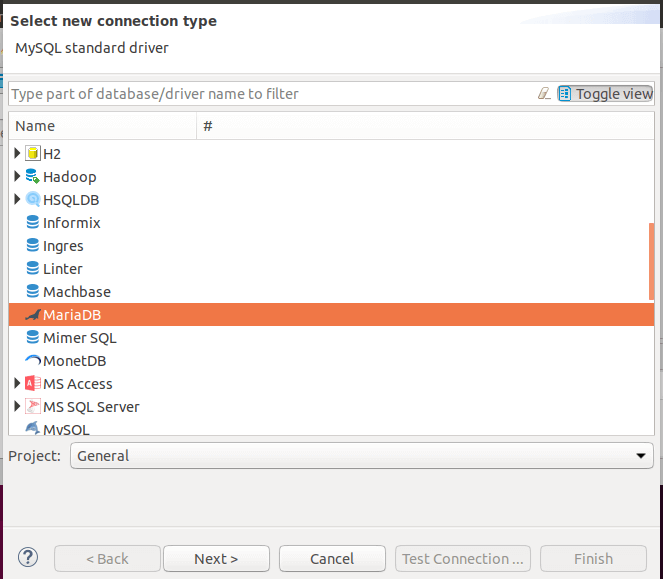
2. Provide database access details – Server, database user

3. Click “Test Connection” to verify the connection. When asked to download mariadb connection driver, please agree by clicking Download button.

If connection is successful you should get to database details windows.

You can now manage your database, tables, triggers, Procedures, Views, Events e.t.c using DBeaver. That’s all we had to share on the installation and usage of DBeaver CE on Debian Linux system. We hope this guide was of help to you. If there are any issues experienced on your end share them in the comments section.
Other guides on Debian Linux:
