

If you are looking for a guide to install OpenOffice on Linux Mint, you are in the right place. OpenOffice is an open source free alternative to Microsoft office and LibreOffice. It is written in C++ and Java. OpenOffice has its own file formats and is able to read and save Microsoft Office applications file formats. With OpenOffice, we get the below features:
- Writer– Word Processor
- Calc– for spreadsheet
- Impress– presentations
- Draw– graphics/diagrams
- Base– for database
- Math– for mathematical equations.
Install Apache OpenOffice on Linux Mint
OpenOffice is available for Download on the Apache official website. Before we install and download, let us first remove the existing Libre Office in Linux Mint.
Step 1: Unistall LibreOffice in Linux Mint
To completely remove Libre Office on Linux Mint, just run the below commands:
sudo apt remove --purge libreoffice*
sudo apt clean
sudo apt autoremove
Step 2: Install java JDK on Linux Mint
For full Apache OpenOffice functionality we need to install Java Runtime Environment. Run the below commands:
sudo apt update
sudo apt install -y default-jdk default-jre
If you have more than one version of Java, choose Java 11 as the default. To set default java version on Linux Mint, first list all the installed Java versions.
sudo update-java-alternatives --listSet Java 8 to default by running the below commands.
$ sudo update-alternatives --config java

There are 2 choices for the alternative java (providing /usr/bin/java).

  Selection    Path                                         Priority   Status
------------------------------------------------------------
  0            /usr/lib/jvm/java-21-openjdk-amd64/bin/java   1111      auto mode
* 1            /usr/lib/jvm/java-17-openjdk-amd64/bin/java   1111      manual mode
  2            /usr/lib/jvm/java-8-oracle/jre/bin/java       1081      manual mode

Press <enter> to keep the current choice[*], or type selection number: 0
Confirm the current java default version
java -versionStep 3: Installing OpenOffice on Linux Mint
Download the latest version of OpenOffice from Apache official website. Run the command below:
wget https://sourceforge.net/projects/openofficeorg.mirror/files/4.1.15/binaries/en-US/Apache_OpenOffice_4.1.15_Linux_x86-64_install-deb_en-US.tar.gzNow extract the archived file:
tar xvf Apache_OpenOffice_4.1.15_Linux_x86-64_install-deb_en-US.tar.gzOnce extracted a folder called en-US will added to your system. Change to this directory and install OpenOffice. Use the commands shown below:
cd en-US/DEBS
sudo dpkg -i  *.deb
The installation should run to completion giving the below output:
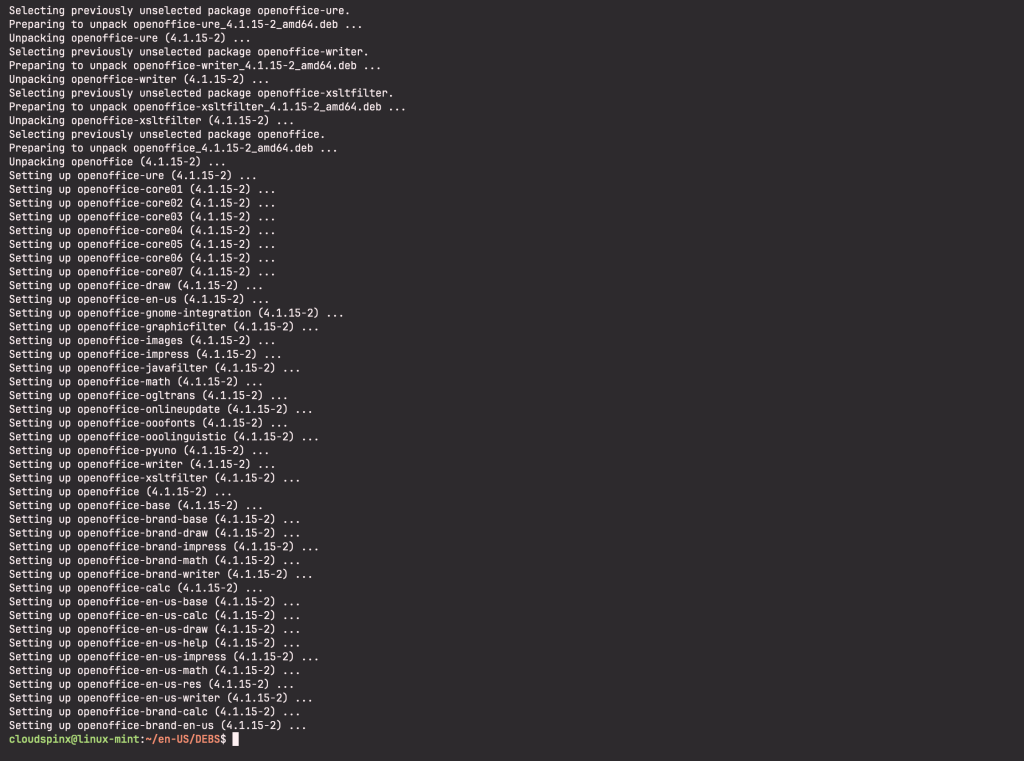
Let us now install the Desktop integration package.
cd desktop-integration
sudo dpkg -i  *.deb
Using Apache OpenOffice on Linux Mint
Once installations are complete, search for OpenOffice on your start menu to start using it.
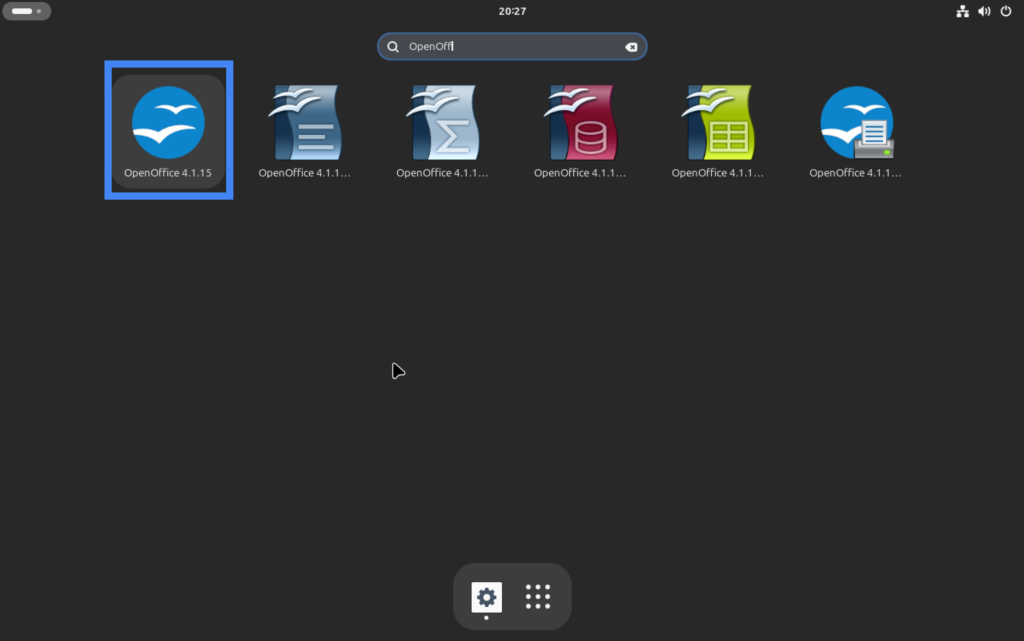
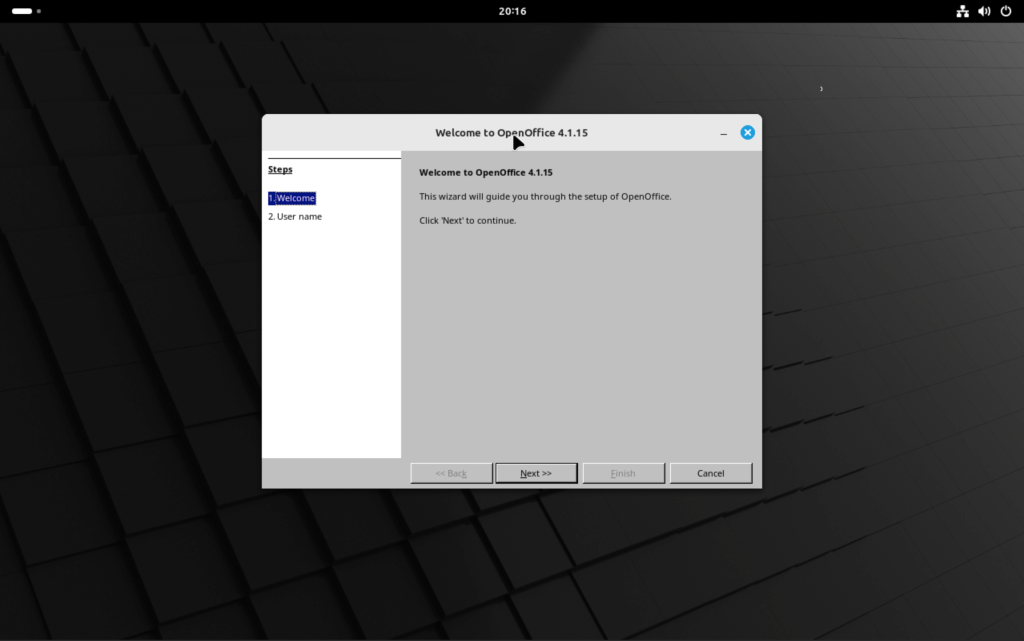
When you click on it, it opens the wizard, click on Next:
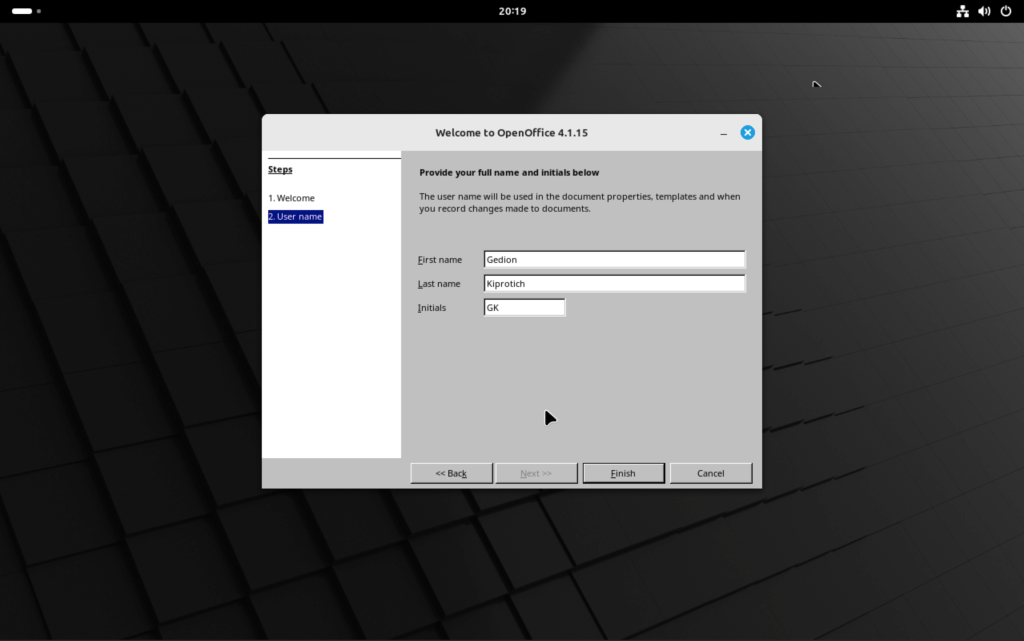
Enter your first name, last name and initial the click Finish:
It should open a page like below:
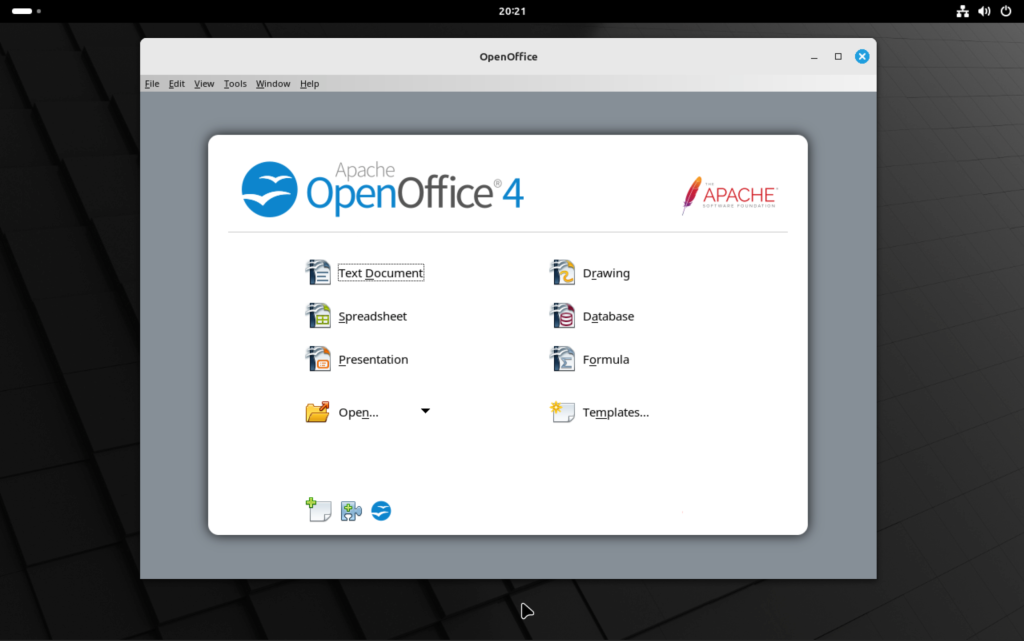
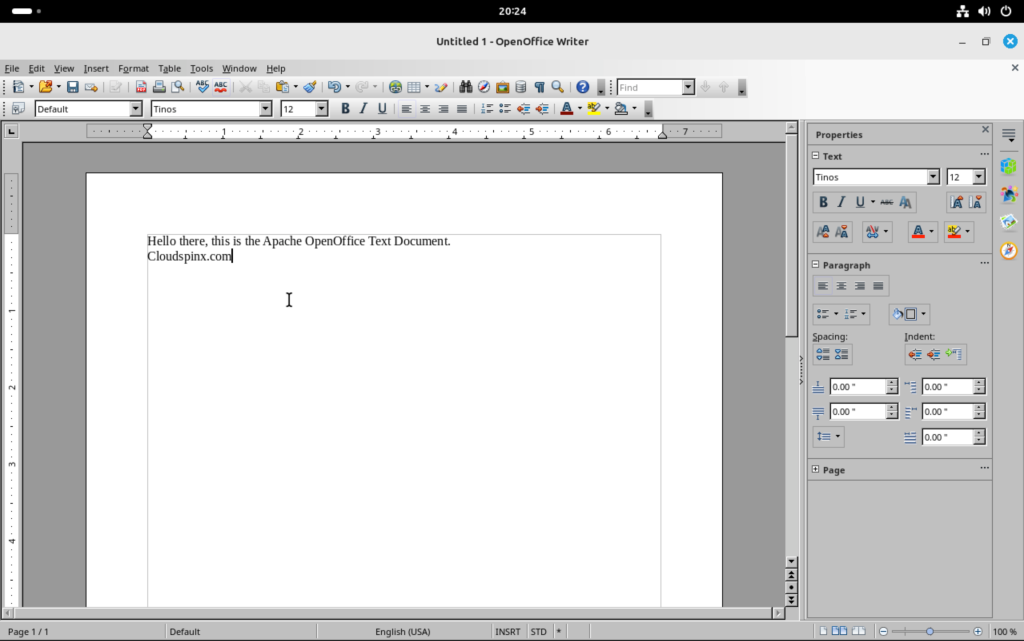
Click to open Text Document and it should display as below:
Using OpenOffice from the terminal.
You can also start the different OpenOffice applications from the command line. For example, to open writer, calc and impress, run the commands below:
openoffice4 -writer
openoffice4 -calc
openoffice4 -impress
Enjoy and check other articles on Linux Mint.
