

In today’s article we will be doing an installation of AnyDesk on Ubuntu 24.04 Linux Desktop OS. Anydesk is not an open source but a proprietary remote desktop application available to Windows, macOS and Linux users. For home users it’s free to use but paid versions are available for businesses.
Anydesk allows you to connect securely to a remote computer and control it as if it was local to you. It is widely used to offer remote support and assist others with technical issues from any location in the world.
Why Adopt Anydesk?
Anydesk has interesting features:
- Cross-Platform: Anydesk can be installed on multiple operating systems – macOS, Windows, Linux, iOS, and Android.
- Secure Solution: It uses encryption withTLS to ensure an end-to-end secure connections and data protection.
- Allows for files transfer: Anydesk allows you to easily transfer files between your local and the remote computers you’r working on.
- Has Collaboration tools: It provides a chat system for communications and whiteboard you can use to mark and draw on the remote screen to guide remote user.
- Supports remote printing: You can print documents available in the remote computer to a local printer.
- Easy to Use: Anydesk comes with a easy to use yet intuitive interface for users to connect and manage remote sessions.
Install AnyDesk on Ubuntu 24.04
After covering brief background information about Anydesk, we can now perform the actual installations on Ubuntu Linux or its derivatives such as Linux Mint, Kubuntu, Xubuntu, e.t.c.
Step 1: Update System Packages
We always recommend to work on an up-to-date system. Run the following commands to update your package lists:
sudo apt updateTo update all installed packages (optional), run:
sudo apt upgrade -y
[ -f /var/run/reboot-required ] && sudo reboot -f
Step 2: Configure AnyDesk APT repository
AnyDesk provides an APT repository for Debian-based systems. By configuring the repository in our system we will be able to install AnyDesk using package manager.
Start by adding AnyDesk GPG key:
curl -fsSL https://keys.anydesk.com/repos/DEB-GPG-KEY|sudo gpg --dearmor -o /etc/apt/trusted.gpg.d/anydesk.gpgNext we add AnyDesk repository:
echo "deb http://deb.anydesk.com/ all main" | sudo tee /etc/apt/sources.list.d/anydesk.list
Step 3: Install AnyDesk using apt
Let’s update the package lists again after adding AnyDesk repository.
sudo apt updateOnce done we install AnyDesk.
sudo apt install anydeskAccept packages installation:
0 upgraded, 135 newly installed, 0 to remove and 2 not upgraded.
Need to get 71.9 MB of archives.
After this operation, 324 MB of additional disk space will be used.
Do you want to continue? [Y/n] y
To check installed version of AnyDesk, run:
anydesk --versionLaunch and Use AnyDesk
After completing the installation of Anydesk, you can launch it from the terminal or applications menu.

Launching from terminal:
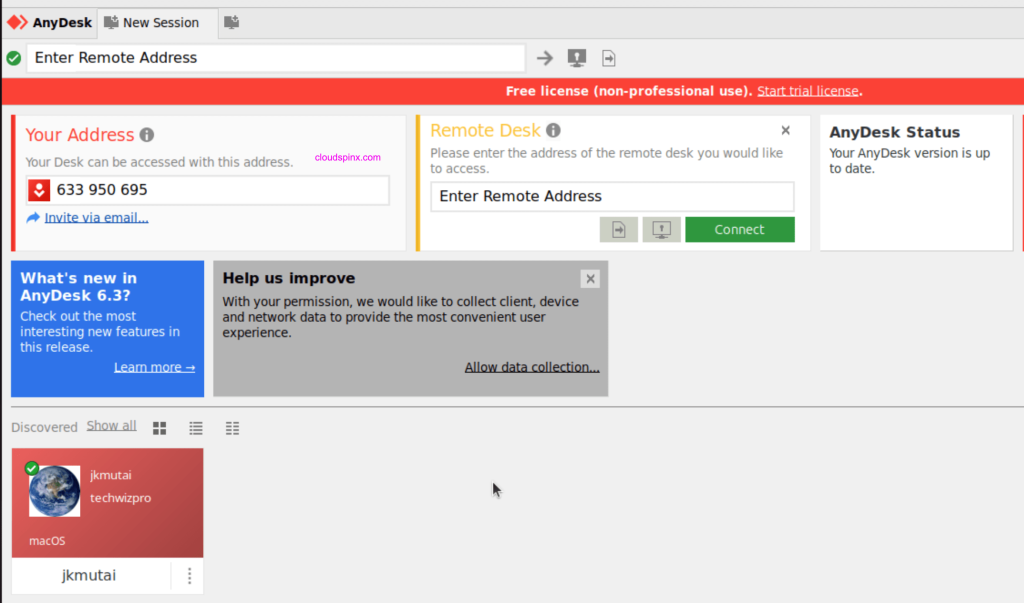
anydeskFrom the next screen you can connect to remote computer or share your AnyDesk address for a remote user to connect to your local machine.
For AnyDesk to start automatically after system boot, enable AnyDesk service:
sudo systemctl enable anydesk.serviceAnd now you have AnyDesk installed and running on Ubuntu 24.04 Linux machine. Check out more articles we have on our website.

There is big problem for Ubuntu 24.04 and anydesk, details here https://github.com/ubuntu/gnome-shell-extension-appindicator/issues/439
Are you able to launch and use?