

In this guide, we are going to look at how to install Android Studio on Linux Mint 22. Android Studio is the official Integrated Development Environment for developing Android apps and it is based on IntelliJ IDEA. Android Studio offers many more features on top of what IntelliJ IDEA already provides. These features include:
- A unified environment for developing all Android devices
- Extensive testing tools and frameworks
- A flexible Gradle-based build system
- Ability to apply changes to push code and resource changes to a running app without having to restart the app
- A fast and feature-rich emulator
- Provides code changes and Github integration.
- Supports C++ and NDK
- Provides lint tools which help in catching performance, version compatibility, usability and other problems.
- Support for Google Cloud platform enabling integration of Google Cloud messaging and App Engine.
Installing Android Studio on Linux Mint 22
Before installing Android Studio on Linux Mint 22, install the required dependencies.
Install Java
First we need to install Java, which is necessary to Android Studio to work properly. Run the below command to install Oracle JDK on Linux Mint 22.
sudo apt install -y default-jdk default-jreConfirm installation of Java:

Install Android Studio on Linux Mint 22
We need to add Android Studio repository to Linux Mint 22 to enable us install Android Studio:
sudo apt-add-repository ppa:maarten-fonville/android-studioYou should see an output as below:

Now update your apt and go ahead to install Android Studio on Linux Mint 22:
sudo apt update
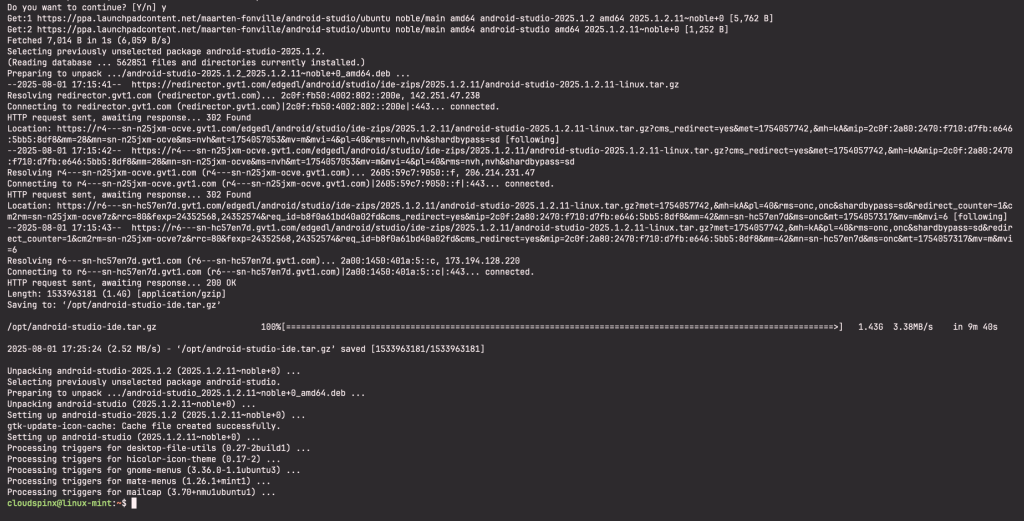
sudo apt install android-studio
At this point, you have successfully installed Android Studio on Linux Mint 22. Launch Android Studio from your Linux Mint application manager as shown below:
Configure Android Studio on Linux Mint 22
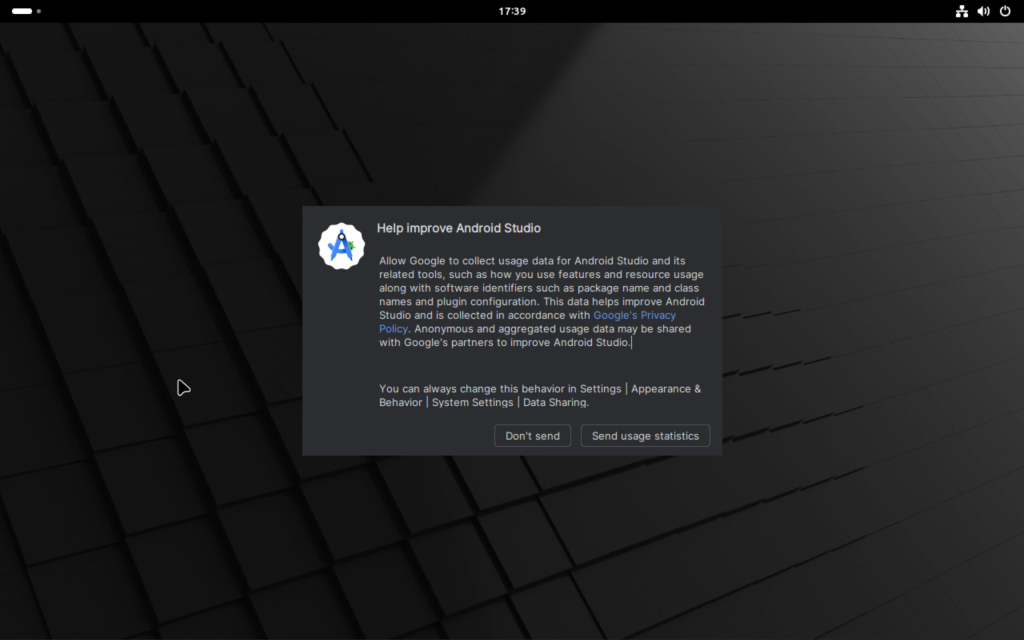
Once you launch, you will see a screen as shown:
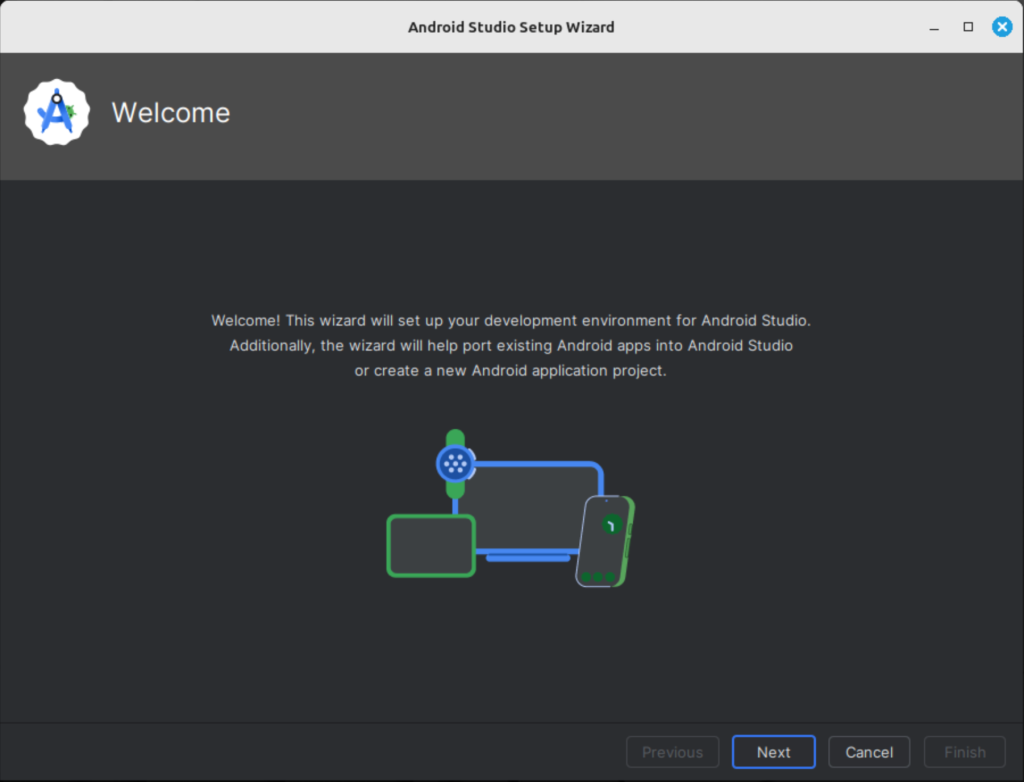
Next is the Welcome window, click Next:
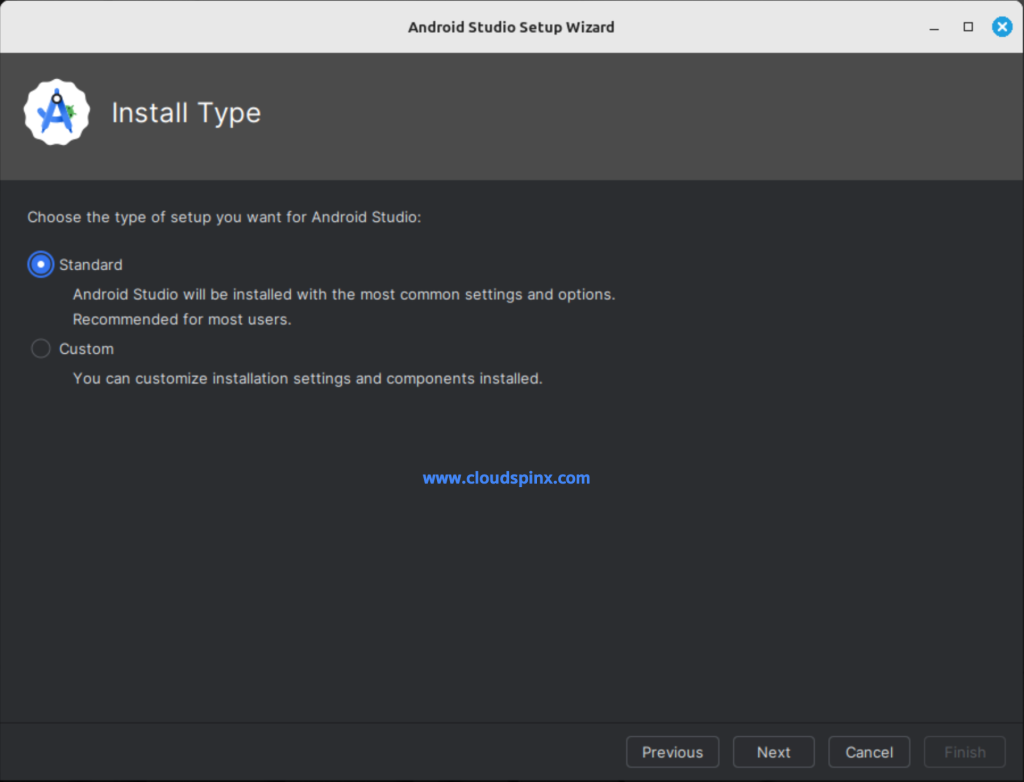
Then select Standard as the installation type, then click Next:
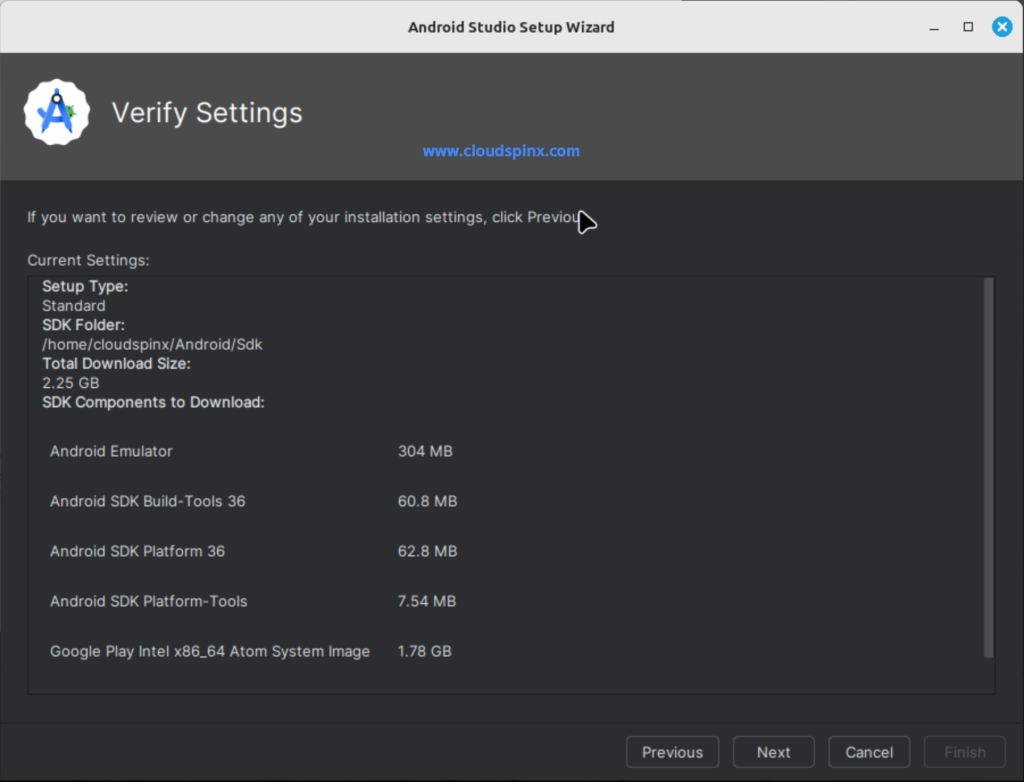
Also click Next to proceed to download SDK components:
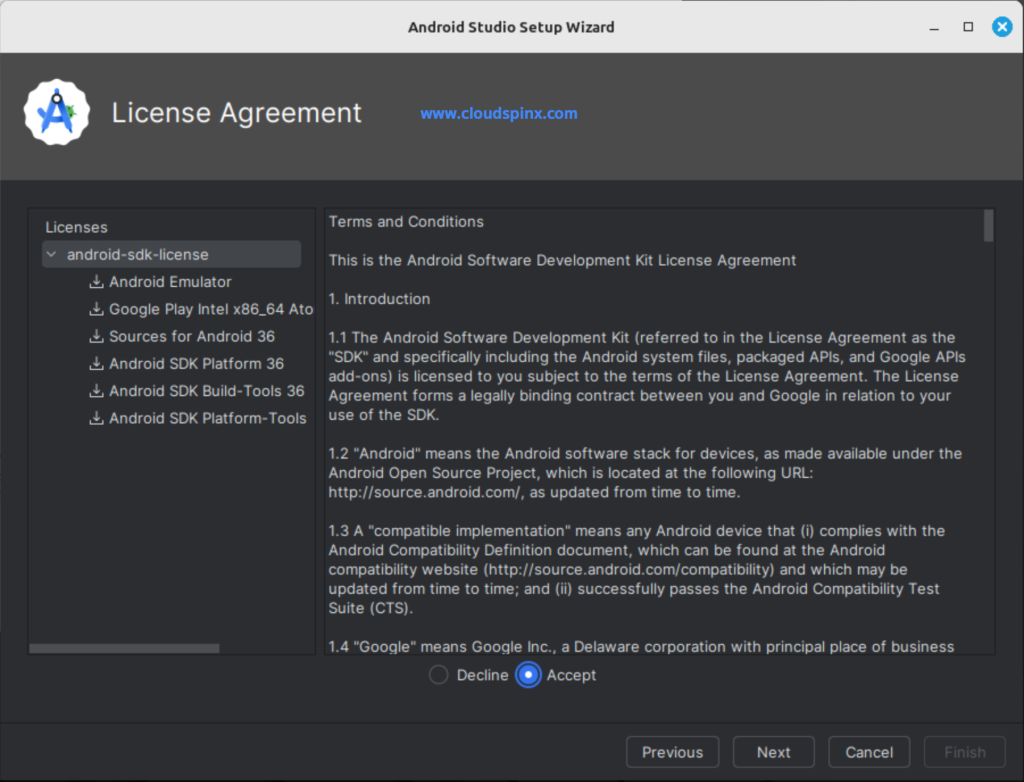
Then Accept the License terms and conditions:
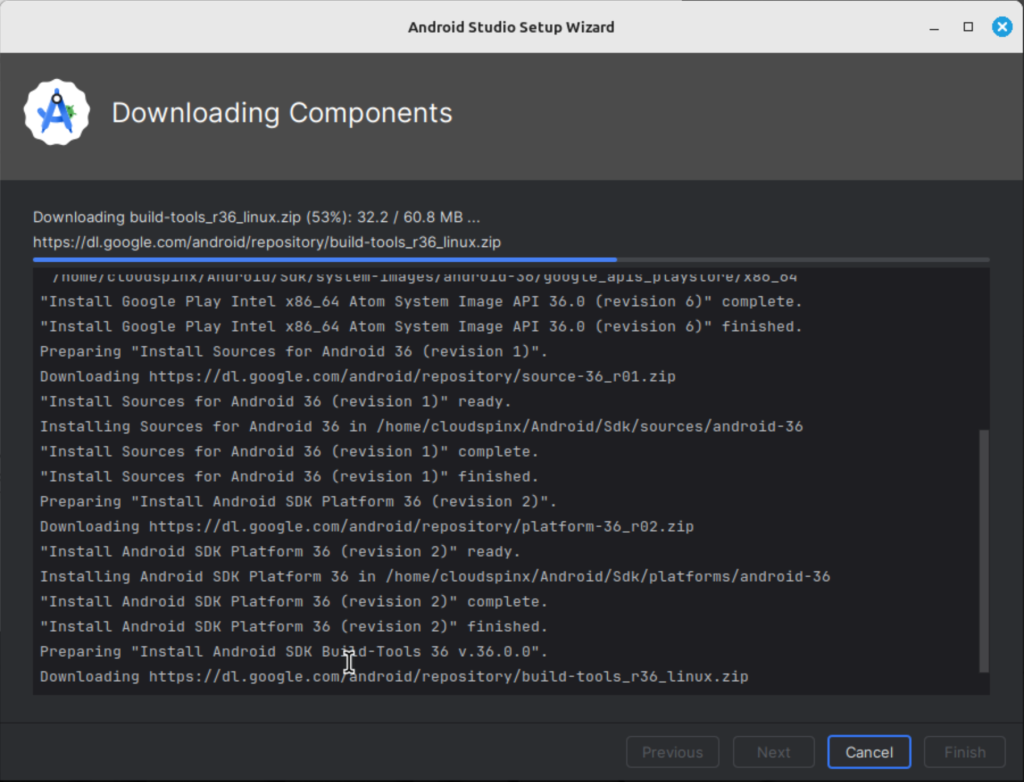
Click Next on the KVM Acceleration window to start the download:
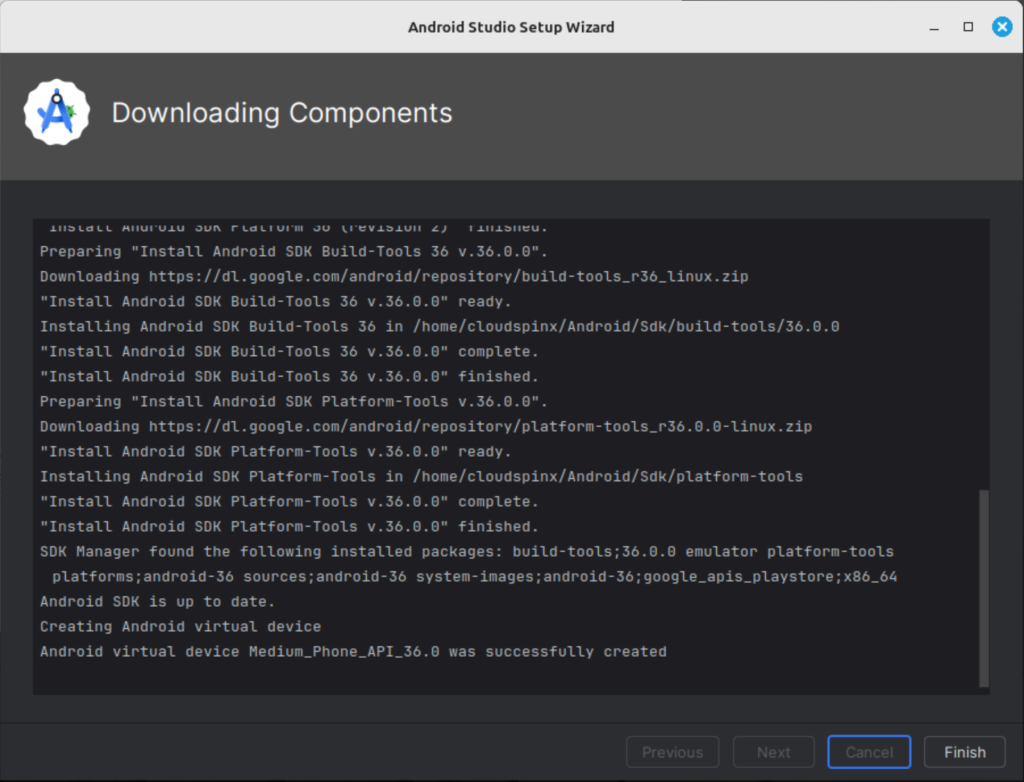
After the component download is complete, click on Finish:
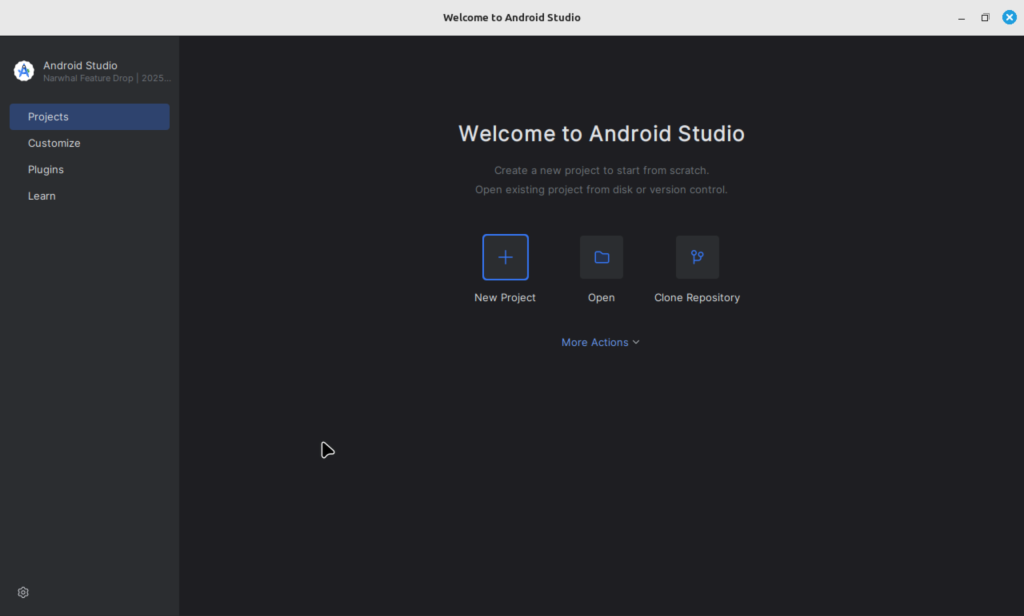
You will be prompted to start a new Android project as shown:
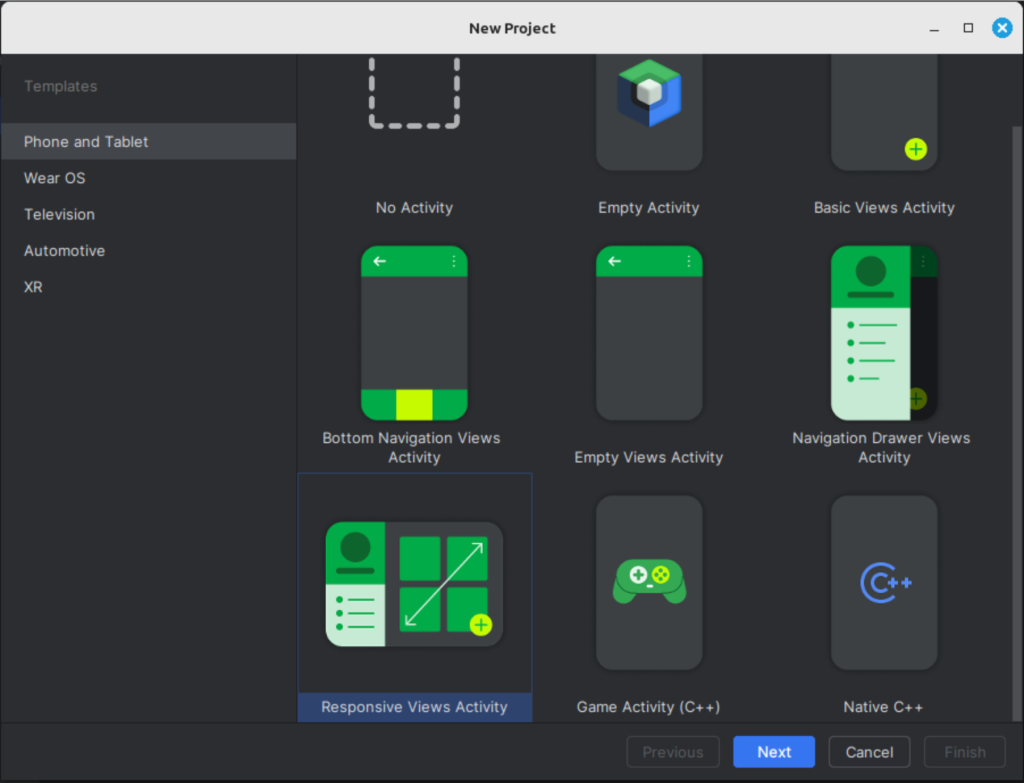
Next, select your project template and click Next:
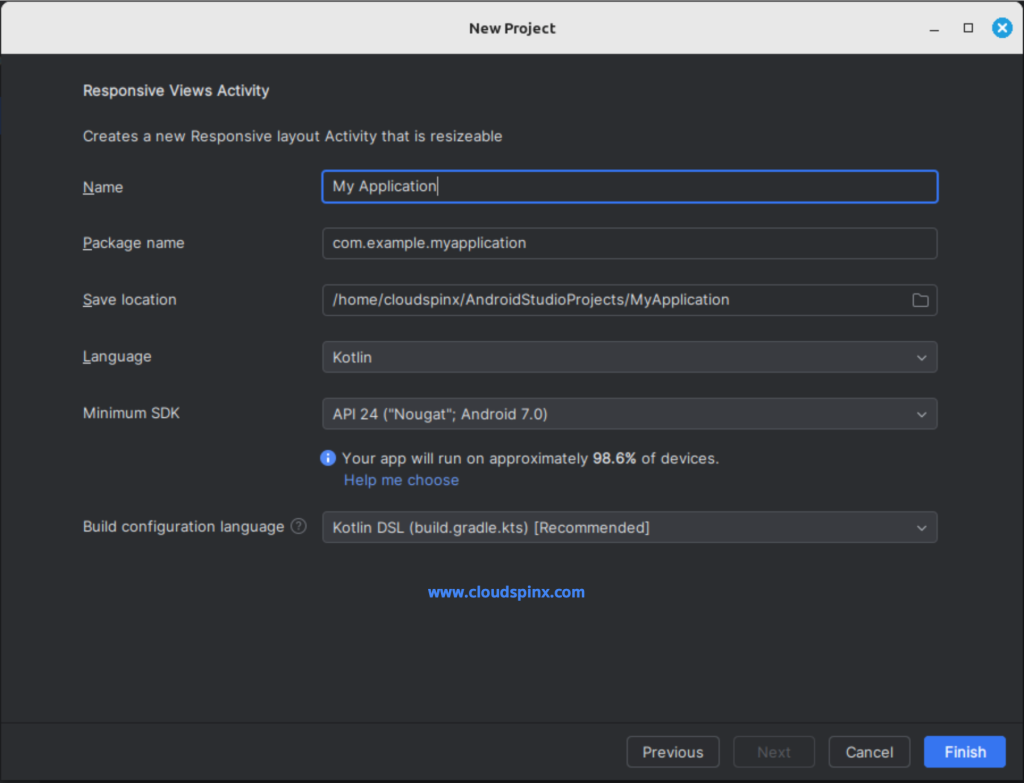
In the next page, configure your project name and location the click Finish:
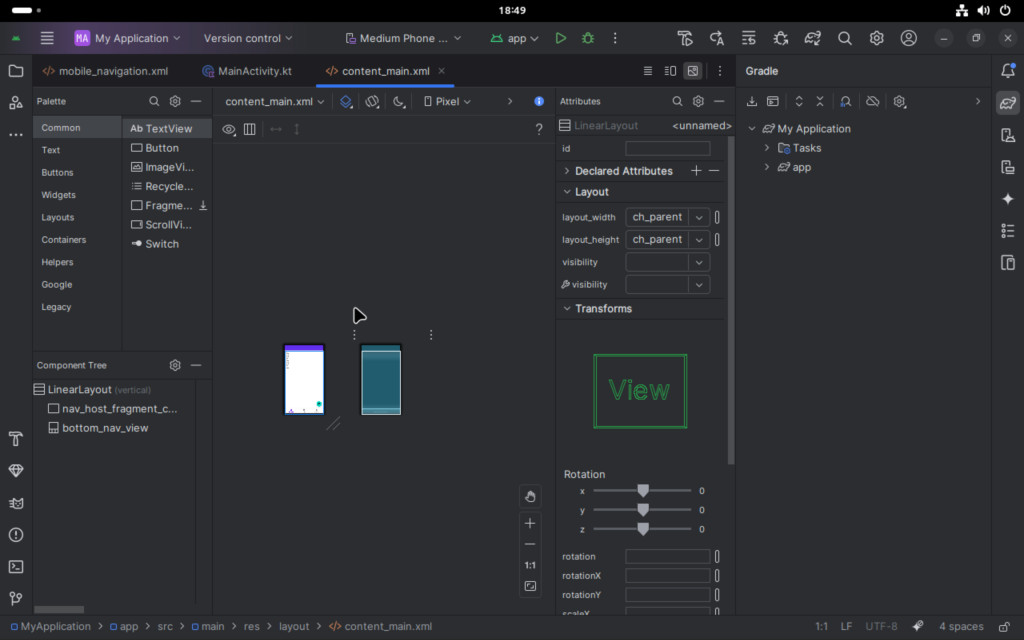
Enjoy your Android development!
This has been a step-by-step guide on how to install Android Studio on Linux Mint 22. I hope you have enjoys. Check other guides below:
