

A control panel is a graphical user interface (GUI) for managing settings and functionality. They’re commonly found in native apps on desktop and mobile operating systems, where they’re used to configure apps and the OS itself. Control panels can also be found on the internet, where they are used to administer web apps and infrastructure.
What is aaPanel?
The web server can be managed with aaPanel, a simple yet robust control panel with a web-based GUI (Graphical User Interface). One-click functions, such as installing the LNMP/LAMP working environment and applications, are available through aaPanel. Its major purpose is to assist customers in saving time when deploying, allowing them to focus on their own projects, which is excellent.
In this guide, we show you how to Install and Use aaPanel on Debian.
Features of aaPanel
aaPanel features include the following:
- You can install only the extensions you want with aapanel.
- Server resources are handled in real time with aapanel.
- A powerful online editor is available with aapanel.
- aapanel uses a small amount of system resources.
- It has a one-click function for developing software and environments.
- Scheduling tasks, such as database and website backups, is simple.
- File management is made easier using aapanel.
- Aapanel comes with a free security extension that makes it extremely safe to use.
- It’s cross-platform compatible.
Install aaPanel on Debian
Here are the instructions for successfully installing aaPanel on Debian.
Step 1: Update Debian System
Before making any installation on their systems, all Linux users should perform a system update. To upgrade Debian System, use the following command.
sudo apt update -y && sudo apt upgrade -yStep 2: Install aaPanel on Debian
Visit aaPanel Downloads page to download installer script as shown below:
sudo apt install wget
sudo wget -O install.sh https://www.aapanel.com/script/install_7.0_en.sh
Run the installer:
sudo bash install.shYou will be prompted to choose the installation directory, press y or Y to accept and proceed installation:
+----------------------------------------------------------------------
| aaPanel 7.0 FOR CentOS/Ubuntu/Debian
+----------------------------------------------------------------------
| Copyright © 2015-2099 BT-SOFT(http://www.aapanel.com) All rights reserved.
+----------------------------------------------------------------------
| The WebPanel URL will be http://SERVER_IP:12924 when installed.
+----------------------------------------------------------------------

Do you want to install aaPanel to the /www directory now?(y/n): y
On successful installation, you will get the following output:
Congratulations! Installed successfully!
==================================================================
aaPanel Internet Address: https://41.90.9.177:12924/8726057c
aaPanel Internal Address: https://192.168.1.188:12924/8726057c
username: ylbfp7qt
password: 78bf6ec9
Warning:
If you cannot access the panel,
release the following port (12924|888|80|443|20|21) in the security group
==================================================================
Time consumed: 3 Minute!
Check if aaPanel is listening in the correct port which 12924:
$ sudo netstat -nltp
Active Internet connections (only servers)
Proto Recv-Q Send-Q Local Address           Foreign Address         State       PID/Program name
tcp        0      0 0.0.0.0:12924           0.0.0.0:*               LISTEN      33426/nginx: master
tcp        0      0 0.0.0.0:22              0.0.0.0:*               LISTEN      608/sshd: /usr/sbin
tcp        0      0 127.0.0.1:631           0.0.0.0:*               LISTEN      31832/cupsd
tcp        0      0 127.0.0.1:25            0.0.0.0:*               LISTEN      16862/exim4
tcp6       0      0 :::12924                :::*                    LISTEN      33426/nginx: master
tcp6       0      0 :::22                   :::*                    LISTEN      608/sshd: /usr/sbin
tcp6       0      0 ::1:631                 :::*                    LISTEN      31832/cupsd
tcp6       0      0 ::1:25                  :::*                    LISTEN      16862/exim4
Also confirm if port 12924 is allowed through the firewall if the firewall is active:
$ sudo ufw status
Status: active

To                         Action      From
--                         ------      ----
20/tcp                     ALLOW       Anywhere
21/tcp                     ALLOW       Anywhere
22/tcp                     ALLOW       Anywhere
80/tcp                     ALLOW       Anywhere
443/tcp                    ALLOW       Anywhere
888/tcp                    ALLOW       Anywhere
39000:40000/tcp            ALLOW       Anywhere
12924/tcp                  ALLOW       Anywhere
20/tcp (v6)                ALLOW       Anywhere (v6)
21/tcp (v6)                ALLOW       Anywhere (v6)
22/tcp (v6)                ALLOW       Anywhere (v6)
80/tcp (v6)                ALLOW       Anywhere (v6)
443/tcp (v6)               ALLOW       Anywhere (v6)
888/tcp (v6)               ALLOW       Anywhere (v6)
39000:40000/tcp (v6)       ALLOW       Anywhere (v6)
12924/tcp (v6)             ALLOW       Anywhere (v6)
Step 3: Access aaPanel WEB Interface on Debian
Access aaPanel web interface using the following format https://SERVER_IP:port/8726057c
i.e https://192.168.1.188:12924/8726057c
Here is aaPanel web interface:
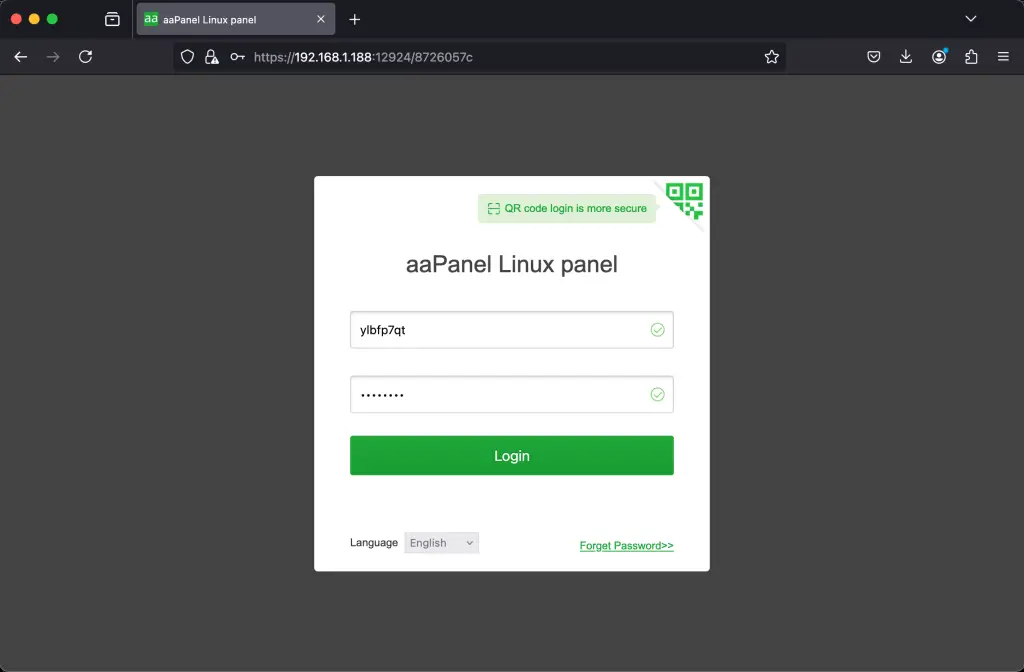
Input login credentials provided during installation to log in. In my case it will be:
username: ylbfp7qt
password: 78bf6ec9
On successful login, you will get the following page:
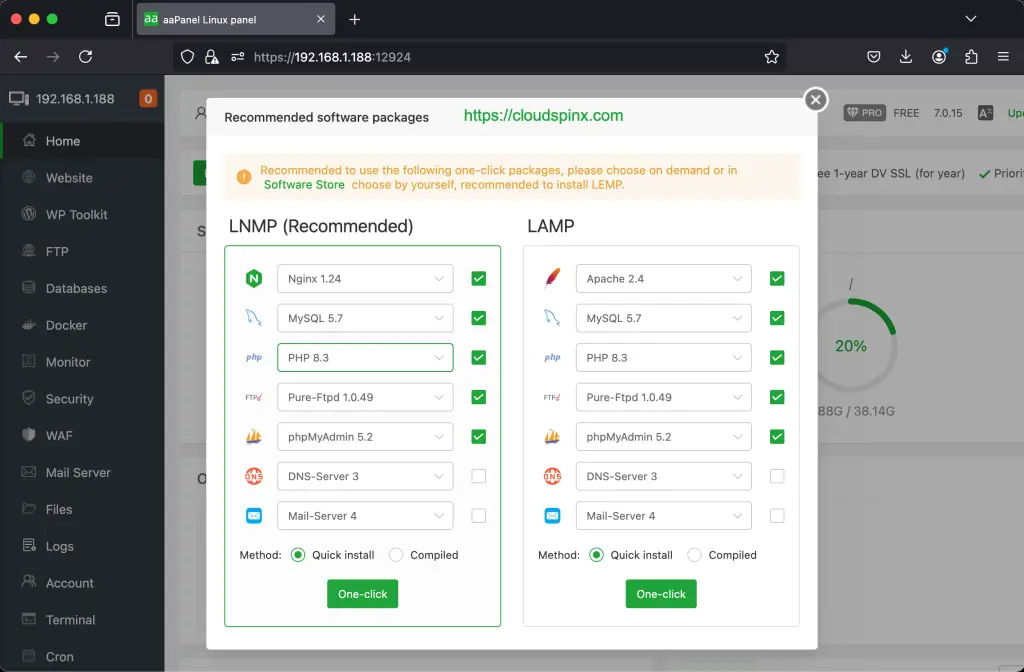
Using aaPanel Control Panel on Debian
Install LNMP
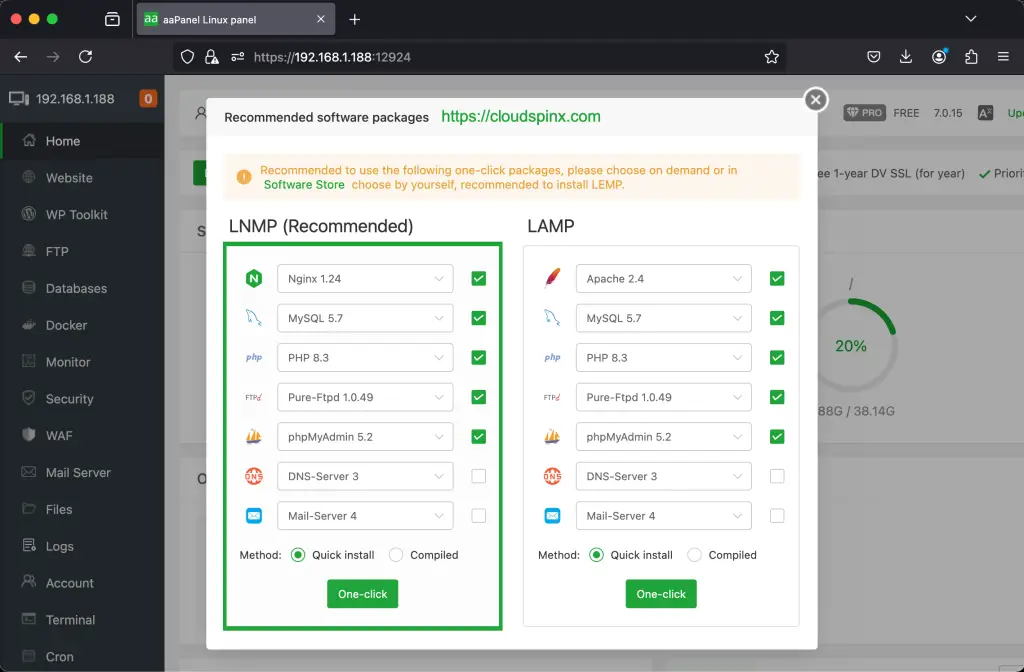
After you login successfully, you get a pop up to install LNMP as it is recommended. Do as follows by selecting packages to install:
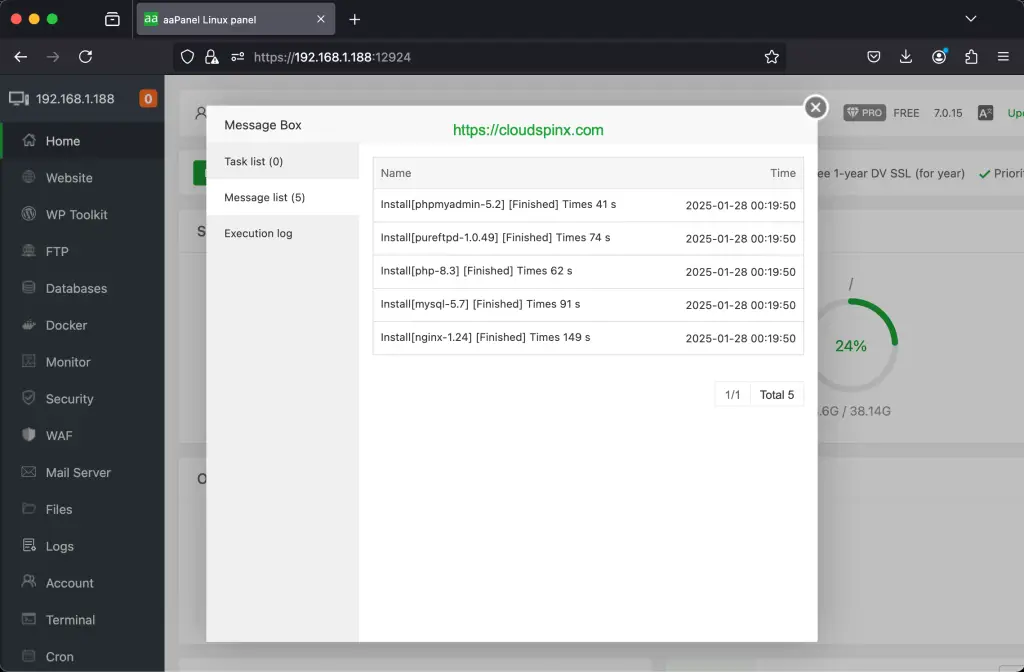
Here is LNMP installation progress:
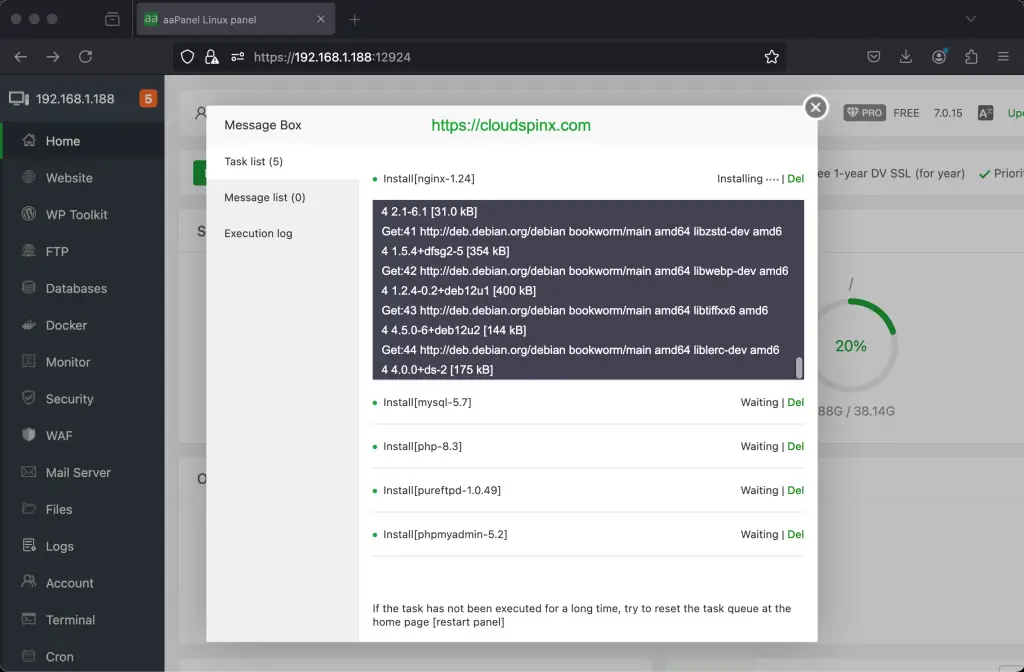
When the tasks are finished, close the window.
Managing websites
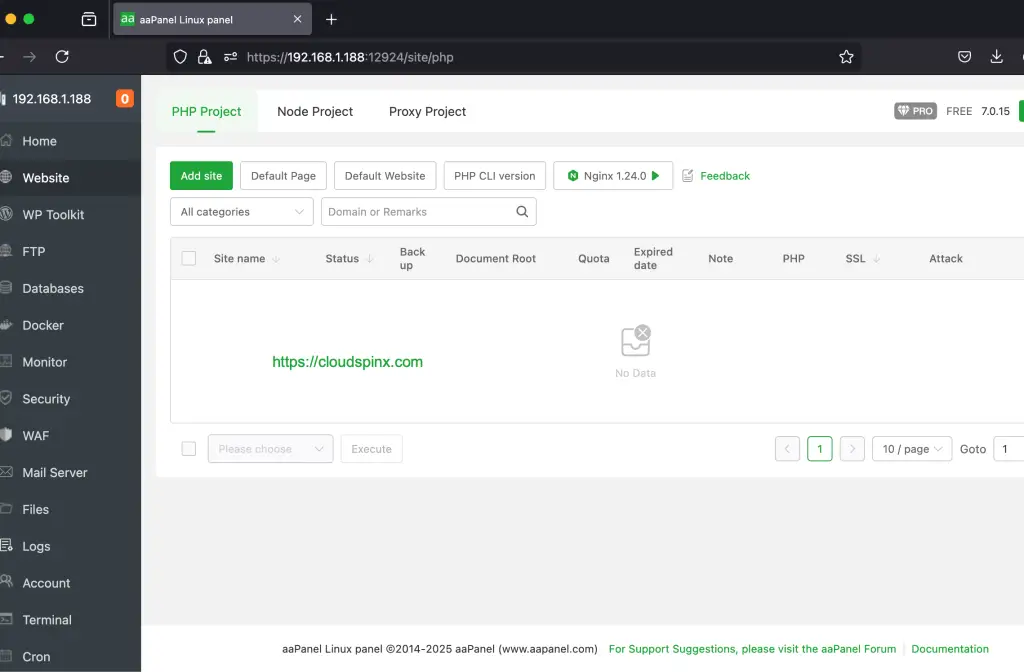
It’s time to get down to serious business. Make a brand new website. From the sidebar, select Website and then “Add site” as shown below:
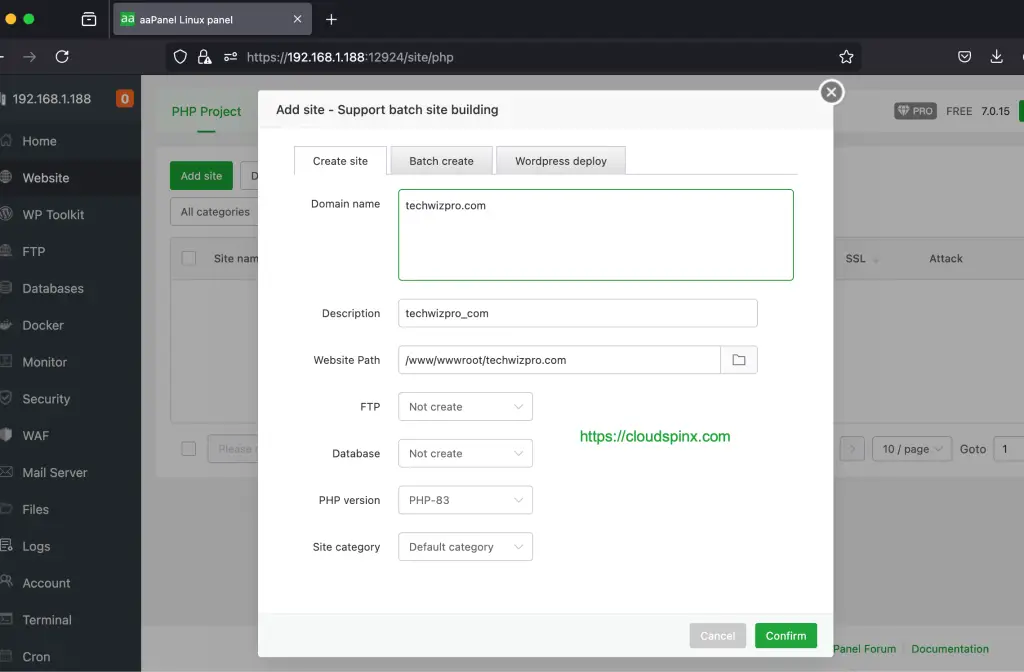
Then on create site enter your domain name and click Submit.
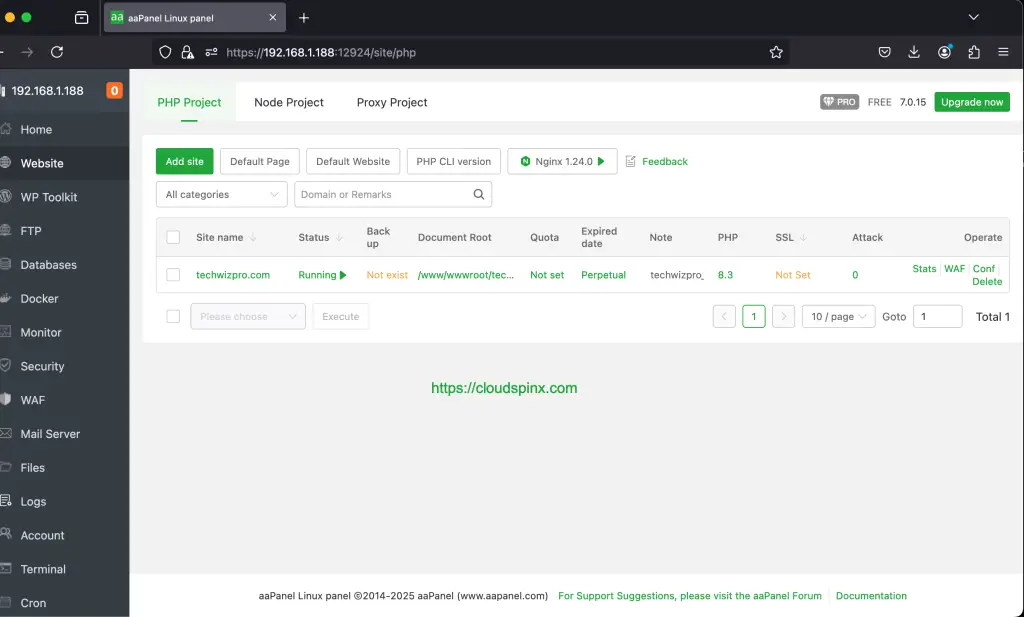
After creating it successfully, it will displays as follows:
Installing Software / Packages
Using aaPanel, we can also install missing softwares in our system. From the sidebar, select App Store and then “install” as shown below:
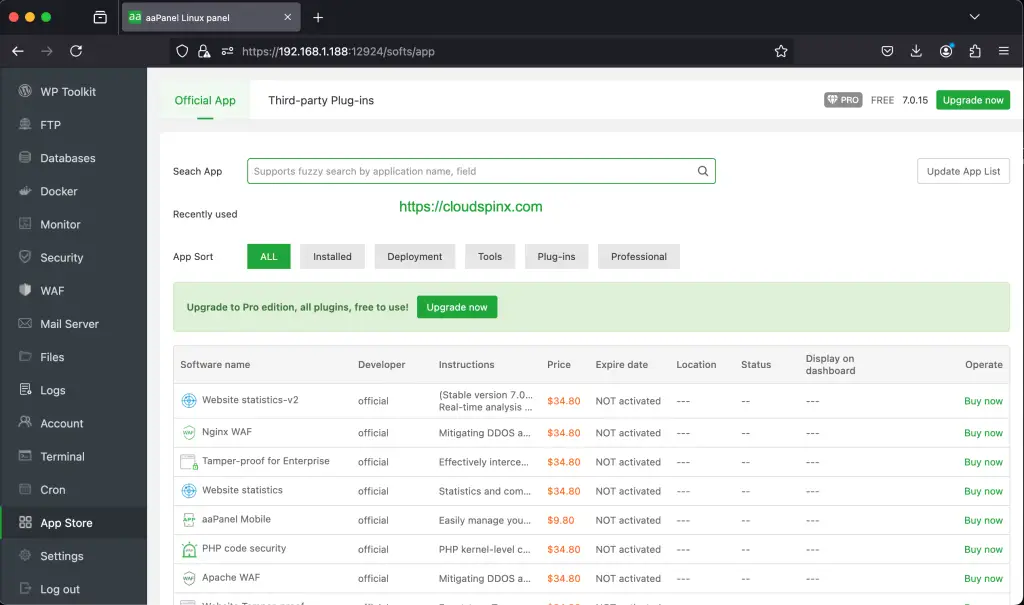
Some of the packages are free while others are available for purchase.
aaPanel Configuration
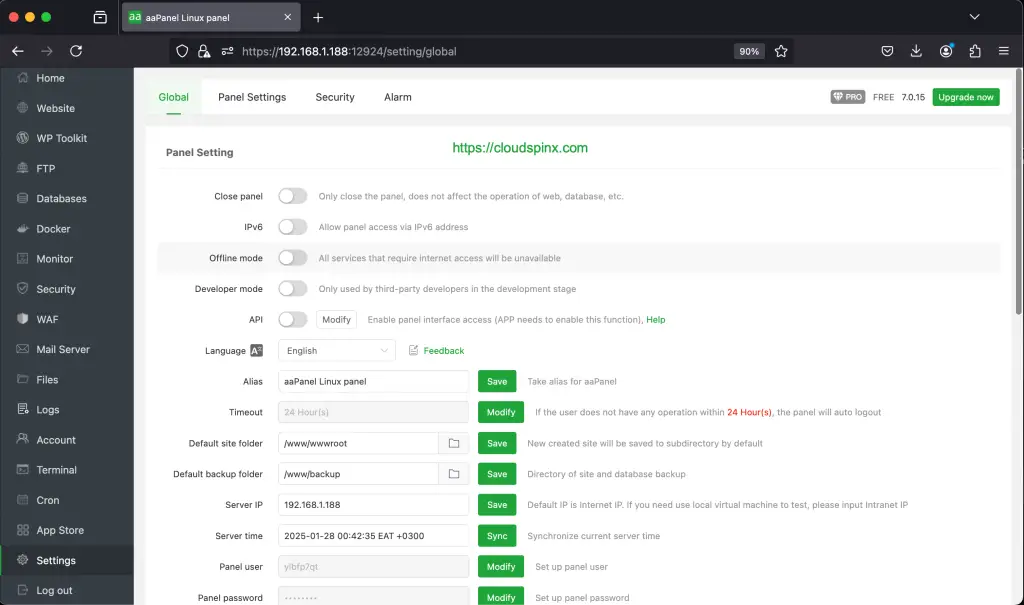
To configure aaPanel control panel, From the sidebar, select Settings and make configuration as per your wish. Then click Save after configuration.
Conclusion
Congratulations! Our guide on how to install and use aaPanel on Debian has come to an end. We hope you found this information to be quite useful.
Other guides:
