

This guide walks through joining an Ubuntu machine to an existing OpenLDAP directory so users log in with their LDAP credentials instead of local accounts. The modern approach uses SSSD, not the legacy libnss-ldap / libpam-ldap stack that Ubuntu’s installer used to prompt for. SSSD is what Red Hat, Fedora, FreeIPA, and Active Directory integrations have standardized on for years, and it is what ships in Ubuntu today. It caches credentials so logins still work if the LDAP server is briefly unreachable, and it keeps the PAM and NSS configuration small.
You need a reachable LDAP server before starting. If you do not have one, set one up first:
Verified working: April 2026 on Ubuntu 24.04.4 LTS, 22.04.5 LTS, and 20.04.6 LTS with OpenLDAP 2.6 (slapd) and SSSD 2.6 / 2.9. Same sssd.conf works unchanged across all three releases.
Add the LDAP server hostname
Skip this if the LDAP server resolves via DNS. Otherwise drop a /etc/hosts entry so SSSD can reach it by name:
echo "10.0.1.50 ldap-srv.example.com ldap-srv" | sudo tee -a /etc/hostsInstall SSSD and the PAM / NSS helpers
The same package set covers all three Ubuntu releases. sssd-ldap is the LDAP backend, libpam-sss and libnss-sss wire SSSD into the authentication and name-resolution stacks, and oddjob-mkhomedir creates a home directory automatically the first time a new user logs in:
sudo apt update
sudo apt install -y sssd-ldap ldap-utils libpam-sss libnss-sss oddjob-mkhomedir
sudo systemctl enable --now oddjobd
Configure SSSD
Create /etc/sssd/sssd.conf with the LDAP domain definition. The config below binds as a dedicated read-only account (uid=readonly,ou=Services,dc=example,dc=com), so the client never needs admin credentials. Replace the URI, search base, and bind password with your values:
sudo tee /etc/sssd/sssd.conf >/dev/null <<'CONF'
[sssd]
config_file_version = 2
services = nss, pam
domains = example.com

[domain/example.com]
id_provider = ldap
auth_provider = ldap
access_provider = permit
chpass_provider = ldap

ldap_uri = ldaps://ldap-srv.example.com
ldap_search_base = dc=example,dc=com
ldap_default_bind_dn = uid=readonly,ou=Services,dc=example,dc=com
ldap_default_authtok = ReadOnly@123
ldap_user_search_base = ou=People,dc=example,dc=com
ldap_group_search_base = ou=Groups,dc=example,dc=com
ldap_schema = rfc2307bis
ldap_group_object_class = groupOfNames
ldap_group_member = member

cache_credentials = true
enumerate = false
CONF
SSSD refuses to start if the config is world-readable. Lock the permissions before starting the service:
sudo chmod 600 /etc/sssd/sssd.conf
sudo chown root:root /etc/sssd/sssd.conf
Enable the mkhomedir PAM module so that /home/alice (or whatever the LDAP entry’s homeDirectory points to) is created on first login:
sudo pam-auth-update --enable mkhomedirStart SSSD and check the service status:
sudo systemctl enable --now sssd
systemctl status sssd --no-pager
The unit should be active (running). If it is not, look at journalctl -u sssd -b and the per-domain log at /var/log/sssd/sssd_example.com.log, which almost always points at a typo in the bind DN or an unreachable LDAP URI.
Verify LDAP user and group lookups
Before touching SSH or sudo, confirm that NSS is resolving LDAP identities. Replace alice with a user that actually exists in your directory:
id alice
getent passwd alice
getent group linuxadmins
A successful run returns the posix UID/GID, the user’s groups, and the passwd/group entries served by SSSD. If any command comes back empty, NSS is not picking up SSSD yet. Check /etc/nsswitch.conf: the passwd, group, and shadow lines should all end with sss (installing libnss-sss adds this automatically; you rarely need to edit it).
Log in as an LDAP user
Open a second terminal and SSH in as an LDAP user. Ubuntu’s default sshd config allows password auth when PAM is in use, but the cloud images ship with PasswordAuthentication no in /etc/ssh/sshd_config.d/60-cloudimg-settings.conf. If you are on a cloud image, flip that to yes and reload sshd first:
sudo sed -i 's/PasswordAuthentication no/PasswordAuthentication yes/' \
  /etc/ssh/sshd_config.d/60-cloudimg-settings.conf
sudo systemctl reload ssh
Now SSH in:
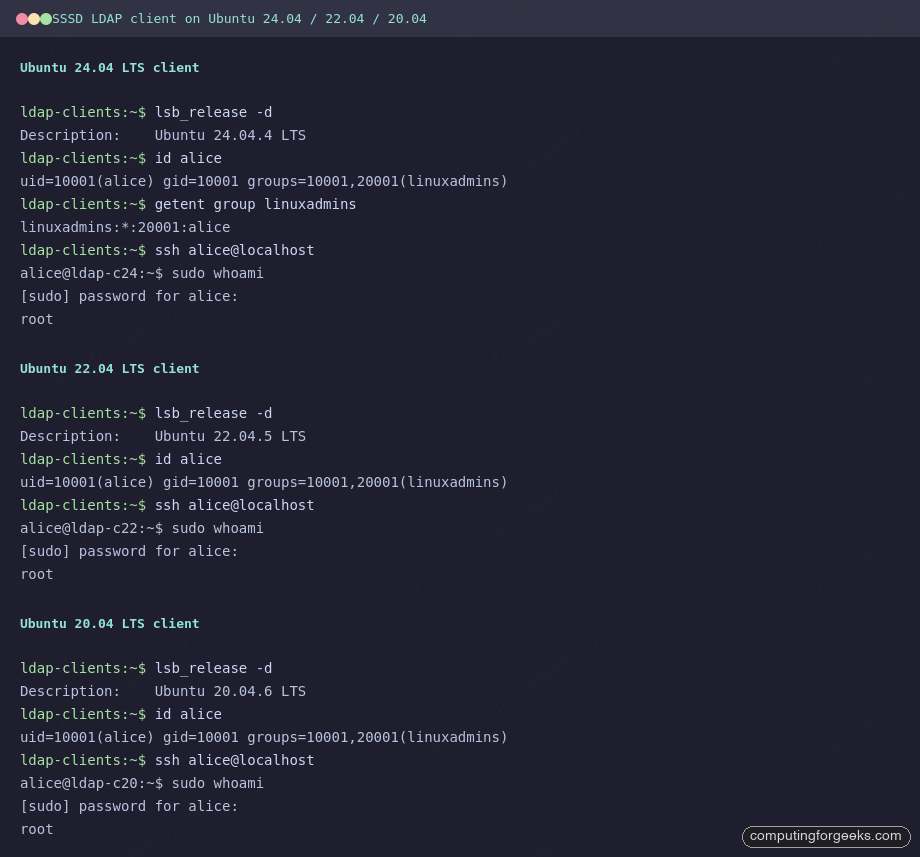
ssh alice@ldap-clientThe first login creates /home/alice via oddjobd + pam_mkhomedir. From there, id and whoami should return the LDAP identity, not a local one. The screenshot below shows the same SSSD config working unchanged across Ubuntu 24.04, 22.04, and 20.04 clients talking to the same OpenLDAP server:
Ubuntu version differences worth knowing
The config is identical, but the package versions shipped in each release differ, which changes what you get in the way of features and fixes:
| Item | Ubuntu 24.04 | Ubuntu 22.04 | Ubuntu 20.04 |
|---|---|---|---|
| SSSD version | 2.9 | 2.6 | 2.2 |
| Default sssd.conf path | /etc/sssd/sssd.conf | /etc/sssd/sssd.conf | /etc/sssd/sssd.conf |
| Cloud image password auth | disabled in 60-cloudimg-settings.conf | disabled in 60-cloudimg-settings.conf | disabled in 50-cloud-init.conf |
| sshd unit name | ssh.service | ssh.service | ssh.service |
| pam-auth-update integration | mkhomedir, sss | mkhomedir, sss | mkhomedir, sss |
One real-world footgun on 20.04: the cloud image’s SSH password-auth override lives in /etc/ssh/sshd_config.d/50-cloud-init.conf, not the 60-cloudimg-settings.conf filename used on newer releases. If password login keeps getting Permission denied after everything else looks correct, grep /etc/ssh/sshd_config.d/ for PasswordAuthentication and fix whichever file sets it to no.
Common failures and what they mean
Three errors covered nearly every failed test run while preparing this guide:
Error: “Could not start TLS encryption. unsupported extended operation”
SSSD tries StartTLS by default when sending the bind password, and the server rejects it because it has no TLS configured. The right fix is to put LDAPS on the server (recommended) or use a properly issued cert and switch to ldap_id_use_start_tls = true. For a lab only, the override ldap_auth_disable_tls_never_use_in_production = true lets it bind cleartext; the option name tells you what the authors think of using it in production.
Error: “Access denied for user X by PAM account configuration”
This means access_provider = ldap is set without a filter, and the default filter rejected the user. Either use access_provider = permit for unrestricted login, or set a real ldap_access_filter (see the section below for a group-based filter).
Empty getent with no error
If id alice returns no such user but ldapsearch finds the entry, the SSSD cache is stale. Stop SSSD, delete /var/lib/sss/db/* and /var/lib/sss/mc/*, then start it again. On Ubuntu 24.04 and 22.04 you can also use sssctl cache-expire -E; on 20.04 that subcommand is missing, so the manual cache wipe is the quickest path.
Restrict login to specific LDAP groups and grant sudo only to admins
A reader asked how to extend this setup so only members of a defined LDAP group can log in, and only admin group members get sudo. The answer is three things working together: a memberOf overlay on the OpenLDAP server, an SSSD access filter on the client, and a sudoers rule that references the LDAP admin group. Authentication binds as a dedicated read-only account, so no credentials are ever exposed in config files beyond that one low-privilege DN.
Tested April 2026 on Ubuntu 24.04 LTS with OpenLDAP 2.6 (slapd) and SSSD 2.9. The same steps apply on 22.04.
1. Enable the memberOf overlay on the OpenLDAP server
The memberOf overlay adds a virtual attribute to every user entry listing the groups they belong to. Without it, the client has to walk the group tree to check membership, which is slower and breaks the simple SSSD access filter we will use later. Load the module and attach the overlay to the main database:
sudo tee /tmp/memberof.ldif >/dev/null <<'LDIF'
dn: cn=module{0},cn=config
changetype: modify
add: olcModuleLoad
olcModuleLoad: memberof.la

dn: olcOverlay={0}memberof,olcDatabase={1}mdb,cn=config
changetype: add
objectClass: olcOverlayConfig
objectClass: olcMemberOf
olcOverlay: memberof
olcMemberOfRefint: TRUE
LDIF
sudo ldapmodify -Y EXTERNAL -H ldapi:/// -f /tmp/memberof.ldif
Add the refint overlay too, so membership stays consistent when users or groups are renamed:
sudo tee /tmp/refint.ldif >/dev/null <<'LDIF'
dn: cn=module{0},cn=config
changetype: modify
add: olcModuleLoad
olcModuleLoad: refint.la

dn: olcOverlay={1}refint,olcDatabase={1}mdb,cn=config
changetype: add
objectClass: olcOverlayConfig
objectClass: olcRefintConfig
olcOverlay: refint
olcRefintAttribute: memberof member manager owner
LDIF
sudo ldapmodify -Y EXTERNAL -H ldapi:/// -f /tmp/refint.ldif
2. Make posixGroup an auxiliary class
By default, posixGroup and groupOfNames are both STRUCTURAL, so an entry can only be one or the other. We need both: groupOfNames gives the overlay a member DN to populate memberOf with, and posixGroup gives the client a real gidNumber so getent group and sudoers resolve it. Patch the shipped schema to mark posixGroup AUXILIARY:
sudo tee /tmp/posixgroup-aux.ldif >/dev/null <<'LDIF'
dn: cn={2}nis,cn=schema,cn=config
changetype: modify
delete: olcObjectClasses
olcObjectClasses: {2}( 1.3.6.1.1.1.2.2 NAME 'posixGroup' DESC 'Abstraction of a group of accounts' SUP top STRUCTURAL MUST ( cn $ gidNumber ) MAY ( userPassword $ memberUid $ description ) )
-
add: olcObjectClasses
olcObjectClasses: {2}( 1.3.6.1.1.1.2.2 NAME 'posixGroup' DESC 'Abstraction of a group of accounts' SUP top AUXILIARY MUST gidNumber MAY ( userPassword $ memberUid $ description ) )
LDIF
sudo ldapmodify -Y EXTERNAL -H ldapi:/// -f /tmp/posixgroup-aux.ldif
3. Create the groups, users, and readonly bind account
Seed two groups (linuxadmins, linuxusers), three test users, and a dedicated low-privilege bind DN that the client will use:
sudo tee /tmp/seed.ldif >/dev/null <<'LDIF'
dn: ou=People,dc=example,dc=com
objectClass: organizationalUnit
ou: People

dn: ou=Groups,dc=example,dc=com
objectClass: organizationalUnit
ou: Groups

dn: ou=Services,dc=example,dc=com
objectClass: organizationalUnit
ou: Services

dn: uid=readonly,ou=Services,dc=example,dc=com
objectClass: inetOrgPerson
cn: readonly
sn: readonly
uid: readonly
userPassword: ReadOnly@123

dn: uid=alice,ou=People,dc=example,dc=com
objectClass: inetOrgPerson
objectClass: posixAccount
objectClass: shadowAccount
cn: Alice Admin
sn: Admin
uid: alice
uidNumber: 10001
gidNumber: 10001
homeDirectory: /home/alice
loginShell: /bin/bash
userPassword: Alice@Passw0rd

dn: uid=bob,ou=People,dc=example,dc=com
objectClass: inetOrgPerson
objectClass: posixAccount
objectClass: shadowAccount
cn: Bob User
sn: User
uid: bob
uidNumber: 10002
gidNumber: 10002
homeDirectory: /home/bob
loginShell: /bin/bash
userPassword: Bob@Passw0rd

dn: uid=carol,ou=People,dc=example,dc=com
objectClass: inetOrgPerson
objectClass: posixAccount
objectClass: shadowAccount
cn: Carol NoGroup
sn: NoGroup
uid: carol
uidNumber: 10003
gidNumber: 10003
homeDirectory: /home/carol
loginShell: /bin/bash
userPassword: Carol@Passw0rd

dn: cn=linuxadmins,ou=Groups,dc=example,dc=com
objectClass: groupOfNames
objectClass: posixGroup
cn: linuxadmins
gidNumber: 20001
member: uid=alice,ou=People,dc=example,dc=com

dn: cn=linuxusers,ou=Groups,dc=example,dc=com
objectClass: groupOfNames
objectClass: posixGroup
cn: linuxusers
gidNumber: 20002
member: uid=bob,ou=People,dc=example,dc=com
LDIF
sudo ldapadd -x -D "cn=admin,dc=example,dc=com" -W -f /tmp/seed.ldif
Confirm that the overlay populated memberOf on Alice and Bob, and left Carol with no group:
ldapsearch -x -D "cn=admin,dc=example,dc=com" -W \
  -b "ou=People,dc=example,dc=com" "(uid=*)" memberOf
Alice’s entry shows memberOf: cn=linuxadmins,ou=Groups,dc=example,dc=com, Bob’s shows cn=linuxusers, and Carol’s has no memberOf at all.
4. Configure SSSD on the client with a readonly bind and group filter
On the Ubuntu client, install SSSD and write a domain configuration that binds as the readonly account and applies an access filter referencing both groups. Only users whose memberOf matches one of these DNs will be allowed to authenticate; everyone else is rejected at the PAM account phase:
sudo apt install -y sssd-ldap ldap-utils libpam-sss libnss-sss oddjob-mkhomedir
sudo systemctl enable --now oddjobd
Create /etc/sssd/sssd.conf with the following contents, replacing the server hostname and bind password with your values:
[sssd]
config_file_version = 2
services = nss, pam, sudo
domains = example.com

[domain/example.com]
id_provider = ldap
auth_provider = ldap
access_provider = ldap
sudo_provider = ldap
chpass_provider = ldap

ldap_uri = ldaps://ldap-srv.example.com
ldap_search_base = dc=example,dc=com
ldap_default_bind_dn = uid=readonly,ou=Services,dc=example,dc=com
ldap_default_authtok = ReadOnly@123
ldap_user_search_base = ou=People,dc=example,dc=com
ldap_group_search_base = ou=Groups,dc=example,dc=com
ldap_schema = rfc2307bis
ldap_group_object_class = groupOfNames
ldap_group_member = member

ldap_access_order = filter
ldap_access_filter = (|(memberOf=cn=linuxadmins,ou=Groups,dc=example,dc=com)(memberOf=cn=linuxusers,ou=Groups,dc=example,dc=com))

cache_credentials = true
enumerate = false
Lock down the permissions, enable auto-created home directories on first login, and restart SSSD:
sudo chmod 600 /etc/sssd/sssd.conf
sudo pam-auth-update --enable mkhomedir
sudo systemctl restart sssd
Verify the client can resolve both the users and their posix groups:
id alice
getent group linuxadmins
getent group linuxusers
Alice should show groups=10001,20001(linuxadmins) and getent should list Alice under linuxadmins and Bob under linuxusers.
5. Grant sudo only to the linuxadmins group
Drop a dedicated sudoers.d file that references the LDAP group by name. The % prefix tells sudo to treat it as a group, and because the group has a real gidNumber from step 2, the match works through NSS:
echo "%linuxadmins ALL=(ALL:ALL) ALL" | sudo tee /etc/sudoers.d/ldap-linuxadmins
sudo chmod 440 /etc/sudoers.d/ldap-linuxadmins
sudo visudo -cf /etc/sudoers.d/ldap-linuxadmins
The visudo -c check must return parsed OK. If you skip that step and the file has a syntax error, sudo stops working entirely for everyone on the host.
6. Verify the three access paths
Log in as each user and confirm the behavior. The output below is from a real test run on Ubuntu 24.04:
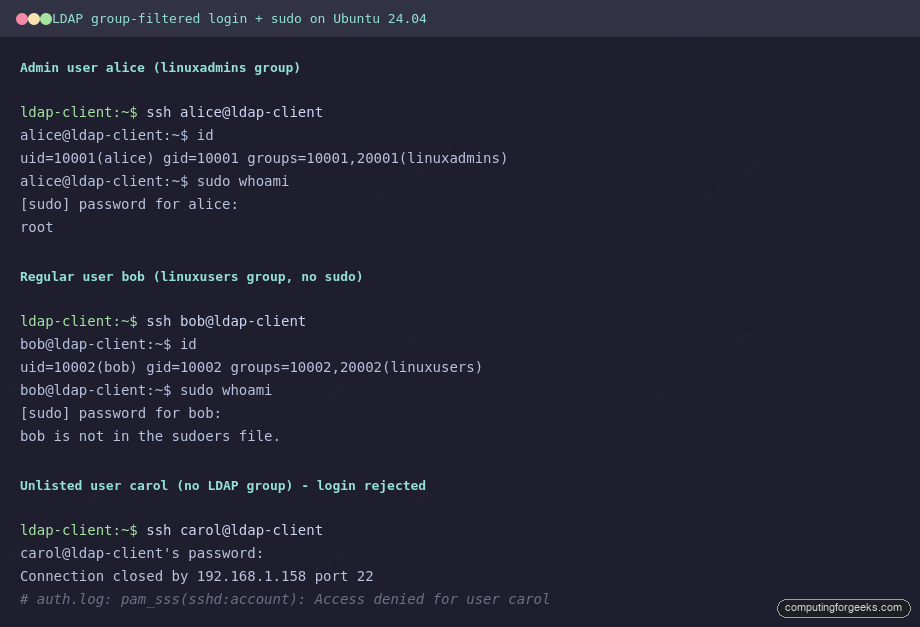
Three outcomes, one policy:
- alice (in
linuxadmins): login succeeds,sudo whoamireturnsroot. - bob (in
linuxusers): login succeeds,sudois rejected withbob is not in the sudoers file. - carol (no group): login fails at the PAM account stage.
/var/log/auth.logshowspam_sss(sshd:account): Access denied for user carol.
Notes for production
Always use ldaps:// or StartTLS for the SSSD bind. Plain ldap:// sends the user’s password to the server in clear text at login time. The ldap_default_authtok in sssd.conf is also clear text on disk, so keep that file mode 0600 and give the readonly account nothing beyond search rights on the user and group branches. If you need per-host sudo rules instead of a blanket group grant, store sudoRole entries in LDAP under ou=SUDOers and let the existing sudo_provider = ldap in SSSD pick them up.
That’s all. If you need advanced centralized user management platform, see






I have followed all the steps to install openldap, LAM, and configuration on the client, but I get an issue when I test by switching to a user account on LDAP, ” su: user does not exist “, i run command “ldapsearch -x” and appears all users on the ldap server,
OpenLDAP (Ubuntu 18.04)
LDAP Client (ubuntu 20.04)
I have found that ‘libnss-ldap’ causes boot to be really slow. ‘libnss-ldapd'(note the ‘d’ at the end) seems to be better.
https://askubuntu.com/questions/458400/ldap-client-causes-boot-to-be-very-slow-on-13-10-causes-hang-on-14-04#comment-1121079
https://bugs.launchpad.net/ubuntu/+source/libnss-ldap/+bug/1024475
thank you for the feedback it works for me
One of the best articles with all the information thanks for sharing it with us…
Welcome.
Can someone help me
I’m new to linux, so I followed the above steps to setup ldap client and everything is working fine but I am having issue logging in as an ldap users.
for example
if I do sudo su – // it works fine
but if I try su – //. I get “Authentication failure” when I type the password
and if I try to restart the machine and try to log in as the user I get // sorry password authentication didn’t work
I believe the issue is happing in the /etc/pam.d/common-account or /etc/pam.d/common-auth
anyone experienced this issue before
I got it to work I installed libpam-ldapd instead of libpam-ldap and I didn’t remove the use_authtok from /etc/pam.d/common-password.
great article my friend 😆
Great tutorial.
I plan to use ldap authentication only and MS AD as database with mostly for Linux clients and users.
I wanted to integrate the ldap server (Linux) with the Active Directory and synchronize users and groups.
please I need your help with this.
Hi,
what is missing, when we have a central LDAP Server with a readonly password and I want to authenticate the users agains, but let in only users having a Groupmember item or . The admins should have sudo right, the users only normal defined rights.
Can you please extend the article, how to do it?
Thanks
FG
Added a new section covering this setup: memberOf overlay on the LDAP server, SSSD access filter with a readonly bind DN, and sudo limited to the linuxadmins group. Tested on Ubuntu 24.04 with a screenshot of all three outcomes (admin login + sudo, regular user login without sudo, unlisted user rejected) embedded in the article.