

Cloud computing is the delivery of computing resources (such as servers, storage, databases, software, networking, and more) over the Internet on a pay-as-you-go basis. Instead of maintaining physical infrastructure on-premises, organizations can leverage the cloud to access and utilize these resources from a service provider’s infrastructure. Cloud adoption has seen significant growth in recent years due to several advantages it offers, including:
- Scalability: Cloud services provide the ability to quickly scale resources up or down based on demand. This flexibility allows organizations to easily accommodate fluctuating workloads without investing in and managing additional hardware.
- Cost-effectiveness: Cloud computing eliminates the need for upfront infrastructure investments and allows organizations to pay only for the resources they use. This pay-as-you-go model can result in cost savings by reducing capital expenditure and optimizing resource allocation.
- Reliability and availability: Cloud service providers typically offer robust infrastructure with redundant systems, ensuring high availability and reliability. They often have multiple data centres spread across different regions, reducing the risk of data loss or service interruption.
- Accessibility and mobility: Cloud services can be accessed from anywhere with an internet connection, enabling remote access and collaboration. This enhances mobility and allows employees to work from various locations and devices.
There are different deployment models in cloud computing. This defines how cloud infrastructure is deployed and who has access to it. The different cloud computing deployment models are:
- Public Cloud: Here, the cloud infrastructure is owned, operated, and maintained by a third-party cloud service provider. The resources and services of the public cloud are shared among multiple customers or organizations. Customers access the services over the Internet, and they pay for the resources they use on a pay-as-you-go basis. The service provider is responsible for managing and maintaining the underlying infrastructure, including hardware, networking, and software updates. Examples of public clouds are Amazon Web Services (AWS), Microsoft Azure, Google Cloud Platform (GCP), IBM Cloud etc.
- Private Cloud: This cloud is dedicated to a single organization and is typically hosted on-premises or in a data centre managed by the organization itself. The organization has total control over the private cloud infrastructure, including hardware, networking, and security. They are often used by organizations with specific compliance requirements, sensitive data, or the need for extensive customization.
- Hybrid Cloud: This combines the elements of both public and private clouds, allowing organizations to integrate their on-premises infrastructure with public cloud services. Here, organizations can dynamically move workloads and data between the public and private environments, depending on requirements, cost, and performance.
In this guide, we will learn how to build a home Private Cloud using CasaOS.
CasaOS is a distributed collaborative computing network that can be formed by personal servers located around the world. It can also be used to control and connect all smart devices, providing cross-ecosystem local intelligent services. It was developed mainly to help small businesses that struggle with the high costs of running public clouds.
CasaOS offers several features and benefits, among them are:
- An intuitive UI: a user-friendly operating system designed for home scenarios, with a focus on simplicity and ease of use. You don’t need any technical skills to use it because there’s no need for coding or filling out complex forms. The interface is intuitive and designed to be accessible to everyone.
- Multiple hardware and base system support: It supports a variety of hardware and base systems, including ZimaBoard, NUC, RPi, and even old computers.
- Selected apps in the app store, one-click installation: You can easily install selected apps from the app store with just one click, including popular options like Nextcloud, HomeAssistant, AdGuard, Jellyfin, and *arr, among others.
- Easily install numerous Docker apps: CasaOS also makes it easy to install numerous Docker apps, with over 100,000 options from the Docker ecosystem available for quick installation.
- Elegant drive and file management: Drive and file management is elegant and straightforward, so you can manage your files easily and without any technical background.
- Well-designed system/app widgets: It has a well-designed system and app widgets that display information at a glance, including resource usage, app status, and more. With CasaOS, what you see is what you get, without any confusing technical jargon or complicated settings.
Let us now learn how you can build Home Private Cloud using CasaOS.
System Requirements
CasaOS supports ZimaBoard, Intel NUC, and Raspberry Pi. It also supports, other computers and development boards and is fully compatible with Ubuntu, Debian, Raspberry Pi OS, and CentOS with one-liner installation.
It supports the following hardware:
- amd64 / x86-64
- arm64
- armv7
CasaOS has been tested and has official support for:
- Debian 11 ( Tested, Recommended)
- Ubuntu Server 20.04 ( Tested)
- Raspberry Pi OS (
 Tested)
It also has community support for Elementary 6.1 ( Tested), Armbian 22.04 ( Tested), Alpine ( Not Fully Tested Yet), OpenWrt ( Not Fully Tested Yet), and ArchLinux ( Not Fully Tested Yet).
Install CasaOS on your system
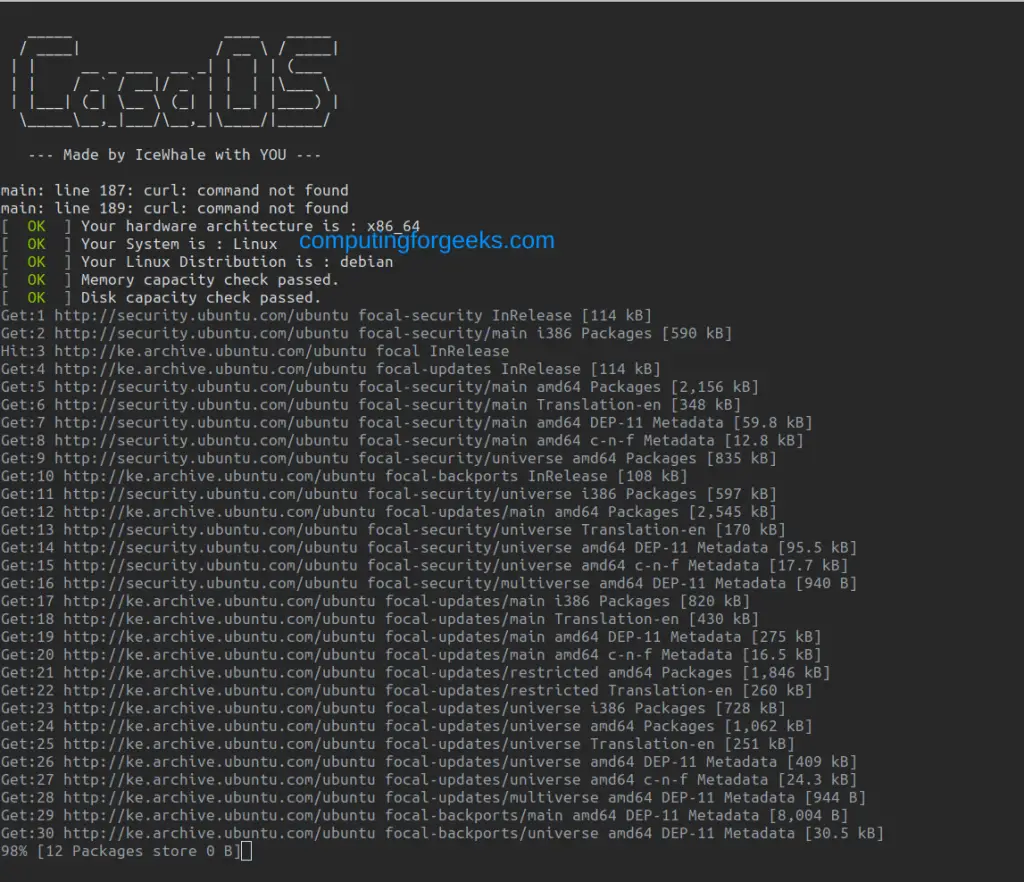
To make the installation easier, CasaOS have developed a script for the installation process. To pull and run the installation, you can use any of the below commands:
wget -qO- https://get.casaos.io | sudo bash
##OR
curl -fsSL https://get.casaos.io | sudo bash
Proceed as shown below:
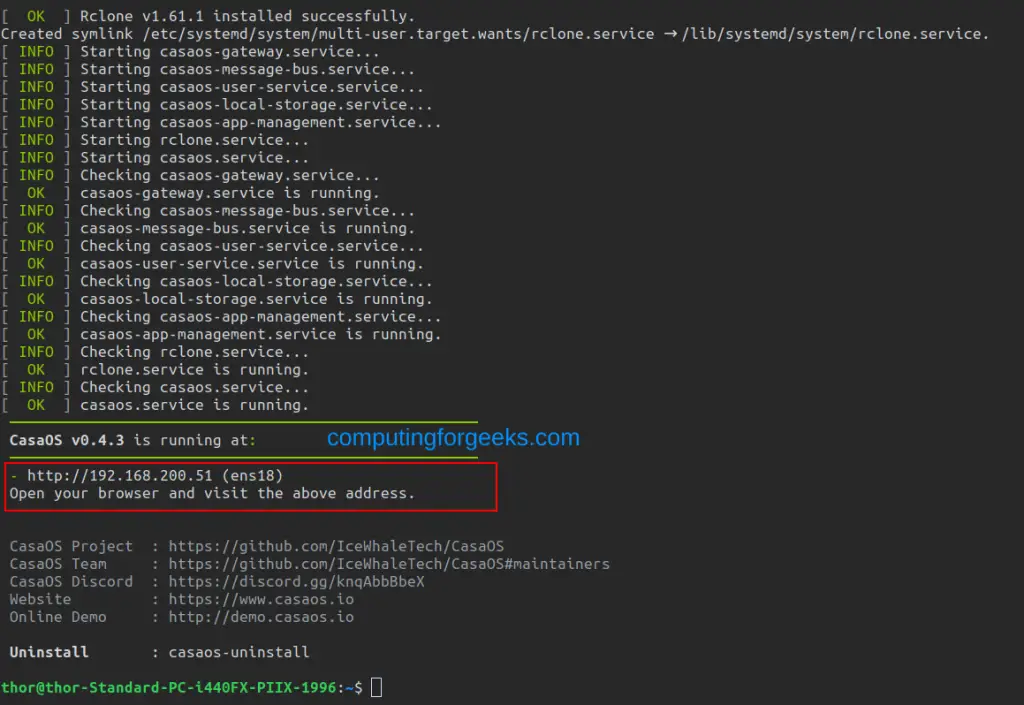
Once complete, you will see this:
Access CasaOS Web Interface
You can now access the CasaOS web UI using the URL http://IP_Address or http://domain_name
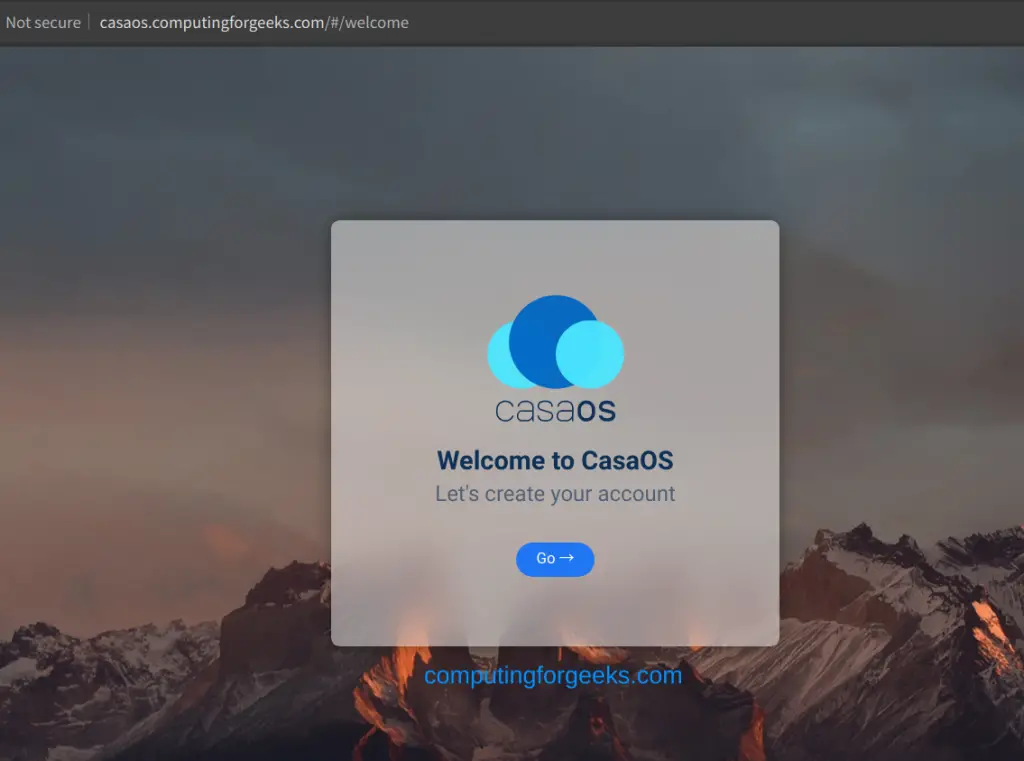
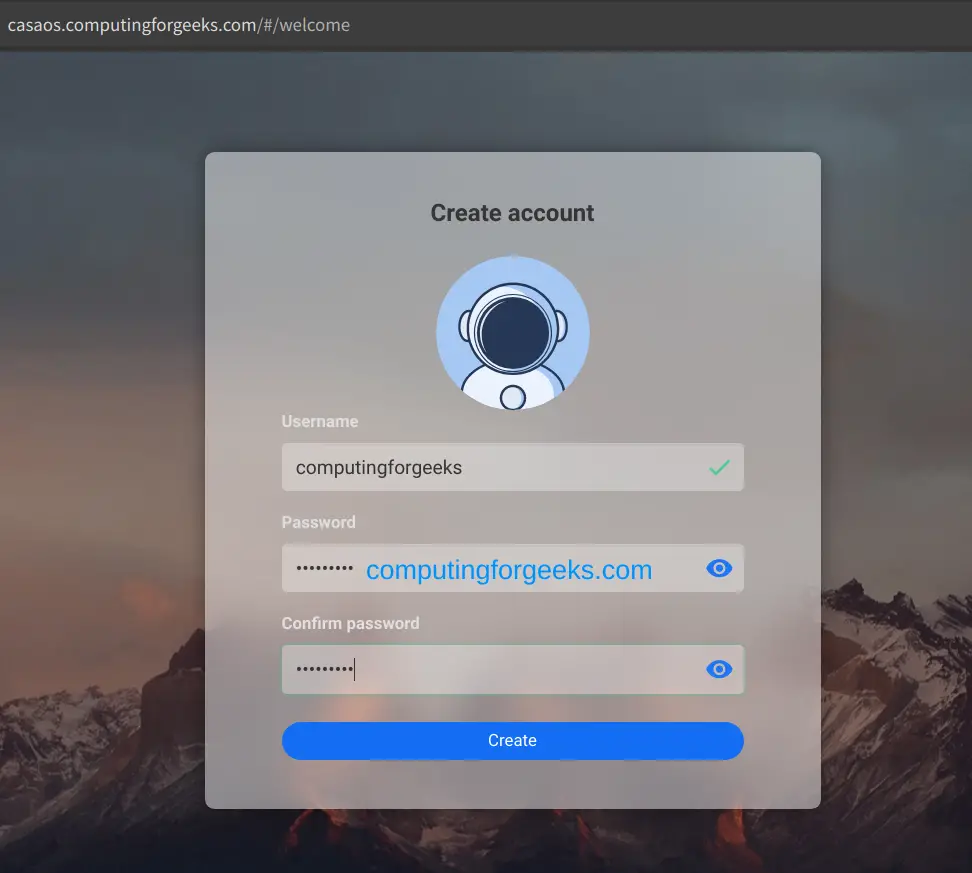
Now create your CasaOS user account.
Accept this:
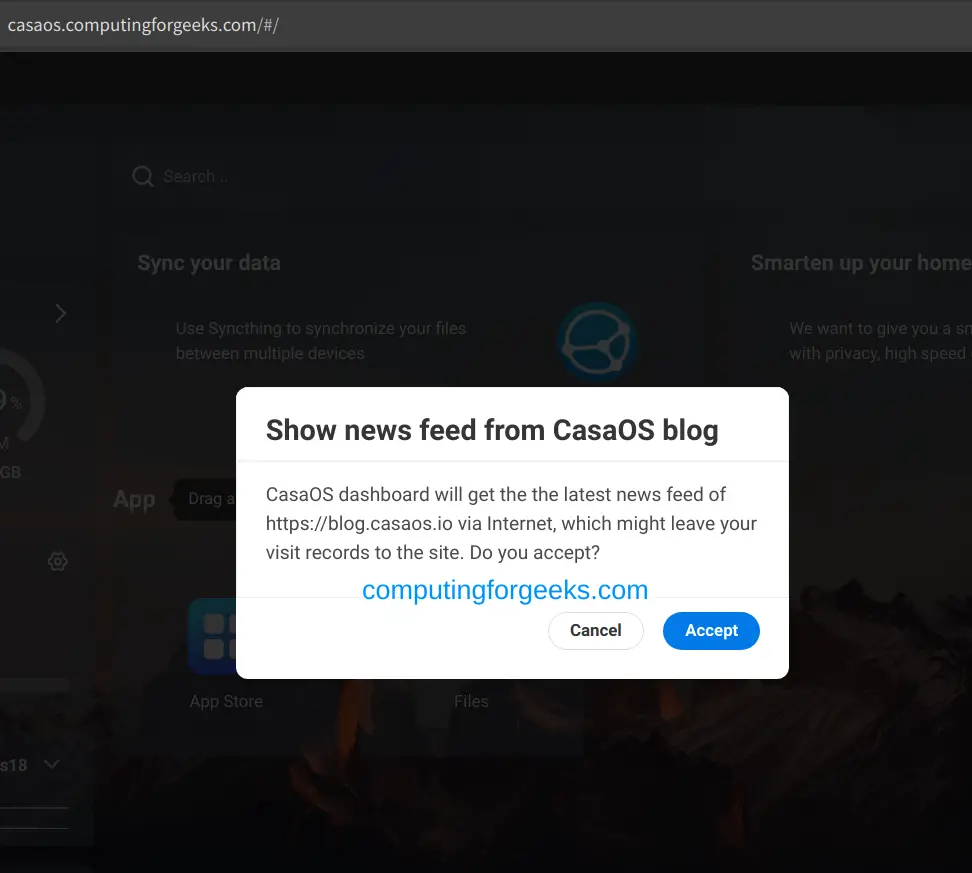
Now you will be able to access the CasaOS dashboard.
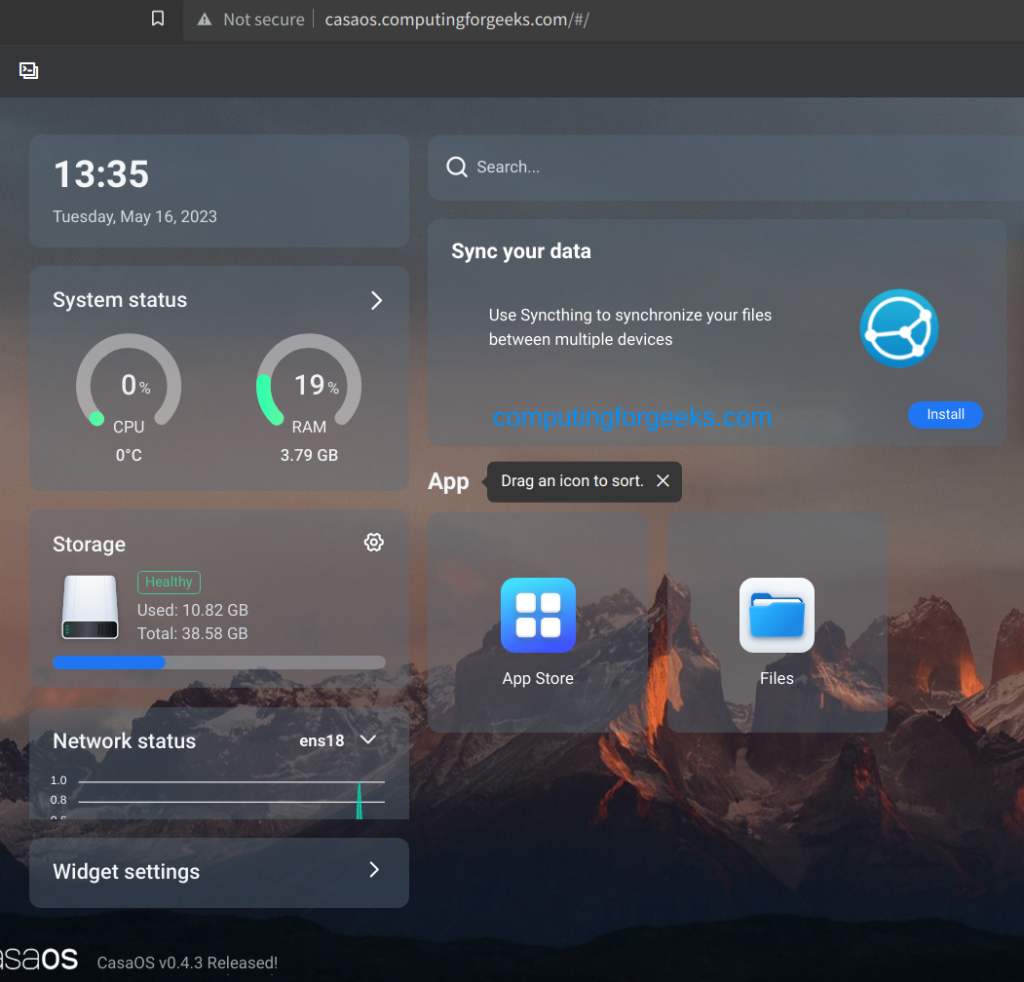
Now you have CasaOS installed and ready for use.
Getting Started with CasaOS
Now there are quite a number of things you can perform with CasaOS. In this guide, I will show you how to get started with CasaOS.
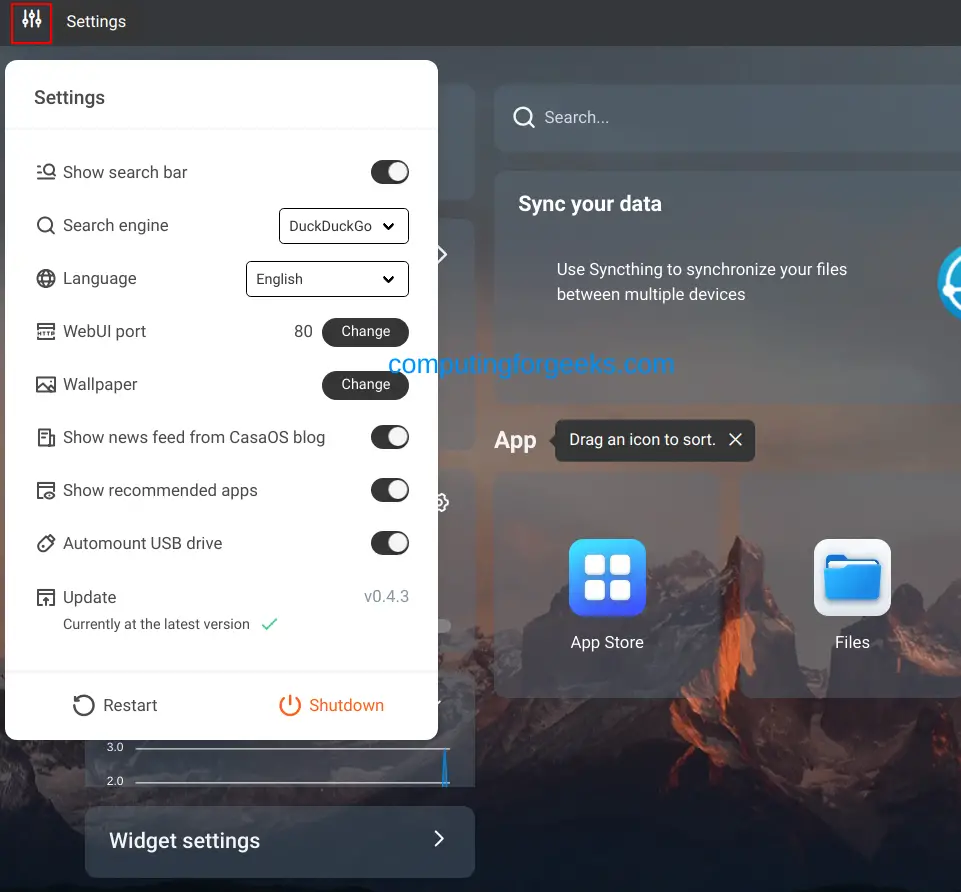
Under the settings tab, you can configure your search engine, language, UI port, wallpaper, auto mount for USB drive etc.
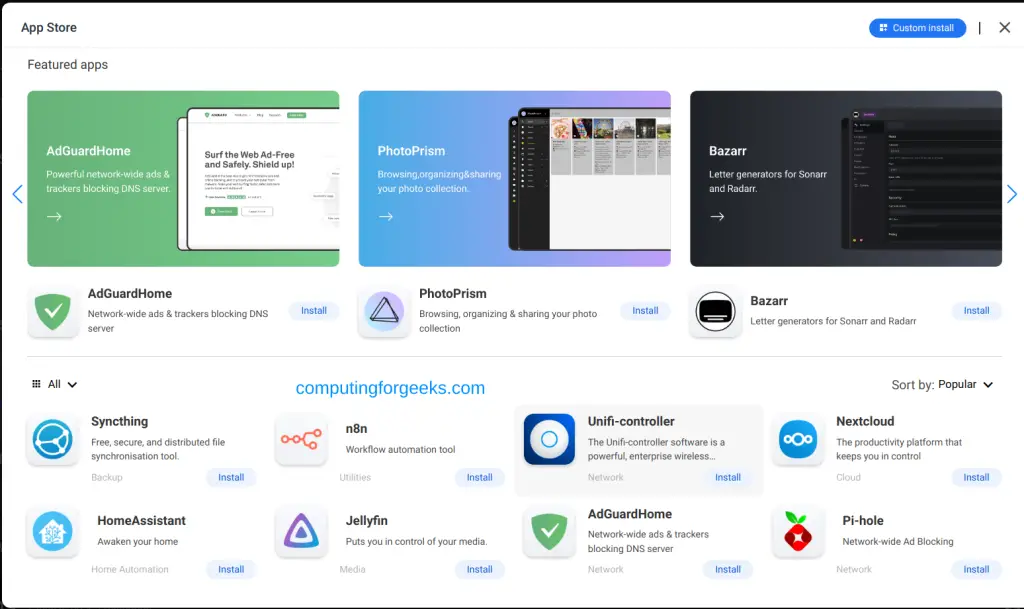
You can access the App Store, which consists of the apps you can install with just one click, including popular options like Nextcloud, Duplicati, Plex etc.
When installing an app, you will see this.
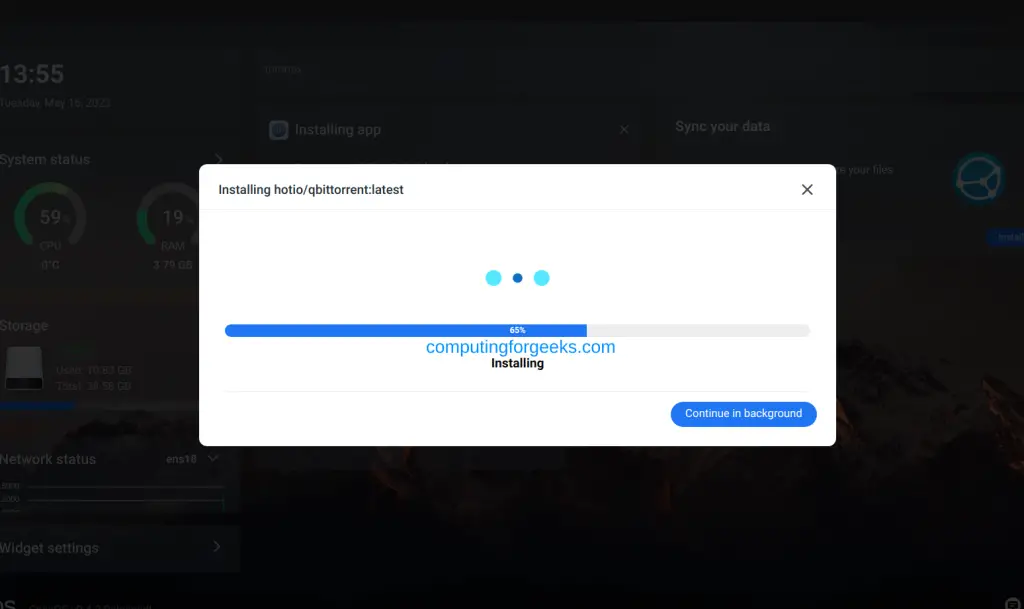
You can also make a custom app installation.
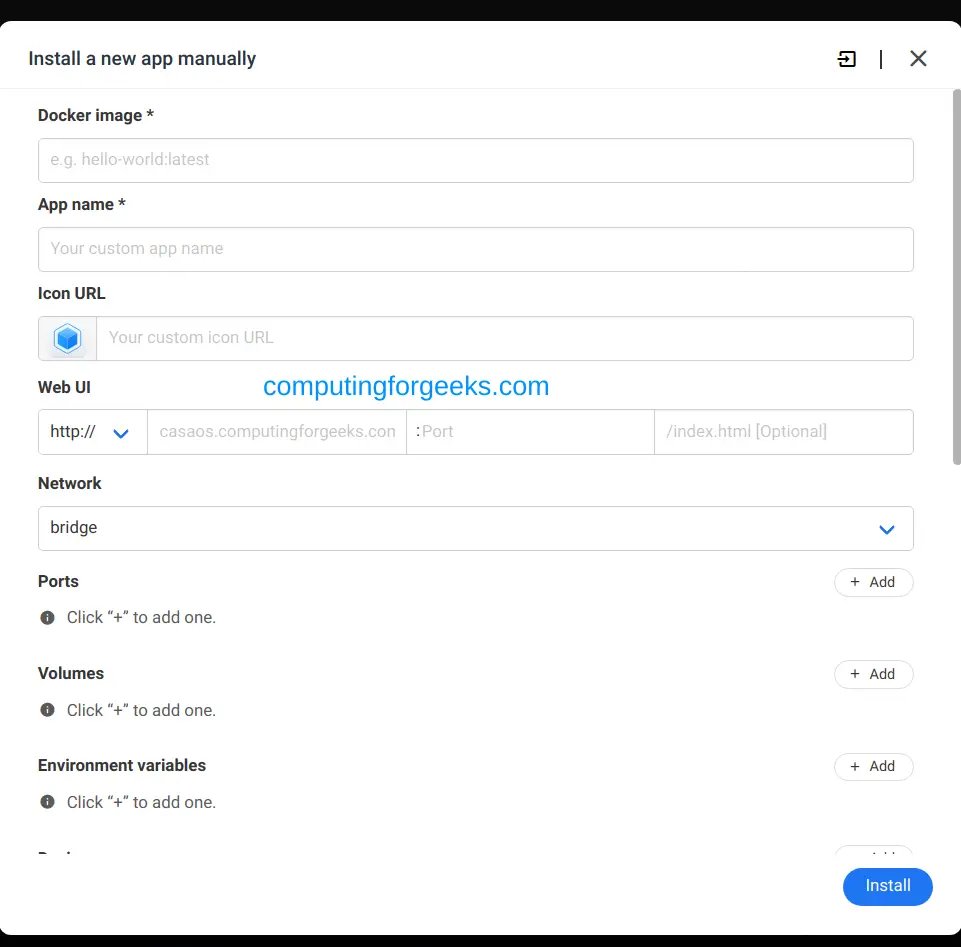
Once installed, the app appears here:
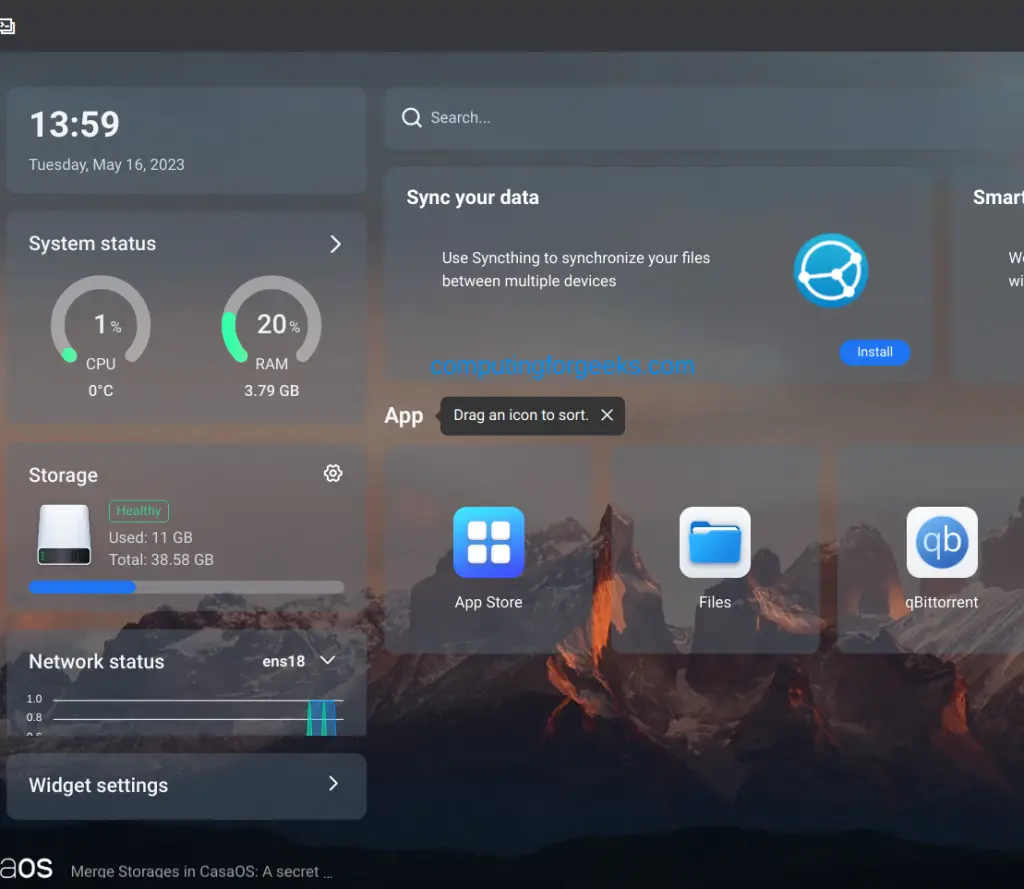
This app now runs as a docker container and can be viewed as shown:
$ sudo docker ps
CONTAINER ID   IMAGE                      COMMAND   CREATED              STATUS              PORTS                                       NAMES
1ceb437b75e6   hotio/qbittorrent:latest   "/init"   About a minute ago   Up About a minute   0.0.0.0:8080->8080/tcp, :::8080->8080/tcp   qBittorrent
You can also view, create and upload files on your system.
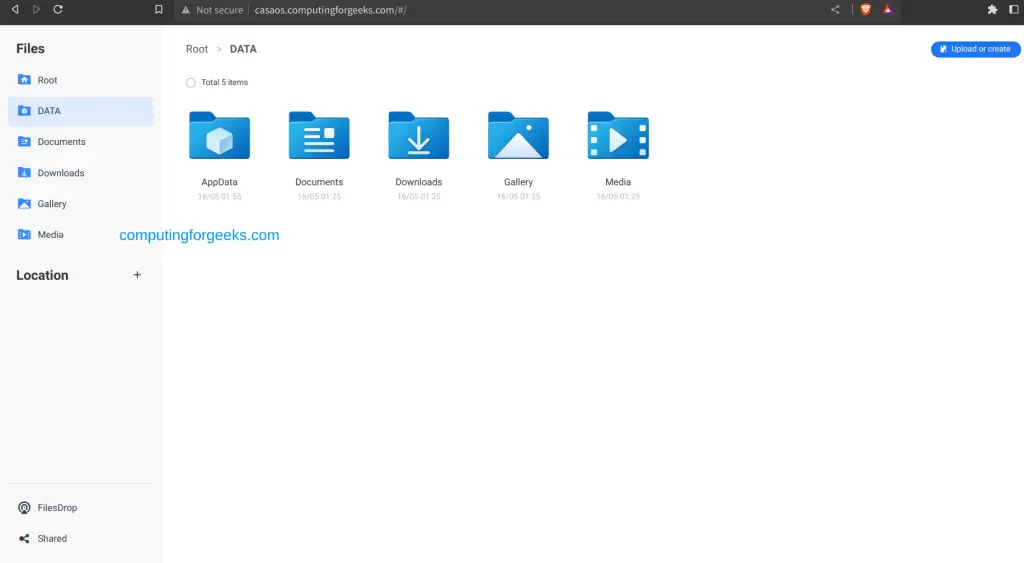
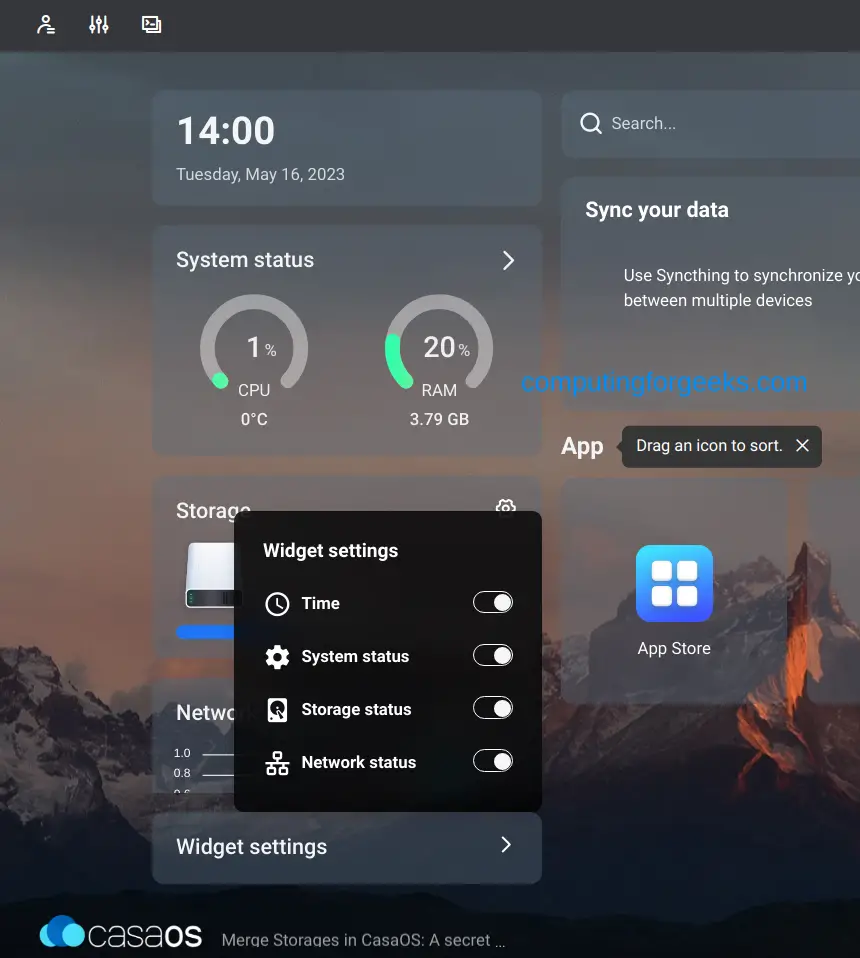
In the widget settings, you can add more or remove widgets to your dashboard.
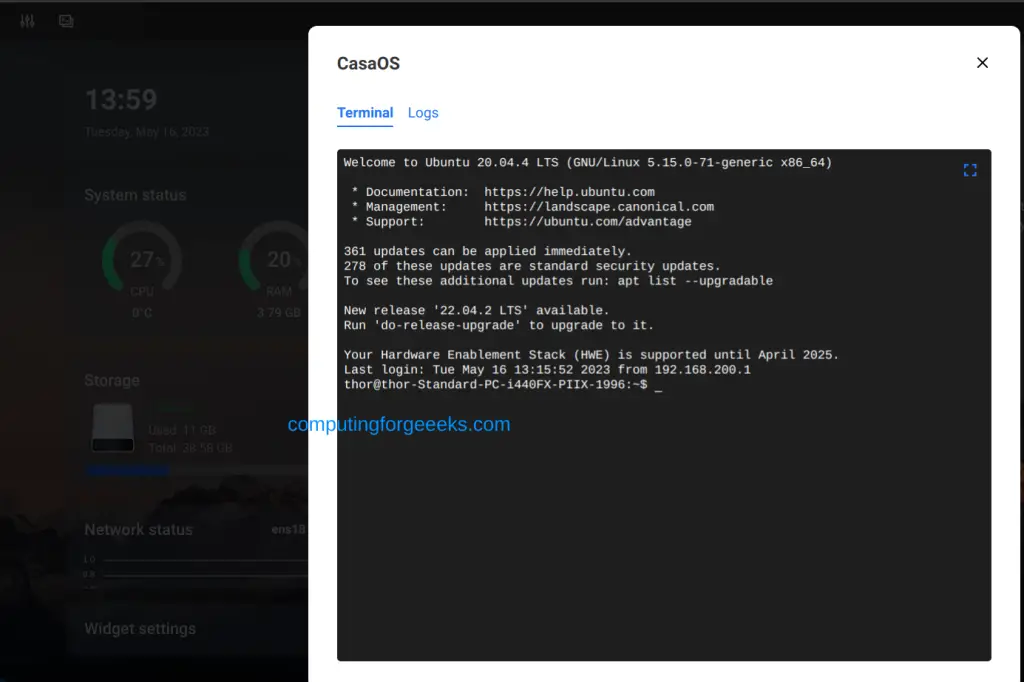
You can also access your host machine console:
Verdict
That is it on how to build Home Private Cloud using CasaOS. This can really be helpful for those who are looking for a hosted on-premises private cloud which can be managed easily. I hope this was helpful.
See more:
